17 · The owner's handbook
Chapter 06 documents every settings page. This chapter is the same territory walked as work: what an organization owner actually does, in order, to take a workspace from empty to properly run. The core setup is one sitting of about an hour; the rest of the chapter is the decisions that deserve more thought and the cadence that keeps the workspace governed after the first week.
Everything here needs the owner role. If a settings page is managed by owners and you are not one, the page itself says who to ask, and any member can check who owns the workspace at the foot of the menu on the left.
Before you begin
Five minutes of gathering saves the sitting from stalling. Have ready:
- The teammate list: names, emails, and who gets which role. Roles are assigned per person at invite time and changed inline later.
- Your logo as an image file, if you want exported briefs and decks co-branded.
- Your plan facts: what the workspace is on and what that includes. Billing states the plan, allowances, and seats; Chapter 10 is the full matrix. Two gates worth knowing before you promise features to the team: single sign on, SCIM, and the API ship on the Enterprise plan, and analyst benchmarks outside a plan that includes them are added per proposal as benchmark credits.
- Your organization's answer to two policy questions, even provisionally: how long contracts should be retained after upload, and whether you contribute anonymized data to the community benchmarks and outcome network. Both live under Data controls and both default to the conservative choice until you decide.
- If SSO is on your path: whoever administers your identity provider.
The first hour
Work top to bottom. Every step is reversible except where marked, and the Settings home vitals will confirm your progress: anything reading Off or 0 is a gap this sitting closes.
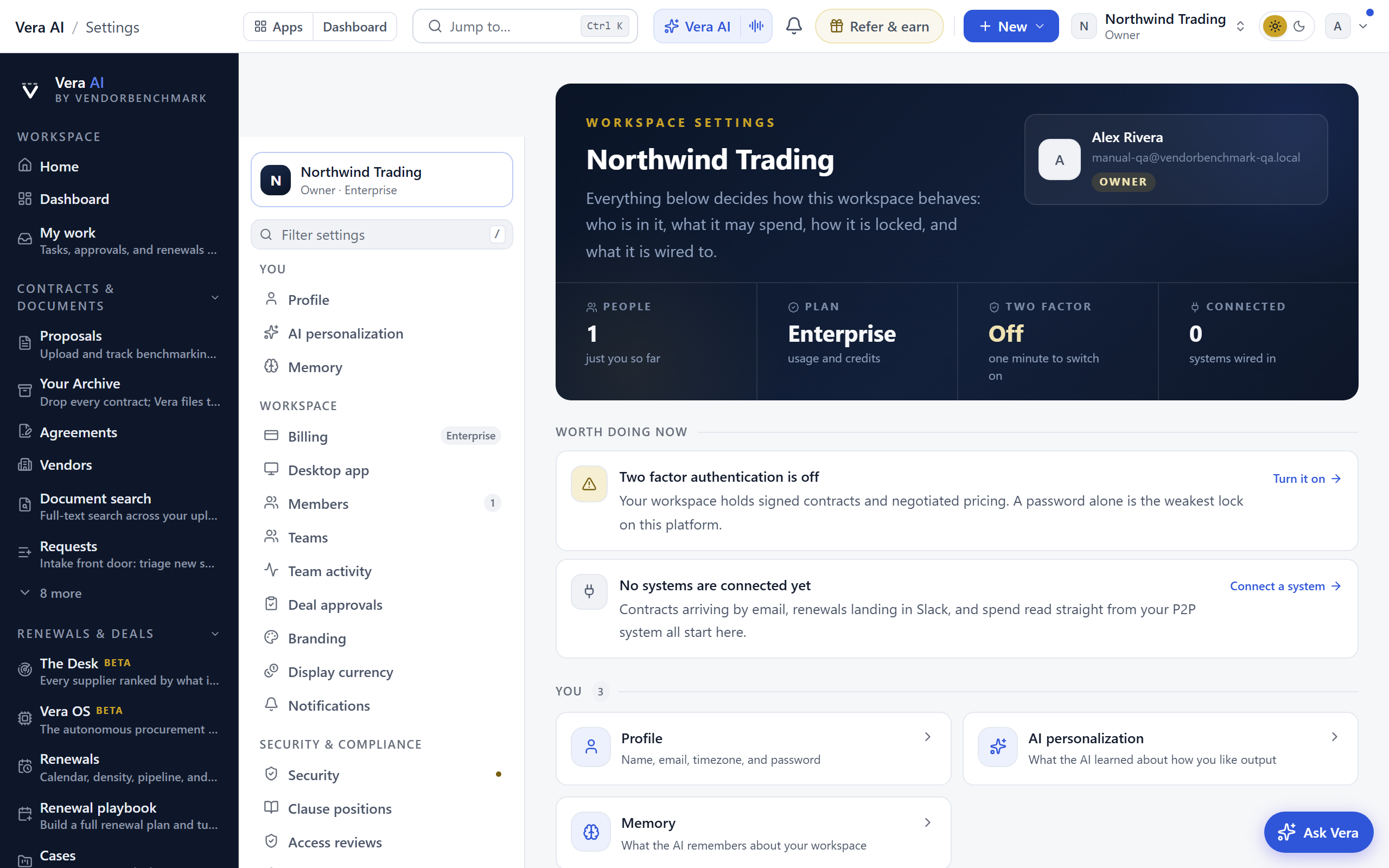
- Secure your own account first. Security: register your authenticator, turn on two-factor, store the backup codes. You are about to hold the keys to everyone's access; your account is the one that must not fall.
- Set the workspace identity. Branding: upload the logo so exported CFO briefs and boardroom decks carry it. Display currency: pick the currency your team enters amounts in. It relabels nothing retroactively and never converts a number; benchmarks stay in USD so market comparisons hold.
- Bring the people in. Members: invite one by one with a role each, or paste up to 50 addresses for a batch with one role. Invitations expire after 7 days and a resend restarts the clock. Decide domain capture while you are here: letting anyone on your email domain request to join replaces ad hoc invite requests with a queue you approve.
- Create the teams you will need for confidentiality. Teams: named the way the company organizes (Procurement, Finance, Legal). A team is an access unit: grant a restricted contract to the team once, and joining or leaving the team is the access change itself. Set these up before the first sensitive document arrives, not after.
- Decide whether deals need sign-off. Deal approvals is off by default. If your organization requires a documented approval step before signature, turn it on and name up to ten approvers. If it does not, leave it off; an empty ceremony helps nobody.
- Set the notification stance. Notifications: everything about renewals is strictly opt-in and starts silent, so the workspace never spams a team into filtering it. Turn on what you personally want (Turn on money-critical alerts switches on the renewal set in one click), then tell the team the same control exists for them; each person chooses their own. Owners additionally set the AI copilot rules and can post alerts into a Slack or Teams channel once one is connected.
- Load the sample portfolio, then plan its removal. From the dashboard, sample data gives every screen something to show while the team explores. Remove it before real data lands; Troubleshooting covers the cleanup if it lingers.
The hour is done when: the vitals on Settings home show two-factor On, people holding seats, and nothing urgent under Worth doing now.
Security defaults worth setting in week one
None of these blocks the first hour, and all of them are cheaper to set before habits form.
- Require two-factor for everyone. The organization policy lives on the same Security page as your personal setup. Turn it on once the team has had a day to register authenticators; from then on new members are held at setup until they comply.
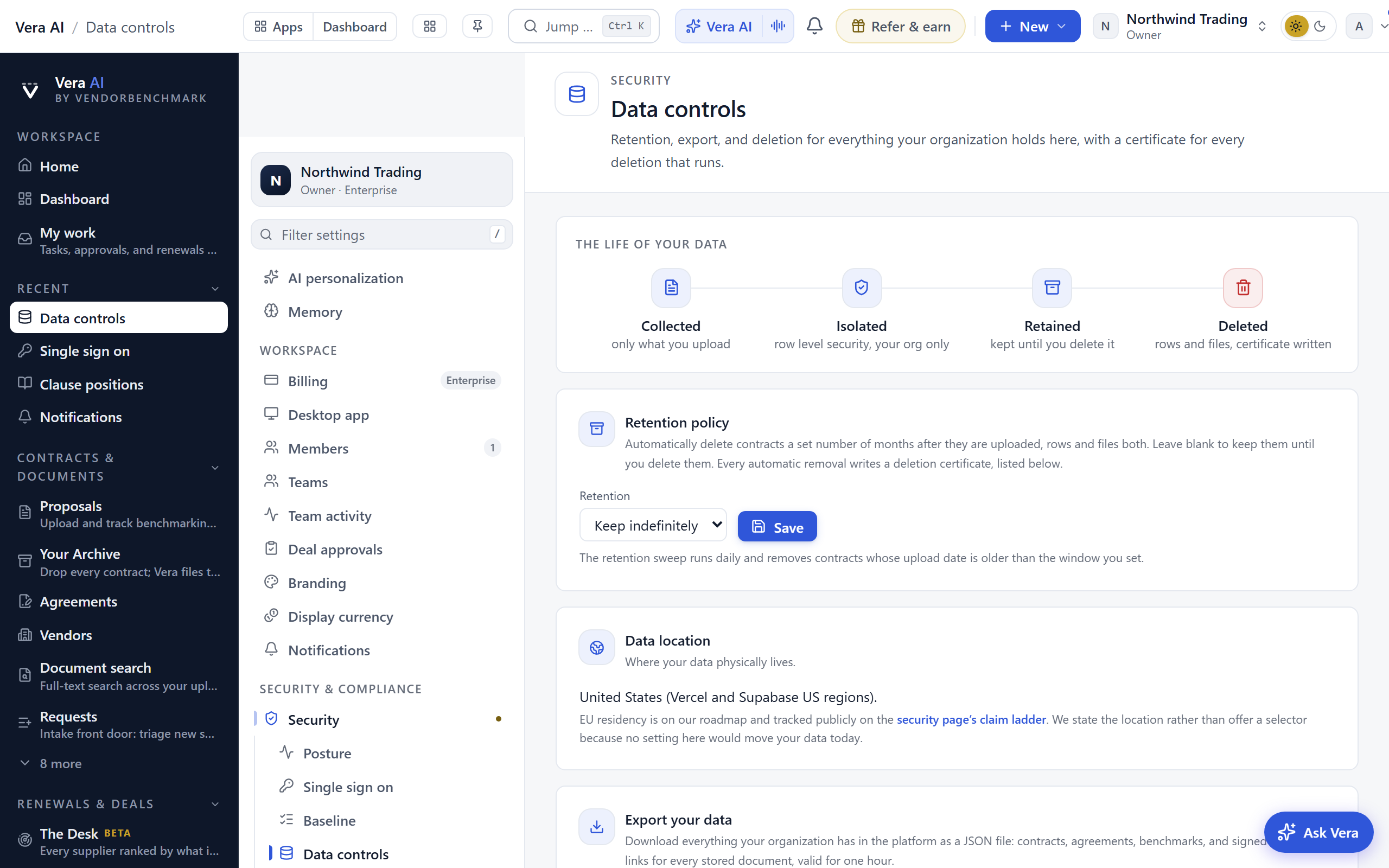
- Set retention deliberately. Data controls: a retention period auto-deletes contracts a set number of months after upload, rows and files both, with a deletion certificate written for each sweep. Blank means keep until deleted, which is the right answer for most estates; set a number only if your records policy requires one.
- Answer the consent question. The community and outcome network toggle is also under Data controls. Contributing anonymized data sharpens the benchmarks everyone draws on; opting out is one switch and entirely respected.
- Know your audit surface before you need it. Audit log: who did what, including file views and downloads as separate events, exportable as CSV, streamable to a SIEM via webhook. Nothing to configure on day one beyond knowing it is there; security teams that want the stream set it up under Integrations.
- Network and session policy is available, and sharp. Under Security baseline, owners can pin the workspace to known networks (IP allowlist) and bound session lifetimes. The allowlist refuses to switch on unless your own address is covered, but an office IP change later still locks everyone out until the policy is fixed from an allowed network. Prefer ranges over single addresses, and skip this control entirely unless policy demands it.
The single sign on decision
Single sign on is worth a considered yes or no rather than a default. The short version:
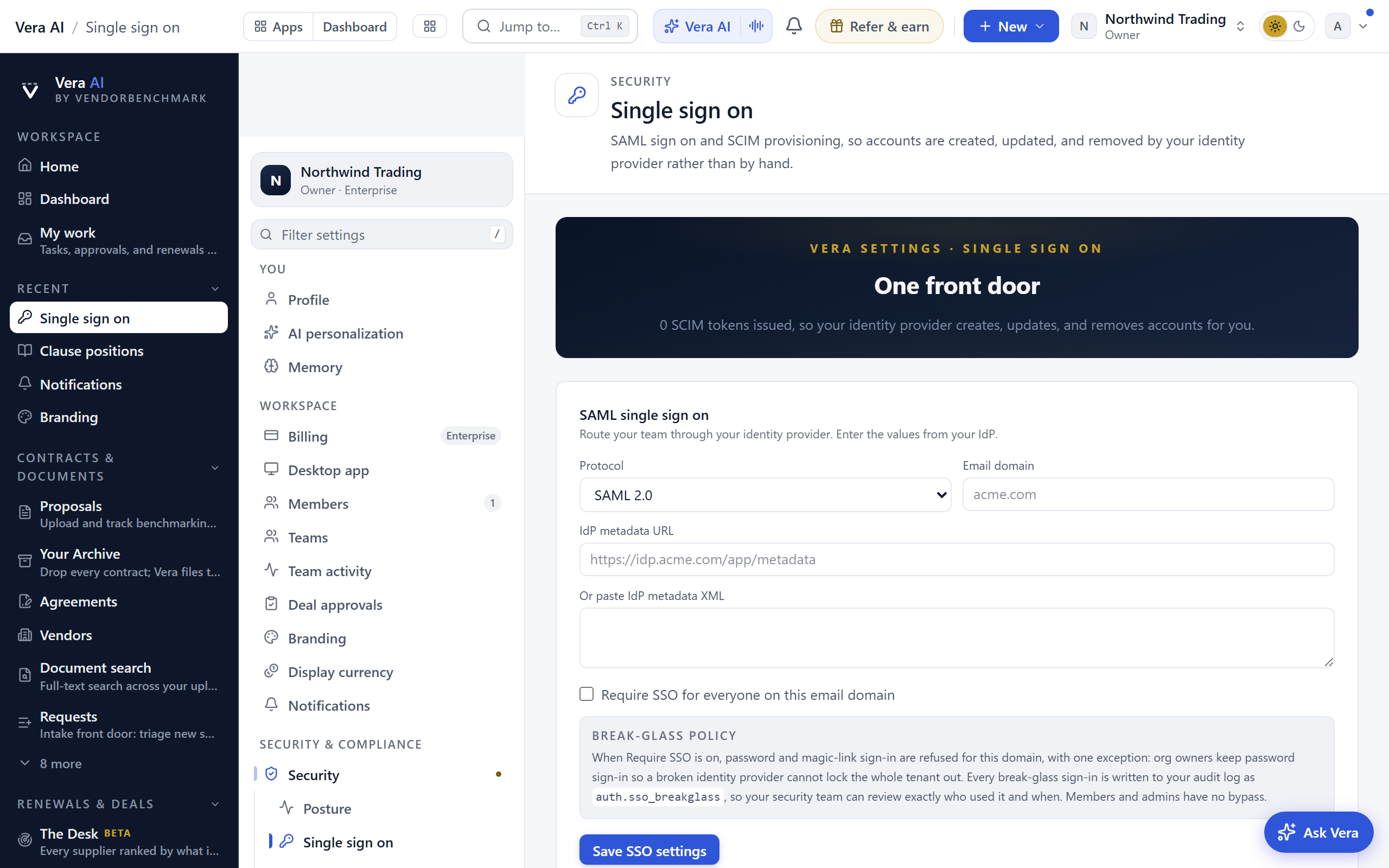
- Say yes when your organization already manages access through an identity provider and the workspace is on the Enterprise plan (SSO, SCIM, and the API are Enterprise features). SAML connects the provider; SCIM tokens let it create and deactivate accounts automatically, which makes your joiner and leaver process the single source of truth.
- The enforcement choice is the real decision. Connecting SSO lets people use it; requiring it for your domain makes it the only way in. Require it once you trust the provider setup, and read the break-glass policy first: org owners keep password sign-in even under Require SSO, so a broken identity provider cannot lock the whole tenant out, and every break-glass sign-in is written to the audit log.
- Group push, used carefully, replaces manual team upkeep. Pushed groups can map to Teams, and optionally to roles; ownership is never assigned through a mapping, by design. Members must be provisioned as users before group push places them.
- Say not yet when the team is small and stable. Two-factor for everyone plus disciplined offboarding covers a great deal, and SSO added later loses nothing.
- When you say yes, the walkthroughs are written: SSO with Okta, with Microsoft Entra ID, with Google Workspace, and SCIM provisioning.
Bringing the estate in
The owner's part of data-in is choosing how the estate comes in and clearing the way; Chapter 15 covers the team's part, and Chapter 18 is the full guide: the four ways in compared, spreadsheets and registers, coming from another tool, and the migration FAQs.
- A handful of documents: no ceremony. Upload a proposal for anything that needs benchmarking; Agreements for signed contracts with dates to watch.
- A folder, up to a few hundred files: Contracts. Anyone can run it; nothing about it is owner-gated.
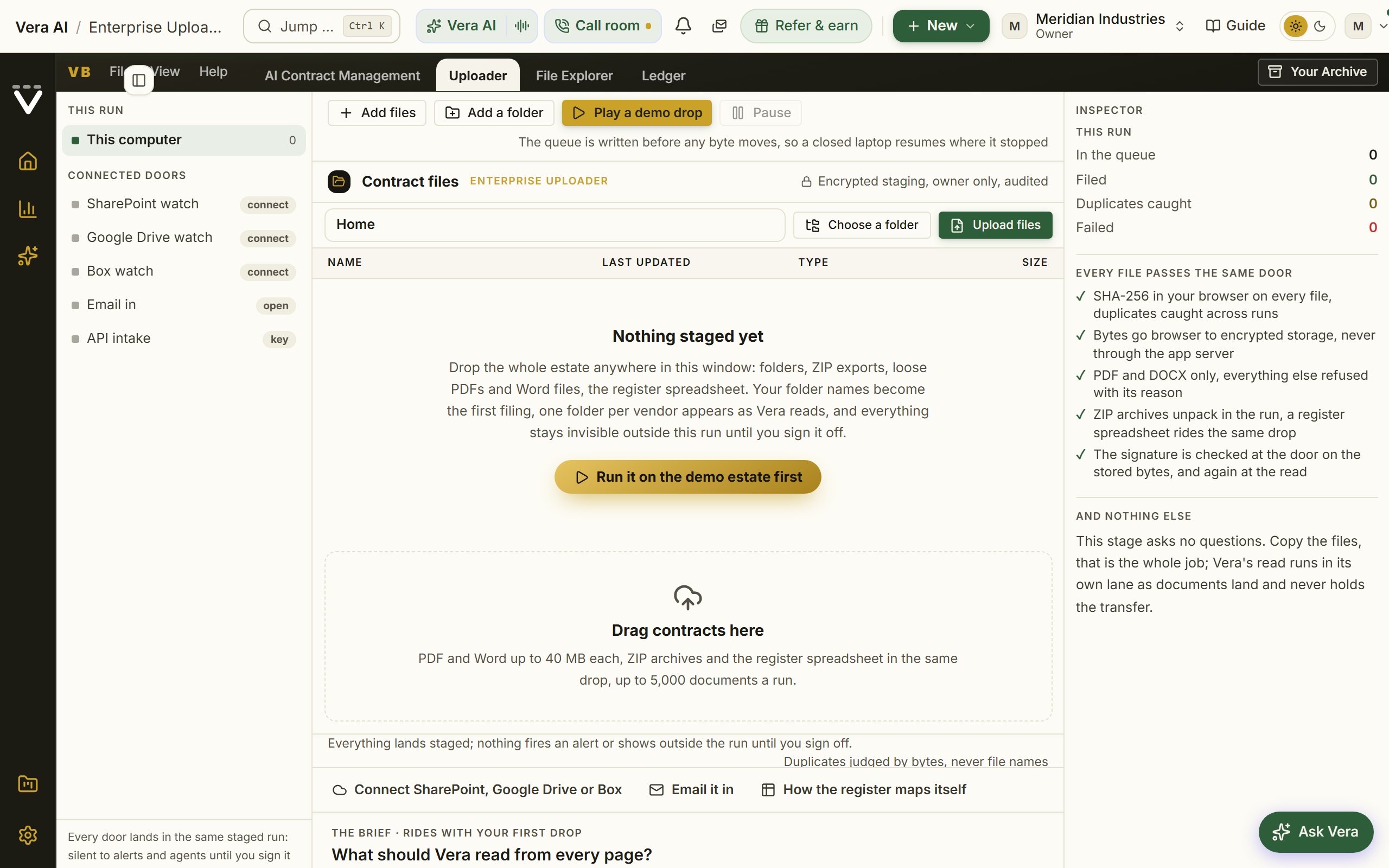
- A whole estate, hundreds to thousands: Enterprise Uploader, which is owner-run precisely because it writes thousands of records. Everything stays in staging, invisible to alerts and agents, until you sign it off against a quality bar; the sign-off writes to your audit log with the scorecard attached. It is open to every organization, in the Contracts group in the menu under Phase 1 · Bring it in.
- Then connect the systems that keep it current. Integrations: contract intake routes, the SAM and ITAM sources that know entitlements and deployments, procurement, and the invoice forward-in address. Connect your data and close the gaps is the recipe, and Data health is the scoreboard that says when you are done.
The governance cadence
A well-run workspace needs about an hour a month after setup, on three clocks.
- Weekly, five minutes. Your own My work queue, and a glance at Control screen if agents or workflows run in your workspace: what is waiting on a person is listed by name.
- Monthly, twenty minutes. Team activity: who has not started, which features go untouched, and the on-demand usage report when you want an adoption plan written for you. Seats and pending invitations on Members while you are there: revoke what expired unaccepted.
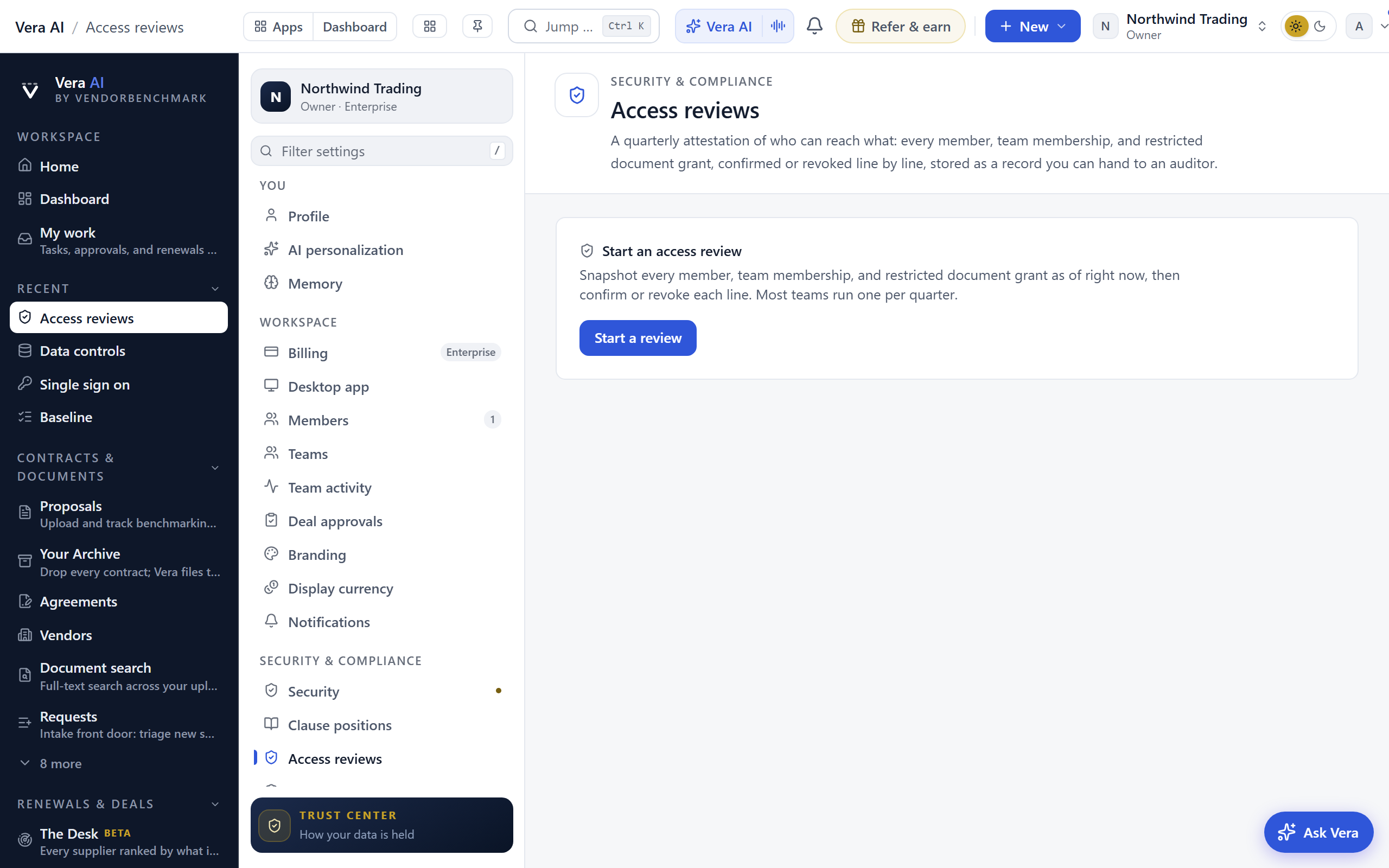
- Quarterly, thirty minutes. An access review: snapshot the whole access surface, confirm or revoke every line, and store the attestation. Completed reviews export as CSV for auditors. Pair it with a skim of the audit log filtered to member changes and file downloads, and a check under API that no key is lingering unused (keys expire within a year regardless).
When someone leaves
Offboarding is three moves, in this order, all on Members:
- If they are the only other owner, promote a replacement first. The platform refuses any change that would leave the workspace without an active owner.
- End access: remove them (or block, if the seat should stay reserved). Either signs them out everywhere immediately. For a lost laptop rather than a departure, Sign out alone ends every session without touching the seat.
- Let structure do the cleanup. Team memberships die with the member, and every confidential grant held through a team dies with the membership; nothing to sweep per document. The next quarterly access review confirms the surface is clean.
A member leaving of their own accord needs nothing from you: anyone can leave a workspace from the bottom of their own Profile.
The quarterly owner checklist
The standing review, one screen per line. Thirty minutes, four times a year.
| Standing? | The check | Where |
|---|---|---|
| ☐ | Access review completed and stored | Access reviews |
| ☐ | Two-factor coverage is full, or the policy explains why not | Security posture |
| ☐ | No pending invitation is stale, no seat is unaccounted for | Members |
| ☐ | Team rosters match how the company actually organizes today | Teams |
| ☐ | Audit log skimmed: member changes and file downloads look right | Audit log |
| ☐ | API keys are all known and in use | API |
| ☐ | Connected integrations synced recently, none silently failing | Integrations |
| ☐ | Retention and consent settings still match policy | Data controls |
| ☐ | Plan and allowances still fit how the team actually uses the platform | Billing |
Related: Set up your workspace · Settings & account · Your first 30 days
Next: Chapter 01 · Contracts & renewals
Was this page helpful?
Thank you. Your note goes straight to the team that writes this manual.