18 · Migration & data-in
Everything on the platform gets sharper with data: benchmarks read your real deals, renewals watch real dates, and Vera answers from your actual estate. This chapter is the complete guide to getting that data in, whether you are carrying one quote, a folder, a whole contract estate, or an export from the tool you are leaving. It ends where every migration should: at a green Data health score.
The honest headline first: you do not migrate into this platform by retyping. Documents are read, registers are mapped, and your corrections always outrank the machine's guesses. The work that remains for a person is choosing, checking, and deciding, not data entry.
Choose your way in
Four ways in, sized to what you are carrying. They combine freely: most organizations use the folder in week one and the connectors forever after.
| The way in | Best for | Your effort | What is standing afterwards |
|---|---|---|---|
| One by one | A handful of documents, or anything you want benchmarked now | Minutes per document | Analyst Benchmark in the analyst queue; agreements with watched dates |
| The folder | Your contract folder as it exists today, up to 300 files a run | One drag, then answer three questions | The estate filed by vendor, renewals flagged, an executive brief |
| The estate | Hundreds to thousands of documents, plus your contract register | A guided run with a sign-off | A reconciled, quality-scored portfolio that goes live in one stroke |
| Connectors | Keeping everything current from your other systems | An owner connects each source once | Contracts, invoices, and license data flowing in on their own |
Two properties of intake worth knowing before you pick:
- Nothing ambushes your team. Renewal alerts are strictly opt-in, so loading your estate never triggers a wave of email; deadlines start reaching people only when someone switches alerts on under Notifications. Migration Studio goes further: everything it loads is held in staging, invisible to alerts, digests, and agents, until an owner signs it off.
- Duplicates are detected by content, not by file name. Re-uploading the same archive is safe whichever way in you use: byte-identical documents are skipped, never imported twice, while two same-named order forms a week apart are correctly kept as two real order forms. In Migration Studio the skipped row also names the exact file it matched,
Duplicate of Main Contract.pdf; skipped., with Import anyway beside it for the rare copy you genuinely want kept.
Contract Management: four screens
Every contract you have uploaded, in four screens: what you hold and what needs you, the full list, the dates ahead, and a report to send. Use it to see where the estate stands, decide a renewal before its notice date, give a contract an owner and tell the board. Press any contract to open it.
On the screen
- The window: the title bar carries File, View, Team, Learn and Help, then Sample data, Talk to Vera, light or dark, Zoom, Full screen, Minimize, Maximize and Close. The left column has Find a contract (Ctrl K), Home, Vera AI and your pinned apps, then the four screens as numbered rows with a figure each (the keys 1 to 4), Needs you under Contracts, your vendors by cost, and Related (the Contract Agent and the Deal Agent). No strip of steps runs above the work.
- The head: the screen's name with one status tag, one line under it that states the screen once (on Contracts: the contracts under management and what they cost a year, what renews inside twelve months, the notice dates inside thirty days and the ones already passed), and the buttons at the right with one filled: Add a contract on Overview and Contracts, Decide the next one on Renewals, Boardroom deck on Report.
- Overview (1): Your contracts draws a circle for each vendor, sized by what it costs a year and ringed by its state (at risk, needs attention, on track); a count on a circle is how many of its contracts need a person. Press a vendor to see its branch: the vendor, the agreements its contracts are signed under, and the contracts. Needs you lists up to four rows, the most urgent first, each with one button: Decide, Assign owner or Check. The year ahead shows the next date on each contract, month by month.
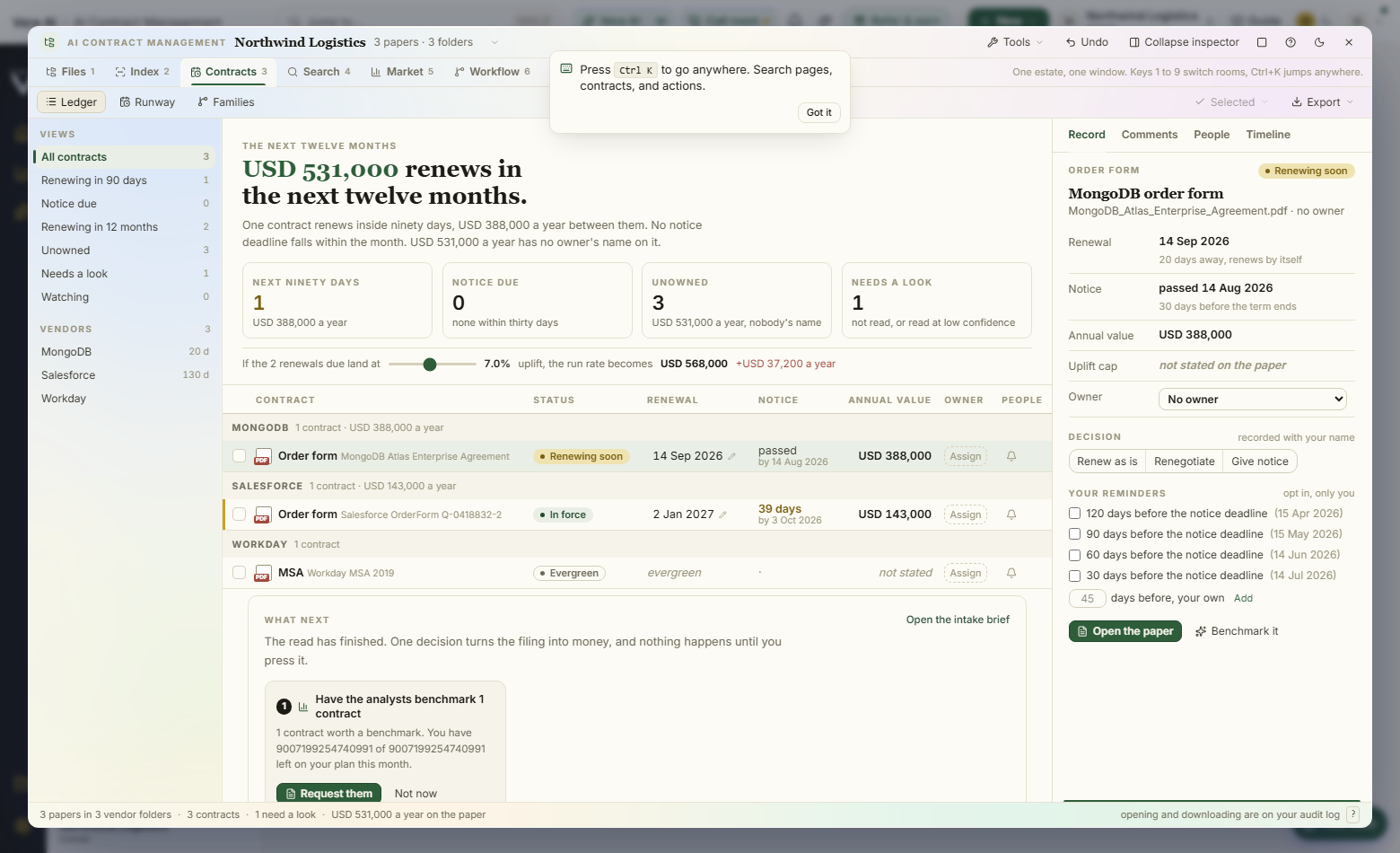
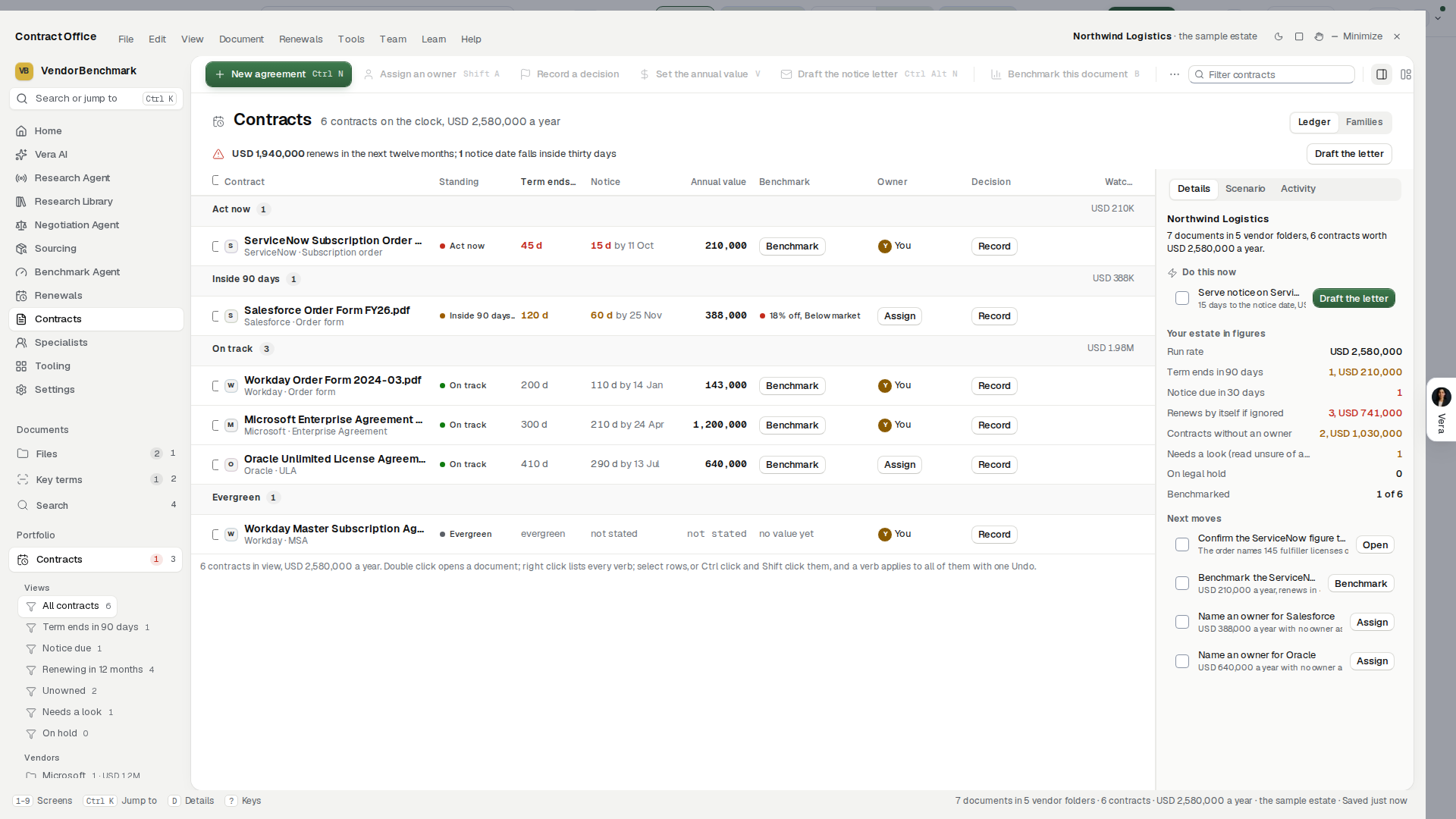
- Contracts (2): the ledger. The quick views are chips (All contracts, Needs you, Notice within 90 days, No owner, and Asked of you when a colleague has asked you something) with the Ledger or By vendor switch beside them. The table has one row a contract: the contract with its vendor and kind, its Standing as a pill (Act now, Inside 90 days, On track, Evergreen, No dated term), Term ends and Notice as dates with the distance under each (in red when notice is due inside 30 days or has passed), A year, Owner (or Assign) and Price (the benchmark rank, or Not yet). The rows are grouped by standing, what needs doing first on top, each group with its count and its money, or by vendor; only a row that needs a decision carries a Decide button, and a right click lists every verb. Filter by contract, vendor, kind or owner in the box on the panel, and press a header to sort. When the window is narrower, the columns the details column also carries leave first, so the contract's name is never cut off. Under the table, The year ahead draws every dated term in the next 19 months as a chip from its notice date (the ring) to its end (the mark), packed into lanes, and Vendors lists each vendor with its contracts and its money; press a vendor to narrow the ledger to it. Under those is the place more files go. One press on a row shows its details at the right; a second press, or Enter, opens the contract.
- Renewals (3): every contract with a notice date or an end date in the next twelve months, on one line from the notice date to the end. This year stands beside Next year, which follows the If prices rise by slider (0 to 15 percent); each contract is held to the cap it states. The last row totals both years. How a renewal goes names the three steps.
- Report (4): a written report from the same figures: the estate, what needs a decision, the year ahead, price position and the bottom line. Copy as text, Email and Boardroom deck are in the head, and the details column chooses which sections it carries.
- A contract: four tabs. Summary shows the contract's life (started, today, notice by, renews or ends), eight key terms (price, term, renewal, notice, price rise at renewal, payment, liability, leaving early), the price check, its family and what happened last. Document shows the pages, with each key term beside the page it is on. Team is the discussion and the people who can open it. History lists every read and every change, with who and when.
- The price check: three answers once a contract is benchmarked: what it costs and the discount it carries, what comparable customers get as a range with its midpoint, and where it ranks, with the gap in points and in money over the term. Benchmark this contract runs it where there is none.
- The details column: it leads with what to do now: on a row selected in the ledger, the one thing the contract asks of you (give notice, decide, assign an owner, check the read, see the price check, or nothing yet) with the press that does it; then the term as a bar with today, the notice date and the end marked, the term's facts, the price check where there is one, the contract's facts, an If prices rise by lever with this year and next year, every move, and questions for Vera. On an open contract, the same card, then the decision (Renew, Renegotiate, Give notice), the owner, a reminder 7, 14 or 30 days before the notice date, who it is shared with, and questions for Vera. With nothing selected it names the contract that needs you first, with its button. I hides or shows it.
- Right click: on any contract, in this order: Open, Open the document, Decide the renewal, Assign or change the owner, Check the price, Comment or ask a colleague, Share, Draft an email to the vendor, Ask Vera about it, Show its vendor on the map, Copy a link, and Delete. On a vendor: Open its contracts, Show its branch on the map, Ask Vera about it.
- The boardroom deck: eight slides: Cover, The estate in numbers, Where the money goes, The vendor map, What needs a decision, The year ahead, Price position and What to do next, each with speaker notes. Clear a slide's checkbox to leave it out.
- The window arrives in motion (since 13 October 2026): the head with its line word by word and its figures counting, the chips, the panels one after another, the ledger's and the renewals' rows, the vendor rows, the needs, the key terms, the report's sections and its charts drawing; the details column refills when you pick another contract. The vendor map keeps its own motion. Reduced motion in your system leaves the window still, as before.
- The status bar: the keys: 1 to 4 the screens, Ctrl K find a contract, N add a contract, Enter open the selected contract, V Vera, and Esc back while a contract is selected or open.
How to use it
- Open Contract Management. Overview shows what you hold and, under Needs you, what to do first.
- Press Decide on a row and choose Renew, Renegotiate or Give notice. The choice is recorded on the contract with your name and the time, and the next step is offered: Open the Deal Agent, Draft the notice, or Ask for a price rise cap. Undo withdraws it.
- Press Assign owner on a contract nobody owns and pick a colleague. The owner is told when its dates come up.
- Press any contract to open it. Read its life and key terms on Summary, open Document to see where the contract says each one, and use Team to comment or to ask a colleague: pick Ask and a name beside the box and it goes on their list with a due date.
- On Renewals, move If prices rise by to see what next year costs at that rise.
- On Report, press Boardroom deck. Press Present to show the slides full screen (arrow keys move, Exit leaves), or Download PowerPoint.
- Press Email on Report, or Draft an email on a contract, to open the email client with a draft already written. Read it, change it, then copy it or open it in your own mail.
- Press Add a contract (N) and choose PDF or Word files, up to 25 MB each. Vera reads each one and files it under its vendor.
Tips
- Sample data in the title bar shows a sample estate of seven documents from five vendors. Nothing you press on the sample is saved.
- Delete removes the contract, its file and its key terms for everyone in the organization and cannot be undone. A contract on legal hold is refused.
- Nothing is sent from the platform: an email is a draft until you send it from your own mail.
- In the PowerPoint each slide is a picture, with its figures in the speaker notes.
- View, Earlier window opens the window this one replaced, described under The Contract Management Portal: Sign, Tasks and approvals, the key terms grid, the register, Benchmarks, the board pack and Files. Links to Sign and to Tasks open it directly, and since 13 October 2026 an Earlier window row under Related on the left does too.
Related: Entitlement Agent · The whole estate: the Enterprise Uploader
The Contract Management Portal
This is the window Contract Management replaced on 5 October 2026. It is still here for the screens the four do not carry: Sign, Tasks and approvals, the key terms grid, the register, Benchmarks, the board pack and Files.
One window over the whole estate, built as a Windows application: twelve screens, one set of documents, one model every figure derives from. Use it when you want to copy contracts in, have them read, work the renewals, move files through their stations, watch the signatures, see where each deal stands, and stand back over every vendor you hold, without moving between screens. Opening any document hands it to the reader you already know.
Your Archive folded into this window in August 2026, so the estate has one window rather than two. /archive and its pages now redirect into the matching screen. Contract Management folded in on 25 August 2026 for the same reason, bringing its four unique boards with it: /agreements/command now redirects here, and a ?desk= link lands on the screen that took over its work. Each agreement's own file is untouched, at the same address as before.
On the screen
- The window: since 6 October 2026 the frame every app shares: the title bar, the sidebar with your folders and views, the six tabs, the head, the inspector in the details column on the right, and the keys along the status bar. The middle scrolls as one page, the head and the list together.
- Where it opens: a link that names a screen opens on that screen. Otherwise the window opens on the Default screen you choose under Settings, Display.
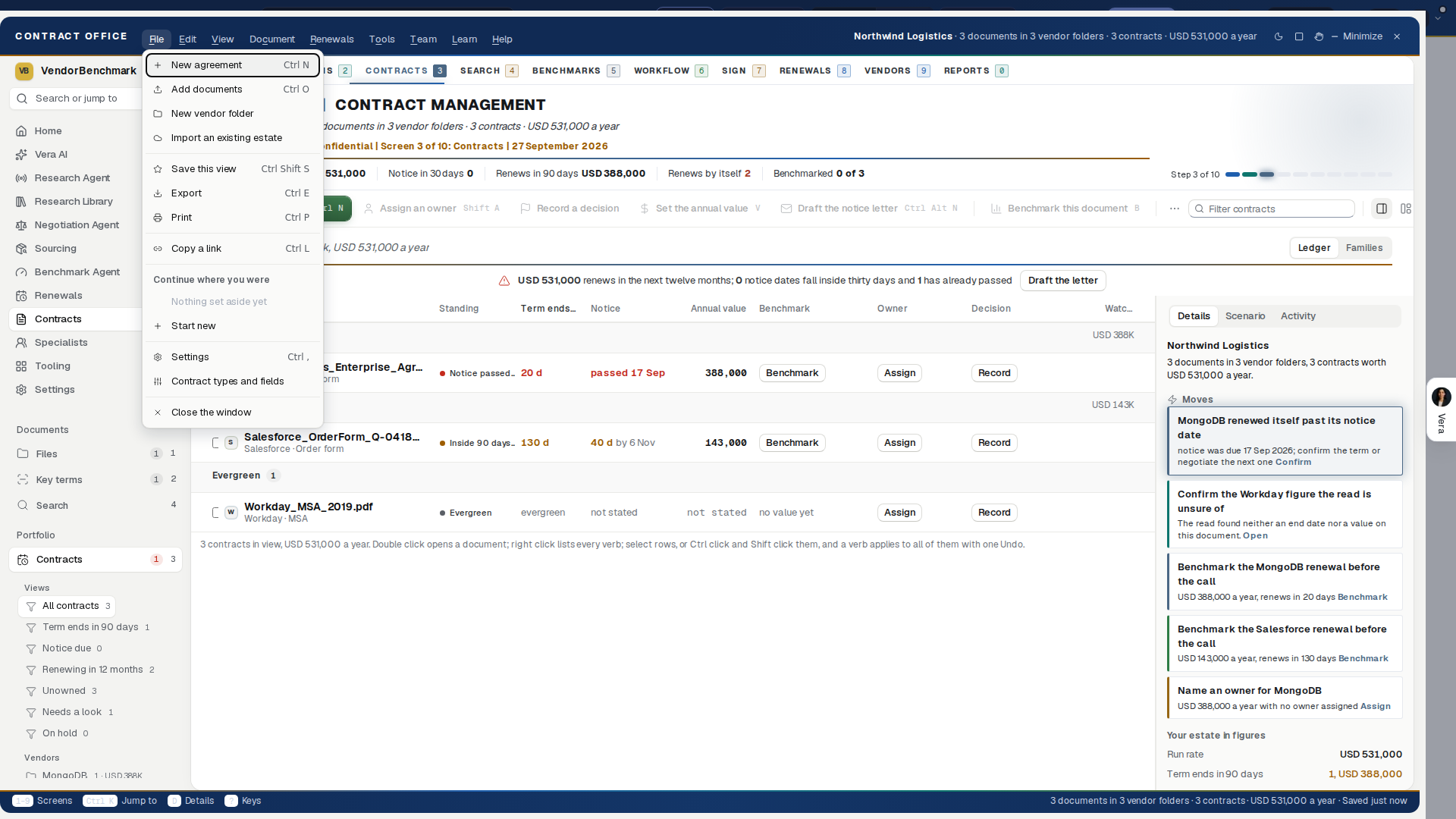
- The title bar: the nine menus, then Sample data, Guide (G), Talk to Vera (T), Email, light or dark, Zoom, Full screen (F), Minimize, Maximize and Close.
- The menus: nine, File, Edit, View, Document, Renewals, Tools, Team, Learn and Help, on the title bar itself, with Alt and the underlined letter as the shortcut.
The left side, from the top:
- Search every word (/) opens the Search screen.
- Home, Vera AI and your pinned apps, as in every app.
- Folders: All contracts, then your groups and one folder per vendor with its document count. + New folder makes one, and a folder with no documents in it is a group. Drag a vendor onto a group to file it there, onto the Folders heading to bring it back to the top, and drag documents from the list onto a vendor to move them. Pressing a folder opens it on the Contracts tab.
- Views: Not read yet, Needs a look, On legal hold, Recently added and Watching, each with its count.
- The screen's own lists where it has them: on Contracts, your saved views, your smart folders and the sources.
- Help: Walk me through it and Ask the guide.
The tabs: six across the top, keys 1 to 6: Contracts with how many documents, Calendar with the key dates in the next 30 days, Renewals with what renews in 90 days, Spend, Tasks with what wants a person, and Reports. The screen's filter box sits at the right end of the row. The other screens are in the View menu and Ctrl K: Key terms (7), Benchmarks (8), Vendors (9), Search (0), Register and Sign.
The head, on every screen:
- The screen's name against Contract Office, and one sentence that says what is at stake, with the figures in it.
- One row of figures: Under management, Notice in 30 days, Renews in 90 days, Renews by itself and Benchmarked.
- On the six tabs, the one filled button: Add documents (or Read N documents while some are unread) on Contracts, Subscribe to the calendar on Calendar, Decide N renewals or Set the uplift lever on Renewals, Run a cost review on Spend, New workflow on Tasks, and Export the board pack on Reports.
- The health of every live contract as a bar: on track, need attention, at risk.
How it works: six stops under the head of the six tabs, from File by vendor to Report. Press a stop to go to its screen. Walk me through it explains the screen you are on, Ask the guide opens the guide, and the x hides the strip.
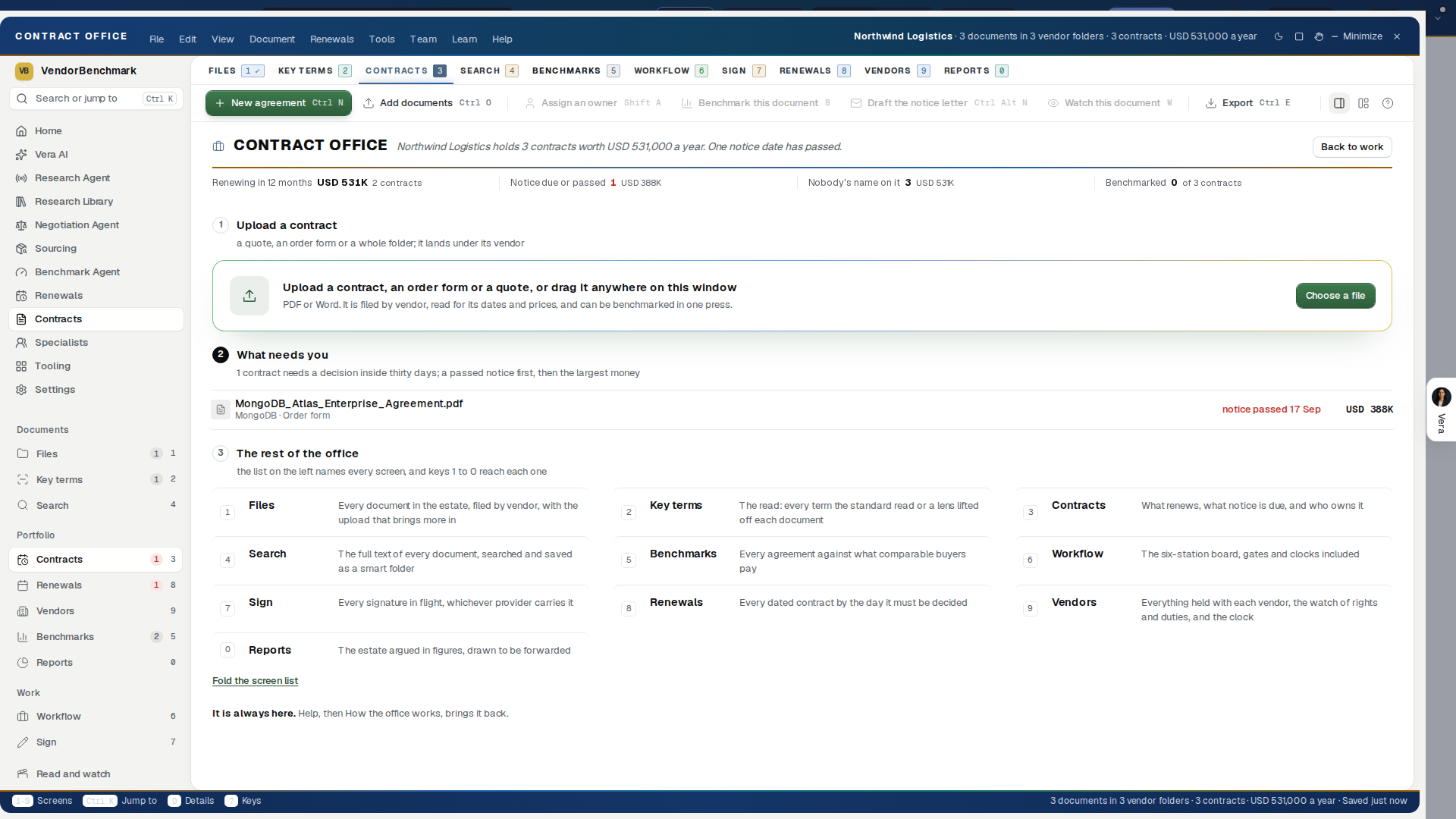
How the office works, in the Help menu: one screen with four figures, the upload, what needs you inside thirty days, and what each screen of the office is for. Back to work or Esc returns you to the screen you were on.
The inspector: four tabs down the right, and Ctrl I hides or shows it.
- Details shows what you selected, or the estate as a whole.
- Guide is Vera on this screen: what the screen is for, questions to ask her, a box for your own, and Talk.
- Moves lists what to do first, each one press, then Add documents, New folder and Walk me through it.
- Activity lists what was filed most recently, with Team activity and Audit log one press away.
The status bar: the keys (1 to 6 the tabs, / search, J and K the rows, F full screen, G the guide, T talk to Vera, ? every key), then the estate in one line, what is selected and when the window last saved.
The grid — every list is a grid you can work: a sticky header that sorts when pressed, 52 pixel rows (40 with compact rows on), one line per cell with the rest in the tooltip, money right aligned in tabular figures with USD in the column header, group rows that carry the count and the money, a checkbox column and a header checkbox for selecting several rows (Ctrl click and Shift click do the same), and a 3 pixel bar on the selected row. Every grid has a column chooser (View, Choose columns, or the right click on the empty space), remembered per screen. A narrow grid scrolls sideways under its header rather than crushing the name column; the contracts ledger instead keeps the columns that fit and names the ones it set aside in its footer, so nothing sits off the edge unannounced. Benchmark is held back at every width because it carries a press rather than a fact, and Notice is the first to go.
The details — in the inspector's Details tab, for whatever you selected, with three tabs of its own. Details argues the row: the document's facts, the term as a timeline from start to end with today, the notice date and the vendor's quarter close on it, what the document says about notice and uplift with the quoted line and its page, the three questions where a benchmark exists (your discount, what peers are offered, where you rank, with the gap in money over the term), shown since 27 September 2026 with the rank on the ladder from Poor to Top of the market and the deal and the peer midpoint marked on the peer range, and under the term a notice lever that starts on the period the document states and moves the last day to give notice and the days left to act as you move it, the products on the order, your own fields, the family the document belongs to, and every stored version; one filled button in it does the thing the document needs. Scenario is the what if instrument: the uplift for this document (following the estate's lever unless you move it), the seat count where the document prices seats, the term in years, Next year, N ways as bars with the difference from today (renew as offered, hold the vendor to the cap the document states, hold the price, price at your ask), and the ask lever over the band of what peers are offered. Activity is the thread with a composer and every read and write of the document. With nothing selected the details show the estate: Where it stands, one chart for the screen you are on (where every document stands on Contracts, how much of the standard read is answered on Key terms, annual value by where each contract stands on the Register, how much is searchable on Search, where the benchmarked contracts rank on Benchmarks, what renews month by month on Renewals with the months holding a notice date in amber, and annual value by vendor on Vendors and Reports), then Moves, up to five next steps the figures ask for with the first one lit, each one press away, then the estate in figures.
The case room: double click a contract and it opens as its own room over the whole window: the plan, the key dates, the benchmark, the research, Vera, the comments, the files and the people. See The six tabs and the case room.
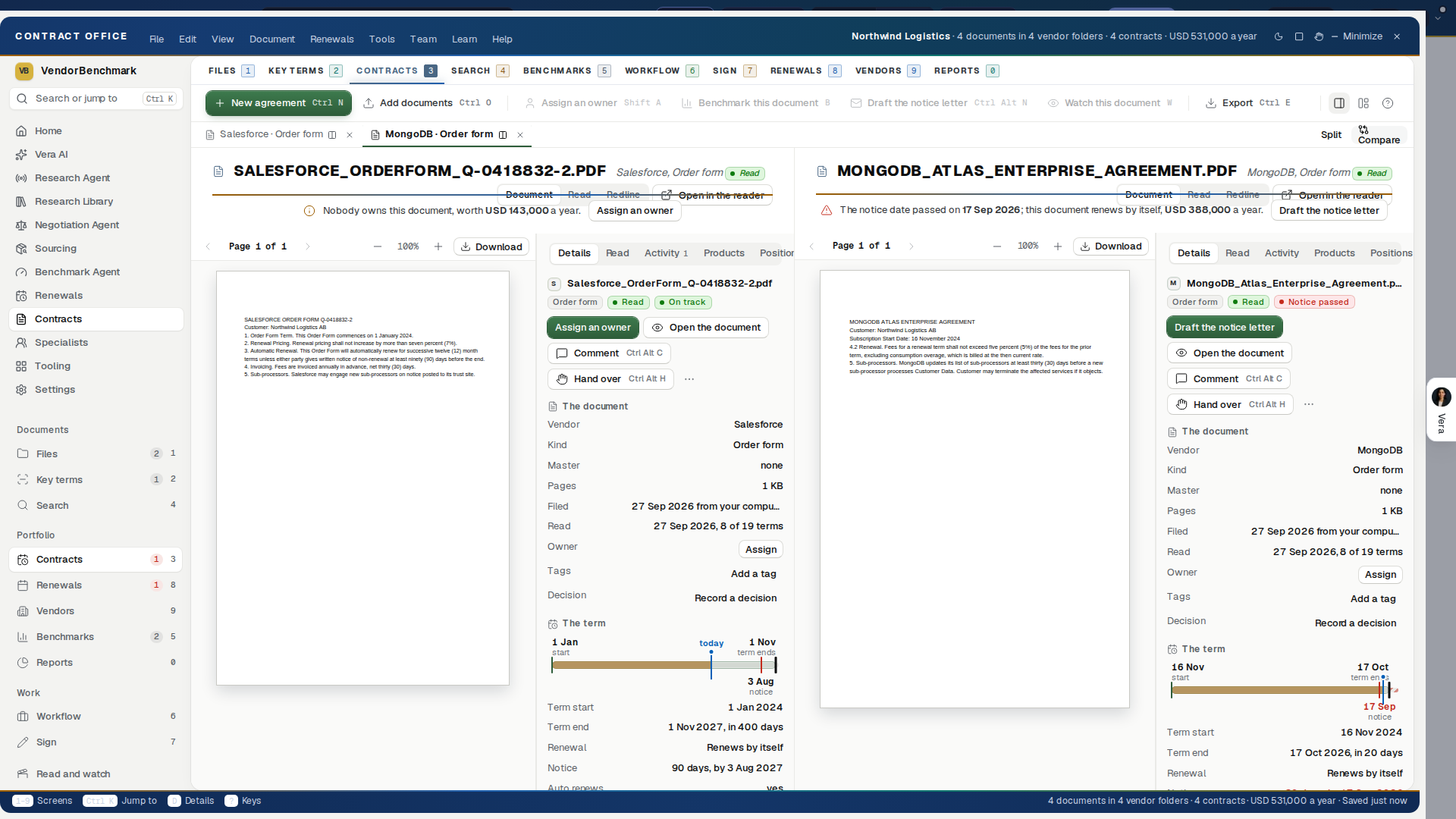
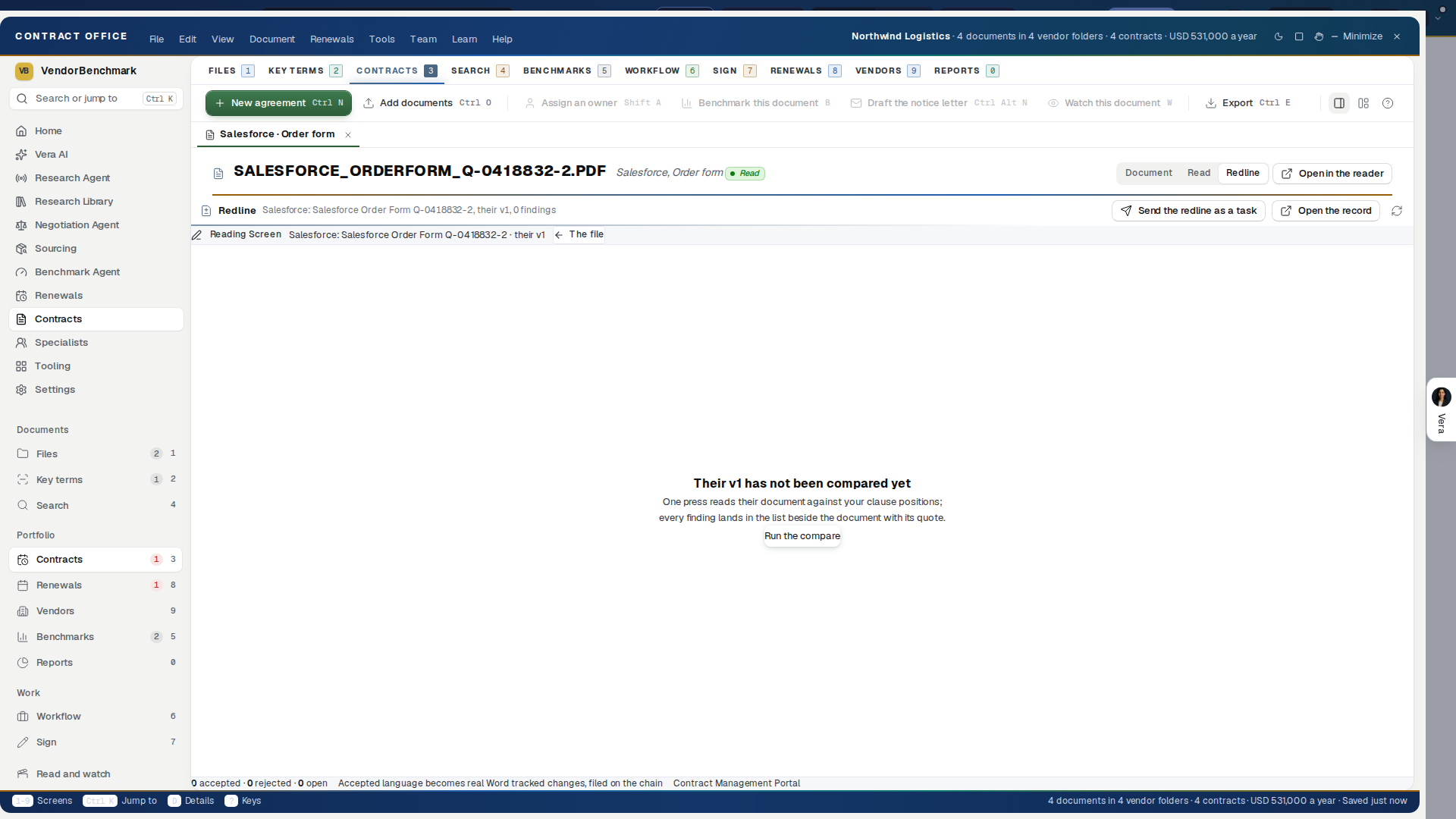
Open documents — a document opened in a tab (Open in a tab on the right click or in the Document menu, Ctrl+Alt+T) sits at the top of the content layer with its vendor and kind, and the screens stay one key away. A tab shows the document three ways: Document (the viewer with the inspector beside it), Read (the terms with their clauses) and Redline (the redline screen, below). Split puts the two most recent tabs side by side and Compare opens the comparison of the two. Ctrl+Alt+Right and Left walk the tabs, Ctrl+Alt+W closes one, Ctrl+Alt+S splits. Close the portal and open it tomorrow: the tabs are still there, up to eight.
The redline — press Redline on an open document (or Open the redline on the right click, Ctrl+Alt+R): their language against your clause positions, finding by finding, the tracked change drawing live as you edit, Accept, Edit or Reject each one, and one press composes the real Word redline onto the document's version chain. Send the redline as a task hands it to a colleague; Open the record opens the agreement file. A document with no record yet says so rather than opening an empty screen.
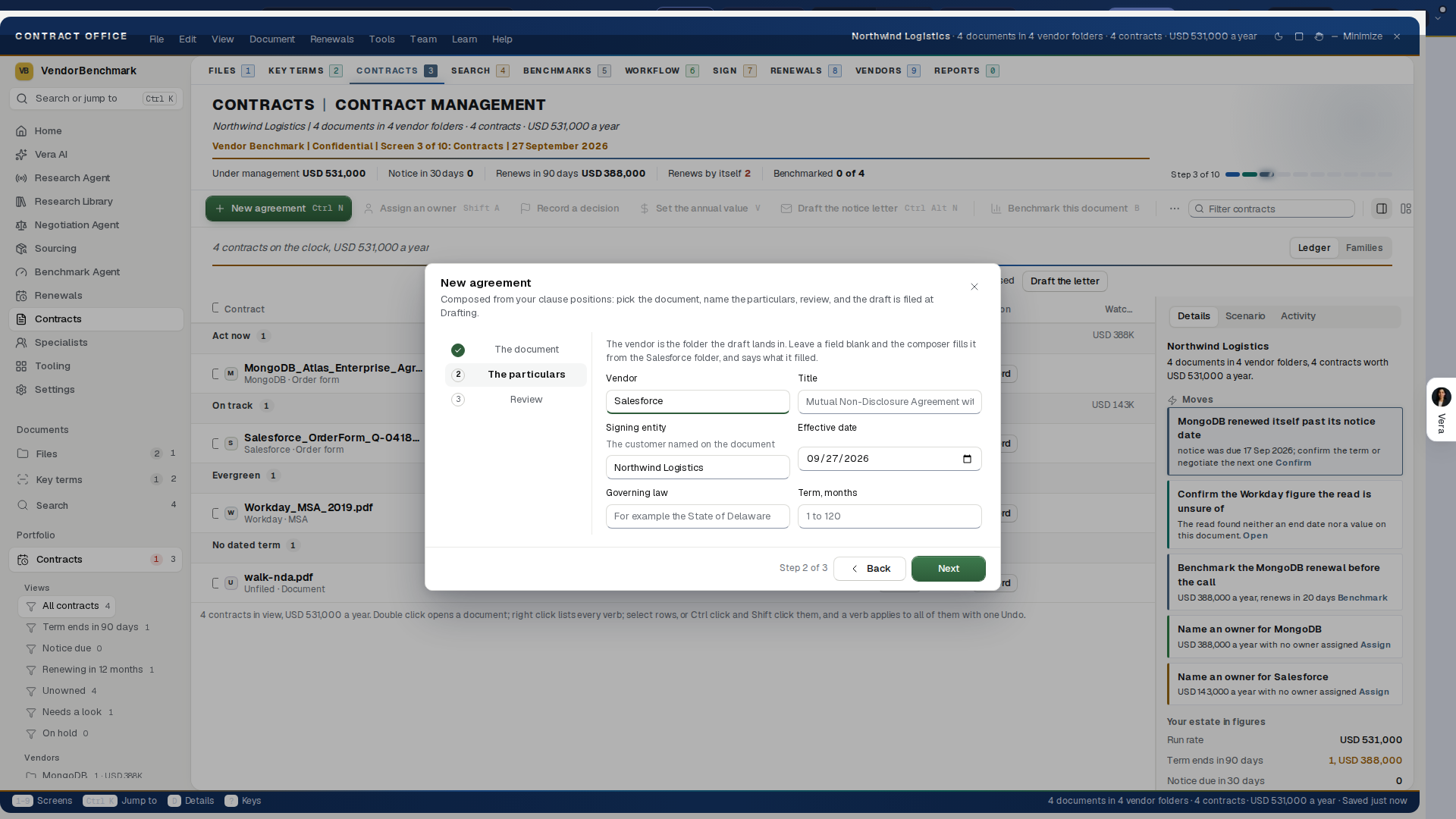
New agreement — File, New agreement (Ctrl N) starts a document from your own clause positions: pick the template (Mutual Non-Disclosure Agreement, Data Processing Agreement, Order Form, Statement of Work, Amendment or Contract Rider), name the vendor, and the draft composes with your preferred language where the library speaks and the template's own baseline where it is silent, marked in the draft. The customer, the governing law, the term and the parent agreement fill in from the vendor folder where they can. The Word file lands in the vendor folder as a document at Drafting, on the record's version chain, and opens as a tab; when their document comes back, the redline screen is one press away.
The twelve screens:
- Contracts (1): the explorer. Where you are in the folders, your groups as tiles, the view chips, and the grid of documents grouped by vendor. See Files: the explorer.
- Calendar (2): every key date on a month. See Calendar: every key date.
- Renewals (3): Vera's read of this screen at the top, then the twelve months across the screen or, on the Notice windows switch, every term ending in the next twelve months as a row, then the ledger by consequence. The uplift lever in the screen's head moves every figure at once, each row held to the cap its document states. See Renewals: the decision runway.
- Spend (4): the estate by annual spend. See Spend: the estate by annual spend.
- Tasks (5): the board of six stations, the approval inbox with a name and a time on every decision, and your own workflows. See Workflow: the files in motion.
- Reports (6): the estate argued in figures: spend by vendor, the year ahead at the lever, cycle time, standing and coverage, the kept ledger and the brief, with the board pack one press away.
- Key terms (7): the read. Documents down, the terms across, a dot per cell that says read, wants a look or silent, and your own fields typed in the cell.
- Benchmarks (8): every contract placed against what comparable buyers pay: your discount, the range peers are offered with its midpoint, where you rank, and the gap in money.
- Vendors (9): the register of duties with owners, dates and evidence, the rights the documents grant, the legal holds, the savings kept, the audit trail, the people, and one row per vendor.
- Search (0): every word of every document, the hits grouped by document with their page, and one question across all of them.
- Register: the ledger by consequence (Act now, Inside 90 days, On track, Evergreen, No dated term) and the Families view of every master with the documents that hang off it. See Contracts: the renewals.
- Sign: every envelope with each signer's standing, and the composer for a new one.
Notice windows, on Renewals: each row is a gray stretch up to its notice date, then the notice window to the term end in amber, or in red when it opens inside thirty days, with the days to the notice date at the end of the row. Press a row to select that renewal.
The right click, everywhere: any document answers a right click with the same menu, in this order:
- Open, Open the case file, Create a case file (saved once and opened in Case Rooms) and Versions.
- Four tools on the contract: Read it in the Contract Decoder, Benchmark it in the Benchmark Agent, Talk to Vera about it and Negotiation talking points.
- Rename, move to a folder, link to a master, add a tag and edit your fields.
- Benchmark, assign an owner, set the annual value, change the notice period and record a decision.
- Legal hold, watch, hand to a colleague, add a comment, read again and run a lens.
- New envelope and the export, then Delete last, refused on a legal hold.
- A right click inside a selection acts on all of it and says how many. A folder answers with open, new agreement here, add documents here, the research on the vendor, export, legal hold and delete. The empty space answers with New agreement, Add documents, Choose columns, Save this view and Reset the layout.
Ctrl K — one palette for the whole window: your recent documents when the box is empty, then screens, vendors, documents, views, commands and your recent sessions as you type, and from three letters the passages in the reads with the page they sit on. Type ? first and the rest of what you type becomes a question for the estate.
The keys:
- Screens: 1 to 6 the tabs; 7 Key terms, 8 Benchmarks, 9 Vendors, 0 Search; / Search; Alt Left and Right walk the screens you visited.
- The window: Ctrl K the palette; Ctrl , Settings, as a screen of this window; Ctrl I the inspector; G the guide; T Talk to Vera; F full screen; F11 maximize; ? the sheet of every key.
- Commands: Ctrl N New agreement; Ctrl O Add documents; Ctrl E Export; Ctrl P Print; Ctrl L Copy a link; Ctrl Shift S Save this view; Ctrl Z Undo; Ctrl A Select all.
- A row: j and k or the arrows walk the rows; Enter opens the row's details; F2 renames; Delete deletes; V, B, H, W, N and Shift A set the value, benchmark, hold, watch, comment and assign on the selected document.
Tools: the Tools menu opens Compare two documents, Extract a table, Group by subject, Diligence review, Vault, Contract policy, Document Agent, Entitlement Agent and Import an existing estate, then the obligations register, the kept ledger, the board pack, the approval inbox and the signing commands. A tool that is a window of its own parks the portal on the taskbar while it is open.
The sample estate: Sample data in the title bar shows a labeled sample in place of your estate: five vendors, seven documents, a renewal due and a notice deadline named, so every screen can be walked, whether or not your own contracts are filed. The switch is yours alone and stays as you leave it (see Sample data). The status bar says sample data, nothing in it can be changed, and switching it off brings your own estate back untouched. An empty estate offers the same switch as See a sample estate.
Coming back: the portal remembers what you were doing: compact rows, every screen's columns and sort, the levers, the filter you typed, the documents you had open as tabs, a lens you were describing, an envelope half composed. Open it again, on any browser, and the work is there, no question asked. File, Continue where you were lists the last five sessions, and Start new in the same menu sets the current work aside rather than throwing it away.
Vera at the wheel — say the screen, a vendor folder, a document, or a lever value to the specialist on the seat and the window does it: open Renewals, show the Salesforce folder, put the uplift at three, compact rows, clear. Every driven change says what it did and can be undone. Signing, sending, deleting, moving and holds stay your own press; the seat can open the Sign screen and stops there.
Light or dark — View, Dark mode flips the whole account between light and dark without leaving the office (the same theme as the top bar switch, remembered across devices); View, Follow the Windows theme hands the choice back to your operating system. Every screen takes the night interior from the same tokens.
How to use it
- Open Contract Management Portal from the menu on the left. It opens as its own window with nothing loading behind it, from Home as well.
- Read the sentence in the head: it says what is at stake on this screen, and the filled button beside it is the first move.
- On Contracts, press Add documents and pick the files, or drag files or a whole folder onto the window. Every document is read as it lands and filed under its vendor.
- Press a row and read the inspector: the term as a timeline, what the document says, where the deal sits. Move a lever in Scenario and watch the money move.
- Double click a contract to open its case room: the plan, the key dates, the benchmark and the people on it.
- Press 3 for Renewals to work the year ahead, and / for Search to find a clause.
- Right click any contract to read it in the Contract Decoder, benchmark it, talk to Vera about it or get negotiation talking points.
When something goes wrong
- A press lands at once. Assign an owner, set a value, record a decision, move, rename, tag or hold, and the row carries the change immediately while the server catches up behind it. If the server disagrees, the old value comes back and the window says why in the server's own words. Nothing is ever shown as done that was not done.
- A screen that fails, fails alone. A screen that cannot be drawn says so in place with a Try again that rebuilds that screen and nothing else. The frame, your open documents and every other screen carry on, and the window does not reload.
- Every part of the window answers. While one is reading it shows the shape of what is coming rather than a spinner over nothing. One with nothing in it yet makes one clear invitation. One whose read failed says what failed and offers Try again. One your seat may read but not change names the seat and who can grant the change, rather than going quiet.
- A large estate stays quick. The grid keeps only the rows on screen in the page, so an estate of five thousand documents opens and scrolls like one of fifty. Nothing about the grid changes: the same columns, sorting, groups, counts, money and selection, and j and k still walk the whole ledger.
- Nothing you type is lost. A filter, a half written notice letter, a note begun, the New agreement wizard's answers, a rename, a hold reason, a correction, a settings field mid edit: all of it waits for you through a screen switch, a closed window and a night's sleep. A draft is not a save; what you typed comes back where you left it.
- The keyboard reaches everything. Every control is reachable by keyboard with a visible focus ring in both themes, including on a selected row and inside a menu. A dialog holds focus while it is open and hands it back to whatever opened it.
The material
The window is a Windows application, not a page under frosted glass.
- The frame: the title bar with the menus, the folders on the left, the inspector on the right and the status bar at the foot.
- The surfaces: everything you read from is solid, flat panels with one pixel lines between them. Menus, the palette and dialogs are solid and float inside the window. Nothing under a figure blurs.
- The colors: brick for a notice inside thirty days or an overdue duty, gold for a document that wants a look or an approval waiting, green for done and on track.
Tips
- Ctrl Z takes back the last write for eight seconds, forty deep; every toast that can be undone carries its Undo. A delete asks first, and a document on legal hold cannot be deleted at all until the hold is released.
- Esc closes a dialog first, then a menu or the palette, then puts the walk through away, then leaves a field, then clears the selected rows, then the selection, and stops. It never closes the window; the close button and the File menu do.
- Filing follows the document, not the folder you dragged it from: the read decides which vendor folder it belongs in.
- The uplift lever is one value for the whole window. Move it in the Renewals screen head, in the Reports screen head or in the Scenario tab of the details and every figure that depends on it moves at once, each renewal held to the cap its own document states.
Where Contract Management went
| What you came for | Where it is now |
|---|---|
| In motion | Contract Management Portal › Tasks (key 5), the board and the approval inbox |
| The estate (one row per vendor) | Contract Management Portal › Vendors (key 9), the Vendors tab |
| The watch (rights and duties) | Contract Management Portal › Vendors (key 9), Obligations and Rights |
| Renewals | Contract Management Portal › Renewals (key 3) |
| Benchmarks (one row per vendor family) | Contract Management Portal › Benchmarks (key 8), By vendor |
| The clock | Contract Management Portal › Reports (key 6), Cycle time |
| The archive | Contract Management Portal › Contracts (key 1) |
| The enterprise migration wizard | File or Tools in the menus, Import an existing estate |
| An agreement's own file | Unchanged, at /agreements/command/<id> |
Related: Files: the explorer, Key terms: reading the documents, Contracts: the renewals, Search: every word of every document, Vendors: every vendor you hold
The six tabs and the case room
Since 13 October 2026 the window wears the cut every other app wears. Its twelve screens are numbered rows down the left, grouped as Documents, Portfolio and Work, each with the count it carries and the key that opens it; the row of tabs above the work is gone. Under a screen's name one sentence states its figures, and the screen's filter sits under that sentence. The details column leads with What to do now, the estate's first next move with the press that does it, and carries Your estate in figures as rows under the Details tab. The six screens you use most, keys 1 to 6:
- Contracts (1): every contract and document, filed by vendor. See Files: the explorer.
- Calendar (2): every key date on a month. See Calendar: every key date.
- Renewals (3): every renewal in the year ahead by its notice deadline, with Vera's read of this screen at the top. See Renewals: the decision runway.
- Spend (4): the estate by annual spend. See Spend: the estate by annual spend.
- Tasks (5): the six station board, the approvals waiting on you and your workflows. See Workflow: the files in motion.
- Reports (6): the estate in figures. See Reports: the estate in figures.
The other screens are rows on the left too, and in the View menu and Ctrl K: Key terms (7), Benchmarks (8), Vendors (9), Search (0), Register (the renewals ledger, see Contracts: the renewals) and Sign.
The health mark. Every contract carries one of three words, with one line saying why: On track, Needs attention (a notice date inside ninety days, no owner, no decision, or a term the read was unsure of) or At risk (a notice date inside thirty days, or passed on a contract that renews on its own, with no decision recorded). It is worked out from the contract's own dates, owner and decision, so it changes the moment they do.
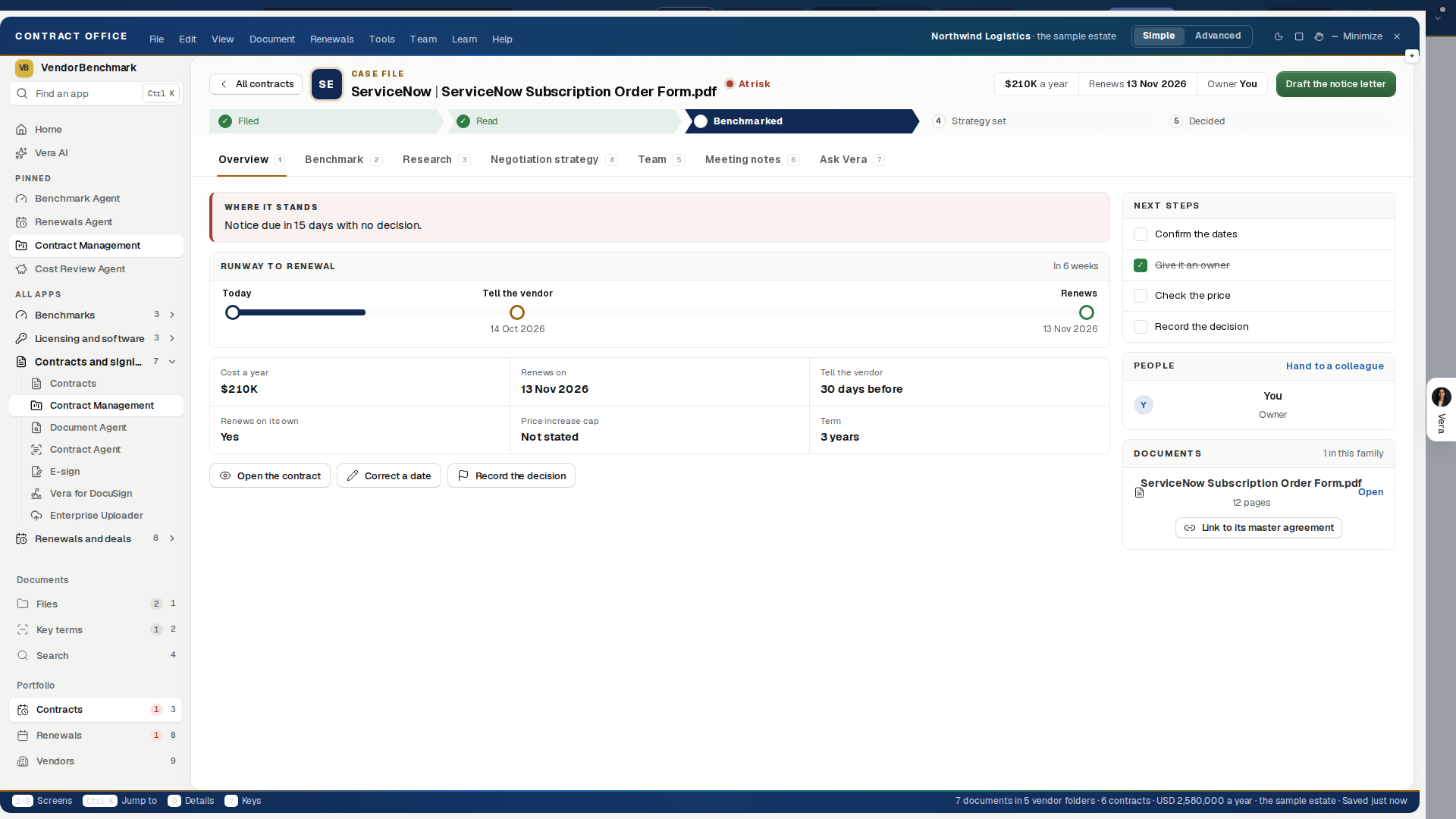
The case room. Double click any contract, or choose Open the case file on its right click, and the contract opens as its own room over the whole window. Esc closes it and puts you back where you were. Every tab carries the same frame:
- The bar: ‹ All contracts, the contract's name, the save state, Save, Share (which opens People) and the x.
- The head: the contract's name, then one sentence: what it costs a year and the most it can rise at renewal, when notice is due, and whether it renews on its own or ends.
- The facts, one row: Annual value, Renews or Ends, Notice, Owner and Decision, with the health mark and its reason at the right.
- The aside, down the right of every tab: Next key date, how far along The plan is, Run on this contract (Read the contract, Benchmark, Ask Vera, Negotiation strategy), and People with Manage access.
- It saves itself: a moment after every change to the plan, the targets or the dates the bar says Saved. Save does it at once.
Create a case file (since 1 October 2026), on the right click and in the Document menu, is a different thing: it saves the contract's case once, with its plan written back from the dates, and opens it in Case Rooms. A contract that already has one keeps it as it is and opens it.
The eight tabs, keys 1 to 8:
Plan, in three parts, on a contract (a supporting document points you to its main contract's case room):
- The goal: one sentence that reprices as you move three sliders, Below today's price, Cap on increases and Term. Beside it, Saved in year one, Saved over the term and New price a year, worked from the contract's own price and uplift. Set the target from the benchmark appears when one has run. Record the decision and Draft the notice letter sit under the figures.
- The plan: written the first time the room opens, from the vendor and the dates, working back from the notice date. Each step has its reason, an owner and a due date you can change, a tick when it is done, and a bar on the timeline. Add your own steps, or press Rewrite the plan to write it again from the dates as they now stand.
- Levers, strongest first: what this contract's own terms offer, such as the price against the market, the timing of the notice date, an increase cap, and term for price.
Key dates: the term start, the notice deadline, the day the term ends or renews, the vendor's quarter close before it, the plan's open milestones and the dates you add (a QBR, a budget cycle, a board meeting).
- They sit on a line with today marked, and in a table with how far away each is and where it came from: Contract, Vendor, Plan or Yours.
- Your own dates can be moved, reminded or removed, and Add the date adds one.
- Remind me before the notice and Calendar feed are one press each.
Benchmark, in two parts:
- Where this deal stands: the three answers when a benchmark has run, What you get, What comparable buyers get and Where you rank, with the gap to the midpoint over the term. Pull in the benchmark runs one, and Pull it in again refreshes it.
- The market: the Benchmark Library's reference deals for this contract's line by size a year and discount, with the peer range, the midpoint and this deal marked. Buyers are never named. Open the report opens the benchmark report.
Research: From the research library, the documents the library holds on the vendor, each one press from the reader, with Open the library on that vendor; Analyst briefs where there are any; What it means for this contract (the cap, the notice date, the vendor's quarter); and Ask the research agent, three questions and a box for your own.
Vera: five questions about this contract and a box for your own go to Vera with the contract named, and Talk to Vera opens the voice line.
Comments: the Comment board, with Post, Reply, Resolve and Reopen and an @ that tells the person, then Meeting notes from the contract's Teams Room.
Files: the contract and every stored version, its master and the documents under it (each with Open its case room), Link to a master where it has none, and Add a new version.
People: who can open the contract, each with their role; Give access by email as Can view, Can comment or Can edit; Assign an owner or Change the owner; Hand to a colleague; and The Teams Room with its open actions, or Open a Teams Room for this contract where there is none (Teams Rooms are part of the Enterprise plan).
The what if. The three sliders on Plan are the instrument: move the target below today's price, the cap on increases or the term, and the goal sentence and the three figures beside it move with them, on the contract's own price and uplift. The same inputs always give the same result, and the targets are saved with the room.
Follow ups (since 2 October 2026). Under Plan and Benchmark, once the contract has been read:
- Up to four follow ups written from the contract's own facts: an email to the vendor asking it to confirm the renewal terms in writing, what happens if the notice date is missed, a note to a colleague, and what to open with.
- A box for any question of your own. Vera answers from the read of this contract.
- An email appears as a draft you type on, and opens side by side with the thread so you can tell Vera what to change. Nothing is sent by the platform.
- The thread and the drafts are kept with the contract. See Follow ups.
Four tools on the right click. Right click any contract, on any screen, and four tools sit under the case file, each opening on that contract:
- Read it in the Contract Decoder: the clause by clause read of the contract.
- Benchmark it in the Benchmark Agent: what you pay against what comparable buyers pay for the same product at the same size.
- Talk to Vera about it: a conversation with the contract already in hand.
- Negotiation talking points: the Negotiation Agent on this contract.
Calendar: every key date
Every key date the portal knows, on a month: the notice deadlines still open (brick), the days contracts renew or end (navy), and each vendor's quarter and fiscal year closes (gold), taken from the vendor fiscal calendar as planning guidance rather than settlement dates.
- Use ‹ and › to page the months, and Today to come back.
- Press a kind in the key (Notice deadline, Renews or ends, Vendor quarter close) to hide or show it.
- Press a day: its dates list on the right, each with its kind and what the contract costs a year.
- Press a date, on the right or under Coming up, to open the contract's case room. Double click a day to open its first date. Right click a date for the document menu.
- Press Subscribe to the calendar in the head to put the notice dates and term ends in your own calendar as a feed.
Coming up lists the next twelve dates from today with how many days away each one is. The band above the month says how many key dates fall in the next thirty days and how many of them are notice deadlines.
Spend: the estate by annual spend
The estate by annual spend: a block per contract, sized by what it costs a year, grouped by vendor, darker navy for the larger vendors. The band above it says what you spend a year across how many vendors, and what share the top three take.
- Contracts to review: Top 10, Top 25 or All. Contracts outside the scope fade in the map and the table, and the bar under the buttons says how much of the spend the scope covers.
- Savings levers the review pulls and What the review reads: the seven levers and the three sources the review works from.
- Open the review in the Spend Agent opens its Report step.
- The estate by annual spend: the map. The legend names the eight largest vendors with their spend a year, and pressing one marks its blocks.
- Press a block or a row for its details, double click for its case room, right click for the document menu.
- The table under the map lists the twelve largest contracts with their term end and whether they renew on their own.
Settings: the window set up as you work
Settings is a screen of the window rather than a trip to another screen. Twenty three pages in two groups, the page list on the left and the page on the right. Nothing needs saving: a control applies as you change it, the status bar says so, and the change is takeable back for eight seconds like any other write.
You
- Profile — your name and title as they appear on every action in the audit trail, and the signature block the office closes a notice letter with. Your email is shown and changed under Settings, Account, where a new address is confirmed first.
- Notifications — the office's own events by channel: a notice date coming due, a renewal crossing its window, a benchmark landing, an approval waiting on you, a document handed to your workspace, a mention, a document filed, a legal hold set. A weekly digest and quiet hours sit under them. These are the same rows Settings, Notifications keeps, so nothing is tuned twice.
- Display — the theme, compact rows, the text size, the screen a sign in lands in, and whether the window remembers the widths of the screen list and the details. The text size is one multiplier over the whole window in three steps, Standard, Large and Larger: every size in the window moves together, so the columns, the rows and the figures keep their proportions and the ledger reflows to fit rather than being magnified. The window covers the same part of the screen at every step. Large is the size the window opens at. All of it is kept on your account rather than in one browser, so the review laptop opens on your window.
- Language and region — your time zone, which quiet hours follow, and how dates, figures and the first day of the week are written, with a live preview.
- Keyboard — the scheme and every key the window binds, printed from the one keymap, so the page cannot promise a key that does not work.
Your organization
- The agreement types your organization files and the fields each one carries; the six stations under your own names; how a document is filed, named and numbered; the approval rules with delegation and escalation; the notice defaults and the alert lead days; the fiscal year and each vendor's quarter closes; the currency and entities; the retention window and what a legal hold overrides; who can do what, folder by folder, which the database itself keeps: a colleague given a vendor folder reaches that folder on every page of the platform, a colleague given no folder is unchanged and sees the whole estate, and read lets them see a folder while work lets them change what is in it; links and guests; sign in; the connectors; the webhooks and API keys; the clause library and templates; branding; signing; import and export; and the audit log.
- Where a setting already belongs to the platform, the office reads and writes that same row. A change made here and a change made under
/settingsare one fact, never two. Those pages say so, and they point at the page that owns the change. - A page you can read but not change says so in a line rather than going quiet, and every organization page the office keeps ends with who changed it last and when.
Views, exports and the family tree
- Save the view you built — narrow a screen to what matters, choose your columns, set your sort, then Save this view (Ctrl Shift S) keeps the lot under a name. On the Contracts tab it is listed on the left under Saved views. A view is yours unless an owner shares it with the estate. On the Register, the filter box at the right end of the tab row understands
is:autorenew,is:over1mandis:atrisk(the health mark) since 29 September 2026. The filter understands a tag, an owner and standing facts about a document, so "renewing this quarter with nobody's name on it" is one view rather than a set of presses you repeat every Monday. Opening a view applies its columns and its sort; a column the screen no longer has is removed and named rather than failing. - Export what you see — Ctrl E in Contracts, the Register or Search writes the grid on screen as a spreadsheet with the columns you have and the filter you set, dates written as dates and people written as names rather than ids. The estate is read again on the server and the figures are derived there, so nothing from your browser reaches the file, the file says how many rows it carries and how many it uploaded, and the export lands on the audit trail.
- The family tree — in the Register, Families is one tree over the whole estate: every master with its order forms, amendments and addenda beneath it, wherever each document is filed, and a dashed row with a Link button where the read thinks a document belongs under another.
Files: the explorer
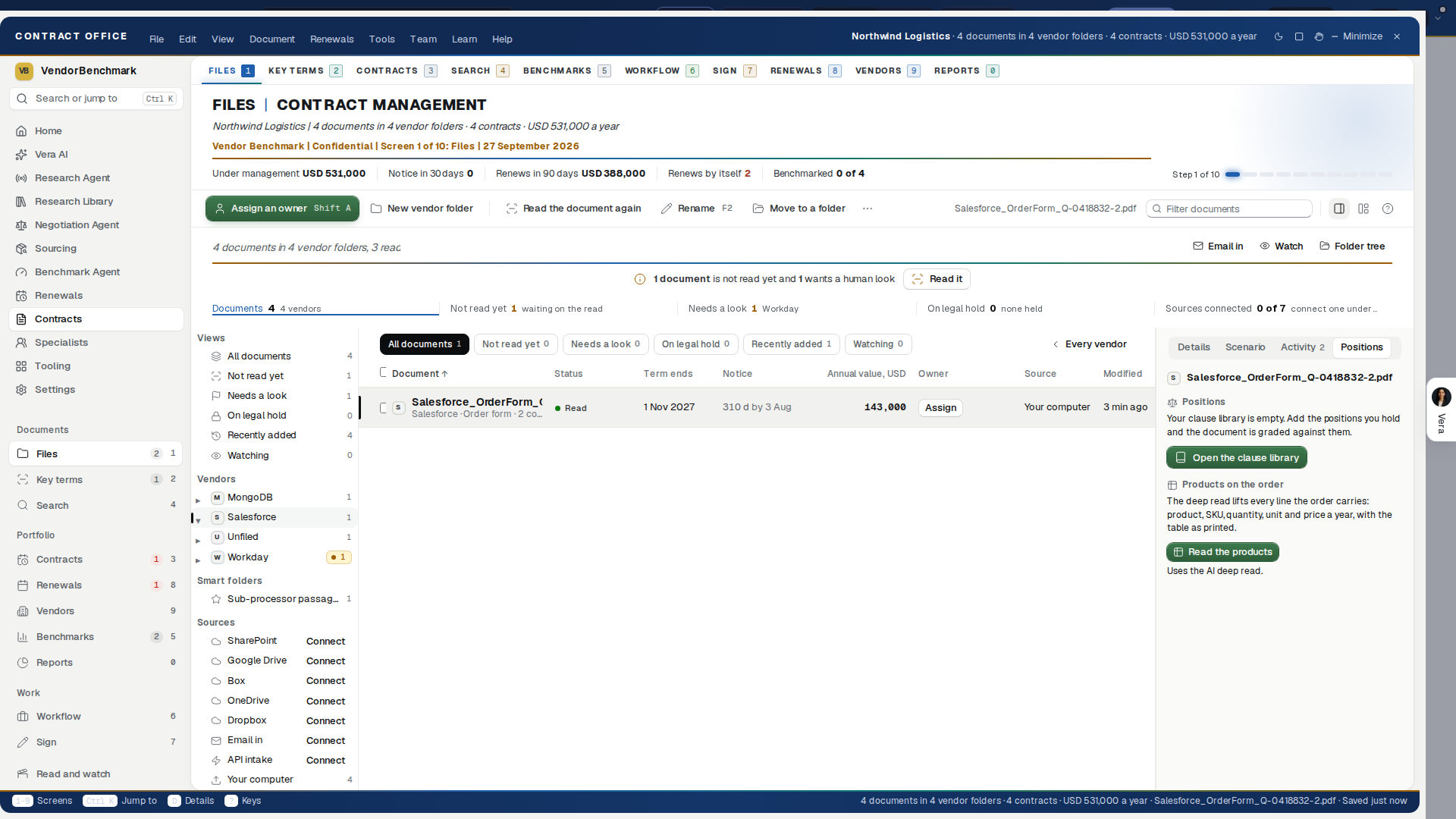
The estate as a file manager. This is where documents come in and where they live. In the window the screen is the Contracts tab, and Your Archive (/archive) opens here.
From the top of the screen:
- The line under the head: when a document is not read yet or wants a value, it says so and carries Read them or Confirm the figure as a button.
- Where you are: the folder path from All contracts, with New folder and Add documents at the right of the same row, then your groups, and inside a group its folders, as tiles with their documents, their spend a year and their next renewal.
- The view chips, each with its count: All documents, Not read yet, Needs a look, On legal hold, Recently added and Watching. Press one to show that view.
- Folder tree sits at the right of the chips. With a vendor folder open, Email in and Watch join it.
- The grid of documents grouped by vendor, with one line beneath it on the double click, the right click and the drag.
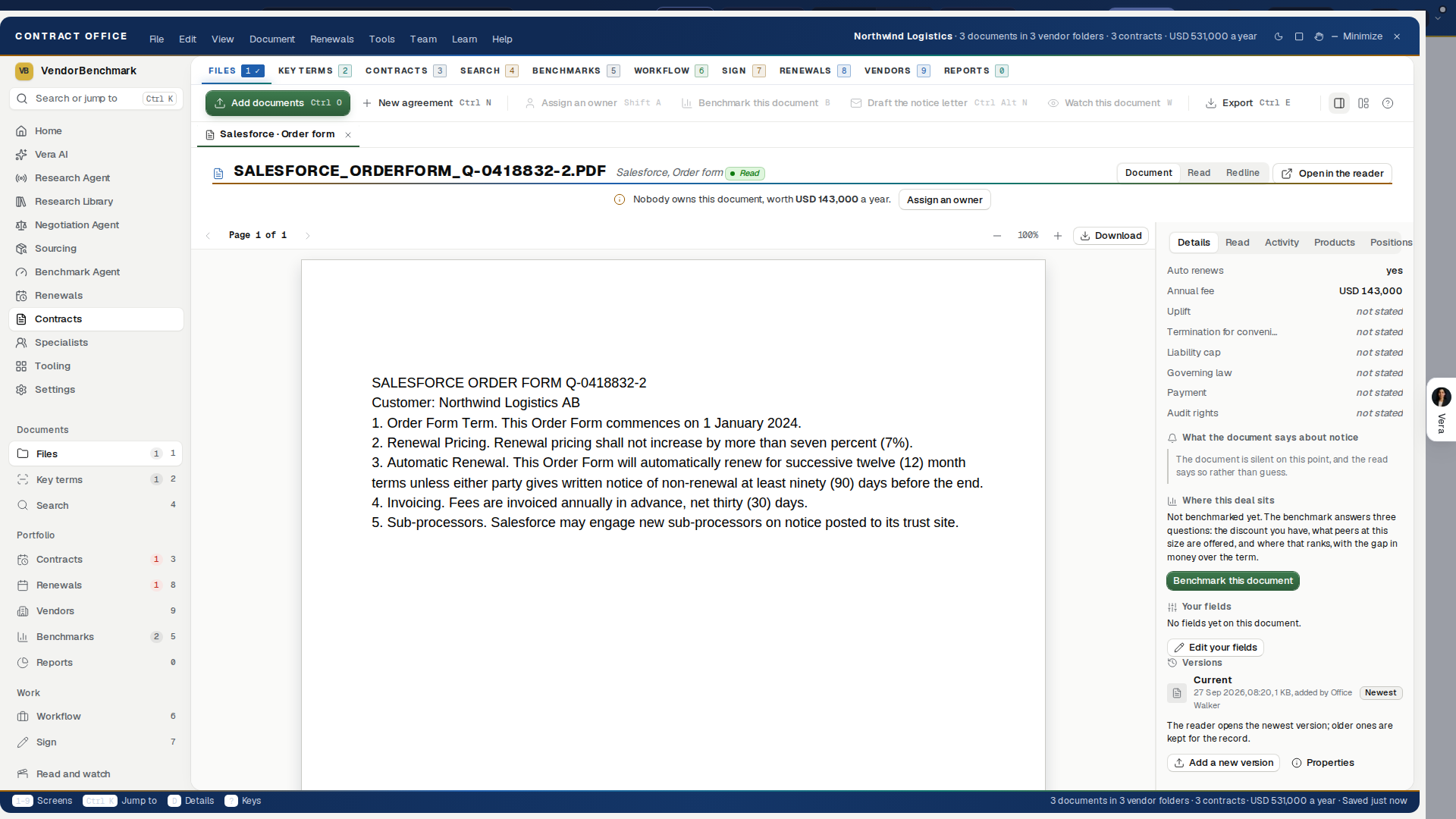
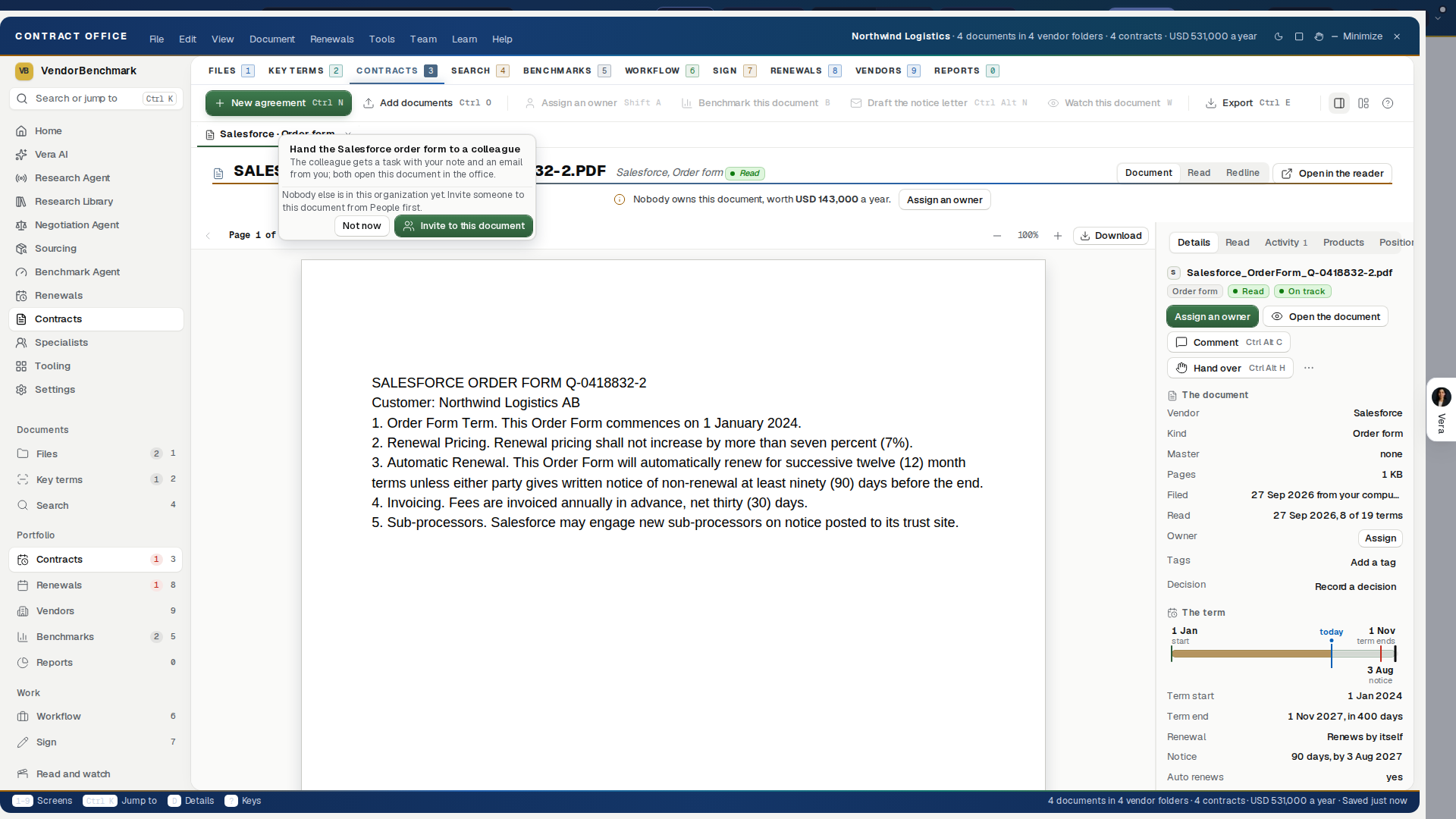
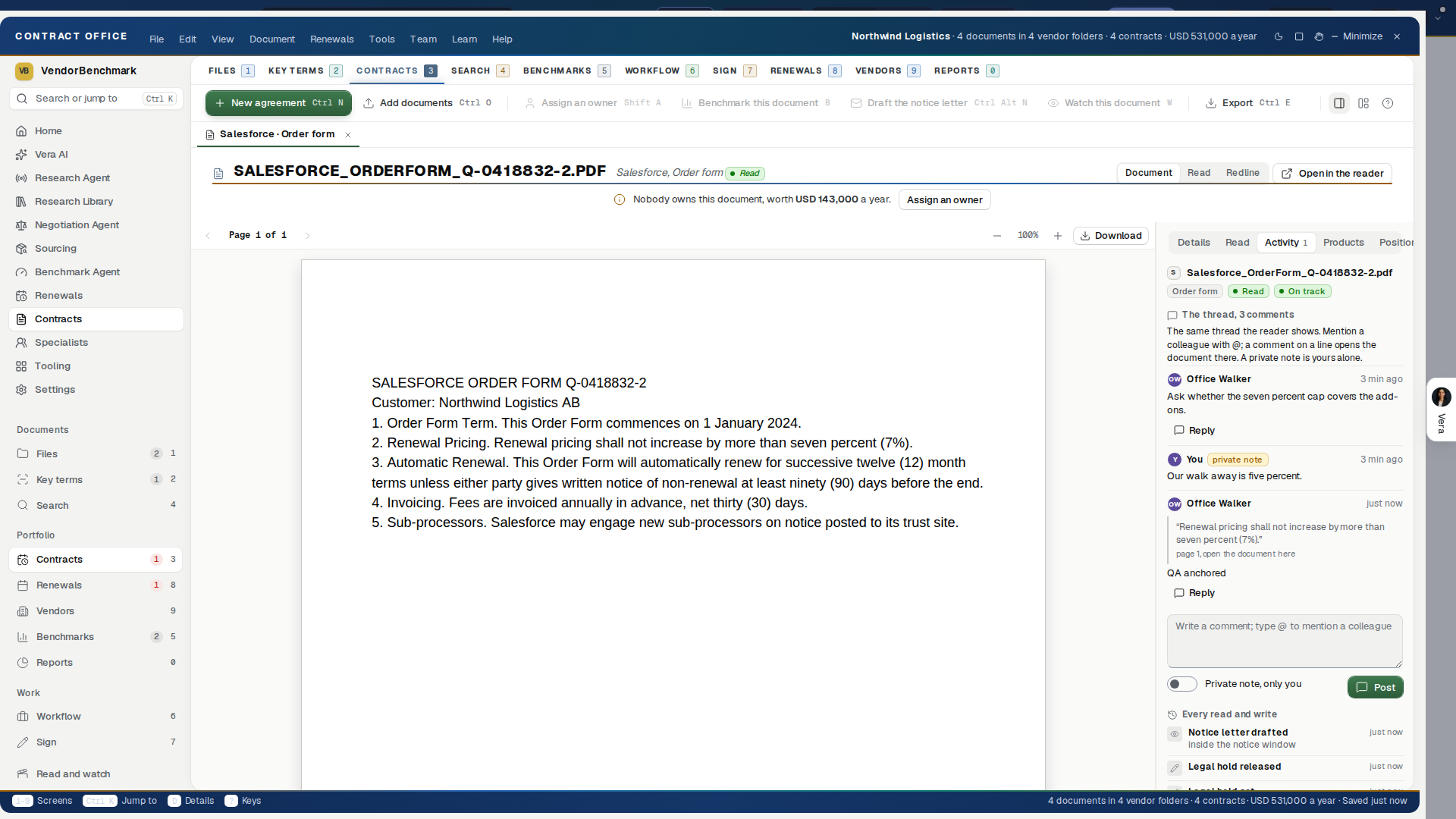
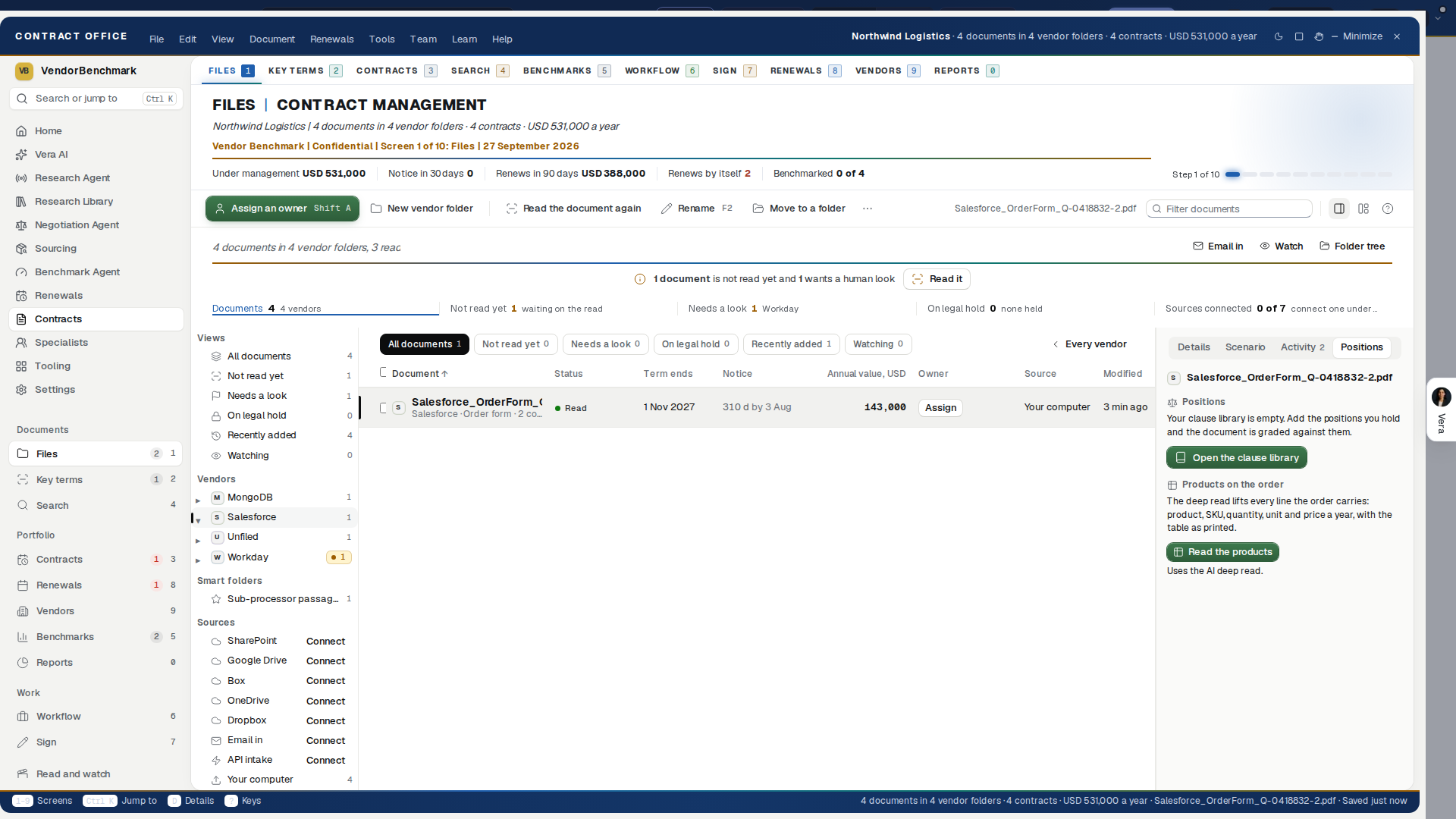
On the screen
- Sources: on the left, under your saved views and smart folders. The heading says how many sources are connected. A connected source shows as live, with when it last synced. Connect a source opens the integrations hub as a window over the office and parks the portal on the taskbar until you come back. Your computer adds documents from your own machine. New documents from a connected source land on their own, each with a line saying where it came from.
- Groups of vendors — make a folder with New folder and leave it empty of documents, and it becomes a group. Drag a vendor folder onto a group to file it there (Cloud and infrastructure, Business applications), and onto the Folders heading to bring it back to the top. Groups can sit inside groups. Drag documents from the list onto a vendor folder to move them; ticked rows move together. A group holds vendor folders, never documents, because a document's folder is its vendor.
- Email in — every vendor folder has its own address. Forward a contract to it and the document lands in that folder.
- Smart folders — a search you saved. It is answered on the server every time you open it, operators included, and the left side lists it under Smart folders with how many documents answer it right now.
- Save this search, Word, PDF and Email this — on the results header of the Search screen. Save this search keeps the search as a smart folder on the Contracts tab. Word and PDF take the found set away as a document in the firm's dress: one section per document, every passage quoted as printed with its page. Email this opens a draft in your own mail with the first passages and the live link; nothing sends from the portal.
- Columns — choose which columns show. Any finding from one of your lenses can be a column too, and it fills as the read lands.
- The tray — the transfer, at the foot: what is copying, what landed, and what was refused and why, one row per file with the reason in brick. A refusal is never hidden.
- Duplicates and scans — a document whose bytes are already on the estate wears Duplicate and names the original in the inspector; an image only scan wears Scanned, text first while the transcription lane reads it, and reads like any other document when the text is back.
- Versions — the inspector's Details tab lists, under Versions, every stored file of the document, newest first, with the day, the size and who added it. Add a new version (on the right click, in the Document menu, or under Versions) files a PDF or Word file as the newest, and the reader opens the newest. A document with two or more versions wears a v2 mark in the list.
- Properties — Alt+Enter, the right click's last item before the rule, or File in the menubar: the file's name, vendor and kind, its folder, size and pages, the SHA-256 with a copy button, where it came from, when it was filed and by whom, the legal hold, the day the retention window would take it, and its master and record when it has them.
- Activity — the document's own trail from the audit log, newest first: filed, read, corrected, held, decided, watched, benchmarked, sent for signature, each with who did it and when.
- Link to a master — on the right click and in the Document menu: choose the master the document hangs off, the suggested one first, or unlink it. The Families view in Contracts draws the result.
- Products — every line the deep read found on the order: product, SKU, quantity, unit and the price a year in USD, the table as printed folded beneath, and Open the page landing the reader on it. An order the deep read has not been over yet leads with Read the products, which uses the AI deep read once.
- Positions — the document graded against your clause library, position by position: Not found, Weaker than yours, Unclear, Aligned or Stronger than yours, with what the document says, the assessment and the language you would ask for, ready to copy. Read the positions runs the grading (one AI read); an empty library says so and opens the clause library.
- Comments anchored to the line — in the Activity tab, type @ to mention a colleague (they get the mention with the quote and the page). A comment started from a clause (the Comment action on any cell of the Read tab or the Key terms grid, Comment on this document on the right click, Ctrl+Alt+C) carries that line, shows it as "On the document: …, p. N" in the thread, and pressing it opens the reader on the line. The count on the row is the real count.
- Hand to a colleague — on the right click, in the Document and Team menus, or Ctrl+Alt+H: pick who, write what to check and by when, and it lands in their queue as a task with the document attached and an email under your name. The row wears their initials until they close it, and the inspector's Details tab says who it is on.
How to use it
- Upload documents, paste them with Ctrl+V, or connect a source under Sources on the left. An empty estate also offers See a sample estate: a labeled sample to walk the screens with, the same switch as Sample data in the title bar. A document you drop on the sample switches it off and files into your own estate.
- Drag a row onto a vendor folder on the left to move it, or choose Move to a folder on its right click or in the Edit menu for the folder chooser. Views and smart folders take no upload. F2 renames one document and keeps its extension; Rename to house style renames a whole selection to Vendor, kind, date.
- Tick rows to act on many at once: index them, move them, set an owner, put them on legal hold, or delete them. A right click inside the selection acts on all of it.
- Put on legal hold stops a document or a whole folder being deleted and keeps the retention sweep away from it, until a person releases it.
Tips
- j and k walk the rows, Space selects, Enter opens the row's details, a double click opens its case room, Ctrl+A selects the folder, / opens Search, Backspace goes up a folder, Alt+Enter opens Properties, and Delete asks first and refuses a document on legal hold.
- Nothing typed is lost: the folder you were in, the filter you typed and the document you had open come back on the next visit, on any browser.
- A duplicate is caught by its contents, not its name, so re-uploading the same archive is safe.
Related: The Contract Management Portal, The whole estate: the Enterprise Uploader
Key terms: reading the documents
Your own fields. An owner defines the agreement types your organization files and the fields each one carries under Settings, Contract types: a cost center, a PO number, the signing entity and a contract number on an order form, a certification date on a ULA, each with a kind, a line of help and whether it is required. The New agreement wizard asks for the required ones and will not file the document without them. Every field is a column here, typed in the cell, and selecting rows and pressing Edit your fields sets a value on all of them behind one toast with one Undo. Types are yours to opt into: an organization that defines none sees the screen exactly as it was.
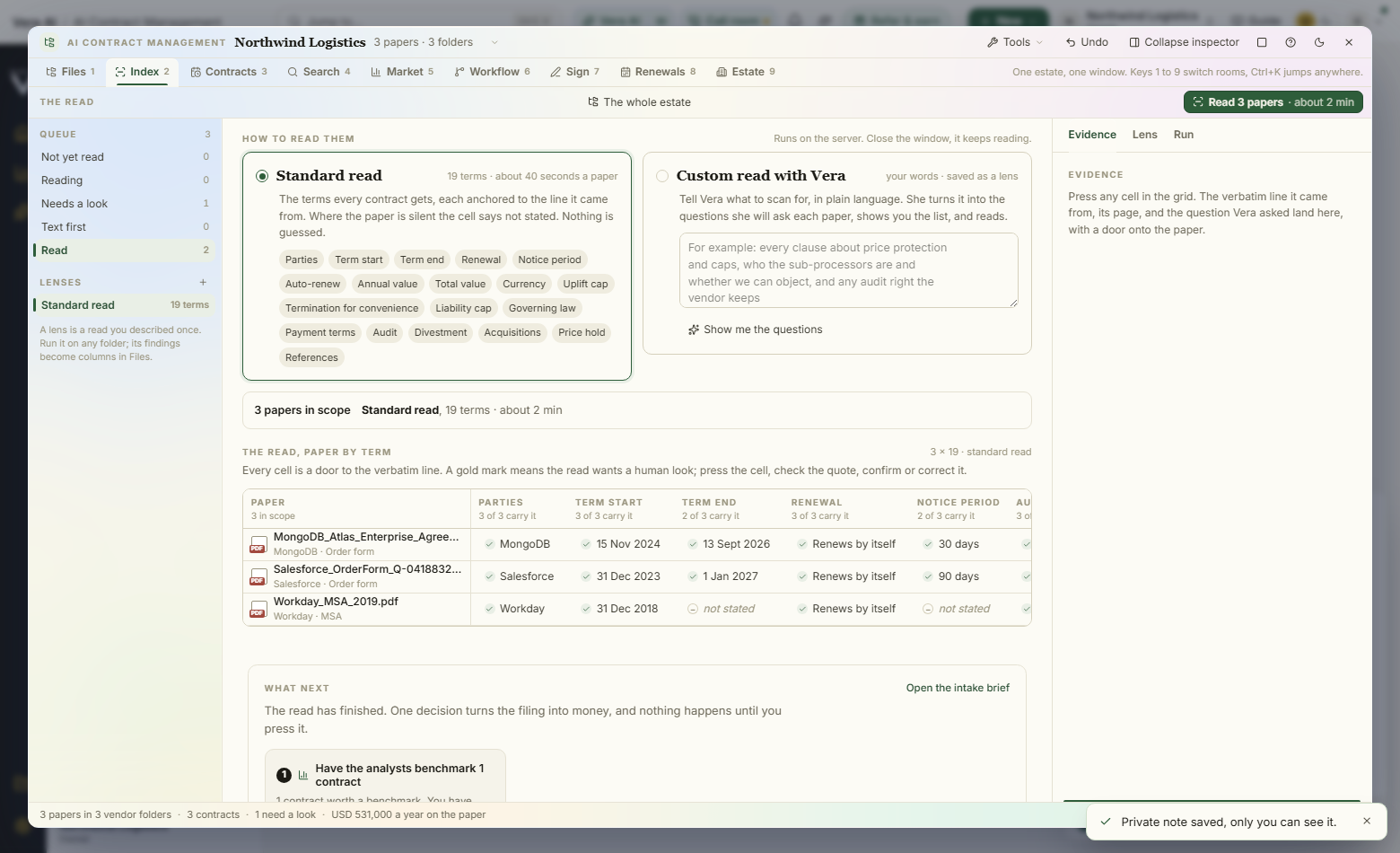
Two ways to read, side by side.
On the screen
- The line under the head (read the documents not read yet, check the term that wants a look, open the document) carries its action as a button, and so does Run beside each saved lens. New lens and the switch between Matrix and By term sit at the right above it.
- Standard read — the nineteen terms every contract gets: the parties, the term, the renewal and its notice, the money, the uplift cap, the liability, the law and the payment terms.
- Custom read with Vera — you describe what to scan for in your own words. Vera turns it into the questions she will ask each document and shows you that list before anything runs. Save it and it becomes a lens you can run on any folder later.
- The grid — every document in scope by every term. A green tick is a figure the read is confident about; a gold mark means it wants a human look; a cell that says not stated means the document is silent, and the read never fills that gap with a guess. The arrows move between cells and Enter opens the evidence.
- Evidence — the details on the right: the value, the page it sits on, the question Vera asked, and the verbatim line the answer came from.
How to use it
- Choose the scope at the top: everything not yet read, documents needing a look, one folder, or the whole estate.
- Choose Standard read, or write a sentence under Custom read with Vera and press Show me the questions.
- Check the questions, name the lens, and press Save the lens if you want it again.
- Press Read N documents. The run is on the server: close the window, come back tomorrow, the grid is filled.
- Press any cell to see its evidence. Confirm keeps what the read found and records that a person checked it; Correct it replaces the value, saved with your name beside the read's own. Both work on every one of the nineteen terms, and changing one needs an editor's seat.
Tips
- A lens finding can be a column on the Contracts tab, so the thing you asked for becomes part of how you see the estate.
- A lens you are still describing is kept: close the window mid sentence and it is offered back on the next visit, on any browser. Discard the draft puts it away.
- A scan with no text layer goes into the transcription lane first, and the grid says so rather than showing it as read.
Related: Files: the explorer, Document Agent
Contracts: the renewals
What renews, when notice is due, who owns it, and what everyone has said about it. In the window this screen is named Register. The Contracts tab is the folder view described under Files: the explorer.
On the screen
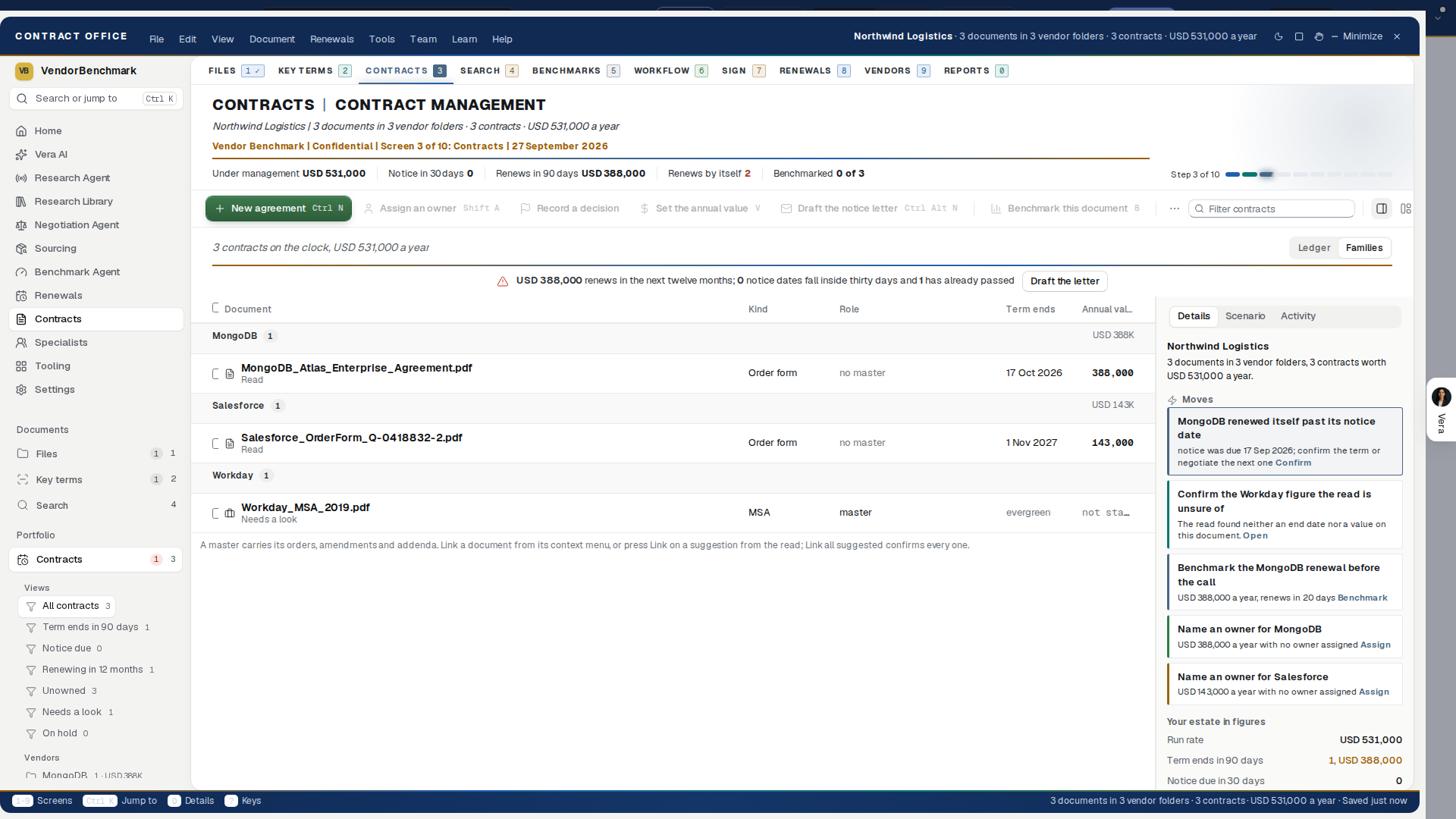
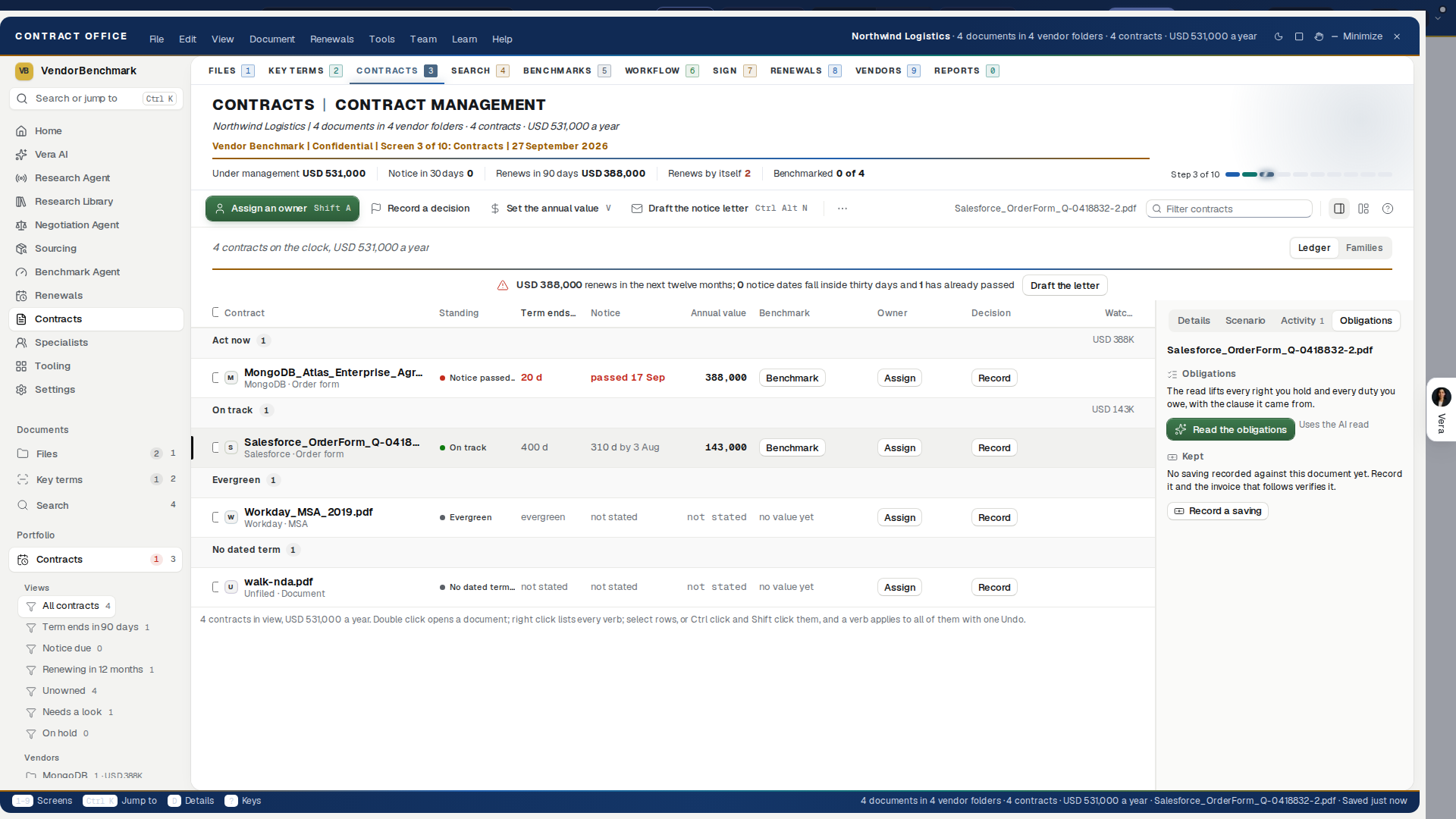
- The line under the head: the money renewing in the next twelve months, how many notice dates fall inside thirty days and how many have already passed. It carries Draft the letter for the closest notice, or Assign an owner for a contract with nobody's name on it. Every figure is computed from the same rows the ledger below renders.
- Ledger or Families: the switch at the right above that line.
- Reports and exports (since 2 October 2026), a button beside that switch that opens them over the screen, on every contract in your folders whatever the folder or view: The estate in charts (value a year by vendor, terms ending by quarter, and when the terms end), then Excel workbook (every row typed, so it sorts and sums), Word report (the same report as a document), Email the report (to up to ten addresses, your note first, the Word file attached) and, under them, Shall I draft the email?, which writes an email to the vendor, your CFO or a colleague that you send yourself.
- Families — the master, its order forms, its amendments and its DPAs as one tree per vendor, to any depth. A document the read can place under a master but nobody has linked yet draws under it with a dotted line, marked Suggested: press Link on it, or Link all suggested beside the screen's name, and nothing links itself. The Family tab in the inspector reads what the selected document inherits and what it overrides off the two documents themselves: a term this document is silent on and the master states reads from the master, with the master's quote and page; a term stated on both reads on this document, overriding the master's value; terms silent on both are listed by name. Unlink and Change the master sit in the same tab. Up and Down walk the tree, Left and Right fold and unfold, Enter selects, and a double click opens the document.
- Narrowing the ledger: type in the filter box at the right end of the tab row. It takes words and the operators (
is:notice,is:unowned,renews:90, a vendor, an owner, a tag). In Ctrl K, the standing views open the ledger already narrowed: All contracts, Renewing in 90 days, Notice due, Unowned, Needs a look and Watching. Save this view (Ctrl Shift S) keeps what you narrowed under a name. - The ledger — grouped by consequence (Act now, Inside 90 days, On track, Evergreen, No dated term), each group with its count and its money, and sorted by any column heading. A brick edge means notice is due inside a month, gold inside three, and a recorded decision reads on the row with who took it and the day; press it to change or clear the decision, and the same picker records one where the row still says Record.
How to use it
- Press a renewal date on the row to change it. The notice deadline moves with it, and the renewal calendar is kept in step where an agreement exists for that vendor.
- Press the owner to assign one. The renewal owner follows.
- Use the inspector to record a decision (Renew as is, Renegotiate, Give notice), which then reads on the row with your name and the day; press the decision on the row, or Change beside it in the details, to pick another or clear it; set your own reminders, which reach you by email on the morning they fall due; read and add to the thread; and see who can see the contract.
- Or right click the row: the same moves, open, benchmark, obligations, assign, decide, remind, watch, move, rename, copy a link, legal hold, delete, without leaving the ledger. The link opens that exact contract for anyone in your organization.
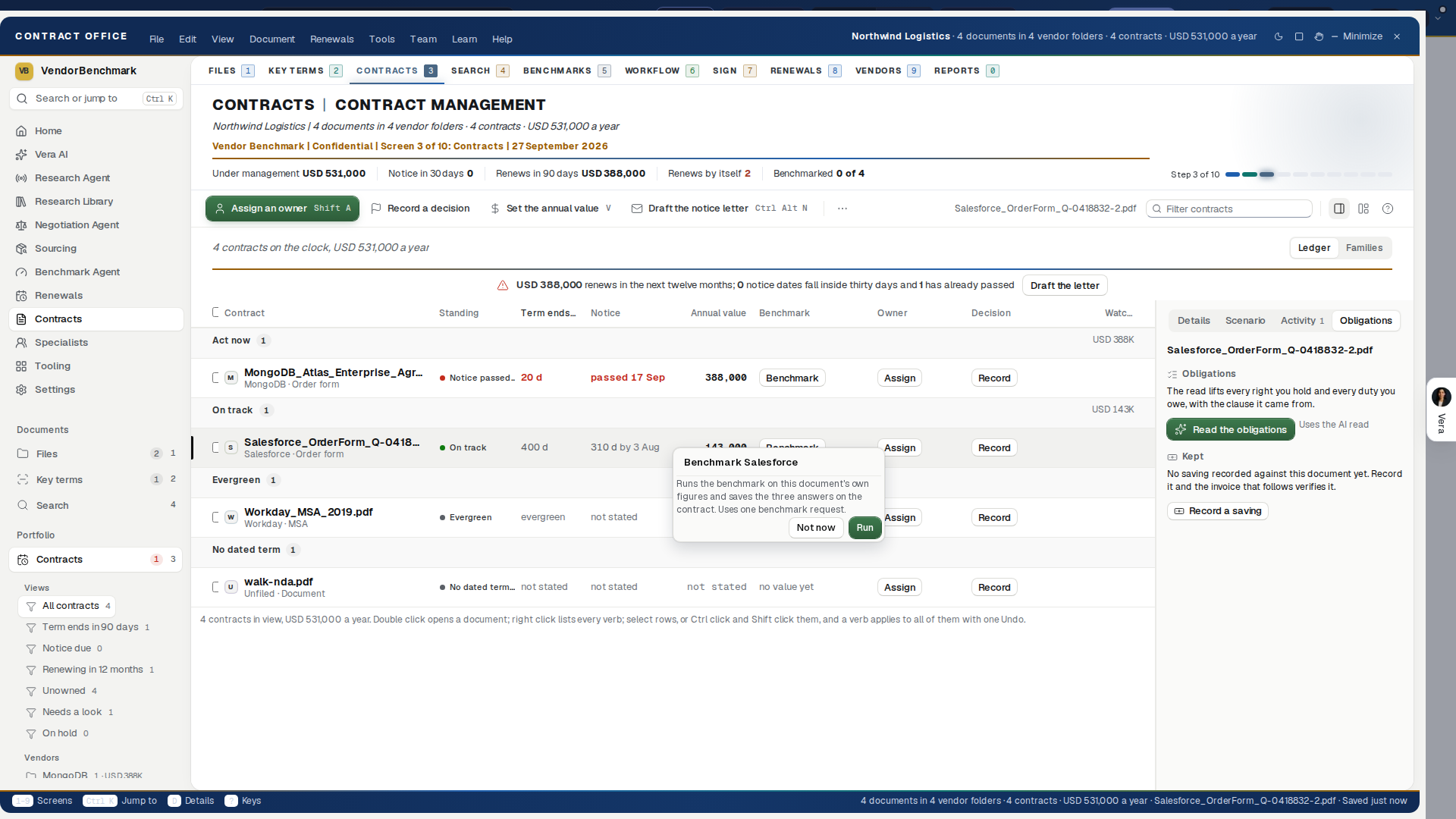
- Benchmark this document (Ctrl+Alt+B, on the right click, in the Document menu, and in the inspector's Details tab) runs the benchmark on the document's own figures after a one-line consent, uses one benchmark request, and saves the three answers on the contract: your discount, what peers at this size are offered as a range with its midpoint, and the rank (Poor, Below market, At market, Good, Top of the market) with the gap in points and in money over the term. The rank then reads in the ledger's Benchmark column and in the inspector's Details tab, with The report beside it and Benchmark it again when the figures change. Up to ten selected documents run in one press.
- The Obligations tab (Ctrl+Alt+O) is the document's own register: the rights you hold and the duties you owe, each with the clause it was read from, the day its window closes and the days left, its status and its owner. Mark a row Exercised or Dismiss it with a note; both are undoable from the toast. A document the read has not been over yet leads with Read the obligations, which uses the AI read once and files what it finds.
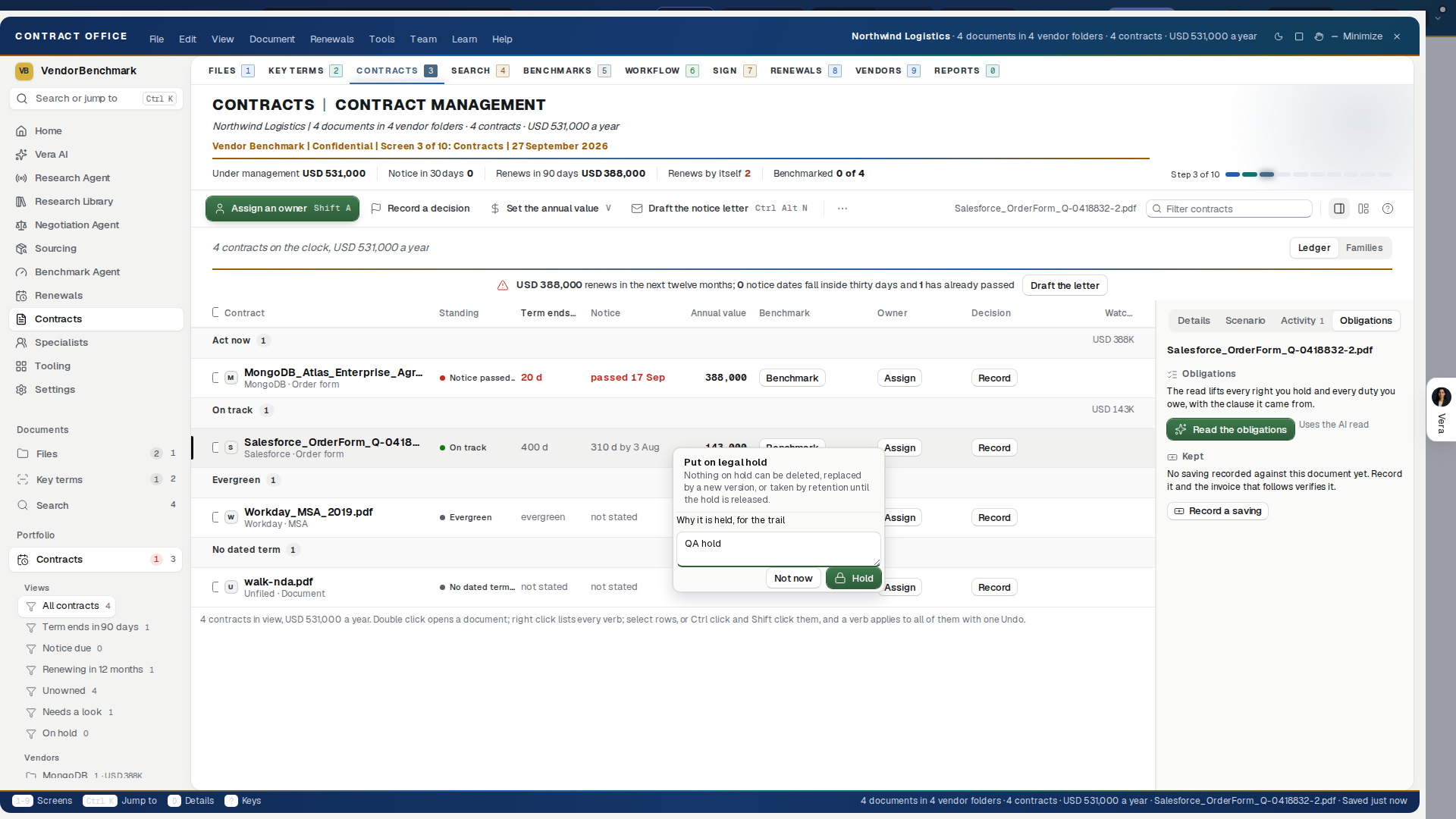
- Put on legal hold (Ctrl+Alt+L, on the right click and in the Document menu) asks why before it holds, and the reason, who set it and the day then read on the record, in Properties and in the trail. Nothing on hold can be deleted, replaced by a new version, or taken by the retention sweep until Release the hold, which shows the reason it was set before you release it.
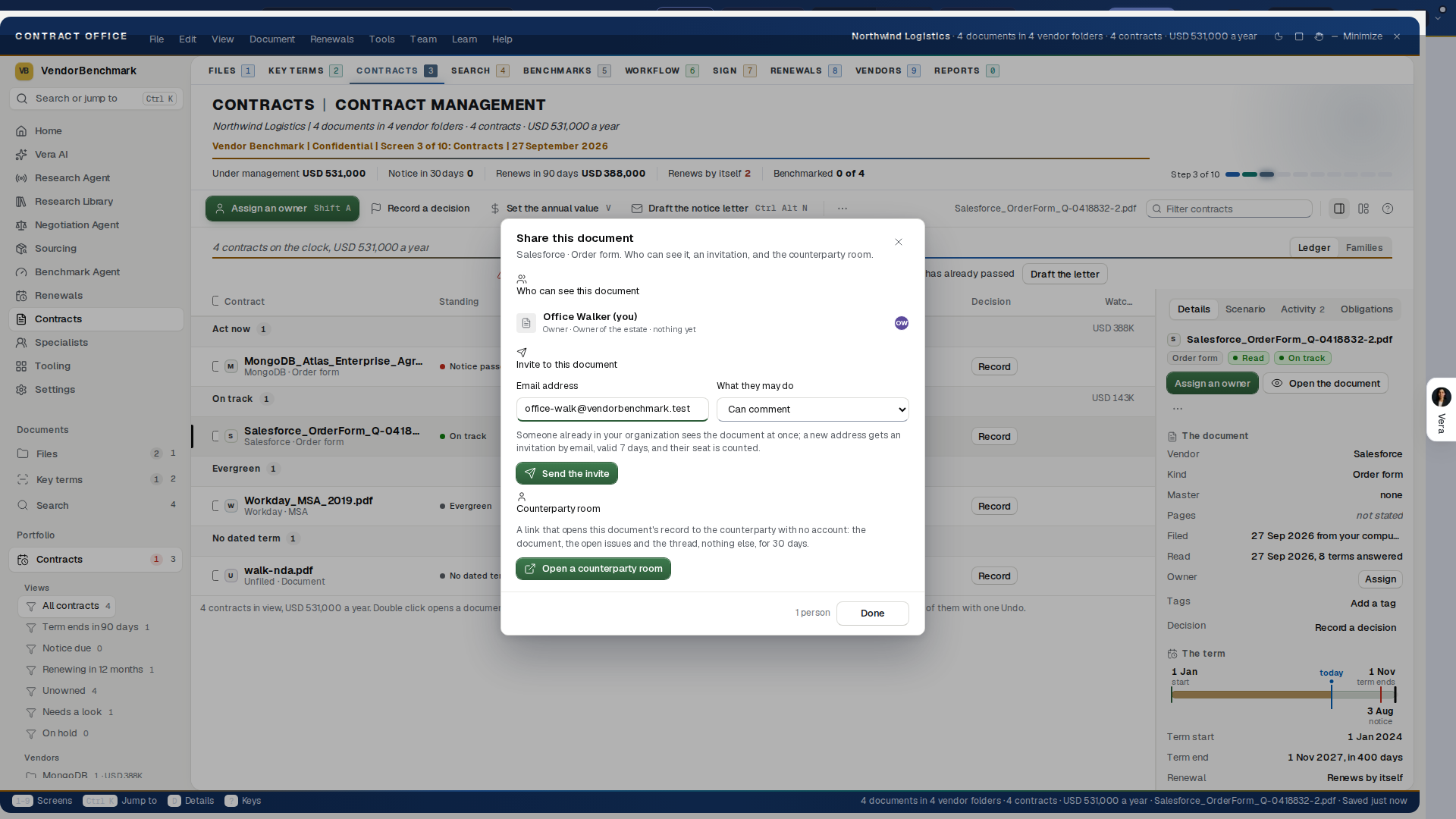
- People ranks everyone who can see the document by what they have done to it, shows pending invitations with the day they expire, and holds the invite composer: an email and a seat (Can view, Can comment, Can edit), then Send the invite. A colleague already in your organization sees the document at once; a new address gets an invitation by email, valid 7 days, their seat counted against your plan, and access to this document and its thread when they arrive.
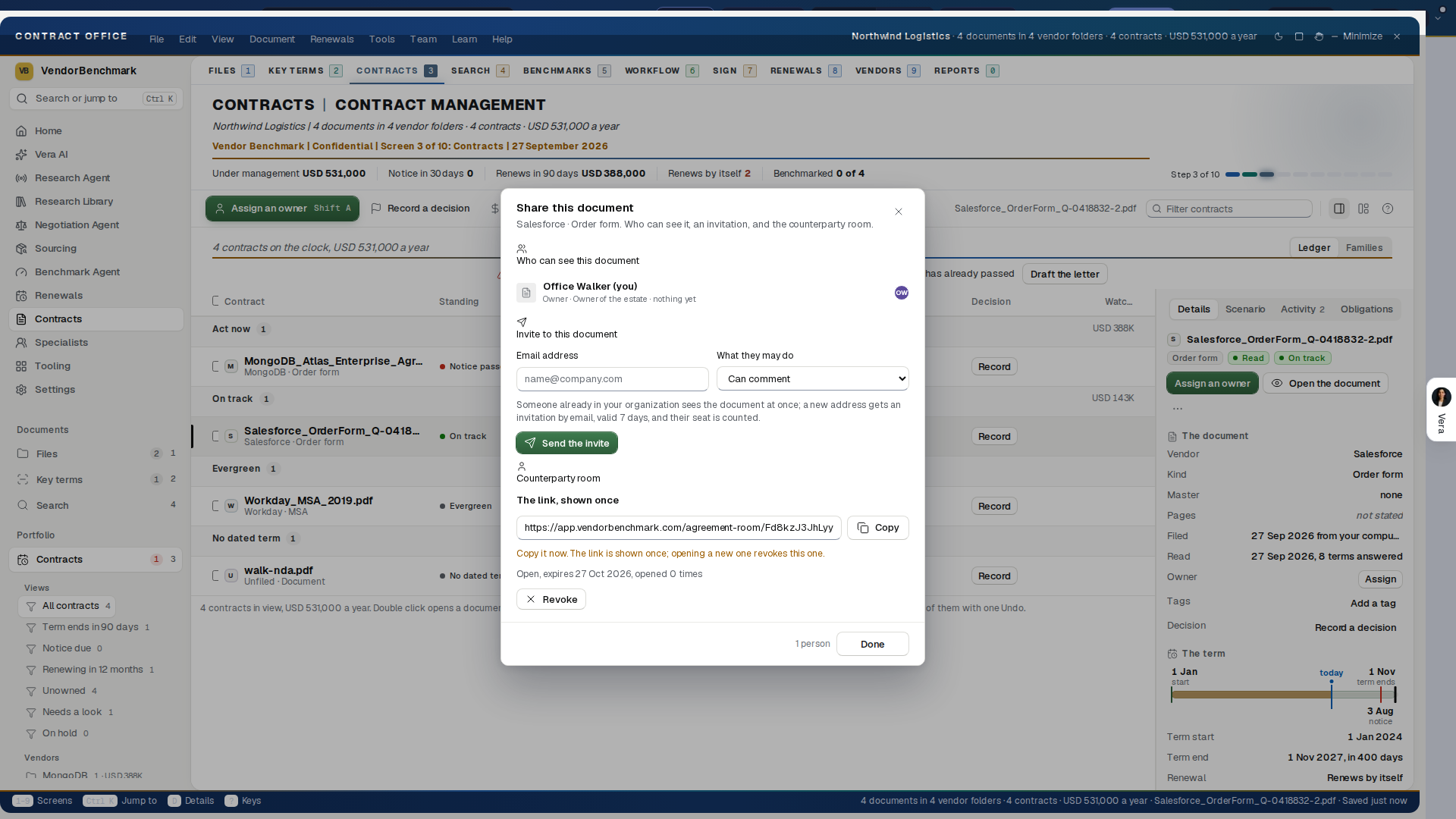
- The counterparty room opens this document's record to the counterparty with no account: the document, the open issues and the thread, nothing else, for 30 days. The link is shown once, so copy it then; opening a new room revokes the old one, and Revoke ends it early.
Tips
- Your reminders are yours: nobody else sees them, they are off until you switch one on, and each one is emailed to you once, on the morning it falls due.
- j and k walk the ledger, Space ticks a row, Enter opens the row's details, a double click opens its case room, Ctrl+Alt+T opens the document as a tab (the document, the read and the redline), and Ctrl+A ticks every row.
- A private note lives beside the shared thread and only you can read it.
- A link to a master is undoable for thirty seconds from the toast, and the strip counts the families, the documents linked and the suggestions still to confirm.
- A benchmark saved on a document never prints a percentile or a cohort size: the discount, the peer range and the rank are the finding, and the report behind them opens in its own window.
Related: Renewals, Agreements
Search: every word of every document
Two questions, two engines: where does it say that, and what does my estate say about this.
On the screen
- The search box is the box at the right end of the tab row. The line under the head (ask Vera about the matches, read the documents the search cannot see yet, save the search as a view) carries its action as a button.
- Passages — the full text search. Each hit shows the line with the matched words painted, and the page it sits on; the line above the hits counts the passages and the documents with a match.
- Ask the estate — the grounded answer, with the documents it rests on listed underneath.
- Operators —
vendor:,kind:,before:,renews:andhas:, plus quotes for an exact phrase. Press one under Narrow with an operator to add it.has:upliftkeeps the documents whose read carries an uplift cap, and the same word works for every standard term; a query made only of operators searches the estate newest first. - Vendor facets — the vendors that carry your hits, with their counts.
How to use it
- Type what you are looking for and press Enter.
- Narrow it with an operator or by selecting a vendor.
- Press a hit to read it in context, then Show on the document to open it in the reader on that line.
- Press Save this search and it joins Smart folders on the left of the Contracts tab, answering itself again every time.
Tips
- A document has to have been read to be searchable. The Key terms screen reads the ones that have not been.
- A saved search under Smart folders runs the moment you press it.
- A passage with no page number comes from a document indexed before the page map existed; it gets one the next time that document is read, and until then the office says the page is not known rather than printing one.
Related: Document Agent, Key terms: reading the documents
Benchmarks: where every agreement stands
Every agreement you hold, placed against what comparable buyers pay for the same product at the same size. Since 25 August 2026 the screen ranks two ways, and the switch at the right above the list chooses: By agreement, which places each document, or By vendor, which places the whole relationship. The vendor lens came from Contract Management's Benchmarks screen when that console folded in.
On the screen
- The line under the head names the deal that ranks worst or the largest one not yet benchmarked, with its action (Table it in the thread, or benchmark it) as a button. Beside the switch sit Benchmark the estate, Retry N when some could not be placed, and Ask the analysts. The figures below run as one quiet row of labels and values.
By agreement
- The finding — what the gap is worth over the term, before any table, with the weakest document you hold named in the sentence under it.
- The bands — the filters by rank: Top of the market, Good, At market, Below market, Poor, and Not ranked.
- The ledger — one row per agreement: your discount, the peer range with its midpoint, the annual value, and the money between where the deal sits and where it could.
- The basis — pressing a row shows where the discount came from, the range it was measured against, and how many comparable deals stand behind it.
How to use it
- Press 8, or choose Benchmarks in the View menu.
- Press Benchmark the estate. The dialog says what the run costs and how long it takes; nothing starts until you confirm.
- Leave if you like. The run keeps going and a notification brings you back.
- Press a band in the filters to see only those, and a row for the reasoning behind its rank.
- From a row, Benchmark it opens the full placement, Plan the renewal puts it on the renewal ledger, and Open the document hands it to the reader.
Tips
- Where a document prints no list price and no published list rate for that vendor can be evidenced, the row is not ranked: it says the document prints no list, that the rates and totals it does state are on the record, and asks the vendor to confirm its current list rate per unit in writing, which turns it into a ranked deal on the next run. A rate taken from the document, our price book or a cited card ranks as normal. Ask the vendor to confirm the list in writing before you use the figure in a negotiation.
- A document with nothing measurable on it is never guessed at. Its row carries the exact question to put to the vendor.
- Rows that could not be placed can be retried on their own with Retry N, without re-reading the estate.
By vendor
- The finding — what sits between these deals and the peer midpoints, a year, before any table, with how much of the estate's spend is placed at all.
- Four figures — the opportunity a year, how many families are placed and what share of spend that covers, how many sit below market and on how much, and how many are not placed.
- One row per family — the rank, your position, the peer range with its midpoint, the family's annual, and the gap priced per year. A family ranked Poor or Below market wears its tone on the row's left edge, so the weak positions read.
- The basis, on every row — each placement rests on the strongest defensible source you hold, in this order: a delivered analyst benchmark (verified by hand), Vera's estate read of the filed document, a saved self-serve scenario or the family's own value and seats replayed against the reference set, or a bare market reference when the market is held but your own input is missing. A family with none of these says exactly what enables it. Nothing is ever estimated in the gap.
- What if you negotiated — the lever on the family's file. Slide the ask from your current rate toward the peer midpoint or the top of the band and the money moves with it, per year, on that family's own annual figure. Deterministic: the same inputs always draw the same result. Preset buttons jump to the named stops, and the lever remembers where you left it.
How to use the vendor lens
- Switch to By vendor and read the four figures. The opportunity figure is the size of the prize; the below-market figure is where it lives.
- Select the top row, which is already ordered by consequence, and read the file: the rank, the gap, and the basis.
- Pull the lever to the peer midpoint. That number is the annual value of the mid ask; take it into the renewal or open the family's report for the full case.
- Work the not-placed families last: each row names the one missing input or the one tool that places it.
If the vendor lens looks wrong
- Every row says Not placed: run the estate benchmark on By agreement, or price a deal in a self-serve tool and save it. The board composes those sources; it never invents a position.
- A family shows a range but no rank: that is the market reference tier, the market is held but your own document's input (a list price, a seat count, or an annual value) is missing, and the row says which.
Related: Contracts: the renewals, Benchmark Library, Vendors: every vendor you hold
Workflow: the files in motion
The approval inbox. The Approvals view is a list of decisions rather than a kanban board. Every row names what is being approved, whose hand it waits on, how many days it has sat, the rule that held it and the benchmark on the document, and Approve moves the matter to its next station with your name and the day on the record. In Settings, Approval rules you can hand your approvals to a colleague between two dates, so nothing waits on you while you are away; a stand in decides under their own name, and both of you and an owner can see who was covering for whom. Select an approval and the details draw its chain: each person it passes through in order, a tick under the ones who approved with their name and when, the one it waits on glowing, and a red cross where it was sent back. An approval nobody clears is put to an owner overnight. That overnight pass moves who is asked and never decides.
In the window this screen is the Tasks tab. The estate's files in motion, six stations on one board: Requested, Drafting, In negotiation, In approval, Executing, In force. Each matter is an agreement record with the money on it, its owner, and a clock showing how long it has sat at its station; the clock warms as it approaches the station's target and goes brick past it.
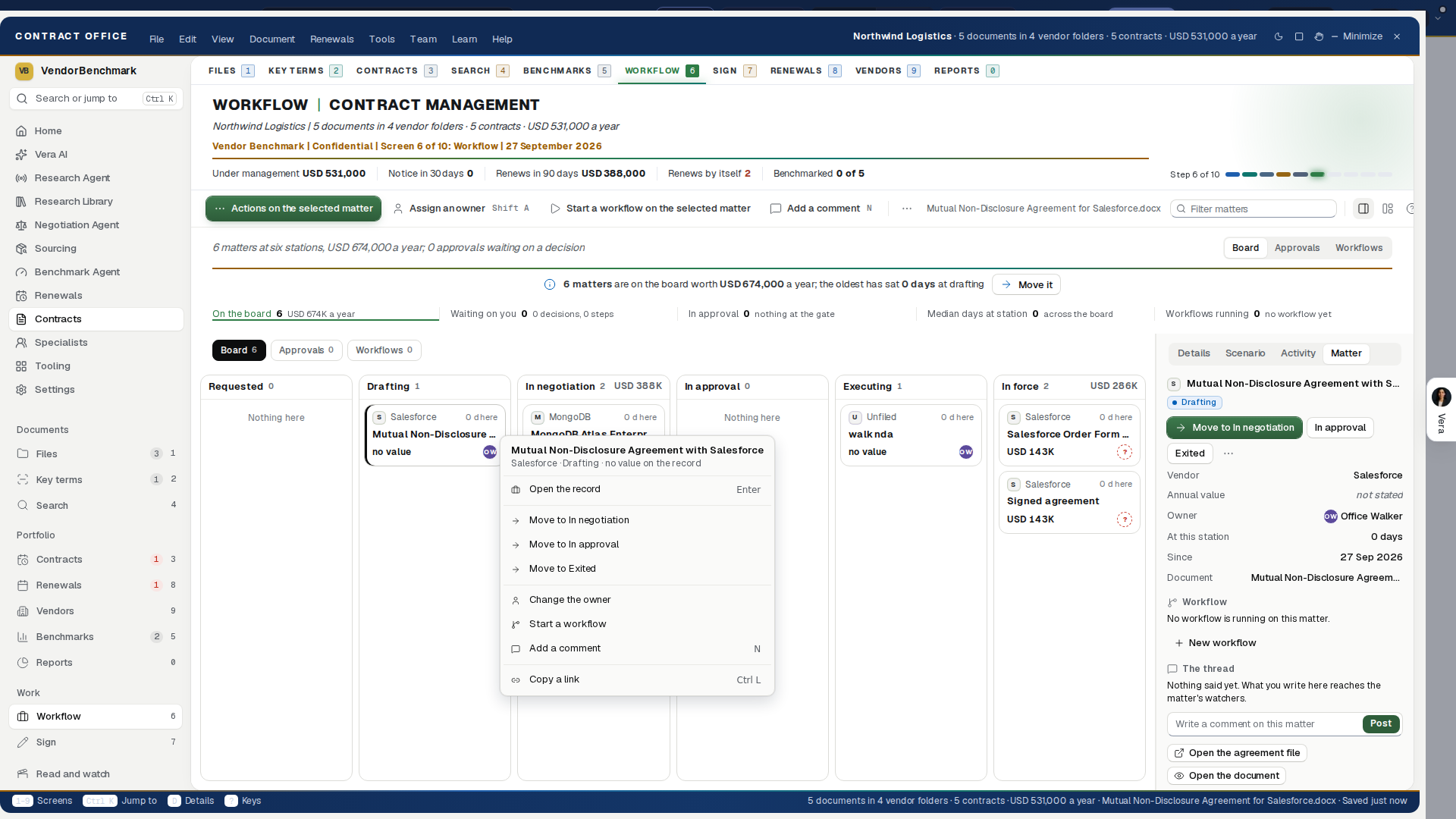
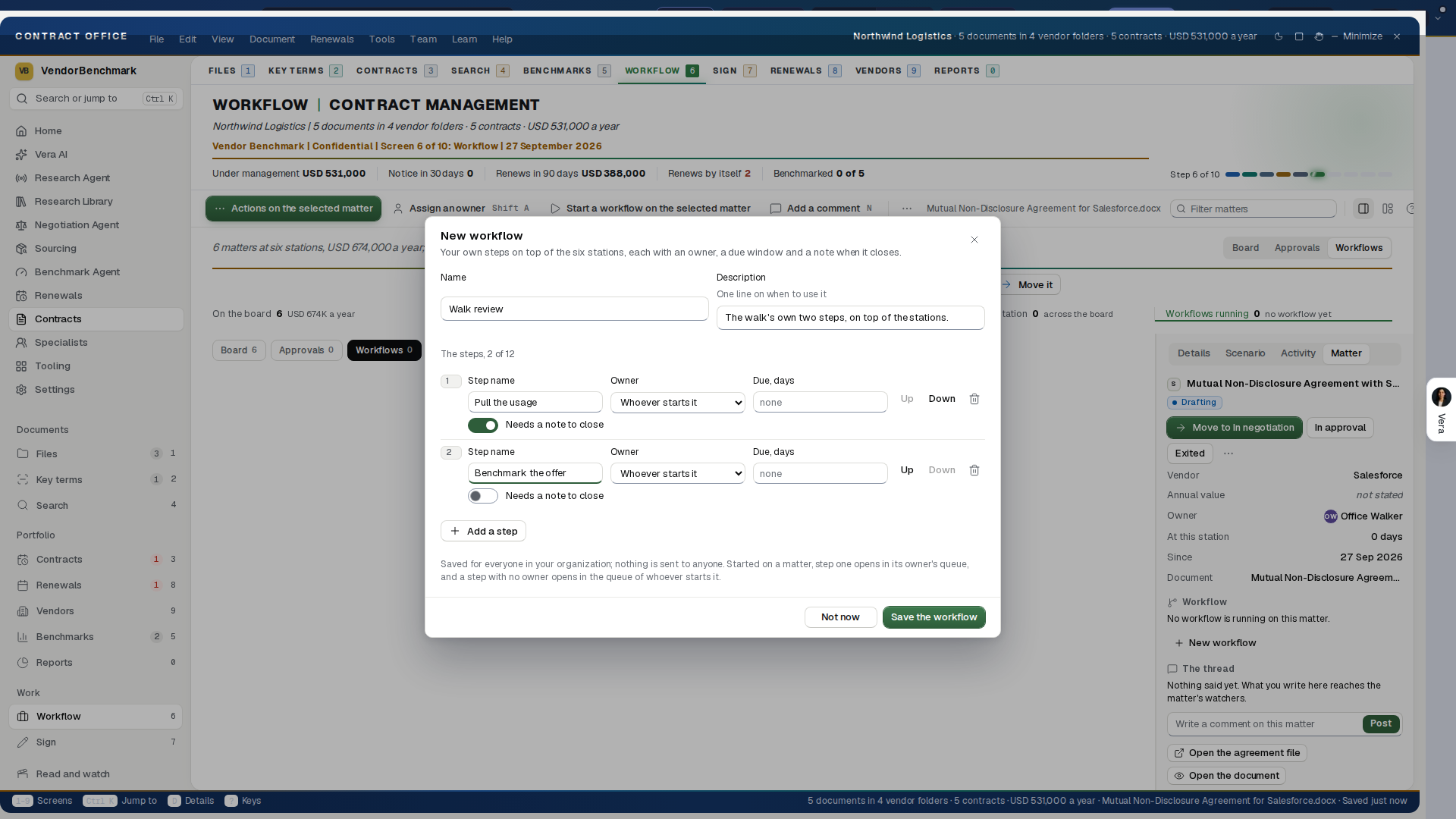
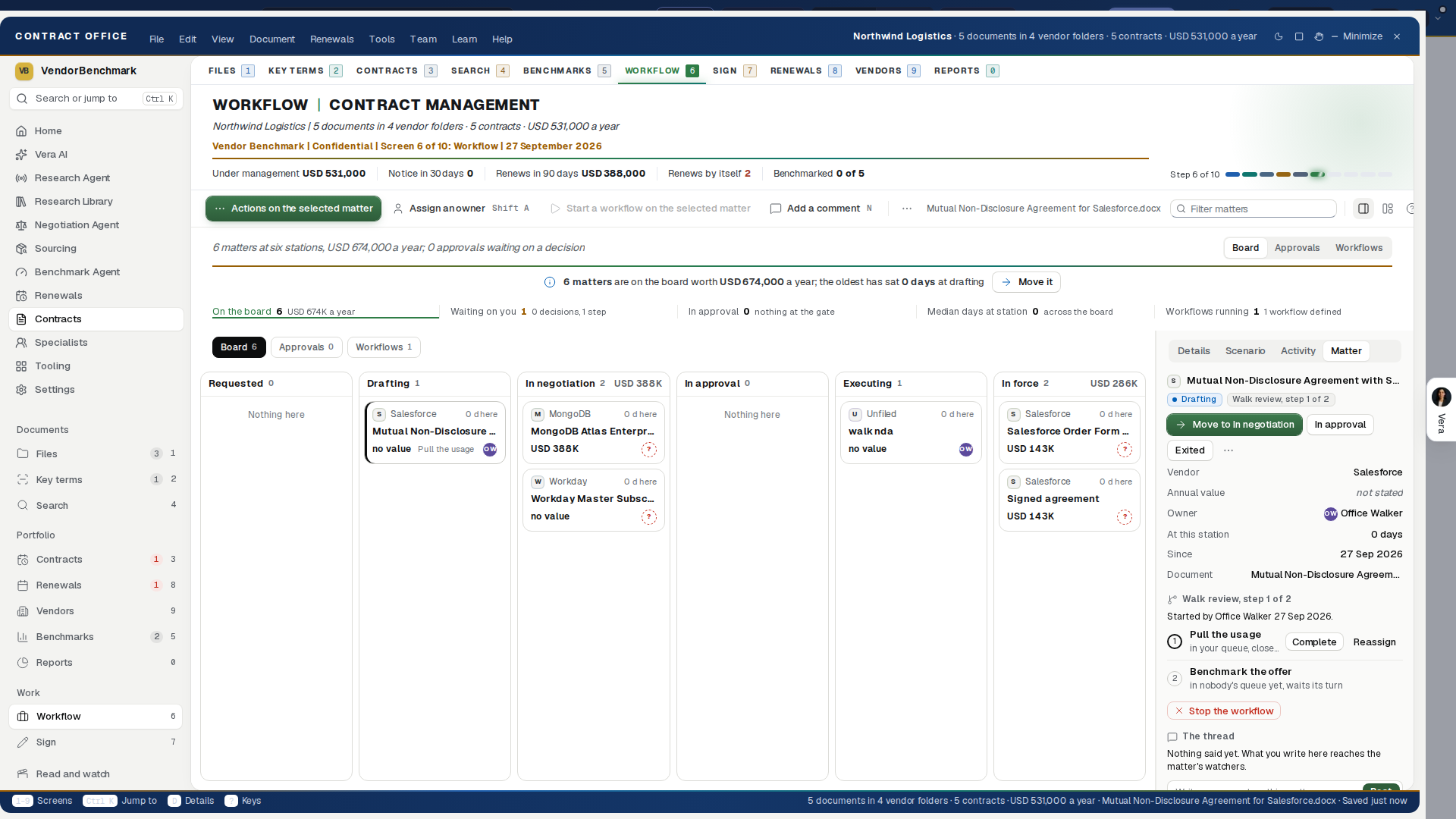
On the screen
- Board, Approvals, Workflows: the switch at the right under the head changes the view. The head's filled button is New workflow.
- The line under the head (the approval waiting on you, the oldest matter) carries its action as a button, and so do the actions repeated on every row and card: Approve on each approval, the step press on the board, and the run press on each flow.
- Waiting on your hand — when an approval is yours to decide, a sentence at the top names it, says how long it has sat, and clears it in one press. Waiting on you is a filter as well: press it and the board shows only the matters that wait on your hand or carry your name, press it again to clear.
- The right click on a matter — on any matter, or Shift+F10: Move to each station the file may legally go to next (the same move a drag makes, refused by name at a gate), Assign an owner, Comment (the record's own thread, which reaches its watchers), Start a workflow or, once one runs, The workflow, Mark {step} done and Stop the workflow, with Open the record first and Copy a link last. On the board, the station columns read as panels, and each matter carries its station's hue and its owner.
- Your own workflows — a workflow rides on top of the six stations: your own named steps, each with an owner, a due window in days and, when you choose, a note it cannot close without. New workflow in the Workflows group defines one (up to twelve steps, reorder them, save); Start a workflow on a matter puts step one in its owner's queue with its due day; the matter says which step it is on and who; the inspector's The workflow section walks the steps with Mark done and Reassign, keeps every closing note, and Stop the workflow ends it. A workflow running on a matter cannot be deleted until it is stopped.
- Owner and Thread — the inspector states who owns the matter with Assign beside it, and carries the record's own thread with a composer at its foot; every line names who wrote it and when.
- Median days at station — median days at each station, from your own transition history, with the slowest station named. Thin history says so rather than printing confident numbers.
- The clock — the fuller measure, folded in from Contract Management on 25 August 2026, is the Cycle time board on Reports: the median run from request to in force, how often approval clears on the first pass and how much of that moved by policy alone, how long counterparties take to come back with document against how long your own side takes to answer, and the lifecycle moves recorded in the last thirty days. Below the figures, the cycle time per station and a read in plain sentences saying where the queue sits and which side of the table is holding the document. A figure that cannot honestly be stated yet says so; it never reads as zero.
- The board — drag a matter to its next station to move it. The same guarded lifecycle the agreement file uses runs here: an illegal move is refused with the stations named, and a legal one lands on the activity trail with your name. The keyboard walks the board too: j and k or the arrows move down a column and Enter opens the agreement file, and a right click on a matter offers the matter's own menu. A column holding more than thirty matters ends with how many more there are.
- The gate on the matter — a file held at approval shows who holds it and for how long, in the open. When the request is yours, Approve sits on the matter itself, and the inspector also offers Send it back, which takes a note and returns the file to whoever asked.
- Rules on duty — a list of your approval rules as sentences, with their SLAs, and a button to write or change them.
- The inspector — the six-station stepper, the gate's chain of approvers, the legal moves from here, and buttons to the agreement file and the document.
How to use it
- Press 5 in the Contract Management Portal.
- Drag a matter one station to the right when its work is done; the board refuses a skipped gate by name.
- When the sentence at the top says something waits on you, press Approve and the file moves itself when the last gate clears.
- Open Reports and its Cycle time board when the question is not what is stuck but why everything takes as long as it does.
Related: Track agreements and never miss a notice window, The agreement file
Sign: the envelope screen
Send a document for signature and watch what happens to it. Every envelope in the estate sits on this one screen, whichever service carried it: VendorBenchmark Sign, DocuSign, or Adobe Acrobat Sign. What needs a hand sorts first.
In plain words: upload a PDF, say who has to sign it, put the boxes on the pages, and send. The screen tells you who opened it, when, and who has signed.
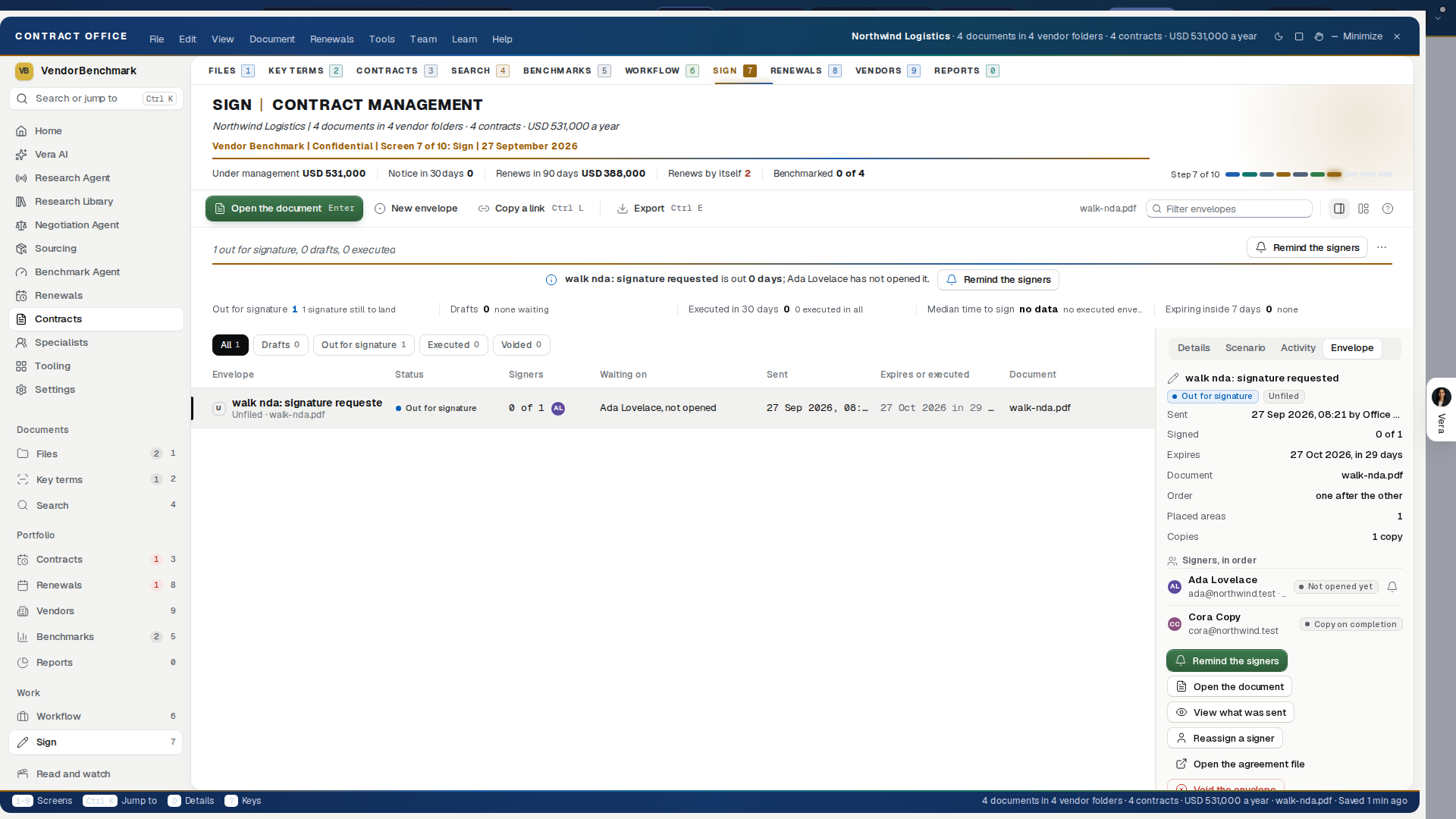
On the screen
- Every envelope verb from the menu and the keyboard: the Tools menu carries a Signing group (send for signature, sign now, remind the signers, reassign a signer, download the executed copy, view what was sent, verify a copy, and void the envelope, last after a rule), and each is in Ctrl K too. They act on the envelope selected on this screen, follow the same rules as its own buttons, and say so when one does not apply to it.
- The line under the head (the oldest envelope waiting, the next to send) carries its action, sign now, remind, open or start an envelope, as a button. The envelope panel on the right carries the envelope's own.
- The headline — how many signatures are still to come and across how many live envelopes, how many signers have not opened the document at all, and how long the oldest one has been out. Four figures beside it: waiting on you, out for signature, signers yet to open, completed.
- Your signature — an envelope where your own name is the pending signature offers Sign now: a fresh personal link opens the signing page in a new tab, and the old link dies with the mint. An envelope that came through DocuSign or Adobe Sign says so instead: it is signed from the email they sent you, and this screen only watches it.
- The chain on every row — each recipient with their standing: signed with the date, opened it three times and still not signed, or not opened at all. Copy recipients are marked as copies and take no turn. A declined envelope shows the signer's reason verbatim.
- Remind, re-route, void — a live VendorBenchmark Sign envelope can nudge the signer the chain waits on, be re-routed to a different person (the old link dies on the spot), or be voided with a reason that lands on the record.
- When VendorBenchmark Sign is switched off — a workspace with VendorBenchmark Sign turned off is not offered New envelope; the screen says so, and DocuSign and Adobe envelopes still show here.
- The signing order — since 27 September 2026, an envelope with more than one signer draws its order as a chain at the top of the details: each signer as a disc with their standing under the name, a tick and a filled line as they sign, the signer it waits on glowing, and a red cross where someone declined. An envelope that goes to everyone at once glows on every signer still to sign; a draft or a closed envelope waits on nobody.
- The inspector — the whole chain with the evidence per name, then Everything that has happened: every send, email, open, signature, reminder and re-route with its time and, where the law would want it, the network address it came from. Below that, View the signed copy, View what was sent, Verify a copy (on an executed VendorBenchmark Sign envelope: it opens Verify a signed copy in a new tab with the Envelope ID filled in), and the button to the agreement file.
- Executed — the signed archive, one of the five chips (All, Drafts, Out for signature, Executed, Voided), and the answer to "what have we actually signed". Every completed envelope newest first, grouped by the month it closed, with the day it completed and every name that signed it with their own date. One press reads the executed copy: the stamped pages with the certificate of completion behind them.
- Reading a document — any document on this screen opens inside the window: page through it, zoom, download it, press Escape to close. A contract that is also a document on the estate still opens in the reader, where the read and the comments live.
New envelope, in three steps
- The document. Drag a PDF to where it says Upload the PDF here, browse for one, or press Take one off the estate and pick a document already filed. Whatever you pick is pinned: the signers sign exactly what you sent, never a later version.
- The recipients. A name and an address each, and what they are here for: Needs to sign joins the chain and gets a personal link, Receives a copy gets no link and no turn and is emailed the executed copy at the end. A job title and a company here fill the matching areas on the document by themselves. Choose One after another (each signer is emailed when the one before has signed) or Everyone at once, and how long the links live. A signer's row also sets their Identity checks, Code by email and Access code, which start on your organization's defaults from E-sign Settings; Code by email for everyone and Email link only for everyone set every signer at once. See E-sign, identity checks.
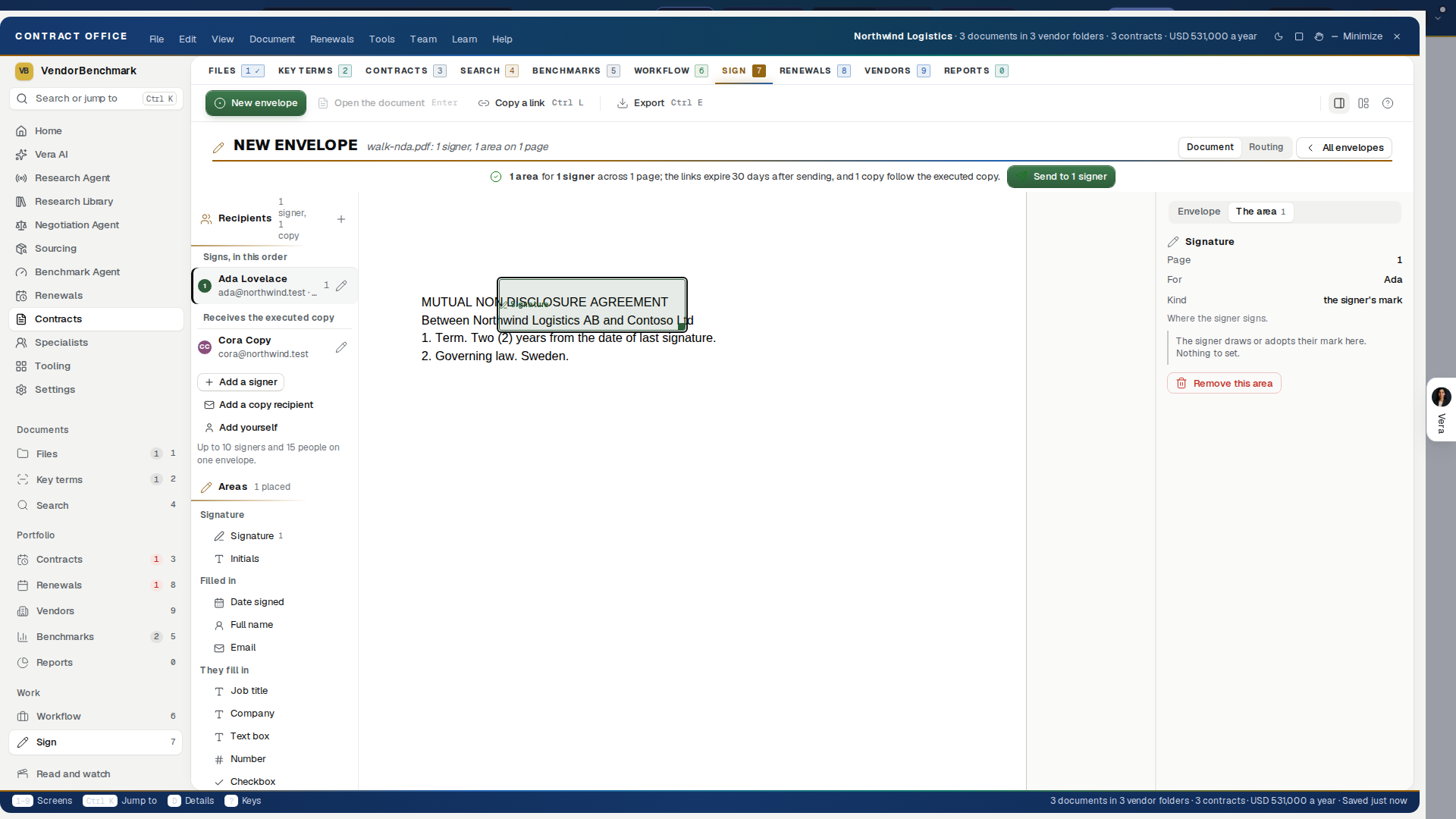
- The areas. Twelve kinds, dragged onto the pages and colored per signer. Signature and Initials are drawn from the signature they adopt. Date signed, Full name and Email fill themselves. Job title, Company, Text box, Number, Checkbox, Dropdown and Choice buttons are asked of the signer; each one takes a label, a required flag, and a value you can fill in yourself and lock so your answer stands: a text you type, a choice you pick for them on a dropdown or choice buttons, or a checkbox that starts selected. A locked area wears the lock on the page, and the signer sees your answer rather than a box to fill.
What happens after you press send
- The first signer (or every signer, in Everyone at once) is emailed a personal link. No account is needed to sign.
- A signer with an access code has it shown to you once, beside their link; give it to them by phone or message. E-sign shows it again in Tracking.
- A signer with identity checks sees them before anything of the document, and five incorrect codes lock their link and email you.
- Every open and every signature lands back on this screen with its time.
- When the last name goes on, the areas are stamped into the PDF, a certificate of completion is appended, the executed copy files itself on the agreement record, and every party (signers, copy recipients, and you) is emailed that copy.
How to use it
- Choose Sign in the View menu of the Contract Management Portal, or type sign in Ctrl K.
- Press New envelope, on the line under the head or in the Document menu, and work the three steps. An envelope can also start from an agreement file at the Executing station; the signing studio there places the same areas. An envelope you leave half composed is kept: the next time you open the portal, on any browser, it is offered back, and Start fresh puts it away.
- When the chain stalls, open the envelope in the inspector: if the signer never opened it, press Remind; if they have opened it four times, the hold-up is a decision, not the inbox, and a phone call beats a fourth email.
- When the signer has changed jobs, press Re-route.
- To find something already executed, press Executed and read down the months.
Related: The agreement file, The API, MCP, and agent-to-agent
E-sign
In an agreement's own file, what you choose reads in gray and ink, never the accent green: the template you draft from, the signing provider, the routing mode, the field type you arm to place, the clause you select in the reading room, and the move you are on in the landing.
E-sign is the app for signatures, one of Your apps on Home since 23 September 2026. It reads the same envelopes as the Sign screen above, in a window of its own with five screens: Envelopes, Prepare, Tracking, Archive and Read and watch. Jump to… finds it under e-sign, signature or DocuSign.
Since 9 October 2026 the numbered Screens list at the top of the left menu moves between Envelopes, Prepare, Tracking, Archive and Read and watch, and each screen opens with one plain sentence of its figures. The first card in the details column on the right says what to do next and has the button that does it.
In plain words: see what waits for your signature, send a new envelope, follow one envelope to the signed copy, and find anything already signed.
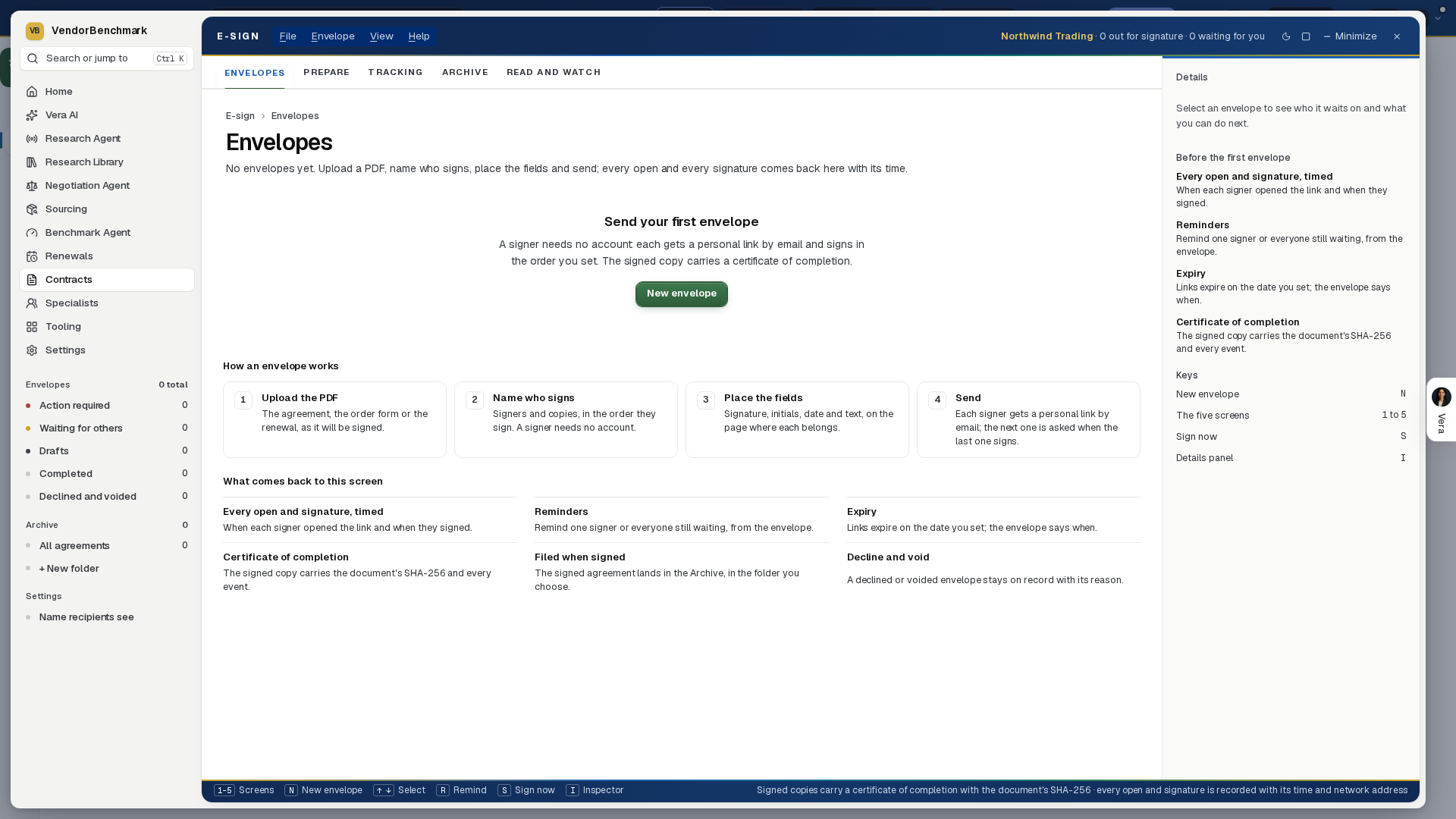
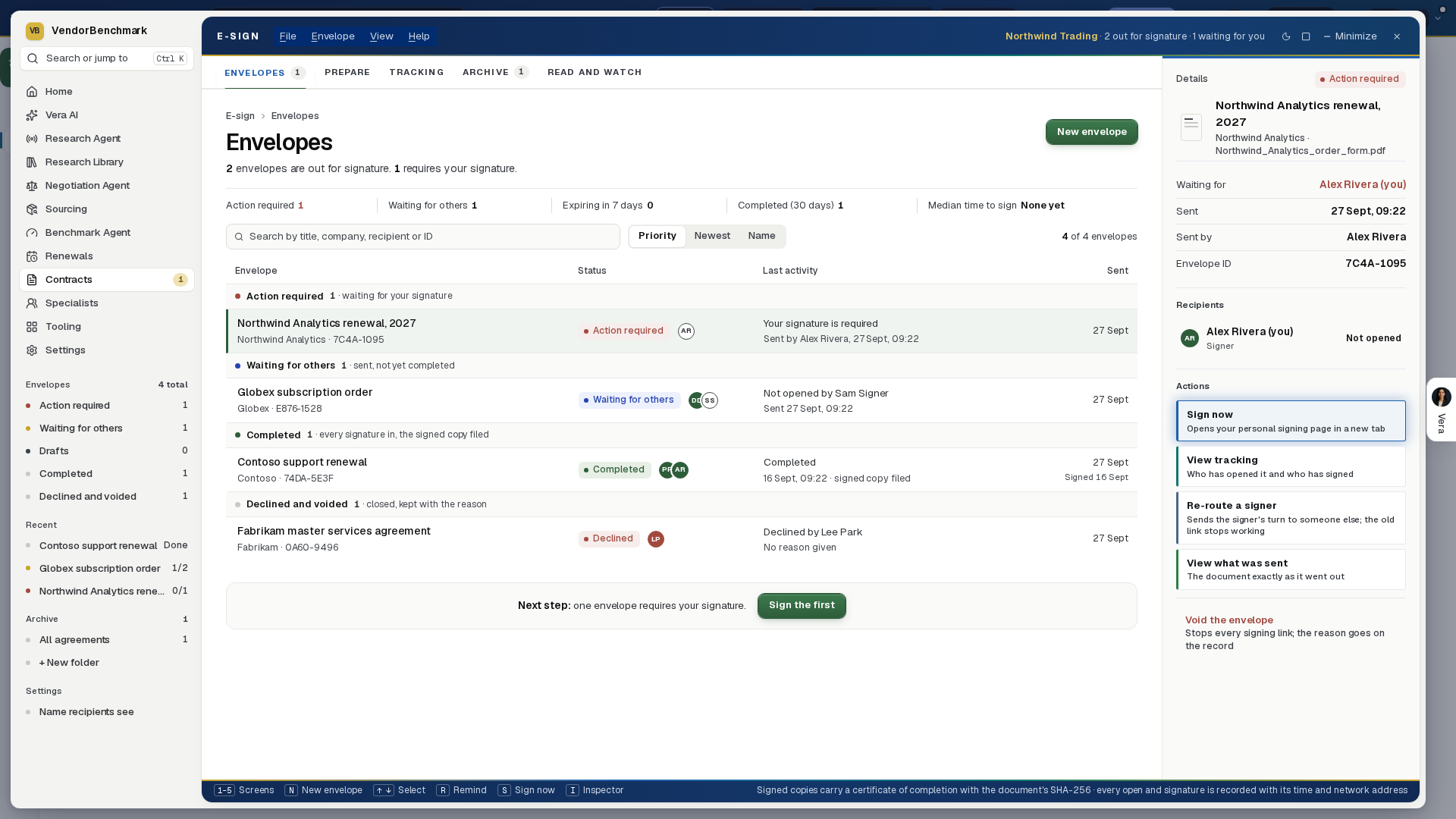
On the screen
- The look: since 24 September 2026 the screens inside the window match the rest of the app. Each screen opens with its title and its buttons on one row, then its figures (as one plain sentence since 9 October 2026). Lists read as tables with a short group line, the selected row is tinted green, and the one main button on each screen is green. Nothing moved and nothing was taken away: every figure, column, action and setting is where it was.
- The house dress: since 27 September 2026 each screen's title is set in navy capitals and every section opens on a navy band in the color of its screen, as across the app.
- The frame: since 5 October 2026 E-sign wears the frame every app shares: the menus, Talk to Vera and the window buttons in the title bar; one navy column on the left, which opens with the five screens as a numbered list; each screen's title, buttons and one sentence of its figures in the head above the page; and the details on the right, opening with what to do now. Press V to talk to Vera about the screen you are on and I to hide or show the details.
- The menu on the left: Home, Vera AI and your pinned apps, then Envelopes in five groups with their counts (Action required, Waiting for others, Drafts, Completed, Declined and voided), the six most recent envelopes, and the Archive by month. Press a group to show only it; press it again to show them all.
- Envelopes (1): the head names the envelope whose links expire first, when one expires within seven days, then one plain sentence of its figures: action required, waiting for others, expiring in 7 days, completed in the last 30 days, and the median time to sign. The list groups every envelope, what waits for you first, each row with its status, the recipients as a chain of initials (green signed, gold opened, a dashed ring for a copy), what happened last, and when it was sent. Search covers the title, the company, the envelope ID and every recipient. Order by Priority (the links that expire first), Newest or Name. The five groups sit in the menu on the left with their counts; press one to show only that group, and the × on the filter beside the search shows them all again. The status bar says every signed copy carries a certificate of completion; point at it for the detail.
- Prepare (2): the envelope composer from the Sign screen: upload a PDF or take one off the estate, name the recipients, place the fields, and send. A draft you leave is the same draft on both screens. The Recipients column on the left shows each person as a row with their place in the order, name, address, role, how many areas are placed for them and their identity check; under them sit Add a signer, Add a copy recipient and Add yourself. Pressing a row's pen opens the recipient in one dialog: Contact (full name and email), Role and details (what they are here for, job title, company) and, for a signer, Identity checks, each a switch with one line on what it does. Move up, Move down and Remove sit at the left of its foot and Done at the right.
- Suggested recipients (since 6 October 2026): as you type a name, an address or a company into Full name or Email, Prepare lists the people your organization has sent envelopes to before, the most recent and the most often sent to first, with their address, title and company. Use the arrow keys and Enter, or press one, to fill the name, the address, the job title and the company at once; Esc closes the list. People already on the envelope are left out, and the sample data suggests nobody.
- Tracking (3): one envelope: the signing progress from Sent through each signer to Completed, each recipient with their opens (an open counts when the signer's browser opens the signing page; a mail system checking the link does not count), first and last open, identity check and signature, and the audit trail, every event with its time and, where there is one, its network address. A signer whose link five incorrect codes locked reads Locked, and so does the envelope's status.
- Archive (4): every signed agreement by the month it was signed, in folders the whole organization shares: everyone sees the same folders, each folder records who made it, and each agreement records who filed it and when (Filed by in the list and the details panel). Double-click an agreement to read the signed copy with its certificate of completion. Under the head, How long signing takes draws each signed agreement from sent to completed as a bar, the quickest first, with the median marked on them.
- Read and watch (5): the films, analyst briefings, research papers and guides the library holds on the vendors you sign with, laid out as in the agents, so you can read up before putting a name on the paper. The vendors of envelopes still out come first, then the signed ones. A row opens its piece.
- Folders: New folder at the top of the Archive, or + New folder in the menu on the left. Drag a signed agreement onto a folder, in the menu or on the folder buttons, to file it; drag it onto Not in a folder to take it out. Right-click an agreement for Move to folder, and right-click a folder to rename or delete it. Deleting a folder deletes only the folder: the agreements in it stay in the archive, in no folder. Every filing is on the audit trail with the name of whoever made it.
- Settings, the name recipients see: press Settings at the foot of the menu on the left, File, Settings, or the comma key. An owner sets the name your signers see in place of VendorBenchmark: on the signing emails (the masthead, and the sender shown as your name via that name), on the signing page, and on the signed copy's certificate of completion. Three previews show all three as you type. The name is stamped on each envelope when it is sent, so a rename never changes an email already delivered or a certificate already sealed; Use the platform's name goes back to the platform's. The emails still come from the platform's verified sending address.
- Settings, identity checks: the starting point for each new recipient, set by an owner. Code by email and Access code each reach nobody (Off), recipients outside your organization, or every recipient. Until an owner chooses, a code by email goes to recipients outside the organization and no access code is asked.
- Settings, reassignment: Allowed (the starting point) or Not allowed, set by an owner: whether a recipient may hand the envelope to a colleague. See Assign to someone else.
- Settings, routing templates: every routing your organization has saved, what it keeps in one sentence, and how often it has been used. Delete removes a template; envelopes that used it keep their routing.
- Settings, your signatures: the signatures you keep for signing your own envelopes, each with its initials, and Add signature. See Your signatures and signing several at once.
- Sign all: when more than one envelope waits for your signature, Envelopes has Sign all beside New envelope.
- The details panel (right): the selected envelope or recipient, and the actions that fit it: Sign now, Remind, Re-route a signer, Unlock a locked link, Show the access code, View what was sent, View the signed copy, Verify a copy (on a signed envelope, see Verify a signed copy), Open the agreement record, and Void the envelope last, after a rule. Press I to hide or show it.
- The emails: every email the signing sends reads the same way: a title, one line on what happened, the facts in a small table (the document, the vendor, who sent it, the signer's place in the order, when the link expires, which identity check waits), the other person's own words in a callout, one button, and what happens next as numbered steps. The signer's email names their identity check before they meet it. The fully signed email lists who signed and when, with the executed copy attached. A decline, a reassignment and a locked link each tell you what to do now.
How to use it
- Press E-sign under Your apps on Home.
- Start on Action required: select an envelope and press Sign now, or S. Your signing page opens in a new tab.
- To follow one you sent, double-click it, or press Enter, to open it on Tracking. If the signer opened it and has not signed, press Remind, or R: they get a new link, and the one they already have keeps working. If they have left the company, press Re-route a signer.
- Press New envelope, or N, to send a document; the five screens are also on keys 1 to 5, and the arrow keys move the selection.
- To find a signed agreement, press Archive and pick its folder, or search.
- To file one, drag it onto a folder, or right-click it and choose the folder.
- When a link is locked, you are emailed. Open the envelope on Tracking, select the signer and press Unlock: they get a new link, and a new access code shows for you to give them.
Identity checks
On top of the emailed link, a signer can be asked to prove it is them before the document opens. Checks are set per signer, and nothing of the document shows until every one passes: not its pages, not the signing order, not your message.
- Code by email: a 6 digit code in a separate email, sent when the signer opens their link. It works once and stops working after 10 minutes; Send a new code replaces it, at most once every 30 seconds.
- Access code: 6 digits you give the signer yourself, by phone or message. It is never emailed. You see it when you send, and Show the access code reads it back on Tracking; every read is recorded.
- The lock: five incorrect codes lock the link and email you. Unlock sends the signer a new link and makes a new access code for you to pass on.
- Signing it yourself: Sign now counts your own sign-in as the check, so you are not asked for a code on your own envelope.
- The record: every code sent, pass and incorrect code is on the audit trail with its time and network address, and the certificate of completion states what each signer passed.
Routing
Routing shows who signs in what order as steps, top to bottom, with the people who receive a copy at the foot. Everyone in a step receives the envelope at once; the next step starts when every signer in it has signed.
- Moving people: drag a card onto another step, or onto a then line to make a new step (Escape cancels the drag). The card's menu does the same from the keyboard: Move to step 2, Move to a new last step, Receives a copy instead.
- Joint signatories: two or more people who sign for the same company in the same step; all of them must sign. Add a joint signatory in a card's menu adds the second person to that step and places their own signature block below the first one's.
- Signing groups: Make a signing group lets any one of two to six people sign for the group. Every member gets their own link; the first to sign completes the step, and the others' links show that the group has signed. The certificate names the member who signed, for the group.
- Rules on contract value: Add a rule on contract value includes a signer only when the value is over, or under, an amount. The rule is decided once, when you send, on the contract value you set in Routing or the details panel. A signer a rule leaves out receives nothing, and the audit trail and the certificate record why.
- One after another and Everyone at once in the details panel still set the whole order in one press, and replace any steps set in Routing.
- On Tracking: the progress line shows one stage per step, a group waits as one row, and a signer a rule left out reads Skipped.
- Save as template: keeps the steps, who signs in each, their rules and identity checks, and who receives a copy, under a name everyone in your organization sees. People inside your organization are kept by name; everyone else, you included, becomes a role such as Vendor signatory. The document and its areas are not saved.
- Apply template: puts a saved routing on the draft. People already on the draft take the roles that fit them, a role nobody fills arrives named after the role for you to complete with a name and an email, and anyone the template has no place for stays, in a last step. Their areas move with them.
Viewing time per page and a reminder schedule are on their way in later stages; nothing on these screens stands in for them. Saved signatures are here: see Your signatures and signing several at once.
Related: Sign: the envelope screen, The agreement file
Assign to someone else
A recipient who is not the right person to sign can hand the envelope to a colleague, with the colleague's name, email, job title if they like, and a reason.
- What happens: the colleague is emailed their own link, with the reason, and signs in the same places. The first recipient's link stops working, and you are emailed who took it over and why.
- Identity checks: the colleague passes the same checks. Where there is an access code, a new one is made; show it on Tracking and give it to them yourself.
- The record: the audit trail and the certificate of completion carry both names, the time and the reason.
- When it is not offered: to a member of a signing group, since anyone in the group can already sign, and when an owner has set Reassignment to Not allowed. You can still change a recipient yourself with Re-route a signer on Tracking.
Related: Routing, Identity checks
Your signatures and signing several at once
- Your signatures: keep up to 10 signatures, each with its initials: typed, drawn, or uploaded from a photo or scan of your signature on white paper (the white is taken out). Name each one and make one the default. They are yours alone; nobody else in your organization sees them.
- Signing your own envelope: from Sign now, or from a signing email while you are signed in to VendorBenchmark, your default is ready on each signature field. Sign all areas fills the document in one press, and pressing a signed area lets you pick another of your signatures or make a new one; Save to my signatures keeps a new one for next time.
- Anyone else signing: a recipient outside your organization adopts a signature on the page as before, and can also upload one and set the initials that go on initials fields. The certificate says whether a signature was typed, drawn or uploaded.
- Sign all: pick the envelopes, and each opens in full in a new tab, one after another, with its own confirmation and its own identity checks. A line at the top says Signing 2 of 3 and what is next; Stop after this one ends the session after the current envelope, and a summary lists what was signed and what still waits.
Related: Identity checks, Routing
Verify a signed copy
Proves that a PDF is, byte for byte, the signed copy on record, and so that nobody has changed a word, a figure or a signature since the last person signed.
In plain words: drop the signed PDF on the page and it says whether this is exactly the copy that was signed.
On the screen
- The Envelope ID on every page: since 6 October 2026 every page of a signed copy, the certificate included, carries a small line at the top left: VendorBenchmark Sign Envelope ID and the envelope's full ID (only Envelope ID when the envelope went out under your organization's own name). The short code E-sign shows, such as 9C79-61EB, is the first eight characters of the same ID.
- The certificate of completion: names the Envelope ID, the Signed copy ID (the signed copy's own ID), the SHA-256 of the document as it was sent, and where a copy is checked.
- The fingerprint on record: when the last signature lands, the platform records the SHA-256 fingerprint of the exact signed copy it filed and emailed. Only the platform can write it; nobody in any organization can change it.
- The drop zone: drop the PDF or choose it. The file is fingerprinted in your browser and never uploaded: only its 64 character fingerprint is sent.
- Envelope ID (optional): type or paste the ID from the top of any page, or the short code. With it, a file that is not the copy on record is told apart from a file the platform has never sealed.
- How the check works: the three steps beside the drop zone: fingerprint, compare, answer.
- The answer: This file is the signed copy on record, with the Envelope ID, the Signed copy ID, the completion date, how many signed and each signer as initials and an email domain; your document's name shows too when you are signed in and the envelope is your organization's. This file differs from the signed copy on record when a copy is on record under the ID you typed and this file is not it, for example after it was edited, saved again or printed to PDF. No signed copy on record matches this file when nothing matches. The file's own SHA-256 is printed under every answer.
- The record: every check that finds an envelope is written to that envelope's audit trail on Tracking, as A copy was checked on the verify page, with its time and network address.
How to use it
- In E-sign, select a signed envelope and press Verify a copy in the details, or open the address printed on the certificate.
- Drop the PDF you were sent, or press the drop zone to choose it.
- Optionally type the Envelope ID from the top of any page.
- Press Check the file and read the answer.
Tips
- Envelopes signed before 6 October 2026 have no fingerprint on record, so a check of their copies finds nothing; the certificate's document SHA-256 still proves the document as it was sent.
- Any change makes a different fingerprint, even opening the PDF in an editor and saving it again without touching a word. Check the file exactly as it was emailed or downloaded from E-sign.
- Twenty checks every ten minutes from one network; past that the page asks you to wait a few minutes.
Related: E-sign, Identity checks
Vera in the Loop
Vera in the Loop puts Vera between an offer and its signature. Every envelope your team sends through DocuSign reaches Vera before anyone signs: she reads the documents, benchmarks the deal, checks it against your templates and your corporate policy, and writes a two page signing brief. The people you name approve it, and the signer signs in DocuSign with Vera's call in hand. Every contract signed in DocuSign or Coupa is filed in Contracts automatically, whether it went through the loop or not. Nothing changes in DocuSign: the envelope goes out to its signers as normal. It was called Vera for DocuSign until 7 October 2026, and has been one of Your apps on Home, beside E-sign, since 29 September 2026. Jump to… finds it under DocuSign, Coupa, signing brief or approvers.
In plain words: connect DocuSign once and set the rules; every offer your team sends for signature then gets a two page brief, passes the people who approve it, and is filed the moment it is signed.
On the screen
The window: six steps, Loop, Read, Brief, Approve, Sign and Filed, numbered across the top and on keys 1 to 6. It wears the frame every app shares: the menus, Talk to Vera and the window buttons in the title bar, one navy column on the left, and the details on the right.
- On the left: Home, Vera AI and your pinned apps, the six steps with what each holds, up to eight Offers in the loop with their value, and the Loop rules: Templates, Corporate policy, Approvers and What Vera reads, each opening the rules at its own section. A lit dot marks a step that waits on you.
- The head: the step's title with one status tag, its one filled button, and one row of facts. On the Loop step the facts are how many offers are in the loop, the value under review, the money on the table and how many contracts were signed and filed; on an offer they are who sent it, its value, Vera's call, its rank and the day it arrived or was signed.
- On the right: the offer's facts (vendor, value, rank, the money on the table, the approval and the status), the What if on the Brief step, the next moves, each one press, and questions to put to Vera. Press I to hide or show the column, V to talk to Vera, R for research on the vendor, M to draft the email the step calls for, P to print the brief, and Esc to close the window.
- At the foot of every step: Bring in, with Vera, the specialist for the vendor, contract counsel, the benchmark analyst and the executive sponsor one press away, and Every specialist.
Loop (1): how an offer reaches Vera. First a drawing of the loop, from the offer arriving to a signed, filed contract (Play the loop runs it again). Then every offer in the loop: the vendor and the subject, how it came in and who sent it, its value over the term, Vera's call and its rank, five dots for how far along it is, and the day it arrived. Press an offer to open it. Under them, three panels:
- DocuSign: whether Connect is set up, the route each envelope takes (Vera first, then the approvers, then the signer), and for an owner the address to paste into DocuSign Connect with Copy. Set Connect up under Settings › Integrations with Envelope Sent, Envelope Completed and Envelope Voided selected and Include Documents on.
- Coupa: whether Coupa is connected, when its signed contracts were last read (every day), and Import from Coupa now for an owner.
- Vera in the loop: whether Vera reviews every envelope, the templates, policy and approvers in force, Put Vera in the loop (owners), Loop rules and Load the sample envelope.
Below the panels, the three rules in force, Templates, Corporate policy and Approvers, each with Edit.
Read (2): what Vera checked on the offer in view, one line each with what it found: the envelope arrived, the file checks, every page read, the price against comparable buyers, the terms against the market, your corporate policy, the template that applies and the brief. What Vera found sets the result out as chips: the value over the term, the discount, the rank, the terms that read worse than the market, the money on the table and Vera's call. While Vera reads, a clock counts the time and the screen moves on by itself when she is done.
Brief (3): the signing brief on two A4 pages, written for an executive with five minutes. Page 1 says what the agreement is, Vera's call and why, the key facts, what is being bought line by line, the money by year, what is good, what to watch, and the three things to settle before signing, with who does each and by when. Page 2 is the benchmark: where the deal ranks, the discount against what comparable buyers sign, the terms against the market, the asks in the order to ask and what each is worth, the corporate policy and template checks, the dates that matter and the bottom line. Show both pages or one, at full size or fitted to the window; Download PDF prints it to a PDF. Send back with the asks has Vera draft the email to the vendor in Mail. Until Vera has written page 1, page 2 shows the finished benchmark. The What if in the details column moves the discount and shows the money over the term and the rank that discount would earn, on this deal's own figures.
Approve (4): the people who approve before signature, as the loop rules set them: In order, Everyone or Any one. The chain shows Vera's review, each approver with their decision, their note and when they decided, whose turn it is, and the signer. On your turn, Approve or Reject, with a note for the signer if you want one; your name and the time go on the envelope and in the audit log. The corporate policy and the template checks sit below, each rule or point marked met, breach, departs, missed, partly or unclear, with the clause that decides it. Email the approvers has Vera draft the request in Mail.
Sign (5): for the signer: the envelope as it stands in DocuSign and the note Vera drafts for them, Vera's call with the rank, the things to settle before signing, and how many terms are good and how many to watch. Open in DocuSign to sign opens the envelope in DocuSign, where it is signed. Email the signer from Mail sends Vera's note, with the approvals and the things to settle; nothing sends itself.
Filed (6): once DocuSign returns the signed copy, where it went: a record in Contracts with the signed copy (Open in Contracts), the renewal and notice dates on the renewals calendar, the signed text indexed for search and Vera, and the price and rank kept in the Benchmark Agent's ledger. Beside it, the audit trail of who sent, read, approved and signed, and when, and under it the key terms from the brief. At the foot, every contract signed in DocuSign or Coupa that reached Contracts, filed whether it went through the loop or not.
Loop rules: a panel from the right with five sections, opened from the left column, the Loop step or the moves. Everyone can read them; owners change them, and a change applies from the next envelope.
- Vera in the loop: the switch that has Vera review every envelope your DocuSign account sends.
- Templates: NDA, MSA and SOW, each switched on or off, with the points Vera checks. Vera applies a template when the envelope's subject names its type, and flags every point the agreement misses. Add or remove points; Apply to every envelope makes one template's areas and points the review every envelope gets, and Put back the standard restores its points.
- Corporate policy: the rules every contract is read against, each Required or Preferred; a breach of a required rule goes to the top of the terms to push back on. Add your own, or Put back the starter policy for six common rules. Review every contract skips nothing by name and emails every brief whatever its value.
- Approvers: up to eight members of your workspace who approve before signature, added by name and put in order, with How approval works set to In order, Everyone or Any one. They get the brief by email and approve on the Approve step.
- What Vera reads: the nine areas (price, terms, renewal and uplift, commit and shortfall, liability, data and exit, service levels, payment, governing law), your must haves, a note in your own words, the value below which an envelope is filed without an email, the subjects to skip (NDA, DPA and Offer letter to start), and who gets the email.
The email. When the brief is written, Vera emails it: her call, the benchmark, the things to settle before signing and a link to the brief. It goes to the sender when their DocuSign address belongs to an active member of your workspace, to the approvers, and to the addresses an owner lists. A signer outside your organization never receives Vera's brief. With Review every contract on, or with approvers named, it goes whatever the deal's value.
Research more: in the moves on any offer and on the Brief step. It opens what the research library holds on the vendor, each note opening in the reader, with Talk to Vera about it to go further.
The sample envelope: Load the sample envelope shows the loop end to end on an Oracle Fusion order form, with its brief, before DocuSign is connected, marked as a sample wherever it shows; Remove the sample takes it out. Sample data in the title bar is the same switch: on adds the envelope and off removes it, for everyone in the workspace.
Delete this envelope, in an offer's moves, removes it from the loop; nothing changes in DocuSign, and the benchmark report stays in the Benchmark Agent's ledger.
Related: E-sign, Benchmark Agent
Renewals: the decision runway
Vera's read of this screen. At the top of Renewals, Vera sets out three moves from what is on the screen, each with one press: Decide this week (the contract whose notice date is soonest or has passed, with its value; opens its case file), Start the big one early (the largest renewal in the year ahead and its notice date; opens its case file) and Stop the silent renewals (how many contracts renew on their own and what they cost a year; asks Vera which to decide first). Under them, three questions go straight to Vera with the screen she can already read, a box takes your own, and Talk to Vera opens the voice line with the three moves as its opening.
Every renewal placed by the day it must be decided: the last day written notice still stops a renewal, or the day a term simply ends. The runway draws each one at that date, sized by the money on it and colored by urgency and by whether a decision with a name on it exists; brick means undecided and closing, green means decided.
Across the top, the twelve months read as one timeline: each month a column on a thin line, the current month named on a quiet gray fill, and a bar under a month when money renews in it (red for a passed notice, amber for one inside ninety days, green when it is on track), with the sum at its foot. Draft the notice letter sits beside the next notice date, and the uplift lever sits at the right above Vera's read.
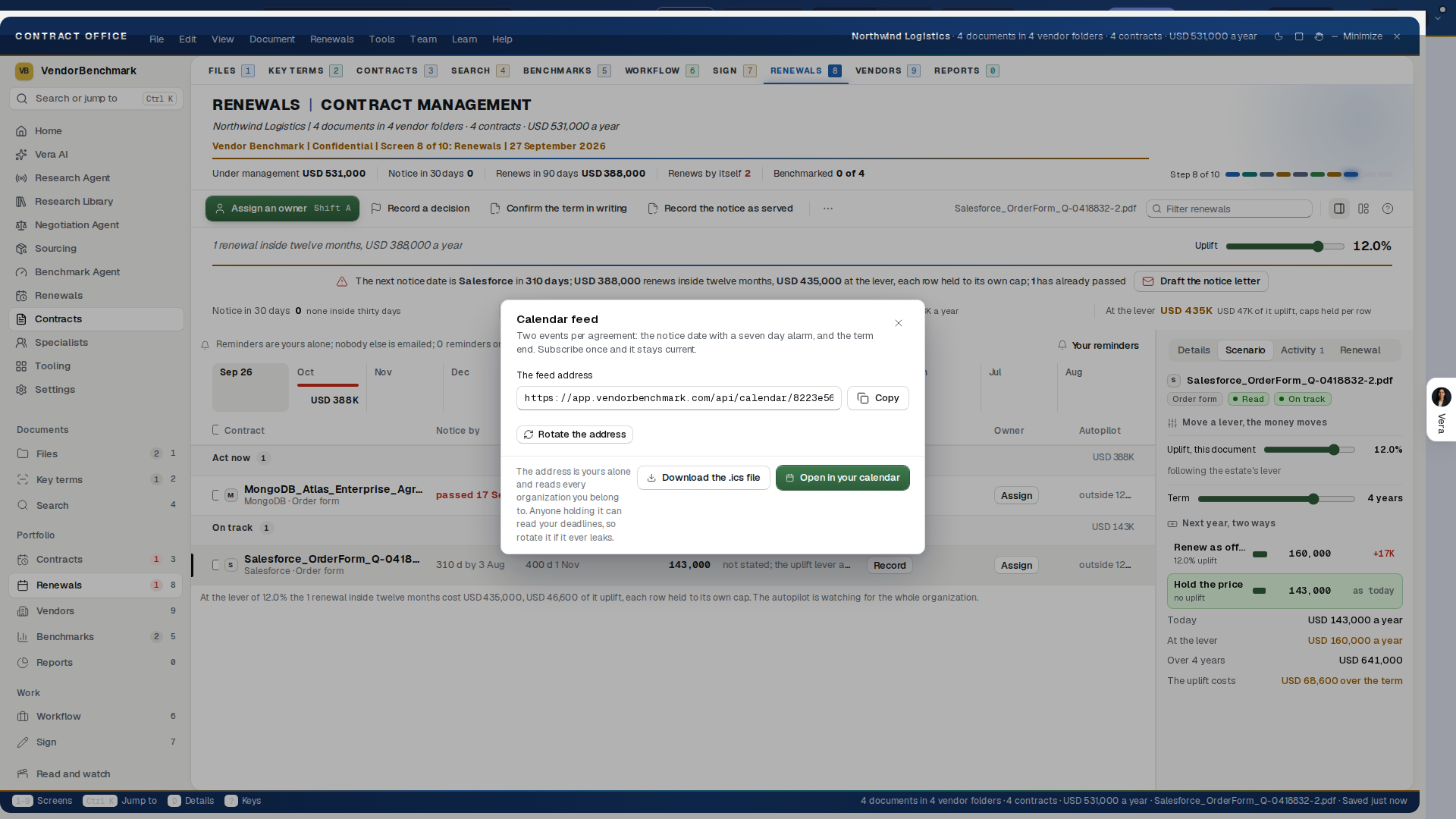
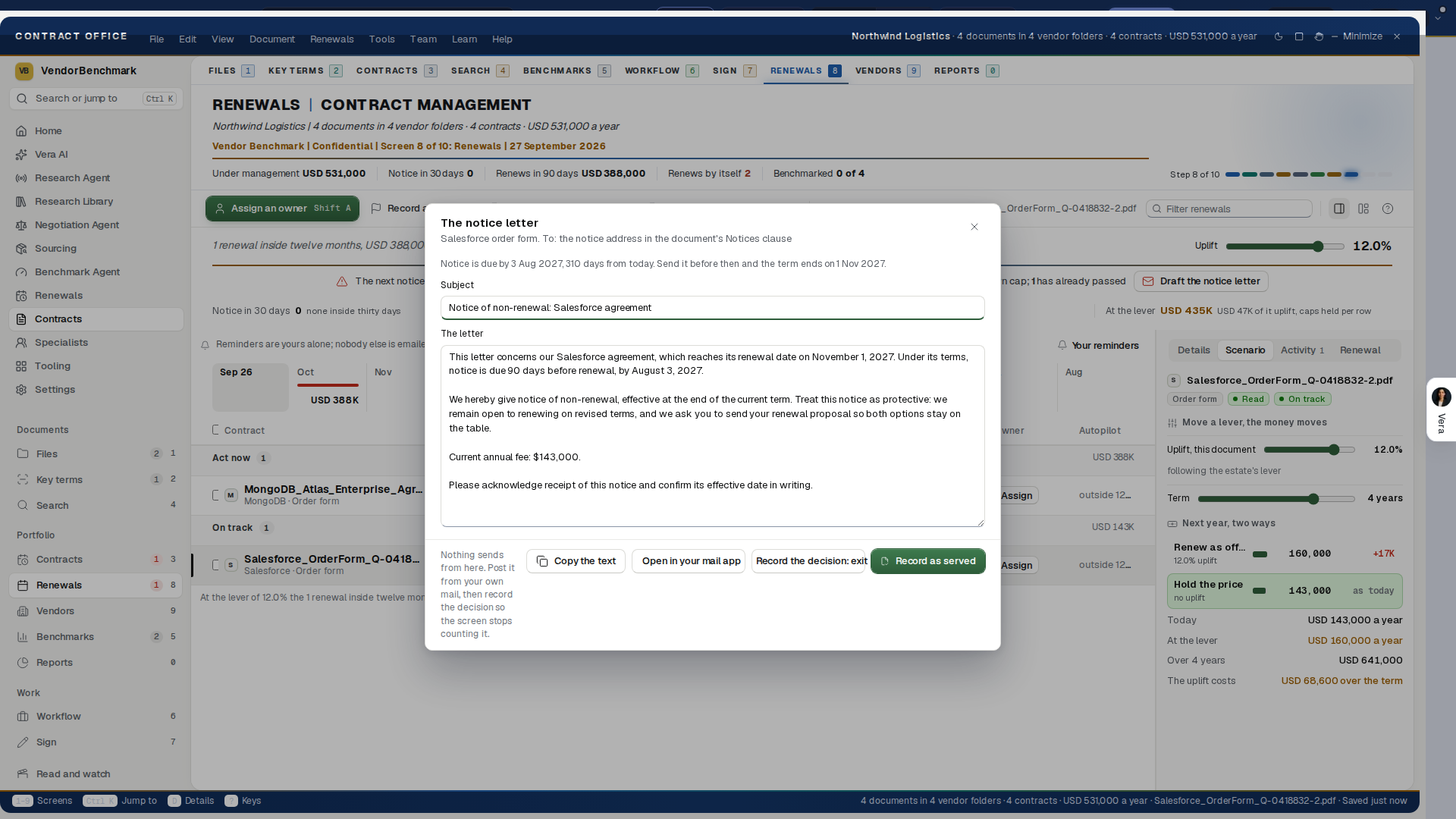
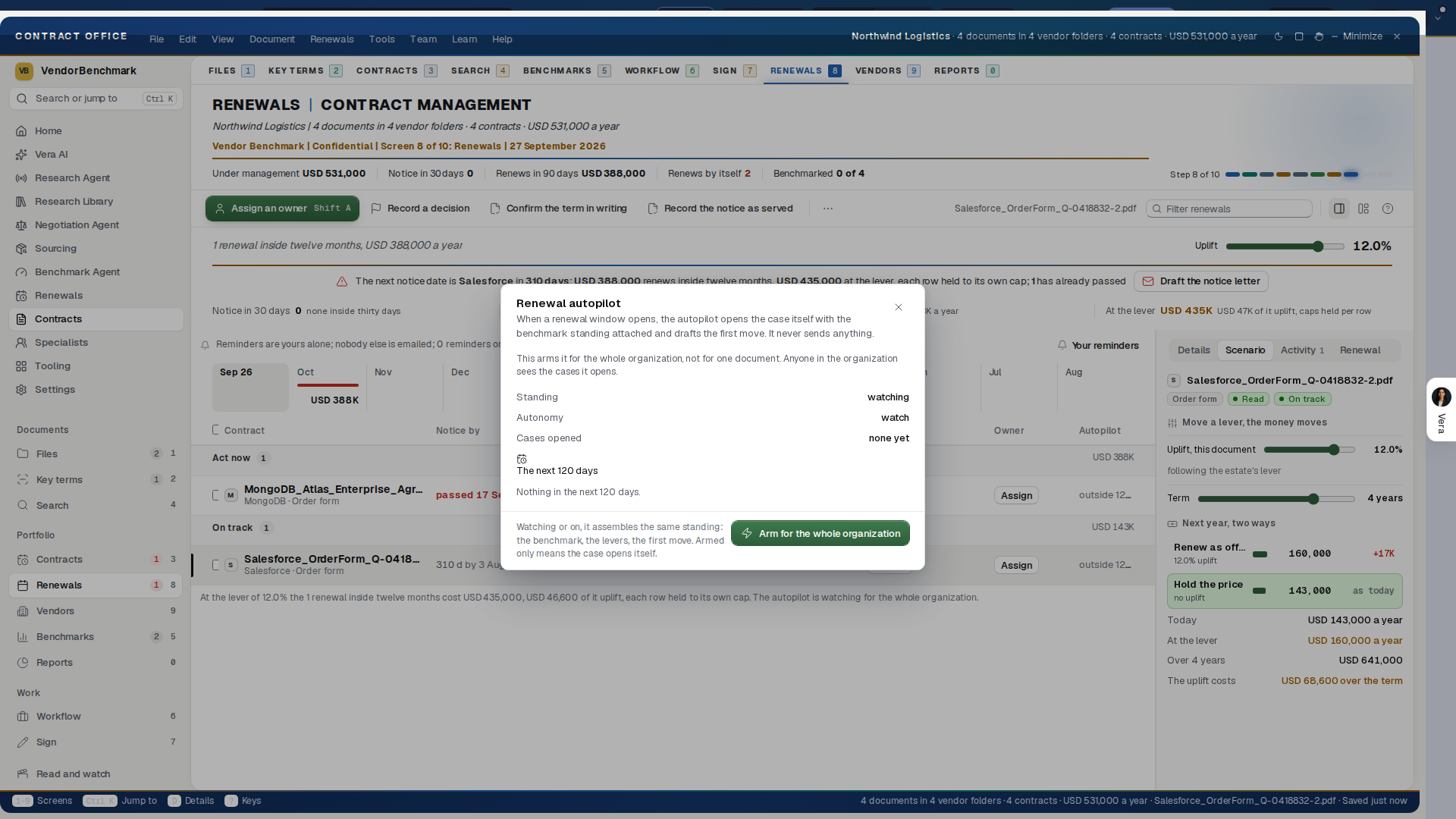
On the screen
- The headline — the money that decides inside twelve months, who closes first, and how much is riding on auto-renew with no decision on it. Doing nothing is a decision with a price, and the headline states it.
- The what-if lever — hold the biggest capped renewals flat instead of at their caps and watch the money kept move. Deterministic on your own figures: the caps come off your own documents, and the lever remembers where you left it.
- Runway, Calendar, Ledger — the same queue three ways. The calendar names the heaviest month with its total and exports as an .ics file, so your own calendar argues the deadlines; the ledger adds the uplift meter: next year's price computed from this year plus the cap the read found, with no cap called out where nothing limits the vendor's quote. A document the read has not reached says not read yet rather than guessing at its cap.
- The decision — Renew as is, Renegotiate, or Give notice, per contract, with who decided and on which day. The same decision the Register keeps, so the two can never disagree.
- Your reminders — 90, 60 or 30 days before the window closes, yours alone; nobody else is emailed. Each one now prints the day it fires ("fires 12 Nov 2026") and, once it has gone out for the current deadline, the day it was sent. Move the term end and the reminder re-arms itself. A document with no term end yet says so, and the reminder arms the moment the date is set.
- Your calendar — Calendar feed in the Renewals menu (Ctrl Alt K) opens your private feed: two events per agreement, the notice deadline with a 7 day alarm and the term end, kept current as the estate changes. Copy the address or press Open in your calendar (the webcal link) to subscribe once in Outlook, Google or Apple Calendar. Rotate the address revokes the old one the moment you press it, so a leaked link stops working. Ctrl+Alt+K opens it from anywhere in the portal.
- Autopilot — Renewal autopilot in the Renewals menu opens it, and each renewal inside its 120 days reads Armed or Watching. Its sheet says what it does (when a renewal window opens, the case opens itself with the benchmark standing attached and the first move drafted; it never sends anything), lists the renewals inside 120 days it would work and how many cases it has opened, and carries the switch: Turn on the autopilot or Stand it down. It arms for the whole organization, not for one document, and it needs an editor's seat and a plan with AI.
- Draft the notice letter — on the selected document (Ctrl+Alt+N, or the Renewals menu), the letter opens drafted from the document's own dates: a posture line first ("Notice is due by 12 Nov 2026, 70 days from today", or, once the deadline has passed, a letter that asks the vendor to accept late notice and says what to expect), then the subject and the body, both editable, and the recipient from the document's Notices clause when the read found one. Copy the letter, or Open in mail to put it in your own mail client, then Record the decision: exit so the screen stops counting the renewal. Nothing sends from the portal. Your edits stay with the document until the decision is recorded, so a letter you started yesterday is still there today.
- The keyboard — j and k or the arrows walk the ledger and Enter selects a renewal. A link that names one renewal,
/office?room=renewals&q=paper:<id>, opens the screen on it.
How to use it
- Press 3 in the Contract Management Portal.
- Work the runway left to right: the first brick dot is the next undecided deadline.
- Press a dot, decide, set your reminders, and subscribe to your calendar once so the dates live in Outlook too and stay current. The one-off .ics export is still there for a calendar that cannot subscribe; every event carries the day it was written and an end, so Outlook and Google accept the file as it is.
- When the decision is to leave, press Draft the notice letter, post it from your own mail, and record the exit.
Related: Contracts: the renewals, Renewals
Vendors: every vendor you hold
The register. Vendors opens on every duty the estate owes rather than one document's: set the owner on the row, give it a date, make it repeat, snooze one that is not due yet, and close it with the letter or the receipt that proves it. The evidence then sits on the row and on the trail.
The trail. The audit trail covers the whole estate, filtered by person, by kind and by month, reading on past the first sixty events, and exports in one press with names and titles rather than ids. A row the estate cannot attribute says so rather than guessing a name. People says what each colleague sees, folder by folder, and the grant is enforced by the database rather than by this window: it narrows that colleague everywhere in the platform. A colleague with no folder granted sees the whole estate, as everyone does until a folder is given.
The standing view over the whole relationship set, and the one screen that answers "what do we actually hold, and what is it about to cost us". Seven tabs, one screen: Obligations, Rights, Holds, Kept, Audit trail, People and Vendors. The Vendors tab rolls the ledger up per company, and Obligations and Rights list every duty your documents ask of you and every right they grant you. Both came across when Contract Management folded into this window on 25 August 2026; the arithmetic is the same, so no figure changed in the move.
In plain words: one row per company you buy from, and one list of every deadline hiding in the document.
Under the head, one line says what needs doing first on the tab you are on (the duty that is overdue, the hold to place, the notice to draft), with its action as a button beside it. The figures below run as one quiet row of labels and values.
On the screen
The Vendors tab
- The headline — what the estate costs a year and across how many vendors, with the largest position named and its share of the total stated. Leverage and exposure are the same number, and the sentence says so.
- Four figures — the annual run rate, the vendor count with the agreements between them, how many families renew inside a year and what they are worth, and the largest position as a share of the run rate.
- The lever — move what a renegotiation lands, from nothing to 30 percent better, and the run rate moves with it across the families renewing inside a year. Deterministic on your own ledger, and it remembers where you left it.
- One row per company — the agreements you hold with them, the money a year with a bar sized against the largest family, the next renewal, and the notice date. A notice date inside a month reads brick; a renewal inside ninety days reads gold. A right click on a vendor row opens the folder's own menu: open it on Contracts, read what is unread there, watch it, put it on legal hold, benchmark it, or copy its email address.
- The vendor file — select a row and everything you hold with that company opens on the right: the four figures, a read that says whether the near date is the notice window or the renewal, and buttons into the largest agreement's own file, the benchmark, and the runway.
Obligations and Rights
- The headline — how many windows shut inside a month, or inside ninety days if none is that close, with the first one named and its days left.
- Four figures — rights you hold, duties you owe, and how many of each close inside 30 and 90 days.
- Rights and duties, never confused — a right is something the document gives you (a true-down, a swap window, a price hold, an SLA credit); a duty is something it asks of you (a non-renewal notice, a commitment). The register reads the side off the document rather than assuming, so a duty you owe is never shown as a concession you hold.
- Every row carries its window — the day it shuts, the days left, and the recurrence when a right repeats every year, with the turn you are on.
- The row's file — the verbatim line the right was read from, what happens if the window shuts, and the button into the register or the agreement. A press on the row, or Enter, opens the document behind it in the Register without leaving the portal; Open the file beside it opens the record window.
- Filters — everything, rights only, duties only, or closing inside thirty days.
- The keyboard — j and k or the arrows walk every tab's rows and Enter selects a row.
How to use it
- Press 9 in the Contract Management Portal.
- Open the Vendors tab, read the headline, then work the top of the list: it is already ordered by what each relationship costs a year.
- Pull the lever to what you believe a renegotiation lands, and take the resulting figure into the renewal.
- Switch to Obligations and Rights and work what closes inside thirty days first. A right that lapses is money you paid for and did not take.
If something looks wrong
- Obligations and Rights are empty: they fill from two places, the rights register harvesting what your contracts grant you, and the ledger's own notice deadlines. Both come from the read, so read the documents first in Key terms.
- A vendor shows no money: the ledger has no annual value on that family's agreements yet. Open the largest agreement's file and the read will have it, or type it in.
Related: Rights register, Contracts: the renewals, Vendors
Reports: the estate in figures
The estate argued in figures, drawn to be forwarded. Six boards (Spend by vendor, The year ahead, Cycle time, Standing and coverage, Kept and The brief) over the same rows every other screen reads, so this screen and the Register can never disagree, and a sharing menu beside them, because Reports is live for everyone in the organization: collaboration here is a link, never an attachment that goes stale.
In plain words: the charts your CFO asks for, always current, with the link that sends them.
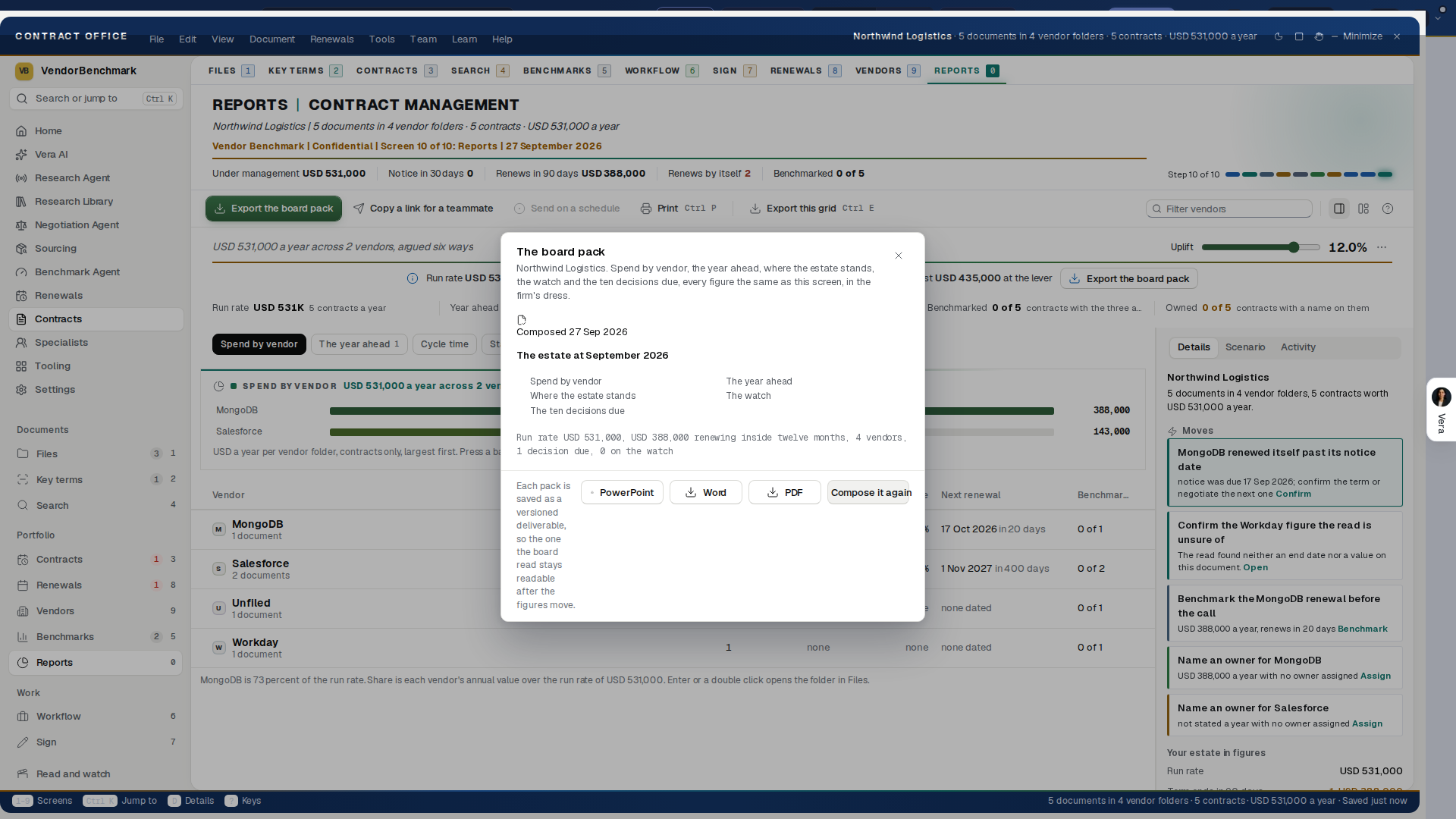
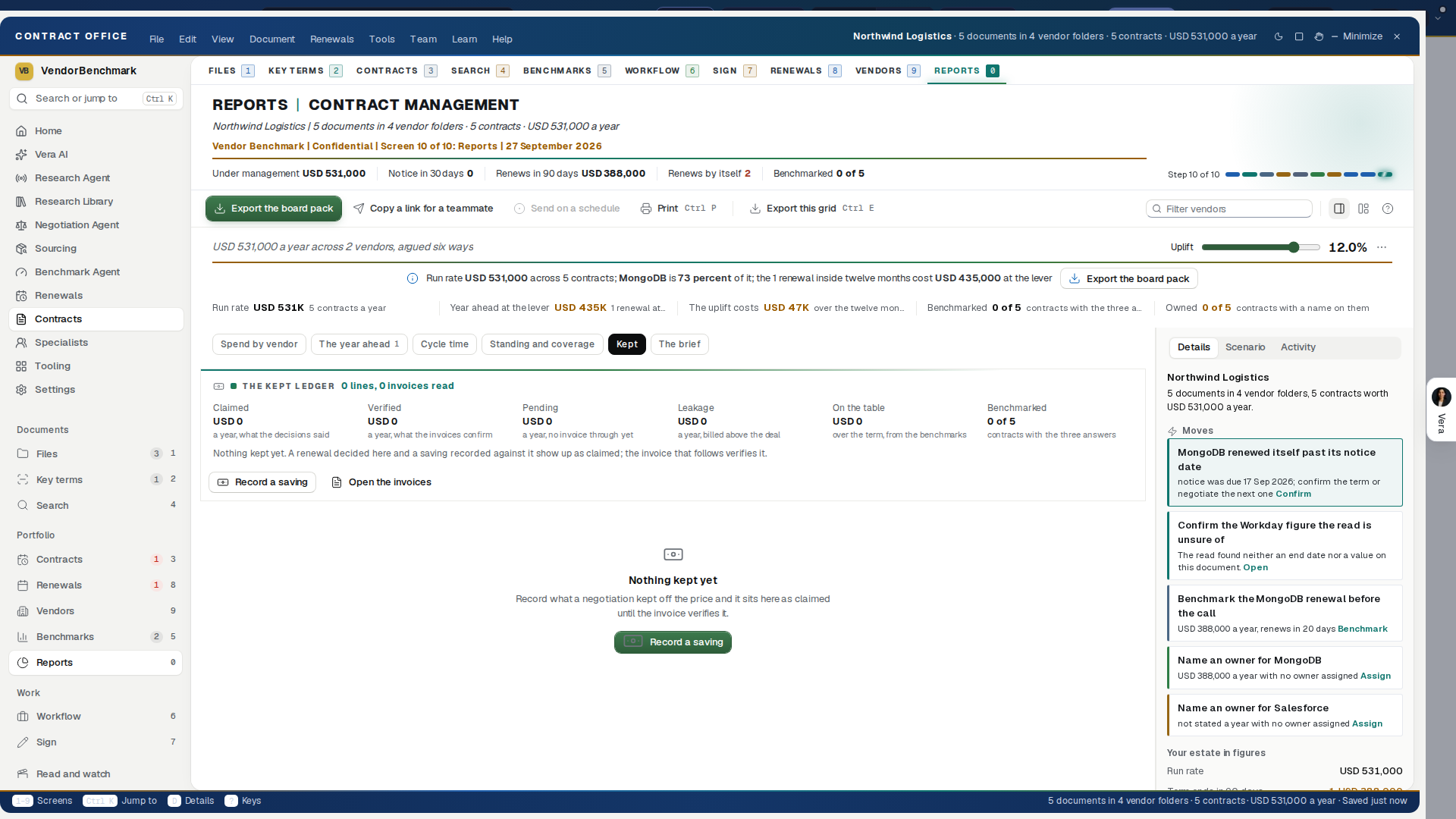
On the screen
- Export the board pack is the head's filled button, and it is repeated on the line under the head. Record a saving sits at the foot of the kept ledger. An empty kept ledger offers Record a saving as its filled button, since it is the only thing to do there.
- The headline — what the estate costs a year and across how many vendors, the largest position named with its share, the money renewing inside twelve months, and how many contracts state no annual value yet. Counted, not priced: the screen never invents a figure the document does not carry.
- Four figures — the run rate, the value renewing in twelve months, the largest vendor's share, and what is not priced yet.
- Spend by vendor — the twelve largest positions as bars, each priced and the largest shares printed on the bar, with the smaller vendors rolled into one honest row. Press a bar to open that vendor's folder; the bars take the keyboard too, Tab reaches them and Enter or Space opens the folder.
- The year ahead — renewal value by month for the next twelve months, values printed at the data. The lighter cap on each column is the uplift at the lever's setting, and a brick tick under a month is a notice deadline falling in it.
- The uplift lever — move the assumed uplift on the renewals due and the run rate moves with it, on your own figures. Deterministic: the same inputs always draw the same result, and the lever remembers where you left it.
- Where the estate stands — the money by the state its contract is in (in force, renewing soon, notice due, term ended), and the documents by how far the read has got, each as one bar with the figures beside it.
- The sharing menu — copy the link, or email it with the headline figures already written. Who sees it lists the team; Invite a teammate opens the team page for the colleague who is not on it yet.
- The board pack — Export the board pack (also in the Tools menu) composes the estate as a document in the firm's dress: spend by vendor, the year ahead, where the estate stands, the watch, and the ten decisions due, every figure the same as this screen, as PowerPoint, Word and PDF. Each pack is saved as a versioned deliverable on the organization, and the sheet says when the last one was composed.
- Share the report — under a composed pack, Share read only makes a link for someone outside the workspace, such as Finance. Choose 14 days or 30 days; the link is copied to your clipboard and shown once, since only a scrambled form of it is kept. Whoever opens it sees that pack as it stood when you shared it, read only, and nothing else of the estate: no contract and no document. The sheet lists every live link with who made it, how long it has left and how often it was opened, and marks one that shows an older pack than the newest. Take back ends a link at once. Making a link, taking it back and every open are on the audit log. Anyone whose role can edit may share; a read only seat cannot. The sample estate shares nothing.
- The brief — the sixth board, and the only one that argues in sentences rather than figures. Press Write the portfolio brief and the agent reads one agreement per vendor from the largest down, searches the web for each major vendor's current pricing and policy moves, and writes the brief in the house document, at the length its argument needs: what you spend and with whom, where the estate is exposed, the seven to ten changes worth making this year in order of money, the renewals inside twelve months that decide the number, what is negotiable across these vendors, and how to run the year. About six minutes, with a bar that says how far in it is. Read it opens the document over the window, Word takes it away and Save as PDF prints it. It is the same brief as the one on the Portfolio page, so writing it in either place gives both.
- Kept — the ledger of what your decisions kept: what was claimed when a deal closed, what the invoices then verified, what is still pending, and what leaks when an invoice bills more than the deal said. Four figures, then one row per saving with the decision it hangs off, the invoice that verified it, and the reconciliation's own sentence. Open the invoices and Record a saving sit beside it; a vendor's kept lines read in the Vendors screen's inspector and in the Obligations tab in the Register.
How to use it
- Press 6 in the Contract Management Portal. The chips under the head name the six boards and mark the one you are reading.
- Read the headline, then press the largest bar: the vendor's folder opens with the documents behind the number.
- Set the lever to the uplift you believe, and take the run rate it prints into your budget.
- Press Copy the link and paste it to a colleague, or Email it for a draft with the figures and the link already written. What they open is computed from the ledger at that moment, not a stale export.
Tips
- The Excel export under The data behind it is the ledger the charts are drawn from, for the colleague who wants the rows rather than the picture.
- The board pack is the estate in figures and the brief is the estate in sentences. Send both to a board: the pack is what they look at, the brief is what they read.
- Right click any agreement anywhere in the portal to comment on it, assign it, or copy a link to that one contract; the thread lives on the contract, so the conversation and the document never separate.
Related: Contracts: the renewals, Vendors: every vendor you hold, Spend Agent
What next: the moves on every screen
No screen dead ends. The Moves tab is where a finished read turns into a decision.
On the screen
What to do first: up to five moves the estate's own figures ask for, the first one lit, in this order:
- A contract that renewed itself past its notice date: confirm the term, or negotiate the next one.
- A notice date inside thirty days: serve notice, or renew on purpose.
- A figure the read is unsure of: confirm it.
- A renewal ahead with no benchmark: benchmark it before the call.
- A contract with nobody's name on it: name an owner.
Three standing moves under them: Add documents, New folder and Walk me through it.
With a row selected, the Details tab carries the one filled button the document needs: Draft the notice letter, Assign an owner, Benchmark this document or Open the document.
In a case room, the aside carries Run on this contract: read the contract, benchmark it, ask Vera, or open the negotiation strategy.
On an empty estate, the Contracts tab leads with Add documents, Import an existing estate and See a sample estate.
How to use it
- Press Ctrl I if the inspector is hidden, then press Moves.
- Press a move. It opens what it names: the notice letter, the owner picker, the benchmark's consent line, or the document.
- Finish it there. Nothing is sent or spent by the press itself.
Tips
- Nothing here is automatic. A move that spends money, allowance or a vendor's attention is always a press.
- The moves are worked out from the same rows every screen reads, so they change the moment a date, an owner or a decision does.
Related: The Contract Management Portal, Renewals: the decision runway
Entitlement Agent: your license position, from your contracts
Entitlement Agent answers three questions about every software product you hold: how many licenses the contracts grant, how many are in use, and what the difference costs. It reads license lines out of your contracts (or imports the register you already keep), lets you record deployed counts, links the supporting documents an auditor asks for, and builds the response pack when an audit letter arrives. It shares its data with the Contract Management Portal, so a contract uploaded in either window appears in both.
Since 9 October 2026 the left column lists the agent's seven steps as numbered rows (since 13 October 2026; the Shortfall, at list step is gone, Price benchmark and Price history sit under License lines, and the Position is one press from the register) (a tick once a step has nothing waiting) and the figure beside each; there is no step strip above the work. Each screen's head is its name and one line stating the figures, and the details column opens with a what to do now card whose button does it.
The window. Since 3 October 2026 the Entitlement Agent is built as its prototype. The title bar is white, closed by a gold rule, and carries four menus (File, Run, View and Help, with Alt and the underlined letter as the shortcut), Talk to Vera, who has the screen you are on, the theme switch and the window buttons. A navy column runs down the left: VendorBenchmark, Jump to (Ctrl K), Home, Vera AI and your pinned apps, then Your contracts, one row a screen with its figure (contracts, documents scanned, vendor folders, links between them, license lines, the shortfall at list, renewals, the report) and a dot that is gold when the screen is done and red when it wants you; the screens that sit beside a step are indented under it. Under that sit a folder a vendor with its count, Sources (every way in, each marked connected or connect, with how many are connected; press one to open Add on that way) and the related apps, and on the Register and on Read the screen's own filters. Eight numbered steps run down the left column in the order the work does: 1 Upload, 2 Scanned, 3 Organize, 4 Map, 5 Register, 6 Position, 7 Renewals and 8 Report; the step you are on is lit, and a step with nothing waiting carries a tick. A step that carries other screens shows them as chips at the top of the page: Scanned carries Reading, the Review queue and the Playbook check, Organize carries Folders, Ask every contract and Clause comparison, Renewals carries Align and consolidate, Position carries Price benchmark and Price history, Report carries Warnings, the Brief and Activity. Every screen opens with a compact head over a gold rule: its name in capitals and its status, the filter box and the screen's own actions ending in one navy button to the next step (on the Register, See the position), one row of figures (press a figure to filter the table) and the stake in one line. Under the head the screen sits on panels on a gray page: where it stands by status (press a part to filter), then the table under a header strip that carries the table's own controls. The details column on the right stands beside Upload and Scanned and opens on any other screen when you select a row; Ctrl+\ shows or hides it. The status bar along the foot carries the keys, what the estate holds, what you have selected and whether the window is working.
Every screen has a guide with three parts: what the screen shows, how to use it (numbered steps) and its keys. It never opens on its own; open it from Help, Screen guide.
Working the tables. Arrow keys move the selection; Enter opens the row; Space ticks a row; Shift click ticks a range; Ctrl+A ticks every row. A command pressed with several rows selected applies to all of them and the confirmation says how many. Ctrl+Z undoes the last change, any number of times. Right click a row for its commands; a grayed command shows why it is unavailable when you hover it. Hover a column header to see what the column means. Escape closes the open dialog, menu, guide or tab, then clears the selection; it never closes the window.
A vendor and a line as records (since 13 October 2026). Press Enter or double press a vendor on Organize and it opens as a tab beside the contracts: its money, its next date and its fiscal year end in the head, the next twelve months, the companies it signed through, its contracts, its license lines and its published rules, with Its lines, Its folder and Its renewals at the top. Press Enter or double press a line on the Register and it opens as a tab: in use against licensed drawn as the bar, the money, the chain of evidence, the contract and the sentence the line rests on, how the vendor counts, and Enter a count, Link documents, Mark as verified and Benchmark the price; The contract and The vendor at the top open those records.
On any contract (since 3 October 2026). A double press on a contract, anywhere in the window, opens the document in the reader; a sample contract, which has no document behind it, opens its tab instead. Right click a contract for Show on the map (the Map, its vendor open and the contract selected), Open its folder (Folders, its vendor folder open and the contract marked), Copy where it files (vendor, year and file name, ready to paste), Talk to Vera about it, Send to a human and Draft an email (a note to a colleague and, where the read found a notice date, one to the owner). Delete hides the contract at once and shows Undo for eight seconds; it is deleted only when that time runs out, and closing the window first deletes nothing. A term someone changed by hand shows Edited, with Use what the read found to put the read's own answer back; the document type can be changed there too.
On any contract, one press (since 13 October 2026). A single press on a contract's name, anywhere in the window (a node on the map, a row of the register, of Scanned, of Renewals, a vendor's contracts), opens the document over the window: its pages, the page count, zoom, Open in a tab, and What the read found beside the pages, each answer a press that goes to its page. A sample contract has no uploaded file behind it, so the platform's sample paper for its vendor stands in and the reader's gold tag says sample paper; your own documents open as uploaded. The reader's one primary is AI advisory (also A): it reads the pages, then lays out the verdict, four figures (changes found, money on the table a year, off your standard, worse than last time), the key terms, What is risky, What is good, Against your company template and What to do first, each row a press, with Start the review, Check against my template and Compare with last time at the foot, the same panel the Contract Agent opens on a document. On the sample estate the advisory is written on the sample's own figures; on your own documents it is written from the read. The window arrives in motion since the same day: the title, the tag, the facts counting to their values, the panels one after another, the bars growing, the rows in order, the map drawing its branches; a light follows the pointer, every press ripples, and a decision throws a short gold burst. With reduced motion on in your system the window stands still, exactly as before.
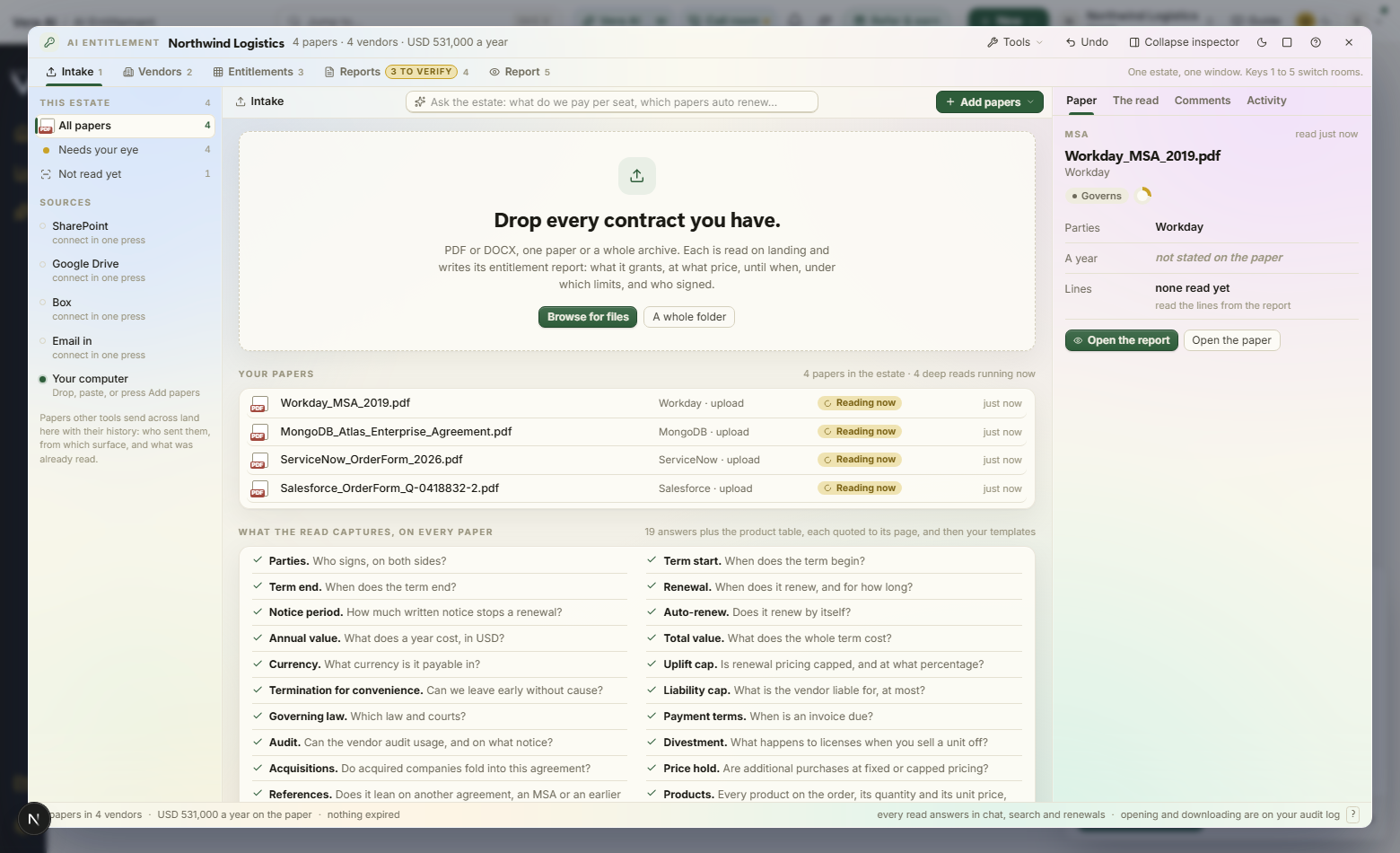
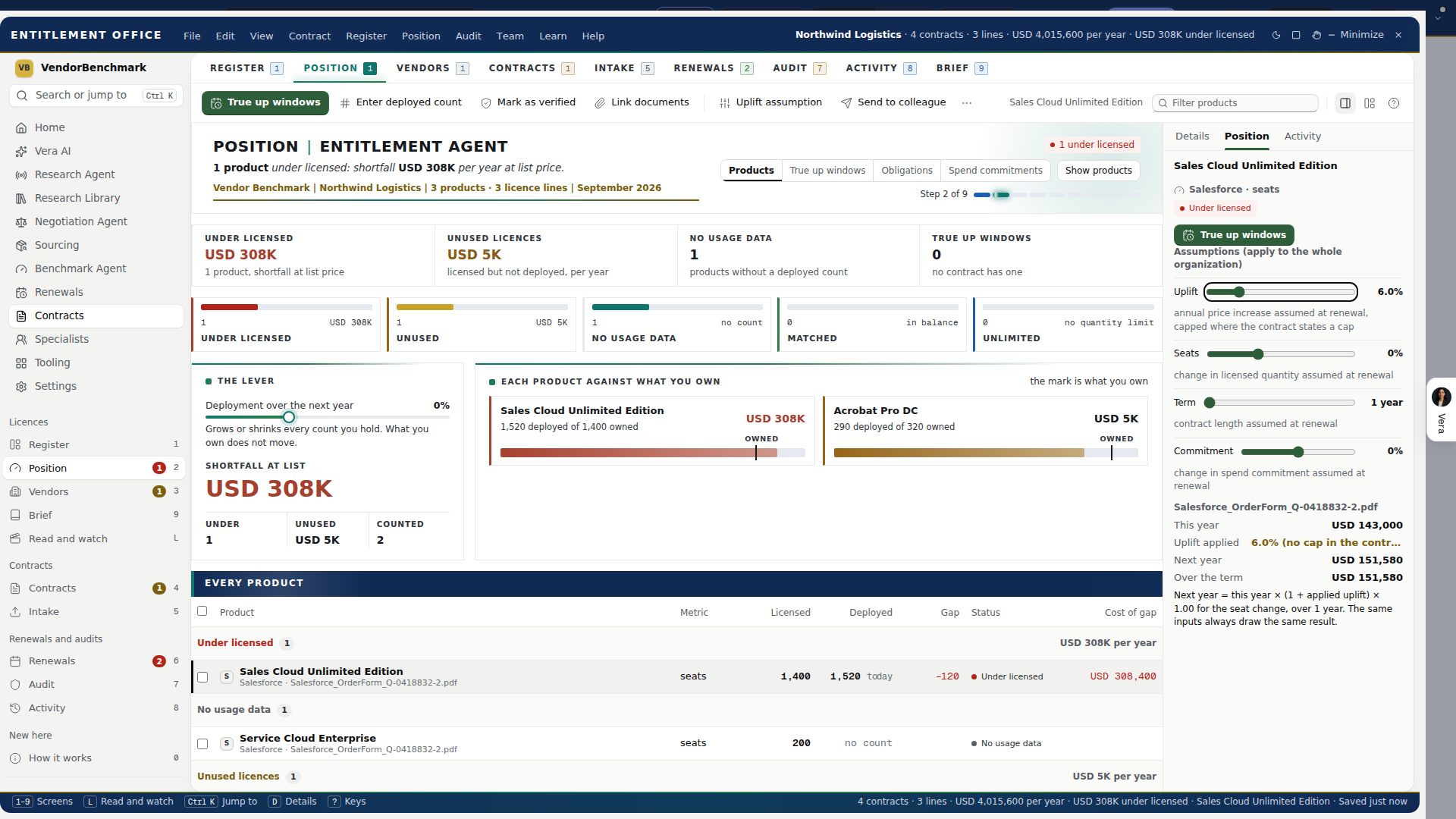
On the screen
- Register (key 5) — one row per license line found in your contracts. Since 13 October 2026 every row draws In use against licensed: blue for what is in use, a black mark for what the contract grants, a brick end for more in use than licensed, beside the Gap figure; and every vendor wears its logo over its initials, here and on every other screen. Above the table: the head with the register's status, the license lines, vendors and contracts, the annual cost, the shortfall at list and the lines confirmed, with Add contracts and See the position; then Where the lines stand, one part per status (under licensed, unused, no usage data, unlimited). Press a figure or a part to filter the table. Columns: Licensed (quantity in the contract), Deployed (quantity in use, from a count you entered or a connected source, with the date of the count), Gap (licensed minus deployed; a shortfall is priced at the contract's list price), Status (Under licensed, Unused, Matched, No usage data, Unlimited), Worth (what the gap is worth a year: a shortfall at the contract's list price, unused licenses at the net price paid, each marked list or net; where the contract prints no list price a shortfall is priced at the net price and marked net), Annual cost, Documents (five marks for the purchase order, invoice, contract page, license certificate and deployed count, lit when linked). Press a deployed count, or enter a count on a line with none, to type a new count where it stands: the quantity, the date it was taken (today unless you change it) and where it came from. The form says the gap as you type, Save count writes it, the gap, status and worth follow on every screen, and Undo puts the old count back; Escape closes the form. It is there for people who can edit, and the sample data refuses it. Choose columns adds the part number, metric, category, unit price, discount, verifier, contract and term end. The message above the table states the most important problem. The filters on the left narrow the register (All lines, Under licensed, Unused licenses, No usage data, Contract mismatch, Unlimited, Not verified, Not confirmed, No documents, Outdated count) and list the Categories and the vendors, each with its count; press a category to see only its lines. The table's strip groups the table by vendor, by category, by contract or not at all, and carries Reports and exports and Import register. Where your intake rules leave lines out of the view (since 6 October 2026), a line above the table says how many, why (below the minimum annual cost, an excluded vendor or category, an ended term, no price) and what they are worth a year; the figures in the head still count them. Show them brings them into the table and Hide them takes them out again; Intake rules opens the settings page that sets them. Commands, in the details column when a line is selected and on the right click menu (the main ones also on the Run menu): Edit line (the contract's wording is shown next to each field; editing clears the line's verification), Mark as verified (records that a person checked the line against the contract, with a name and date), Link documents (record a purchase order, invoice or license certificate reference), Enter deployed count (quantity, source, date and how it was counted; the gap and status update immediately), Add to register (for lines extracted from a contract but not yet confirmed), Assign owner, Split line, Merge lines, Benchmark price on B (your discount from list price, the range similar customers get, and where your price ranks), Remove line on Delete (asks first) and Compare with contracts (the register total against the contract values, with the unexplained difference). Contracts that contain priced products but have no lines yet are listed under the table with Extract lines: the products, quantities and prices are extracted and you confirm them into the register.
- Reports and exports (since 2 October 2026), a button in the head of the register that opens them over the screen, on every license line whatever the view: The register in charts (value a year by vendor, terms ending by quarter, and where the lines stand: under licensed, on the shelf, level), then Excel workbook (every row typed, so it sorts and sums), Word report (the same report as a document), Email the report (to up to ten addresses, your note first, the Word file attached) and, under them, Shall I draft the email?, which writes an email to the vendor, your CFO or a colleague that you send yourself.
- Position (from the Register's See the position, or its tab beside License lines; since 13 October 2026 it is no longer a numbered step) — the head's figures are the products, the deployment you assume, the shortfall at list, the unused licenses at net and the products with no usage data; press a figure to show only those products, and Reset the lever puts the deployment back to today. Deployment over the next year runs the width of the page: it grows or shrinks every count you hold (minus 50 to plus 100 percent), with the shortfall at list and the unused at net beside it; what you own never moves. Under it, By product is one row per product across all contracts: its name and vendor, a bar of what is in use against a mark for what the contracts grant (red past the mark where more is in use than you own), the count in use of the count licensed, and at the right the shortfall at the contract's list price or the unused licenses at the net price paid. A product without a deployed count says No usage data, never matched, and one with no quantity limit says so. Press a product to see how the count was calculated, the vendor's counting rule and the license lines behind it; a double press opens its contract. The Position tab in the details holds four assumptions that recalculate every figure in the window: uplift at renewal, seat change, term length and commitment. The screen's other tabs list True up windows (periods in which a contract allows buying extra licenses at the agreed price), Obligations (dated duties in the contracts: reports, certifications, notices) and Spend commitments (committed spend against consumption).
- Organize (key 3) — one row per vendor: contracts, license lines, annual cost, shortfall, unused licenses, next important date and status, with a timeline of the next twelve months above (notice dates, term ends, true up windows, anniversaries). Select a vendor to see its licensing rules: metric, counting method, true up, audit clause, limited use, affiliates, territory, reassignment, support and fiscal year, each with the version and date of the published rule set. Where one of your contracts states a different rule, the contract's rule is shown and marked. Press the pen next to a rule to record your organization's own override; it shows your name and the date.
- Brief (key R) — the written brief on what you are entitled to, across the whole register rather than one line at a time. Since 13 October 2026 the screen opens on a draft written from the register as it stands, in the house paper: three things to know first, six sections (what you are entitled to, where the count is soft, what to true down, the definitions that decide the count, what is negotiable at the next true up, ready if a vendor asks) and the bottom line; it redraws as the register changes. Press Write the entitlement brief: the agent reads the register, reads the agreements carrying the most lines, and searches the web for how each vendor defines and counts its metrics now. About five minutes, with a bar that says how far in it is. Six sections: what you are entitled to (with a table of every line that matters and a verdict on each), where the count is soft (the metric definitions that decide the number, lines inferred rather than read off document, lines with no citation, and what each is worth if it goes the vendor's way), what to true down and what cannot be reduced under the current document, the ten definitions that decide the count, what is negotiable at the next true up, and how to be ready if a vendor asks. Read it opens the document over the window; Word takes it away and Save as PDF prints it. Write it again replaces it after the register changes.
- Read (key 2) — every contract with its type, how much of the extraction succeeded (out of 27 terms), its license lines, annual value, term end, status (Needs review, Reviewed, Shared) and owner. The filters on the left cover status, saved views, vendor, which terms were found and the contract term. Press Enter to open a contract as a tab. It opens on the same head as every other screen: the vendor and the kind of contract above the contract's name, where review stands beside them, one sentence on what needs doing with its button (for example Mark as reviewed), View document at the right, one row of figures (annual value, term end, terms extracted, license lines) and a status line splitting the 27 terms into extracted, to check and not stated. Under the head, every extracted term in two groups, licensing terms (limited use, affiliates, territory, perpetual or term, true up, reassignment, metric definition, reseller) and commercial terms, each with the page it was found on and an eye icon that opens the document at that passage. A term not found in the contract is shown as Not stated. Press Enter on a term to correct it; the contract's wording is shown next to the field. Ctrl+W closes the tab. Tick several contracts and the first command becomes Mark N contracts as reviewed.
- Add (key 1) — the step opens on the zone Upload a folder, files or a ZIP with Browse for a folder and Browse for files; the whole window takes a dropped folder while Add is open. PDF, Word or a ZIP of them, up to 25 MB a file: a ZIP is unpacked in your browser the moment it is added, each file in it is staged under its vendor from its name and the folders inside the archive, and an archive that cannot be opened is refused by name with the reason. Files chosen sit in a Files table with the vendor folder to correct and the Upload press; nothing is uploaded until you press it, and files then go up six at a time while the Upload panel leads the step with a ring for the whole, the three stages, a bar a file and each document as it is filed. Every contract is read as it lands. Beside the zone, What Vera reads as three cards: Everything, Key terms (the commercial terms only; the rest later with Extract terms) or Vendor and date only (one quick pass), with the four things the agent always does under them (one folder a vendor, sub folders by date signed, the map of how contracts connect, duplicates skipped). Other ways in lists every way the product has with its state, each opening a sheet that says what it does and opens the real form; A whole estate, staged is the staged run of the whole estate for an owner, and Import a register takes a CSV with one row per license line (download the template or use an export from Snow, Flexera, USU or a vendor portal, map the columns, check the preview, then press Import). With nothing in the window yet, What happens next names the steps after this one, and Load sample data opens the sample estate: 61 files as a buyer would upload them (58 documents from 10 vendors signed by 26 legal entities, 47 links between them, 13 license lines and one open Oracle audit case); nothing is uploaded or saved, a sample document opens on the terms the read found, and Back to your data returns to your own contracts. Uploaded this week lists the contracts just uploaded with their read state. When a staged run of the whole estate is in flight, Upload in flight stands above the index in the left column with its state, and the head carries Open the upload in flight.
- Report (key 7) (since 2 October 2026) — the estate on one screen, then the files to share. The license position opens it: one bar a product, the money unused (at net) to the left of the line and the shortfall (at list) to the right. A product with no usage data or no quantity limit says so. Press a product to open Position on it. Seven charts, each drawn to the size of its box: contracts by vendor (a count), value in force a year, contracts signed by year, what ends in each of the next eight quarters, document types, how the estate is linked (master agreements, contracts under an agreement you hold, contracts that name an agreement nobody uploaded, contracts standing alone) and the legal entities folded into each vendor. Press a vendor's bar to open that vendor's folder, or its contracts where it has no folder yet. The terms most often left out and the warnings by level sit beside them. Checks: what the read could not settle (documents not read, answers it was unsure of, contracts with no vendor or no start date, agreements named but not held, links suggested but not filed, duplicates left out), each with a button to the screen that settles it. Where it files shows the folder structure and the next renewal dates, and What files lists every vendor folder with its contracts, names, years and value a year. There is nothing to press to file: each contract is filed as it is uploaded. Boardroom deck opens a picker first: every slide as a thumbnail with a tick, the selected slide large with its speaker notes. Untick a slide to leave it out. Present runs the kept slides full screen (the arrow keys or Space to move, Esc to leave), and Download PowerPoint writes only the kept slides, numbered as kept. The deck is in the firm's deck design: the estate in numbers, the license position, contracts by vendor, value a year by vendor, how the contracts connect, when each contract runs against today, what ends quarter by quarter, the warnings, what needs a decision, and what to do first. Every slide can be edited in PowerPoint. Excel workbook, Word report, Email the report and Shall I draft the email? carry the same figures, the license position table included. The figures in the head are the ones the other screens hold. The chips under the steps open this step's other screens: Warnings, the Brief and Activity.
- Estate workbook (since 6 October 2026), the first panel on Report and a button in its head: everything intake read, as one Excel workbook in the house workbook style. Sheets ticks what it carries: Line items (one row per product line: vendor, category, product family, product, edition, part number, metric, quantity, unit list and net price, discount off list, currency, price period, annual value in your currency, the year signed, the term, the contract, your legal entity and the vendor's, the country, the page and the words on the contract), Contract structure (one row per contract: type, master agreement, your legal entity and the vendor's, country, governing law, term, notice date, auto renewal, annual and total value, uplift cap, termination for convenience, liability cap, payment terms and audit, with a Decision and an Owner column for you to fill), Key terms (every term the read answered, one row per contract and term, with its status, the page and the words), Terms side by side (one row per contract, one column per term), Price per unit by SKU (each product's lowest, median and highest unit price, its discount range, and the change from the first year to the last), Price by year signed (the average unit price of each product in each year), Vendors, Legal entities (your companies and the vendor companies that signed with them), Countries and Renewals and notice (every end date with its notice date and days left, nearest first, with Owner, Decision and Notes). READ_ME, a Dashboard, the Methodology and a QA reconciliation are always included.
- Cutting it down. When the estate is large, take only what you need: tick Vendors, Categories (your intake rules), Your legal entities or Countries, set Signed from and to, choose Contracts only to leave out supporting documents, leave out the words on the contract, or add one sheet per vendor or per category (up to 25). The panel's head counts the sheets, contracts, line items and vendors the choices take as you change them; Whole estate puts every choice back, and the choices are kept for next time. Download workbook builds the file on the server from the same records the screens read, and every download is recorded in the audit log.
- Reading the workbook. Every data sheet has Excel's filter on its header row and a frozen header. Money is in your organization's display currency, converted from USD at the day's rate, which READ_ME and every sheet's subtitle state; unit prices stay in the currency the contract prints, with the currency in its own column. The Dashboard's counts are formulas over named columns of Line items and Contracts (LI_ and CT_), so correcting a cell updates them; distinct vendors, entities and countries are counted when the file is built and say so. A country comes from your signing entity where its name or legal form places it (Pty Ltd, GmbH, Inc), else from the governing law. A discount is shown only where the contract prints a list price. QA_Reconciliation lists the contracts whose lines differ from their stated value by more than 10 percent, the lines without a price and the documents not yet read. Gold cells are yours to fill.
- Warnings (key W) (since 2 October 2026) — one list of what needs attention across the estate, the most costly first, in three levels. High: a notice date that has passed, a product with more in use than the contract grants (priced at list), a contract that names an agreement you do not hold, an audit response due within two weeks. To act on: a notice date coming up, a renewal with no cap on its increase, licenses paid for and not in use, an audit response further out, and three raised from the read's own answers: liability that is not capped (one warning on a master agreement, counting the contracts under it), a term that ended in the last 18 months with no later contract with that vendor on file (with what it carried a year), and licenses added during the term priced at the vendor's price of the day, raised only where the contract's Price hold answer says so, because the read asks nothing about the fees already on an order changing. Read the sentence on those rows opens the contract at the wording. To note: products with no deployed count, counts out of date, links between contracts suggested and not filed. Press a level in the head to see only it; the button on a row opens the contract, the license line or the screen its figure comes from. Recommendations is the same estate as actions, ranked by the money the estate itself states: take unused licenses out at renewal, close a shortfall before a vendor counts it, agree an uplift cap where none is stated, bring a vendor's contracts to one end date where they end on several, ask the vendor for an agreement you do not hold. A recommendation with no stated figure says so and never estimates one. Add to the plan puts a recommendation in your plan and the button then reads In the plan (press it again to take it out). The head shows the plan's worth a year beside what the whole list is worth, and a strip above the list carries both, how many are chosen, a bar for the plan's share of the money, Clear the plan and Email the plan (Vera drafts it, you send it). The plan is your own in this organization and comes back on another browser; a choice whose recommendation has since gone counts for nothing and is counted apart, and a vendor added on Align and consolidate lands in the same plan. Draft the email on any warning or recommendation opens three choices under the row (to the vendor, to your CFO, to a colleague): Vera writes the email from that row's facts, you read and change it, and you send it yourself.
- Map (key 4) (since 2 October 2026) — how the contracts connect. Under the map (since 13 October 2026), Master agreements lists each held agreement with the documents and the money a year under it, and each agreement named and not held; press a row to open its branch, double press a held one to open the document. The organization sits in the middle with a branch for each vendor; press a vendor to open its branch and each master agreement shows the orders, amendments and renewals signed under it, with a count on a closed branch for what it holds. Press a contract for its card: the date its term began, when it ends, its value a year, what it is filed under and the sentence that says so with its page; a double press opens the document in the reader. A link someone filed is drawn solid. A link read off the agreement a document names is drawn dashed, and File it under this agreement on the card makes it a fact. An agreement the documents name and nobody uploaded is drawn as its own dashed node on its vendor's branch, with the documents that name it beyond it; press it for its card: Not uploaded, the date its name carries, how many documents name it, the sentence that names it with its page, the documents themselves, Upload it and Read the sentence. The Named, not held strip above the map lists these agreements with their vendor and how many documents name each, and pressing one opens it on the map; the head counts them as Agreements not held. Each vendor keeps one of six branch colors, each document's tag is colored by its kind (master agreement, order, amendment, renewal), and the map draws itself in a step of depth at a time when it opens. A filter bar sits above the map: a chip a vendor with its count (press several to show those vendors together, All vendors to show every one, and More vendors for the rest with a search), Type, Link (filed, suggested, names an agreement not held, not linked) and Signed (the year the term began), each a list to tick with its counts, and a search across contract names, vendors and the agreements they name. A filter narrows the map, the timeline and the table together, opens the branches it left and frames what it found; an order keeps the agreement above it, drawn quieter, so nothing hangs loose. The bar says how many contracts the filter left, with Clear filters, and carries the legend for a filed line, an amendment, a suggested link and a named agreement not uploaded. Timeline shows every contract at the date its term began, a lane a vendor, with a bar to the day the term ends, and an agreement not held as a dashed dot at the date its name carries; Links, as a table lists every link with its sentence and page. The sixteen largest vendors are drawn to begin with, and one press shows them all. Drag moves the map, the wheel zooms it, and the fit button shows the whole of it.
- Renewals (key 6) (redrawn 9 October 2026) — the head states the renewals, the notice dates passed, those inside 90 days, this year's total, next year's total at the uplift you assume and the increase. The year ahead draws one lane a contract on a month axis from today to the furthest term end, grouped by how soon the notice falls (passed, act now, inside the year, on track): the notice date is a marker, the bar runs to the term end, and this year's and next year's value sit at the right; press a lane to select the contract. Contracts with no dates stated are listed under the lanes. Next 90 days lists every notice date and term end inside 90 days in order, with the vendor and the money. The uplift you assume is the lever: move it and next year recalculates on every lane and every row, capped where the contract states a cap. The grouped table stays below with every column.
- Talk to Vera (since 2 October 2026) — Vera reads the screen you have open in the Entitlement Agent. Ask her "which warning should I act on first" on Warnings, "which agreements am I missing" on the Map or "which notice date is closest" on Renewals, and she answers from the figures, the warnings, the renewals and the links that screen shows. She also has what is in front of you: the step, the contract selected, the document open as a tab and the vendor folder open, led by On screen now, with every answer the read found on that contract and its page. Talk to Vera in the title bar opens on the same: it starts by saying the step you are on and what is selected or open, and asks what to know and what to do next. A contract or a vendor folder keeps its own conversation, as each screen does, and the sample estate and your own estate keep separate conversations.
- Send to a human (since 2 October 2026) — right click a contract or a license line, or use the Run menu. It opens Ask a human with the contract's vendor, name, value a year and term already in the request, so an analyst starts from the document you hold. Nothing is sent from the menu: you read the request, change it and send it yourself. Sending uses one benchmark credit, and Ask a human states your balance and asks you to confirm first.
- Reading (key E) (since 2 October 2026) — each contract and what the read found on it. It opens on the first contract's pages (since 13 October 2026). Six figures in the head count the estate and count up as the read lands: contracts, read (of the contracts), being read now, vendors named, terms found and links found (press it for the map). Under the head a row of vendors narrows the list to one vendor; it fills as the read names each vendor, with a count beside each, and No vendor yet gathers the contracts not named yet. The list on the left says where each contract stands: Reading now, read with how many of the 27 terms it states, Not read or Needs OCR. Press a contract and its own pages open on the left with every answer the read kept a sentence for marked on them, and a beam crossing them while it is being read. Its 27 answers fill the right, each with the sentence it came from and the page it sits on. A switch above them (Everything, then Parties, Dates, Money, Renewal and Links, each with how many the read found) shows the answers of one kind and lights only their sentences on the page. Press an answer and its sentence lights on the page and scrolls into view; press a lit sentence on the page and its answer comes into view; a double press on an answer opens the reader there. Extract terms on a contract not read yet starts the read, and the answers fill in as they land. The sample estate has no document behind its contracts, so the pages open only on your own. It is the chip beside Read.
- Review queue (key U) (since 2 October 2026) — what still wants a person, one contract at a time. Three kinds wait here, least sure first: a contract the read was unsure of (first the documents it flagged as a whole, because it could not finish or found neither an end date nor a value, then the most answers marked to check, an end date worked out from the length of the term, for example), a contract that has been read and not yet marked as reviewed, and a contract that has not been read. Each row says how sure the read was in its own marks (Unsure of the document, Unsure of 3 answers, Sure of every answer, Not read), never as a percentage. The list is on the left; the contract in hand is on the right, with each unsure answer beside the sentence it came from, and a flagged document says why, with Open the contract and Read it again. Confirm clears an answer that is right, and it then stops showing as to check on every screen; Correct it opens the contract to change it; See it in the contract opens the reader at the sentence. Mark as reviewed finishes the contract and moves to the next one, and Extract terms reads a contract that has not been read. Send the queue to an analyst opens a sheet that states the cost first: Ask a human takes one request about one vendor, so the queue goes as one request a vendor at one benchmark credit each, and the sheet says how many credits that uses and how many you have left. Nothing is sent from the sheet: Open the request on a vendor opens Ask a human with the vendor, its contract names and their value a year in the request, and copies the answers to check, ready to paste into Anything else the analyst should know; you read it and send it there. Copy the list copies every vendor's list at once, Cancel, send nothing closes the sheet, and contracts not read stay in the queue. It is the chip beside Read.
- Playbook check (key K) (since 2 October 2026) — two views in the head. Your positions, the one it opens on, checks every agreement in force against six positions, read off each contract's own answers: liability capped, added licenses at the order's price, we can leave for convenience, does not renew by itself, an uplift cap no higher than the one you accept, and notice no longer than the notice you accept. Each cell says Met, Missed, Read the wording (the answer cannot be placed either way) or Not stated, and pressing it opens the contract at the sentence; an order silent on a clause its master agreement decides is read on the master and says so. The agreements that miss the most come first. Two levers re-score the grid as they move, Uplift cap we accept (3, 5, 7 or 10 percent) and Notice we accept (30, 60, 90 or 120 days), beside a vendor filter, Reset and Export. The read asks nothing about prices rising during the term or where data is kept, so those positions are not on the grid and the screen says so; Price hold and Auto renew stand in their place. Agreements whose term ended are left out and counted. Once a playbook has been checked, its verdict on each agreement is the last column. Your playbook is your own contract rules, run across every contract, without leaving the window. Pick a playbook in the head. The left table lists each rule with how many contracts meet it, meet it partly, miss it or are unclear, and marks the rules that are must have; the right table lists each contract with how it stands (off policy, to review, met) and the day it was checked. Press Check the contracts not checked yet: the screen says how many contracts the run reads, about what it costs and how long it takes, and it starts only when you press Start. It runs in the background and counts toward the month's AI allowance; Stop ends it. Rules are written and edited in Playbooks, one press away on Edit in Playbooks. It is the chip beside Read.
- Folders (key F) (since 2 October 2026) — the estate as folders: one folder a vendor and, inside it, sub folders chosen in the head under Sub folders by: Year (the year a term began, newest first), Type (master agreements, order forms, amendments and the rest), Master agreement (each master with what was signed under it, and a folder for a master the documents name and nobody uploaded) or Legal entity (each company that signed for the vendor). A contract signed by a vendor's country company (a UK or a German entity, say) sits under the one vendor, and the other names its documents were filed under are said once on the vendor's row as also filed as, beside signed by when more than one company signed. Above the table, From N folders to M sets the folders the files arrived in beside the vendor folders they file as. As uploaded is the tree of folders, each with the files inside it: the folder a Box import names, the folder each sample file was saved in, or for a browser upload the archive folder it sits in, because a browser upload does not keep the folder path it came from. As filed is one folder a vendor, each with its documents and how many legal entities signed for it. Press a vendor folder there to open it in the table. The head counts the folders as uploaded and the legal entities merged by the same rule as Add and the Report's Legal entities merged, so the three always agree; on the sample, 24 folders file as 10 vendors, signed by 26 legal entities. Each document shows its kind, the day its term began, the day it ends and its value a year; press it to open it as a tab. Contracts with no start date sit in a folder of their own under the vendor, and contracts the read has not named a vendor on are listed last. Open all and Close all do the whole estate, and Export takes the structure away as a spreadsheet file, by the sub folders chosen and with who signed each. The same filing happens on Add before anything is uploaded: an uploaded folder is staged by vendor from the file name and the folder each file sat in, so files inside "Salesforce UK" and "Salesforce Germany" are both staged under Salesforce, and you can correct a folder before pressing Upload. While an upload runs, Add shows a ring for the whole, the three stages (Check each file, Upload, Read the terms) with the current one moving, a bar for each file going up with its own percent, and then each document as it is filed, with its vendor, its value a year and its end date. When files come in, pages fly from where they were let go into the staged list. What Vera reads sets the depth for the contracts you add next: Everything reads the commercial terms, the licensing terms and the license lines in full as each contract lands; Commercial terms only keeps to the vendor, the dates, the money and the renewal terms from the upload's own read; Vendor, dates and value only makes one quick pass for who the vendor is, when the term starts and ends, what it costs and whether it renews, with no license lines, which is the quickest way to get a large estate in. With either of the last two, Extract terms reads the rest of a contract later. Ways in lists every way the product has, each with its state: upload files, upload a folder, SharePoint, OneDrive, Google Drive, Box, Dropbox, SFTP, DocuSign, Coupa, SAP Ariba, email in, the API and a register import. Press one for a sheet that says what it does, the three steps to connect it and what the connection form asks for, with the real form one press away; Email in shows your workspace's own forwarding address with Copy when it is on, and API shows the call to make and opens the page where an owner creates a key. It is the chip beside Organize.
- Clause comparison (key C) (since 2 October 2026) — one clause across every contract, each in its own words. Since 13 October 2026 each wording is printed once, as the first contract states it with its page, and the contracts that carry it are listed beneath. Pick the clause in the head (any of the 27 terms the read finds: the liability cap, leaving early, the renewal uplift, the audit clause and the rest), and a vendor to compare only its contracts. Contracts that say the same thing sit together under that answer, each with its sentence, and pressing a sentence opens the contract there; the wording most contracts share is named. Where the clause has a direction a buyer can read (the renewal cap, the notice, leaving early, the price hold, renewing by itself, the liability cap), the wordings run weakest first and the weakest and strongest are marked; where it has none (governing law, territory) the commonest comes first, and the head says which order is in use. Beside each wording, where the platform holds a position, is what comparable customers sign, from the Benchmark Agent's terms guideline by vendor family: Weaker than comparable customers sign, In line with comparable customers, or Stronger than comparable customers hold, with the guideline's own words in a panel above. Positions are held for the renewal cap, the price hold, the renewal notice, leaving for convenience, Oracle audit and the Workday headcount band; on any other clause the screen says the platform holds no position and sets the wordings against each other only, and no peer wording is ever written for it. An order silent on a clause its master agreement decides carries the master's answer and says so, and pressing it opens the master at the sentence. The contracts silent on the clause, and on any master above them, are listed last under Not stated. Export takes the comparison away as a spreadsheet file, with where each answer came from and how it stands against comparable customers. It is the chip beside Ask every contract.
- Page numbers on every answer (since 3 October 2026) — an answer the full read found now says the page its sentence sits on, on the Read step, in Ask every contract, in Clause comparison, in the Review queue and on a contract's own tab. A sentence the read could not place on a page, or one from a scan with no text layer, shows no page rather than a wrong one. Contracts read before 3 October show their pages on the Reading screen, and everywhere else once Extract terms reads them again.
- Ask every contract (key Q) (since 2 October 2026) — every contract answering the same questions, side by side. The read already answers 27 questions on each contract and keeps the sentence and the page behind each answer; here a row is a contract and a column is a question. Three columns open to start (the renewal uplift, leaving early, the liability cap). Press a question in the row of chips to add its column, and the cross on a column to take it away; eight columns fit. Each answer says whether it is stated or to check and on which page, and pressing it opens the contract at that sentence. An order silent on a clause its master agreement decides, or one that only says it is as set out in the MSA, shows the master's answer marked from the master, page N (from the master the read links it to, where that link is only suggested), and pressing it opens the master at the sentence; each column head counts how many answers came from the master. A term the document and its master are silent on says Not stated; nothing is filled in for it. Show the sentences prints the sentence under every answer, Every vendor narrows the rows to one vendor, and Export takes the grid away as a spreadsheet file with each answer, its sentence, its page and where it came from. The box above the grid takes a question in your own words ("which contracts let the vendor raise prices during the term?") and answers it from the contracts, with the quotes it stands on; press a quote to open that contract. It is the chip beside Organize.
- Price benchmark (key P) (since 2 October 2026, redrawn 9 October) — every license line against what comparable customers are offered for the same product at the same size. Where every line stands draws one row a line on a shared discount axis: the peer range as a band with its midpoint, your discount as a marker in the color of its rank (Poor, Below market, At market, Good, Top of the market), and the gap to the midpoint a year at the right, the widest gap first; lines not benchmarked yet sit under a rule with only the discount the contract states. Discount against annual cost sets every line by its discount and what it costs a year, each joined to its peer midpoint. Target discount is the lever: move it, or press the peer low, the midpoint or the peer high, and read how many lines would move, the annual cost today and what the estate saves a year if every line landed there. The table below keeps every column, with the peer range drawn in its cell. Benchmark every line and the per line press work as before.
- Price history (key H) (since 6 October 2026, redrawn 9 October) — every product on the year its price was agreed. The price walk draws every product's unit price by year on one scale; press a line or a table row to light that product and read its price at each year. By year signed shows the annual cost of the lines signed each year with the discount off list that year marked above. Carried forward steps the estate from today to the horizon you choose, each product at its own pace and the rest at the rate you pick for products with no history. By category sets each category a year now against the same products carried forward; press a category to filter the screen to it. The table lists every product with its first and latest unit price, a small line of its price by year, its change with an arrow, its discount and its annual cost, and Export writes it as a CSV.
- What the read captures on each line (since 6 October 2026, on contracts read from that day) — beside the product, part number, quantity and unit price: the list price where the contract prints one beside the net, the product family in the vendor's own naming (Sales Cloud for Sales Cloud Enterprise Edition), the edition or tier (Enterprise, E5), the line's own start and end dates where the row prints them, any price ramp (each year's unit price), and the day the contract was signed. They feed Price history and its year, family and category views. Contracts already read keep what they had: their lines sit on the year of the contract's term start until a contract is read again with Extract terms or Extract lines.
- Align and consolidate (key G) (since 2 October 2026, redrawn 9 October) — four views of your own contracts, each drawn as a map above its table. Align draws one lane a vendor on a month axis with each contract's end date as a dot sized by its value a year, and the gap between a vendor's first and last end shaded with its length in days. Align to is the lever: pick the earliest end, the latest end or one of the vendor's dates, and each lane shows how far every contract moves, shortened or extended, and the value that comes to the table on one date; Add to the plan stays on each lane. Consolidate is a price ladder: a row a product bought on more than one contract, a dot a contract on one axis of unit price, the lowest marked, and what the estate saves a year at the lowest price you already pay. One job, two vendors joins two vendors that do the same job, each sized by its spend. Several entities clusters each vendor with the names its documents were filed under.
- Activity (key A) — every change, open and download in the organization's license data, with the person and time. On the sample estate (since 13 October 2026) it shows the sample's own record read off its data: the upload, the scan of each vendor's contracts, the filing, the license lines read off the paper with their page, the counts with their source and date, and the files set aside. Filter by All, Changes, Opens or My activity and by date range; press Load older to read further back; Export downloads what is shown.
- Next — the details column carries the next moves across your contracts in the order they are worth doing, each with a line on what it does: a case to snapshot before its deadline, a renewal whose notice date passed, a shortfall to resolve, a count to enter. Each step's head ends in one navy button to the next step (the Register to the Position, the Audit to the Report), so no screen is a dead end. Verifying or confirming a line, marking a contract as reviewed, freezing a position and building a response pack each end with a short burst of confetti; it never plays on the sample data or when your system asks for reduced motion.
- The details on the right show the selected row first: a line, contract, product, vendor, case, obligation or activity entry, its actions, and its details on three tabs (Details, Position, Activity). Under it: Your contracts in figures, Next, three questions to ask Vera, and how the documents are kept (TLS in transit, encrypted at rest, your organization only, downloads on signed links that last 60 seconds).
- Search (Ctrl+K) — finds screens, license lines by part number, contracts, vendors, people, settings pages and commands. Type ? followed by a question to ask about your contracts.
- Currency (since 6 October 2026) — every figure in the window prints in your organization's display currency (Settings, Currency), converted from USD at today's rate; the status bar names the currency and the rate, and hovering a register figure shows the USD amount. A unit price a contract states in another currency prints in that currency. Every export follows it too: each screen's spreadsheet file (the column titles name the currency), the audit response pack (its footer states the rate), the Excel workbook, the Word report, the email of the report and the boardroom deck.
- Sample data — File, Sample data, or Load sample data on Add, switches to the sample estate: 61 files as uploaded, 58 documents from 10 vendors signed by 26 legal entities, 13 license lines and one open Oracle audit case. Nothing in it can be changed. Since 13 October 2026 the sample carries the Enterprise Uploader as its step 1 and 2: Upload opens on the files staged and scanned; Start over empties the run to the door; Load sample data plays the upload (six files at a time, a ring for the whole, a bar a file) and then one press, Scan 58 documents, plays the scan on step 2 (the stations, the page being read under the beam, what the read found, the documents by vendor as vendors are named, Fast and Skip to the end). Until the scan is done every later step says after the scan.
- Settings (Ctrl+comma) — the page opens with which settings these are and a pill that says whether they apply to you, whether you can change them or whether they are read only. for you: profile, notifications, display (theme, row density, text size in three steps, the screen the window opens in, the details and the navigation), language and region, keyboard. For owners: extraction (which terms are extracted and when), intake rules, sync schedule, register (default columns and grouping, by category among them, when a count is outdated), verification (who may verify, what is required first, backdating), vendor rules, notice and alerts, audit cases (default periods, snapshot required, pack columns), sharing, roles, retention, import and export, integrations, security and the activity log. Each page lists who changed what and when. Columns, saved views, density, text size, assumptions and screen guides are saved with your profile and apply on every device.
- Settings, Intake rules (since 6 October 2026) — how the register sorts and filters what comes in, for the whole organization. Product categories lists your categories in order, each with its name, the words that put a product in it and how many lines and how much a year it holds today. A line goes to the first category, top to bottom, whose word appears in its vendor, product or part number; words match whole words, so SAP does not match Sapphire. It opens on seven: AI, Collaboration, Security, Data and analytics, Cloud and infrastructure, Business applications and Developer tools. Rename one, change its words (separated by commas), move it Up or Down, remove it with the cross, Add category or Restore defaults; up to 30. Uncategorized names the lines no word matches yet. Filters set which lines the register shows by default: a Minimum annual cost in USD (0 keeps every line), Leave out lines whose term has ended, Leave out lines with no price, Excluded vendors and Categories shown; the head of the panel says how many lines the filters leave out now and why. Nothing is deleted: a line left out stays in the register and in every total. When files arrive sets whether an uploaded file is placed in a vendor folder guessed from its name and path, or arrives in Unfiled for you to sort.
- Settings, Sync schedule (since 6 October 2026) — how often each connected source updates: Coupa invoices, Coupa purchase orders, SAP Ariba, SAP S/4HANA, Oracle Fusion, NetSuite, SharePoint, Google Drive, Box, OneDrive, Dropbox, SFTP, Coupa contracts, SAP Ariba contracts, Okta and Microsoft Entra ID. Each takes Every hour, Every 6 hours, Once a day, Once a week or Only by hand, and its row says what it brings in, whether it is connected, when it last synced and when it syncs next, in UTC. Daily and weekly syncs run at picks the hour and Weekly syncs run on the day; a source that missed its time catches up on the next run. Ironclad and DocuSign send each change as it happens and say Instant. A source's schedule applies to that connection everywhere on the platform. A source nobody has set syncs once a day at 06:30 UTC, as before. Open integrations goes to the platform's integrations page, where each connection has Sync now.
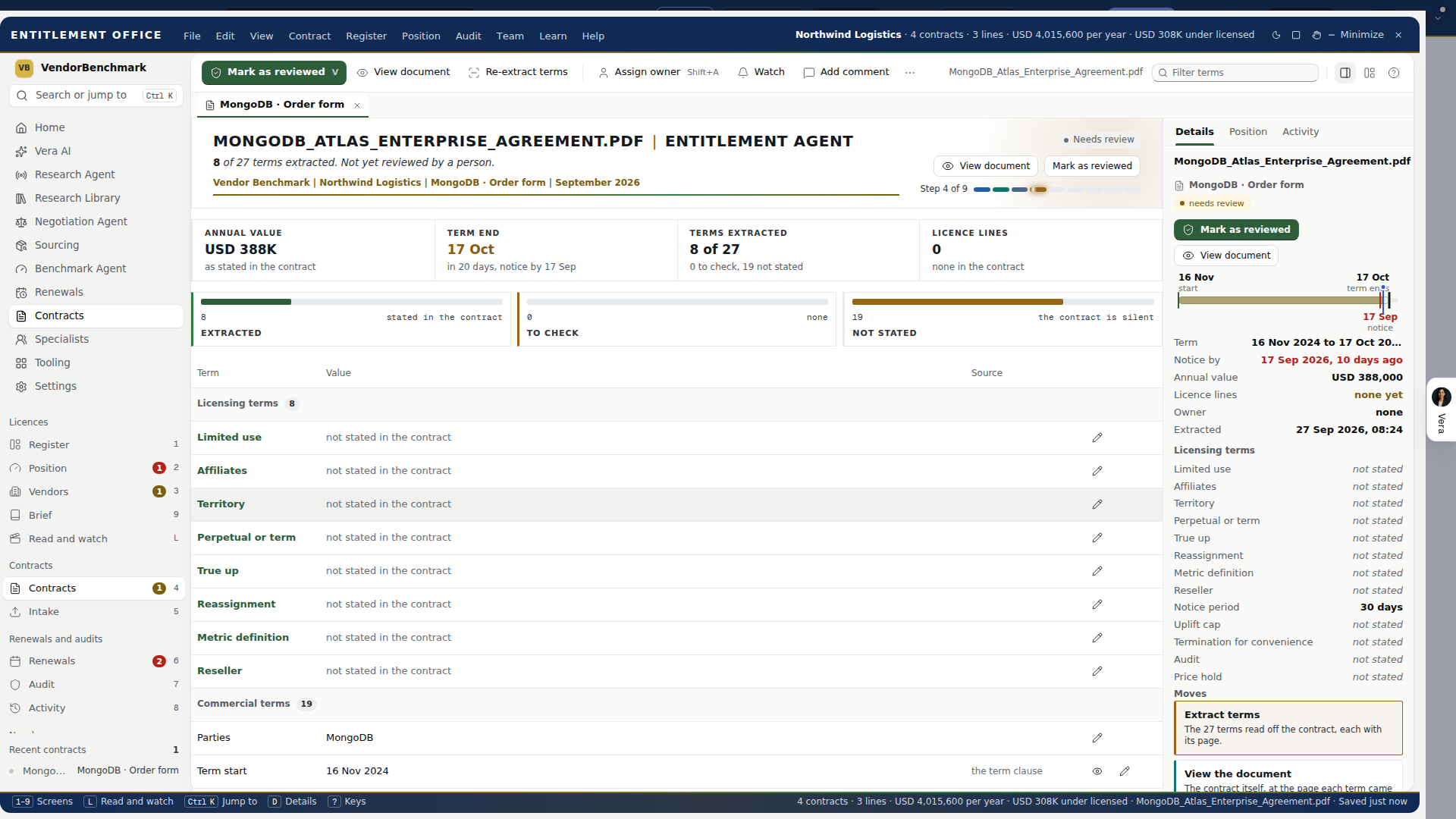
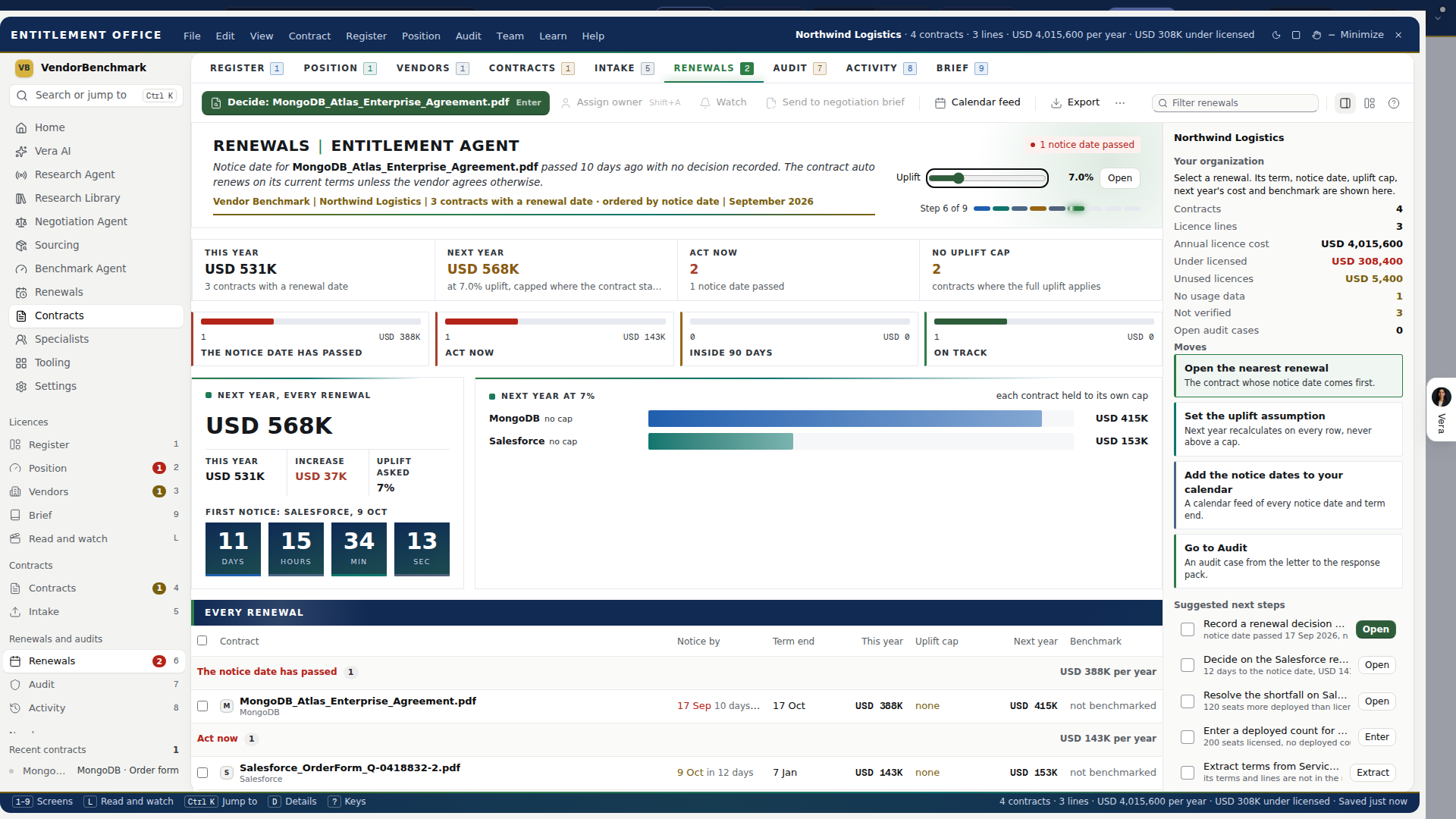
Open the file. A contract's details, its tab bar and its right click menu each carry Open the file: the contract's file, with every benchmark, comment, action and document about it from every app (see The contract file).
How to use it
- Open Entitlement Agent from the menu on the left. It opens in the Register (or the screen chosen in Settings, Display). Press 1 to 7 to move through the seven steps.
- Upload a contract in Add (key 1). Its terms and license lines are extracted; confirm the lines with Add to register. If you keep a register in a spreadsheet, use File, Import register.
- In the Register (key 5), select a line and press Enter deployed count in the details column. Enter the quantity in use, the source and the date. The Gap and Status columns update. Press Link documents to record the purchase order, invoice or license certificate, then Mark as verified once you have checked the line against the contract.
- Press B on a line to benchmark its price.
- Open the Position (See the position on the Register), select a product with a shortfall and read how the count was calculated. Use the Position tab on the right to change the assumptions.
- Open Organize (key 3), select a vendor and read its licensing rules next to its spend. Override a rule your contract contradicts.
- Open Read (key 2), press Enter on a contract, check the extracted terms, correct any, and press Mark as reviewed.
- Press R for the Brief and press Write the entitlement brief once the register is in reasonable shape. Read it, take it as Word, and write it again whenever the register changes.
- Press A for Activity to see who did what, and Export if someone asks for the record.
Tips
- Hover anything you are unsure about: menu items, buttons, right click items and column headers all explain themselves.
- The navy button in each step's head is the next step, and the details column's Next list says what to do first.
- Every change is undoable with Ctrl+Z, one step at a time, with no time limit.
- Editing a line clears its verification on purpose, so a verified line is one nobody has changed since a person checked it.
- Snapshot the position before building a response pack: the pack states when the snapshot was taken and a later change cannot alter it.
- Confirming lines and changing organization settings are for owners; the window says so when it refuses.
- The Brief argues what the register says, so confirm the lines that carry the most money before writing it; the brief names the lines it could not check against a clause.
- Text too small? Settings, Display, Text size offers three sizes, or press Ctrl and plus.
Related: The Contract Management Portal, Renewal calendar
Intake rules and the sync schedule: how they work
Two pages decide what comes into the Entitlement Agent and how it is sorted once it is in. Intake rules sorts every license line into your own product categories and sets which lines the register shows by default. Sync schedule sets how often each connected system (Coupa, SAP Ariba, SharePoint, Okta and the rest) is asked for what is new. Both apply as you change them; there is nothing to save. Every change is written to the activity log with your name, and each page lists who changed what and when at its foot.
Product categories: how a line is placed
A category is a name and a list of words. When the register draws a line, it reads three things on it: the vendor, the product name and the part number. It then walks your categories from the top down and puts the line in the first category that has one of its words in that text. A line no word matches is Uncategorized.
- Words match whole words. "SAP" places SAP S/4HANA Cloud, and does not place a vendor called Sapphire Labs. "box" places Box Enterprise Plus, and does not place Dropbox; Dropbox has its own word.
- Case and spacing do not matter. "Microsoft 365", "microsoft 365" and "MICROSOFT 365" are the same word.
- Order decides. Copilot for Microsoft 365 carries a word from AI (copilot) and a word from Collaboration (microsoft 365). AI sits first, so it lands in AI. Move Collaboration above AI and it lands in Collaboration. Use Up and Down to set the order.
- The words are yours. Add a product family your estate uses ("dynamics 365", "tableau cloud"), a part number prefix your reseller prints, or a vendor name the defaults do not know. Separate words with commas.
- Nothing is stored on the line. The category is worked out each time the register is drawn, so changing a word re-sorts every line at once, including the lines already in the register, with no re-reading of any contract.
The page opens on seven categories, with words for the vendors and products most estates carry:
| Category | Starts with words such as |
|---|---|
| AI | copilot, openai, chatgpt, anthropic, claude, gemini, vertex ai, bedrock |
| Collaboration | microsoft 365, office 365, teams, zoom, slack, webex, google workspace, miro, box, dropbox, confluence, docusign |
| Security | crowdstrike, zscaler, okta, palo alto, defender, sentinel, splunk, netskope, sentinelone, proofpoint, cyberark, fortinet |
| Data and analytics | snowflake, databricks, tableau, power bi, mongodb, informatica, qlik, looker, elastic |
| Cloud and infrastructure | aws, azure, google cloud, gcp, vmware, broadcom, red hat, citrix, nutanix, oracle database |
| Business applications | salesforce, sap, workday, servicenow, oracle, adobe, hubspot, coupa, netsuite |
| Developer tools | github, gitlab, atlassian, jira, jetbrains, datadog, new relic, postman |
Each category's row says how many lines and how much a year it holds in your register today, so you see the effect of a word as you type it. The Uncategorized row names up to four of the lines no word matches yet, which is the quickest way to find the word you are missing. Add category adds one at the foot (up to 30), the cross removes one, and Restore defaults puts the seven back. A category name must be unique, and Uncategorized is kept for the lines nothing matches.
Where categories show. In the Register: the Categories group in the filters on the left (each with its line count; press one to see only its lines), By category in the grouping switch on the table's strip (each group carries its value a year), and the Category column in the column chooser. The register's CSV export carries a Category column. Settings, Register can make Category the grouping the register opens on.
Filters: what the register shows by default
Filters keep small or irrelevant lines out of the way without deleting anything. Five can be combined:
| Filter | Leaves out |
|---|---|
| Minimum annual cost | Lines whose annual cost is below the amount, in USD. 0 keeps every line. A line with no annual cost is not left out by this filter. |
| Leave out lines whose term has ended | Lines on a term that has ended and not renewed. |
| Leave out lines with no price | Lines where the contract states neither a unit price nor an annual cost. |
| Excluded vendors | Every line of the vendors you pick. |
| Categories shown | Every line of a category you switch off, Uncategorized included. |
The head of the Filters panel says how many lines the filters leave out now and why (for example "5 lines of 13 left out (5 below the minimum annual cost)").
What "left out" means. A line left out stays in the register, keeps its documents, counts and verification, and still counts in every total: the head of the Register, the Position, the Report, the brief and the reconciliation against your contracts all use every line, because a figure that changed with a view setting could not be trusted. Only the table hides it. Above the table a line says how many lines are left out, why, and what they are worth a year. Show them brings them into the table for this visit, Hide them takes them out again and Intake rules opens the page. The register's CSV export follows the table: it carries the lines shown.
When files arrive
Vendor folder from the file name. On (the default): when you upload files on Add, each is staged under a vendor folder guessed from its file name and the folders it sat in, for you to correct before pressing Upload. Off: every file is staged in Unfiled and you sort it yourself. Either way the contract's read names the vendor once it is uploaded.
The sync schedule: how a source is kept current
A connected source does not push its data to the platform (except Ironclad and DocuSign, below). The platform goes and asks. It does that on one run that starts every hour at half past (00:30, 01:30 and so on, UTC). On each run, every connected source is checked against your schedule, and only the sources that are due are asked for what is new. A source you have never set is due once a day, in the 06:00 UTC hour, which is exactly how every source behaved before the schedule existed.
| Choice | When the run takes the source |
|---|---|
| Every hour | Every run, as long as 45 minutes have passed since its last sync. |
| Every 6 hours | The first run at least 5 hours 45 minutes after its last sync. |
| Once a day | The run in the hour you chose, once a day. If that hour was missed (the run was down, or you moved the hour), the next run catches up once 26 hours have passed. |
| Once a week | The run on the day and hour you chose. If that was missed, the next run catches up once 8 days have passed. |
| Only by hand | Never on its own. It updates only when someone syncs it on the integrations page. |
- The hour and the day. Daily and weekly syncs run at picks the hour (00:30 to 23:30 UTC) and Weekly syncs run on the day. Hourly and six hourly sources ignore both.
- Last and next. Each source's row says whether it is connected, when it last synced and when the run will next take it, all in UTC, and the schedule in words ("Every day at 06:30 UTC", "Mondays at 06:30 UTC").
- A sync counts from the last one. The next sync is worked out from the last sync, whether the schedule or a person started it. A source synced by hand at 10:00 and set to every 6 hours is next taken at about 16:30.
- A source that has never synced waits for its hour rather than being tried every hour, so a connection whose credentials are wrong is not hammered.
- One schedule per connection, everywhere. The same connection feeds spend, purchase orders, usage and contract intake across the platform, so its schedule applies everywhere it is used, not only in the Entitlement Agent.
- Instant sources. Ironclad and DocuSign send each signed contract or completed envelope to the platform the moment it happens, so they have no schedule and say Instant.
What each source brings in on a sync
| Source | Brings in | How much on one sync |
|---|---|---|
| Coupa invoices | Approved invoices, as spend by vendor and month | The invoices dated after the last sync (a year back on the first sync), up to 200, each once |
| Coupa purchase orders | Purchase orders, requisitions and suppliers | The records the system returns, merged so each appears once |
| SAP Ariba, SAP S/4HANA, Oracle Fusion, NetSuite | Purchase orders, requisitions and suppliers | The records the system returns, merged so each appears once |
| SharePoint, Google Drive, Box, OneDrive, Dropbox, SFTP | New contract files from the watched folder and its subfolders | Up to 10 new files; the rest wait for the next sync |
| Coupa contracts | The PDF and Word files attached to contracts in Coupa | Up to 10 new files |
| SAP Ariba contracts | The PDF and Word documents in your Ariba contract workspaces (up to 200 workspaces) | Up to 10 new files |
| Okta | The people who signed in to each app over the last 30 days (or, if the token cannot read the System Log, the people assigned to it) | A fresh snapshot each sync |
| Microsoft Entra ID | The people assigned to each app in your tenant | A fresh snapshot each sync |
| Ironclad, DocuSign | Signed contracts and completed envelopes | Each one, as it happens |
Choosing a schedule. A folder source takes up to 10 new files a sync, so a team that files many contracts a day gets them sooner on Every hour (up to 240 a day) than on Once a day (10). To carry a whole existing archive across, use Import everything on the connection instead of waiting for syncs. Spend from Coupa invoices is reported by month, so Once a day is plenty. Usage from Okta and Entra moves slowly and suits Once a day or Once a week. Purchase orders during an active sourcing event suit Every 6 hours.
When a sync fails
A sync that fails (a revoked key, a changed password, a source that is down) is recorded under Recent activity on the Integrations page with the source's own message, and the connection is marked as stopped. On Sync schedule its row says Stopped on an error with that message. A stopped connection is not asked again on its own, so a broken credential does not fail every hour. To start it again, open the integrations page, fix the cause, and save the connection's details again (or, where the connection has one, press its Sync now or Import now); the next successful sync marks it connected and the schedule picks it up from there. Disconnecting a source stops its syncs at once and keeps what it already brought in.
What is kept and who can see it
- Credentials (API keys, client secrets, passwords, private keys) are encrypted before they are stored, used only on the server, and shown masked on the integrations page. They never reach the browser.
- Connections ask for read access only wherever the source offers it.
- The Sync schedule page reads only each connection's kind, state, last sync time and last error message; it never reads a credential.
- Changes to either page are an owner's, and each is written to the activity log with the person, the setting, the old value and the new one.
How to use it
- Open the Entitlement Agent and press Ctrl and comma, then Intake rules.
- Look at Uncategorized first: add the words that place those lines in a category, or Add category for a family of your own.
- Set the order with Up and Down so the specific categories (AI, Security) sit above the broad ones (Business applications).
- Under Filters, set a Minimum annual cost if small lines crowd the register, and switch off the categories or vendors you do not manage here.
- Open the Register and press By category to see the estate by category, each group with its value a year.
- Open Sync schedule. Set each connected source to how often it should update, and pick the hour for daily and weekly syncs.
- Check a row's next time to confirm when the source will update, and open Open integrations to connect a source or fix one that has stopped.
Tips
- A word that places too much is usually too short: "box" also matches "Box Sign", which may be what you want, but "ai" on its own would match any product with the word AI in it.
- Put a vendor in two categories by giving each a product word rather than the vendor's name: "dynamics 365" in Business applications and "microsoft 365" in Collaboration.
- A minimum annual cost hides lines from the table, never from a total, so it is safe to set high when you want to work the largest lines first.
- Times on Sync schedule are UTC. 06:30 UTC is 02:30 in New York and 08:30 in Paris during summer time.
Related: Entitlement Agent, Connectors: keeping it current, Coupa, SAP Ariba and your other procurement systems
One by one: proposals and agreements
The right way in when the point is the document itself, not the volume.
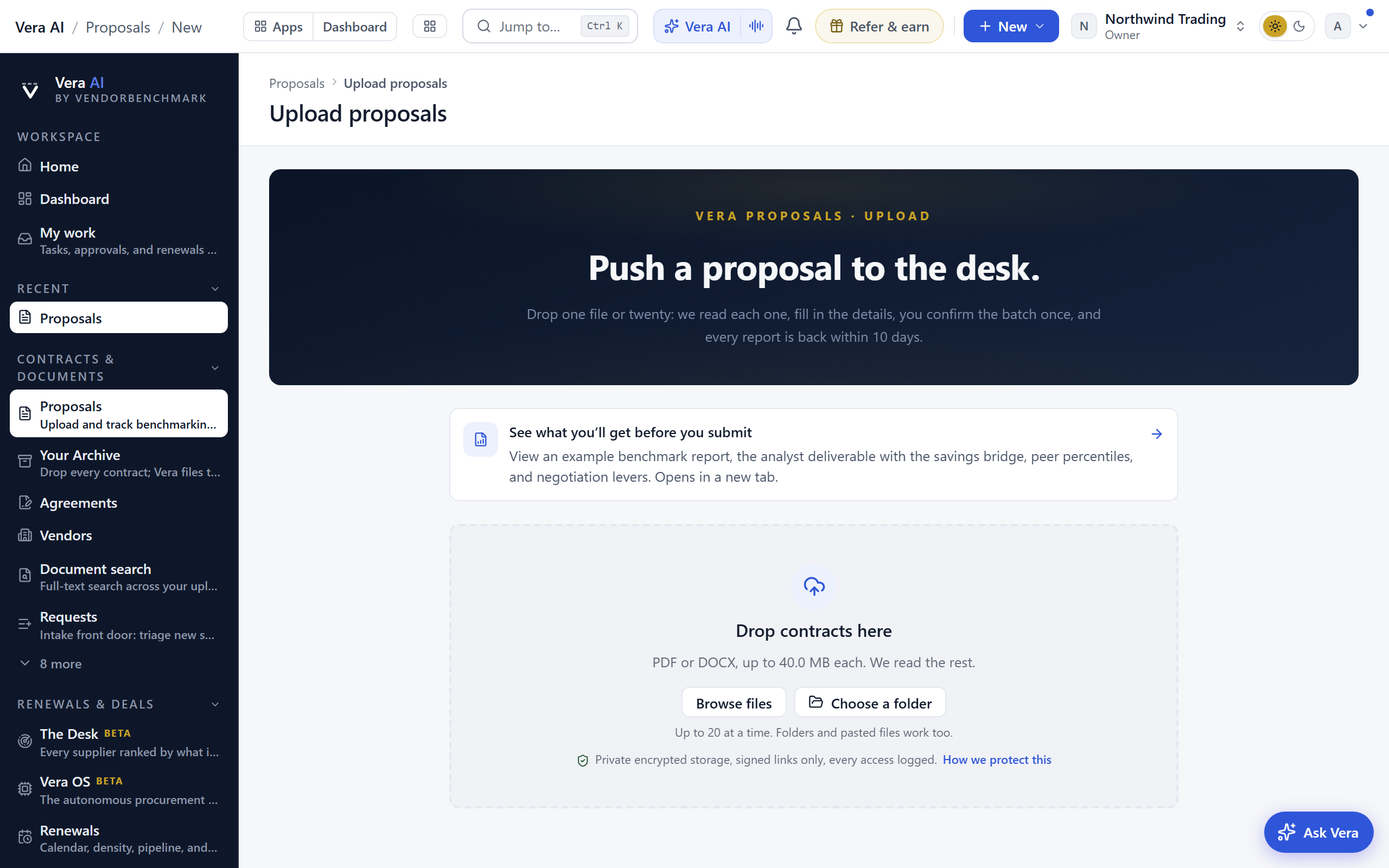
For anything you want benchmarked, use Upload a proposal: upload up to 20 files, watch the vendor, value, term, and seat fields fill in per file (shaded by how confident the read is), correct anything gold or red, and confirm the batch once. PDF and DOCX, 200 MB each, verified by contents rather than name.
For signed contracts with dates to watch, add Agreements: vendor, expiry date, notice period (30, 60, or 90 days), annual value, and up to five files per vendor for safe keeping. You can also type an agreement in beside the ledger and let the AI fill the details, or drag the signed document onto Drag contracts here or click to upload in the agreement's details. Up to 40 vendor agreements are tracked this way; past that scale you want the folder upload or the Enterprise Uploader.
Time: minutes. A proposal batch reads as it lands; an agreement is a one-minute entry.
Folder upload: Contracts
The way in most organizations should start with. Drag your contract folder, subfolders and clutter included, onto Contracts; Vera reads every document, files it into one folder per vendor, and judges each agreement current, due for renewal, expired, superseded, or perpetual. The judgments respect how vendors actually work: an old perpetual license is a current asset, and only your newest enterprise agreement counts as live.
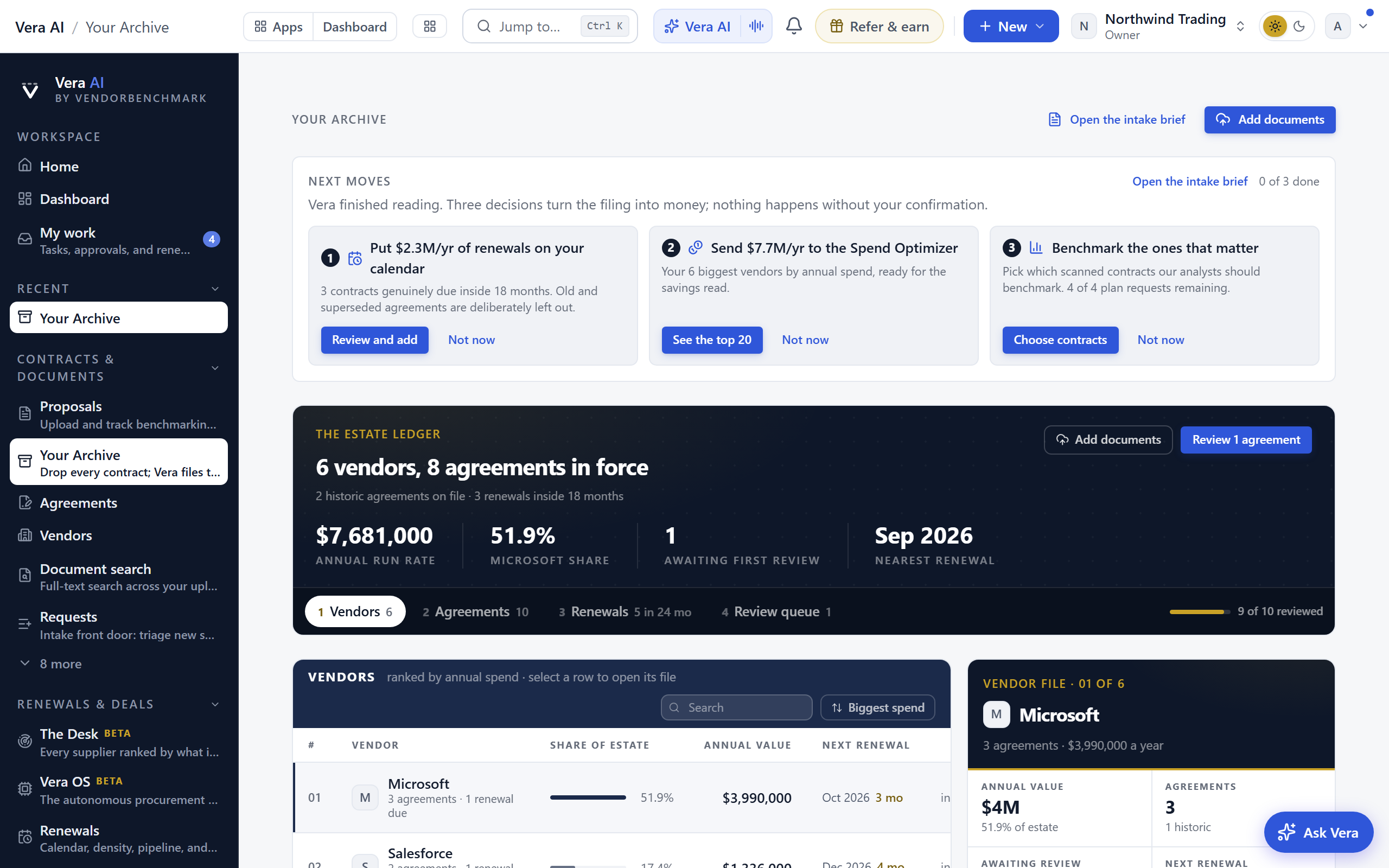
What to expect during the run. Up to 300 files per run, 200 MB each, PDF and DOCX; every unreadable file type is named in the results rather than silently discarded. A live ticker narrates the filing, and you can leave at any point: a floating button follows you with the percentage, and a notification brings you back when the archive is ready, even if you closed the tab mid-scan.
The three questions at the end. Next moves asks, with the money named on each: which genuinely due renewals go on the calendar (never ten-year-old document, and vendors you already track are advanced, not duplicated), whether to review your top 20 vendors by spend, and which contracts deserve an analyst benchmark. Nothing happens without your confirmation.
The Estate Intake Brief. Every scan also produces an executive document in the house brief style: the vendor table, the renewals inside the window, the lifecycle findings, and a bottom line. It prints clean, which makes it the fastest way to show a CFO what the estate actually holds, usually on day one.
The morning report. When the scan finishes, the person who uploaded the folder also gets the report by email: how many documents were read, the vendors they filed under, what the document costs a year, what falls due inside 18 months, and the short list that needs a human eye, with the full brief one click away. Like every alert, the switch to turn it off is in Settings under Notifications; it goes only to the person who started the upload.
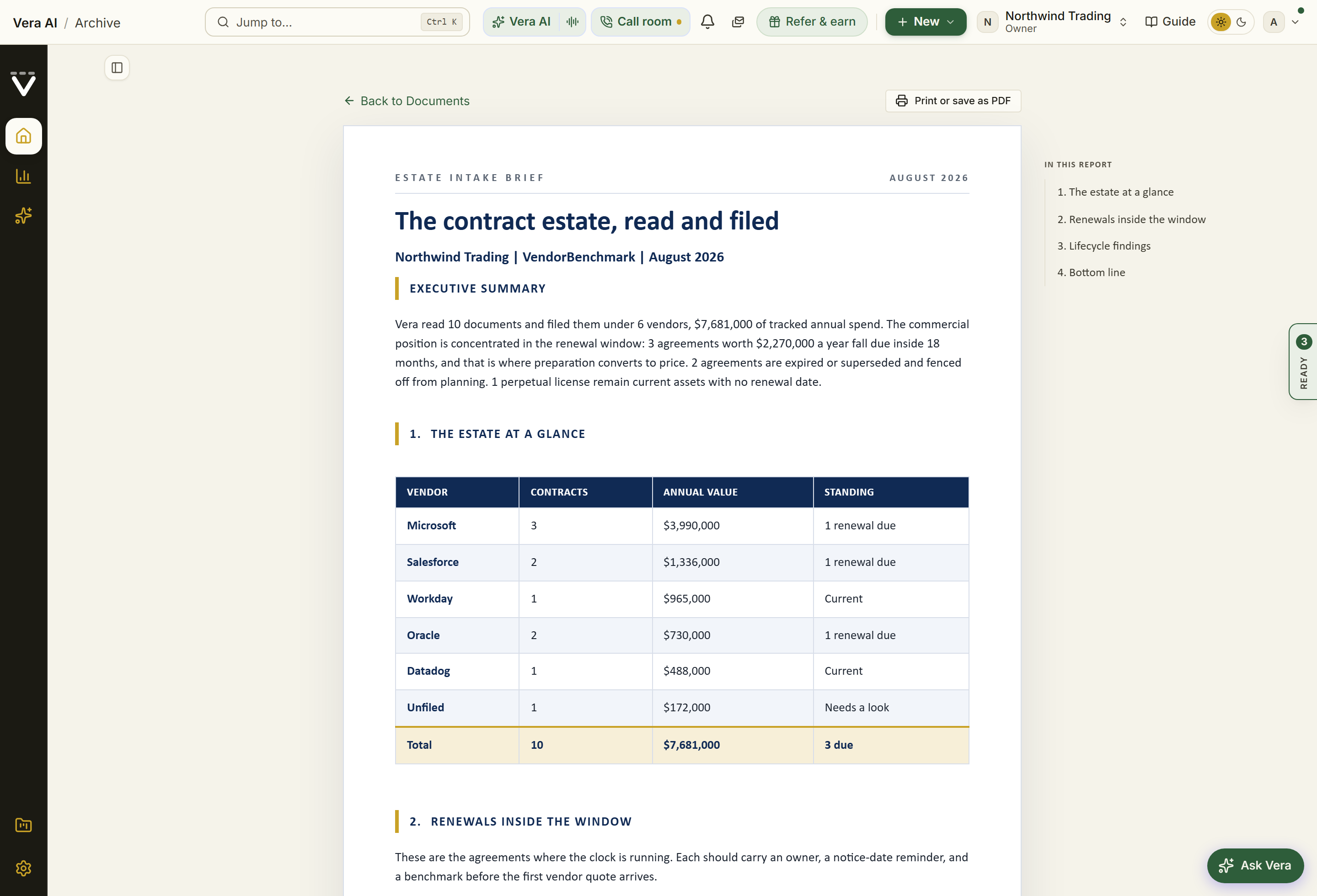
What lands where. Archive uploads land as contracts, so everything you upload also feeds Document Agent, the spend portfolio, and the vendor pages automatically. Documents the scan could not read queue under Needs a look; fill in a vendor, end date, or value and the contract refiles immediately.
Time: one drag, then the scan works while you do something else. Plan for the three follow-up questions to take ten minutes of actual decisions.
The whole estate: the Enterprise Uploader
When the estate is hundreds to thousands of agreements, plus a register spreadsheet someone maintains, use Enterprise Uploader. Chapter 00 walks the full run step by step with screenshots; this section is the decision view.
Step 1 of the Entitlement Agent since 9 October 2026 (part of the Agent since 3 October, inside its window since 4 October). The Uploader is the Entitlement Agent's Upload step at the Agent's own address, /entitlement-office, so the line is clear: on step 1 an owner uploads a folder or files and presses Scan; step 2, Scanned, shows each contract as the scan lands; Report carries the checks and the one press that files it all. A run in flight opens the Agent on the step the run needs. /migration forwards to the Agent, and /migration?new=1 opens the door of a new run. A member, or an organization without the Uploader, sees the Agent's own upload on step 1, where each contract is scanned as it lands.
- Add while documents arrive: the head says Uploading N percent or N documents staged with Start over and Read N documents beside it, and one row of facts (files, documents, still to come, duplicates, failed, size). Below it Upload more here with Upload a folder and Upload files (the whole window takes a dropped folder), the Upload panel with the ring, the line N documents staged and encrypted and a strip of the files by outcome, Files with every document in the run, What Vera reads (Everything, Key terms, or Vendor and date only, which sets what the read looks for on this run; under it the four things the agent always does: one folder a vendor, sub folders by date signed, the map of how contracts connect, duplicates skipped), Other ways in (the sources, the email address, the API), and Scan brief with the optional fields, the date order and your own questions.
- Read once Read is pressed: four stations across the top (uploaded, read, still reading, could not be read), then The document on the left (the page of the document being read, with a scan beam while the server reads it) beside What the read found on the right (vendor, annual value, term end, total over the term, seats, uplift cap, renews by itself, notice and the read's confidence, each filling in as it lands), and under them Documents, every document in the run with its vendor, term end, annual value and state, filtered by vendor as vendors are named. A press selects a document, a double press opens it in the reader. Until Read is pressed the step holds the one press. The Files address of a run opens this step.
- Report when every document is read: Checks and filing leads the step, with the four views of the review (Open items, Every agreement, Changes, Go live) as chips, and the go live press stands in the head beside Boardroom deck. After the press the step shows the filed run and, under it, the Acceptance certificate: the printable record of the go live with its share row and the email offer. The Certificate address and the Uploader's old Report address open this step; the filed run stays reachable there after the first minutes, and Start another upload is the way on.
- The left column reads This upload with the run's word (uploading, ready to read, reading, read, to check, filed), its files and documents read, then the estate's own rows. The details column reads This upload and Next with the run's moves.
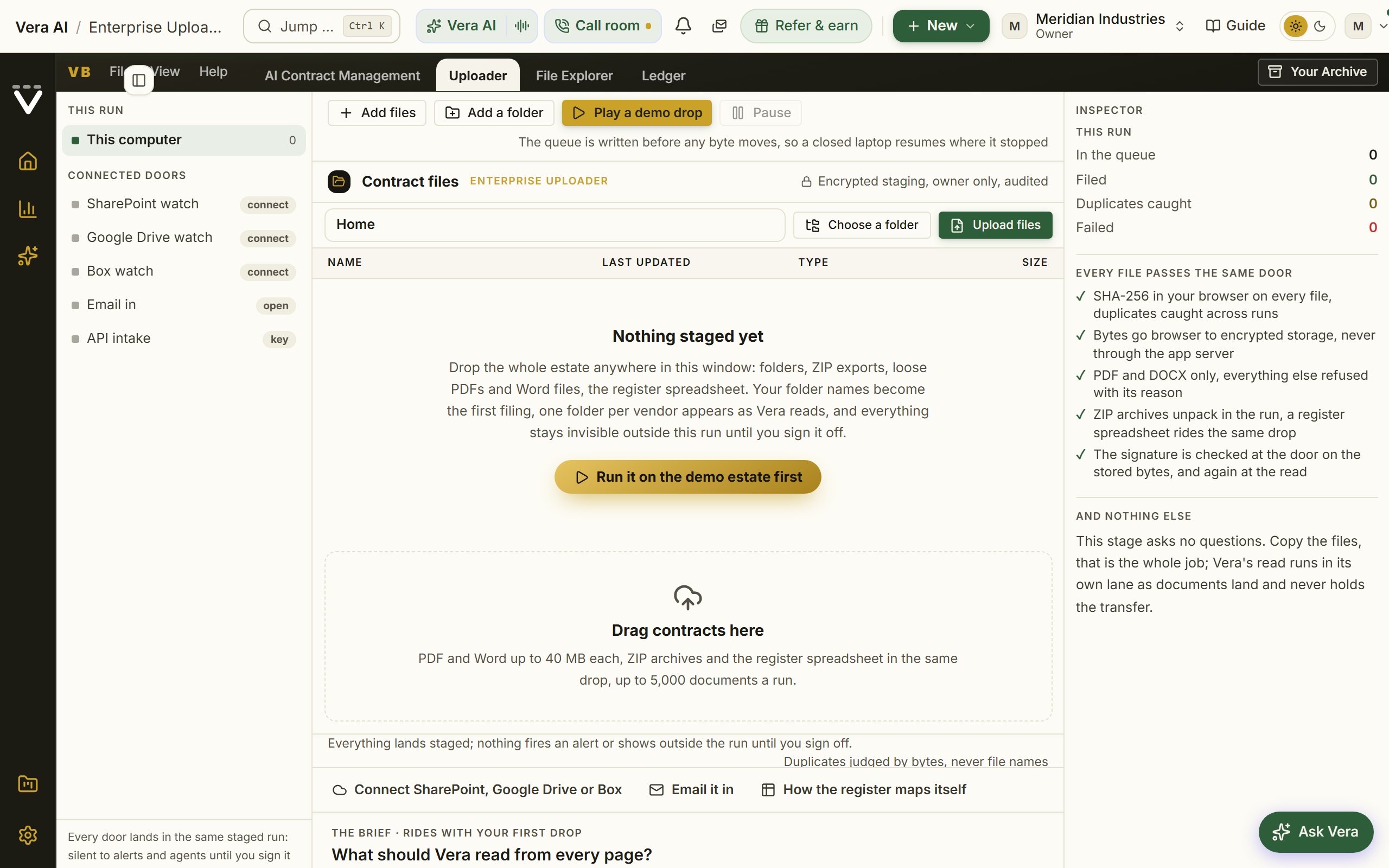
Since 27 September 2026 every state of the Uploader opens with the house masthead: the state named with Uploader beside it, its status tag and one factual line, the gold line naming the step (Upload, Read, Review or Live), one row of counts, and the actions at the right with one filled button over a rail of the four steps.
With no run open, the screen explains what a run does in four steps, lists the sources you can connect, and closes with After the run: where a run's documents land once it is live (File Explorer, Agreements, the Contract Management Portal) and what to do with them (benchmark a contract, work the renewals). Each move opens its own window. Down its lists, a status (what blocks going live, what to watch, a note) is a colored dot beside plain words rather than a filled capsule on every row. The same holds in its tables: the blocking count on a wave, and worth a look beside a vendor whose read came back unsure. What you choose on the screen reads in gray or dark ink, never the accent green: the date order you pick in the scan options, the fields you add, and the row you select in the run table; anything still being read spins in the In review blue.
Why the Enterprise Uploader is different. Three properties the folder upload does not have:
- Staging. Nothing a migration loads is visible anywhere on the platform until sign-off. No alert fires, no digest counts it, no agent reads it. Your estate becomes real in one transaction when an owner presses Go live, and the acceptance is written to the audit log with the scorecard attached. Big estates promote in waves (top vendors first, the tail later), a go-live stays reversible for seven days, dual-control sign-off is one press away for organizations that require it, and the run's acceptance certificate prints as an executive document with a filing reference, a signature block, and a Word export. Since August 2026 the whole Studio is one page that follows the run: load document (the register rides in the same upload and maps itself), let the ambient read work, then work the open items on one board, with Vera's own judgements applied and reversible on her ledger.
- The register comes along. Your master spreadsheet (CSV or XLSX) is mapped column by column with a dry run that shows exactly what it would create, update, and reject before anything is written. Columns the platform does not recognize are kept on each contract as custom fields, exactly as you wrote them; nothing in your register is thrown away.
- Reconciliation with evidence. Same-company vendor names merge themselves, for every vendor, and each merge sits on the Changes tab with the evidence and a one-press Undo; byte-identical duplicates clear themselves the same way, while agreements that supersede one another still arrive as proposals for you to decide. Binding is where renewal dates become true: a master agreement and its amendments become one contract whose terms in force are computed across the whole stack, newest document winning on each term separately, and documents of one company that print the same contract number bind into one agreement by themselves, the number named on the ledger entry. A document with no home states what the document does say, the customer it is made out to and the contract number it carries, and takes a real three-way decision: bind it to the agreement named (or any agreement you pick from the list), keep it as its own contract, or file it as reference so it stops counting against completeness. Source documents, on the Agreements tab, then shows each contract's document stack and names the exact document every live figure was read from.
What the Enterprise Uploader keeps for you. The scan brief you set before your first upload, the optional fields, the date order and the questions you write for Vera, is kept in this browser and rides with whatever opens the run: an upload on the first screen, an upload on the Load step, the demo estate, or a connector import. Once the run exists the run itself owns the brief. On a run in flight, the answers you type at sign off are kept against that run and come back in their own fields if you leave the page or close the window: waiver reasons, the materiality floor and its reason, vendor names and values you read off the document, the vendors selected for a wave. Each clears as it is saved, and the whole draft clears when the estate goes live. Your documents themselves are never kept in the browser, so a queue picked in an earlier session still asks you to re-pick the folder.
Who runs it. An owner, because a run writes thousands of records. The Enterprise Uploader itself is open to every organization; the owner can start the run and hand the working of it to someone else.
Shall I draft the email? (since 2 October 2026): under the acceptance certificate once the run is live. It is written from what was loaded, what is complete and what is still open. Press a reader and the email opens beside what you were looking at; see Send it on.
How long a scan takes
Two clocks run, and only the first one needs you at the keyboard.
The transfer moves your documents from the browser to the platform, six at a time, and finishes in minutes: a hundred documents of ordinary size take about two minutes on a decent connection, a thousand about twenty. Keep the tab open while it runs, because the bytes are on your machine and nowhere else until they land. If you close it early, re-pick the same folder and the run carries on from where it stopped.
The reading is Vera working through each agreement, and it does not need the tab, your laptop, or you. Reckon on roughly a hundred documents an hour: nearer sixty when the estate is long master agreements, over two hundred when it is short order forms. In round numbers:
| Estate | Reading time, unattended |
|---|---|
| 50 documents | under an hour |
| 100 documents | about an hour |
| 500 documents | most of a working day |
| 2,000 documents | two to three days |
Reading starts as soon as the first documents land, so terms appear on screen while the rest are still transferring, and the run continues on its own overnight and through a closed laptop. There is nothing to restart. Upload the estate on Monday afternoon and work the exceptions queue on Tuesday morning.
From a scanned estate to a live renewal calendar
Scanning fills the contract ledger. It does not, by itself, fill the renewal calendar: those are two records, because a contract is a document and a renewal is a commitment to act by a date. The runway at sign-off is where one becomes the other.
- The runway shows every dated agreement in the run across the next fourteen months, sized by annual value, with an amber flag on each speak-by date. The speak-by date is the end date minus the notice period read from that agreement's own document, so a contract with a 180 day window flags six months out and one with 30 days flags one month out. Where a document states no notice period, 90 days is assumed and the record says so.
- Put them all on the calendar in one press, or arm them one at a time from the runway or from a document's preview. Either way the renewal is created staged: invisible to the rest of the platform, and no alert, digest, or agent can see it.
- Go live promotes them with the estate. The renewals land on the live calendar the same moment the contracts do, never a day before.
- Alerts stay off until someone opts in, per vendor. Arming a renewal never sends anyone an email.
If an agreement is already on the calendar, importing newer document for the same vendor moves the date forward when the documents say the term was extended, and fills a blank notice period or annual value from what the document states. A figure you set by hand is never overwritten by a scan.
What is not put on the calendar: anything without a vendor or without an end date (there is nothing to count down to), and superseded document, because its successor carries the live date. Fix a missing vendor or end date in the review table and arm it afterwards.
Sending a contract into a tool
From a document's preview, Send to hands the document to a tool with the document already loaded, instead of opening empty and asking for the file you were just looking at.
- It is routed directly. The document is copied server side into the tool's own staging area and the tool's normal start path takes over, so its limits, quotas, and audit trail apply exactly as if you had uploaded the file there yourself.
- The tool opens on a run that is already reading that document, in its own window over the page you were on. Close the window and the run carries on; the answer is waiting when you come back.
- It is saved, and it stays attached to the contract. The run belongs to the contract you sent it from, so you can find the answer again from the record rather than by remembering you ran it.
- It sends the agreement, not the newest file. Where a contract holds a master agreement and its amendments, the governing document goes, not the most recent amendment.
- Sending the same contract twice within an hour takes you back to the result you already have rather than paying for a second run of the same work.
Only PDF and DOCX documents can be sent, and only up to 200 MB.
What a scan cannot read, and what to do instead
Every limit below is a real ceiling in the product, stated so you can plan around it rather than discover it.
| Limit | Value | What happens past it |
|---|---|---|
| File size | 200 MB per document | Named in the stayed-behind line, not transferred |
| File type | PDF and DOCX | Named in the stayed-behind line, not transferred |
| Empty files | 0 bytes | Named in the stayed-behind line, not transferred |
| Documents in one run | 5,000 | The excess is not queued; split into a second run |
| Length of a single agreement | about 150,000 characters, roughly 40 to 50 pages of contract text | The tail is not read. The record is marked and flagged for a look |
| Pages of a scanned document | 60 | Later pages are not transcribed |
The length ceiling is the one worth planning for, because it is silent in a way the others are not: a 200 page master services agreement transfers cleanly, reads cleanly, and produces a record built from its first 40 to 50 pages. Commercial terms usually sit at the front, so the answer is often right. The exhibits, the pricing schedules, and the rate cards usually sit at the back, and those are exactly the pages a benchmark needs.
The platform no longer hides this. A document read only in part is recorded as partly read, cannot score as a confident read, and carries the worth a look label in the review table so it surfaces instead of blending in with the finished rows.
What to do with a very long agreement. Any of these, in order of preference:
- Split it and upload the commercial part on its own. Extract the order form, the pricing schedule, or Exhibit A as its own PDF and upload that alongside the full agreement. Vera reads the short document properly, and the two bind into one contract because they carry the same contract number.
- Add the contract by hand. Go to Contracts, press New contract, and type the vendor, the term dates, the annual value, the notice period, and the uplift cap off the document yourself. Attach the full PDF to the record for the file trail. Six fields take about two minutes, they are certain rather than read, and every figure you type outranks anything a scan produces.
- Ask for a hand. Escalate the document to Redress from the exceptions queue and a person reads it.
The same advice applies to any agreement the scan flags as worth a look, whatever the reason: you typing the number is always better than the platform guessing it, and the record marks your values as yours.
Time: the run is three steps and opens itself on the first upload; there is no questionnaire, and reading starts as documents land, so the first extracted terms are on screen while the rest still transfer. Reading a large estate takes several passes over hours and continues while the tab is closed. Budget real person-time for two moments: the register mapping decisions, and the reconciliation and exceptions queues, which are sorted by annual value so the top of the list is what matters. Each exception line takes an assignee from your team, or escalates to Redress with one click, and the queue's foot shows how many are cleared and the clearing pace per day, which is the burn down your champion reports upward. A run that started wrong can be deleted with Delete this run, in the Run menu and the details panel: one confirming press removes the whole staged estate, and nothing live is touched because nothing went live.
Coming from a spreadsheet
Most estates arrive with a register: the spreadsheet that lists vendors, values, and dates. Three preparations make it map cleanly, all drawn from how the mapping step actually reads your file:
- Know what your value column means. A column headed something like Contract Value is read as the total over the term and divided by the term length to get the annual figure. If your column is already annual, map it to Annual value instead. Getting this one mapping right is the difference between a correct portfolio and one inflated by every multi-year deal.
- Expect the date question. If nothing in a date column proves whether 01/04/2024 means 1 April or 4 January, the mapping deliberately stops and asks, because guessing moves every date in your register by up to eleven months. Answering once enables the dry run.
- Keep your odd columns. Internal owner, cost center, procurement reference: leave them in. Unrecognized columns are preserved on each contract as custom fields rather than discarded.
Run the dry run before applying: it states how many contracts would be created, how many updated, and how many rows cannot be used with the reason for each, and rejected rows download as a CSV you can fix and upload again. A register alone, with the documents to follow later, is a legitimate way in: rows create and update contracts, and document attached later adds the evidence behind the terms.
Coming from another tool
Leaving a contract management or SAM tool for this platform is an export plus one of the ways in above, not a special project. What to expect:
- What carries over cleanly: the documents themselves (export them to a folder tree, ideally one folder per vendor, and use the folder upload or the Enterprise Uploader), and your register (most tools export their contract list as CSV or XLSX; map it in Migration Studio). Terms are re-read from the document itself rather than trusted from the old tool's fields, which is a feature: you arrive with evidence-backed data, and folder names become the first guess at each contract's vendor.
- What is recomputed rather than imported: renewal dates and lifecycle states. The old tool's flags are ignored in favor of what the bound document stack actually says, which is usually the moment teams discover renewal dates their previous system had wrong.
- What you rebuild by choice, not necessity: your clause standard in the Contract policy, notification choices per person (strictly opt-in here), Teams for confidential access, and any saved views and workflows. The owner's handbook sequences all of this.
- A SAM or ITAM tool you are keeping should not be exported at all: connect it instead (next section), and its entitlement and deployment data flows in continuously.
Connectors: keeping it current
Migration is an event; currency is a pipeline. Once the estate is in, an owner connects the systems that keep it true under Integrations:
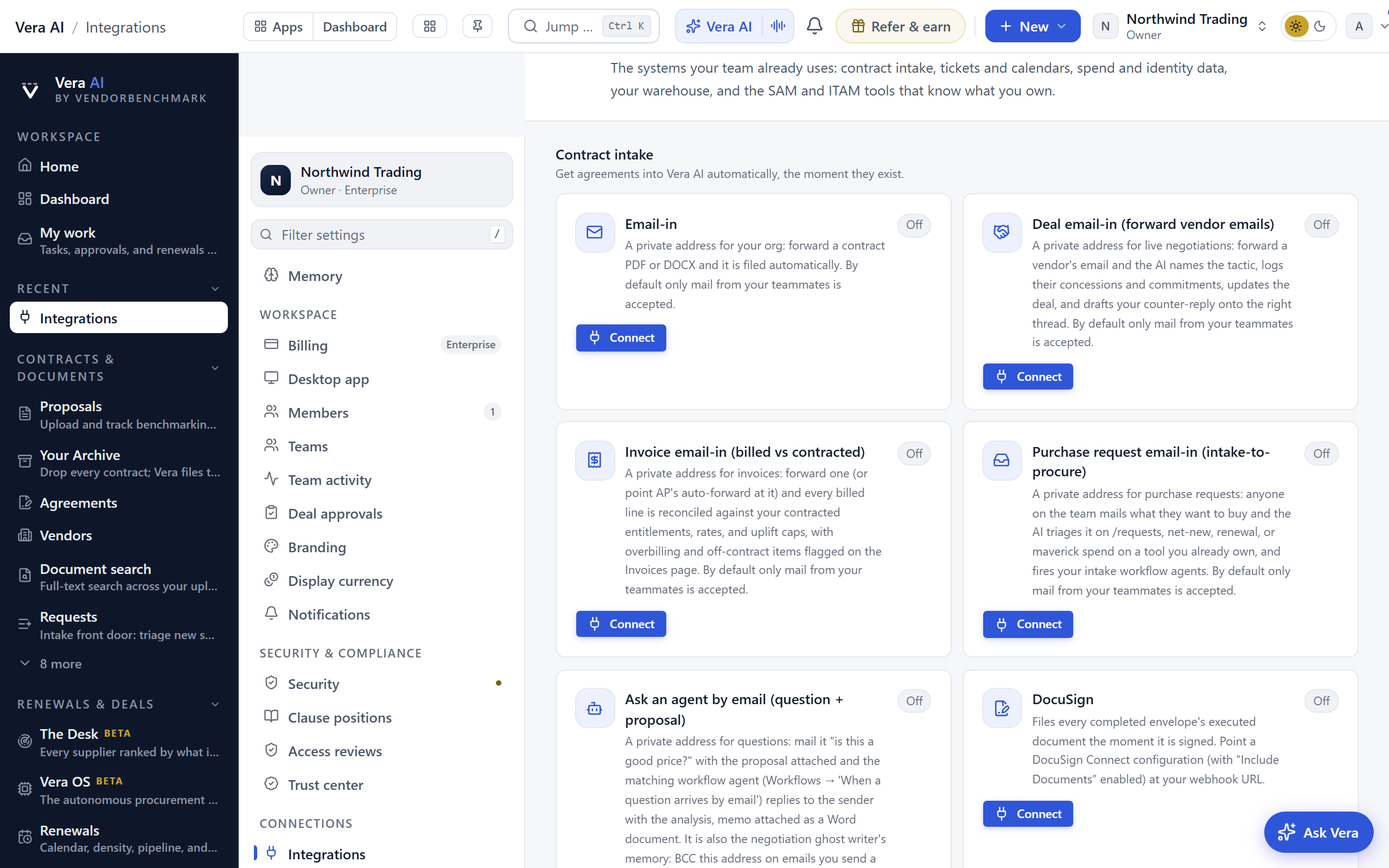
- Contract intake — five email-in addresses, DocuSign and Ironclad, and folder watch on Drive, SharePoint, or Box, subfolders included, so newly signed document files itself from now on. A connected folder also carries an Import everything button that walks the whole existing tree across in background chunks, hundreds of files per pass, with each pass logged under the connection's recent activity.
- Spend and usage — Coupa, Okta, Entra ID, the CSV importers, and Smart import, feeding the spend and license pictures.
- How often each source updates — every hour, every 6 hours, once a day (the default, 06:30 UTC), once a week or only by hand, set per source on the Entitlement Agent's Settings, Sync schedule.
- License and deployment discovery (SAM and ITAM) — the systems that know what you own and run; the license intelligence table then shows entitled against deployed against active per vendor, with estimated shelfware.
- Procurement and ERP (P2P) — purchase orders, requisitions, and supplier records, with maverick spend flagged.
- Invoices — the forward-in address, so invoice lines get checked against contract terms as they arrive (see Invoices).
The full catalog, with what each connector feeds, is Chapter 12; the per-connection setup walkthroughs are Chapter 19; the working recipe is Connect your data and close the gaps.
Data health: the finish line
"Migrated" is not a feeling; it is a score. Data health scans on every load and states the share of data checks you have covered, with each open gap naming the feature it would unlock and a plan ranked by value. It also carries the audit exposure estimate, built from whatever entitlement data is connected so far, which is your early read on how defensible the license position is.
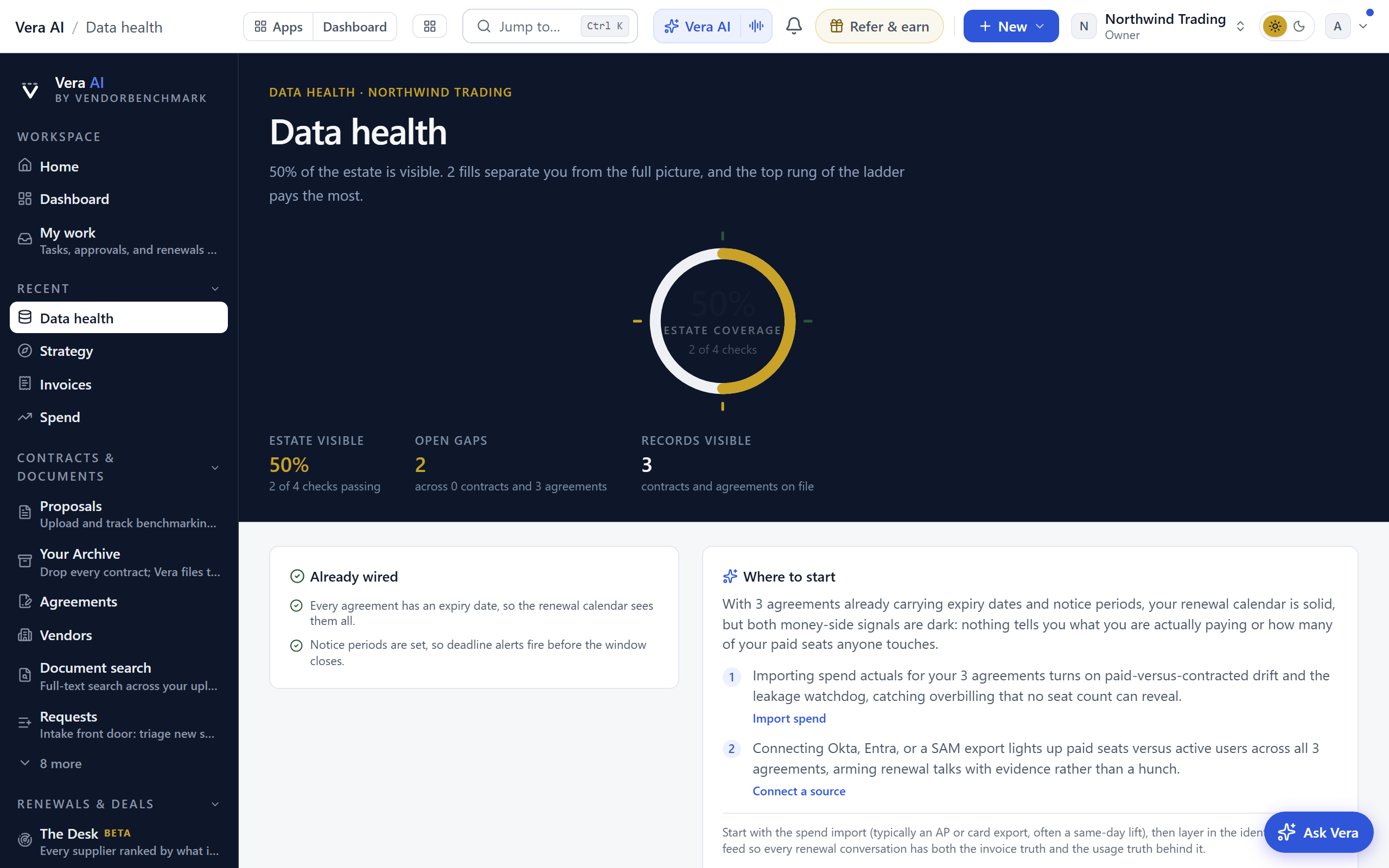
Treat the finish line as three checks, in order: every agreement that matters carries an expiry date and a notice period (without both, there is no window to watch), annual values are on the agreements so the Spend Agent lenses mean something, and the top-ranked gap on Data health has either been closed or deliberately parked with an owner. From there, the day 30 health check covers the rest of the workspace.
Migration FAQs
Will re-uploading the same folder create duplicates? No. Duplicates are detected by content, not file name: identical documents are counted and skipped whichever way in you use, and in Migration Studio the skipped row names the file it matched, with Import anyway beside it if you truly want the copy. Two different documents that share a name are both kept, because they are both real.
Will loading the estate spam my team with alerts? No. Renewal alerts are opt-in and start silent on every channel, so intake never generates email on its own. Migration Studio additionally holds everything in staging, where no alert, digest, or agent can see it until sign-off.
My register dates are ambiguous, like 01/04/2024. The mapping stops and asks rather than guessing, and stays locked until you choose, because the wrong answer moves every date by up to eleven months. Answer once; the dry run then shows you your own rows as the platform understood them.
My contracts write dates day first, like 01/04/2026 for 1 April. Set the date order in the scan brief before your first upload and every reading pass follows it, on the documents as well as the register. Contracts that spell the month out, and dates already in ISO form, read the same either way. If an estate was read before 13 August 2026 with day first chosen, re-read the affected documents from the review table: the setting was not reaching the reader, so numeric dates in those runs were read month first.
My contracts are priced in European notation, like EUR 1.500.000. Both notations are read as the number on the document. So are contracts in Canadian dollars, Swedish, Norwegian and Danish krone, and yen, each recognized as its own currency and then argued in US dollars at the day's rate, with the original currency and the rate recorded in the notes.
Some documents I picked never appeared in the run. Check the line under Upload your contracts here: it names everything that stayed behind and why, counting files over the size limit, empty files, unsupported types, and anything past the document ceiling. An empty file (zero bytes, usually a failed export or a placeholder) cannot be read and is named there rather than transferred.
How long will my estate take to read? Roughly a hundred documents an hour, so a few hundred agreements is an afternoon and a few thousand is a couple of days. It runs unattended, so the honest answer is to upload the estate and come back to the exceptions queue. See How long a scan takes for the numbers.
My agreement is 200 pages. Will it be read properly? The first 40 to 50 pages of contract text, yes. Past that the tail is not read, and because pricing schedules and exhibits live at the back, that is the part a benchmark needs. The record is marked as partly read and flagged worth a look rather than presented as complete. Split the commercial schedule out as its own PDF and upload it alongside, or add the contract by hand and type the six figures off the document. See What a scan cannot read.
Should I ever type a contract in by hand instead of scanning it? Yes, in three cases: an agreement past the length ceiling, a scan of poor quality that comes back thin, and any deal important enough that you want the figures certain rather than read. Typing vendor, dates, value, notice period and uplift cap takes about two minutes, and a value you enter always outranks a value a scan produced. Attach the PDF to the record either way, so the document is still on file.
My spreadsheet has columns the platform will not recognize. They are kept on each contract as custom fields, exactly as written. Nothing in a register is thrown away.
My value column is the total contract value, not annual. That is the expected case: a Contract Value column is read as the total over the term and divided by the term. If yours is already annual, map it to Annual value instead.
Should I exclude old and expired document? Include it. History is judged as history (superseded and expired document visibly sits in the past), it never pollutes your renewal calendar, and it powers the reads that need a past: year-over-year comparison, the Time machine, and binding, which needs the full stack to compute the terms in force.
Some documents are scans with no text layer. Scans transfer like anything else, and one the read cannot make out queues its own transcription, its pages read image by image in the background and the terms extracted from the transcription, after which the record fills in and becomes searchable. Only a scan too illegible to transcribe is filed as unreadable, named in the explorer and the exceptions queue with the reason and a Retry, and a value you fill in by hand always outranks the automatic read.
We run several agreements with one vendor at once. So do most enterprises, and reconciliation knows it: overlapping agreements with one vendor are never proposed as superseded. Superseding is only proposed where the evidence supports it, and you decide each proposal.
Our contracts are in several currencies. Enter values in the currency the row carries; rows keep their own currency, and the workspace display currency covers rows that did not record one. Benchmarks stay in USD so market comparisons hold, and nothing is silently converted.
We only have the spreadsheet today; the documents are scattered. Start anyway: map the register, let rows create the contract ledger, and switch on the watching that dates enable. Attach document as you find it, through Agreements or the Archive; binding recomputes terms as evidence arrives, and your corrections always outrank the automatic reading.
Related: Contracts · Enterprise Uploader · Connect your data and close the gaps · The owner's handbook
Next: Chapter 01 · Contracts & renewals
Was this page helpful?
Thank you. Your note goes straight to the team that writes this manual.