01 · Contracts & renewals
This is the document-trail heart of the platform: where you upload vendor quotes for expert benchmarking, keep your signed agreements, and watch every expiry, notice deadline, and price-list change so none of them catches you out. It is also where you work a live deal to a close, from setting a mandate through to signature. If a screen touches a contract, a vendor, or a renewal date, it lives in this chapter.
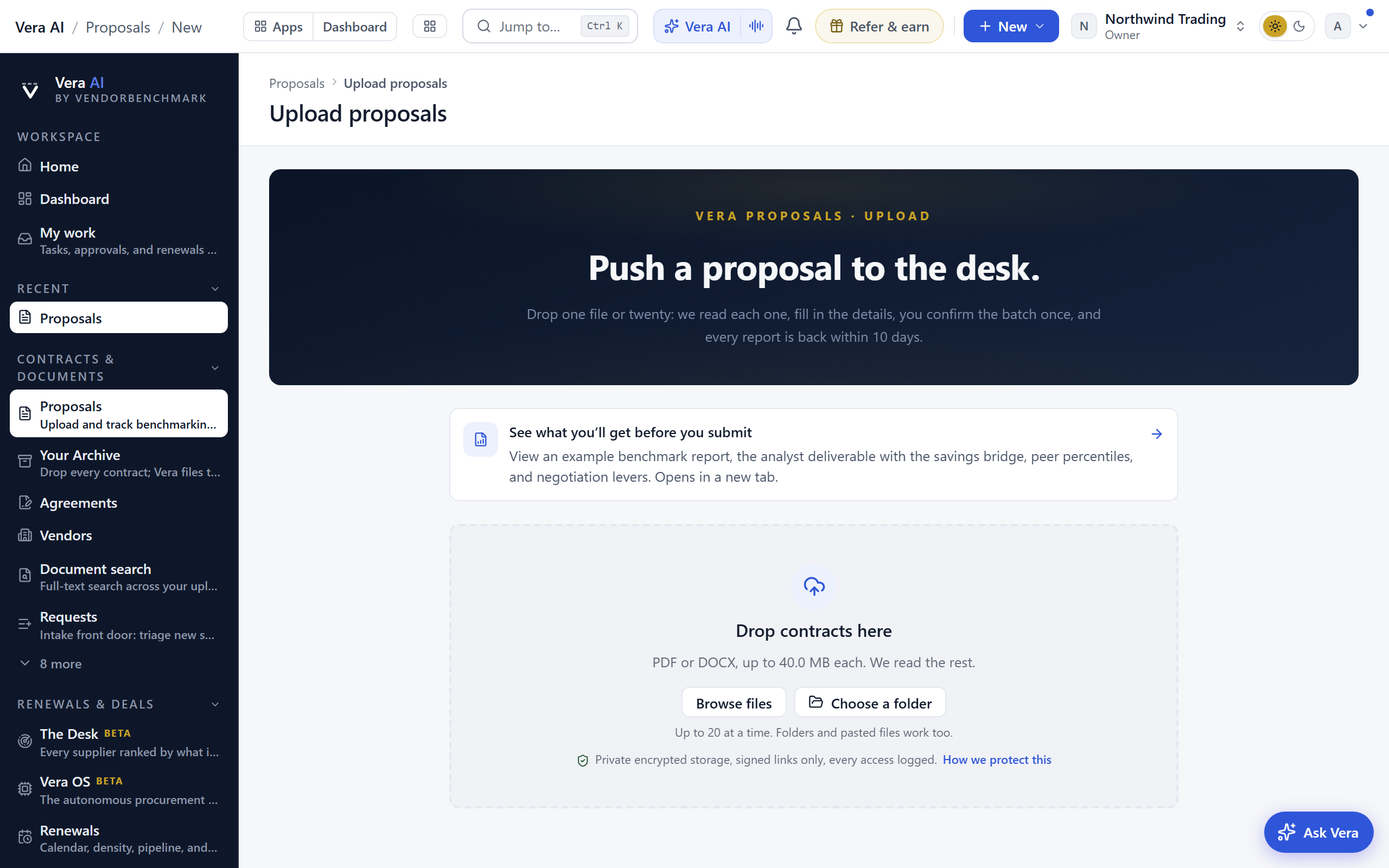
Upload a proposal
One drop zone sends vendor quotes and contracts to our analysts for benchmarking. Drop one file or twenty; each document is read as it lands, its details fill in as editable fields, and you confirm the whole batch once. You will be emailed when each report is ready.
In plain words: upload the document, check the details, confirm once.
A worked example. Upload a renewal quote like the sample Contoso Analytics one and watch the details fill: vendor Contoso Analytics, 120 seats, $450 per seat, $54,000 annual value, the term dates, and, tellingly, no uplift cap, because the quote names none. A missing or low-confidence value shades gold or red; that is your cue to check the document, and the benchmark focus box is where you tell the analysts what you actually want answered ("the quote carries no uplift cap; what does that cost us?").
On the screen
- The masthead — Upload proposals, what the page does in one line, and three facts: the days a report takes to come back, up to 20 files per upload, and the largest file it takes. All proposals at the right returns to the list.
- The drop zone — drop PDF or DOCX files, browse, choose a whole folder, or paste files from the clipboard. Every file is verified by its contents (not just its name) the moment it lands, and stored privately: your organization and our analysts only.
- Files and fields — vendor, title, category, annual value, currency, seats, term dates, and uplift cap fill in per file, shaded by how confident the read is: plain for high confidence, gold for worth a glance, red for please check, blue for values you set yourself. Click any value to correct it; the AI pass never overwrites your edits.
- Discount band — once the vendor is known, the file shows the discount band buyers like you land with that vendor at your deal size, with sample sizes, so you know the stakes before you submit.
- Notes and benchmark focus — optional per file: notes for our analysts and what you want benchmarked, with a one-click starter template matched to the proposal category.
How to use it
- Upload your files (up to 20 at a time). Each file starts reading immediately: rules first, then an AI pass that upgrades anything you have not edited.
- Check the details, correct anything gold or red, and add your benchmark focus.
- Confirm once (Ctrl+Enter also works). A batch shows a progress bar while it submits, and each file ends as Queued with a link to its proposal page.
- Track progress afterwards on the Contract Office list.
Tips
- Files are limited to PDF and DOCX and capped at 200 MB each. Files upload straight from your browser to storage.
- Your edits survive a stray navigation: corrections to the details, notes, and the benchmark focus are restored when you re-add the same files in the same browser session.
- If your plan's benchmark allowance is used up, the upload still lands but ends as Saved, not queued instead of Queued. Open the proposal page to fix it in place; see Contract Office below.
Related: Contract Office
Import portfolio
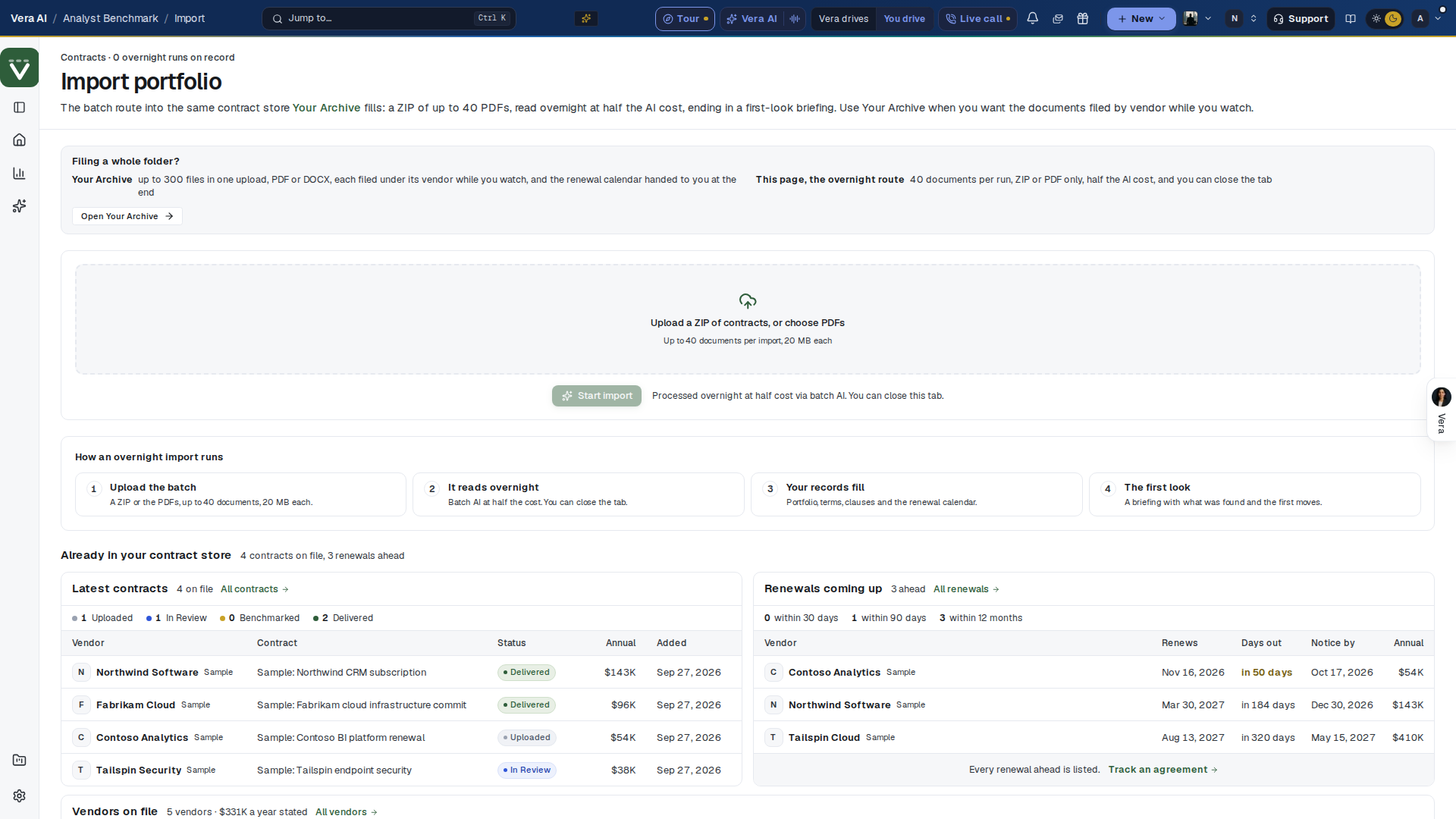
The overnight route into the contract store: a ZIP of up to 40 PDFs, read overnight at half the AI cost, ending in a first-look briefing. Use it for a large batch you do not need filed while you watch.
On the screen
- The masthead — Import portfolio, the overnight route in one line, and four facts from your recent runs: how many there are, how many are still reading, the documents read, and the per run limit. Open Your Archive at the right is the other way in.
- Filing a whole folder? — the two ways in, before the upload box: Open Your Archive files up to 300 PDF or DOCX files under their vendors while you watch; this page takes 40 documents per run, ZIP or PDF only, at half the AI cost, and you can close the tab.
- Needs you today — since 26 September 2026, under the head on Today: the first five renewals by the notice clock and then the money. Each row carries a ring counting down the days to its notice date, the line that makes it a case, what is at stake a year, and the one press it needs (serve notice, set the value, name an owner, benchmark). Beside it The next notice names the last day notice can be served on the nearest agreement that renews itself and the days left, with what renews itself if it is missed, the uplift a year and the owner, and Serve notice and Open the file.
- The runway — every agreement on one year from today: the term, the hatched sourcing runway before the notice, the notice date as a diamond (filled and pulsing inside 45 days) and the term end as a circle sized by the annual value. Press a row to open it. Play the next 90 days runs the calendar forward with nothing done: each notice date the marker passes renews itself, its row is marked renewed itself, and the cost of doing nothing counts up from the book's own figures. At the end it names every agreement that rolled and the money a year, with Serve the first notice.
- The upload box — a ZIP of contracts, or the PDFs themselves, up to 40 documents per import and 20 MB each.
- Imports — every run on record with its state; a run reads Processing overnight until it is read.
- Here is what we found and First moves — the first-look briefing once a run is read: what the import found across the portfolio, and the moves to make first.
- How an overnight import runs — four numbered steps: upload the batch, it reads overnight, your records fill (portfolio, terms, clauses and the renewal calendar), and the first look.
- Already in your contract store — your latest contracts with their status and annual value, and the renewals coming up with the days out, the notice date and the annual value, in US dollars. Under them, Vendors on file lists your largest vendors by the annual value their contracts state: the contracts on file, each vendor's share of that stated spend and its next renewal date. Each row opens the vendor.
- Read and watch — the films, briefings and papers the library holds on the vendors in your agreements, the largest first.
How to use it
- Put the contracts in a ZIP, or select up to 40 PDFs of 20 MB or less.
- Drag them onto the upload box, or press it to choose them.
- Press Start import, then close the tab if you like; the run reads overnight.
- Come back to Here is what we found and work through First moves.
Tips
- DOCX files, more than 40 documents, or you want them filed while you watch: use Your Archive instead.
- Without AI switched on for the workspace the page says overnight import is unavailable. Nothing already imported is affected.
Related: Contracts · Extraction review · Enterprise Uploader
Extraction review
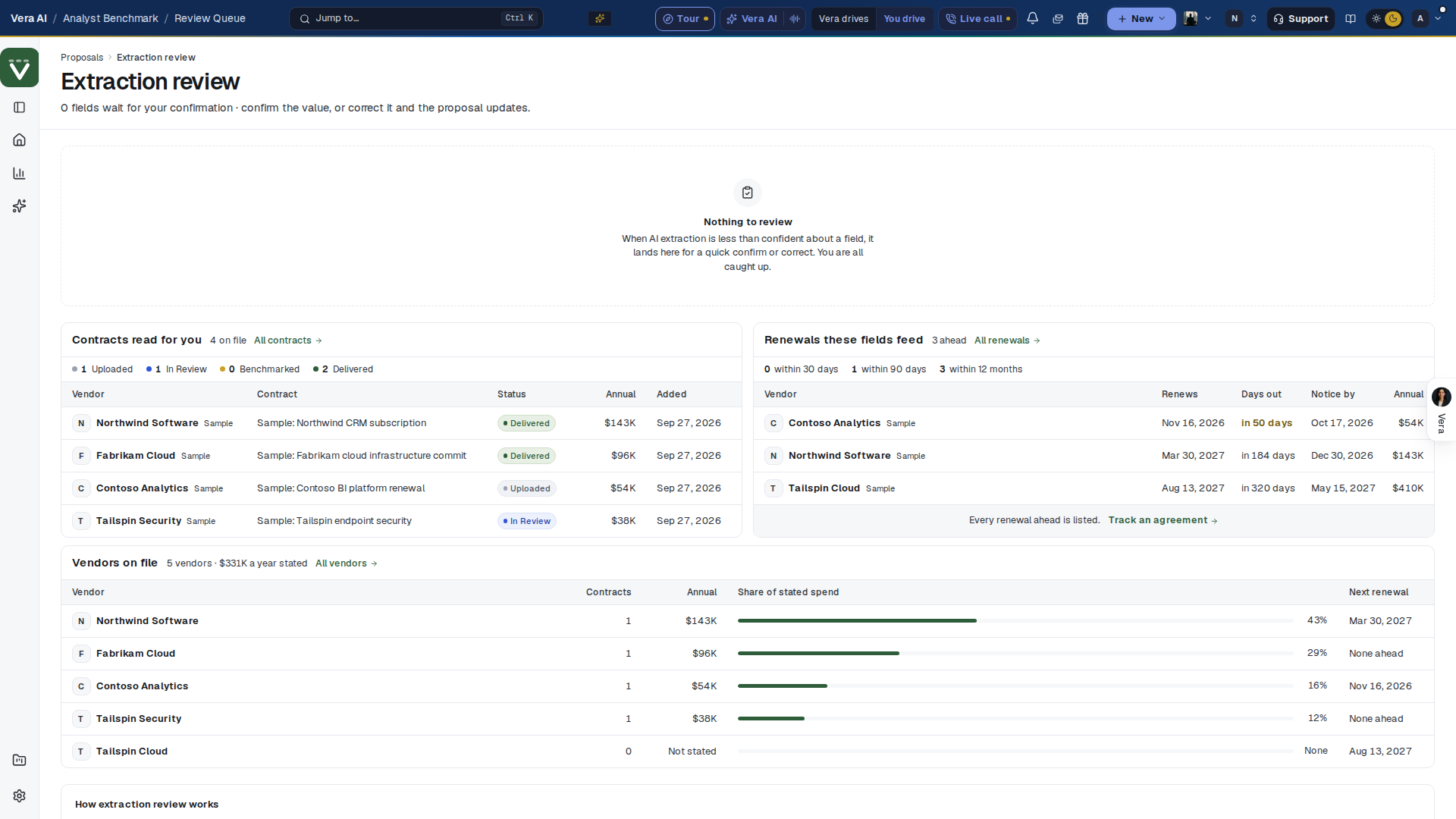
Every field the AI read with low or medium confidence waits here for a person. Confirm the value as read, or correct it, and renewal dates, benchmarks and reports use the confirmed value from then on.
On the screen
- The masthead — Extraction review, how many fields wait for your confirmation, and four facts: the fields waiting, how many were read with low confidence, the contracts they belong to, and how many carry a proposed value. All proposals at the right returns to the list. The queue says Nothing to review when it is clear. The link in a forwarded contract's reply opens the queue filtered to that one contract. The link in a forwarded contract's reply opens the queue filtered to that one contract.
- A field — the contract, the field (contract type, annual value, term start, uplift cap, expiry date, notice period, or an agreement's annual value), the value as read, and a Low confidence or Medium confidence tag.
- Footprint suggests — where a better value was read elsewhere, the suggestion sits under the field with Apply suggestion.
- Confirm and Correct — Confirm keeps the value as read; Correct opens the field to edit, and Save writes it and updates the record at once.
- Confirm selected and Confirm all — select the fields you have checked, or take the whole queue, and confirm them in one press.
- When the queue is clear — Contracts read for you and Renewals these fields feed: your latest contracts with their status and annual value, and the renewals coming up with the days out, the notice date and the annual value, in US dollars, then How extraction review works in four short facts. Under them, Vendors on file lists your largest vendors by the annual value their contracts state: the contracts on file, each vendor's share of that stated spend and its next renewal date. Each row opens the vendor.
- Read and watch — while fields wait: the films, briefings and papers on the vendors with the most fields waiting.
How to use it
- Open the queue from Analyst Benchmark's More menu when it shows a count, or from Data health.
- Read each field against the contract and press Confirm where it is right.
- Where it is wrong, press Correct, type the right value and press Save.
- When a batch is plainly right, select it and press Confirm selected.
Tips
- A correction also teaches the extractor: the next document from that vendor is read with your past corrections in view.
Related: Data health · Import portfolio · Contracts
Contracts
In plain words: every contract you have uploaded, what needs you, the dates ahead and a report to send.
Since 5 October 2026 this address opens Contract Office in four screens: Overview, Contracts, Renewals and Report. The screen was called Your Archive, then Contracts, and lived at /archive. In August 2026 it folded into the Contract Management Portal, which is now the earlier window under View, Earlier window.
| What you came for | Where it is now |
|---|---|
| Your agreements, their owners and their status | Contract Office › Contracts |
| The renewals and the notice dates | Contract Office › Renewals |
| Add documents | Add contracts on Today and Contracts, or the N key |
| A report for the board | Contract Office › Reports |
| The key terms | Contract Office › Contracts, Key terms |
| Where the price stands | Contract Office › Money |
| Duties and rights | Contract Office › Duties |
| The register, Files, Sign, Tasks and approvals | View, Earlier window |
Old links and bookmarks to /archive still work and land on the matching screen.
Full documentation: Contract Office: six places in Chapter 18, Contract Office: four screens for the window it replaced, and The Contract Management Portal for the earlier window.
Related: Contract Office: six places, Benchmarks: where every agreement stands, Renewal calendar
Compare
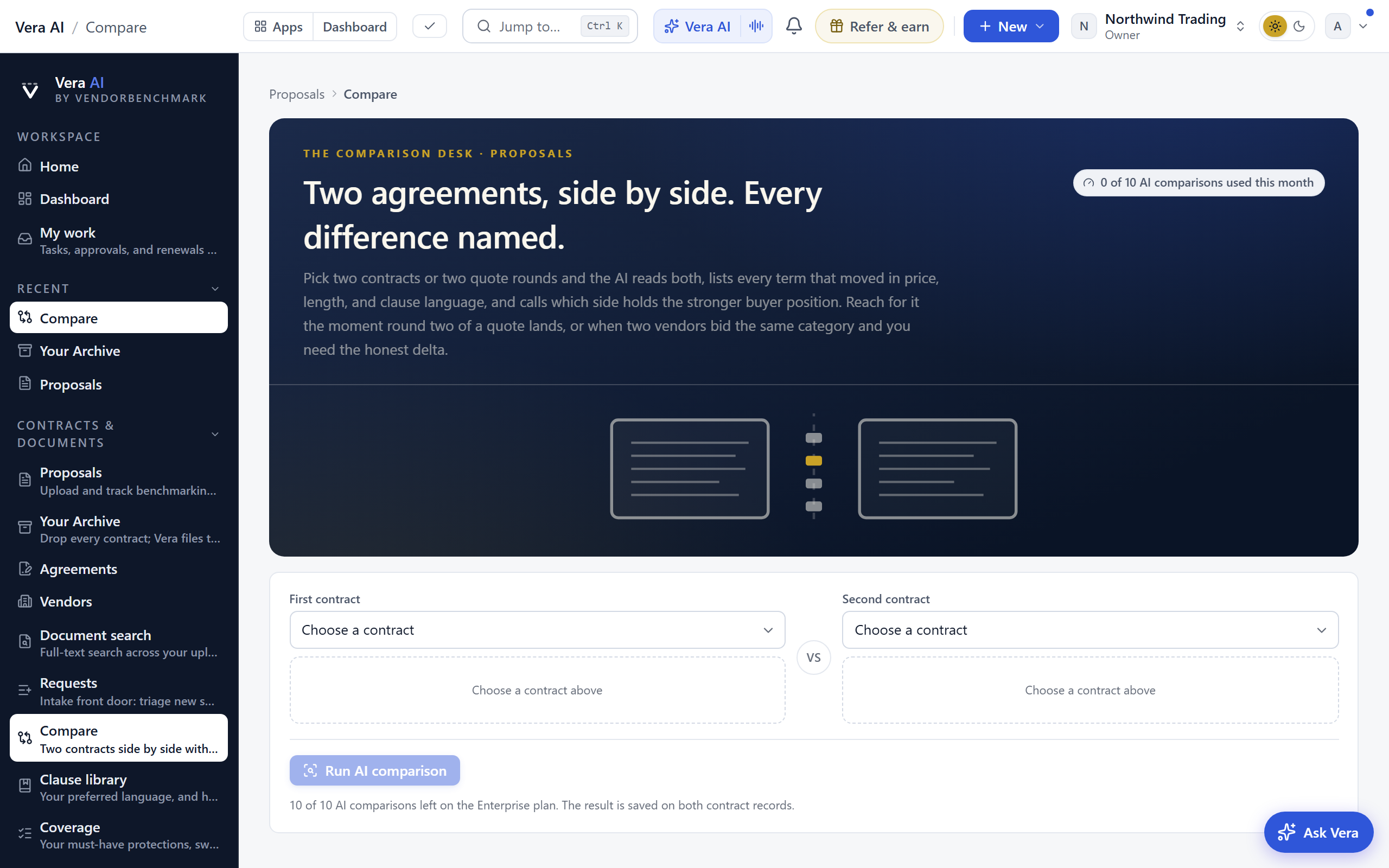
Two contracts side by side, every change lit red, the AI summary of what moved and what to ask for. Since 15 October 2026 it is an app of its own on the shared agent frame, broken out of the Contract Agent: six steps down the left column, Pick two, Read, Changes, Summary, Report and Reply, then Compared before and Documents. The Contract Agent's Compare two contracts door opens it with the document in hand in slot 2, as the new one, and the vendor's previous paper in slot 1. Since 27 October 2026 every difference takes a decision, Vera drafts the reply and the platform sends it.
In plain words: the earlier contract goes left, the new one right; one press reads both and lights every change on their pages.
On the screen
- Pick two — two slots with a vs mark between them (press it, or S, to swap). Drag a file from your computer onto a slot, press a document on file in the table below, or take a pair from Pairs on file, a vendor's two newest documents with the older one first and, where the ledger knows it, the date the term ends; the soonest renewal comes first. Two files at once fill both slots in any order: each one's date is read off its first page (or its name) and the earlier one takes the left, with a line saying why. A door that names one document fills the other slot with the vendor's nearest paper; a contract named with no file on record says so in its slot and asks for the file. The sample pair is two Salesforce order forms a year apart and runs with nothing spent; it compares only with its own pair, so a sample beside a file of your own leaves Compare off and offers the pair. When both slots are filled a Ready strip says how many pages there are and about how long the read takes by that count; Compare, or Enter, starts the read. Under the slots three tables run the full width: Pairs on file (the sample pair first, then each pair with its renewal), Compared before (the last five; with none yet, the three steps across the page) and Documents to compare. Until a document of yours is on file, the sample's documents are in that table, ready for a slot, with the three places yours come from: an upload, a contract on the ledger and a read in the Contract Agent.
- Read — seven stages named and timed: Send both files, Read the earlier one, Read the new one, Match the clauses, Compare the wording, Price the changes and Write the summary. Both documents' real pages are drawn while they are read, with a scan line down the page being read and a strip of every page under it; each change joins Found so far the moment it lands, with the tally of who it favors and the money a year. The sample pair replays its read, each change landing when both pages it sits on are read. A real read is one call to the model: the scan moves at the pace the page count predicts, and the changes land one by one when the read answers. Open the pages works at any time; Stop returns to the slots.
- Changes — the two documents as their own pages side by side, the earlier one on the left and the new one on the right. The words the earlier one had and the new one dropped are struck in red on the left; the words the new one brought are underlined in red on the right; the rest of the passage stays clean, and a clause rewritten almost whole is struck whole. A number tile and a change bar sit in each document's margin facing the other, and a line joins them across the gutter, the change in hand drawn strong. Scroll together keeps the matching clause level across the two; the map beside each document marks every change and where the window is. Hover or press a change for its card: who it favors, the money a year, both wordings, Push back, Accept and Ask Vera. The toolbar filters All, Against you, Your way and The same, switches to Redline (one document, the way legal reads it), Earlier or New, zooms, and Walk plays every change for a screen share. The family, sort and search sit with the list in the details column.
- Summary — the summary written as an email, shown the way it lands in an inbox, with From, To, the subject and what is attached. Written for switches between three cuts: Decision maker (the headline, the money a year and over three years, the terms against you and your way, the one that matters most, every change in one table, the asks numbered, what to watch), Legal (every wording change quoted, the earlier words struck and the new ones underlined) and The team (five lines and the next step). Beside it, Forward: who it goes to, a note above it, The comparison report attached and A view only link for 90 days. Send in the head sends it from your name with replies to you; Copy for email puts it on the clipboard with its layout, so it pastes into Outlook or Gmail as it looks here. While the read runs the summary says it is being written and Send waits.
- Report — a dashboard of the comparison: Who each change favors as one bar with each family's changes and money under it, Where the changes sit (a line from each change's page in the earlier document to its page in the new one), Over the term, and what if with the seats, the term and the renewal cap as levers, Comparable customers from the Benchmark Library, and Every change as one table with what moved, who it favors, the severity, the pages and the money. The files along the top print the firm paper to PDF, Word, PowerPoint (four slides) and Excel, and Redline for legal writes a Word file with real tracked changes; Share link shows the document for ninety days and Email the report sends it from your name with the file attached.
- Reply — The asks as a checklist, one a term that moved against you, each with the counter redline under it, the new words struck and the earlier words back; a decision on the Changes step decides its ask, and unticking one marks it accepted. The email: pick a tone, Firm or Collaborative, and Draft with Vera writes it on the ticked asks, quoting the earlier wording by page; edit the To, the subject and the body, then Send from the platform sends it from your name with replies to your address and a sent record on the comparison and the audit log, or Open in your mail sends it yourself; Mark as sent records a send made elsewhere. Send to the Deal Agent opens the Deal Agent with the asks written on the deal as the opening position. The redline for your legal team: the new wording struck, the earlier wording in. Send to the Deal Agent hands the asks over as the position.
- Compared before — every comparison run in your workspace, newest first, with when, the changes, the money a year and the verdict, graded by the one rule the summary uses; every one opens again without a read, the newest eight with their pages; Excel downloads the list. Terms that move most and By vendor under the table, and A contract's history: every document of a vendor compared twice or more on one strip, a column a document, a row a term, brick where it moved against you, with the terms the vendor pushes at every renewal named under it; a column head opens that comparison.
- Documents — every document the platform holds that a slot can take: the reads on file with their stored copy, the contracts on the ledger with a file, and the samples when the Sample data switch is on. Press a row for the next empty slot, its Slot 1 or Slot 2 chip for a slot, or drag it onto a slot on Pick two; search with /.
- Keys — 1 to 6 for the steps, Enter to compare, S to swap, N and P (or J and K) for the changes, Space to decide the change in hand, W for Word, M for the email, / to find a document, I for the details column, V for Vera, Ctrl Z to undo, Esc to pause the walk or go back.
How to use it
- Put the earlier contract in slot 1 and the new one in slot 2: drag the files in, press two documents in the table, or press Use this pair on a vendor. Press Compare.
- Read the changes on the pages: the struck words went, the underlined words came in. Press J for the next change, or a tile, a line or a change in the details column to land both pages on it.
- Open Summary, pick who it is for, add the recipients and press Send, or Copy for email to paste it into your own mail. Report prints the firm paper to PDF or Word and makes the share link; Redline for legal is the Word file with tracked changes.
- Decide each change under the pages, Push back, Accept or Ask, then open Reply: pick a tone, press Draft with Vera, read the email, and Send from the platform or Open in your mail. Send to the Deal Agent hands the asks over as the position.
Related: Contract Agent, Deal Agent.
Vendors
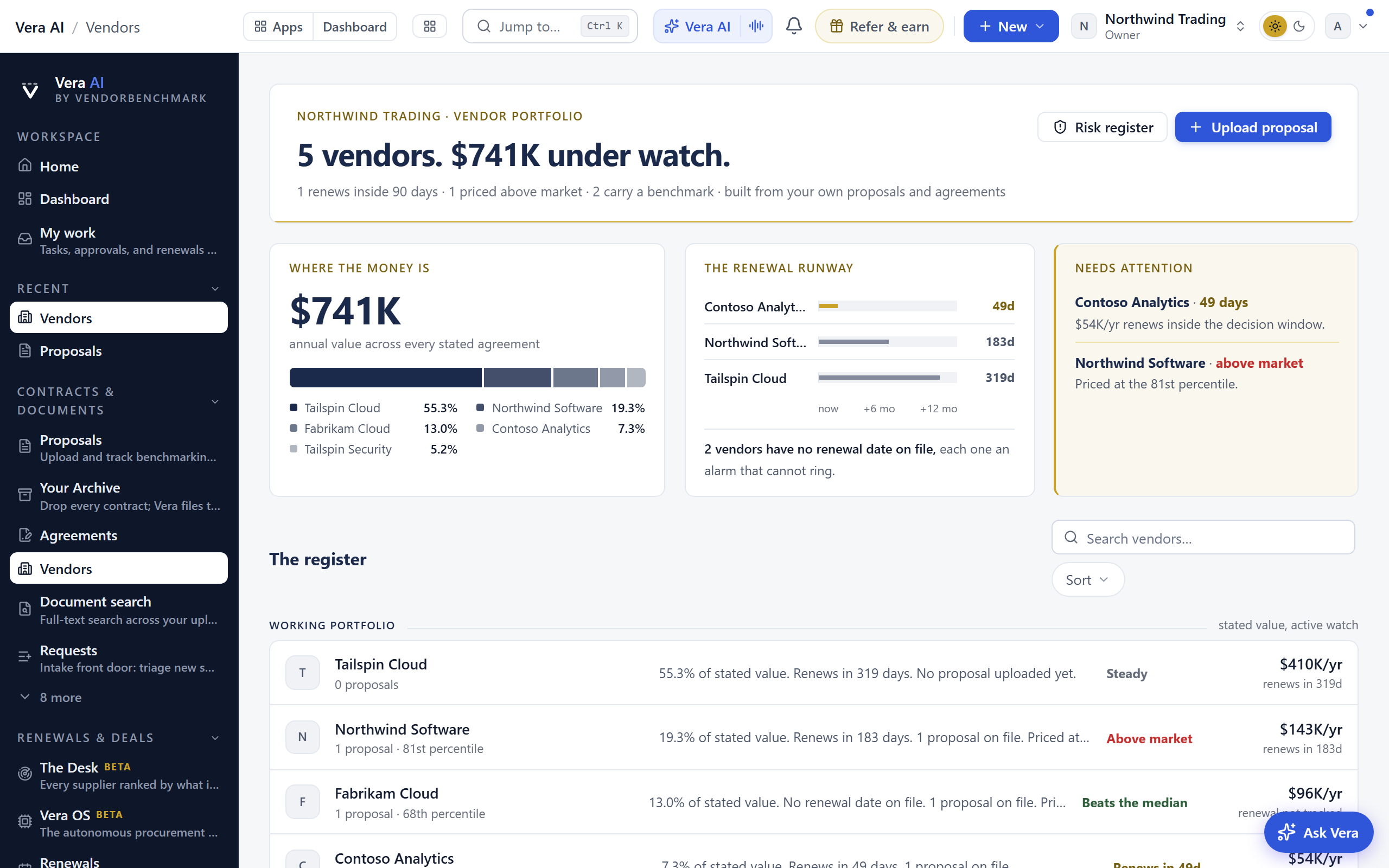
Every vendor you hold on one dashboard and one register, and each one as a file: the spend, the risk, the news, the prices, the research, the documents, the benchmark and the reports, with a search across all of it. Since 15 October 2026 it opens as a window on the frame every app shares, at the whole screen: the title bar with the menus, the Sample data switch, Share and the window controls; the navy sidebar with Jump to, Vendor intelligence (Overview, Vendors, Market, Compare and Customize, keys 1 to 5), the vendor in hand's screens with a figure beside each, Views and every vendor with its days to renewal; the details column on the right; the keys along the status bar. Since 1 November 2026 it opens on Overview, the dashboard.
In plain words: everything about your vendors on one dashboard you shape, every vendor on one register, and a way to keep watching each one.
When to reach for this
- Before any vendor conversation: the news, the price changes, the library's notes, your documents and the benchmark in one read.
- To follow a vendor: watch it, switch on its price watch and add it to your weekly vendor report.
- Taking over a colleague's book: this window per vendor is most of the handover (the recipe).
On the screen
- The head — the screen's name (Overview, Vendors, Market, Compare, Customize, or the vendor's mark and name) with one status tag and its rank, the actions at the right with one filled primary, and one row of figures under it: each figure that filters is a press. On a vendor, its screens follow as tabs with their counts.
- Overview (1) — a view of widgets over the vendors in the view's scope. The tabs under the head are the views: Portfolio, CFO, Procurement, IT and Risk, each with the number of vendors it reads, then any view you saved; New view starts a blank one. Each view opens on Key figures, eight cells (annual spend, vendors, agreements, renewals in 180 days, notice dates in 90 days, market news in 90 days, the money under the peer midpoint and the share with the five largest vendors), each a press to the list behind it. The widgets: Spend by vendor; Portfolio matrix (annual spend across on a log scale, the risk score up, four quadrants: Priority, Core, Watch and Routine); Renewals ahead (a lane an agreement ending in 12 months: the term to the notice date, the notice window in gold, the notice date and the term end); Market news (items a week by effect, Cost, Watch, Benefit or No impact, and the latest five); Benchmark position (your discount against the peers' range and midpoint, the rank and the gap); Committed spend (this quarter and the seven ahead: the agreements in force solid, the part that renews light, projected at today's value plus the agreement's own cap and flat where none is on file); Risk by vendor (price, renewal, news and share, each of 100, and the score that weighs them 35, 30, 20 and 15); Do now (the moves in date order with the money on each); Vendor quarter ends; Concentration; Price protection (what ends in 12 months, capped and not); Spend by category; and Watchlist. Every panel carries Data, the rows behind it with Copy as CSV and Download CSV, and the i mark with what it shows.
- Market (3) — the news across every vendor: News (items a week by effect, the four effects counted, then every item with its vendor, kind, effect and source linked; forty rows, then Show all), Calendar (26 weeks, a row a vendor, each week coloured by its most serious item, then the most active vendors and the items by kind), Quarter ends (every vendor's quarter and year ends for 12 months, with your renewal on the same line) and Vendors (each vendor, its items in 26 weeks, the latest, and a switch to watch it).
- Compare (4) — up to four vendors side by side, the four largest until you choose your own: spend and share, what the agreements hold over the next four quarters and what renews in that time, agreements, the next term end, the notice date, the cap, proposals, the discount, the peer midpoint, the rank, the risk score, the quadrant, the news in 180 days, the fiscal year end and the owner; the best of a row in green and the weakest in brick where the row ranks. Quick sets in the panel's head fill it: Largest four, Renewing first, Below the market, Highest risk. Copy comparison puts it on the clipboard as text.
- Customize (5) — shapes the open view: its Name, Line and Vendors in scope (all vendors, vendors on paper, the top 10 by spend, renewing in 12 months, watched vendors); Start from six layouts; the Widgets library by category, each with a picture of what it draws, + to add or dragged onto the canvas; the canvas, twelve columns, where a widget is dragged to its place, sized at 1/3, 1/2, 2/3 or Full, moved Earlier or Later, or removed; Preview draws the real view. Nothing changes the view until Save view; Save as new view keeps the original and adds the layout as its own view; every move comes back with Ctrl Z.
- Vendors (2) — Your vendors: a stacked bar whose parts are filters (needs you, renewing in 120 days, below the market, not placed, watching, in the news), the filter box, the owner and the sort, then one row a vendor: the status, what it costs a year, the term as a bar with today and the notice date on it, when it renews and the notice date (each as the date with its countdown on one line, Dec 11 · in 47 days), where it ranks with the discount, twelve weeks of news, the owner (their initials and name, or No owner with Assign), what it needs in one line (Notice due Nov 11; rest the pointer on it for the whole reason, which the vendor's file also carries under its name) and the dark button that does it. Press a row for its details; the chevron opens the vendor. Under it What needs you, in order, The year ahead (a lane a vendor with the notice date, the renewal, the vendor's quarter close and your reminder), The next ninety days and Spend by category.
- A vendor's Overview — The clock: the term bar, then Signed, Notice by, Renews and the vendor's quarter close as tiles, next year at the cap, and the dates with the document each came from; Record a decision and Set a reminder sit on it. The letters, drafted from the contract's own dates and figures and typed in: Hold the cap, The ask at the midpoint, Notice of non-renewal; copy one or open it in your mail, nothing sends from the screen. Then Three things to know first, the latest news with its sources, the benchmark with the five step ladder, the library, your documents, How the vendor negotiates with your counter to each tactic and the specialist's seat, and The log with a composer.
- Spend — Committed spend, this quarter and the eleven ahead, one series an agreement; Agreements, each with its term end and start, annual value, cap, notice date, any proposal on file and whether it renews on its own; The increase, the next term priced at the cap (or the proposal on file), at 3 percent or CPI and flat, with the difference; Next four quarters, what the agreements hold and what renews inside that time.
- Risk — Risk score with its four readings and the reasons behind them; Position, the quadrant, the share of spend, the rank and the vendor's discount against its peers; The four levers for the next renewal, each from the vendor's own agreements, terms, editions and proposals (the increase priced as cost avoided, replacement products, a downgrade review, and new purchases that remove shelfware), a lever the data does not support left out with the reason; Market items in 180 days.
- News — The sweep runs through its five stations when you press Fresh sweep (S): on your own vendors it is the research agent's run on that vendor, reading the web now, and what it finds lands at the top of the feed marked New, each with its source. Twelve weeks counts the items a week. The feed carries every item with its verdict, what it means for what you hold, the source as a link to where it was read, Open, Ask Vera and Handled; the chips filter by topic, around the vendor and handled. With Sample data on, the news on each sample vendor is real: published headlines from the vendor's newsroom, its filings and the trade press, each with its date and a link to the article, and only the line on what it means for you is written for the sample company. A sample item with no published source reads Sample headline and links nowhere.
- Pricing — Pages the AI reads (each a link, with its last read; add up to ten, read them now), What it looks for, how often and Tell me; What changed, every change priced at your seats with a seats lever that reprices every row, each linked to the price list it was read from; The prices today; The radar's reads of the vendor's own documents with the before and after passages and the document linked to its page; earlier changes and what became of them.
- Research — three things to know first, the reading order of the library's notes on the vendor, Ask the library (on your own vendors it names the notes that bear on the question), and the shelf as covers.
- Documents — the ledger, The signed terms with the sentence and the page each came from (a press opens the document with that sentence lit and the answers beside it; on your own vendors it opens the contract itself, and a term shows the wording read from it), the terms side by side with a term that differs marked, and people and places.
- Benchmark — the levers (the discount, the term) with the contract's figures, the rank and the money following live; the walk from this year to the peer midpoint; the three questions with the ladder as the third; the bridge to the Negotiation Agent; Comparable buyers with you inside the table; If the discount lands at; the trajectory; and Across the estate, every placed vendor in points from the peer midpoint.
- Reports — the weekly and the monthly card (on, the day, what it carries, send one now), The report in the firm document as it would read tonight, and the Monday market report.
- Search — one box across everything on the vendor; Your documents, read by Vera answer first with the sentence and the page; every hit opens.
- The records — a news item opens with its source linked, priced at your seats and the rest of the news under it; a library note with its cover and the rest of the shelf; a document as paper with its terms lit; the radar's change with before and after, why it matters, what to do, the document with its pages and the contracts of yours it touches.
- Details (I) — on every screen, what to do now, the selected row, the facts the screen rests on, Next with the moves, and Ask Vera.
- A vendor anywhere — on every chart, row and card a press selects the vendor and shows it in Details, a double click opens it, and a right click (or Shift F10) lists its actions: open it, its Spend, Risk and Benchmark, add it to Compare, watch it, Ask Vera, Mail to, open it in the Negotiation Agent. Rest the pointer on any mark for what it is and the figure behind it.
- Keys — 1 to 5 the screens across the estate, 1 to 9 a vendor's screens, E Customize, [ and ] the previous and next vendor, W watch, S sweep, M mail, P the primary, / search, Ctrl K Jump to, Ctrl Z undo, Esc.
How to use it
- Read the Overview: the key figures, then Do now; press the CFO or Risk view for another cut, or Customize to build your own.
- Open a vendor from any chart, row or card with a double click, or from the register (the chevron, or press its row twice); the window opens on its overview.
- Press W to watch it, then switch on its price watch (Pricing) and the weekly report (Reports).
- Press S on News for what is new on the web now.
- Read Risk for the four levers and the benchmark's three questions, then Draft the ask or Mail to your team.
- Record the decision on the clock before the notice date; Ctrl Z takes any move back.
Tips
- The Sample data switch in the title bar draws twenty sample vendors, every date relative to today, so the whole window can be read before your own contracts are in.
- A view keeps its widgets, their sizes and order and its scope for you in this workspace; build one per audience (a CFO view on the vendors on paper, a Risk view on the watched vendors) and switch with the tabs.
- Run an instant benchmark for a vendor with no benchmark yet.
Risk register
Every vendor you hold scored 0 to 100 on how exposed you are to it, with the reasons behind each score one press away.
The page opens on the Studio head every window wears: your workspace and Vendors (a link back) over the title, and one line counting the vendors scored and the five factors behind each score.
In plain words: which vendors could hurt you, worst first, and why.
On the screen
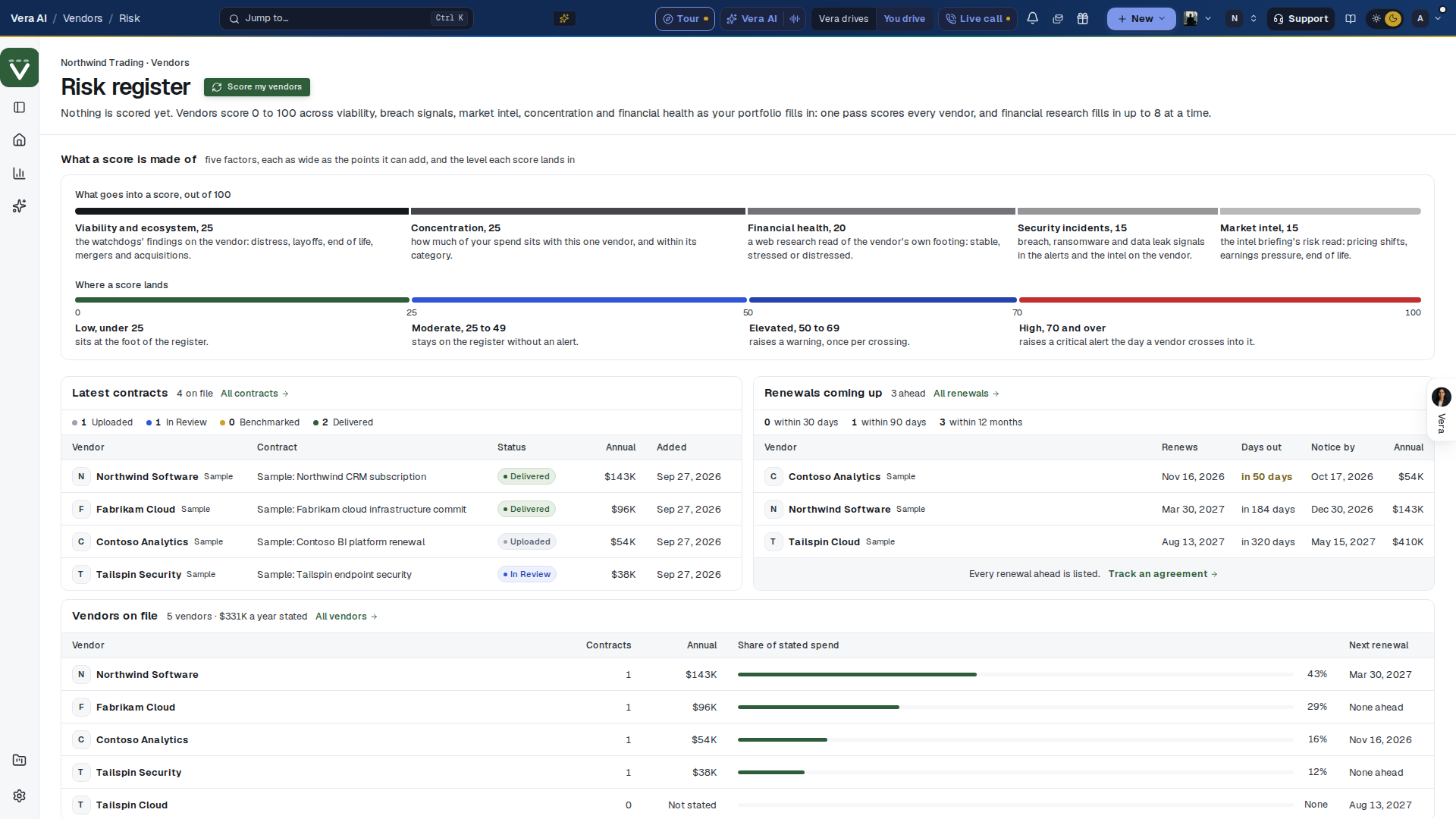
- The head — the page's name with its one button beside it (Score my vendors before the first scoring, Refresh scores after), and one line that says how many vendors are scored and on what: viability, breach signals, market intel, spend concentration and financial health. Since 26 September 2026 the line also names the vendor that scores highest, its level and score, and its annual value. What the last press did reads as one line beside the button.
- The levels row — under the head, one quiet row of five facts, each on one line: how many vendors sit at High, Elevated, Moderate and Low, each with the vendors named, and Researched, how many carry a financial read and as of when.
- The register's head row — Highest risk first, with how many vendors sit at each level at the right of the same row. A note there says when financial research still has vendors to cover.
- The rows — each vendor with its risk bar and level, its annual spend and share of your spend, and the factors driving the score. Press a row to open every factor with the detail it rests on.
- How a score is built — under the register, the key: the five factors as one bar out of 100, each as wide as the points it can add (viability and ecosystem 25, concentration 25, financial health 20, security incidents 15, market intel 15) with what each measures under it, then Where a score lands, the four levels on one 0 to 100 scale (low under 25, moderate 25 to 49, elevated 50 to 69 raises a warning, high at 70 and over raises a critical alert).
- Before the first score — the same key stands where the register will be, headed What a score is made of, and your latest contracts and next renewals show what the first scoring will read. Under them, Vendors on file lists your largest vendors by the annual value their contracts state: the contracts on file, each vendor's share of that stated spend and its next renewal date. Each row opens the vendor.
How to use it
- Press Refresh scores, beside the title, after new contracts or intel land.
- Start at the top: the high and elevated rows are the ones worth a plan this quarter.
- Press a row to read the factors, then open the vendor's page from its name.
Tips
- Financial research fills in up to 8 vendors per refresh, so a large estate takes a few presses to cover.
Related: Vendors
Watch
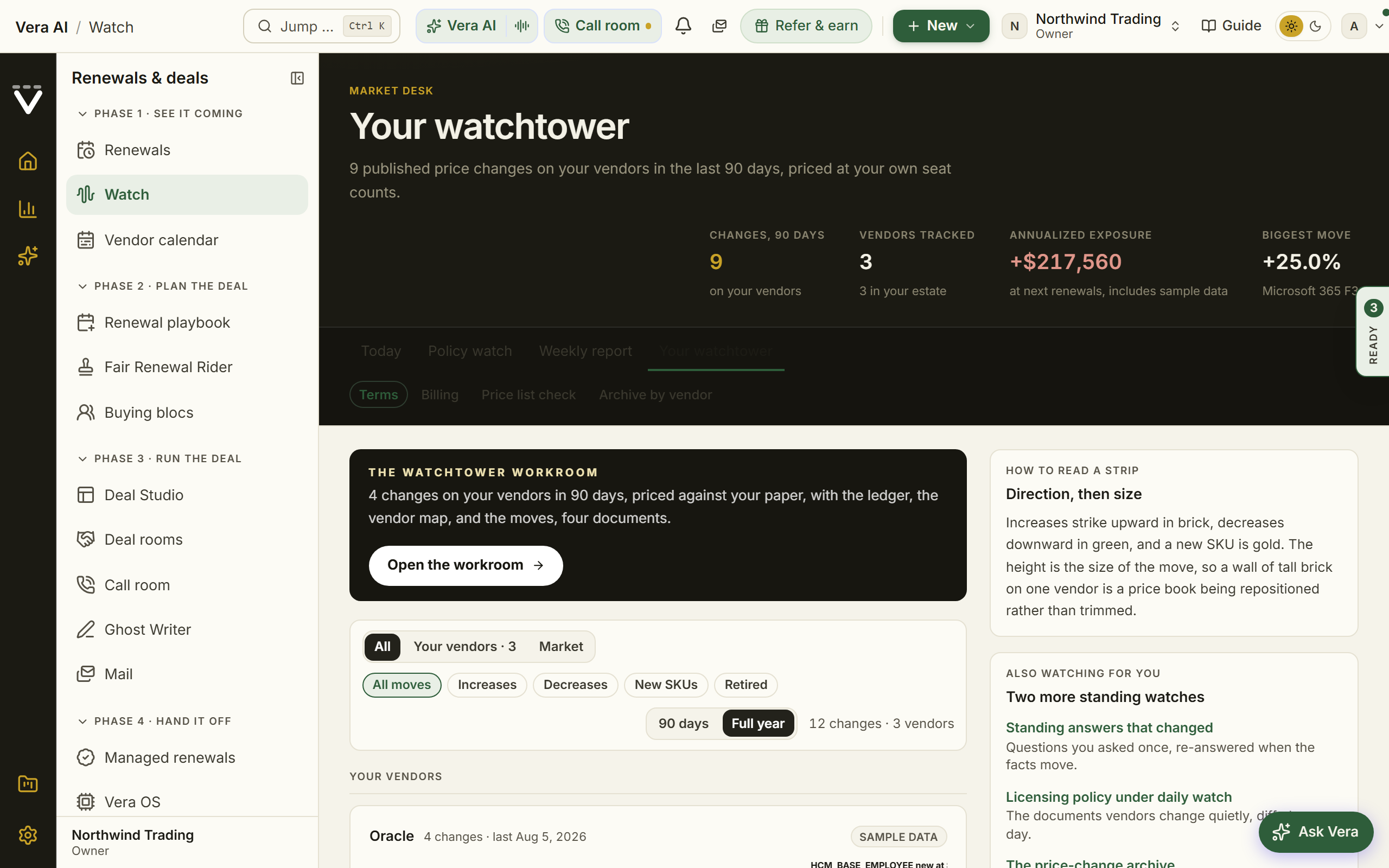
The watchtower opens as its own window on the same frame the agents use, with seven screens on the number keys and one search (/) at the right of the tabs that crosses all of them. The index on the left lists the screens and Your vendors that moved with what each costs you a year. The head names the screen, says in one line where you stand, and runs one row of figures: changes on your vendors in 90 days, what they cost you a year, lists watched, the biggest move and the open billing findings. The change you pick sits in the inspector on the right on every screen: the before and after price, the move, when it was detected, the seats on file, what it costs you a year, your renewal, and the moves (read it in full, the vendor's history, open the renewal, benchmark the vendor). I hides or shows it.
- The tower — a year of published changes as a runway, one row per vendor with today at the right edge: each change a mark on the day it was detected (red costs you, green saves, gold is a new SKU; changes published the same day share one mark that prints how many), the last 90 days shaded, and what the vendor's priced changes cost you a year at the right. Press a mark to put that change in the inspector. Under it, every published change on a vendor you actually hold, priced at your own seat counts, costliest first. The inspector opens on the change that costs you the most.
- The change — one move argued in full: the before and after prices, what changed and why, what to do about it, and a lever that prices the move on any seat count you set.
- Your bill — what you are billed against what you are entitled to against what the market pays, checked daily, ranked by what each finding costs a month.
- The price book — which published lists are watched, how often, and what is still waiting on an analyst read before it reaches you.
- The market — the same watch on vendors outside your estate, where a repricing shows up before it reaches your renewal, plus the email opt-in and the vendor follow picker.
- The record — one vendor's whole published history as a seismograph and a table.
- Read and watch — key 7: the films, analyst briefings, research papers and guides the library holds on the watched vendors, laid out as in the agents, so a price move reads against what the library already says. The vendors you hold lead, then the ones with the most changes, and a row opens its piece.
Three pages sit beneath the window for the work that needs a form: the leak board, the price list check, and the archive by vendor. The old addresses (/vendors/watch for Terms watch, /spend/watch for Billing watch) redirect, so old links, bookmarks, and emails keep working.
The tower screen carries the same button it always did: Open the workroom raises the watchtower file, a four document case that reads the whole tower for the last 90 days. The watch brief states the period in figures and one narrative, the change ledger lists every change on your vendors with both published prices and your exposure, On your document folds the period per vendor with the renewal windows to act, and What now carries the stakeholder memo, the copy moves, and the screens. What now and Ask Vera, grounded on the file, ride in the inspector beside every document.
At the foot of every screen, What next carries the declared moves: read the change in hand in full, the vendor's history, check what you are billed, or open the renewals.
Terms watch
Every change to a tracked vendor's published price list, diffed on each refresh and priced at your own seat counts. This is the vendor side of the watch: what a vendor moved, and what that move would cost you at renewal. Every change is kept, so you can read a vendor's full price history any time.
In plain words: when a vendor moves its published prices, you find out, priced at your own seat counts.
When to reach for this
- Setting up the watch on your top vendors, once, in the week the estate lands.
- A renewal is inside a year: the vendor's recent moves are your negotiation file.
- A price rise just landed mid-term: the change's case file carries the response play.
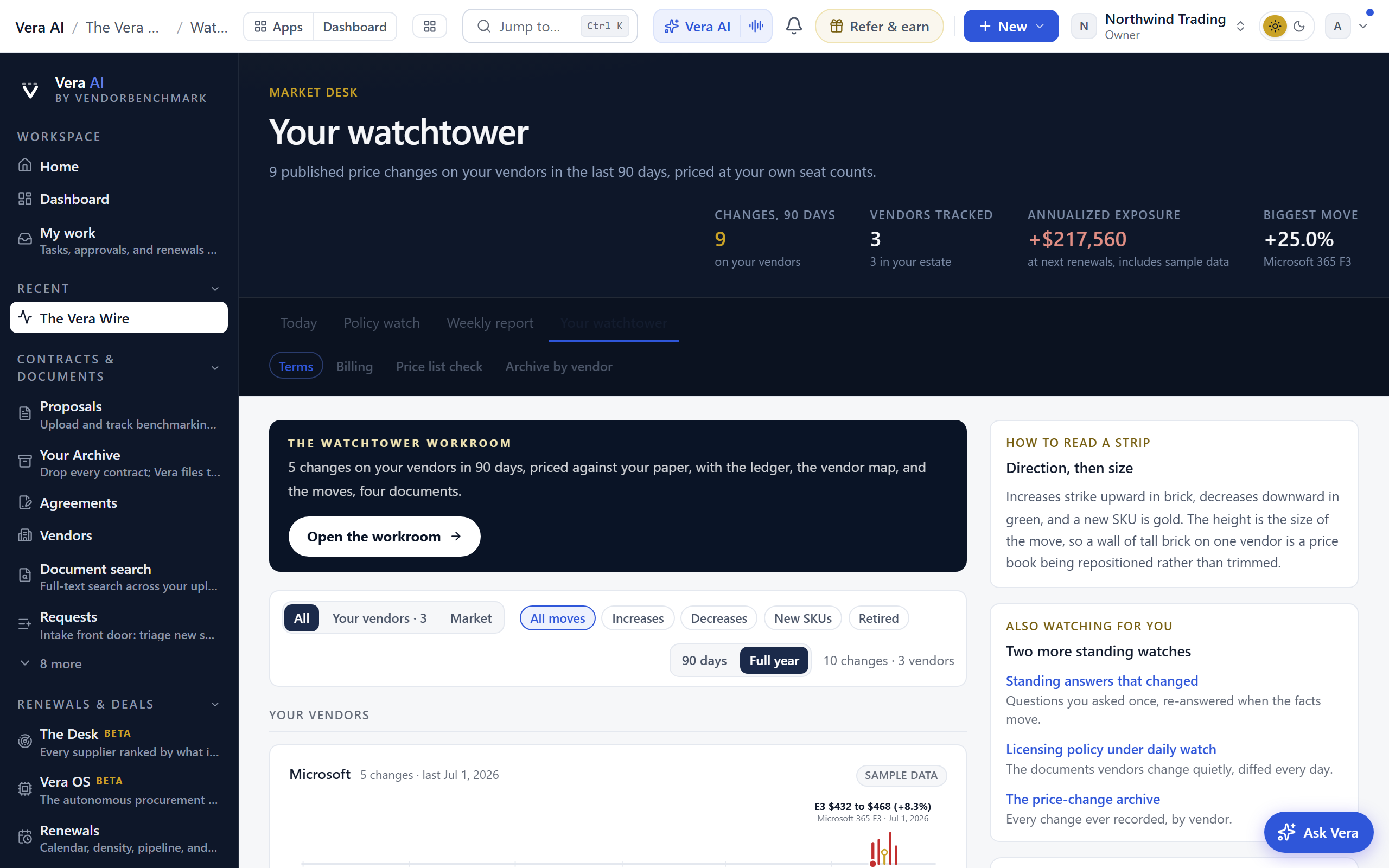
Your position sits in the masthead: price changes on your vendors in the last 90 days, vendors tracked and how many are in your estate, your annualized exposure at the next renewals, and the biggest single move in the window. The vendor follow switch and the other standing watches sit beside the seismographs.
On the screen
- The watchtower workroom — the green button above the floor opens the watchtower file described at the top of this section: the whole period across Terms, Billing, and the check, as four executive documents with the moves and Ask Vera in the inspector beside them.
- The floor toolbar — one instrument row over the seismographs: scope the board to your vendors, the tracked market, or both; cut it to increases, decreases, new SKUs, or retirements; and read the last 90 days or the full year. The count at the right restates what the filter left, so a narrowed board never reads as a quiet market.
- Email me when price lists change — a switch beside the seismographs turns on the price-change digest; nothing is sent until you turn it on, and every email carries a one-click unsubscribe that turns off only this email. Below it, one button per vendor company (Microsoft covers Microsoft 365, Azure, and Dynamics 365 in a single button; Oracle and Google merge the same way): pick the vendors you care about, or choose All tracked vendors to hear about every tracked change. The list here and on the Price list check tab are the same roster, so the two tabs always agree.
- Your vendors — a seismograph per vendor you hold: increases strike upward in brick, decreases downward in green, new SKUs in gold.
- Open the change workroom — selecting a change shows a second green button under the before and after prices; it opens that one change as a five document workroom: the cover sheet, the change itself with both published list entries side by side, an impact brief priced at your own seat counts, a response sheet weighing the grandfathering, renewal, and acceptance options, and a What now sheet. What now, in the inspector, drafts five letters from the change itself, the grandfathering request, the claim on a new list price, a clarification request on a new SKU, a continuity request on a retired SKU, and the internal note to stakeholders, then copies the change summary or the one line version and opens your renewals or the full price history. Both published prices are quoted rather than derived. Ask Vera answers from this change and your own exposure to it; if you do not hold the vendor, she says so and treats the move as market intelligence rather than exposure.
- Market watch — tracked vendors outside your estate. Changes here are context, not exposure, because nothing below touches a contract you hold.
- Also watching for you — cross-links to the Billing tab and to standing answers that changed.
How to use it
- Read your vendors first: any seismograph with a recent brick strike is a price rise heading for a renewal you hold.
- Use the switch to have price-list changes emailed to you, and follow the vendors you want to hear about.
- Open a change to see the old and new price, the delta, and what it costs at your seat counts.
- Switch to the Billing tab to see whether your invoices already reflect a move.
If something looks wrong
- The digest emails are not arriving: the switch here is the source of truth, and nothing sends until it is on; Troubleshooting covers the delivery cases.
- Your vendor's seismograph is missing: following is per vendor company, so check the vendor roster on the Price list check tab, and ask for the vendor under Request a vendor if it is not tracked yet.
Related: Archive by vendor · Billing watch · Vendor Radar
Terms watch archive by vendor
Every published price-list change Terms Watch has ever detected, kept and re-sorted by vendor. It opens with the read: how many vendors have moved, increases against cuts, and which vendor moves its list most. The index lists every vendor whose price list has moved, with how many changes it has, a breakdown of increases, cuts, new SKUs, and retirements, and when it last moved. Open a vendor to read its full history, newest first: each change shows the old and new price, the delta, and the grounded analyst note (what changed, why it likely changed, and the one action to take before renewal).
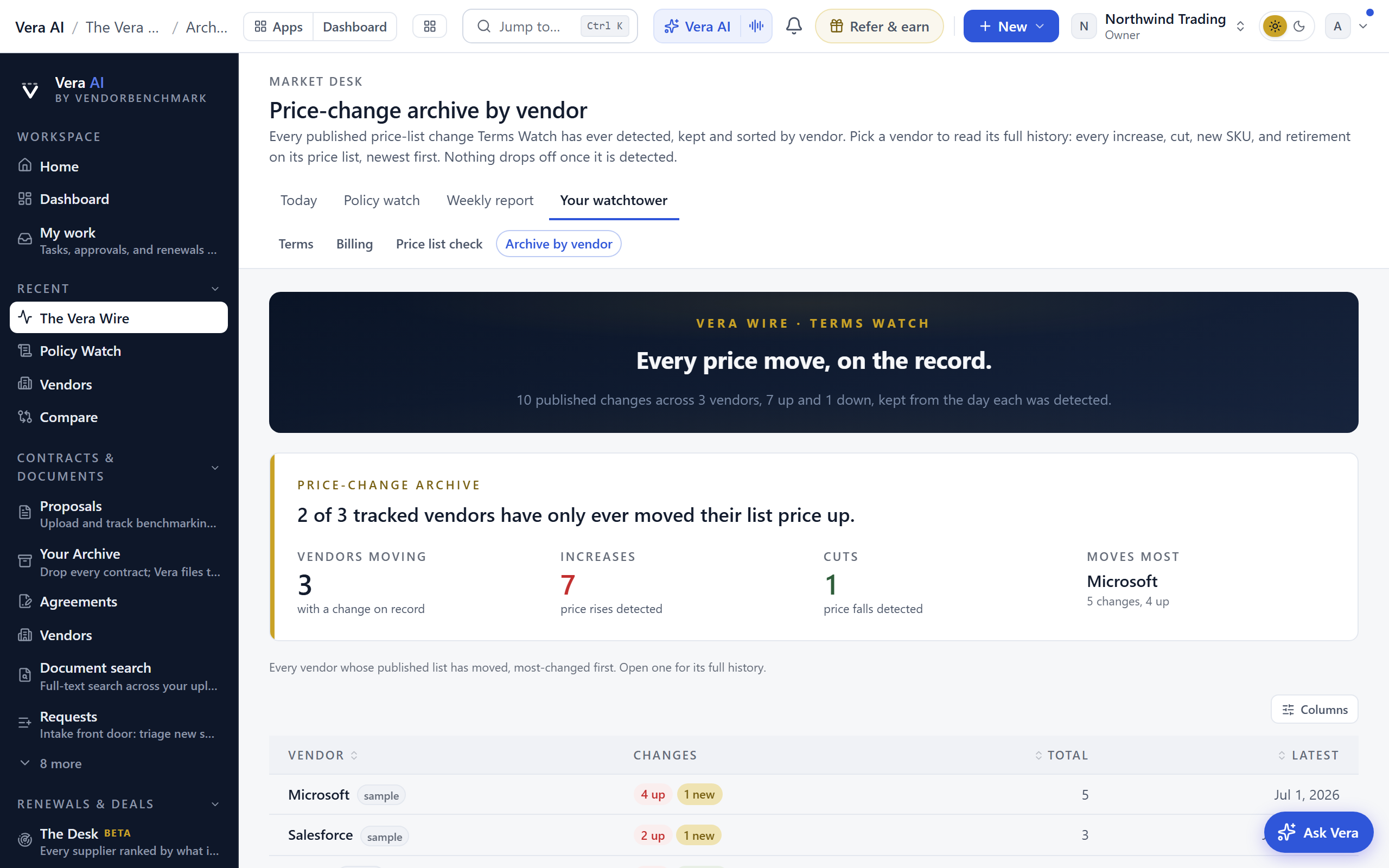
How to use it
- Press Archive by vendor among the watchtower's tabs, from any of its screens.
- Scan the index (most-changed vendors first) or find the vendor you are about to renew.
- Open the vendor to read its full price history and the note attached to each change.
Billing watch
Every day, per vendor per SKU: what you are billed against what you are entitled to against what the market pays. Drift arrives with its corrective draft attached, and a correction only counts once later invoices confirm it. This is the customer side of the same seismograph as the Terms tab.
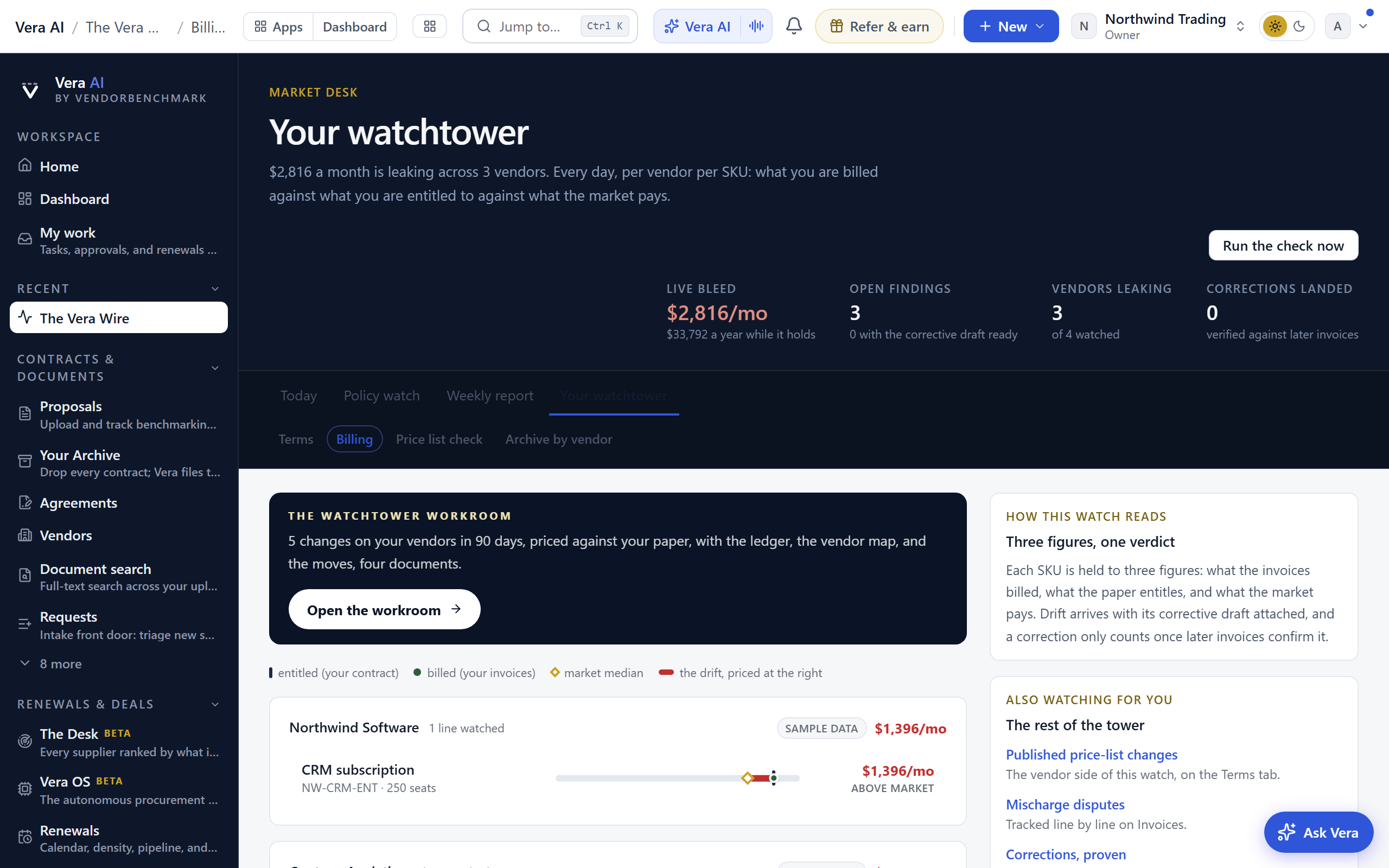
On the screen
- The masthead — the headline number lives in the page head: how much a month is leaking, across how many vendors, with live bleed, open findings, vendors leaking, and corrections landed. Recompute sits beside it.
- The watchtower workroom — the green button above the board opens the shared watchtower file (see the top of this section), which reads the billing drift beside the period's price-list changes.
- Leak board — a row per leaking vendor with the SKUs where billed, entitled, and market prices disagree.
- Read and watch — under the board: the films, analyst briefings, research papers and guides the library holds on the vendors of the board, laid out as in the agents, the largest monthly leak first. A row opens its piece, and it loads when you scroll to it.
- On the right — how the watch reads (billed against entitled against market), entitlements waiting for your confirmation, and the rest of the tower: the Terms tab, invoice disputes, proven corrections, and standing answers that changed.
How to use it
- Read the masthead for the live monthly bleed.
- Open a leaking vendor to see the SKU-level findings and the corrective draft attached to each.
- If the board is empty, confirm entitlements from a contract or connect a license source so the daily check has something to price against.
Tips
- An approved correction is proven or disproven against later invoices, and the verified saving lands in realized savings on the Savings statement; mischarge disputes are tracked on Invoices.
Related: Terms watch
Price list check
The verification machine on one screen. The book of published list prices refreshes weekly, an automated check re-reads each vendor's own public pricing page and compares it against the anchors on file, walking the whole roster inside every week, and an analyst confirms any detected change before it is published to the Terms tab. This tab shows all of it live, and doubles as the place you choose what you are notified about.
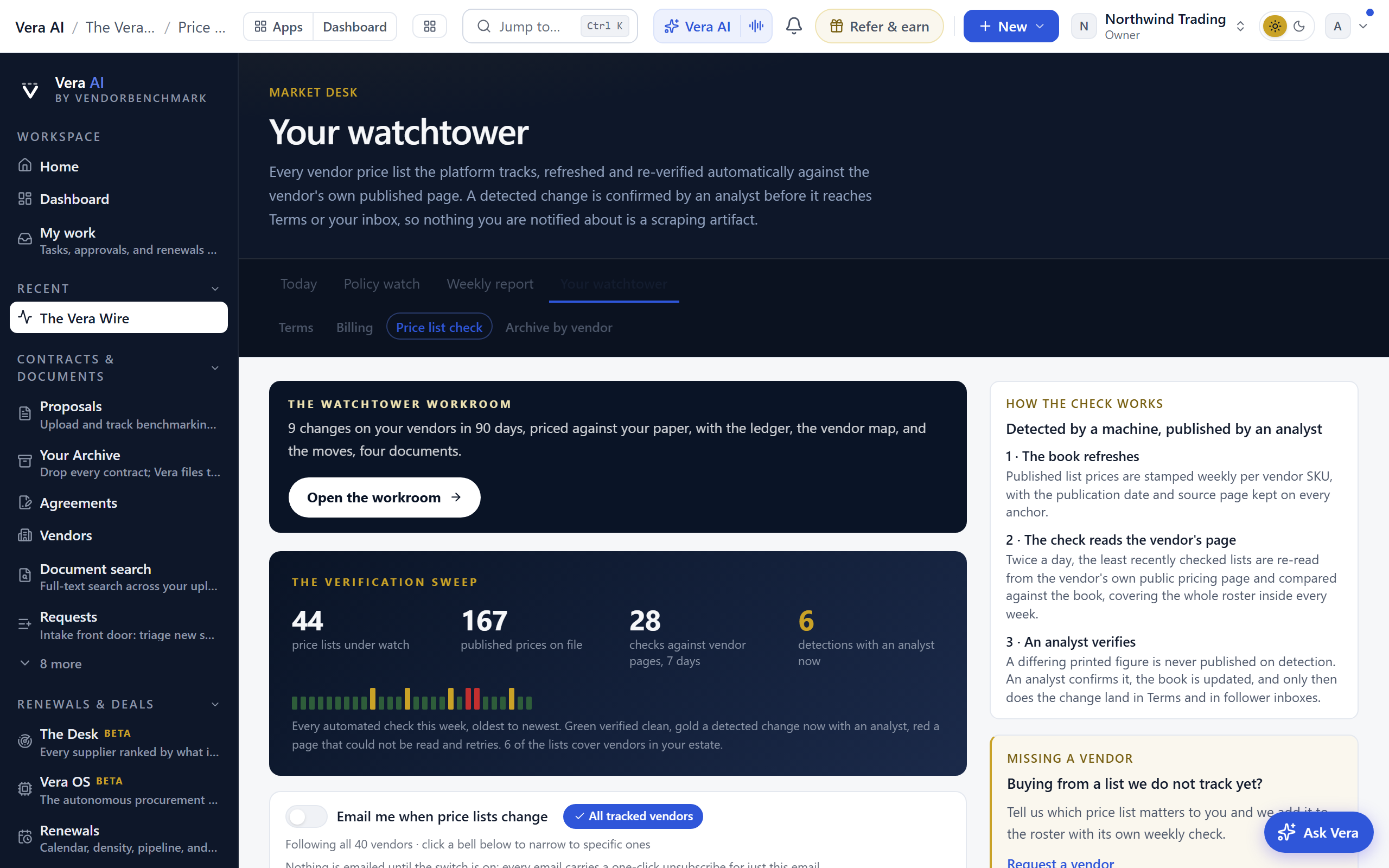
On the screen
- The watchtower workroom — the green button at the top of Price list check opens the shared watchtower file (see the top of this section).
- The verification sweep — the dark top of the page states the live numbers: price lists under watch, published prices on file, checks against vendor pages in the last 7 days, and detections currently with an analyst. Beneath them, a heartbeat marks every automated check this week: green verified clean, gold a detected change, red a page that could not be read and retries.
- Price change notifications — the email switch, the All tracked vendors button, and your follow count. The roster below is the picker: the bell on each row follows or unfollows that vendor and saves immediately, no separate save step. Following is per vendor company, so all the Microsoft lists ride one follow.
- Latest verified changes — the most recent analyst-confirmed changes with their deltas, linking to the Terms tab where each is priced at your seat counts.
- Search and lenses — find a vendor by name, or cut the roster to your vendors, lists with changes, stale prices, or lists needing attention.
- The roster — grouped by category, a row per price list: the vendors it covers, how many SKUs are on file, a freshness bar for the published prices, the list's recent check history, and the latest result. A gold dot marks vendors in your estate.
- The drawer — open any row for the full detail: every anchor's list price, unit, publication date, and confidence, a price-history trend per SKU, the latest check's verdict for each anchor (matches the page, change detected, or not printed publicly) with a link to the vendor's own pricing page.
- Read and watch — under the roster: the films, analyst briefings, research papers and guides the library holds on the vendors behind the tracked lists, laid out as in the agents. Lists covering vendors you hold lead, then the lists that moved most, and a row opens its piece. It loads when you scroll to it.
- On the right — how the check works in three steps (the book refreshes, the check reads the vendor's page, an analyst verifies), and Request a vendor: buying from someone we do not track? Ask and the list joins the roster with its own weekly check.
How to use it
- Read the verification sweep: if detections sit with an analyst, a price move may be coming to Terms soon.
- Turn on the email switch, then either keep All tracked vendors or click bells to follow just the vendors you hold.
- Use the Your vendors lens to confirm your estate is covered; anything green was recently re-verified against the vendor's own page.
- Open a row before a renewal to read the vendor's current anchors and their history, straight from the book our analysts maintain.
Related: Terms watch · Archive by vendor
Research Agent archive by vendor
Every weekly update the agent has ever filed, kept and re-sorted by vendor so nothing uploads off. Updates that belong to the same developing story fold into one story, newest week first, marked with how many weeks it spans, so a saga fought over a quarter reads as one narrative. It opens with the read: how many vendors carry a major market-moving update, how many touch pricing, and which vendor the agent keeps writing about. The index lists every vendor the agent has covered, with how many updates it has and when it was last mentioned; a gold dot marks a vendor with a major update on record. Open a vendor to read its full history: every price move, licensing change, and market shift on it, newest first, each linking back to the week it ran in. The page opens on the platform's plain head (Market news, the title and one line), and the read sits on a plain white panel: its label in sentence case, one sentence, and the figures in one quiet row. The watchtower's price-change archive and its billing and price-list screens open on the same head.
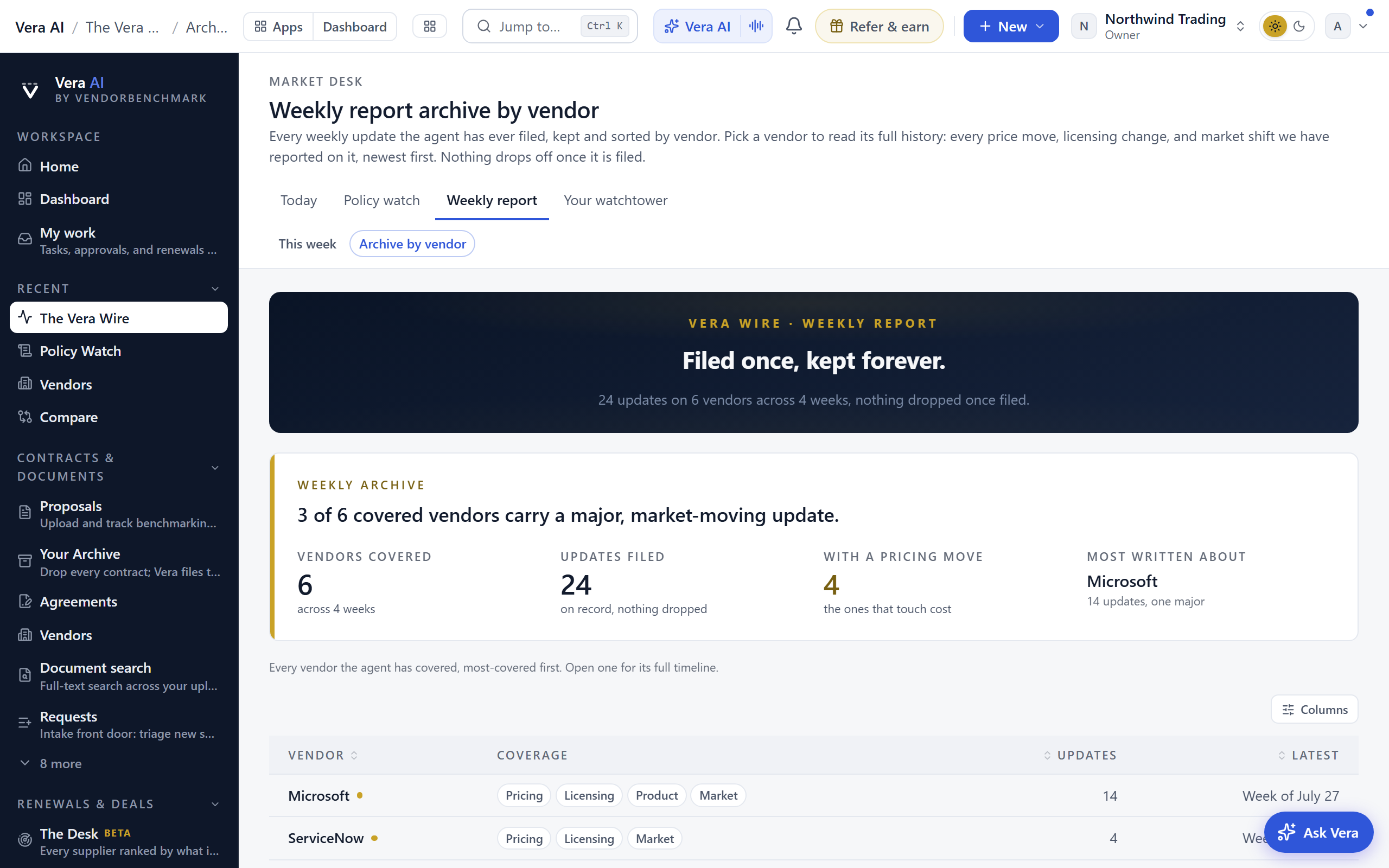
Commission a document sits beside the archive: gold buttons that turn what is on file into a written document rather than leaving you to act on a feed. A renewal strategy brief on the vendor the agent covers most, offered only where your workspace actually holds a contract for that vendor; a Monday briefing that states how many notice deadlines fall inside 45 days; and a closing question that opens Vera on the same subject. Each commission writes a full document to your Deliverables and keeps writing even if you close the dialog. The same row of buttons rides the price watch archive, where the buttons order the renewal strategy brief on the vendor with the most published price moves and talking points for the call on that vendor.
How to use it
- Open the Research Agent, go to the Archive screen, and press Browse by vendor.
- Scan the index (most-covered vendors first) or find the vendor you are about to renew.
- Open the vendor to read its timeline, and click any Week of eyebrow to jump to the full weekly brief it came from.
- Press a gold button under Commission a document to turn the coverage into a document you can forward.
Agreements
Agreements is now the Contracts place of Contract Office: every signed agreement is a row there with its vendor, its value a year, its renewal and its notice date, and /agreements opens it.
An agreement's own file (/agreements/command/<agreement>), Quick add (/agreements/add) and the watch screen keep their pages.
Deals
A deal is one negotiation held in one place: the documents on the table, what you are trying to win, the standing instructions you want followed, and how strictly a conversation inside it is bound to those documents.
In plain words: the folder for a single negotiation, and the switch that stops Vera answering it from the rest of your estate.
When to reach for this
- A renewal is coming and you want every question about it answered from that document, not the whole workspace.
- Several people are working the same negotiation and the instructions should be written down once.
- You want a brief you can forward that says what the deal is, what is on the table, and where it stands.
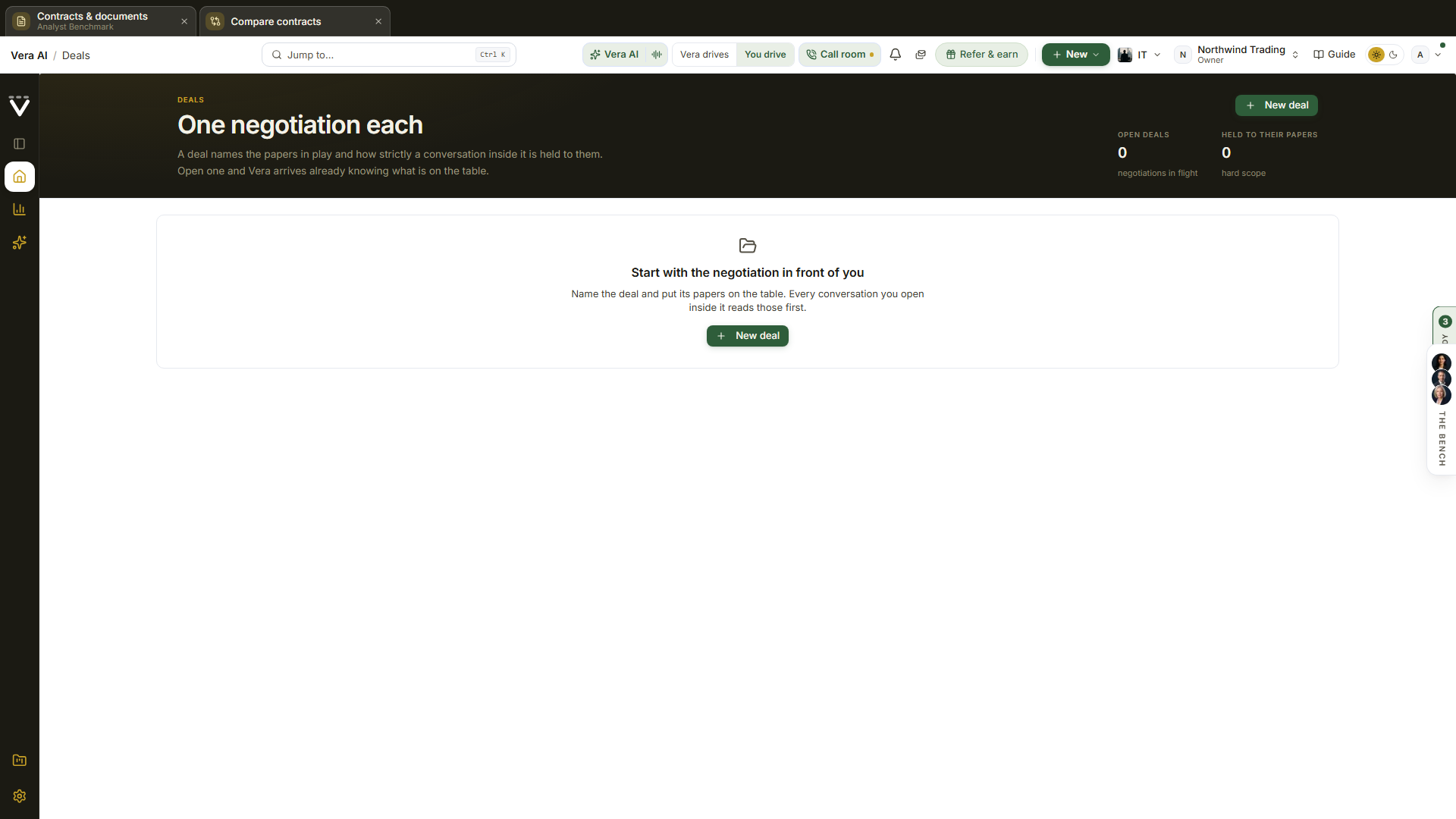
On the screen
- The list — in the house dress: the masthead counts the open deals, how many are held to their documents, the documents on the table and the deals with none yet, with New deal at the right. Each deal is a card with its scope, its purpose and its documents drawn as a stack; the new deal card sits beside them as a peer. What is on the table draws documents per deal as bars and the hard against soft split, How a deal runs gives the four steps from naming a deal to opening a conversation, and the inspector's Moves put papers on a deal that has none.
- Your contracts and renewals — also before your first deal, under the steps: your latest contracts with their status and annual value, and the renewals coming up with the days out, the notice date and the annual value, in US dollars. These are the documents a first deal puts on the table. Under them, Vendors on file lists your largest vendors by the annual value their contracts state: the contracts on file, each vendor's share of that stated spend and its next renewal date. Each row opens the vendor.
- The stake, at the top — a deal opens in the house dress: its name in the masthead with Deals as the separator, then one row with the documents on the table, their combined annual value, the scope and the nearest notice deadline, Ask Vera on this deal at the right, and the inspector with the deal's facts and its Moves beside the page. The deadline is the expiry pulled back by the notice window, which is the date that actually matters: after it the renewal is automatic whatever the expiry says. Only tracked agreements carry a value and a window, so a deal made of uploaded contracts alone reads Not on file rather than a confident zero.
- How this deal answers — the scope, as three short rows: what your documents do, what happens to anything outside them, and what stays untouched. Press Soft or Hard and the rows rewrite to the behavior you just chose, before you have asked anything.
- Soft scope — the documents are the subject, so "the contract" and "this deal" mean them. Vera still looks wider when a question genuinely goes wider, a comparison against another vendor for instance, and says when she has.
- Hard scope — her lookups are held to the deal's vendors. A question that names nothing is narrowed to them and the answer says so, and one that names a vendor outside the deal gets a plain reason instead of an answer drawn from the rest of your estate. The market, the web and the research library are never narrowed: a deal says which of your documents are in play, not what the market is allowed to say. A deal with nothing pinned holds to nothing, and the page says so.
- On the table — the documents themselves. Add an uploaded contract or a tracked agreement from the + buttons beside the heading; the bin takes one off. What is pinned here is what a conversation on this deal reads first. Add a file on the band takes anything else the deal turns on, a pricing workbook, a photographed rate card, a text note: the file is kept with the deal, marked File in the list, and Vera reads it through her document search on every question scoped to this deal.
- The brief — what the negotiation is for, and the standing instructions Vera holds to on every conversation in the deal. They steer the work and never license stating a figure she cannot ground.
- Ask Vera on this deal — opens a conversation already carrying the deal, so the scope applies from the first question rather than after you explain it.
- Read and watch — before What next: the films, analyst briefings, research papers and guides the library holds on this deal's own vendors, laid out as in the agents. The list of deals carries the same shelf on your agreements' vendors. A row opens its piece.
- What next — the moves this deal offers, including the brief you can copy and paste into a note.
How to use it
- Press New deal, name it after the negotiation, and say in one line what you are trying to win.
- Put the documents on the table: the agreement you are renewing, the proposal that arrived last week, or both.
- Write the standing instructions you would give a colleague working it, then Save the brief.
- Set the scope. Soft while you are still exploring, hard once the documents are the whole conversation.
- Press Ask Vera on this deal and work it. Every answer reads those documents first.
If something looks wrong
- The combined annual value reads Not on file: only tracked agreements carry one. Pin the agreement rather than the uploaded contract, or add the figure on the agreement itself.
- A hard scope is not narrowing anything: check that a document is actually pinned. With nothing on the table there is nothing to hold to, and the page says so under the scope rows.
- Vera answers about a vendor you did not expect: the scope is soft. Switch it to hard and save.
Related: Agreements · Vera conversations
The agreement file
One agreement's whole record on one page: what it is worth, where it stands, every version it has been through, and every actor who touched it. It is the same page whether the agreement came from your ledger or from a proposal you uploaded. The Agreement Command console that used to list these files folded into the Contract Management Portal on 25 August 2026; the file itself is unchanged and every link to it still works.
In plain words: everything known about one agreement, and the moves that follow from it.
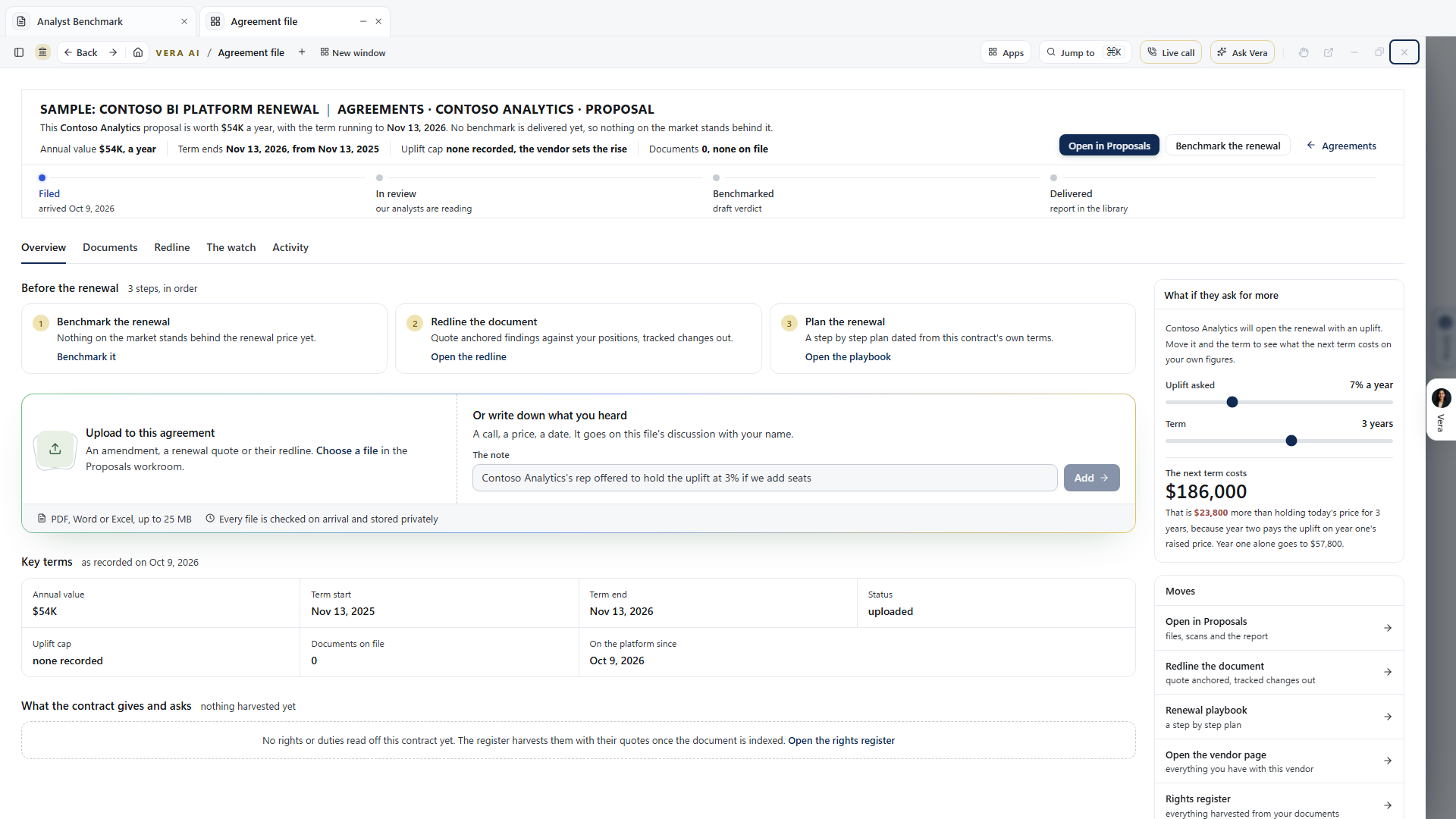
On the screen
- The head — since 27 September 2026 the house masthead: the agreement's name with the vendor and the kind of file beside it, then the notice countdown as a pill (gold inside 90 days, notice due today on the last day, red once the deadline has passed) and one sentence that states the stake, for example "$612K a year renews itself on Mar 31, 2027 unless notice lands by Jan 30, 2027, in 127 days", and where the contract caps the uplift it prices what letting it roll costs. The gold line names where the file stands on its lifecycle, one quiet row of facts follows (annual value, notice due, term end, renewal, uplift cap, documents), and the actions sit at the right, Serve notice (or Agree the renewal terms once the deadline has passed), the market answer, Discuss it with Vera, and the way back to Agreements, over the lifecycle's rail. The lifecycle's dated steps follow under the masthead, done in green and the current station in blue.
- Money in US dollars — every figure on the file is in USD, the renewal forecast in the economics read included. An agreement signed in another currency is converted once, and the facts row names the currency it was signed in. The notice letter still quotes the contract in its own currency.
- Serve notice — opens the letter already drafted from this file's own dates and figures: the renewal date, the notice period and the deadline, and the uplift cap where there is one. Copy it or open it in your own mail app; nothing sends from the platform.
- Six tabs under the header, drawn as underlined tabs: Overview (the terms, the economics, the state), Documents (what is on file; on a contract backed record the file's name, the View button, a click or a double click opens the document in the reader, the document analysis window described under the Enterprise Uploader in chapter 0: find, the figures the read lifted, marks on the document, a question box, and the redline painted on the page), Redline (the marked-up document and what changed), Paper (what was agreed on the renewal case and the check of the vendor's contract against it), The watch (the rights you hold and duties you owe on this agreement), and Activity (one timeline every actor writes to, human and Vera alike, including a call about this agreement once you hang up).
- Before notice closes — the Overview opens on three steps, each dated back from the notice deadline: get the market answer, decide renew, resize or exit (dated 30 days before the deadline), and serve notice or agree terms (dated on the deadline). A proposal's file shows its own three: the market answer, the redline, and the renewal playbook.
- Add to this agreement — a box to upload a document straight onto the file (an amendment, a renewal quote, their redline; PDF, Word or Excel up to 25 MB, checked on arrival and stored privately) or to write down what you heard on a call. A note lands in the file's discussion under Activity with your name, and a note half written comes back when you return.
- Key terms — the terms as a grid across the full width: annual value, term start and end, the notice requirement, the renewal, the uplift cap, documents on file, and the date the file joined the platform, with any clause read off the contract spanning two cells.
- What the contract gives and asks — the rights you hold and the duties you owe on this agreement, side by side, each with the date its window closes.
- Team discussion — the Activity tab also carries the file's comment thread. Write a comment, mention a teammate with @ and only that person is notified, resolve a thread when it is settled. For a ledger agreement this is the same thread its renewal shows, so one conversation follows the document wherever the team reads it.
- The economics read — your discount, the peer range, and where this deal ranks, with the money at stake a year when a decode has priced the movable terms. When there is no market read yet it says so and offers the benchmark rather than inventing a figure.
- The benchmark report — one press composes the full verdict on a page and a half: your discount, what comparable customers at your size are offered, where the deal ranks with the gap priced, the discount curve with your deal placed on it, what protects you and what works against you, and a plain answer to whether you are overpaying. The report saves on the contract as a versioned record inside the platform, opens in its own window, and exports to Word in the same look or to Excel with live sensitivity formulas. Run it again after a renewal and the new version files on top of the old.
- What if they ask for more — the renewal lever, in the side column under the economics read. Move the uplift the vendor is asking for and the length of the term, and the cost of the next term moves with it, on your own annual figure. It opens on the forecast's own expected uplift so it agrees with the economics read above it, and on the agreement's recorded renewal term where there is one, and it shows what compounding actually costs: year two pays the uplift on year one's raised price. Where the contract caps the uplift, the lever reads that cap and prices what it is worth against the ask, so you know what the clause is protecting.
- Move the file — the states an agreement can go to next, for editors. A file moves forward one declared step at a time rather than by free text.
- Version chain — every version of this agreement in order, so a term you remember differently can be checked rather than argued.
- Moves — the side column's list of what to do next, each carrying this agreement's vendor: serve notice, talk it through with Vera, the market answer (the benchmarking search opens on this vendor), edit the terms (the ledger opens filtered to this vendor), the vendor page with everything you hold with that vendor, and the renewals runway.
- Read and watch — under every tab, before What next: the films, analyst briefings, research papers and guides the library holds on this agreement's vendor. It loads when you scroll to it.
- The Reading Screen — the Redline tab opens full screen: the counterparty's own language beside your position, clause by clause. Edit your language in place and the tracked change renders live as you type, their words struck, yours underlined, exactly what the Word file will carry. Down the list and on the Redline tab, each finding's standing (Aligned, Stronger, Weaker, Missing, Unclear) is plain words beside a colored dot: green where yours holds, gold or brick where it does not, gray when unclear. Accept, edit, or reject each finding (j and k walk the list), then one press composes the real tracked changes redline into their own DOCX and files it on the version chain under your name.
- The Paper tab — when a renewal case on this agreement has reached the offer, the tab shows two panels. Agreed terms lists every term both sides agreed, each with its value, where it came from (the accepted offer, an issue marked agreed in the counterparty room, or entered by hand) and the date; the accepted offer wins a term both state. Once the case is in paper these terms are fixed. Conformance shows the latest check of the vendor's newest version against them: the version read, the date, and one row per deviation with its severity (High, Medium, Low), what was agreed, what the paper says, the paper's own words and its status. The check finds a term the paper leaves out, a figure that moved, a price increase cap above the one agreed, a different term length, an auto renewal nobody agreed and a thinner liability cap. Medium and high deviations go to legal as approval requests on their own; an editor presses Clear deviation on a low one or Send to legal on any open one. The tab's count is the deviations still open. When every deviation is cleared or accepted by legal, the case moves to signature and the envelope goes only to the signatory named for the case, with reminders on days 2, 5 and 9 until it is signed. A legal request opens this tab from the approvals list.
- The Decoder — on a proposal's file, three buttons run Vera's decoder on the stored document without leaving the agreement file: the contract decode, the MSA Agent, and the SOW Agent. The run happens in the background and the result opens in its own window when it lands; a recent run is reused rather than paid for twice.
- Send it on — Vera drafts a follow up email from the file's own facts, for the vendor, your CFO, your CIO, or a colleague. Edit anything, then copy it or open it straight in your own mail app. Nothing ever sends from the platform.
- Send for signature — for records at the Executing station. Open the signing studio is the way in: the stored PDF opens full screen, you name up to ten signers in the order they must sign, drag signature, initials, date signed and text areas onto the pages (each area carries its signer's color), write the note that travels with the request, and send. Every signer receives a personal link and signs in the browser with no account: they type or draw a signature once, every area of theirs fills, text boxes ask for exactly what you labeled them, and out of turn they see who signs before them. Back on Send for signature, each signer shows their standing by name: sent, opened it but not signed, or signed with the date, so you can see exactly who is holding things up. A live envelope can be reminded (the slowest signer gets a fresh link), re-routed to a different person (the old link dies the moment you do), or voided with a reason that lands on the record; a signer who declines must say why, and the reason reaches you verbatim by email and on the activity trail. When the last signature lands, the areas are stamped into the PDF, a certificate of completion is appended (the chain in order, each signature's time and network address, and the document's fingerprint), the signed copy files on the version chain, the record moves into force, and the fully executed contract goes to every party by email. Orgs that sign on DocuSign or Adobe Acrobat Sign keep those providers on the same screen: connect either under Settings › Integrations and the quick send routes the same signers through the provider instead, sending the version chosen under The document: the newest by default, except the counterparty's paper, which is marked and goes out only when you choose it after review.
- What next — the close of the page. Every move there runs on this file's own record: decide what to do, work the document, or see it in context. Copy the position puts the value and the notice deadline on your clipboard as one line for an email.
How to use it
- Read the sentence under the title first: it says what the agreement is worth, when notice is due, and what doing nothing costs.
- Work the three steps under Before notice closes in order, and move the renewal lever to the uplift you expect to be asked for. That number is what you are negotiating against.
- Press Serve notice when the decision is made, and file the state forward when the agreement genuinely moves.
Related: The Contract Management Portal · The live call · Rights register
The watch screen
Route: /agreements/watch · Who sees it: everyone · Reached from: Contract Office, the Watch tab, "Open the watch screen"
Both sides of your document on one floor: the rights the contract gives you, and the duties it puts on you. Every row is quoted from the document it was read out of, so nothing appears here that cannot be pointed at in the document.
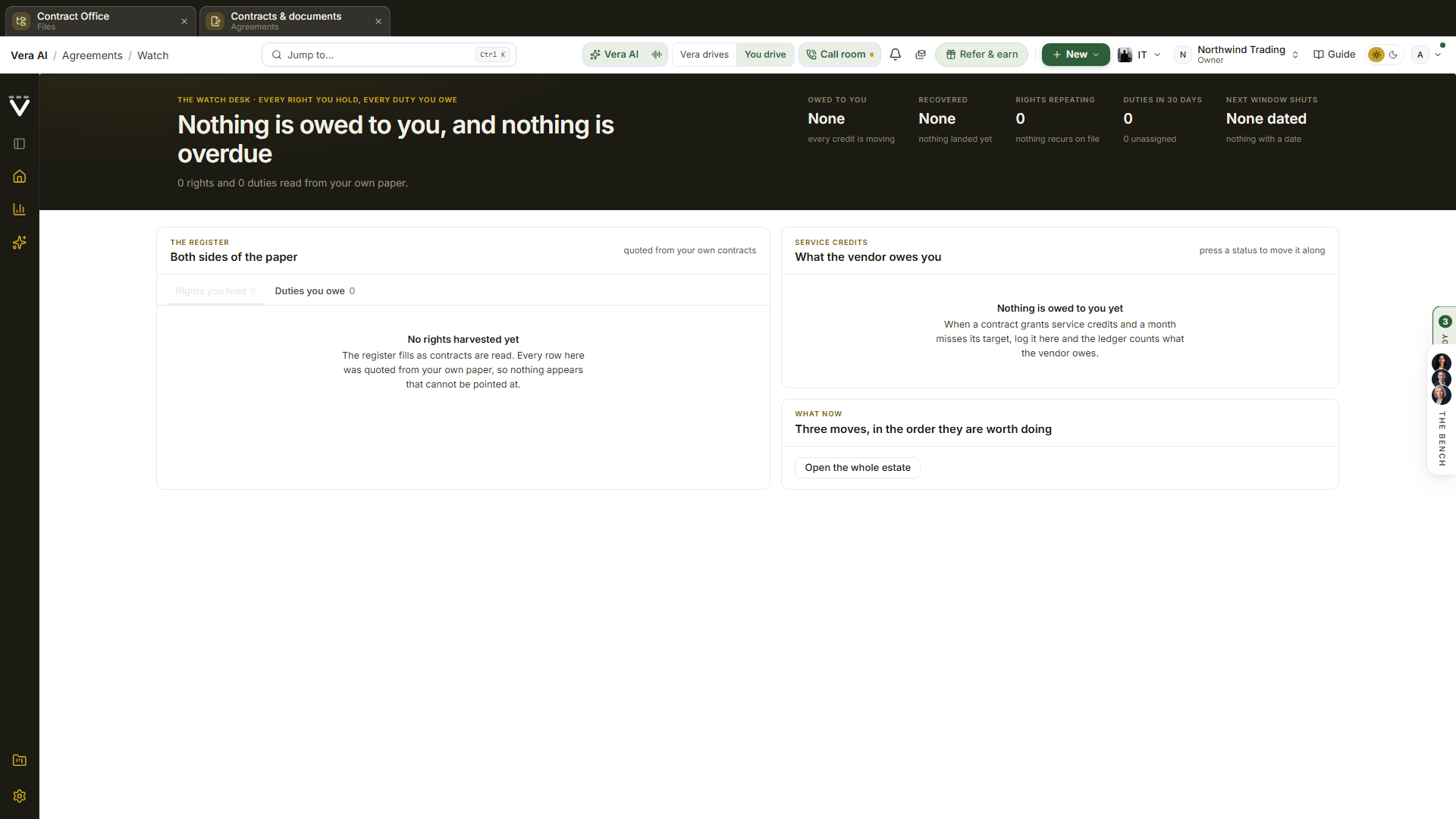
The screen above is shown on a workspace whose contracts have not been read for rights yet, which is what a new estate looks like. Once the register has run, the tables fill with the rows described below.
On the screen
- The head — the title with its actions right beside it (Claim every outstanding credit, Open the rights register, and the way back to Agreements), then one sentence stating what you are owed and whether any of it has been claimed, with how many rights and duties were read from your contracts.
- One row of facts under the sentence: what is owed to you, what you have recovered, how many rights come round again, how many duties fall due in the next 30 days (with any already overdue counted beside it, not inside it), and when the next window shuts.
- The register, in two tabs. Rights you hold are the concessions you can exercise: a benchmark review, a true down, a price hold, service credits. Duties you owe are what the contract asks of you: a usage report, a true up notification, proof of insurance. Each row carries its deadline, who owns it, and the passage it was read from. The deadline reads as plain words beside a colored dot (gray when open, gold when due soon or now, brick when late), and unclaimed service credits carry a gold dot beside the count.
- Rights that repeat carry their schedule, for example "Every year, turn 3". The screen shows the turn you are on now rather than the first one, so a right your contract grants every year stays watched for the whole term instead of lapsing after one use.
- Service credits is the ledger of what a vendor owes you when it misses what it promised. Each credit moves from Owed to you, to Claimed, to Received, or to Not pursued if you decide to let it go.
How to use it
- Open Contract Office, choose the Watch tab, then press Open the watch screen.
- Read the rights first. A row showing days left is still open to you. A one off right leaves the screen once its window has shut, while a duty stays marked late until it is met.
- Press a credit's status to move it along the claim. The headline and the three totals move with it, so you can see what claiming is worth before you commit to it.
- Use the Claim button beside the title to move every outstanding credit at once.
Each credit is held and claimed in the currency the contract states it in. The headline and the three totals add every currency together in US dollars, and a line under the ledger lists what is outstanding in each currency. The closing line compares what is outstanding with what the agreements still in force cost a year. Only currencies with a published rate can be logged.
Stakeholders
Route: /agreements/people · Who sees it: everyone; confirming and rejecting needs an owner, member or analyst role · Reached from: the address, or Ctrl/⌘ K
The people for every agreement on one table: the business owner, the budget owner, the decider, the signatory, legal, the IT owner and procurement. The platform proposes them from what it already holds, and you confirm the people in bulk. A suggestion is never used for a decision or a signature until someone confirms it.
On the screen
- The head — the title with how many suggestions are waiting, then Refresh suggestions, Reject selected and Confirm selected. Under it: how many agreements you have, how many have at least one confirmed person, how many suggestions wait, how many are at 80 percent confidence or more, and how many suggested people have no seat.
- Three tabs — To confirm, Confirmed and Rejected, each with its count.
- The table — one row per agreement, role and person: the agreement with its term end, the role, the person (marked No seat when they have no account and will act by a signed link), the source, the evidence and the confidence. Hover the evidence to read every piece behind the suggestion, with the page and the words quoted from the contract where the paper is the source.
- Sources — Directory (the teams your identity provider pushes, and the person's title), AP history (who raises and who approves the vendor's spend requests), Past cycle (the renewal owner, who ran the negotiation, who decided and who signed last time) and Contract text (signature blocks and notice contacts that name your people). Pieces of evidence that agree raise the confidence.
- Filters in the table's head: search by vendor or person, a role, a confidence floor (All, 50%+, 70%+, 90%+) and Top per role, which shows only the strongest suggestion for each agreement and role.
- The left column — the three queues, every role with its open count, and Related.
- Details on the right — the estate, or the row in hand with every piece of evidence; Next, with one press to confirm every suggestion at 80 percent and above; and Ask Vera.
How to use it
- Press Refresh suggestions to read the directory, AP history, past cycles and the contract text. Rows you already confirmed or rejected stay as they are, and a person you rejected is not proposed again for that role.
- Leave Top per role on and set the confidence floor to 70%+ to start with the strongest suggestions.
- Tick the header box to select every row that matches the filter, across every page, then press Confirm selected. Or use Confirm all at 80% and above under File or in Next.
- Work the rest by role from the left column: select rows with a click (Shift and click for a range), press C to confirm or R to reject. Double click a row to open the agreement.
Tips
- Keys: J and K move, X or Space selects, Ctrl A selects every matching row, C confirms, R rejects, 1 to 3 switch tabs, / finds, Esc clears the selection.
- A confirmation is recorded in your own name with the time, and lands in the audit log.
- A rejected row can be confirmed later from the Rejected tab.
Renewal decision
Route: /renewal-cases/<case>/decision and /renewal-cases/<case>/sign · Who sees it: everyone in the organization; choosing needs a confirmed business owner or decider on the agreement (or their delegate), or an owner; signing needs the confirmed decider · Reached from: a renewal that waits on a decision, a signed link in an email, or a Slack or Teams card
Two screens of one window. Decision lists the options the platform priced for the renewal from the contract's own terms, and the business owner chooses one. Mandate holds the numbers the negotiation may not cross, and the decider signs them. Nothing goes to the vendor until a mandate is signed and in force.
On the screen: Decision
- The head: the agreement, the term end, the notice deadline, where the case stands and the recommended option with its year one cost. The one primary chooses the option you picked.
- Options: one row per option: Renew, Reduce, Expand, Exit, Consolidate, Replace and Downgrade. Each shows its year one cost, the run rate over the term, one time costs, the difference against renewing as the contract allows (or the cost avoided, for shelfware held against new demand), the risk, the evidence and how many of the four levers apply. Hover the evidence or the levers to read each one with its source. An option the documents do not support stays in the list as Left out, with one line saying why.
- Reduce follows the contract: where the contract allows a reduction, the option cuts the count at the stated renewal. Where it allows none, it holds new demand against the shelfware and asks for a swap or a reduction at renewal, as cost avoided.
- Replace: the alternative's yearly cost, the switching cost, the months running both, and the month from which switching is cheaper.
- Choosing: three short must haves, a reason and your typed name. The decision is recorded in your name with a hash and cannot be changed afterwards.
- Details on the right: the business owner, the decider, whether the agreement renews on its own, the decision once made, and, for an owner, the switch to pre authorise a protective notice. Next has Send link: enter the business owner's email and press it to post the decision to your Slack and Teams channels and get a signed link to email; the link answers once and runs out after 14 days or at the notice deadline, whichever is first.
On the screen: Mandate
- The figures: target a year, walk away a year, the longest term, the largest increase, the authority cap, what may be disclosed, the must haves and the expiry. The draft is drawn from the chosen option: the vendor held flat as the target and the contract's cap as the walk away; for a replacement, the alternative's price as the target and the cost of staying as the walk away; for an exit, a bridge of up to three months.
- Sign mandate: the decider signs in their own name. A signed mandate is never edited: it is revoked and a new one signed. Signing starts the negotiation.
- On a small renewal where one person both decides and signs, the Mandate screen carries the options too, so the choice and the signature happen on one screen.
How to use it
- Open the renewal's decision. Read the recommended option and hover the levers and evidence of the others.
- Pick an option, add up to three must haves, type your name and press Choose. Or press Send link to have the business owner choose from their phone.
- Open Mandate, check the figures, change the draft where needed and press Save draft.
- The decider presses Sign mandate. The case moves to negotiating under it.
Tips
- The walk away figure is shown only on this screen; the platform's writers never see it.
- A protective non renewal notice is sent only when an owner has pre authorised it on the case, your organization's protective notice rule is on, the agreement renews on its own, the deadline is close and no decision is recorded. The letter is written without prejudice to a renewal on agreed terms and is checked before it goes. Otherwise an urgent decision task goes to the owner instead. An owner who pre authorises after that task went out, with the deadline still ahead, has the check run again at the next sweep, so the notice can still go in time.
- A business owner or decider the directory suggested can choose before anyone confirms them; their choice confirms them in their own name. If your organization turns this off, the business owner and the decider are confirmed in Stakeholders first.
- When the person who accepts an offer in principle is the only approver your authority matrix names, the approval is recorded with the acceptance, so there is no second press. Your organization can turn this off too.
Agreement Studio
Agreement Studio became part of the Contract Office on 1 November 2026: its terms check (ten key terms against your standard, with the suggested wording) and its letters (the non renewal notice and the price cap letter) live there now, and /agreement-studio opens the Contract Office. See Contract Office.
Vera OS (beta)
Vera OS has retired: /vera-os and every screen under it open the Monday brief, which reads the week's work across renewals, credits owed, invoices and benchmarks.
Deal Agent
Upload everything you hold on a deal and get the negotiation strategy back. Since 1 November 2026 the Deal Agent opens on New strategy: one upload for every document on the deal, a choice of what to create, the analysis, and the files themselves, shown in the window and sent to you by email. The deals desk (Today, Deals, Add a deal, Calendar and Report, below) is one press away under Related, Deals desk (/deal-agent?desk=1), and every link that names a deal, a stage or a screen still opens the desk.
In plain words: drop the contracts, the quote, the vendor's emails and the licence report, say what you want, and read the strategy in Word with the numbers in Excel.
On the screen (New strategy)
- The frame. The title bar carries File, View, Team, Learn and Help, Talk to Vera, the Sample data switch and the window controls. The left column starts with Find a case (/), then New strategy, the case you are on and Cases with its count, Recent cases with each vendor's mark and a dot for its state, and Related: Deals desk, Contract Office and Human Benchmark. Four steps run under the head: Upload files, Choose outputs, Analysis and Your files, each with a tick once it is done.
- Upload files. One drop zone for every document on the deal (PDF, Word, Excel, CSV, email or text, up to 25 files of 25 MB each), with Browse files and Add a folder, or drop anywhere on the window. Each file is read as it lands and sorted into one of four kinds: Existing contracts (master agreements, order forms, amendments), Vendor proposals and quotes, Vendor emails and notes and Entitlements and usage (licence reports, deployment and usage exports), each kind with its own Add and the files under it with their pages and size. A file in the wrong kind moves with its select. Your strategy takes your aim in your own words, with quick additions (keep today's price, take out the shelfware, no edition change). Before the first file lands, Files uploaded before lists your last three cases with their files and pages: press one to bring its files into this case. The details column shows the vendor found, the customer, the largest amount and the pages read, then What Vera has: how many files of each kind.
- Choose outputs. Create the negotiation strategy first (the options, the recommendation, positions, walk aways and next steps), then what to add to it: talking points for the first call, research and ideas, the arguments for the best discount, a price benchmark against comparable customers, and the first email to the vendor. Each choice is a file, listed under Delivery as Word and PDF, Excel for the options model, or a draft. Email me when the files are ready sends them to the address shown, which you can change.
- Analysis. The ten steps as a task list beside the picture of the work: the files sorted and the vendor named, each kind read, the vendor researched, the price benchmarked, the options model built, the files written and every figure and source checked. Each step names what it found. You can leave the window; the run carries on and the case keeps its place.
- Your files. Four figures across the top: Today (what the current contract costs a year), what the vendor asks, Vera's target and the saving against the quote, each explained when you point at it. Then a tab a file: each document drawn page by page as it prints, with zoom, Download Word and Download PDF; the options model cell by cell with the scenario (low, base, high) and whether the rate is held, and Download Excel; the email to the vendor as a draft with Copy. Create more files goes back to Choose outputs on the same case. The details column carries the email that was sent (View the email), the files and the next dates on the deal.
- Cases. Every strategy your organization has run as a table: the case, the vendor, its state (Draft, Queued, Running, Ready, Failed), Renewal, the files, the target for year one, the owner and when it was last updated. Since 2 November 2026 a strategy started from a renewal (
/deal-agent?agreement=) is tied to that renewal's case, and Renewal shows where the case stands (Setup · not started, Agent negotiating, Your decision, On hold, Stopped or Closed); a strategy started on its own shows None. A click selects a row, a double click or Enter opens it where it stands, and a right click lists its actions (open, email the files, delete). - Right click. A case row, a file on the case and a file Vera wrote each list their actions: open, move a file to another kind or remove it, download Word, PDF or Excel, copy the email. A long press does the same on a touch screen.
How to use it (New strategy)
- Open the Deal Agent. It opens on Upload files.
- Drop everything you hold on the deal: the current order form and master agreement, the vendor's renewal quote, its emails, and the licence or usage report. Check each file landed in the right kind.
- Write your aim under Your strategy if you have one, then press Continue.
- Choose the files you want and leave Email me when the files are ready on, then press Create the negotiation strategy.
- When the analysis is done, read the strategy on Your files and download the Word, PDF and Excel files; the same files arrive by email as PDF and Excel, with a link back to the case.
Tips
- Every figure in the files comes from your documents and the platform's market data, and each is checked against its source before a file is written; a figure that cannot be traced is left out.
- The more you upload, the stronger the strategy: a usage report lets the options include the right sized renewal, and the vendor's emails let the talking points answer what the account team has already said.
- With Sample data on, the window plays a sample Salesforce renewal through every step without sending anything.
The deals desk (Related, Deals desk)
Every renewal and negotiation in one window, from the notice date to the signature. The Deal Agent took the place of Renewals, the Negotiation Agent, AI Managed, the Fair Renewal Rider and Negotiations: their addresses open it at the matching screen, and a link that carries details (a run's start, a vendor, a sample) still opens the screen it was made for. Managed renewals keeps its own window (since 2 November 2026).
Since 20 October 2026 the deals desk is plug and play: five screens instead of eight steps and five views, and one deal walked through four plain stages. The window of 3 October is kept whole under File, Earlier window (/deal-agent?classic=1), and every older link still lands: a step or a view in an old address opens the matching screen or stage.
In plain words: plug a deal in once, see the one move that matters today, and walk each deal through Read, Benchmark, Negotiate and Sign, by you or by Vera.
On the screen
- The frame. The title bar carries File, View, Deal and Help, Share, the Sample data switch and the window controls. The left column starts with Find a deal, then the five screens as numbered rows with their figures, then Live deals and Signed, each deal with its vendor mark, four short bars filled to its stage (one for Read, up to four at Sign, in the colour of its lane; rest the pointer on them for the stage in words, for example Negotiate, 3 of 4) and a dot when it is your move. The head names the screen with one tag, one row of figures as labels and values (no sentence under a title) and the actions at the right with one blue primary; on Today the dark button says what it does in the first move's own words, for example Draft the notice, Oracle. The left column is the one navigation (keys 1 to 5). The details column on Today carries Signed this year, your limits and Ask Vera; on the other screens it opens with what to do now. The status bar carries the keys and the state, your organization or Sample data. Since 28 October 2026 every line of text sits on a whole pixel and the drawings are laid out at the width of their panel, so edges stay sharp.
- Today (key 1). The screen reads top to bottom. Where every deal is: one bar across the width, each lane (Coming up, Preparing, Negotiating, Signed) as wide as the money a year in it, with its count, its total and the deals' marks; press a lane and the board opens. Start here is a chip in the head until its three steps are done (Plug in a deal, Set your limits, Approve Vera's first move): press it and the steps open in place, each with its button, and Hide. Before the first deal, Do now lists the same three steps as its rows, with Try the sample to open the sample deals. Do now: your moves as one table, in order, every row on the same columns: the number, the vendor's mark, the vendor and the move with its reason under it, the date with a meter of the days left (brick for a notice inside 30 days, gold inside 60) and one button of one width that does the move (Draft the notice, Review and approve, Answer the offer, Approve the target, Ask for the quote). The first row carries the dark button. J and K move through the rows and Enter does the move. Waiting on others lists Vera's and the vendors' moves under it with Open. What happened: the latest three offers, emails, stage moves and closes, each with when, and All (up to the latest twelve) for the rest. On the right, This year: booked savings against what is still in play at the targets, drawn to scale (booked in solid green, in play lighter), with the goal marked when you set one, and the three figures under it; Next dates: every notice date, term end and quote expiry inside 120 days, each with its days left as a meter, and Calendar; Against the market: the market rank as one strip, with the deals placed on it. Renewals by month beside Spend by vendor close the screen (since 30 October 2026).
- Deals (key 2). The head counts the deals in each lane and their offers a year. The board in four lanes, each with its count and its money a year; each deal a card with its mark, its stage as four bars, its price a year and its rank, one line placing their offer against comparable customers (the band, the midpoint and your target), who runs it and where it is, on one line. A deal that waits on you carries a brick edge and Your move; a legend under the board says what each mark means. List shows the same deals as a table: the lane, the stage, their offer now, the target, the saving a year, the rank, who runs it and where it is. With no deals yet, Try the sample switches Sample data on and opens the sample deals.
- Add a deal (key 3). Ways in, three side by side. Upload a quote or an order form (PDF or Word, up to 15 MB): type the vendor, drag the file in or choose it, and it is read in front of you (the upload, the conversation opened, the prices read and filed as the first round, the placement, on the board). Forward the email: your workspace's private deal address with Copy; an owner turns it on with Turn it on. Connect a source: Contract Management (every renewal on file becomes a deal on its own), Outlook calendar and Coupa. Under them (since 30 October 2026), one Sources table, each source with its state and Connect, and Offers logged lately, each logged offer in full. On the sample deals Use the sample quote reads a Box renewal quote on screen and puts Box on the board in Preparing with its price placed on the same scale as Benchmark.
- Calendar (key 4). Twelve months from the first of this month for every live deal, with a line at today: each deal's term in its lane's colour, brick up to a notice that falls inside 30 days, a mark on the last day to give notice and a dot at the term end; soonest date first. The column at the right says the date that matters for each, the notice and its days left, and when the term ends. By window lists the dates inside 30 days, in 31 to 90 and in 91 to 120, each window with what its deals are worth a year. Add the dates to Outlook downloads the dates as a calendar file.
- Report (key 5). Savings by deal as bars, each with its value and whether it is booked or in play at its end; The year in figures; The board paper reads as rows of section and finding (summary, decisions needed, where the money is, the next twelve months, the bottom line), and Write the board paper writes them in front of you from the same figures, with Copy; Download Word saves the board paper on the firm document; Email it drafts the note to your CFO. Every deal as a table: their first quote, their offer now, the target (or the agreed price), the rank (in the same pill the reports use) and the saving a year against their first quote.
- One deal, four stages. A deal opens at the stage its work is at, the four stages as numbered steps joined by a line under its head (a tick on a stage passed, a blue ring on the current one); keys 1 to 4 switch them and Esc goes back. The head carries their offer now, the target, the rank and the notice date as figures. Read: their quote as a page, and every line Vera found as the line, what it says and its page (press one to light it or open the contract on that sentence); a quote that prints no list price says so once, so the benchmark is rate against rate. Benchmark: the three answers on one strip (what it costs, what comparable customers get, where it ranks, with the gap to the midpoint over the term), then the price on one scale: the comparable customers' band and midpoint, their first quote and their offer now above it, your target and walk away under it, every label clear of the rail. What if: move the settle point (the slider's two ends are printed under it) and the saving a year against their first quote, what is still to go from their offer now and the rank it would earn follow; Make it the target keeps it and Put it back returns it. Under them, Over the term year by year when the term runs past a year, What to ask for (the drafted counter's terms beside what the paper says) and If the range is off (the comparable range 5 percent lower or higher, or 2 points on a discount: the rank, the target and the saving). Negotiate: the rounds as a ladder (their offers solid, yours dashed, the target and the walk away as lines, the next move as the open point) over a table of every round; the next move drafted by Vera in its own panel with Send the counter (on your own deals it opens the email beside the screen; nothing goes until you send it) and Accept when an offer meets the target; Who runs it as three choices, one above the other, and Your limits on this deal as two sliders that move the ladder's lines. Sign: the outcome, three checks (legal reviewed, approval, the E-sign envelope), what changed with the first figure struck beside today's, and Mark as signed.
- What is kept. Your goal, the limits on each deal and the checks are kept for your workspace in this browser; the sample deals keep their own beside them.
The earlier window (File, Earlier window)
- The frame (since 3 October 2026, the window the Deal Agent was designed in). The title bar carries File, View, Deal, Report and Help, Share, and the window controls. The left column starts with Find a deal (Ctrl K) and the views of Deals with their counts, then every deal by name: the vendor's initials, a status line such as the notice date or the offer waiting, Vera's mark on a deal she runs and a dot when it needs you, under Needs you, Moving and Closed. Eight numbered steps run across the top. The head names the screen with its tags (how many are open, how many Vera runs), the facts row under it, and Board paper and Add a deal at the right; the views sit under it as chips. On the right: the deal's facts, where it is, Vera on this deal, its moves, Ask Vera and its documents. The keys sit at the foot.
- Deals (key 1). Today (T): what needs you in order (an offer or a counter waiting on you first, then notice dates within 30 days, then a mandate to approve, then the quote to ask for), Vera's desk in brief with her latest moves, the next 60 days and where the money is. Board (B): Watching, Preparing, Negotiating, Your decision, Approval and Closed, each card with its rank, a short bar of where it sits in the peer range, its date, how many documents are on file and its owner. Calendar (C) and Documents (D).
- List (key L), the ledger (since 4 October 2026). Three answers first: what is in negotiation and over what terms, the next date and whose it is, and the one to act on first, which opens it. A row of facts under them: deals, how many are ranked against the market, how many have a date on file, how many Vera runs, documents. Export the book sits beside Show on the ledger's head. Then every deal grouped Act now (a date inside 60 days, or something waiting on you), In hand and Closed. Each row is two lines: the six steps as a track with the next one named, where it ranks and on what basis (discount off list, or rate against rate where the contract prints no list), the next date, the figure a year with what is still open or saved over the term, who runs it and the owner, then Vera's read of the deal across the row, written from its figures. Show narrows the groups; Open opens the deal on the step its work is at.
- Vera's desk (key M) (rebuilt 4 October 2026). Vera now across the top, with Run her sweep now. Three answers: what waits on you (each decision named), what is with Vera (the value under negotiation against the targets, and the next date), and the one to act on first. A row of facts: saved so far by her deals, the next date, agreed and closed, ready to hand over, specialists available. Waiting on you is a card a gate: who leads and who decides, what she asks and why, Decide or Review, the date, the figure and her cycle. Every negotiation lists every deal with where it stands on her six step cycle and its state, the next gate and who holds it, the figure a year with what is saved, and where it ranks, with a star to keep one at the top; Show narrows it to Waiting on you, Vera runs, You run or Agreed and closed. Below: How a run goes (eight steps, gold where she stops and waits for you), Savings against fees, Each deal she runs with its limits, Her log, the Guardrails, and Ready to hand over: every deal you run yourself with what she would do first, and Hand over. Nothing is sent before you approve the mandate.
- The details column. The deal's facts and where it is, then What if: three dials (settle at, as a discount off list or a rate a unit; the term; the uplift if it renews as it stands) and the offer, the price at that settle point and the saving over the term follow, with comparable customers drawn as a scale, their quote and your settle point placed on it, and the rank it would earn. The term as a lane: its start, today, the notice date and the end; a missing end date is said to be missing, because every other date waits on it. Then Vera on this deal, the moves, Documents to share (the deal report, the talking points, the rider and the board paper, each one press away), Ask Vera as a thread on the deal (her three answers from its figures, or type your own and it goes to her seat with this screen), the documents and the latest events.
- Add a deal (key N). Upload their quote or order form, or name the vendor and type the product, the kind, their price a year, the quantity and the date. On the sample deals Use the sample quote brings in Box: its renewal quote arrives, is read on screen (a beam over the page, the answers filling in one by one, Read it again to replay it) and joins the board in Preparing. A typed deal carries only the figures typed and is not placed against comparable customers until its quote is benchmarked.
- Who runs it. From a deal's Negotiate head, the Deal menu, a right press or Take back on Vera's band: You run it, Vera drafts and you send, or Vera runs it and you approve, with three autonomy settings (asks before every send, asks only outside the limits, runs to the limit and asks only to sign) and the figure she never goes above. On your own deals Save sets the agent's autonomy on the deal's conversation (an organization owner's change); on the sample deals it holds for the visit.
- The reader. On the sample deals every document opens in the window's own reader: the deal's documents down the left, the pages as set (the quote and order forms, the six page master agreement with the clauses the rider changes lit, every offer and counter as its own letter, the rider), find with the places lit, zoom and Print. Pressing an answer on Read opens the quote on that passage. Your own contracts open in the contract reader.
- Notices (key O). Every notice of non renewal due in the next 30, 90 or 180 days, soonest first, each with the date to send it (a week before the notice date) and the letter written from the deal: the vendor, the agreement, the end of the term and the notice period. Read, Copy, Shall I draft the email?, and Download all as Word for every letter in the window.
- One deal (keys 2 to 7). Read: the deal's documents and figures, every term the read found with its page, and the billing against the contract (billed in the last twelve months, on the contracts, and the invoice lines that differ). Benchmark: the three answers from the estate benchmark, with the deal placed on the range. Plan: levers for the price, the cap and the term against the vendor's path, the ways to do the deal, what the vendor gave before (past cycles, concessions, promises kept) and the mandate. Terms: eight protections (the six of the Fair Renewal Rider plus a reduction at each anniversary and no automatic renewal), each with whether your contract holds it. Negotiate: every priced round, the mandate, your move or Vera's, the deal's own email address to copy on the vendor's thread, and the deal's log; Rehearse puts you against Nadia, playing the vendor's account executive: four things a vendor says, three answers each, scored with why. Close: the outcome, what it saved and the record.
- AI advisory, and the paper from anywhere (since 13 October 2026). On Read, beside Open in the reader, AI advisory reads the deal's paper and lays out the verdict, four figures (changes found, what is on the table a year against the supported target, the rider's clauses still off, the rank against comparable customers), the key terms, What is risky (an increase above the cap in the agreement, no list price printed, units paid for and not in use, a renewal by itself), What is good, Against your company template (the renewal rider's eight clauses and where each stands on this deal) and What to do first, each row a press, with Open Negotiate at the foot. The same panel opens from the reader's bar (also A) and from a right press on a deal. On a sample deal the reader is the window's own, as above; on your own deals the file opens as paper over the window with what the paper says beside it, each term a press to its page. It is written from the deal's own figures; nothing is sent anywhere. The window arrives in motion since the same day: the head, the chips, the panels one after another, the board's columns and cards, the ledger's rows, the charts drawing; the sample paper and the report's paper settle out of a blur, and the details column refills when you pick another deal. Reduced motion in your system leaves the window still, as before.
- Open the file. On a deal that has a contract, the head carries Open the file: the contract's file, with every benchmark, comment, action and document about it from every app (see The contract file).
- Report (key 8). Charts across every deal. Deal report (ten sections: summary, what it costs, where it ranks, if the range is off, the ways to do the deal, the position, what to ask for, terms beyond price, the rounds, the bottom line) and Board paper (six: summary, decisions needed, every open deal, what was agreed, the next twelve months, the bottom line) on the firm document: pick any deal, Write it streams the sections in, then Download Word, Print or save as PDF, and Email it (the board paper's note covers every deal). Boardroom deck: eight slides from the same figures, tick the ones to keep, Present full screen (arrows, space, Esc), Download PowerPoint. Emails: the next email on every open deal and every email drafted on this visit. Activity: every offer, message, move, close and document, by Vera and by people, with Export.
How to use it
- Open the Deal Agent, then Related, Deals desk. It opens on Today.
- Press the dark button in the head (or S), or walk Do now with J and K and press Enter, and the move is done or opened: the quote request or the notice drafted beside the screen, the target approved, the offer opened on Negotiate. An approved target moves the deal to Negotiating the moment you press it and is saved behind it; if the save fails the deal goes back to Preparing and the note says why, with Retry.
- Press 3 for Add a deal, type the vendor and upload their quote: it is read, filed as the first round and placed.
- On a deal, press 2 for Benchmark and move What if to see what each settle point is worth; Make it the target when it is right.
- Press 3 for Negotiate, set Who runs it and your limits, and Send the counter.
- When it is agreed, press 4 for Sign, tick the three checks and Mark as signed.
Tips
- Every figure is your own: the renewals on file, the negotiations, the vendor's offers, the mandates and the estate benchmark. Money is in USD.
- A deal not placed against the market says so on Benchmark and opens the Benchmark Agent to run the estate benchmark.
- With no contracts on file, See the sample deals shows every screen with figures in it: a workspace of sample deals with their offers, placements and Vera's runs, dated from today. Nothing on it is saved.
Related: Renewals · Renewal calendar · Renewal playbook
Renewals
The renewal desk opens on the Wire Desk, the desktop shell the Research, Negotiation and Benchmark agents share since 19 September 2026, and since 26 September 2026 it wears the house dress in quiet enterprise colors: the title bar with the six menus, the app icons down the left, a tree that indexes the book, eight numbered sheets each in its own tone, a head that states the book in one sentence with one row of figures and the one press it points at, the sheet's instruments in banded sections, the book as rows with the case argued in full beneath, and an inspector on the right with the facts, what is at stake and the moves.
Since 9 October 2026 the Renewals window opens in the shared frame: the screens are numbered rows in the left column, the head states the book in one line with Start a renewal as the one filled button, and the details column on the right leads with the next notice (or the open phase of a plan) and the press that opens it, then the agreement's card, the book's figures and the moves.
In plain words: every agreement on one clock, the case for each beside it, and the one move it needs next at the top.
When to reach for this
- The Monday pass: what shuts next, what it is worth, and the one press that moves it (the Renewals routine).
- A renewal is close enough to decide: the case states the options and the money on each, not just the date.
- Planning a quarter: the weeks the team will be running six renewals at once, and what commits before the quarter ends.
A worked example. On a book carrying a $2.4M agreement whose notice date passed fifty days ago, Renewals opens on that fact rather than on a table: the term renewed itself because notice was not served, the next agreement follows in the same line, and the filled button at the right is the letter that confirms the term in writing. The five figures in the row under it say what the book is worth, how much of it is already inside the sourcing runway, what the delivered benchmarks say it is overpaying, how much renews itself if nobody acts, and how many renewals nobody owns.
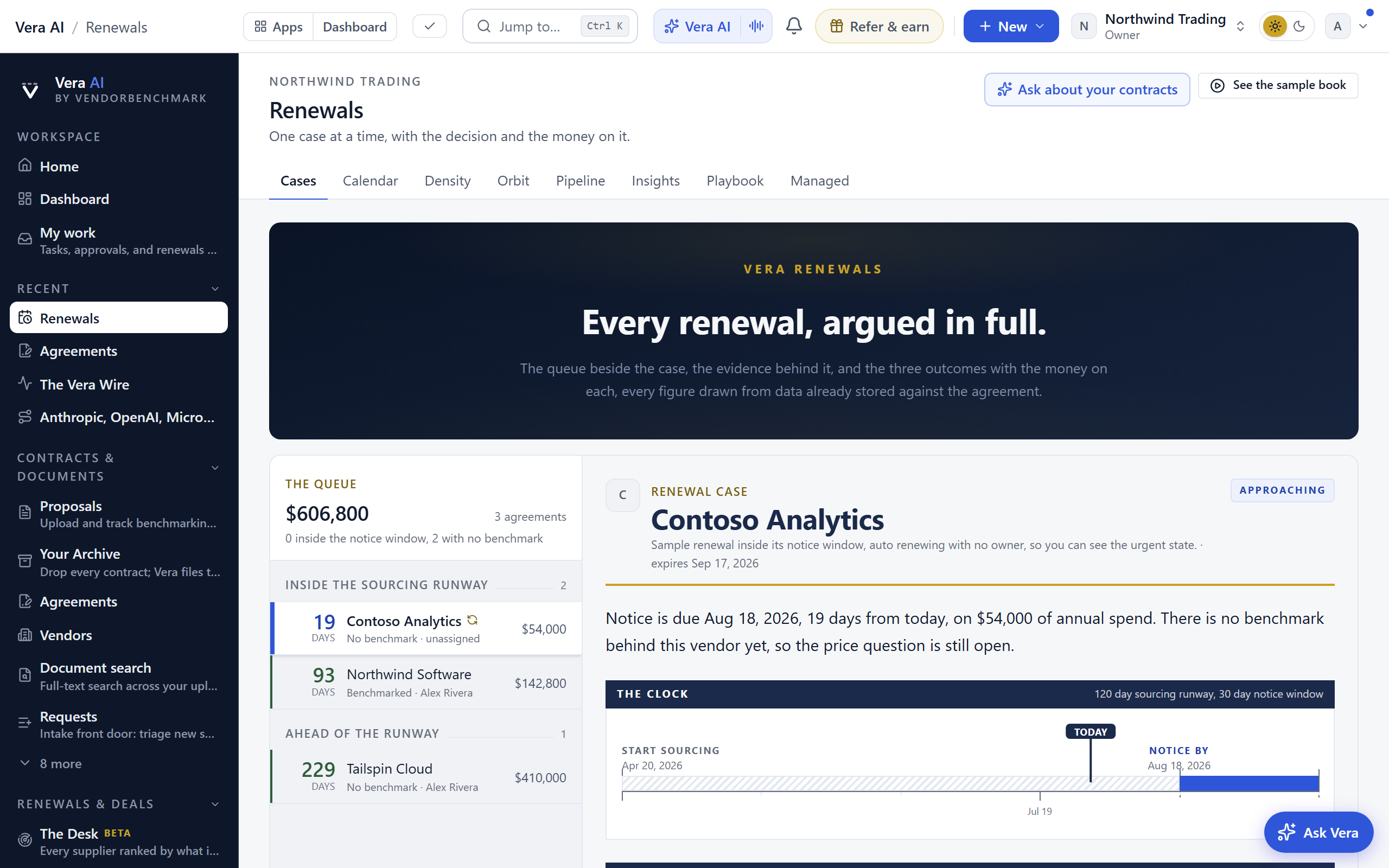
- The boardroom — since 28 September 2026, Present on the title bar (or
p) plays the whole book as a slideshow: what is on the clock, what needs you nearest notice first, what renews in the next twelve months, the next notice with a live countdown, what holding every uplift keeps (with the five percent assumption said where no cap is written), three moves and the bottom line. Share the show opens a dialog: who can watch it (your workspace, named people who sign in with that address, or anyone with the link), how long the link works (a day, seven, thirty or ninety days), and the links already made, each with how often it was opened and an End it press. The link opens straight into the slideshow, view only, frozen as it stood when you made it, and every open lands on your audit log.
What you choose reads in ink and a quiet gray, never the accent green: the row, card, filter and week you pick, a switch you turn on, the ambition you want, and the current row in the book. A status down a table is a colored dot beside plain words rather than a filled capsule on every row. Green is kept for the one filled action, links and the tab you are on.
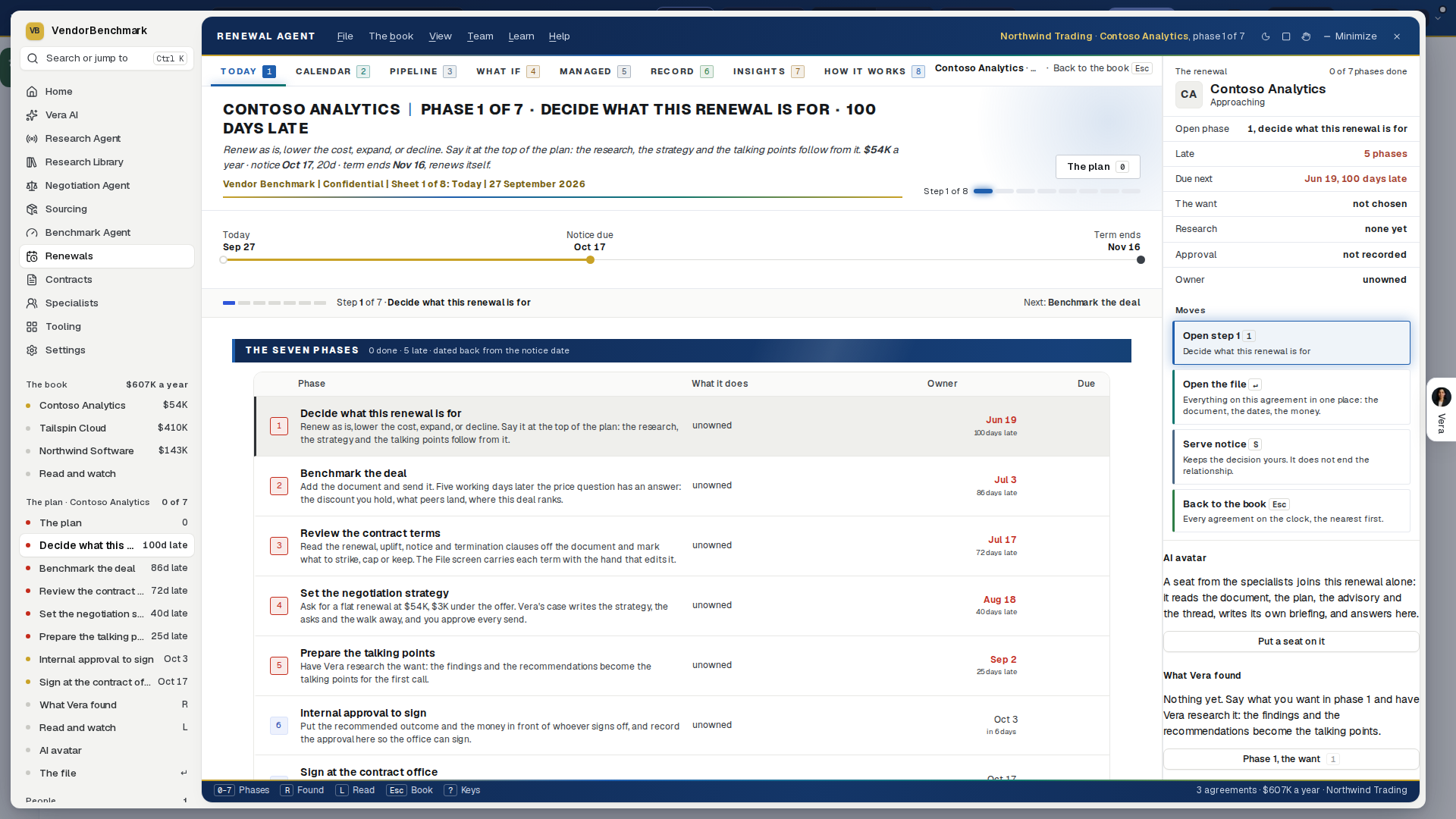
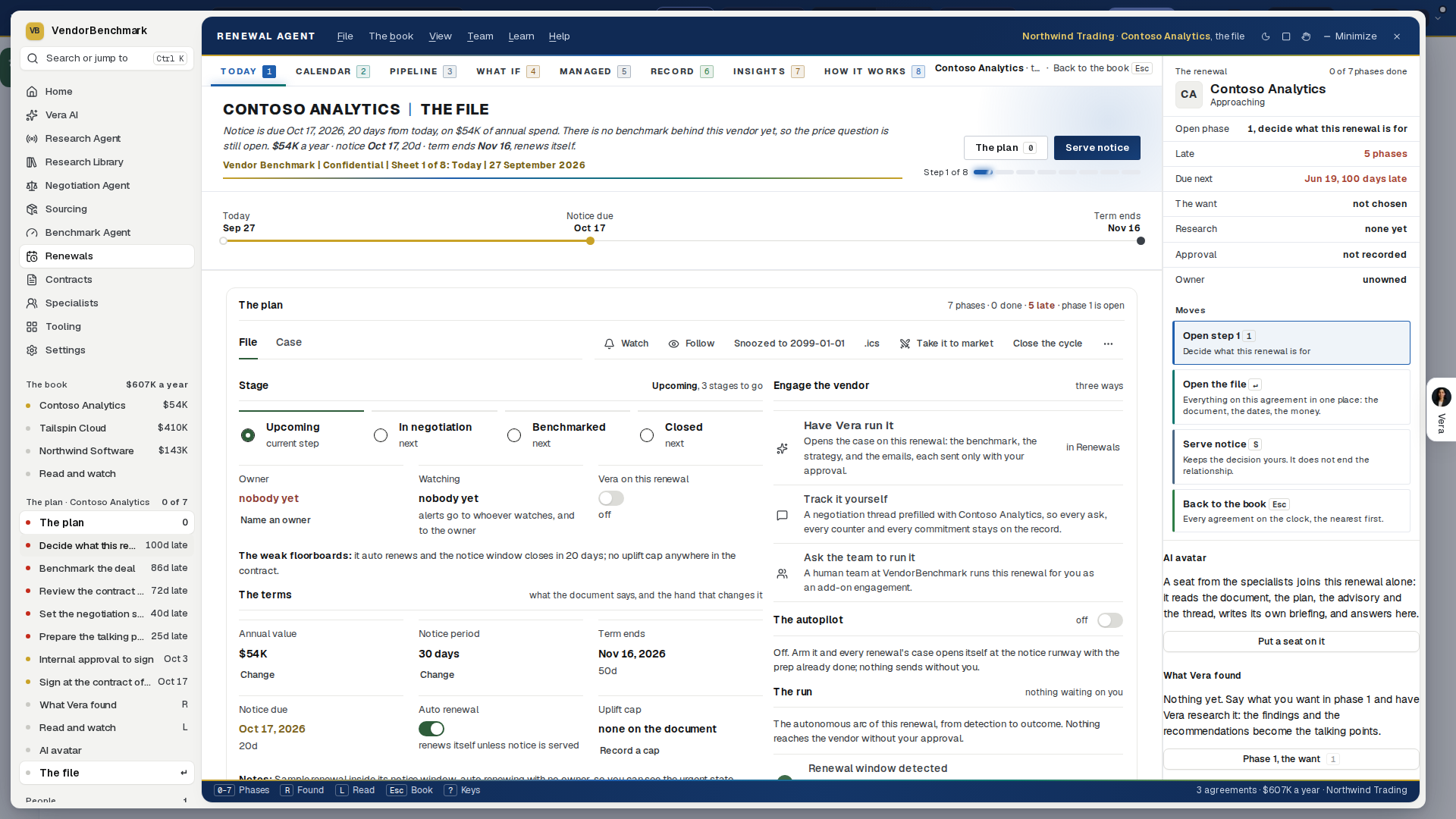
The playbook and the films on the file. Above the activity, two sections on the renewal's vendor. Playbook is what the research library says about the vendor, by topic: a strip of key figures, then cost drivers, timing, how they sell, benchmarks, leverage, tactics, counters, steps, asks and concessions, terms to fix, alternatives and risks. Press a topic and its sections appear as the notes wrote them, each naming its note; Read the note opens it in a new tab. Watch lays out the vendor's analyst briefings and recorded sessions as posters with each film's length; press one and it plays on the page. A vendor the film library does not cover shows no Watch section. They are the same playbook and gallery the vendor record shows.
Follow ups on the file. Under the file's sections, once the renewal has a value or a term end: what to do next with this renewal (the email to the vendor, the note to your CFO, what a missed notice date costs), any question of your own, and the email that follows as a draft you type on and then change side by side with Vera. Not on the sample book. See Follow ups.
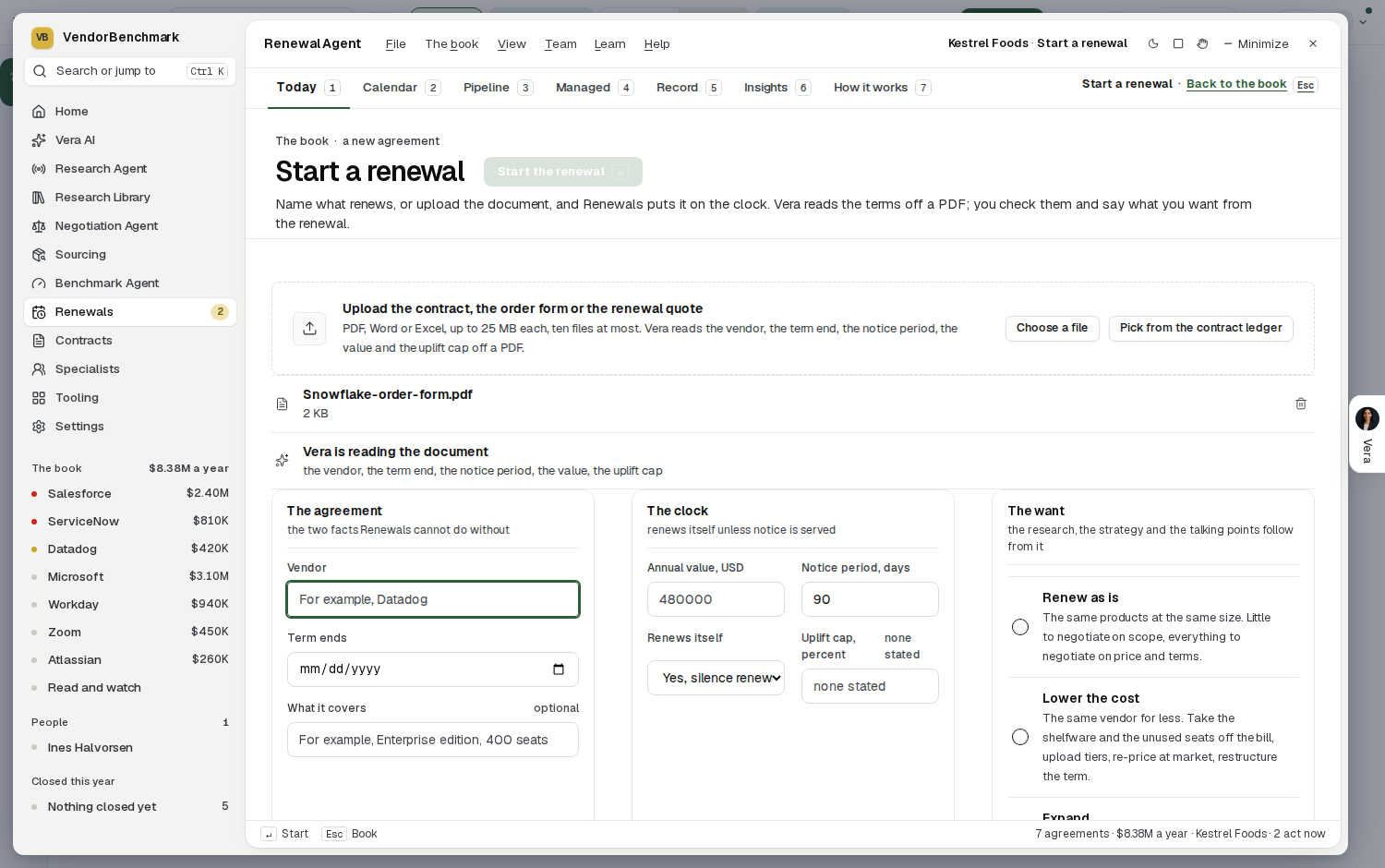
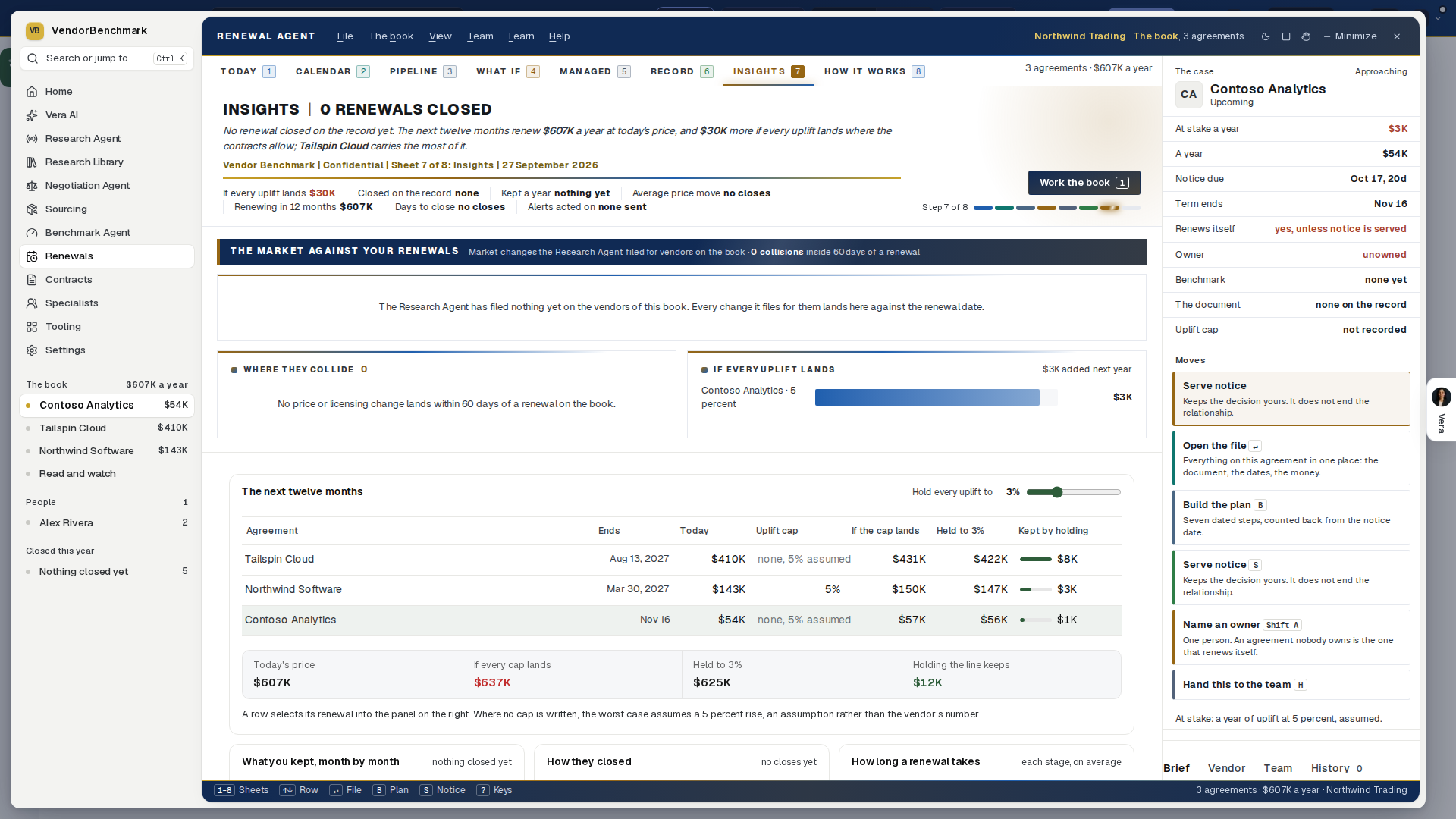
On the screen
- The figures: every amount on Renewals is in US dollars, each agreement converted from the currency it was signed in; when you type an annual value in dollars, an agreement signed in another currency stores it in its own currency. "The next twelve months" starts today everywhere, on your organization's calendar, so an agreement that already ended is not counted. Renews itself unless notice is served counts only agreements whose notice date is still ahead. The Pipeline's figure is what is still in motion, not what already closed. The Calendar's committed line adds only agreements that renew themselves. On the Record a price rise reads "rose $20K" rather than a negative saving. Dates in another year carry the year. Since 26 September 2026 the desk counts an agreement as renewing itself when its paper carries an auto renewal clause, as the calendar does; Act now leaves out renewals already closed; a notice date that passes on an agreement that ends on its own stays in view but is never a missed notice; a notice due today is still open on the runway and in the playbook book; sample agreements drop out once your own are on file; and a 0% uplift cap holds the simulated price flat. Vendor quarter closes for a year that ends on a month's last day fall on month ends.
- The look: since 24 September 2026 everything under the head matches it. The case under the board, the file, the plan, Calendar, Pipeline, Managed, Record and Start a renewal set each section on a white card with a plain label, where they used small capitals before, and the one main button on every screen is green. How it works and Start a renewal open on the same head as the other screens: the screen's name as the title and the sentence under it. How it works now lists Record among the five screens. Nothing moved and nothing was taken away.
- The title bar — the Renewal Agent's name, the six menus (File, The book, View, Team, Learn, Help), the workspace and what is in hand at the right, and the window controls. Every verb the old File menu carried is on the title bar: start a renewal, add the contract, import from the ledger, export, print, undo, the sample book, the keys.
- The app icons — dark, down the left: Home, Vera AI, the Research Agent, the Research Library, the Negotiation Agent, the Benchmark Agent, Renewals (marked in white, with a gold number for how many agreements need an answer now), Contracts, Specialists, Tooling, and Settings at the foot.
- Every move says what pressing it does. The inspector on the right carries the agreement's moves as a title and one line of plain words underneath: what happens when you press, never a restatement of the label. Serving notice says it keeps the decision yours and does not end the relationship; naming an owner says an agreement nobody owns is the one that renews itself. The lines are the app's own reasoning, which it already computed and used to keep to itself.
- The tree — the book by consequence with the money on each row and a dot for its state (brick acts now, gold watches, navy is in negotiation); the plan and its seven phases when a renewal is open; the people on the book with how many agreements each carries; and what closed this year.
- Read and watch — the last row of The book in the tree: the films, analyst briefings, research papers and guides the library holds on a vendor of the book, in place of the board. It follows the agreement selected in the tree, so pressing an agreement while it is open turns it to that vendor, and the book's vendors also sit under the head, nearest renewal first. Press a row to open it in the window; any other screen closes it. The plan's own Read and watch (L on an open agreement) is unchanged.
- The sheets — nine, as numbered steps and on the number keys
1to9: Today, Contracts, Calendar, Pipeline, What if, Managed, Record, Insights and How it works. Each wears its own tone (blue, teal, steel, ochre, slate, green) across its steps badge, its section bands and its instruments. Heavy weeks and By days are lenses under Calendar. The file and the plan open from a row and sit under Today, with a Back to the book link at the right of the tabs (Esc does the same). - The head — the screen's name, Renewals, with the workspace and the book above it and one plain line under it that states the stake in the book: the agreement that needs you first and why. The buttons sit at the right of the same row, the one filled button being the move it points at (confirm the term, serve notice, set the value, name an owner). Under it the first agreement's runway from today to its notice date and the end of its term, then, since 25 September 2026, six figures in one row, each a label, its figure and one note on a single line (since 26 September 2026): on the clock, inside the runway, notice in 45 days, above the market, renews itself, and unowned. The line under the title states the book as one sentence with the money set inside it (what renews in the next twelve months, what reaches its notice date inside 45 days, what renews itself and what nobody runs), and one large figure at the right of the head answers what needs you first: the annual value whose notice is due inside 45 days, with the agreement that comes first and its date under it. When more than one agreement has a notice date ahead, the runway above that row shows the whole book on one year from today: every notice date is a mark sized by the agreement's annual value, red inside 45 days, gold once its sourcing runway has opened and gray after that, with the lead agreement labeled and its term end picked. Rest on a mark to name it and press it to open that agreement; a notice more than a year out is counted at the right end of the line.
- Today as a tool — since 30 September 2026 Today is three things in order: Start a renewal on the first row, the board of every agreement, and the runway of the year. The ranked cards, the six cards under the book and the case under the board are gone: the case sits in the inspector, and a double click on any row opens its case file.
- The upload box — the first row of Today, headed Start a renewal with the filled Start a renewal button and Your contracts at its right (since 30 September 2026; it sat under the ranked cards before, since 25 September 2026): Upload the contract that renews next on the left opens Start a renewal, and on the right type the vendor, the term end and, if you have it, the annual value, then Start; Start a renewal opens with those facts already filled in. Pick from the contract ledger sits at its foot. The File menu also lists Continue where you were: the Start a renewal forms you left half filled, the last five, and a fresh one.
- The board — one row per agreement spanning the width, grouped by consequence: act now, this quarter, on track, each group with its money, and since 26 September 2026 an Ended group last for agreements whose term ran out and that do not renew themselves. An ended agreement is not a missed notice: nothing was committed, so it never counts in Act now. Each row carries the agreement and its state, the one move it needs next, a year, the notice date and the days, the plan's seven phases as a slim bar (green done, blue open, gray still to come), what is at stake, the owner and the stage. The find and the filters (Act now, Inside the runway, Unowned, No benchmark, Renews itself) sit on the toolbar over the board. Double click opens the case file, right click the menu; a row drags onto a person or a stage. Every vendor carries the same plain gray tile with its initials; gold on the board is kept for what needs a look: a notice inside the window, This quarter, inside the runway, above the market, renews itself.
- Reports and exports (since 2 October 2026), on Today under the list, on every agreement in the book: The book in charts (value a year by vendor, notice due by quarter, and when notice falls), then Excel workbook (every row typed, so it sorts and sums), Word report (the same report as a document), Email the report (to up to ten addresses, your note first, the Word file attached) and, under them, Shall I draft the email?, which writes an email to the vendor, your CFO or a colleague that you send yourself. The workbook carries every agreement with its dates.
- Under the book — retired on 30 September 2026, when Today became a tool; the figures live on the head, the Calendar and Insights. Until then, six cards in two rows between the board and the case. When the notice windows close splits the book by the last day to say no (inside 30 days, 31 to 90, 91 to 182, later) with the money and the vendors in each. What if you cap the uplift has three sliders, the rise a vendor applies with no cap, the cap you write in and how many months ahead to look, and shows what the cap holds back a year and over a three year term on the agreements reaching term in that window, naming the ones with no cap written; the rise is an assumption, not a quote. Needs a decision lists the agreements nearest their notice date with the one move each needs. Renews itself lists every agreement that rolls over unless notice is served, with its date. Who runs what shows each owner with their agreements, the money and how many fall inside 90 days, and the agreements nobody runs. Against the market splits the book into above the market, at market, better than the market and no benchmark yet, and names the next agreements to benchmark. Every row opens its agreement in the inspector, and each card's button opens the Calendar, the Pipeline, the notice letter or the filter it points at.
- The case — until 30 September 2026 picking a row opened it under the board; it now reads in the inspector and the case file. It was argued in full: the agreement with its state and its one press (Open the file and the menu beside it), the lede, then Four facts make this a case as rows with the control that fixes each, The dates on the drawn timeline, The money as three outcomes with the uplift lever beside them, Where this deal sits as the three questions over the band, What to do next as a checklist that remembers, and The thread.
- The right click menu — on any agreement anywhere in the desk (a row, a pipeline card, a calendar block, a runway lane): Open the case file, then since 30 September 2026 Research it (the plan's research page, where Vera researches the vendor, the market and the levers), Benchmark analysis (opens the Benchmark Agent, where you choose the contract on its first step) and Talk to Vera about it (opens Ask Vera on that renewal), then the plan, the value, the owner, the notice, the stage moves and the rest. A double click anywhere an agreement is drawn opens its case file.
- Read an AI agent in on this file — since 1 October 2026, on the right click menu and on the file itself (An AI agent on this file, Read an agent in). The agent is handed the renewal's file before the first word: the terms, the money, the position, what is due next and what was said in the thread. The call then opens on it, so you start from where the file stands instead of explaining it. Nothing is filed by the press, and on a workspace without the voice line the same file goes to the written Ask.
- Contracts — key
2, since 30 September 2026: every contract on file in the workspace, and every agreement on the book without one, in one table with its term end, value a year and whether its renewal has started. Drop contracts on the box at the top (or Choose files) and Start a renewal opens with Vera reading them. Start renewal on a row puts it on the clock (from the ledger when it carries a term end, or on Start a renewal with the vendor filled in when it does not); a started row reads Open case file, opens it on a double click and takes the right click menu. Beside the table, the selected renewal: Goals (renew as is, lower the cost, expand or decline, and a note of targets and limits, then Save goals and Have Vera research it), Collaborators (add a member of the workspace and they follow the renewal and hear every comment and change; Invite someone new opens the members page), and Comments, the renewal's own thread. - The inspector — on the right: the case's state, At stake as one figure with the sentence that explains it, The agreement as facts (a year, notice due, term ends, renews itself, owner, benchmark, the document, the uplift cap), the moves (the one press, open the file, build the plan, serve notice, name an owner, hand it to the team), then the Brief, Vendor, Team and History tabs. Press
Ito hide or show it. - Where this deal sits — answers the three questions when a delivered benchmark or a saved scenario exists for the vendor: the discount you hold, what peers at this size land, and where the deal ranks, with the gap in money over the band with you on it.
- File — the selected agreement in full, on
Enteror Open the file on the case, under the head that states the agreement and its one press: the File and Case tabs with the agreement's quiet verbs on the tabs row, the terms, the document, the proposals, the checklist, the run and the activity as sections. - The Case tab — on the file, when Vera runs the agreement as a case: the stage path as four stops across (setup, agent negotiating, your decision, closed) with the case's facts and verbs under it, the first email and your decision as sections with the counter to edit and send, the case file as rows and mails you open in place; beside them the verified outcome, the mandate, and the market position.
- Have Vera run it — on the file, and on phase 4 of the plan, the case intake as a sheet inside Renewals. Guided lets you review the strategy, the asks and the opening email before she sends a word; Automated lets her pick the strategy and run the thread on the mandate you sign.
- Start a renewal — File, Start a renewal,
Ctrl N, the button on Today's first row, or a contract uploaded anywhere in Renewals: one form under the tabs. The document first: upload or choose a PDF, DOCX or XLSX, or Pick from the contract ledger; Vera reads the terms off it. Then the vendor and the term end, the notice period and the value, the owner and what you want from the renewal, and Start the renewal (Enter, and at the foot of the form beside Back to the book since 30 September 2026) puts it on the clock. The steps it runs show while it works (on the clock, the documents filed, the seven phases laid out, Vera's research started), then it lands where the result will be: what Vera found when you chose a want, the plan otherwise. - The plan — press
Bon a picked agreement (or Build the plan on its case) and the tree lists the plan and the seven phases a renewal takes with their due dates, each a word on where it stands (done, due, or late). Since 22 September 2026 a line above the phases says which one you have open, names the next one, and, when the phase you are reading is not the one the plan is waiting on, says which one that is rather than letting an open sheet imply progress nobody has made. The head states the open phase with its one press; the seven phases draw as a board under it; the phase's own instrument sits beneath (the want, the document and the benchmark, the terms, the strategy, the talking points, the approval, the signature). Press0to7for the phases,Rfor what Vera found,Lfor the reading,Escfor the book. - What Vera found, Read and watch, the AI avatar — on the plan these read in the inspector: her position and the first findings with the advisory a press away (
R); the vendor's guide, films and notes the library holds (L), which opens as Read and watch: the series opener with its poster to start, then a table each for the renewal guides with their posture, the series, the films, the sessions and podcast, the guides and playbooks, the research notes and what is on the record, with search, a filter, a share link on every row and Share the reading list to post it to the thread; and the specialist seat that reads the record and answers in the inspector. - The head on every screen — since 25 September 2026 Calendar, Pipeline, Managed and Record keep the book's one large figure (what needs you first) and its row of figures under their own line, so where the book stands reads the same whichever screen is open. Insights carries its own: the rise if every uplift lands, and the record's figures.
- Filters and an empty result — the runway under the head fades the renewals the filter or the search leaves out, and when nothing matches, the board shows the next three renewals as rows rather than an empty box. The uplift what-if's three levers keep their settings when you leave.
- Calendar — since 26 September 2026 it opens on The year by month: a block per agreement in the month its term ends, sized by its annual value, with the month's total above and its notice dates under it; then Every week, 53 squares that darken with the money moving that week, a dot on each week with a notice date, and the week you press listed beside Notice dates in order. Under them the Runways lens keeps a runway row per agreement from the day sourcing should start, through the notice date, to the end of the term, with today a fixed line. The tinted part of a bar is lead time already spent; the hatched tail is after the notice date, when the term is committed. Move the date lever and the counts follow.
- Heavy weeks — a lens on the Calendar: the weeks the team is running the most renewals at once, and the book by owner. A row dragged onto a person changes the owner.
- By days — a lens on the Calendar: everything on approach on one orbit, sized by spend and colored by readiness, with the book ranked by money over the time left.
- Pipeline — since 26 September 2026 the seven phases of each renewal's plan as columns (Want, Benchmark, Terms, Strategy, Talking points, Approval, Sign) and a Done column, a card per agreement in its first phase not done, with the money in each column and the phases late named on the card. Drag a card to another column or press Move to: the plan's ticks move with it, and the book's four stages (upcoming, benchmarked, in negotiation, closed) follow, with Undo on the toast.
- What if — key
4, since 26 September 2026: pick a renewal from the row of vendors and move four levers, the cut on today's cost, the uplift cap a year, the term and the seat change. Cost over the term redraws month by month two ways, letting it renew itself at its own uplift and renegotiated at your levers, and the difference counts up; the line under the cut names the peer median from the delivered benchmark, or says there is none. The whole book at this cap ranks every renewal by what moving it to its peer median saves over three years. The same inputs always draw the same answer.
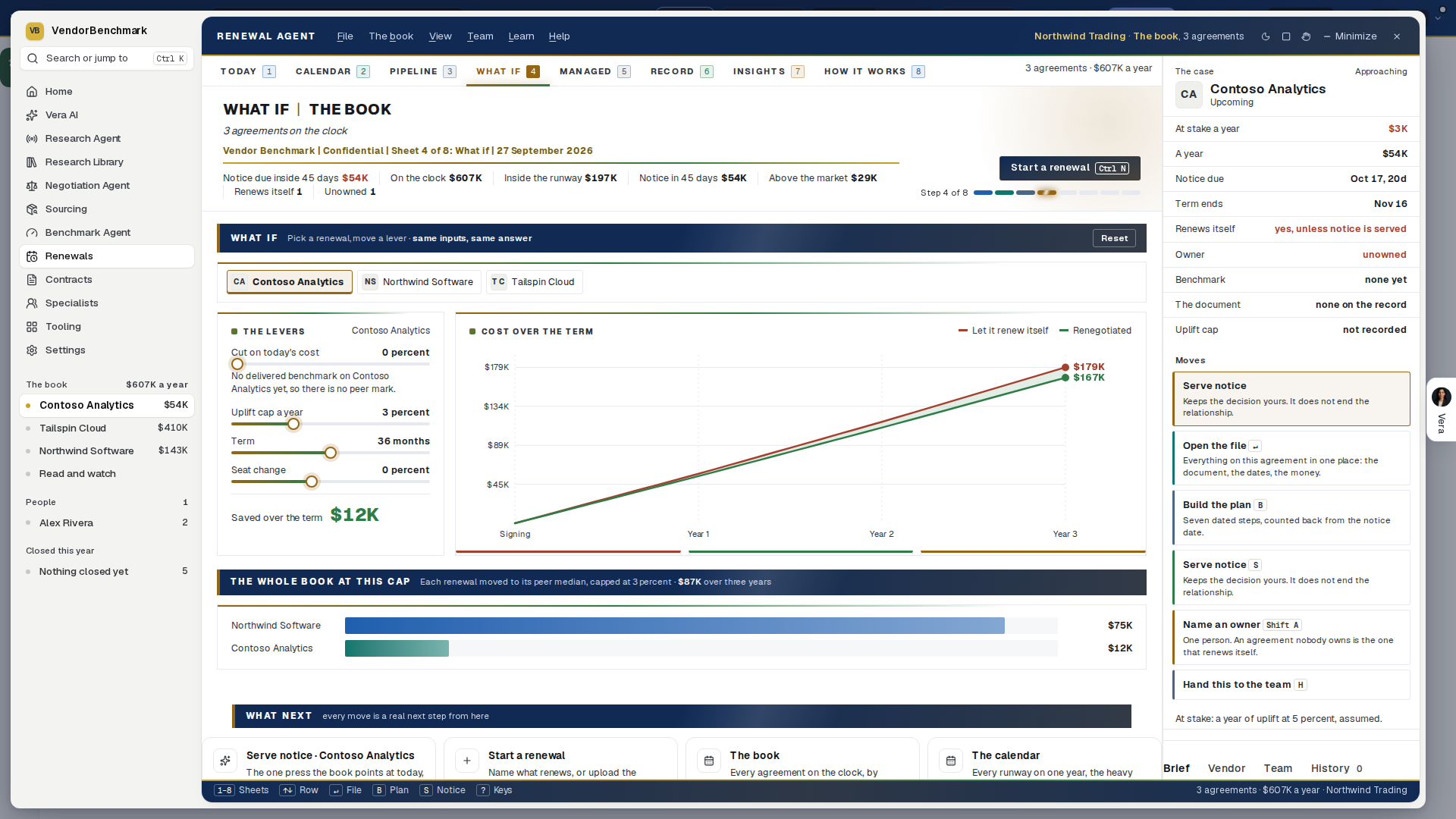
- Managed — which agreements to hand to the Vera AI Team, the mandate the handover carries, and what it recovers. The handover completes on Managed renewals.
- Record — since 25 September 2026 it opens on What the renewals already won: each closed renewal as wide as what it saved, then saved a year, the share off the price, the same over a three year term and how many held flat. Then the alert gap: your alert lead days against the sourcing runway each agreement's size warrants, with a press in the head that closes it. Then the forward book by quarter, what delivered benchmarks say the book is overpaying, and your closed record.
- Insights — key
7, also where the old Renewals insights link lands. Since 26 September 2026 it opens on The market against your renewals: the price and licensing changes the Research Agent filed for the vendors of the book, a diamond each on the renewal's row beside the renewal date, with the ones landing within 60 days of a renewal named under Where they collide and what they mean, and If every uplift lands beside them. Then the record: Since 26 September 2026 it heads itself: one sentence on what the renewals you closed kept a year, what the next twelve months renew at today's price, how much more if every uplift lands where the contracts allow, and which vendor carries the most of it. The one large figure beside it is that rise, If every uplift lands; with nothing renewing inside the year it shows what the record kept. Six figures run underneath: closed on the record, kept a year, the average price move, renewing in 12 months (with how many carry no cap), days to close (with the longest stage) and the share of alerts acted on. The next twelve months leads at full width: every agreement ending within a year, the most kept by holding the line first, at today's price, its uplift cap, what it costs if the cap lands (5 percent where no cap is written, the same assumption the renewal case and the playbook make, and stated as one) and what it costs held to your number. Move Hold every uplift to in the section's header and every row and the four totals under the table follow; a row selects its renewal into the panel on the right, and the setting stays when you come back. Six cards follow: What you kept, month by month (gold where rises signed as offered outweighed the savings), How they closed, How long a renewal takes (the longest stage in gold), Which alerts get acted on in the last 90 days, Recent closes with what each kept, and No cap written with what a cap would keep. Hold first closes the screen: the renewal where holding the line keeps the most, argued as a case with Open the renewal. - The sample book — File, See the sample book on an empty book fills it with fourteen worked example agreements, ten of them benchmarked, so you can see the app working before your own agreements are on file, the File screen included. Nothing in it is your data and nothing in it is saved, alerted on or exported.
- Serving notice — since 26 September 2026 the letter writes itself in front of you, stays editable, and when you press Send from my mail app the Served seal stamps and your mail app opens with it; it lands on the record. Nothing sends from Renewals.
- What next — every sheet ends with the moves that are real next steps from where you stand, as cards with their icon (since 25 September 2026), declared once for the app and drawn once: on the book, the one press the book points at, Start a renewal, the sheets, the ledger import and the export; on a renewal, the next phase, the file, the notice letter and the handover.
How to use it
- Read the sentence in the head. It states what is at stake in the book, not what is on the screen.
- Press the gold button beside it, or pick a row and press the button at the top of its case: it is always the one move that agreement needs next.
- Fill the four facts on the case for anything it is missing. A value or a notice period typed there is written to the agreement.
- Work down the moves and mark them done; post what you agreed to the thread.
- Press Play the next 90 days on the runway to see what renews itself if nothing is done, then press
4for What if and move the cut and the cap on the renewal that costs most. - Press
2for the Calendar and push the date lever forward to see what commits before the next quarter arrives; Heavy weeks and By days are its lenses. - Press
Ctrl N, or upload a contract anywhere in Renewals: check the terms Vera read off the document, say what you want, and press Start the renewal (Enter). - Press
Bfor the plan: approve the steps you keep, put a name and a date on each, set what each waits for, and pressLfor Read and watch to share the vendor's briefings, guides and documents with the team before the first call.
If something looks wrong
- The book is empty: rows come from agreements carrying an expiry date, so an empty book means missing dates, not a quiet year. Since 24 September 2026 an empty book still opens the Renewals window: Today shows three ways to start (Start a renewal, Import from the contract ledger, See the sample book), what a tracked renewal gives you, and the seven phases every renewal is planned in with the rule each one is dated by. See the sample book shows the app working while you fix that.
- Above the market reads
no benchmark: no benchmark has been delivered for any agreement in the book, so Renewals refuses to guess. An instant benchmark or an uploaded proposal is what turns it on. - The press says Put a value on it: the agreement carries no annual value, so nothing can be ranked or priced until it does.
- Have Vera research it is grayed out: say what you want first (renew as is, lower the cost, expand, or decline); the plan is researched for the want.
- The research says it could not finish: Vera tries three times before giving up; the plan keeps the reason and Try again runs it once more. A vendor with nothing in the library still gets an advisory from the document and the vendor's habits.
- Start a renewal says the vendor is already on the clock: the press reads Add to that vendor and the document and the want go onto its existing agreement. Its dates stay as they are; change them on the file. Since 2 November 2026 a vendor can carry more than one agreement (two orders that end on different dates, for example), and each contract keeps the renewal clock of the agreement it belongs to.
- An old bookmark to the clock, density, orbit, insights or playbook screen still works: it lands in the sheet that replaced it. An old link to a renewal record lands in the file with that agreement open.
Tips
- The filter you leave on the book, the compact rows setting and the inspector tab you were on are remembered per workspace.
- A notice letter or a term confirmation opens in your own mail client with the letter drafted, and the send is logged on the agreement's history.
- Dark mode is on the View menu, and the same flip serves every window on the shell.
Related: Renewal calendar · Renewal playbook · Major renewals
The Simple view
The Renewal Agent opens on Simple since 30 September 2026: six tabs over your open renewals (Contracts joined the same day). Advanced is the full desk as described above, with every screen. Opening a case file, the plan or Start a renewal from Simple takes the window to Advanced, where those screens live.
- Contracts: the same screen as Advanced's Contracts (see above): every contract on file with its renewal, the drop box, Start renewal per row, and the selected renewal's goals, collaborators and comments.
- Today: every open agreement in one table, ranked by the notice date and then the value. Each row shows the notice date (in red inside 45 days, with the date and whether it renews itself), the value a year, the one next step (Serve notice, Put a value on it, Name an owner, Benchmark it or Build the plan) and the owner. Filter to Notice inside 90 days or Unowned. The runway underneath shows the notice dates of the next twelve months by value.
- Calendar: the month with every notice date (brick) and term end (navy) on the day it falls, today marked in gold, the previous and next months and Today to move. Since 30 September 2026 a strip of the next twelve months counts the dates in each (press one to go there), a month with none offers Go to the next date, and Coming up beside the grid lists every date ahead rather than only the next 30 days. Add a renewal, or the + on any day, opens Start a renewal with that day as the term end. Press a date to select that agreement.
- Pipeline: the four stages (Upcoming, In negotiation, Benchmarked, Closed), each with its count and value. Drag a card to another stage, or use Move to on the card; filter by owner, by notice inside 90 days, or by vendor. Since 30 September 2026 a closed agreement stays in the Closed column rather than leaving the board, and a move that does not save says so and puts the card back. Since 2 November 2026 a renewal with a case takes its stage from the case, the same stage Ask and the Deal Agent show: a card moved to a stage the case does not agree with goes back with the reason, and the Stage fact in the details shows where the case stands (for example Your decision or On hold).
- What if: pick any agreement (type to find it, the arrows, or a chip per agreement), choose Negotiate or Let it auto renew, then set the price change against today, the uplift cap, the seats or volume and the term. Year 1, the total over the term and the saving against the current path move as you do, with the cost by year drawn beside them. It uses the agreement's own value and uplift.
- Insights: the total book, what renews in the next twelve months, the value at risk of renewing itself, and the savings identified by delivered benchmarks; spend by vendor, renewal value by month, exposure by owner and three findings.
Pressing a row, a date or a card selects the agreement, and its facts show at the right with Ready to renew. The next step and Open the agreement open it in Advanced, where the value, the owner, the notice letter and the plan are set. Since 30 September 2026 a double click on a row, a card or a date opens the agreement's case file, and a right click offers Open the case file, Research it, Benchmark analysis, Talk to Vera about it and the stage moves. Start a renewal sits at the right of the tabs.
Monday brief
This week's work in one window: what is due, what your contracts owe you, which invoice is over the cap and which deal is behind the market. It reads your agreements, your money calendar, your invoices and your published benchmarks each time it opens and ranks every row in one list. Every row opens its own record with the money worked out, the date it bites on and a drafted move. Every workspace has it, from Home's Renewals and negotiation shelf; the weekly email that points here goes only to people who turn it on.
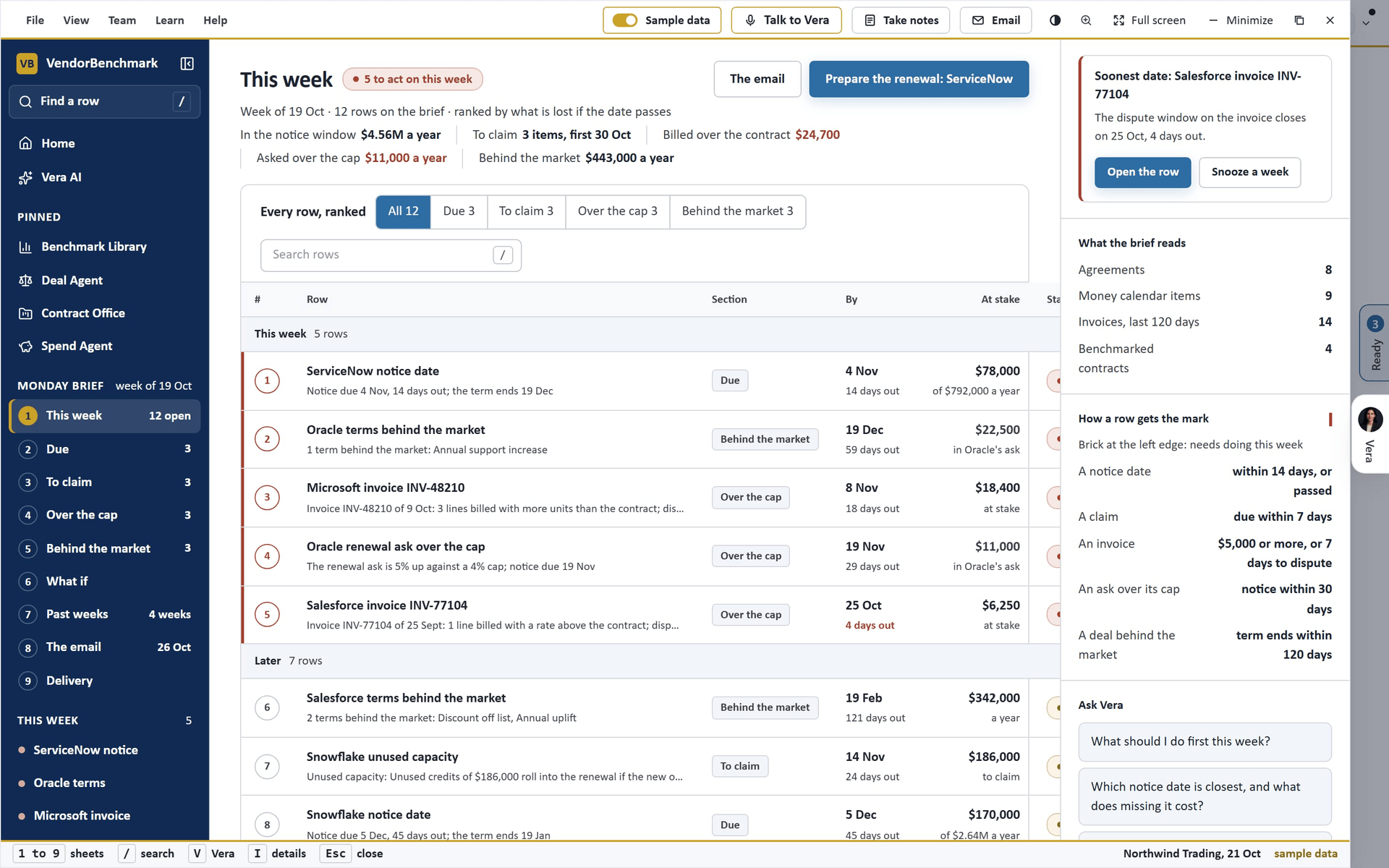
On the screen
- The left column — Home, Vera AI and your pinned apps, then the nine sheets as numbered rows (This week, Due, To claim, Over the cap, Behind the market, What if, Past weeks, The email, Delivery), each with its figure, then every row of the week by name, grouped This week, Later and Handled. A brick dot needs doing this week. Press a row to open its record. Find a row (or /) jumps to the search on This week.
- The head — the sheet's name with one status tag, one line that says the week once, and one row of figures: on This week what is in the notice window (the yearly value under notice, not money owed), how many items to claim and the first date, what was billed over the contract (once), what was asked over the cap (a year), and what the gap to the market is worth a year. Each figure opens its section. The dark button opens the first row.
- This week — every row in one table, ranked: the rows that need doing this week first, with the brick edge, then the money lost if the date passes, then the soonest date. Each row shows its rank, what it is, the date it bites on, what is at stake, its state and its button. Filter by section or search the rows. The foot says what is lost if every open date passes, the one off money and the yearly money apart, with a vendor's increase counted once. Under the table: the next five weeks of dates from the open rows, what is coming up (or, on the sample, what changed since last week), the platform around this week's vendors, and Monday's email.
- At stake by section (on This week, since 27 October 2026) — one line saying where most of the money is, then a bar for each kind of money on the week (in the notice window, to claim, billed over the contract, asked over the cap, behind the market) with its figure at the end of the bar. Press a bar to open that section. Handle a row and its bar shrinks. Hover a figure in the head for the same finding as one sentence.
- Sorting the table (since 27 October 2026) — press By to sort the rows by their date, soonest first, or At stake to sort by money, largest first, within each group. Press again to turn the order round and a third time to go back to the rank.
- Due — notice dates in the next 60 days and any that passed in the last 14, ranked; under them every agreement's notice window on one line across the next fifteen months, with the renewal ask against the cap.
- To claim — credits, rebates, penalties, price protection and true ups from your money calendar, from 30 days ago to 30 days ahead, each with what it is worth where the clause says (a sum it states, or a share of a month's fee worked out from the agreement's yearly value); under them the whole money calendar.
- Over the cap — invoices from the last 120 days billed above the contract, dated by the close of the 30 day dispute window rather than the invoice date, and renewal asks above their uplift cap; under them the lines over the contract and every invoice read with its disputes.
- Behind the market — benchmarked contracts with terms behind the market median, each term drawn on its band from the low to the high with what closing the gap is worth a year.
- A row's record — why it is on the brief (the rule, the line, the mark, its rank); the money worked out for its kind (today, the ask and the cap; the clause and the claim; the lines; the band) with what happens if the date passes; the date on a line with the notice date, the term end and where a snooze returns; the move, a drafted plan, letter, dispute, pushback or negotiation brief with Copy the draft, beside Mark done, Snooze a week, Open a case and Send to a teammate; links to the research, the Vendor Radar, the renewal and the specialists; and the vendor's other rows this week. [ and ] step through the rows, D marks done, Z snoozes.
- What if — two levers: if this week's work slips a number of weeks, and how much of the market gap closes at renewal. Row by row, the market close and week by week show the result. The same inputs always draw the same result.
- Past weeks — on the sample, each earlier Monday rebuilt from the same records, with where each row is now. A workspace's earlier weeks are not stored, so since 25 October 2026 it shows the history table's headings with one gray example week, one line, and this week so far.
- The email — Monday's email as it will arrive for you, built by the same builder the Monday send runs, with its subject, what it carries and the text version. If you have not turned it on, it shows the email as it would read once you do.
- Delivery — your own sections as switches, saved the moment they move (the same switches as Settings, Notifications), where the email reads from (vendor market news, renewals by email, price watch) and the schedule.
- The details column — what to do now first, then what the sheet reads, how a row gets the mark, questions for Vera and related apps. Press I to hide or show it.
How to use it
- Open Monday brief from Home, or press Ctrl/⌘ K and type Monday.
- Work This week from the top. Press a row to read its record, start from the draft, then mark it done, snooze it, open a case or send it to a teammate.
- Use the sheets in the left column (1 to 9 on the keyboard). Press V to talk the week through with Vera, who has the sheet you are on. Esc goes back from a record, or puts the window down on the tab strip.
- To have it emailed each Monday, check The email, then choose your sections in Delivery; turn the sources on in Settings › Notifications.
Tips
- Nothing here is sent anywhere. Done and snoozed rows stay marked for your workspace on this browser, and a row comes back when its date moves.
- To claim fills once a money calendar exists: make one from the Money calendar template in Review tables.
- A brick edge marks a row to do soonest: a notice date inside 14 days, a claim inside 7, an invoice 5,000 USD or more over the contract or with 7 days left to dispute, a renewal ask over its cap with the notice inside 30 days, or a deal behind the market that ends inside 120 days.
Related: Renewals · Invoices · Notifications
Renewal calendar
The year: every notice date, expiry and vendor quarter close. Planning a year of capacity and taking one decision are different jobs, so the calendar keeps its own tab beside the Renewals tab.
In plain words: the year's deadlines and the vendors' quarter ends on one grid, so timing stops being luck.
When to reach for this
- The annual planning sit-down (the recipe): where the capacity crunch quarters are.
- Timing an ask: a vendor with a quarter to close has discount authority it lacks the week after.
- The QBR: theatre mode walks the calendar as the session itself.
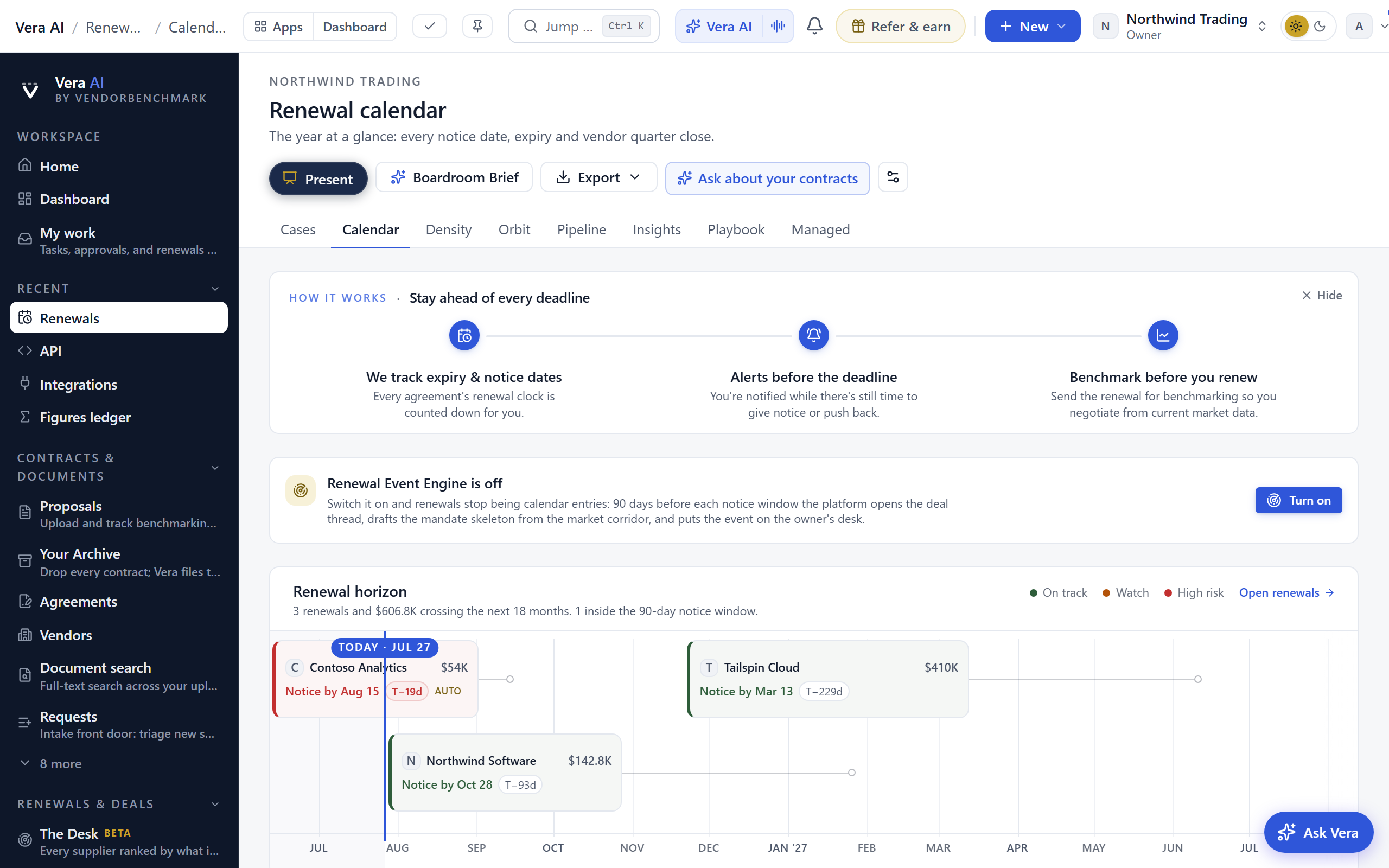
On the screen
- The masthead — the calendar in the house dress, framed in a hairline: the title with Renewals beside it, your organization and what the page runs by, the gold line, and one row of facts for the next 12 months (renewing, the yearly value across them, notice inside 30 days, and how many renew themselves). The facts arrive a moment after the title, from the same renewals the year below draws. At the right sit Present, Boardroom Brief, the export menu, Ask about your contracts, the settings gear and Subscribe in your calendar; the Renewals tabs run under it.
- The head — one sentence on the year: how many renewals cross the next 12 months and what they are worth, whose notice date binds first and whether it renews itself, and which vendor's notice lands just before its quarter close. The one large figure beside it is the value whose notice date falls inside 30 days; with none that close it names the next notice date. Six quiet facts run underneath: renewing in 12 months, notice inside 30 days, inside the sourcing runway, renews itself, without an owner, and whether alerts reach you. Subscribe in your calendar at the top right takes you to the calendar feed. Every amount is in US dollars, converted from each agreement's own currency.
- The year — every renewal on one timeline, the notice date that binds first on top. Each bar runs from the start of its sourcing runway (90, 120 or 150 days before notice, by value) to its expiry; the stretch after the notice date is shaded because that is the contract deciding rather than you working, the notice date is the mark, a dashed line is the vendor's quarter close, AUTO marks a renewal that renews itself, and the green line is today. Press a row to see it in the panel.
- The renewal — the panel beside the year for the renewal you selected: notice date, days to notice, expiry, notice period, whether it renews itself, owner, annual value and the vendor's quarter close. Below them, the alerts before its notice date with their dates, and a plain line when alerts are off for you. The moves open its renewal card further down, start its playbook, or download its notice date and expiry as a calendar file.
- Notice dates by quarter and Renews itself — under the year: the next four quarters with the value whose notice falls in each, and every renewal that renews itself if nobody speaks.
- Four cards — the vendor quarter closes that land just after a notice date (the week to ask), the alerts before each notice date with Turn on alerts when they are off, the renewal event engine with its switch for owners, and calendar sync with the feed link to copy.
- Speak first — the notice date that binds first, argued as a case: what happens if nobody speaks, what to do first, and its value, notice date, days left, expiry, whether it renews itself and its owner.
- Every renewal — the month grid with deadlines, expiries and vendor quarter closes, the quarter planner, and each renewal as a card with its owner, plan, notes and controls, filterable by owner and urgency.
- Present — runs the calendar as a full screen QBR session: the horizon and quarter planner open, each upcoming quarter follows deal by deal with notice-window renewals leading, and the renewals to act on now close the show. Arrow keys move, N shows presenter notes, the print control leaves the walked screens behind as a packet, and a shared link carries the show.
- Get it managed — every renewal carries a control to hand the renewal to a human team as an add-on engagement. If your workspace is served by a partner firm, the request goes straight to them; otherwise it goes to the Vera AI team. One live request per renewal.
- Read and watch — the films, analyst briefings, research papers and guides the library holds on the vendors of the calendar, opening on the renewal whose deadline comes first. It loads when you scroll to it.
- Calendar governance — one row at the foot naming what is inside (calendar sync, alert timing, vendor aliases, approval and SLA) with where each stands; press it to open the settings. Alert lead times states your own delivery plainly, with a link to Settings › Notifications. Alerts stay off until you turn them on.
- What next — send the first notice, give an unowned renewal an owner, or plan the budget on Insights.
How to use it
- Read the head for what binds first, then the year for the shape of the next 12 months.
- Press a renewal on the year to see its dates, alerts and moves in the panel.
- Turn on alerts and subscribe your calendar app from Calendar sync so the notice dates ride along with your diary.
- Use Every renewal below to assign owners, write the plan and narrow by quarter.
Related: Renewals · Renewal playbook
Renewal library
One briefing per vendor on how that vendor's renewal actually behaves, at the depth of a Negotiator's Guide; each guide's length in pages is shown beside it, worked out from its reading time. Every guide answers the same four questions in the same order, so your fifth guide reads faster than your first.
Since 11 October 2026 the library list on the left opens with nine numbered sheets: Library, Your renewals, By vendor, If you push, Reading list, History, What if, Read and watch and How it works, each with its figure, then Notice in 60 days, your renewals with a notice inside 60 days (a brick dot when the guide is unread, a tick once read). Every head gives its figures as labels and values, and the details column opens with what to do now and closes with Related: Renewals, the Benchmark Library, the Deal Agent, Vendor Changes, the Monday brief, cases, calls, the research library and the specialists.
What is new on 11 October 2026
- For your renewals leads the Library: your next six notices inside 90 days, each with its notice, its money, its posture and whether its guide is read.
- Read first is the nearest notice whose guide nobody has read, whatever its posture, with its spend, notice, posture, when to start, what it bills on, its share of your book, its length and its read state. Where the price moves first links the nearest renewal whose guide says the price moves.
- The library is a table by default, 25 a page: the guide, its posture, what it bills on, when to start, your notice, your money, its read state and its length. Filter by posture, vendor and read state, sort A to Z, by nearest notice, by posture or with your vendors first, or switch to Covers.
- A guide opens with its record above the document: the vendor, the line, your agreement, the notice, the read state and the length, then what happens if you push, what it bills on and when to start across the full width. Mark read and Reading list sit in its head beside Download.
- Your renewals lists every renewal on your book against the library, filtered four ways (every renewal, with a guide, no guide yet, not read with a notice inside 90 days), with Request on a renewal with no guide and Request the missing guides in the head. The six cards follow under the table.
- By vendor lists every vendor the library covers, yours first, with its guides, postures, your spend and notice. If you push sets your book by posture beside the four plates.
- Reading list holds what you have to read with its due date (Mark read, Remove), what you have read (Mark unread), what you have requested, and the guided renewals not on the list yet (Add). It is kept for your organization and follows you to another browser. History counts what was opened, read, listed and requested by week, with the log beside it.
- What if moves three levers, the notice horizon, how many days before the notice a guide must be read, and whether renewals with no guide count, and shows how many notices you would meet unread, the money a year behind them, and how many are already past the read by date. The same levers always give the same figures.
- Request a guide sends the request to the research desk and says so only once it has landed. A renewal with no guide also offers Ask Rafael, the renewal project manager among the specialists.
In plain words: what happens if you push this vendor, and what do you do first.
When to reach for this
- A renewal date is in your horizon and you do not yet know whether the vendor will move.
- You are deciding where to spend a quarter of preparation across several renewals at once.
- You want the alternatives named before the vendor names them for you.
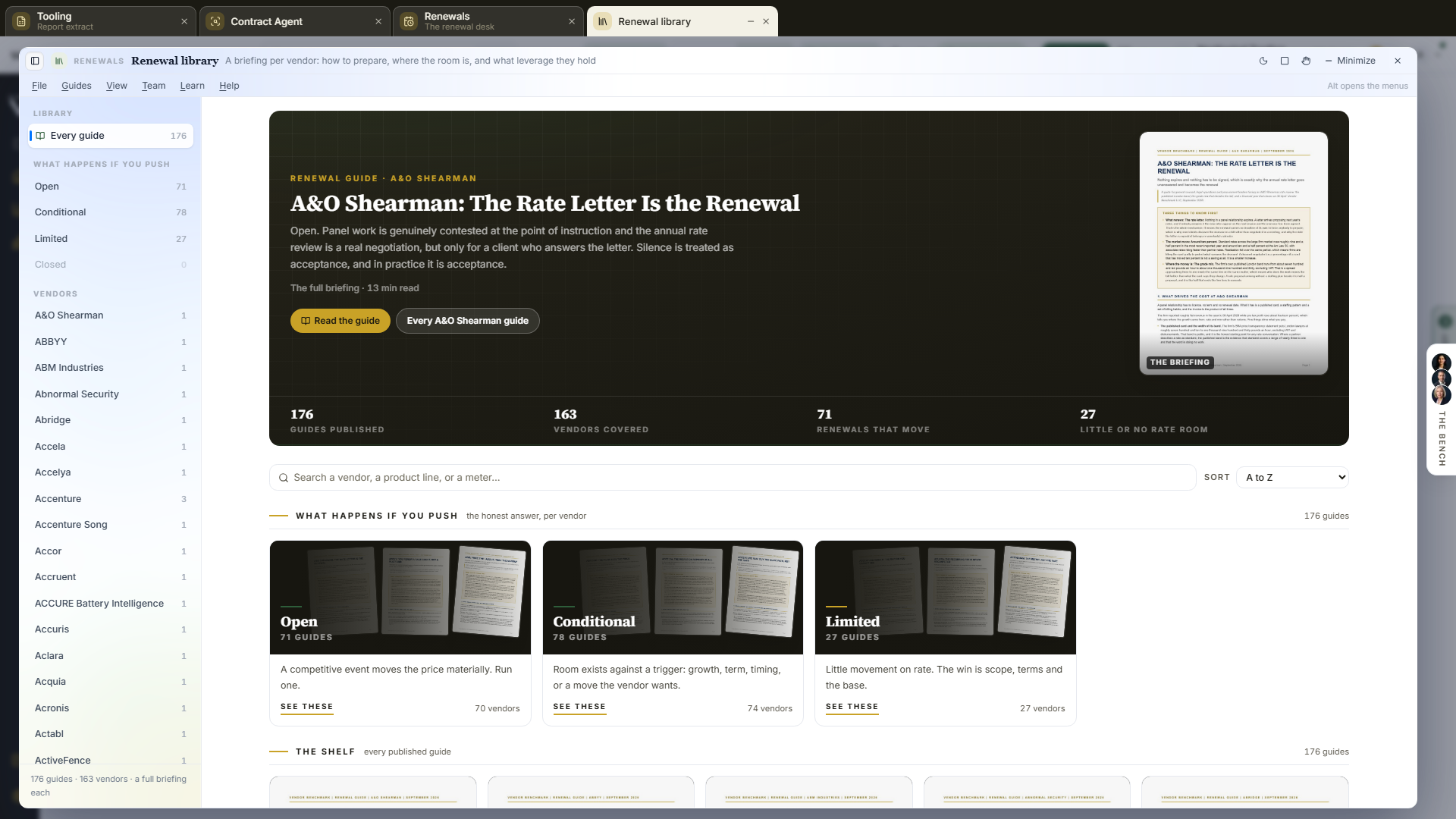
The head of the window states what the library holds in one line: guides, vendors, those that move and those with little room. Press a posture or Your vendors in the list on the left to filter to them. The four postures each keep their own color on the shelf: Open navy, Conditional blue, Limited gold and Closed brick, so a conditional guide never reads as an open one. The filter you have pressed is the tag beside the title, and the row you are on in the list on the left carries the gold bar.
Since 25 September 2026, when your renewals carry a value or a notice date, the library reads your own book first: the panel that leads the shelf says how many of your renewals have a guide and how much of your spend sits where the guide says the price still moves, the guide it leads with is your nearest renewal where the price moves, and Your renewals, read against the guides lists each of your renewals with its annual value, its posture and what its guide says to do, and the days to its notice, followed by your renewals that have no guide yet. Each posture reads as plain words beside a colored dot: navy for Open, blue for Conditional, gold for Limited, brick for Closed. Six cards follow: your book by what happens if you push, the guides to read before the notice, the renewals with no guide yet, what each guide says to do, when to start, and what each one bills on, then Read first on the guide to open first. Pressing any row opens the guide. Without values or dates on your renewals, Your vendors first leads the page with the guides for the vendors you hold, each with its posture and when to start. What happens if you push opens on one bar splitting every guide by posture, Open, Conditional, Limited and Closed, sized by how many guides each holds; press a segment to show only those guides, and the four plates follow under it. Each guide card now reads the guide's own verdict, then two facts: what the vendor bills on and when to start, with the whole of each on hover.
The library opens as its own window rather than as a page, and since 5 October 2026 that window is the frame every app shares: the title bar with the menus, Share and the window controls; one navy column on the left with Find a guide, Home, Vera AI, your pinned apps and then the library list, which opens with three numbered screens, Guides, Read and watch and How it works; a compact head; a details column on the right; and the keys along the foot. The library itself is a gallery: every guide is shown as its own cover, which is page one of the briefing you are about to read.
On the screen
- The head — Renewal Library as the title, with a tag that says what the shelf is showing: every guide, a posture, a vendor, your vendors or your search. A row of labels and values under it gives the counts: guides, vendors, how many are open, how many have little room on rate, how many of your renewals have a guide, how many have none yet, and your next notice. Two buttons sit at the right: the main one reads the guide the library leads with, the other shows every guide for that vendor. Each figure is stated once, here.
- Read first — after For your renewals: the nearest notice whose guide nobody has read, its title, what its posture means for that vendor, its facts and its cover. Press the cover or Read the guide to read it. Without values or dates on your book it is the guide the library leads with.
- The posture — the honest answer to what happens if you push, and the spine of the library. Open means a competitive event moves the price, so run one. Conditional means there is room to move against a trigger such as growth, term, timing, or a product move the vendor wants. Limited means little movement on rate, so the win is the scope, the terms and the base. Closed means the rate is structurally fixed, such as a published support uplift, and the argument belongs somewhere other than the discount. Each posture has a plate above the library carrying the covers behind it.
- The library — the wall of covers, each with the vendor, the guide's own title, the posture and the reading time. Vendors that appear in your own agreements are marked Your vendor on the cover and can be filtered to on their own. Sort A to Z, by posture, or with your own vendors first.
- The library list — down the left of the window, under Home, Vera AI and your pinned apps. Library holds every guide, Read and watch and your own vendors. What happens if you push holds the four postures with their counts. Vendors holds every covered vendor, with a gold dot beside the ones you hold. The list and the filter buttons are one filter, so they never disagree about what the library is showing. The list closes with The other libraries, which opens the Benchmark Library for what the deal should cost, or the Research Library for the documents behind both.
- The details column — on the right of the shelf, opening with what to do now (the guide to read first, or the benchmark for the guide you are reading), then what is showing and how it is sorted, what each of the four postures means (press one to filter to it), the next moves, and three questions for Vera. On a guide it says what that guide's posture means, where the guide sits on the shelf, and how many guides the vendor has. Press I, or Details under View, to hide it and give the covers the width.
- Find and the keys — Find a guide at the top of the left column, or Ctrl K, finds a guide, a vendor or a posture by name. 1 to 9 change the sheet, / goes to the search box, V opens Vera, and Esc goes back to the library.
- Read and watch — the eighth sheet in the library list: the films, analyst briefings, research notes and guides the library holds on a vendor, in place of the covers. It opens on the vendor of the guide you had open or the vendor you filtered to; the vendors also sit in a row at the top of the screen, and while it is open a vendor in the library list switches it. The first episode of the vendor's series leads with its poster, then a table per kind with search and a filter; press a row to open it in the window. A posture, a guide or Every guide goes back to the covers.
- Several guides for one publisher — a company that sells several things gets a guide per product line, because a payroll suite, an enterprise platform, a co employment arrangement and a country by country payroll do not renew the same way.
- What is inside each guide — seven sections. It opens with three things to know first, each a short argument rather than a caption, then what drives the cost at that vendor. The four questions follow as sections two to five: how to prepare, counted back month by month from the renewal date; whether there is room to renegotiate and what your options are; the credible alternatives and where each one bites; and where the vendor's leverage sits, each lever paired with the thing that removes it. It closes with the tactics that work and the terms to fix in the agreement, and a bottom line that says what to do in order.
- Where a vendor will not move — the guide says so in its first minute rather than inventing a competitive event, and spends its pages on the scope, the terms, the data rights and the exit instead. A guide that promises a discount that is not there costs you a quarter.
How to use it
- Press the Open plate to see which of your renewals genuinely move, then Your vendors in the library list to narrow it to the estate you hold.
- Open a cover and read the preparation table first. It is counted back from the renewal date, so it tells you whether you are already late.
- Work the second question before the meeting: pick the two or three options that fit your situation and decide which you will actually ask for.
- Take the alternatives table into the conversation. A named alternative you have priced is what makes the rest of the guide work.
- Press the right arrow key to read the next guide in the library without going back to the wall.
Tips
- A guide opens inside the library rather than handing you to the research library, with the posture, the meter and the renewal window set above the document. The head of the window carries the guide's title and posture, the way back to the library, the arrows to the guide before and after, the vendor's record when you hold the vendor, and Download, which gives you the same briefing as a PDF.
- The Guides menu carries the whole shelf, the four postures and the guides for vendors you hold, so the library can be worked from the keyboard.
- The guide for a vendor also sits on that vendor's record under Vendor behavior, and in the Renewals app's Vendor tab under Read further. Both now open the library on that document.
- A vendor with no guide yet is a request rather than a gap: press Request on Your renewals, or ask our analysts from the research library.
Related: Renewals · Renewal playbook · Managed renewals
Renewal playbook
The Renewal playbook's front page now opens the Plan step of the Deal Agent, which builds the plan for one deal: the position, the options and the talking points, dated from the notice date. /renewals/playbook?vendor=<vendor> opens that vendor's deal on the Plan step.
A playbook already running keeps its own page at /renewals/playbook/<contract>: the figures, the what-if workbench, the work-back wall and the renewal brief, with Track it yourself opening the vendor's deal in the Deal Agent.
AI Managed
Select the contracts, choose how the AI negotiates, and it runs every renewal across the estate: it reads each renewal date, writes the plan, researches the vendor, benchmarks the price against comparable customers and, under the value you set, emails the vendor for a better price with a reason you allow. Over that value a negotiator drafts a plan for an owner. Every email waits for an owner in the Email log unless you said otherwise, you are told the way you choose, and the AI never signs, never serves notice and never writes to a vendor without naming itself as an AI.
Since 1 November 2026 one window holds every AI managed negotiation. The left column lists New negotiation, Overview, Negotiations, Email log, Savings, Estate and Mandate (keys 1 to 7), then the negotiations themselves, a red dot on each one waiting on you; a workspace with nothing on file opens on New negotiation. The heads of Overview and New negotiation carry Start here first among their buttons (three steps: hand over the renewals, set the limits, approve the first email). Every row, card and chart mark says what it is on hover, opens on a double click and lists its actions on a right click.
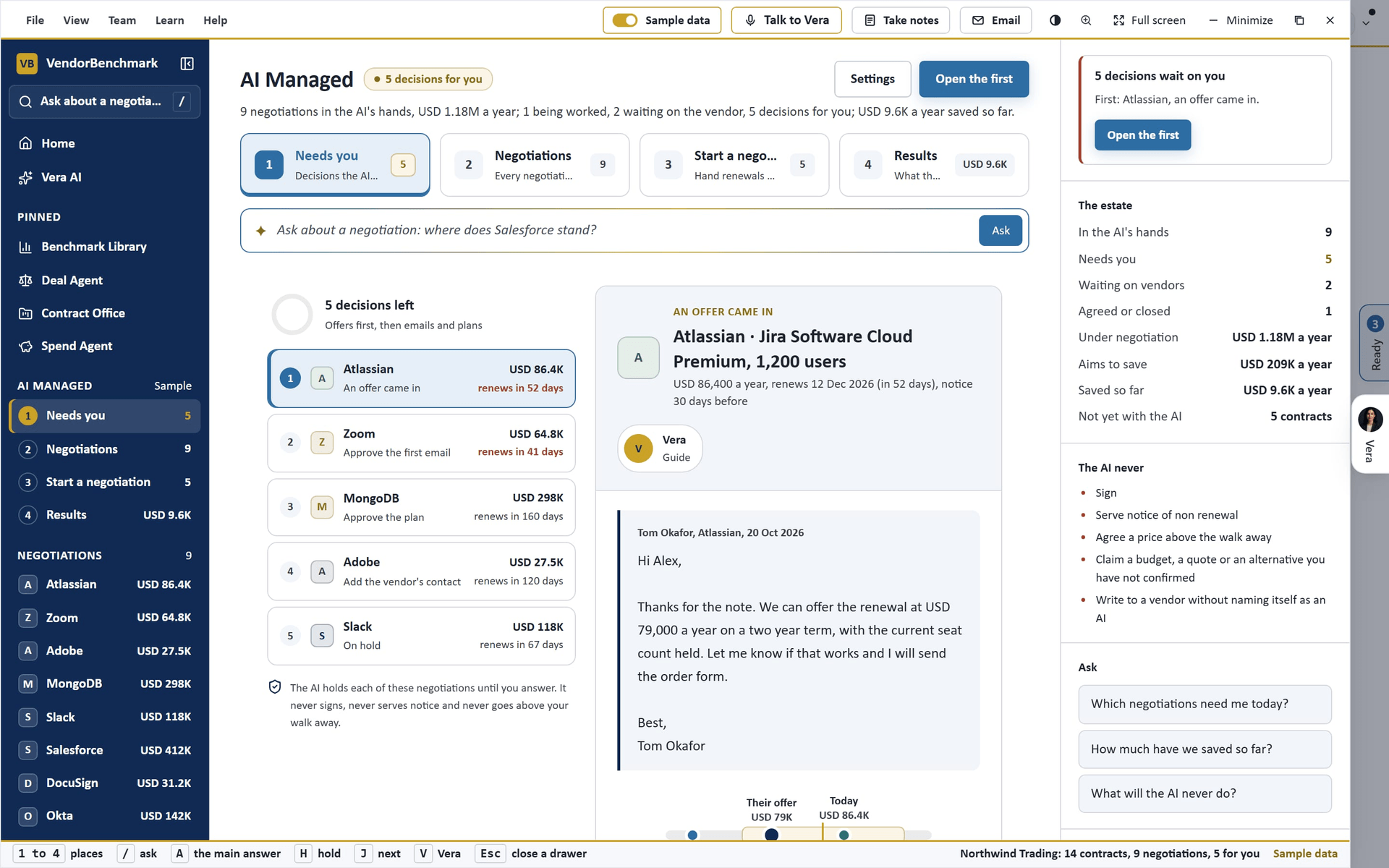
- New negotiation (key 1) — five steps as tabs, with Back, the progress and Next at the foot. Contracts: the renewals not yet with the AI, with today's value, what comparable customers pay, the rank, who would lead it, the notice date and the renewal; quick selections pick those with notice in 45 days, renewing in 120 days, over $100K or below market, and Upload contracts adds more. Persona: Collaborative, Balanced or Assertive, each with its ask, how long it gives the vendor to reply, when it follows up and the cut it aims for without a benchmark, and who writes above and below the threshold. Reasoning: the reason each first email gives, suggested per contract from that contract's own facts, or one reason for every email (a reason a contract's facts do not support is never used). Target: the benchmark gap, one cut for every contract (3 to 40 percent under today), or No target, best price, where the email asks for the vendor's best price and the target stays internal. Start: the four choices with Edit on each, the first email exactly as it goes for each picked contract, what the AI may do and never does, and Start N negotiations. The choices apply to these negotiations only; Settings keeps the defaults.
- Overview (key 2) — the negotiations by status in four lanes (Awaiting decision, In progress, Awaiting vendor, Closed), each with its count, the money a year and the vendors' marks, and the share of the money in each beneath; press a lane to open Negotiations filtered to it. Eight figures follow (under negotiation, the target saving, saved, offers on the table, specialist led, notice dates inside 30 days, below market, rounds). Do now lists every decision the AI is waiting on, offers first, then first emails, plans, contacts and holds, the night's findings among them, each with its value and due date; the decision in hand opens beneath it. An offer shows the vendor's words, the counter as a slider between your target and their offer with the saving a year, the gap to the target and the distance under the offer as you move it, the price ladder and the rounds, and Send counter, Accept offer, Hold 7 days and Draft email. A first email shows the draft with its figures marked, Approve email (owners), Edit email and Hold. A plan shows the opening ask, the target and the walk away with Approve plan (owners); a contact takes the vendor's name and email. Dates, next 120 days draws every notice date and renewal, brick inside 30 days; Awaiting others and Activity close the page.
- Negotiations (key 3) — every negotiation as a List (status, step, lead, today, target, offer, saving and the next date, sortable, with the totals at the foot), a Board in the four lanes, or a Timeline of the dates, with the lane chips above. Discount off list places each deal against what comparable customers get, with its rank.
- A negotiation — double click one anywhere and it opens in the window, with Back to where you were. Overview shows its steps, the decision when one waits (or what happens next), its figures, the price ladder and the latest emails; Emails the whole thread with what comes next; Offers every round against the target and the walk away; Plan the dated renewal plan; Research how the vendor prices and what it concedes, the benchmark and the purchase orders; Team who writes, who decides and who is told; Record every press on it.
- Email log (key 4) — every email between the AI and each vendor in full, the drafts waiting for approval, the follow ups scheduled for silence, and every hold or stop, under All, Sent, Received, Awaiting approval, Scheduled and Stopped, with a search and a vendor list. Open one to read the negotiation's thread: approve a draft, Cancel follow up on a scheduled one (or Restore it), Hold or Resume the negotiation, or Take out of the AI's hands, which is final. Stop all sending in the head holds every live negotiation: no first email, counter or follow up goes to any vendor until Resume sending, which brings back exactly the negotiations the stop held. Vendors are told nothing, and replies and offers still arrive.
- Savings (key 5) — the starting point, saved, the offers on the table, what is left to the targets and the price at target, as a waterfall from today to the target and as bars by negotiation. Files exports the savings deck in PowerPoint, the savings report in Word and every negotiation and email in Excel. Share drafts a note to management, colleagues or a VendorBenchmark expert, to open in your own mail; the platform sends nothing. The record of every press closes the page.
- Estate (key 6, since 25 October 2026) — every vendor the workspace knows on one row, joined from the contracts and the entitlement register, the machine scans, the apps seen in sign ins and bills, the spend ledger and the benchmarks run. Coverage across the top: how many vendors have a contract on file, a usage read, a place in the ledger and a benchmark, the money on the table and the next notice date. Each row shows its products, what it costs a year, when it renews, seats in use against seats bought, its sources as letters (C contract, M machines, S sign ins and bills, L ledger, B benchmark), a confidence out of 100 (Solid, Partial or Thin), the gap that costs most and the one move it needs next (upload the contract, true down the seats, open the Deal-Room, review the spend, benchmark it). Press a row for the evidence record by record, each opening where it was read, the reasons behind the confidence and every gap with its money. Add data lists the four intakes with how many vendors each covers. Filters: All vendors, Money on the table, Notice soon, With gaps, Low confidence. Sample data shows a forty vendor estate. The same coverage sits on Home's Contracts need as the Managed estate card.
- Mandate (key 7, since 25 October 2026) — what the AI may do alone, by vendor tier. The mandate is a table of three tiers (Tier 1 from USD 500K a year, Tier 2 from USD 100K, Tier 3 below, both edges adjustable): for each, the discount floor (the least discount off list the AI accepts without asking), the uplift cap (the most a renewal may rise a year), the preferred term (12, 24 or 36 months) and what the AI may do: Watch (reads and reports), Prepare and ask (benchmarks, drafts the plan and the first email, waits for you), Negotiate and ask (writes to the vendor, counters inside the floor and the cap, brings you the offer) or Negotiate and sign below the threshold (closes inside the mandate below the approval threshold; above it, or on the never sign list, it asks). Approval sets the threshold above which a person approves whatever the dial, and who that person is (the owners when none is named). Never sign lists vendors a renewal naming always comes to a person. Dry run replays the quarter behind and previews the quarter ahead on the estate as it stands: every renewal, notice date, shelfware seat line and spend over a contract, with the tier, the money in play, what the AI would do under this mandate and why it would ask; five counts across the top (would close alone, would negotiate and bring you the offer, would prepare and ask, would ask you first, would watch). Editors save the mandate; only an owner turns it on, after a dry run, or lets a tier sign below the threshold. While it is on, an editor may only narrow it: raising the threshold or a cap, lowering a floor, lengthening a term, moving a dial up, moving the tier edges, changing the approver or taking a vendor off the never sign list is for owners. The dry run is worked out on the server from the mandate as saved. Off, the AI prepares and asks on every vendor as before. Paused is the kill switch, per vendor: type a vendor and press Pause (anyone who edits) and the AI only watches it, nothing is handed over, accepted or sent, and every run on it goes on hold at once; Resume is for owners, and a held run resumes from its own run. The mandate's log at the foot of the page lists every action the mandate allowed, every pause and resume, and every answer under Do now, with the last thirty days in one line above it.
- The nightly loop (since 25 October 2026) — once the mandate is on, every night the AI reads the estate against it: renewals and notice dates in the quarter ahead, shelfware seats, spend over a contract, and the vendor's quarter close where the calendar is known. Where the dial allows and a contract is on file it hands the renewal to itself under that dial (Prepare and ask waits for every email; Negotiate and ask and Negotiate and sign write to the vendor inside the floor and the cap and bring you the offer); everything else comes to Do now on the Overview as one card: the finding, the money, what the AI would do, why it comes to you (above the approval threshold, on the never sign list, no contract on file, under the floor), the mandate line that decided it, and the answers (Hand to the AI, Prepare the true down, Review the spend, Done, Not now, 30 days, Dismiss). The morning note goes to members who switch on The night's loop under their AI Managed notifications; the Managed estate card on Home counts the decisions waiting; Run the loop now on the Mandate page (owners) does the night's work on the spot. A card also carries Pause the AI on the vendor, or Resume the AI on it for an owner when it is paused.
- Autonomy under the mandate (since 26 October 2026) — at Negotiate and sign below the threshold, an offer the vendor puts on the table is accepted by the nightly loop when it sits inside the mandate: no more than today's figure plus the tier's uplift cap, at or above the tier's discount floor (read against list from today's figure and the benchmark's discount), on a term the vendor's email states and no longer than the tier's, not above the deal's approved walk away, under the approval threshold, with the figure written in the vendor's own email, and the vendor neither paused nor on the never sign list. When the discount, the term or the figure cannot be checked, the offer waits for you. The loop accepts the offer in principle, subject to contract and to your internal approval, in writing on the run's thread, closes the case with its certificate, and sends a one page acceptance to the approver (the owners when none is named) to sign through VendorBenchmark Sign, filed as a new version on the contract's agreement record. An offer outside the mandate comes to Do now as before. At Negotiate and ask or Negotiate and sign the loop also opens the true down on shelfware seats itself, from the seats in use, and every renewal it hands over carries the tier's cap, term and floor as the run's walk away. Every one of these actions is a row in the mandate's log with the mandate line that allowed it. On the first of each month the month's review (nights run, renewals handed over, offers accepted and the money saved, decisions brought to you and answered, acceptances sent for signature) goes to the members who switched on The night's loop.
- The mandate check on every email (since 2 November 2026) — every email that goes to a vendor from a negotiation (the first email, a counter you approve or edit, a reply on the thread, a counter on your note) is checked against the deal's mandate on the exact words that go, and only a clear result sends. When the check flags an email, it is not sent and the reason shows: edit the email or the mandate and send again. A counter on your note needs an approved mandate. The first email always carries a fixed line, written by the platform, saying the sender is an AI your organization authorized. A vendor reply on a paused negotiation is filed and read, and the AI does not answer it until a person resumes. A reply from your own side to the deal address (you, a colleague, anyone copied) is filed as an internal note and never answered by the AI, and a forwarded email from someone outside your organization waits for a person. Accepting an offer above the walk away figure needs you to confirm it and give the reason, which goes on the audit log.
- Offer review on the renewal case (since 2 November 2026) — when a negotiation runs inside a renewal case, every vendor reply to the deal address is read and filed as an offer unless it is an out of office or comes from your own side, and the case moves to offer review. The deal's thread then opens with an Offer review panel: the offer a year, the target, the walk away (shown only as inside or outside, never as a figure), the authority cap, the round (for example Round 2 of 4), who wrote it (vendor rep, vendor legal or unknown) and the signals in the message (quarter end, limited authority, nibble, anchor, deadline, reply all). The recommendation is Accept, Counter (with the figure to counter at) or Escalate, worked out from the mandate's numbers, so the same offer always gets the same answer; hover it for the reason. Accept in principle moves the case to the approval chain; it is available only when the offer is at or under the walk away and inside every mandate number, and nothing is sent to the vendor from the panel.
- The Guardian on every email the case sends (since 2 November 2026) — an email, a follow up, a nudge or a counter that the case sends on its own is checked before it leaves: the mandate must be signed, in force and unchanged since the draft was written; every recipient must be on the vendor's domain or the deal's list (a reply all that adds someone from your side is held); the AI disclosure line must be there word for word; no figure may go past the target, and the walk away never appears in any form (rounded, per seat, per month, over the term, spelled out or in another currency); the uplift cap, the maximum term and the round limit hold; no counter goes alone in the last seven days before the vendor's quarter close; and the email may not accept terms, name a budget, a deadline or a decision already made. A final leakage and tone read follows. Anything short of a clear result holds the email with the reason on the case.
- Settings — under More in the left column or the File menu: the default approach, the threshold, the reasons the AI may give, what it may send alone (owners) and who is told, saved for every negotiation started from now without a choice of its own.
Press 1 to 7 for the places (inside a negotiation, its tabs), Ctrl K or / to search the negotiations and screens, A to answer the decision in hand, H to hold, J for the next decision, V for Vera, Esc for back. Drop files anywhere on the window to upload them. From 20 October to 1 November 2026 the window was the easy layout (Needs you, Negotiations, Start a negotiation and Results, with Settings and Ask beside the page); it stays at /ai-managed?easy=1. The full window (/ai-managed?classic=1) opens the six screen window described next, with the procurement connection and every option.
From 13 October to 20 October 2026 the window was six numbered screens down the left, each with its figure: Contracts, Options, Runs, Emails, Notifications and Activity; it is still there at /ai-managed?classic=1. The head names the screen with one line of what it is for, the actions at the right with one filled primary, and the details column opens with what to do now, the estate's figures and the moves. Press 1 to 6 for the screens, [ and ] to step through the runs or the emails, I to fold the details, V for Vera, Esc for back or close.
On the screen
- Contracts — drop PDF or Word files on the panel at the top (each becomes a contract with its vendor, value and renewal date read off the contract), or select the ones on file. The table shows each contract's annual value in its currency and in USD, the renewal date with the days left, the notice period and where it came from, the benchmark rank, the route (Vera emails under the threshold, a mandate over it) and who has it. Select one, several, or press Select the next 180 days; the bar above the table sums what is selected and says how many go each way. Hand over to the AI starts a run for each. The first time, with nothing run yet, the hand over goes through Options once.
- Options — set once for the whole organization. The approach is Collaborative (asks for the peer midpoint, follows up after 10 days of silence), Balanced (asks below the midpoint, follows up after 7, names the alternatives once) or Aggressive (asks for the low end, follows up after 5, says the renewal is not assured). The threshold is a slider from 25,000 to 1,000,000 USD a year; the two panels under it count the contracts on each side. Justifications the AI may use: No budget, Limited budget, Cost optimization, Looking at alternatives (only with named alternatives) and Usage is down (only with license data on file); one per email, at least one stays on. Approvals: every email waits for an owner, or, set by an owner only, send under the threshold without asking (mandates, counters above the opening ask and offers still wait). Vendor contacts lists the runs whose paper names no email address. What you are told about is eight events, from 90 days before the renewal to the digest; each person turns their own alerts on under Notifications.
- Runs — every contract in the AI's hands, grouped by Waiting on you, The AI is working, Waiting on the vendor and Agreed and closed: the contract, the six step dots with who leads, the state, what happens next and when, the money with the ask or the saving, the benchmark rank, and the one button the run waits on. The next 30 days lists the dated events across the runs; The rules says what the AI does alone, with you, and never.
- A run — press a row for its steps as panels. Renewal date: the renewal, the notice deadline, whether it renews itself, and the runway from the hand over through today to the renewal. Renewal plan: the dated moves, the AI's and yours, each marked done, yours, planned or passed. Vendor research: the fiscal window, how the vendor behaves at renewal, what it concedes, the alternatives and the contact. Benchmark: where the deal ranks, your discount, the range comparable customers land in, the gap in points and money, and the peer range drawn with you and the ask on it. Email (or Mandate over the threshold, then the email): the draft as plain text with Approve and send, Edit and Hold, the vendor's address to add when the contract names none, and the thread once it is going. Offer: the offer against today, the ask and the walk away, with Counter, Hold seven days and Accept on the case. Notifications on this contract lists the events dated on it.
- Emails — every email across the estate: the drafts waiting for you first, then the sent ones (you copied), the vendors' replies and offers, and the follow ups scheduled on silence. Filter by To approve, Sent, Received or Scheduled. Approve from the row, or open the email to read it, press Edit, and Send with my changes.
- Notifications — Your alerts is each alert the runs can send with your own in app and email switches; Your team shows each person's switches (each person opts in for themselves); What is ahead the dated events; What went out to you your own notifications from the runs.
- Activity — everything that happened across the runs, who did it and when; the AI's own moves are signed Vera. Filter by people or the AI, search by who, what or vendor; press a row to open its run.
- Your procurement system (since 13 October 2026) — on Contracts and on Options: connect Coupa (the instance URL and an API key) or SAP Ariba (the data center, the realm, the application key and the OAuth client), with Test the connection before it saves; owners only. The contracts and their documents come in on the connection's schedule and on Import contracts now, each row carrying the record behind it (the Coupa contract number, the Ariba workspace) with a link to open it there. The supplier master fills in the vendor's email when the contract names none, and the purchase orders of the last twelve months show on each run under In your procurement system. With Write each run's outcome back on (Options, on by default), a note goes to the record when the contract is handed over, when the email goes, when an offer is countered or held, and when the renewal is agreed: a comment on the Coupa contract, a note document on the Ariba workspace where the realm's API takes one; a refusal is recorded in words on the run and in Activity, and Send the outcome now sends one on demand. Every connection also lives under Settings, Integrations.
How to use it
- Open AI Managed from Home and press New negotiation (key 1).
- On Contracts, pick the renewals (or a quick selection such as Renews in 120 days), or press Upload contracts.
- Choose the Persona, the Reasoning and the Target; pick No target, best price to ask for the vendor's best price and keep the target internal.
- On Start, read the first email for each contract and press Start N negotiations.
- On the Overview, answer Do now: an owner approves each first email (A), adding the vendor's contact where the contract names none.
- When an offer lands, move the counter to the figure you want and press Send counter, or Accept offer, or Hold 7 days.
- In the Email log, cancel a follow up you do not want, hold a negotiation, or press Stop all sending to pause every vendor at once.
- On Savings, export the deck, the report or the workbook, or draft the note to management.
- To run it inside Coupa or SAP Ariba, open The full window, press Connect under Your procurement system, test, and save: the contracts come in and the outcomes go back on their own.
Tips
- Change the options any time; a run already going keeps the approach it started with.
- An owner can let the AI send under the threshold without asking; every mandate, every offer and every counter above the opening ask still waits for an owner. The one exception is a standing mandate tier at Negotiate and sign below the threshold, which accepts an offer inside its cap and under the threshold and sends the acceptance to the approver to sign.
- The AI declares itself in every first email, copies you on everything, and never claims a budget, a quote or an alternative it has not confirmed.
- Start one run by hand under File opens the three step start (the contract, what you want, the launch) with Run the tail, the Teams call with Vera and the shelfware seats, as below.
Start one run by hand
The three step start (since 30 September 2026): Contract, What you want and Launch. The masthead names the renewal with its annual cost, target, ceiling and renewal date; the details column shows the run as a three line checklist, who leads it, and the Moves for the step; Back and the one primary action sit at the right of the head. 1 to 3 change step, Enter goes on, Esc goes back.
- Contract — upload a new contract, or pick one on file. The table shows each contract's annual cost and renewal date, with the days left when it renews inside ninety days; a record with no stored document asks for the upload first. Your runs sits underneath.
- What you want — six goal cards: Renew at a lower cost (suggested), Cut cost now, Reduce seats or scope, Consolidate vendors, Exit or replace, and Fix terms, each with the saving it aims for. Anything specific takes a line for the agent, and the Also picks add what you want. More options holds the approach, who leads from the specialists, the target below today, the ceiling it never accepts above, users, the uplift cap and the term.
- Launch — the first email, written for your goal and approach, with what it opens at, aims for and walks away at. Edit it or press Write it again. Send to fills in the sales rep printed on the contract; you are copied on everything. Your approval lists what the agent may do alone and what always comes back to you. An owner selects the approval and presses Approve and launch.
- A run — after launch the run opens on its live steps: Emails shows the thread in full; The offer places the offer against today, your target and your ceiling with Accept, Counter and Hold; Close shows the agreement with the saving once the case closes.
- Shall I draft the email? (since 2 October 2026): on a run, the email that carries what the run has finished so far, separate from the emails the run sends to the vendor; see Send it on.
- Run the tail (since 3 October 2026): under the contract table on the first step, the small renewals in bulk. Set Each one at most, a year, an optional floor, Ending within, the Goal for every run and the Vendors. Every vendor left becomes one run, led by its largest contract. Prepare writes each vendor's strategy, the email chain and the first email, and reads the vendor contact off the contract; each vendor is a row with Approve and Reject; an owner ticks the authorization and presses Start approved.
- A Teams call with Vera on it (since 3 October 2026): in Run the tail, tick Also invite each vendor to a Teams call, and send Vera to negotiate on it, and pick the day, the length and the spacing. Each vendor gets an Outlook meeting with a Teams link from your own calendar, and Vera is booked onto each one with the run's opening ask as her goal and the vendor's other contracts in her plan; the target, the walk away and the strategy are never given to her, she agrees nothing on the call, and every offer comes back to you. Needs Microsoft connected in Settings. Since 2 November 2026 these calls are AI led tail calls and are off until an owner turns on AI led tail calls in Settings, AI for the workspace; with it off, the run starts but no call is booked, and the row says why. A call is also not booked when the opening ask or the note still states the target or the walk away, as a percentage or as money.
- The shelfware seats (since 3 October 2026): where a connector keeps license positions for the vendor, every plan opens its notes with the seats held, in use and idle to remove at renewal, computed from those positions.
Related: Cases · Managed renewals · Specialists
Managed renewals
The Vera AI Team runs the renewals you hand it. The window is the Entitlement Agent window: the steps and screens in the left column, the work in the middle, the details on the right.
The request, four steps
- Renewals. Every dated agreement, one per vendor: term end, days to go, annual value and the day its run opens (On approval inside the lead time). Tick to include or exclude; Horizon draws each lead window on one time axis.
- Mandate. Opening ask, Target and Ceiling as percents of today's annual value, Lead time, Term limit and Autonomy (Approve each send or Full auto). Mandate by renewal prices each renewal at those settings; Guardrails lists what every run always does.
- Fee. Contingency, 25% of verified savings or Fixed fee, proposed by you. Move Achieved discount to read the saving, both fees, the fixed fee's break even and the net to you; the chart and Scenarios show 0 to 20% off.
- Review and send. The three summaries, your name and title, the fee agreement, then Send request. VendorBenchmark answers within one business day: approved, a suggested fixed price (Accept price or Decline price), or not approved with a reason, after which you change the request and Send again.
The program, after approval
- Waiting on you. Formal offers, mandate approvals and bounced contacts, ranked by annual value; brick after 5 days. Decide opens the run.
- Runs. Every run grouped as Waiting on you, Vera working, Preparing and Settled.
- Horizon. Covered renewals and the day each run opens.
- Fees. Every fee line with the invoice that verified the saving, and the program to date. Monthly statement opens the fee statement.
- Program. The standing mandate, the guardrails and the covered vendors as signed. Pause program stops new runs; live runs continue.
Double click a renewal or a run to open it, right click for its actions. Sample program in the title bar shows a program five months in and writes nothing. The earlier page is at /renewals/managed?classic=1.
Managed renewals statement
The monthly fee statement for the managed renewals program. The running month shows the fee as it accrues, so it is never a surprise; an issued month shows exactly what was billed.
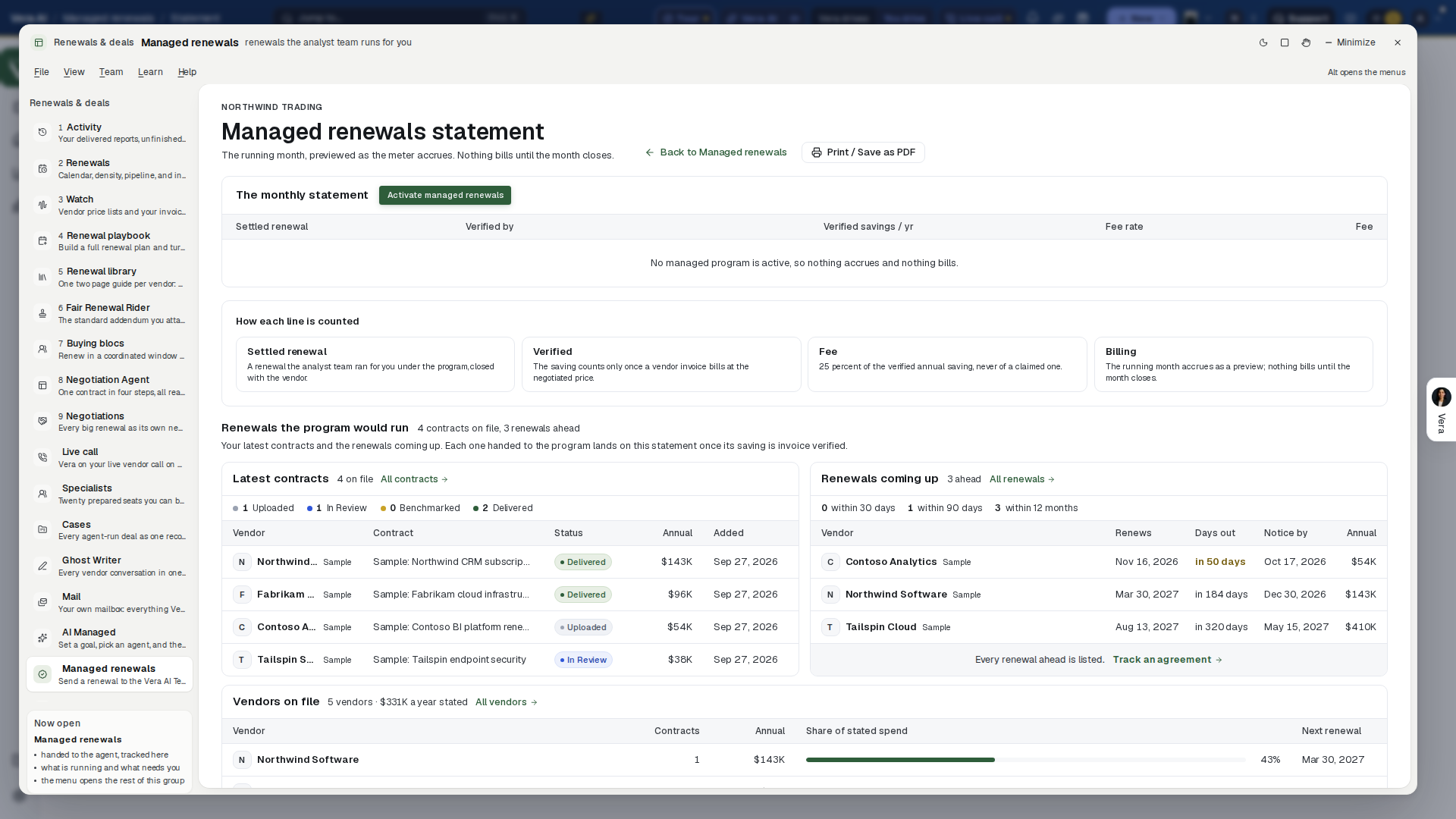
On the screen
- The masthead — since 29 September 2026 the house masthead: Managed renewals statement with Renewals beside it, your organization and whether this is the running month or an issued one, then one row of facts from the statement (the month, the settled renewals on it, the verified savings, the fees for the month or the fixed fee, and savings against fees program to date). Back to Vera's desk and Print / Save as PDF sit at the right.
- Months — the running month first, then every issued month; press one to open its statement.
- The statement — the document itself, in US dollars (a line booked in another currency is converted and never left off): the verified savings on this statement per year, the savings banked program to date, and the net position after all fees across the top; then The fee math, line by line (each settled renewal, what verified it, the verified saving per year, the fee rate and the fee) and What never bills.
- Send it on — Vera drafts the follow up email from the statement, to the vendor, your CFO, your CIO or a colleague. You edit it and send it from your own mail.
- Before the first line — with no program active, or nothing verified that month, the statement's columns stand empty with the reason under them, then How each line is counted and Renewals the program would run: your latest contracts with their status and annual value, and the renewals coming up with the days out, the notice date and the annual value, in US dollars. Under them, Vendors on file lists your largest vendors by the annual value their contracts state: the contracts on file, each vendor's share of that stated spend and its next renewal date. Each row opens the vendor.
How to use it
- Open the statement from the monthly statement email at any point in the month to watch the fee accrue.
- When a month closes, pick it under Months to see the statement as issued.
- Print it, or press Send it on to draft the note for finance.
Tips
- On contingency the fee is 25% of savings verified against a vendor invoice, never of a claimed one; a settled renewal whose invoice has not arrived does not bill. On a fixed fee program the statement names the fixed fee instead of a rate.
Related: Managed renewals · Savings Proof Statement
Major renewals
Negotiations (/negotiation) now opens the Deal Agent, which carries every deal from the notice date to the signature: a tab or a vendor in an old link lands on the step that does its work, the rounds, the asks and the promises on Negotiate and the strategy on Plan.
A deal's own page (/negotiation/<deal>) keeps its record: the mandate, the quote rounds, the concession ledger and the commitments. Competitive Quotes and Vera on calls keep their pages too.
Vera on calls
Paste a Zoom, Teams, Google Meet or Webex link and Vera or a specialist joins that call once or every week as a named participant, introduces herself when the host admits her, and files the minutes when it ends. Since 11 October 2026 every call is a record: its prep before it, the live call, and after it what was decided, the commitments with their owners and the follow up drafted from that call's own minutes.
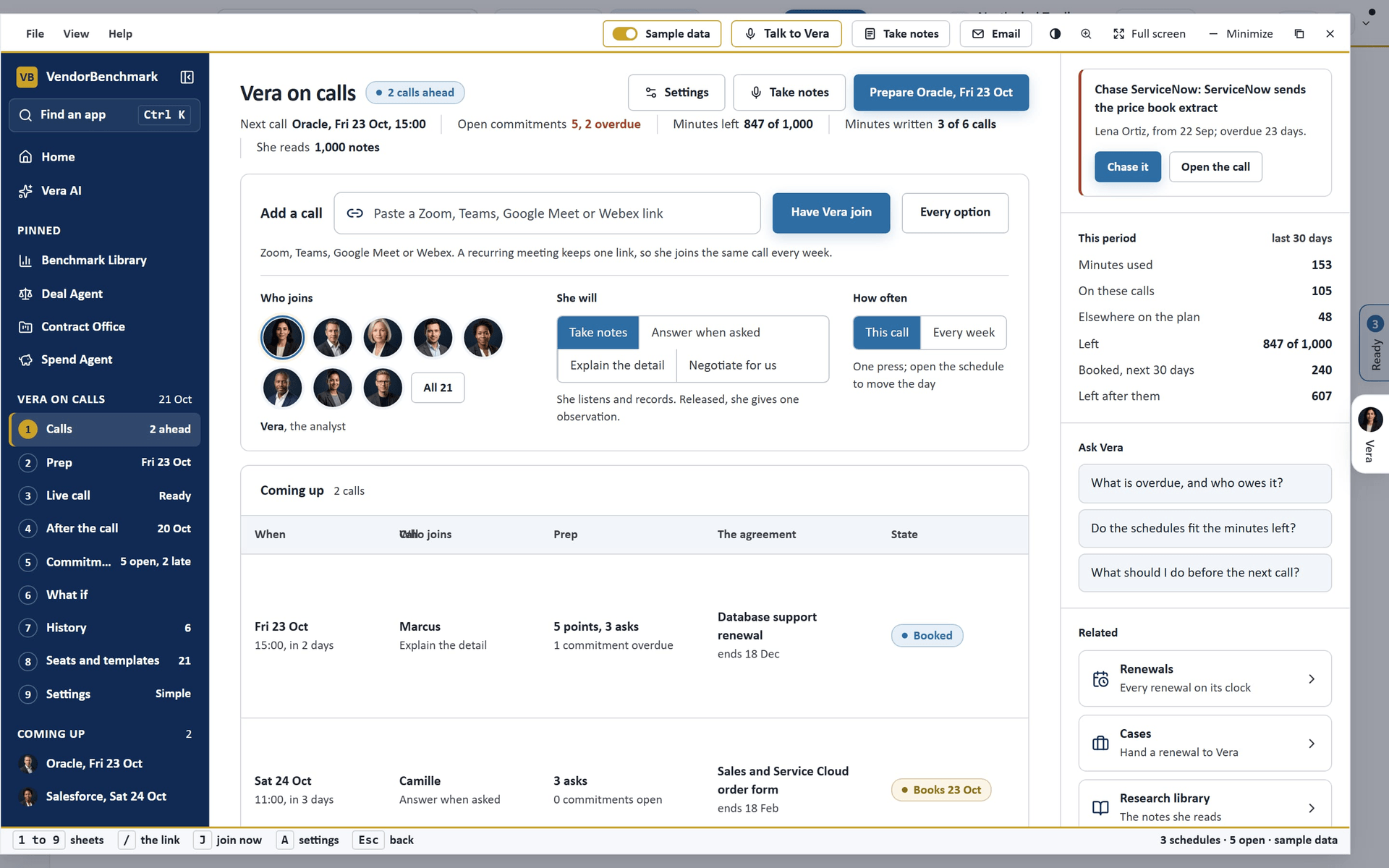
On the screen
- The left column — the nine sheets as numbered rows, keys 1 to 9: Calls, Prep, Live call, After the call, Commitments, What if, History, Seats and templates and Settings, each with its figure (calls ahead, the next call's day, open commitments). Under them, the calls coming up, the schedules and the past calls as rows; a row opens that call or that schedule.
- The head — the screen's name with one tag, its actions with one dark button, and one row of labels. On Calls: the next call, the open commitments and how many are overdue, the minutes left, the minutes written (calls with minutes, of the calls behind you) and the library notes she reads. Each label opens its sheet.
- Calls — Add a call is the one box: paste the link, then Have Vera join now for a meeting that is running or about to start (This call), or Have Vera join every week for a recurring one (Every week); the button names whoever you picked. Every option opens the full form. With This call she asks to join at once and a row under the link says where she stands (on the way, in the lobby, in the meeting, left, or could not join and why), with Open the meeting to admit her, Mute, Walk out and Follow it live. Under the box, who joins as faces (or All 21), She will (Take notes, Answer when asked, Explain the detail, Negotiate for us) and How often (This call, Every week). Then Coming up (when, the call, who joins, the prep, the agreement on file and its end date, Booked or the day it books, Prep and Join now), Schedules (when, the next call, who joins, the calls held and how many have minutes, and the switch), Open commitments overdue first, Past calls, and the renewals, cases and research notes for the vendors on your calls.
- Prep — the call ahead: the goal, the perspective and what she reads first; the talking points, one per line of the schedule's instructions, which you can add to or remove from; what is still open from earlier calls with that vendor; a specialist to bring in, with Have them join instead; the newest research notes; and the agreement's end and notice dates with Open a case. Join now sends her in.
- Live call — Join now goes through the live call's own door: she asks to join from the lobby and the host admits her. The head says where she stands, read from the meeting (Joining, In the lobby, In the meeting, Could not join), with Open the meeting to admit her and Walk out. The transcript, the prompts and the commitments as they land run on the live call screen; Follow it live takes you there. With Sample data on, a scripted sample call runs here instead.
- After the call — what was decided and the summary, every commitment with its owner, date and state, and The follow up drafted from that call's minutes, with Copy and Shall I draft the email?. The full minutes opens them in Your calls. A call she could not join offers Join now on this link; a canceled call offers Switch the schedule on; a call where nothing was said has no minutes and says so. Earlier and Later (keys [ and ]) step through the calls.
- Commitments — every action in every call's minutes, overdue first, filtered by All, Owed to us, Owed by us, Overdue or Done, with a search, then a panel per vendor. A vendor's commitment is owed by the vendor; one of yours sits with the person who set the schedule. Chase asks Vera to draft the email; Track and Mark done keep the commitment in Tasks with its date.
- What if — switch each schedule on or off and change its call length, for the next 7, 30 or 90 days, and see the minutes each books, what is left today and what is left after them. Nothing is saved.
- History — each schedule's calls, how many she joined, minutes written, commitments, done and overdue; every call week by week; every past call.
- Seats and templates — your templates (Use, Remove), the 21 seats by group (Pick, Add a call) and the house templates.
- Settings — every setting the Advanced drawer held: Simple or Advanced (it now chooses what Add a call opens, the box or the full form), what a new call gets, the templates, the minutes this period, Sample data, the keys, AI and joining, and Reset to simple.
- A schedule — its brief, the next calls, its calls, the commitments still owed from them, Shall I draft the email?, and Switch off, Change, Save as a template and Remove.
- The details column — what to do now first (chase the oldest overdue commitment, prepare the next call, send the follow up), then the screen's figures: on Calls, This period (minutes used, on these calls, elsewhere on the plan, left, booked in the next 30 days and left after them, all from your records), then Ask Vera and Related.
How to use it
- Open Vera on calls and paste the meeting link into Add a call. A recurring Teams or Zoom meeting keeps one link, so this is the only time you paste it.
- Press a face and what she does. For a meeting that is on now, keep This call and press Have Vera join now: she asks to join at once, and you admit her from the lobby. For a recurring meeting, press Every week, then Have Vera join every week: the schedule appears under Schedules and its next call under Coming up.
- Before the call, open its Prep: add your talking points and check what is still owed.
- One minute before each call she asks to join. Admit her from the lobby.
- After the call, open it under Past calls: send the follow up and track or mark done each commitment.
Tips
- A change you make before the day of a call still applies: each call is booked a day ahead and read again from the schedule the moment she is sent in.
- A one off call set up on the full form after it has started does not wait for the schedule, which never books a start already past: she asks to join at once and Calls shows where she stands.
- With Read the research library first on, she reads the library's newest notes on the vendor before each call and can search the rest while it runs.
- She introduces herself when she is admitted and her name is in the participant list. Recording and transcription law varies by country and state, so tell the other side if your policy asks you to.
- Each call spends its own length from the live call minutes in your plan.
Related: The live call · Specialists · Case Rooms
The live call
The front door (since 4 October 2026; since 30 October one form, the meeting on screen and every call's transcript). The live call opens on Start a call, in the frame every app shares: the head with the page's name and, while she is sent, one tag for where she stands; the left menu with Start a call, Your calls, Coming up and Who takes the call; the minutes left this period at the right of the status bar.
- The form puts Meeting link, Who joins (Vera, the specialists and your own agents, keys 1 to 8) and Role (Take notes, Answer when asked, Explain the detail, Negotiate for us) on one row with Send Vera in (the button names whoever you picked), and About the call under them, written in a line or two: the vendor, what you want and what they want. Name a vendor your workspace holds and she reads its contracts first; the line under the box names it with its renewal, open deals and library notes. More options adds the vendor by hand, which agreements, what else she should know and your talking points, and Save this setup. Three steps at the foot of the form show what happens: paste the link, admit her from the lobby, she is on the call.
- Send Vera in sends her at once as a named participant: she asks to join, waits in the lobby until you admit her, and says who is joining. The form then gives its place to the meeting: the track moves her from Sent to Admitted to In the meeting (gold, with Admit Vera from the Teams lobby, while she waits for you), the clock runs from the moment she is let in, and the meter moves when someone speaks. Transcript fills line by line as people speak, each turn with the speaker's name and the call's own clock, money and percentages marked; Copy takes the whole of it. Follow it live opens the live call screen, which picks her up for the memo rather than sending a second seat; Open the meeting, Mute and Walk out sit beside it. If she could not join, the reason is there with Try again; when she leaves, Start another call brings the form back. With A call in a tab chosen under Advanced the button reads Start listening, and only you hear her.
- Talk it through (the head button, or T) is one press onto a private line with whoever takes the call.
- Coming up under the form, and on its own page, lists your calendar's next two days: a ring counts each meeting down over its last three hours, gold and then brick in the last half hour, and the vendor it matches shows its mark. Send in sends her into one about to start; Use fills the form with any other. On the page, Open automatically (Off, Matched vendors, Every meeting) opens the live call filled in when a meeting starts; it never starts one.
- Your calls under the form shows the last six with the vendor's mark, the first point of the memo, the type and the length as a bar beside the longest; a row opens the page, where the list and the call sit side by side. Memo is the workspace's record. Transcript, for whoever took the call, is every line with who said it and Who spoke, each voice's share of the words; a colleague's call shows its memo and says the transcript stays with them. Copy the memo or Copy the transcript, Prepare the next call, Talk it through on the same vendor, and Continue it for a talk of your own. Search what was said in the head looks inside them.
- Who takes the call is every seat in one table, grouped as Specialists groups them, with the vendor each covers and what they cover; Pick makes one take the next call, and Saved setups keeps up to twelve arrangements for the workspace.
- Take notes (since 13 October 2026, on the bar of every app window and in the head of Vera on calls) is for the call you are already on in Teams, Zoom, Meet or on a phone: a small window opens in the corner over whatever you are doing. Pick what she hears (The meeting and my microphone, the meeting's tab or screen shared with its audio in Chrome or Edge, so both sides are heard, or My microphone only), name the call and the vendor if you like, tick that you have told the people on the call, and press Start. The transcript runs as timed lines while you talk. Stop and write the minutes stores the recording and the transcript as one of Your calls, writes the minutes (Summary, Decisions, Actions with their dates) and files the memo as a call note your workspace can read; the window then shows the minutes with Copy the minutes and Open Your calls. Nothing of her joins the meeting. Minimize folds the window to a chip that keeps the clock, so you can move between apps while she listens; Close while she is listening asks first, because the call is thrown away.
- Talking points while she listens (since 23 October 2026): two tabs sit over the call while Take notes runs. Talking points shows what to say next, the newest on top in blue with the minute it landed, and Her notes so far under it; a point arrives about every 45 seconds once there is something to say, read from the call so far, the vendor and what the call is about. Transcript is the timed lines. Nothing from the talking points is stored; the minutes at the end are written as before.
- Vera asks a minute before a meeting (since 23 October 2026, off until you turn it on): with Outlook or Google calendar connected under Settings, Connected accounts, set Ask me a minute before a meeting on the first screen of Take notes to Vendor meetings (meetings that match a vendor in your workspace) or Every meeting. A minute before a meeting with two or more people, a small window in the corner of whatever page is open names the meeting, the platform, how many people and the vendor, with a countdown. Listen opens Take notes for that meeting, with Open the meeting to join in this browser and share its tab; nothing joins the meeting. Have Vera join sends her in as a named participant (or dials her in where the invite has only a phone number), to admit from the lobby. Join opens the meeting link. X dismisses it, and Stop asking turns the rule off. Each meeting is asked about once, in every tab of the browser. It is the same rule as When a meeting starts on the call screen.
- Advanced (the head button, the View menu or A) holds how she hears (her own seat, a call in a tab, a headset, the speakers), stance, answers, language, suggested lines, which agreements, saved setups and the minutes left this period.
- The call itself opens in Simple, with Expert one press away in its head.
Since 26 August 2026 the live call opens as its own window, the same dress the Benchmark Library and the decoder tools wear: the titlebar names the call and carries the light or dark switch and the maximize control, both themes read on the warm window palette, and Close returns to Home, or to the deal the call belongs to when you arrived through one. The microphone and the tab share run top level, with no frame around the call at all.
Vera on a live call comes in two kinds, and the window asks which before anything else: two choices of the same size at the top of the window, Internal call and External call. Internal call is you and Vera on your own, one press: she says hi first, and the two of you talk on an open full-duplex line where interrupting her mid sentence is normal. She arrives knowing your workspace: how many agreements you track and the largest of them, what you have been asking her lately in chat, and the research library, so "what should I read before the Microsoft call" gets a named brief, not a shrug. External call puts her on your real vendor call: Zoom, Teams, Google Meet, Webex, WhatsApp, or a phone on speaker. She hears both sides, follows every word as it is said, and answers only you, in your headset. By default she is invisible: nothing of her appears in the participant list and the other side never hears her. You can also give her a seat, and then she joins the meeting as a participant named for her, says who she is out loud, and speaks again only when you release her. In both kinds of call she has no figures of her own. Every number she says is looked up from your own agreements, benchmarks, and spend in the moment, and when nothing on file covers the question she says so rather than estimating. Every call is recorded and saved to Your calls with its transcript and memo, so you can replay it, share it, or continue the conversation another day. When the call ends she writes the memo: the call in brief, every number heard and who said it, the commitments in both directions, the flags, and your next moves.
In plain words: the analyst in your ear on the call, the call written up before you are back at your workspace, and the whole thing kept so you can come back to it.
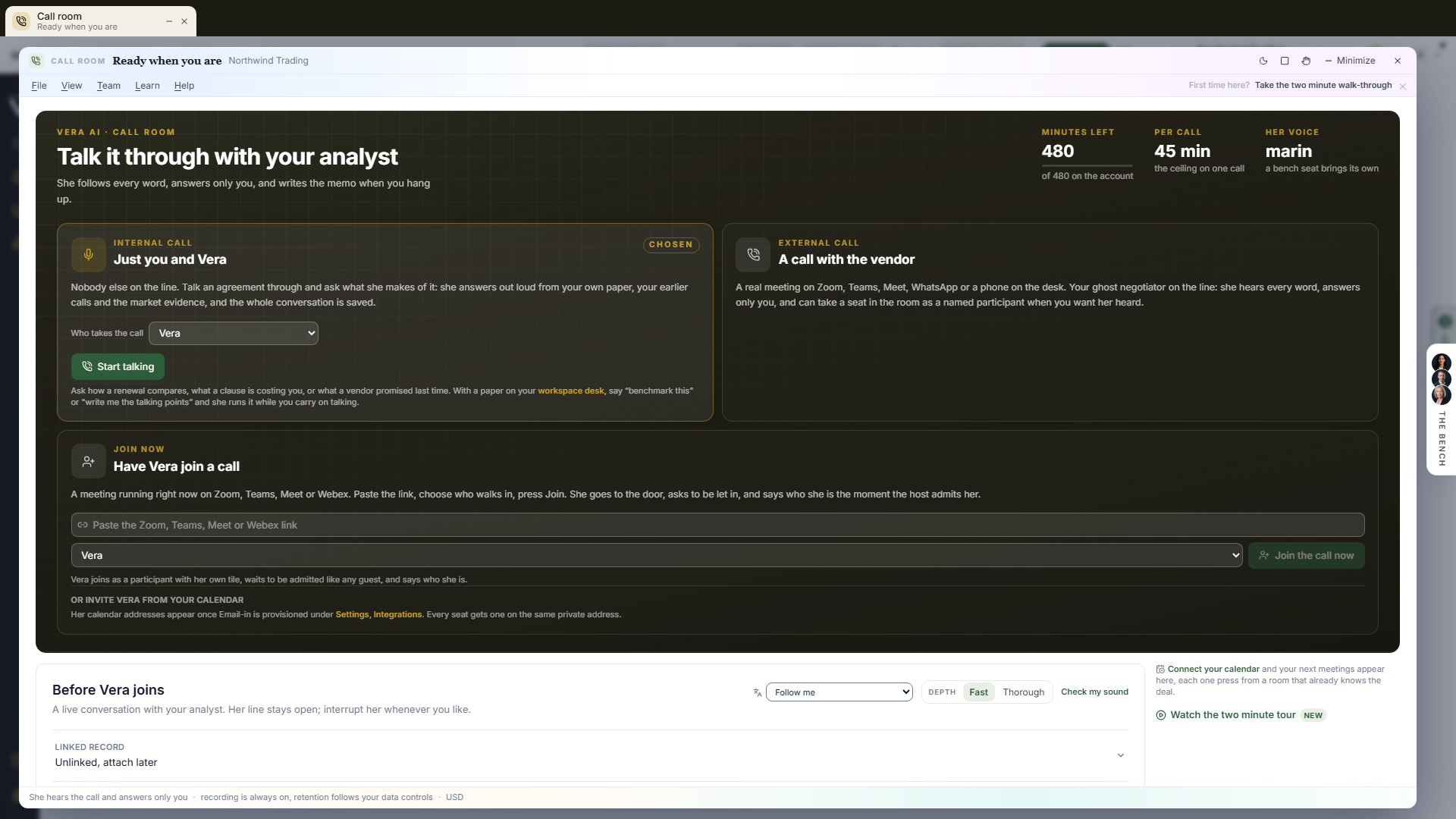
When to reach for this
- A vendor call is in ten minutes and you want the record, the document, and the market in your ear rather than in seventeen tabs.
- Mid call, the rep quotes a number and you want it checked against your own document before you respond.
- After any call, you want the memo without writing it: what was said on money, what was promised, what to do next.
- No call at all: you want to talk a deal through out loud on the way to a decision.
Before the call: the sheet
- Messages and calendar: the top of the sheet carries the numbered steps to the other screens of Messages and calendar (the live call is screen 3) and the masthead: minutes left this period, the longest single call, the open deals you can attach, your past conversations and whether Vera is on for your plan. Once the call is live, the seat keeps its dark ground and carries no masthead.
- Read and watch, before you dial, at the foot of the sheet: the films, analyst briefings, research papers and guides the library holds on the vendor you are about to call, laid out as in the agents, with your renewals on the clock and your open deals as choices under the head. Name another vendor on the sheet and it moves with it. It loads when you scroll to it.
- Watch the two minute tour under Your calls on the right: a narrated walk through what to press, what each part of the sheet does, and what is waiting when you hang up. It stays closed once you have seen it.
- The live call opens in its own window over whatever you were doing, every time and from every way in: the menu on the left, the palette, a typed address, a calendar link, or the desktop companion.
- Pop it out beside the meeting. The arrow at the top right moves the call into a window of its own, narrow and tall, parked against the right of your screen: put Teams or Zoom on the other half and both are usable at once. That window is independent of the main one, so mid call you can open a contract, read a benchmark, or answer a message in the main window without touching the call. In the desktop app it is a real application window with its own taskbar entry. Pop back closes it. Popping out before you start is the tidy order; if a call is already running, the window says what closing would end rather than hanging up on you.
- The stage across the top states where you are and what you hold before you press anything: the kind of call, the line it takes, and three readings on the right, which are how many minutes are left on the account, the ceiling on any one call, and the voice she answers in. The two ways to take a call and the join lane sit on that stage in one row, three lanes of the same height on a wide window, and the sheet fills the window rather than sitting narrow in it.
- Have Vera join a call, the third lane, is for a meeting that is running right now: paste the Zoom, Teams, Meet or Webex link, choose who walks in, and press Join the call now. She goes to the meeting's lobby, asks to be let in, and introduces herself the moment the host admits her; the lane says where she stands (walking in, waiting to be let in, in the meeting), shows the last three lines she heard, and keeps Mute her and Walk her out. Nothing on this machine starts and nothing on the sheet is required, so it is the one press when somebody says "can Vera join us" mid meeting. For the full call (your private line, the transcript, the memo) paste the same link into External call instead. The seat draws on the same live call allowance as every other call. The foot of the lane carries the chosen seat's calendar address for the next meeting: Copy, New Outlook invite and Google Calendar open a fresh invitation with her already on the attendee line, and Email opens your mail client to her address.
- Invite her from your calendar instead of pasting a link: every seat has an address on your workspace's private inbound token (Settings, Integrations, under Invite Vera to a meeting from your calendar). Add
vera+<token>@the inbound domain to a meeting in Outlook or Google Calendar and she walks in at the start;demo+seats Vera Demo,oracle+ormarcus+the Oracle negotiator, and so on for every seat on the specialist list. A new time in your calendar moves her, a cancellation stands her down, and the sender gets one reply saying which. The recipe is in Integration recipes. - Fast or Thorough sits beside the language: how hard the analyst behind the line reasons on this call. Fast is the default and a lookup lands in a breath; Thorough takes a few seconds longer on every lookup and goes deeper, for a strategy session. Flip it while the line runs and the running call changes with it (since 11 September 2026).
- Upload a screenshot on the line. With the line live, upload a PNG or JPEG of the vendor's quote, a pricing table, a slide, onto the document upload and the analyst behind the line reads it: the title, the figures, the line that does not match your document. It goes to your workspace's private staging and reaches the analyst by a short-lived link; nothing rides the call, and she never says she cannot see it (since 11 September 2026).
- The open web, with the source. Ask what a vendor lists an edition at this quarter and the analyst searches the open web, answers with the figure and says where it came from. The pages cited sit under her answer as links, beside the checks she ran. The web is for what a vendor publishes today; your own figures still come from your records (since 11 September 2026).
- A figure she said that the record did not hold shows as a red line in the thread at once, she said eleven, the record says twelve, check it before you act on it: her transcript is compared with what the analyst behind the line wrote, turn by turn (since 11 September 2026).
- Who takes the call is one picker at the top of the window, above Start talking and beside the join lane: Vera, Vera Demo, or any specialist from Specialists, grouped as Specialists groups them. Chosen once, it holds across the window: the internal line, the join lane, and Send Vera in on a meeting all put that person on the line, in their own voice. While a named seat or the demo is chosen the persona row on the sheet says so and is set aside. A link can set it:
?persona=demoputs Vera Demo on the line and?seat=names a specialist seat by its slug. - Vera Demo is the persona for somebody who has not bought the platform: she says hello like a person, asks what they are working on and what matters to them, listens more than she talks, is dry in small doses, and shows what the platform does for their situation rather than reciting it. She says plainly that the platform augments the people who do this work and does not replace them, never invents a figure or a customer, never promises a feature the platform does not have, and never quotes its price. In a meeting her mic is open, so she takes part like a colleague; on the internal line she opens with a hello and one question about you. Since 11 September 2026 she then asks once whether you would like her to show you around the platform or would rather click around yourself while she answers questions: say show me and she asks what you are most interested in (benchmarking, contracts, document search, research or contract management), opens it and walks it slowly, one part at a time; say you will click and she follows what you open, explains it as you go, and never takes the wheel. Training workspaces meet her as stop three of the tour.
- Pick the lane first, at the very top: Internal call and External call, two choices of the same size, and the one you pick carries its own way in. The sheet remembers your choice on this device. The chosen lane lifts and carries its own way in; the other stays quiet.
- Under the call choices at the top, the window splits in two on a wide screen: the sheet you are filling in on the left, and on the right what is coming from your calendar, your saved calls, and the two minute tour. Everything on the right scrolls on its own, so a long call history never pushes the sheet down the window. Below a wide screen the two stack one above the other, in the same order.
- Internal call then shows Start talking: one press and you are talking. No field is required first; she greets you, and everything on the sheet below (persona, goal, documents, talking points) simply makes her sharper when you fill it in. Under the button is what she is good for here: how a renewal compares, what a clause is costing you, what a vendor promised on the last call, what to read before the next one.
- Ask her to run something, out loud. With a document staged and agreed on your workspace screen, saying "benchmark this", "write me the talking points" or "what are my options here" starts the real instrument, the same one the app's own buttons run, against exactly the figures you checked. She says in a line that she is writing it and carries on talking; it lands in your queue a minute or two later while the call is still going. With nothing staged she says so rather than pretending, and she will never invent a figure to fill the gap.
- External call then shows Paste a meeting link, which uploads the cursor straight in the invite box, and Set the call up, which takes you down to where the call and what she hears are chosen. If something is stopping the call from starting at all, the reason is printed right there at the button rather than at the foot of the sheet: AI not switched on for the account, the live voice not configured, an allowance we could not read, an allowance spent, or a microphone your browser is blocking for this site.
- The sheet is a list, not a form. Under the call choices at the top, Before Vera joins holds one row per thing she will know: the linked record, who she is on this call, who is on the call, which agreements it is about, your goal, anything for this call only, her talking points, how she hears it, and her stance. Each row states its own answer ("Salesforce · 13 documents loaded", "Unlinked, attach later", "the meeting room microphone") and opens on a press when you want to change it. A row you have already answered stays closed; a row still empty opens itself.
- Nothing is an empty box. Goal, What else should she know, and Anything for this call only each offer ready answers under them ("Hold the uplift", "We are over-licensed", "Do not name a number"): one press fills the field, pressing again clears it, and every word stays editable.
- Your calls — the list on the right of the window, newest first, with a count in the heading. Every finished call is saved to your workspace: the recording, the transcript, and the memo. Each row says which vendor, when it was, how long it ran, whether it was recorded, and a summary of what was discussed taken from the write-up, so you can find the uplift conversation rather than scanning dates. One press on a row reopens it from any machine, and Continue this conversation starts a fresh call that opens knowing how the last one went. Calls kept only on this device are listed below the saved ones and say so.
- Forward or delete a row — hover a row, or reach it with the keyboard, and two actions appear on the right. Forward opens an email draft in your own mail client with the write-up already in it, so you read it before anybody else does, and when the call was recorded it also puts a listening link good for seven days on your clipboard. Delete removes that call's recording, transcript and memo together, after asking you once; it cannot be undone. Calls held only on this device can be forwarded but not deleted from the row.
- Which agreements this call is about — Choose the document on the sheet opens your archive as folders by vendor, the same folders the archive itself shows. Take a whole vendor in one press ("Microsoft, 7 agreements") or select the few you mean, name the set, and she reads exactly those before the call and answers from them on the line. Sets you name are saved for the workspace, so the next person taking a Microsoft call picks the same one rather than building it again, and choosing nothing simply gives her your estate in summary as before.
- Save the agent, use it again — once the sheet says who she is, which documents she has, how hard she pushes and what she does in the room, Save this agent keeps the whole arrangement under a name of your choosing. Twelve per workspace, shared with your colleagues, and one press restores every part of it. A saved agent whose set of documents has since been deleted says so beside its name rather than quietly opening with nothing.
- Pick up where you left off — above the sheet, the conversations already held about whatever the live call has open, newest first, each with the vendor, the date, how long it ran and a line of what was discussed. One press starts a conversation that opens from those notes, so she refers to what was agreed or left open instead of asking you to explain the deal again. The list narrows to the subject: the set of documents, then the one agreement, then the deal, then that vendor by name, and it shows nothing rather than a call about somebody else. A colleague's conversation about the same document appears too, marked as theirs, because the person who took the last call on an agreement is usually the one whose notes you need.
- Search what was said — the box on the Your calls heading searches inside your earlier calls, not just their titles: type a phrase and the calls that contain it come back with the passage that matched. Vera searches the same archive from the call itself, so "what did they say about the uplift last month" is a question she answers by looking rather than remembering.
- The phone seat holds its own line (since 11 September 2026): with Vera dialled into a meeting, Mute her lands mid sentence and stays until you unmute; on your own handset 1 releases her to say the most useful thing she can ground and 2 sends her quiet again; say goodbye to her and she hangs up herself.
- Coming up — with a calendar connected, the sheet opens on your next meetings, each matched against your own estate ("Snowflake · renewal in 47 days"). One press sets the whole sheet: platform, join link, dial-in, the matched deal, and the persona that follows it. Declined events and focus blocks never appear.
- Where the call is and the rest of the sheet apply to the lane you picked at the top; there is no second switch further down.
- Where the call is (meetings): pick Zoom, Teams, Meet, Webex, WhatsApp, phone, or in the room. Each platform sets the right way for Vera to hear the call and says the one honest sentence about it. Paste the meeting invite and the platform sets itself, with the meeting one click away when it is time to dial.
- How Vera hears it (meetings): Headset and shared call audio is the one that delivers both sides cleanly (Chrome or Edge; you share the call's tab or screen and tick Share audio, and Vera takes the far side from the call itself). Inside the desktop app the same option reads Both sides, no picker: the app captures the call's audio natively and there is nothing to share. Speakers and microphone works everywhere the call is audible. Headset only carries just your side.
- Who Vera is on this call: name the vendor and a full persona writes itself. Type any vendor at all, or pick from the list. Naming the vendor also loads our published research on them into the call, and the sheet lists those documents by title so you can see exactly what she has read (and open them in the library afterwards): up to ten documents on that vendor, drawn from every series the house writes. The negotiation toolkit and the terms benchmark lead (how they sell, what their sellers are paid to push, what good looks like on price, the concession stack, and which clauses in their document decide the economics), then the prep brief, the intelligence report, the quarter's renewal outlook, the viability assessment, and whichever of the deep dives, commitment playbooks, audit manuals and five-year cost studies name that vendor. Three vendor-neutral craft documents ride every call on top of those: the mandate and who holds walk-away authority, the twelve month renewal clock, the deal team's lever ownership, the scripts for the five conversations that decide a renewal, and what the seller will say with the reply to each. Ninety three vendors carry the vendor-specific material, so on most calls she answers from it at once rather than searching while you wait. A vendor outside that set still gets a buy side specialist and the full craft, just without the vendor-specific document. Pick World class negotiator when the call is about how to play rather than about one vendor: she takes the craft itself, will rehearse a conversation, and will take the other side in a role play if you ask. Edit every word or write your own. Attach a deal and she also reads that deal's saved brief and documents.
- The document: upload the contract, the quote, or your strategy note, up to twelve documents, and she reads them before the call alongside our published research and can quote them on the line. Files are never stored; only the text she reads is kept.
- A document sent from the chat: uploading a contract into the Vera Workspace chat and choosing Talk it through with Vera opens this screen with that document already read. The screen says so in a line at the very top, before the lanes: the document by name, roughly how many words she read, and See it on the sheet, which jumps to it in The document above. If the document could not be read, the same line says which document and why instead, and the call still opens so it is never lost to a file that would not open.
- Talking points: one press and she writes the two minute run-through from everything on the sheet: how to open, the three to five points to land with the hardest first, the likely pushback and the reply, and the thing to keep back. Written the way a colleague would say it, kept on this device, and carried onto the call, so the voice in your ear and the plan on the sheet never disagree. Rewrite them after the sheet changes, or clear them and speak from your own.
- Stance: assertive, balanced, or supportive. It changes how hard she pushes, how readily she suggests a line in text, and you can change it mid call.
- Linked or unlinked: attaching a deal is a choice, not a gate. An unlinked call still gets minutes, everything you type is kept on this device, and the memo can be filed on a deal afterwards.
- Check my sound opens a live microphone meter and a device picker, so the first thing the call proves is not that your mic was dead.
- The language she opens in. Beside the sound check sits a language picker, since 11 September 2026. Follow me, the default, means she opens in whatever you speak and follows you if you switch. Choose Swedish, German, Japanese or any of the twenty six on the list and she greets you and answers in it from the first word, still following you if you change languages mid call. The choice is remembered on this browser, like the microphone, and it rides every line: the live call, a specialist from Specialists, and the seat you send into a meeting.
- Talking over her. Cutting in mid sentence is normal and she yields at once, since 11 September 2026 on a line that listens and speaks at the same time. A quick mm hm, a yes or a cough while she speaks does not cut her off. A real word stops her. She also lets a bare noise or a half sentence pass without answering it, so she is not forever replying to your thinking out loud, and when you ask for something that takes a lookup she says a few words naming it, then waits for the answer rather than filling the gap. Her first word arrives faster than it used to, and a figure she reads back from your records is read exactly as the record holds it.
- She knows who she is talking to. Your first name, your role and your firm come from your own profile, so she greets you by name once at the start and once at the close, never every turn. A call opens in two beats: a hello and one human line, then she waits; once you have spoken she states the purpose as you set it in the call brief and asks whether that is the agenda. With no purpose set she asks what you want from the call rather than guessing. She also knows the day, the hour and your time zone (from your profile, or the workspace's when yours is not set), so tomorrow and next quarter mean what they mean where you are, and she says vendor names the way the industry says them.
- Saying goodbye. Thanks, that is all, or bye is enough: she closes in one warm line, says what she will hold for you, and hangs up herself. The call saves exactly as it would from the End button. If nobody has spoken for three quarters of a minute she asks once whether you are still there; the line ends on its own only after a further stretch of silence. A figure or a code you give her for a lookup is read back once before she uses it, digits one at a time for a code.
- How she talks. Unhurried, and about ten percent slower than a person reads out loud, because on a vendor call you are usually writing her figure down or repeating it to somebody in the room while she is still talking. She stops after a number rather than running it into the next clause. She makes one point per turn and hands back, so a long answer arrives across several turns with your replies in between rather than as a paragraph delivered at you, and she asks more than she tells early on: what exactly they said, who said it, what you said back. That is her drawing the deal out of you, not stalling. If you would rather she simply ran through the whole thing, ask her to and she will.
- She takes her cue from you. Humor follows your lead: until you have been light yourself she stays straight, and even then it is rare and never at your expense. Ask what she can and cannot do and you get one plain line: she can look things up, open and drive your screens, stage a change, draft an email for you to keep and ask for an analyst; she cannot send, sign, change a record or promise anything after the call. She answers in the language you speak, and her voice and accent do not change with it. Each specialist has their own delivery, pace, sentence length and silences, so Marcus and Mira do not sound like the same person reading different notes.
- She remembers how you like it. Every rating you give at the end of a call teaches her how you like a call: the pace, the length, whether you want the number first, whether you joke. It is a handful of lines kept beside the rest of what she knows about you, visible and deletable on the Ask page like any memory, and off entirely when personalization is off. Her first two turns on a call pick up one thread from the last time you spoke, in passing, and the demo opens on what it learned the first time rather than introducing itself again. A specialist sent into a meeting now carries your side's notes on that deal for their own bearings, and says nothing from them aloud unless the plan puts it on the table.
- She can check the open web. A product she has not heard of, a list price, or a packaging change from this quarter is a lookup rather than a guess: she checks the open web in a few seconds, names the source in words, and says it as what the vendor publishes, never as anything about your own contract. If it cannot be confirmed in time she says so and suggests you come back to the vendor on it rather than guessing. Each call also opens with a short sheet of what the web says today about the vendor's list prices and packaging, warmed after your last call on that vendor.
- No microphone is fine. If this machine has none, or the browser is blocking it, or another app is holding it, the call still starts. The screen says once which of those it was, and you type instead: the box at the bottom right of the private line takes your question and she answers out loud, so the spoken half you lose is only your own. Everything else is unchanged, including the notes she keeps and the memo at the end. Plug a microphone in and press start again whenever you want to talk.
- Telling the other side: calls are recorded and transcribed, and recording consent law varies by country and by state. The notice at
/call-noticeis written to be sent to the other side before a call.
On the call
- Where this stands sits at the top on the right and answers the question a call raises and cannot settle: a rep says "I could get you to 23" and this says whether 23 is any good. Type the discount they have offered and it places it against what comparable buyers of the same product are offered, in the standard three parts: the discount on the table, the range peers land in with its midpoint, and where this ranks in the five words (Poor, Below market, At market, Good, Top of the market). Move the lever to whatever they say next and the verdict moves with it. Tell it what the deal is worth over the term and the gap is priced in money as well as points, with the cap on the annual increase priced beside it. Say this next gives you the line in your own words, with the reason under it and one press to copy; Vera never speaks it on a vendor call. The range comes from the vendor's own reference set, so a vendor we publish no set for says exactly that rather than inventing a market, and a set with too few comparable deals to be a market says that too.
- Simple and Expert, at the top right of the call. Expert is the live call as it has always been, everything it shows, and stays the default. Simple keeps the conversation, your private line and where the deal stands, and puts the rest away. It is a density over the same live call, not a different screen, so it is one press either way and switching mid call loses nothing.
- Talking to Vera reads as a chat: her answers arrive as real prose with paragraphs, bullets, and links where she recommends something, never a wall of text, and a pin on every bubble keeps the good line. Under the conversation, Try offers premade openers ("Where do I stand on my biggest renewal?", "What research do you have on this vendor?"), one press to ask aloud.
- Asking for research works by name or by topic: she searches the research library and the video library and recommends the best match with a link that opens it. For the deeper question, she hands it to the full analyst, who answers in the persona set on your sheet.
- The transcript (meetings) runs down the left: what everyone on the call could hear, with money and percentages set off so a scanning eye catches them. Click any line to pin it to your notes. If you scroll up to reread, a Jump to live button takes you back.
- Your private line runs down the right: hold the space bar (or the button) to open your line and ask her anything; a quick tap latches it open, another closes it. Your asides and her answers read as a thread, and a typed ask box at its foot is for the question you cannot say out loud.
- The ledger: the moment she hears either side give something, a draft entry appears on your private line. One tap keeps it for the record, one discards it.
- She suggests: when the vendor asks you something, pushes a number, or a claim deserves an answer, a suggested line appears on your private feed, marked as suggested and never spoken: one or two sentences you can say out loud as your own. She suggests only when the moment needs it, more readily on assertive and rarely on supportive, and the switch on the Notes tab turns suggestions off entirely. On a call linked to a deal, since 1 September 2026 the suggestions carry your own record: what was paid, what was conceded, what they uploaded last cycle. A rep who says everyone pays the uplift gets answered with the year they removed it for you, and a figure never comes from anywhere except that record, the transcript, or your plan.
- Her notes on a talk: when it is just the two of you, her notebook runs down the right in place of a private line, and it fills as you speak: what you covered in order, every figure and date as you said it, what you decided, what you ruled out and why, and the questions left open. It keeps itself current and feeds the memo at the end.
- Meeting notes: the Notes tab beside Your line on the right holds the plan from the sheet and the running notes she keeps as the call goes: what happened in order, every number and commitment with who said it, rewritten clean as the call moves so it always reads as one set of notes. A dot on the tab says they changed. They are held on this device like the transcript, and the memo at the end is the polished version.
- Her seat in the meeting — with a Zoom, Teams, Meet, Webex or Slack huddle link on the sheet, the foot of your private line offers Send Vera in. If the pre-meeting window already sent her ahead of you, the call finds her and takes her over rather than offering to send a second, and everything she heard before you arrived is replayed into the transcript. A participant named Vera joins the meeting, waits in the lobby until you admit her like any guest, and introduces herself the moment she is in; her video shows her portrait (the specialist's own, when a specialist seat took the call) with her name and whether she is listening or speaking. She stops the moment somebody else starts talking, and never picks the cut sentence back up. From then on the transcript carries each speaker's name, which no other way of listening can give you, and the platform follows the call even when you are dialled in from your phone with nothing shared from this machine.
- One voice at a time. You are usually sitting in that meeting yourself, so her seat and your private line reach the same ears. Only one of them speaks. While she has a seat in the room your private line stays quiet, and the moment you put a question to her, typed or by opening your line, she stops mid sentence in the meeting and answers you instead. When she has finished with you the floor goes back to the room. She also will not take a second seat in a meeting she is already in: if the pre-meeting window sent her ahead, dialling her in by phone as well is refused and says so, and walking her out from the room she is in frees the seat.
- She is in the meeting for real. Ask her something, usually by name, and she answers out loud in her own voice, in the flow of the conversation. The seat role on the sheet decides how forward she is: taking notes, she stays silent unless the room speaks to her or you release her; answering, she fields what the room puts to her and leaves the rest alone; negotiating, she argues your side, pushes back, and puts the ask, working from the goal and talking points on your sheet and the house's research on that vendor. The release box at the foot of your private line feeds her a line privately, and pressing it empty releases her to say the most useful thing she can ground. Mute her cuts her off mid sentence and holds her silent until you unmute; Walk her out has her say one goodbye to the room, a few seconds, and then removes her (a muted seat leaves at once), and so does closing the room. She knows the name of the person who sent her in and uses it once, never with the vendor's people, and she keeps the meeting's clock, so a date she gives is right for the room's time zone.
- She checks before she answers. Asked about a figure on your own deal, a product she does not recognize, or what the house has published on a vendor, she says one short line that she is checking and looks it up: your deal's own record, where it sits against the market, the research library, and public vendor facts newer than her briefing. Everything she can reach is read only, so nothing she does in a meeting changes a record, sends anything, or commits you. She does not know your targets or your walk away and no lookup returns them, so she cannot state them, and nothing said in the meeting can change how she behaves.
- The call gate (since 2 November 2026) — when the deal runs on a renewal case, Call gate sits above Send Vera in with three choices for this meeting: Listen (she joins, says she is an AI and that the call is recorded and transcribed, then stays silent; speech is switched off for the call, so neither the room nor the release box can make her talk), Listen and speak (someone from your side is on the call and can release her, as above), and Decline (she does not join). Until one is set the tag reads Not set and Send Vera in stays off: a call on a case never gets her without a gate. Under the choices, one line shows the consent state: the notice she gives, the time it was given and whether anyone objected. Setting the gate needs an editor; everyone in the workspace sees it.
- Commitments sit under the gate: what the vendor and your side said they would do on this call, one row each with the side, the kind (price, cap, term, credit, document), the commitment, any figure stated and its status. They arrive as Draft when you debrief the call; Confirm or Reject each one. A follow up email confirming them is prepared for the vendor and checked before anything is sent; nothing is sent from the call screen.
- The jotter sits under the transcript. Press J and jot three words; every jot is timestamped and folds into the memo.
- The clock shows elapsed and remaining, and turns amber in the last minute. End call ends a talk on one press; on a meeting it asks for a second press, because ending that one by accident costs a negotiation its analyst. E does the same from the keyboard; the legend behind ? lists every key.
- The call is recorded and transcribed as it happens, saved to Your calls when it ends, and ends itself after three quiet minutes.
After the call: the memo and the recording
- The memo writes itself the moment the call ends: the call in brief, numbers and terms heard with who said them, commitments (theirs and yours), flags, and your next moves, grounded only in what was actually said and jotted.
- The recording sits above the memo with a player. Copy a listening link hands you a link anyone can open for 7 days, then it expires on its own; the mint is audited.
- Copy the memo, download it as a file with the transcript and your notes, or file it on a deal: filed, it becomes part of that deal's standing brief, so the next call's Vera opens already knowing how this one went.
- Send the notes by email: type the addresses and the memo arrives with your colleagues as an executive brief, with replies addressed to you. Tick Include a listening link to send the recording along; the transcript never rides along.
- Continue this conversation under What next, on the call's menu and in the list, opens the call window and picks that conversation back up: a fresh talk call that opens on last time's notes, so she resumes the thread in a sentence and follows you from there. Since 1 October 2026 the press carries the conversation itself; before, the window opened and you chose it again from the list. Only your own conversations resume.
- Your calls on the sheet holds every saved call; deleting one from the close screen removes the audio and the record together. An owner can also set a retention window under Settings, Data controls: call recordings older than it are removed nightly, audio and transcript together. Left unset, calls are kept until you delete them.
- She remembers the last one. Your next call opens knowing how the previous one with that vendor ended, whether or not you filed its memo on a deal.
- How was she? The close screen asks one question about the person on the line, with three answers: Not really, Fine, Good company. Pick one and a single optional line opens for what a colleague would have done differently. The answer is kept with the saved call beside the transcript and the memo, it is never sent anywhere, and it is how the voice work is judged from here on. The same three answers sit in the seat dock after a conversation with any specialist ends.
- A tab that dies mid call loses the audio but nothing written: the transcript and your notes are held on this device, and the live call offers to write the memo when you come back.
Getting there faster
- The desktop companion notices when a Zoom or Teams call starts on this machine and offers the live call with the platform already set, then offers the write-up when the call ends. Its pre-meeting window appears one minute before calendar meetings.
- The auto-open rule — on the Coming up list: Off, Matched vendors, or Every meeting. With a rule set, the companion opens the live call armed at the meeting's start, with everything on the sheet already filled in. Pressing Start is still yours: a rule never starts a call by itself.
- A link can carry the meeting:
/call?invite=opens the live call with the platform and join link in place, and&arm=1lands it armed. A link can also carry the subject:?agreement=names one agreement,?scope=names a saved set of documents, and?mode=talkopens the live call as a conversation with her rather than a vendor meeting, so arriving from an agreement record lands you somewhere that already knows which document is meant. A link can also carry who takes the call:?persona=demoputs Vera Demo on the line and?seat=names a specialist seat by its slug.
How to use it
- Open the live call and press Start talking. She says hi; ask her anything, or press one of the Try questions.
1a. To put her in the meeting itself: paste the meeting link, start the call, then press Send Vera in on your private line and admit her from the lobby. She says she is an AI and that the call is recorded and transcribed, and nothing is kept until she has said it: what was said before the notice is left out of the transcript, and her own recording starts once it has played. If anyone in the meeting objects in the two minutes after the notice ("I object", "please don't record this"), she stops recording, what was kept of the call is deleted, and she leaves; a seat dialled in by phone is hung up the same way. Only you, and an owner of your organization, can read the transcript of a seat you sent in. Since 11 September 2026 the seat's call is recorded for real, the meeting and her own voice as the meeting heard them, filed on your recordings shelf and played there part by part; a meeting that runs past the hour keeps the same voice, because a second line opens before the first expires holding the conversation so far; her own hearing of the meeting joins the notes beside the platform's transcript, and where the two disagree on a figure the memo says so; on the answer role she takes one gap unasked when the rep asserts something you would pay for if it stood, one sentence and then quiet; and when you walk her out, or the meeting says goodbye to her by name, she says one goodbye and leaves.
1b. To put her in a meeting that is already running, with nothing else set up: paste the link in Have Vera join a call, choose who walks in, press Join the call now, and admit her from the lobby.
- For a vendor meeting instead: pick the platform, paste the invite, attach the deal, upload the document, set the goal, and press Write my talking points for the two minute run-through.
- On a meeting, hold space to ask her anything; jot with J; tap the ledger entries as they appear; watch the Notes tab and her suggested lines on your private feed.
- When it ends, read the memo, replay or share the recording, file the memo on the deal, and take the next move it names.
- Any day later, reopen the call from Your calls and press Continue this conversation to pick it back up.
Related: Major renewals · Vera AI - Ghost Writer · Cases
Vera on the call: pick the deal
A live call is always about one deal. This page asks which one, so Vera joins briefed on its contract, its benchmark and its open asks, and it shows how many call minutes you have before you dial.
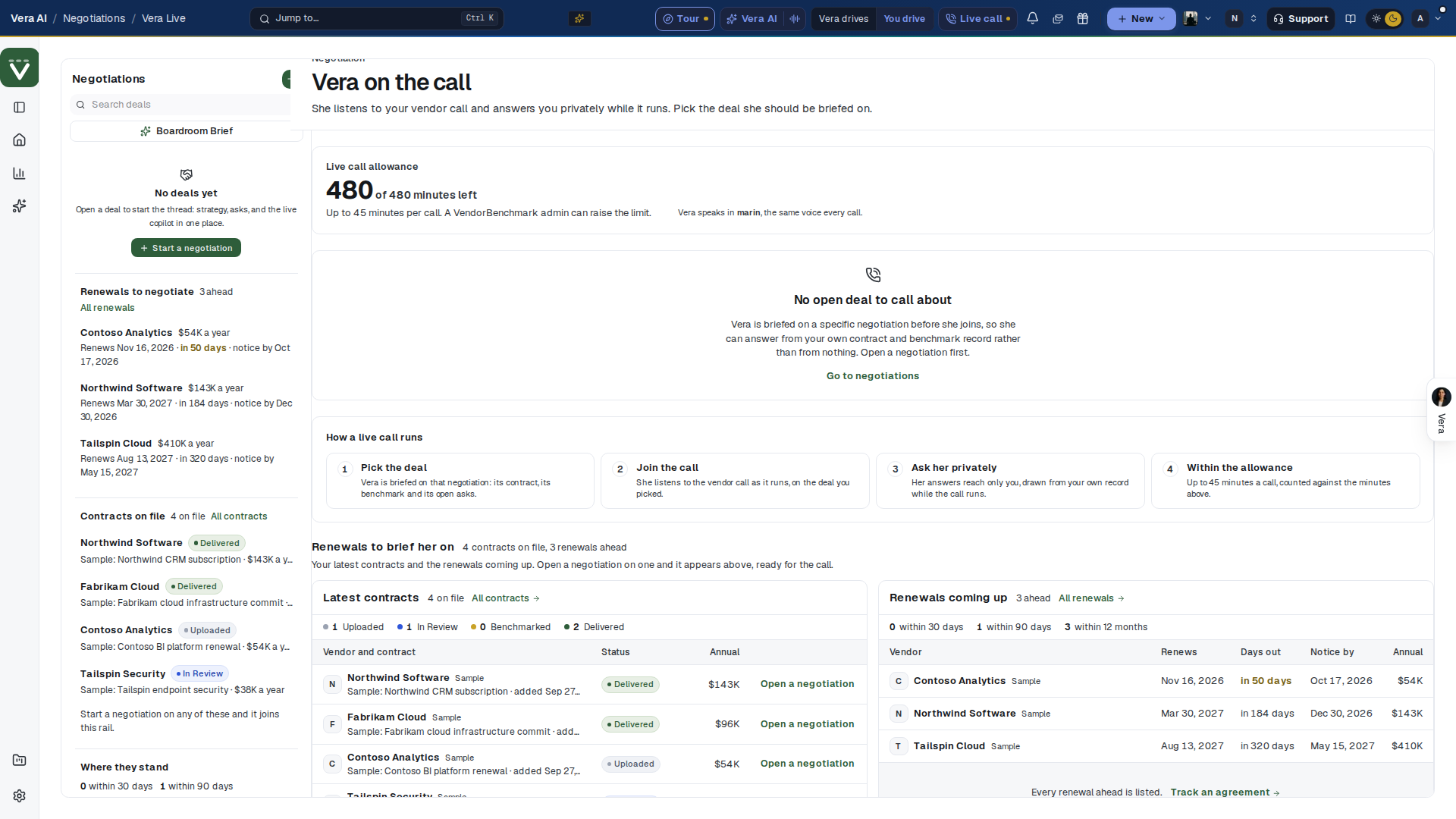
On the screen
- Negotiations — the deal rail on the left: search, the Boardroom Brief, then your deals. With no deal yet it lists Renewals to negotiate under Start a negotiation: each vendor with its annual value, the renewal date and days out, and the notice date, soonest first. Each row opens its renewal record. Under them, Contracts on file lists your latest contracts with their vendor, status, title and annual value; each opens its contract. At the foot, Where they stand counts the agreements renewing within 30 days, 90 days and 12 months, and your contracts at each step (Uploaded, In Review, Benchmarked, Delivered).
- The head — since 27 September 2026 the page wears the house head of the contract utilities: the nine steps with Negotiations lit, Vera on the call named in the masthead, and one row of facts: the open deals, the minutes left of the allowance, the ceiling per call, whose pool the minutes come from, the voice Vera speaks in, and whether she is ready. Four Moves under it open the live copilot, a new deal, meeting notes and the hub.
- Pick the deal — under a navy band, one row per open negotiation, vendor and title, each with Start the call, which opens the call room already briefed on that deal.
- How a live call runs — four numbered steps: pick the deal, join the call, ask her privately, within the allowance.
- What if — move the minutes a call and read how many calls of that length the minutes left still cover, with what is left over. A call never runs past the per call ceiling.
- No open deal to call about — with no negotiation open, the page says so and lists Renewals to brief her on: your latest contracts with their status and annual value, and the renewals coming up with the days out, the notice date and the annual value, in US dollars. Open a negotiation on a contract row starts one on that vendor. Under them, Vendors on file lists your largest vendors by the annual value their contracts state: the contracts on file, each vendor's share of that stated spend and its next renewal date. Each row opens the vendor.
How to use it
- Check the minutes left before a long call.
- Press Start the call on the deal you are about to discuss.
- With nothing open, press Open a negotiation on the contract the call is about, then come back.
Related: The live call · Negotiations
Activity
Your own trail, on one page. This used to be the bottom half of the home screen; on 31 August 2026 the home screen gave that space to the feed, which is about the market, and this is where the three lists about you went. Nothing was uploaded in the move.
In plain words: what your workspace did lately, what you left half finished, and what you promised somebody.
On the screen
- The head — since 27 September 2026 the house masthead, with Activity as the title and My work as its separator: your workspace and what the page holds as the line under it, The feed on Home at the right, and the inspector beside the page with Moves to My work, the deals, the reports and the feed.
- Recent activity — the signed ledger of the workspace's latest uploads and deliveries, newest first, with the actor named (seeded sample rows say Sample instead). The Everyone or Mine lens, at the right of the heading beside the workspace's name, narrows it to your own work. Where a workspace buys in more than one spend category, each row names its category; the ledger itself is never filtered by category, because a feed that hid the others would show a colleague an empty ledger on a quiet day. A row the platform cannot place carries no label rather than a guess.
- Pick up where you left off — the drafts you started and did not finish, and the case files you were reading, each one press from resuming. Drafts save themselves as you type and only you can see them. Turn it off from Keep this screen in my queue among any screen's What now moves, which also clears what was saved.
- Standing commitments — the promises still open from the relationship ledger, with the date each was made. Tick one off or clear it from the row.
- The wheel, across the team — the workspace's driven screens over the last three days, every move named to its hand: the colleague by first name, their specialist by its own, what was set or opened and where, and whether the screen confirmed it. At the top sit the wheels the ledger last saw held ("Mira's Yuki has the wheel on the Benchmark Library"), stated as of the last recorded move, never as a live claim. So "who set fifteen million" is answered by reading, not by asking around. Since 2 September 2026 each held wheel also carries Ask for the wheel: your ask lands on the holder's own screen within seconds, named to you, and their Hand it over releases the wheel there, tells their specialist, and writes the handoff to the ledger with both names ("Mira handed the wheel on the Benchmark Library to Sam"). Nothing can release a wheel except the holder's own press, asks go stale after fifteen minutes rather than nagging, and asking twice is one ask. The list updates by itself while you watch, appears only in workspaces where someone has driven, and what a colleague prepared privately on a vendor call never shows here: that layer is theirs, kept private at the database.
- Conversations — every session you have had with a specialist, newest first, with the line naming what it was about, who took it, the vendor and how long it ran. Your own only: a colleague never sees another member's conversations.
- Erase all — empties every conversation with every specialist, the write ups and the audio together. Two presses, the second stating what it will remove. There is no undo, and a deleted recording takes its write up with it rather than leaving a summary behind. Reading the list is recorded in the audit log, as reading a contract file is.
- Latest contracts and Renewals coming up — under the trail, side by side: your latest contracts with their status and annual value, and the renewals coming up with the days out, the notice date and the annual value, in US dollars. Each row opens its record. How the trail is kept follows in four short facts. Under them, Vendors on file lists your largest vendors by the annual value their contracts state: the contracts on file, each vendor's share of that stated spend and its next renewal date. Each row opens the vendor.
- Read and watch — the last section: the films, analyst briefings, research papers and guides the library holds on the vendors your workspace worked on most recently, proposals uploaded and agreements changed, newest first, laid out as in the agents. The most recent vendor opens first and the others sit under the head as choices. A row opens its piece. It loads when you scroll to it, and a workspace with no vendor on file does not show it.
How to use it
- Open Activity from the menu on the left, or press Ctrl/⌘ K and type activity.
- To find something a colleague delivered, read Recent activity with the lens on Everyone.
- To get back into work you abandoned, press the row in Pick up where you left off; it reopens on the document you left.
- To close a promise, select it in Standing commitments.
Good to know
- The page is empty on a brand new workspace, and so is the home feed; a workspace with no contracts yet lands on its first light instead.
- The ledger reads the whole workspace, not just your category or your workspace.
Specialists
Vera is one analyst with one head, and a vendor call is not one job. The person who knows how Oracle's fiscal year bends a quote is not the person who reads an indemnity, and neither of them is the person who keeps the plan and the dates. Specialists is the team she works with: twenty prepared seats you can bring onto a live call, and since 31 August 2026 Vera's own seat at the head of it. Eight of them are vendor negotiators, one for each of the big families (Oracle, SAP, Microsoft, Salesforce, IBM, ServiceNow, Workday, and the hyperscalers), and each argues the way that vendor sells. Seven are craft seats: the closer, contract counsel, licensing and audit defense, FinOps, the renewal project manager, the value case, and security and data protection. Three carry the evidence and the outside view: the benchmark analyst, vendor intelligence, and the seat for the new AI meters. Two decide how the conversation itself goes: the executive sponsor for when the call goes up a level, and the vendor's chair, who plays their rep at full strength so the real call is the second time you have had it. Under the head, the facts (the seats on the list, how many have a live renewal behind them, how many your workspace made, and four on one call at most) run as one quiet row parted by thin lines, the way every agent sets its figures.
Every seat is a person rather than a mode. It has a method stated in its own words, five published works it reasons from, and a briefing pack of ten to sixteen documents, and each profile says plainly which of those briefs are written today and which are still being prepared. Vera still chairs every call, and the specialist argues its half.
The head and the sheets. Since 5 October 2026 the specialists wear the frame every app shares: the menus, Share and the window buttons in the title bar; one navy column on the left with Home, Vera AI, your pinned apps, the specialists by group, your book and what you have talked about this quarter; the six sheets numbered across the top (Specialists, Staff, Roundtable, Your agents, On the call, Read and watch), still on keys 1 to 6; and the details of the seat or the call on the right. The head names the sheet. On The specialists it says how many seats have a live renewal behind them, carries one row of figures led by what is at stake on your nearest call, one sentence on that call (its days to notice and what it is worth a year), and Staff the call with Sit them round a table at the right; the faces of the seats that call takes, in a row, and the runway to the notice date sit under it. On the other sheets it carries your next call, Make your own agent and Staff the call. Press V to ask Vera who to bring.
Vera's own seat, first on the specialist list. The twenty each know one vendor or one discipline; Vera knows the platform, which is a subject none of them have. Take her seat when you cannot name the tool you want: say what you are trying to get done in your own words and she answers in one line and opens the tool that does it, rather than explaining the platform at you. Her page carries the same parts as every other seat, including what she will not do, and she leads the specialists on Home and the gallery under Your guide.
Make an agent of your own. Since 11 September 2026 the specialists have a section for the agents your workspace makes, called Your agents since 24 September 2026, with Make your own agent. Since 24 September 2026 the form opens in the same look as the Benchmark Agent: the form down the middle, a step line of four sections across the top, the four sections again in the menu on the left under This agent, and on the right the card the specialists will show, drawn as you type.
- Who they are — first name, role and opening line side by side, then personality and how they work, each with its character count. Left empty, the opening line is their name and a question.
- Voice — the twenty two voices the line speaks in, each with a play button that says the same sentence. The voice you pick is outlined in ink on a quiet gray.
- Vendor expertise — type a vendor and press Enter, or press one of the vendors on your renewals; up to eight. Under them, Request expertise from VendorBenchmark lists each vendor with how many house research notes the library holds on it today, a tick to leave one out, and an optional note for the analysts. Press Request expertise and the page says the day we come back by. Your requests below lists every request with the day you asked and where it stands: Requested, Being prepared, Ready or Declined, with All, Open and Ready as filters. Asking twice for the same vendors within ten minutes files nothing new.
- What they read — three switches (house research on these vendors, the open web, your workspace records), which read in ink when on, then library documents (find one by a word or a vendor and press Add, up to eight) and documents on file (up to six) side by side.
- The card on the right — the portrait, name, role, opening line and voice (press hear it), what the agent knows, and Add to specialists. Under it, Ready to add ticks off a first name and a role (the two it needs) and the two optional steps, and the workspace's facts say how many agents you have of twenty.
- Nothing typed is lost — every field is kept as you type, in this browser and on your account, so closing the window or walking away keeps the agent half made; the label beside the step count reads Draft saved. File, Continue where you were brings back the last five drafts, and Start a new agent sets the current one aside first. Adding the agent clears its draft.
- Keys — 1 to 4 jump to a section, R to the expertise request, Ctrl Enter adds the agent.
An agent with no web and no records says so on a call rather than guessing. They take a call from the dock, the specialists and the live call's Who takes the call picker like any house seat, open with their own line, and remember their own calls. The person who made an agent, or an owner, can change it (Change on the agent, the same form) or remove it, and its saved calls stay.
Vera shows you around. Since 11 September 2026 Vera's Agent Driven Experience is a guided tour. Take her chair, on her seat or on Home, and she opens by introducing herself, asking how you are, and asking what you would like to see: benchmarking, contracts, document search, research, or contract management. Say one and she opens that screen (the Benchmark Library, Agreements, the Document Agent, the Research library, or the Contract Management Portal) and walks it very slowly, one part at a time, asking after each whether it makes sense and whether you have a question, and after a few parts whether you want to keep going, look at something else, or ask. Choose another screen and she starts again there; ask something unrelated and she answers it and offers to pick the tour back up. Nothing opens until you choose it, and where a press would change your data she tells you where it is and lets you press it. A specialist's chair is unchanged: Marcus with the wheel is still a negotiator, not a guide.
In plain words: pick who comes with you, and they arrive having read your document rather than being briefed on the call.
Read and watch before the call. Since 24 September 2026 the specialists carry a sixth sheet, Read and watch, on key 6 or from the File menu: the films, analyst briefings, research papers and guides the library holds on the vendor across the table, laid out exactly as in the agents. It opens on the vendor the desk is on, your nearest renewal unless you picked another, and the rest of your book sits under the head as choices; picking one moves Staff the call and The roundtable to that vendor too. A row opens its piece, a film at its full widescreen size, a paper or guide to read, and the cards under it go on to staffing the call or the roundtable.
They know each other. Every specialist knows who else is on the specialist list and what each one is for, so asking any of them who can help with something gets a name rather than a shrug. Say yes and they bring that person in, opening their seat so the conversation carries on rather than sending you somewhere to read. They will not hand you around to avoid answering: most questions belong to whoever you are already talking to.
The drill changes hats when you say break. Rehearsing a vendor's rep on the vendors' chair, the rep speaks in a voice chosen by the vendor, never the seat's own, so a week of drills does not sound like one person doing impressions; say break and the analyst behind the line stops selling and coaches on the same line, two things that held, the one you gave away, the move for the real call (since 11 September 2026).
Every specialist is a new conversation. Since 11 September 2026 opening a specialist starts fresh: the thread is empty, and what you told another seat is not carried in. Camille on Salesforce and then Marcus is two conversations with two people, not one conversation wearing two names. A seat remembers its own last call with you, never somebody else's; refer to something you discussed with another seat and it asks what you would like it to take from that rather than assuming, then reads it from your calls once you say. Vera herself is one assistant everywhere and still carries what you have been working through. Nobody else in your workspace sees any of it: every conversation is yours, and a colleague never sees it. You can read the lot, and erase the lot, under Activity.
In general first. Name a vendor or a topic and the seat takes it in general first, a sentence or two on what usually decides a deal like that, then asks whether this is a general conversation or about your own agreement; your records are not opened until you say it is about yours. When it is already plain that it is yours (they have offered, we have got, this renewal) there is nothing to ask and the seat goes straight to your document. When an answer needs your records the seat keeps the conversation going while the lookup runs, says in one line that it needs a moment with the contract if the result is still not in, and says plainly when it has the contract in hand before giving the answer.
Carrying a conversation on. Every session is saved when it ends and writes itself up, so a specialist keeps your last five behind one Carry on from row with the count on it. Press the row to unfold them, each one line naming what it was about, and press one to continue: the specialist opens by naming where you left it, holding what was left unresolved last time, the write up, and how the conversation ended. Since 11 September 2026 the last exchanges ride in as the conversation the seat already had, not as a recap, so it picks up mid thought: where we got to, you were going to check the certification date, was it in the document? Pressing Talk to instead starts fresh, and that button is pinned to the foot, always in view however much history sits above it. Between sessions nothing needs pausing: leaving saves, and everything you left is there when you come back, on any machine. The full list is under Activity.
Talk to a specialist from any page. You do not have to come here to reach one. A slim button sits docked on the right edge of every screen, mid screen like a taskbar: press it and every specialist opens in a small window over whatever you are reading. Search by name, vendor or skill, or since 1 September 2026 just say what is happening: type "Oracle sent us an audit letter" and the search answers with the room for it, the right seats with the reason each is there, and a Call button on each, the best fit first. Press Call and the call opens with your sentence as your first line, so the seat answers the situation instead of asking what you meant. With nothing typed, tabs across the top of the list (All, Vendors, Disciplines, Market, Room, each with its count) narrow it, and pointing at any row shows Call to start straight away. Open a seat instead to see what it is for and the line it opens with, then press talk. The call runs inside that window, so the contract, the renewal or the benchmark that prompted the call stays on screen while you talk about it. When a seat puts something on your screen, a film, a tool, a document, the call window slims on its own to make room, and the conversation carries on beside what it opened; the collapse and maximize buttons in its corner give it back whatever size you prefer. Maximized, the call fills the window: the conversation at a readable width in the middle with the call's work beside it, what is on the screen and one press quick moves, each simply said to the specialist for you. A Pause button holds the line without ending the call, and paused truly means stopped: the clock freezes, nothing you say leaves your machine, the seat neither hears nor answers, and held time never counts against your call minutes. Typing in the box, or pressing Resume, takes the line back up. A film playing holds the quiet the same way, so a session no longer ends itself while you watch, and if the line was ever down when a film finishes, the specialist starts back up on their own. Closing a film a specialist played for you returns you to the screen you were working on, not the library, and the player's Up next row is a browsable carousel of a dozen films. A specialist opens like a person you are meeting: hello, who they are, how are you, and whether there is anything they can help with. They will not raise a vendor, a contract or a price until you do. Once you put something in front of them, everything they know is available. You do not need a microphone. If you have one, speak. If you do not, or you would rather not out loud in an open-plan office, type your question in the box at the bottom of the window and the specialist still answers aloud, with a running transcript of both sides above it. Each seat answers in its own voice rather than Vera's, which is the first thing you notice when Marcus picks up; since 11 September 2026 every one of the twenty one seats has a voice of its own, so a panel of three sounds like three people, and each seat names the voice it speaks in. Beside the sound check, the same language picker the live call carries chooses the language the seat opens in. The window shows who is on the line, how long you have been talking, how much time is left, and what they just said, with mute and end call underneath. Nothing opens until you press talk: no microphone, no call minutes. Since 2 September 2026 the window is honest about the microphone. Each seat shows which microphone this browser will open and carries Check my sound, a live level meter with a picker for the device: on a Teams or Zoom call pick the headset here, because browsers open Windows' default microphone while the call holds the communications device, which is the headset you are speaking into. On the line, a row under the waveform reads {name} hears you with a meter that moves as you speak, and a picker that switches the microphone under the running call. When the microphone could not be opened, that row says which of the four reasons it was, another app holding it (usually Teams, Zoom or Meet on a call), the browser blocking it for this site, none found, or a browser that will not give a page the microphone, with the picker and Try again, which swaps the microphone into the running call without ending it; until then you type and the seat still answers out loud.
Every vendor seat carries its practice, and the vendor's calendar. Since 3 September 2026 the SAP and IBM seats carry a negotiating practice of their own, as the Microsoft, ServiceNow, Salesforce, Oracle, Workday and cloud seats always have: Ingrid argues the conversion economics, the maintenance base and digital access; Idris argues the counting rule, the enterprise agreement's true up and the audit given its own clock. The profile page shows the practice a seat carries under Twenty years on. Every seat also knows the vendor's fiscal calendar, one line kept for every vendor the library holds a dossier on, so when is SAP most likely to move is answered with the year end, the quarter that carries it and when to ask and when to sign, and the negotiation strategy written for a deal names the same year end. Where a vendor's calendar is not published, the seat says so and works from the quarter cadence instead.
The window itself. Since 24 September 2026 it is a white panel in the app's own colors, 360 pixels wide while you choose and 384 during a call, where it had been a black window twice that width. A call in progress shows by the green clock in the caption and the waveform under the name; in the passenger seat the conversation column stays dark, beside the dark stage. Under the name the voice is drawn as a waveform from the call's own audio, so a flat line means the line is quiet rather than the picture having stopped. Beside close sit two more controls: minimize shrinks the window to the specialist's face and the call clock, keeps the call running and hands you back the screen, and maximize opens it full height with the transcript grown to match.
Recording, and what happens to the file. A call is not recorded until you press Record, and that choice is made again on every call. The file is written on your own computer and never uploaded, so the platform holds no copy of it and there is no retention rule to read; the footer says so beside the button, and telling the other side you are recording is yours to do. When the call ends you get its length and two presses: Save the audio hands you the file, and Forward it opens a mail with the whole transcript in the body and a line saying the audio is on your machine. A recording that turns out to hold no sound is discarded rather than handed over, because a file of the right length with nothing in it looks correct everywhere except the ear.
Replay it against her. Under a saved call, since 11 September 2026, Replay it plays your side of that call at the seat again on today's line, up to six of your lines, and shows what she says now beside what she said then. It is a few minutes of real audio on the server, so the line beside the button says so and the result lands in one piece; six rehearsals an hour is the limit.
The memo knows the minute. Every line on a live call carries its place on the call's own clock, so the memo's at 14:32 the rep offered nine is the real minute the words began.
The seat remembers you. Open a specialist you have called before and it shows how many times you have spoken and when the last one was. It is a tally and a date, kept in the browser you used, and never a word of what was said.
They raise what is in their queue. A seat with your live renewal behind it does not wait to be asked about it. Open Marcus while your Oracle agreement is inside its notice window and he brings it up himself, once, early, in his own words, with the dates and the money from your own record, and then lets it go unless you take it up. The line he raises is read from your agreements, never estimated, and a call linked to a deal or narrowed to a folder skips it because the matter is already chosen.
The working session. Ask a seat to benchmark a deal or build the case, "benchmark my AWS renewal, ten million a year," and it runs the screen while you talk: the benchmark library opens with the vendor and value already in it, the band is read aloud in one sentence, and one thing moves at a time as you steer. The seat narrates consequences rather than actions, "at fifteen the band tightens," never "I have set the value," and pauses after each move because the next one is often yours. Interrupt, disagree, or grab a lever yourself and it stops driving until asked. Say put it back at any point and the last change is restored to what the window held before; when something cannot be put back the seat says exactly that rather than pretending.
The wheel. Who is driving any screen is a control, never a guess. Since 1 September 2026 every window carries a small wheel in its caption showing whose hands it is in: a hand glyph when it is yours, the seat's own portrait when it is theirs. Say take the wheel, or press the control, and the seat drives that screen while you steer by voice; touch anything at all, a click, a key, a lever, and the wheel is immediately yours again, before anything asks a server, with the seat acknowledging in half a sentence. Every move a seat lands on your screen becomes a line in the conversation, opened the library, set the value to 10 million, and the newest change carries Put it back, the same undo the spoken verb runs, so nothing that happens on your screen is a mystery or a one way door. The first time you hand a screen family over, your yes is remembered and the seat stops asking there; review or change that under Settings › AI, where Never keeps the wheel with you everywhere and the seat talks you through instead. A screen the seat cannot drive yet says so plainly in the control rather than hiding. Resume a saved session and the drive continues where it stopped, with the trail and what was open restored. Today the seat drives thirteen screens on levers each page provably reads: the benchmark library and its vendor tools, your contracts list, the agreements ledger, the vendors list, approvals, tasks, Market news, renewals, research, vendor intel, the vendor calendar, the rights register and the organization estate, with more joining as they are converted; a screen never inherits its parent's controls, so a record page answers only for itself; billing, members, data deletion and the signing screen are never driven on principle, and the wheel there says why. Before the seat says done, the platform reads the change back off the screen itself, so a move that did not land is reported as exactly that, treat it as not made, never as success.
What the seat sees. On a call, the specialist sees what you see: the report or sheet in front of you (the same clamped digest the typed Ask has always read, tools inside their own windows included), the other windows in your queue and who holds each wheel, the text you have selected, and the section under your eyes, so explain this means the thing you are looking at. Move a lever with your own hand mid session and the seat is told it was your hand: it works from where you put it, you moved the term, I will re run the band, rather than re narrating its own moves. The app answers as one place too: say close everything, or close everything except the library, and the app closes them all, keeping the one you named; closing a named window works whoever opened it. Nothing new leaves your browser: it is the same screen digest as before, clamped to the same caps and treated as evidence, never as instructions.
The trip. For anything longer than a couple of moves the seat proposes the trip in one sentence, and when you say go the plan becomes an object in the call window: Step 2 of 4, with the pace beside it. Hold on pauses it, the wheel stays with the seat but idle and the pace reads holding; keep going resumes; slower slows the beats; skip to the end runs the rest in one sweep; and actually, make it fifteen revises the route in place without starting over. A step the screen does not confirm halts the trip exactly where it stands, says what failed, and offers you the wheel: a trip never narrates past a miss, and taking the wheel yourself halts it too. Under the conversation the drive trail draws one dot per move: press an earlier one and the screen is put back through the same undo the spoken put it back runs, as far as the undo stack honestly reaches, with what could not come back said plainly. Every rewound move leaves its own line in the conversation, because nothing here pretends to time travel. Since 2 September the rewind reaches everything a trip can touch: closing a window, putting a change back and the wheel itself are verified against the screen exactly as a set is, the trail holds forty eight moves rather than twelve, and when a rewind cannot touch something it says so rather than leaving it quietly changed, two staged changes stay on your screen to keep or discard; the queued brief is still in the queue, say the word and I will withdraw it. A set the benchmark library applies is proven by the library's own acknowledgement before the address is read.
Guided, and the trips you keep. Say you point, I press, or simply show me how, and the trip runs in the wheel's third position: the seat explains one step at a time, the call window shows the step with Done, next, and nothing advances until you press it; the seat can never perform a guided step for you. The screen teaches with it: the control the step names wears a ring, and a small ghost cursor glides there before your press, on the benchmark library's vendor, value and term controls, the agreements ledger's search and renewal windows, and Analyst Benchmark's status, vendor and age filters and its search box, with more screens joining as they carry spots. A trip that lands is worth keeping: say keep this trip, or press the button on the finish line, and it saves to your workspace by name; run the Oracle renewal trip brings the same road back with fresh numbers, resolved step by step through the same checks and the same ceiling as any drive. Kept roads remember how they have been traveled, watched or run by your own hands, and the first time you press through one yourself the seat says so; after that it offers the same road with itself quiet, because the point of the teaching is the day you do not need it. With two windows open, you drive the benchmark library turns exactly that window's wheel. Every guided journey completes on presses and enters alone, and the drive trail reads itself to a screen reader as it grows.
The overnight drive. The wheel's fourth position works while nobody watches. Turn it on under Settings › You › Vera and you and choose a window, 60, 90 or 120 days, and each night the specialist runs every renewal inside that window through the benchmark library, the vendor's peer band read and your figures placed against it, up to 20 a night per workspace, worst first. The morning waits on Home under The overnight drive: what is fine, what needs you, and a Replay of every move the night made, in the same trail grammar the live wheel draws. Pick it up on any line opens your advisor with that renewal as your first word. The night only reads, and the workspace ceiling holds exactly as it does live: where an owner set agent drive to off, the night drives nothing there. One earned exception: where an owner has raised the ceiling to Queued commits (the ladder's fifth rung, unlocked only after the workspace holds zero divergence, see Sign in policy), the night may queue up to three proposals, one per renewal, of three declared kinds: a renewal inside 35 days still at Upcoming proposed to In negotiation, a renewal that needs you with nobody's name on it proposed to you yourself, and an auto renewal whose notice window has already closed proposed quiet until the day after it renews. Each waits under The overnight drive with the same one-press confirmation every staged change uses. Nothing applies until your press, and your press runs the same checks as doing it by hand.
The private layer, for when the vendor is on the line. With a vendor call running, your screen may be shared, so the seat can negotiate beside it instead of on it. Press Vendor on the line under the conversation, or start the live call as A call with the vendor and the layer arms itself, and from then on everything the seat opens lands in the wings: a private tray only your own chrome renders, the shared screen untouched. Say put the peer band where only I can see it and it waits there ready; Put it on the table opens it for real, through the same checks as any move, and the seat is told the vendor can now see it. The curtain works in both directions: under Vendor on the line, every window open on the shared screen carries Off the share, one press closing it into the wings with the seat told the vendor can no longer see it, and the drawn peer band in the conversation carries its own Put it on the table, opening the library at that vendor when you choose to show the vendor. An entry that cannot open goes back in the wings rather than vanishing, dismissing one shows nothing to anyone, and turning Vendor on the line off keeps whatever is waiting. The layer is also a guardrail: nothing heard on the call can steer the wheel, because a voice that talks its way into an open reaches a tray entry you see and ignore, never your screen, and the seat's own standing rules say only you, on your private line, direct it. A rehearsal drill drives real screens but stages nothing real, its moves are marked as practice in the ledger so the autonomy report and the team's drive ledger never mistake a drill for work, and on a panel one specialist can talk while another drives, the window wearing the driver's name.
The guardrails. Driving runs inside limits you and your owners control. Press Escape twice, anywhere, and agent drive stops immediately, with no server in the path; the stop is recorded like everything else. Owners set the workspace ceiling under Settings › Security › Sign in policy: off entirely, show and explain only, moves, or moves and staged changes, with a separate answer per screen family, enforced on the server, and every refusal names the policy rather than shrugging. Two limits are constants, not promises: more than 12 landed moves inside a minute pauses a trip with a plain sentence, and staged changes cap at 20 per call session. Every driven action, handover, halt, rewind and refusal lands in the workspace audit log with its verification outcome, visible to owners under Settings › Security › Audit log, and the Replay control beside the trail shows the session's timeline, exactly as the screen settled it, and since 2 September restores it: Show this step returns the screen to what that step settled, through the same moves and the same checks, recorded as a replay; Play the trip runs the steps one beat apart; Back to now returns to the newest state; a step with nothing settled says so; and Earlier sessions lists the last ten trails of this workspace, kept with the same autosave consent as every workroom, so a replay survives the tab. Screens that are never driven on principle, billing, members, data deletion and their kin, carry no wheel at all. And the number watches itself: when more than one in a hundred of a screen's driven moves in a day did not land (on twenty moves or more), that screen goes read only for the seat in your workspace until it is fixed, and the seat says so in a sentence, that screen is temporarily read only for me, and points while you press; owners see the flag on the divergence table.
She presses the moves you would press. Every workroom's What now moves answer to their names: say run the second opinion, draft the vendor meeting request or copy the one liner and the seat presses the same move you would press in What now, through the same runner, with the press shown as a line in the conversation once the window confirms it and never before. The seat is told which moves the open workroom offers, so it can name them back to you. A move that sends, signs or runs one of the page's own actions stays yours: the seat says that press is yours and offers it instead, because commit is never on the ladder. Two moves with the same first word get you a question naming both rather than a guess. And before a driven write lands, the control it drives wears the guide ring, the same ring a guided step uses, so your eye is on the lever when the number changes.
The passenger seat. Press the seat control in the dock's caption (the passenger seat icon, on screens 600 pixels and wider; from 1,280 the conversation stands down the left, and on narrower screens across the foot, as below) and the product changes shape: the conversation runs full height down the left, typed and spoken in one transcript, and everything the seat opens lands over the page to its right, a window, a film, never over the conversation and never behind the page. A thin line above the page says who has the wheel, by name, with the reminder that Escape twice takes it back, and the drive trail shows under the conversation from the first move. Press the control again, or close the dock, and the layout returns to normal; the choice is remembered for the tab. The other ways in: Hand the wheel here in any window's Team menu, Shift+Enter or the hand button on a destination in the Jump to palette, Hand it to Vera in the upload chooser, the small hand on a seat's row on the specialist list, and the corner control on any What next move; each opens the seat with the take the wheel opening already said, and a link can carry the seat, a saved trip and your first words too. After Escape twice, or taking the wheel with a touch, say carry on and the seat takes the wheel back and picks the trip up at the step it stopped at; a trip halted by a step the screen did not confirm still needs a revised route, and the seat says so. The typed Ask drives the same screens now: type open the AWS renewal and set the term to 36 months in Vera conversations or the ask bar and it happens, verified against the screen the same way a spoken move is, with the landing shown as a line in the conversation; and what you say aloud to a seat, and what it says back, lands in the same conversation the typed Ask reads, so a conversation begun on a call reads on typed. The conversation names its two voices: the specialist's portrait heads it, large, with their name and the state of the line beside it, and in the transcript the specialist's lines stand in the conversation's ink under their name in green (gold in the passenger seat) while yours are blue under You, so a glance down the conversation tells who said what before you read a word. Under the transcript sit the composer, one box with the send arrow inside it, and one row of controls: Mute (or Typing only when there is no microphone) and Pause on the left, Leave on the right, and the More button (three dots) between them. More holds Answer depth (Fast or Thorough), Turn on video on your chief of staff's line, and More controls, which brings back the microphone picker, the upload hint, Bring a colleague onto the line and Record until you press Fewer controls; that choice is kept.
The top bar beside the seat. With the seat open the top bar starts at the conversation's edge, so it has less room than the window. Rather than run off the right, it drops labels in steps until every control fits: first Refer & earn, the category and organization names and Guide, then Tour, Vera AI and Live call, then the word New. Each keeps its icon and its name on hover, so every control is still one press away. On the narrowest bars, such as a 1280 screen, three more things step aside: the bar's Vera drives and You drive switch (the seat's own two choices and the wheel line carry it), the breadcrumb (the page names itself below the bar), and the Ctrl K hint beside Jump to (the shortcut still works).
Windows beside the seat. Every window that opens with the seat on fits the space beside the conversation, or above it when the seat sits across the foot of the screen, never running past the right edge. With the conversation down the left, on screens up to about 1,790 pixels wide, windows with a list of screens down the left show those screens as a row of tabs under the menus instead, and the "First time here?" offer steps out of the menu bar (the walk-through stays in the Help menu), so the page keeps a full working width; below about 1,450 pixels the agents' windows (Renewals, Sourcing, E-sign, the Research Library, the Research Agent, the Document Agent) also show their rail of icons without the tree and the details panel, and every window's Minimize button keeps its icon without the word, the same form they take on a small screen. With the conversation across the foot, windows have the screen's whole width, so the same steps start later: the row of tabs from 1,366 pixels down, and the rail of icons from about 1,180 down.
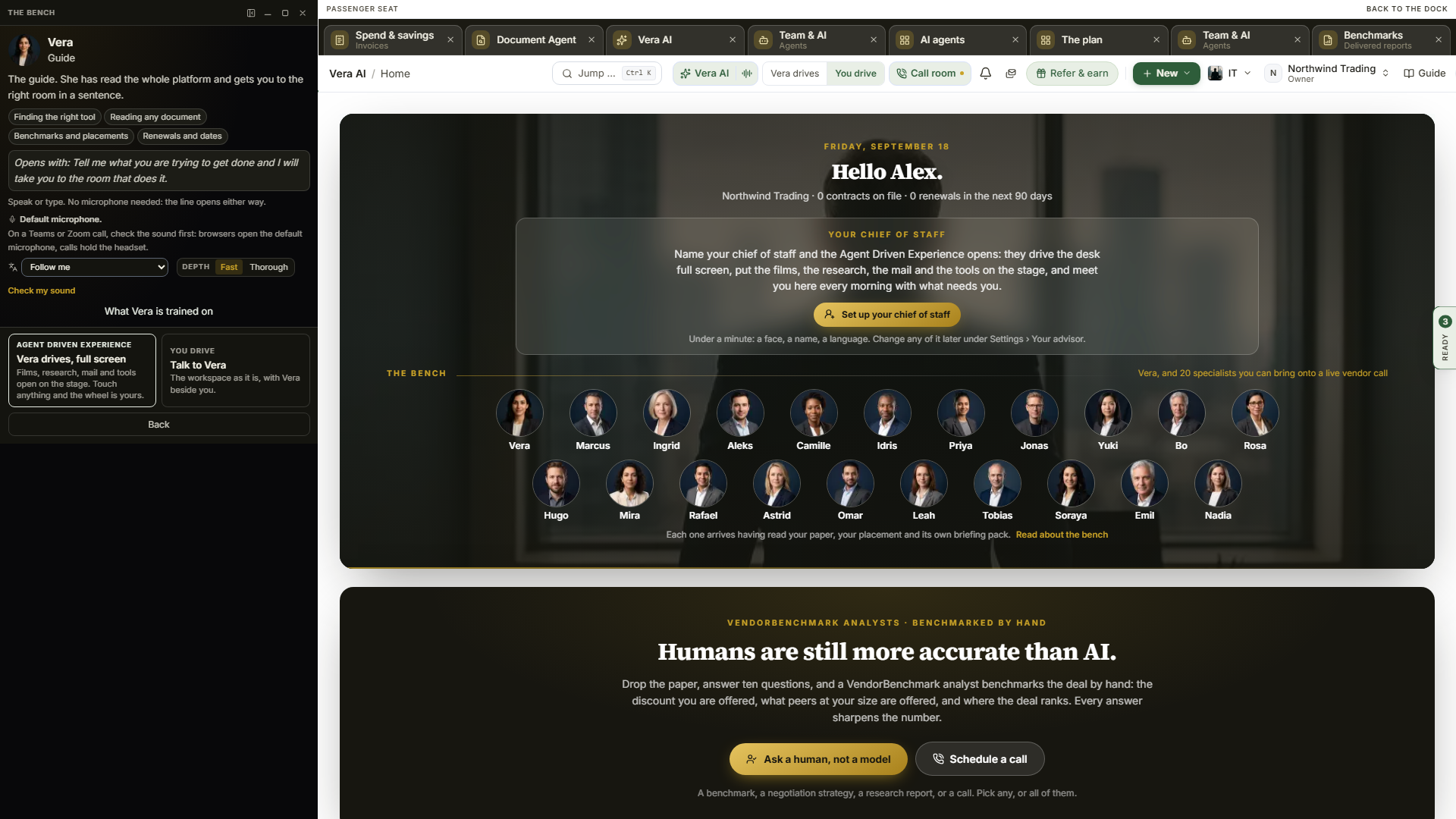
Agent Driven Experience. Open a seat and it asks how you want to work. You drive is the workspace as it is, with the specialist beside you. Agent Driven Experience (called Agent chaired until 3 September 2026) hands the specialist the wheel from the first breath: the conversation runs down the left, the top bar steps aside, and everything beside the conversation is theirs, on one white panel over the dark stage: a slim bar naming the mode and who has the chair, the greeting with up to three figures on the right (Needs you, Next notice and At stake, added up from the rows below), and the ways back in the foot. The sections are yours to add, and they stay on every device until you take them off: Where we left off, What needs you, Your trips, The team and The shortcuts (the films, the research, the mail and the tools). With nothing added, the panel shows Show in presentation mode in its center with one button per section. Once one is added, the choice moves to Customize at the top right of the panel, a menu with a tick beside each section that stands; the eye icon at the right of a section's heading takes it off. The sections run down one column across the panel's width, and a panel taller than the window scrolls. Above the panel, every app you have open stays in sight as a compact tab across one line: the app on screen lit, each tab with its own close, pressing a tab brings that app up and pressing the lit one puts it down. Apps on the right carries the number open; press it for the full list, the one on screen marked On screen, each with its own close. Say what you want done, press a row, or press a shortcut; films, documents, mail and tools open in presentation mode, and every move lands in the conversation as a line with Put it back. Since 3 September 2026 the specialist opens nothing on their own: they say what needs you and where you left off, then wait for your word or your press. Touch anything and the wheel is yours (the seat says so); press Escape twice and the seat stops. Exit, the red button at the right of the line at the top, leaves in one press: the session ends, the conversation closes and the workspace comes back exactly as it was. The Agent Driven Experience needs a window at least 600 pixels wide; narrower than that its button says so and Talk to the specialist stays one press away. The shape you chose survives a reload of the same tab.
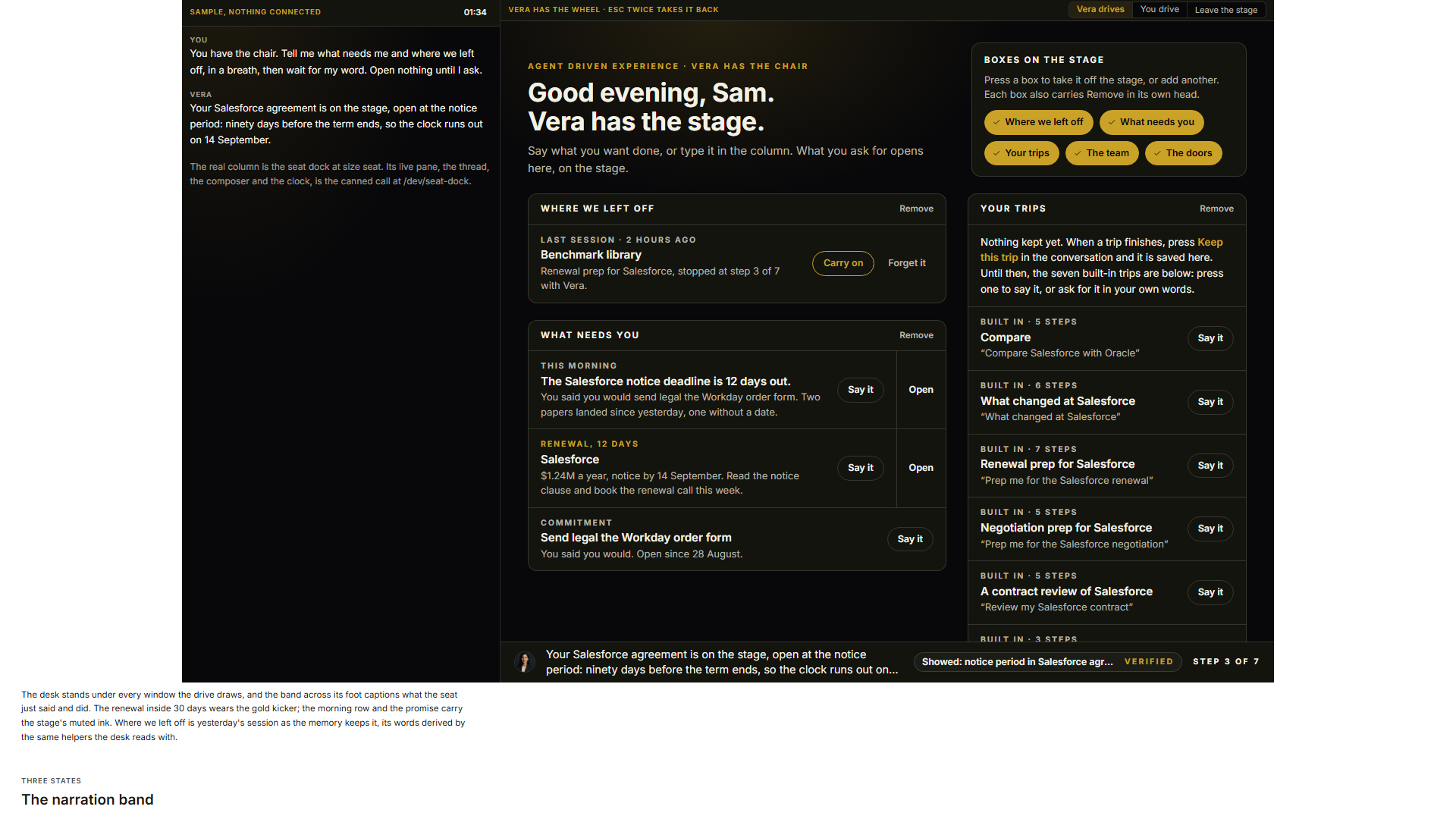
What needs you. You add it from Customize. With it on and the chair taken, it reads your estate before you say a word: renewals inside 120 days in order of urgency, your own open promises, and the morning open when there is one, up to five rows, in one list. A promise you made twice is one row that says how many times. Each row shows what it is, a pill with when it is due (Notice in 8 days, Promise, This morning), the annual value for a renewal, and two buttons. Ask (with the specialist's name) sends the sentence you would say as your own line on the live call; with no line running it opens the seat with that sentence as the opening. Open goes straight to the record. A renewal inside 30 days has a gold edge and a gold pill, a later one blue. When the list holds both renewals and promises, All, Renewals and Promises at the right of its heading filter it. Nothing here calls a model, and if the estate cannot be read What needs you says so in one line.
The narration. It runs across the foot of the screen, beside the conversation: the seat's spoken line as it lands, the last move with its state (verified, or did not land), and the trip's step and pace when one runs. It only ever shows what verification has settled, so with the sound off you still know what just happened. After ten quiet minutes it returns to Say what you want done.
Seven trips in your own words. Say open a contract review of Salesforce, benchmark my Oracle deal, prep the Microsoft renewal, compare Workday and SAP, what changed on ServiceNow, negotiation prep for Adobe or the morning open, and the seat proposes a trip it can actually make: every step is rehearsed against the real screens before it is offered, and a step that cannot land refuses the whole trip in one sentence. Say go and the seat performs it move by move, each move a line in the conversation with Put it back; hold on, slower and skip to the end still steer the pace. Trips you kept yourself still answer to their names.
Who drives, in one switch. Beside Vera AI in the top bar, and on the wheel line over the chaired stage, a two-position control names who drives. Press the specialist's side and the wheel is theirs on the screen you are on, under the same standing preference and the same org ceiling as the caption wheel, with the same sentence when it refuses. Press You drive and every wheel comes back while the conversation and presentation mode stay; Exit ends the session, closes the conversation and brings the workspace back, all in one press. From the keyboard, Ctrl+Shift+Space flips the wheel and F fills the screen while the chair is taken. The switch takes the chair from any page; opening a seat is no longer the only way in. The top bar switch shows on screens 1280 pixels and wider; narrower screens keep the seat's two choices and the wheel line.
Where we left off. A chaired session leaves a record: what was opened in presentation mode, what the specialist said, what landed and what did not, and where a trip stopped. With Where we left off added, taking the chair again opens the Agent Driven Experience with Where we left off: the last window and the trip's step, Carry on (the sentence goes straight to the specialist) and Forget it. The session is kept the way every tool keeps its work, per person and per workspace, and it is distilled into the specialist's memory when you leave presentation mode, so the next ask can recall it. Nothing is kept when personalization is off on Vera and you.
The document opens at the clause. When the specialist names the clause that costs you, the document opens at it: the reader scrolls to the first match, highlights it and counts every match in its find bar. The contract review trip opens the price uplift at renewal and the renewal prep trip opens the notice period; you can ask directly too: open my Salesforce document at the auto renewal. When the document has no match the reader says so in its foot line.
The specialist opens with what needs you. Take the chair and the opening is no greeting: at the start of the line the specialist is handed what you see, the renewals inside 120 days, your open promises, the morning open and where you left off, and opens with one breath of that, proposes the first trip by name and puts the first thing in presentation mode. It is the same estate What needs you reads, nothing more, and it is left out entirely when personalization is off on Vera and you.
Your trips. You add it from Customize. Under What needs you it shows the trips you kept as cards, newest run first; press a card to run it again on fresh numbers. With nothing kept yet, the line beside its heading says how a trip is kept (press Keep this trip in the conversation when a trip finishes), and the cards are the seven built-in trips, each with an example in your own words and the first renewal's vendor already filled in; press a card and that sentence goes to the specialist, or ask for the trip in your own words. While a trip runs, the line under the conversation leads with its name and the step it is on.
The chair on a narrow window. From 600 pixels up to 1,279 the conversation becomes a sheet across the foot of the window instead of down the left: half height, with a handle in its caption that raises it to the full height and lowers it again. Everything else sits above it, the wheel line with the who-drives switch at the top, Where we left off, What needs you, Your trips and the shortcuts one above another, the narration just above the sheet, and every window the specialist opens lands between the two, one at a time. From 1,280 up the conversation on the left is unchanged, and resizing across that line mid session changes the shape without leaving the chair. Under 600 pixels the chair is refused and the Agent Driven Experience button says so.
Docking the seat at the bottom. On a screen 1,280 pixels or wider you can choose where the conversation sits. With the seat open, press the dock control in its caption (the panel icon beside the seat control): Dock at the bottom moves the conversation into a sheet across the foot of the screen, and your page and every window take the whole width above it, with the tab strip of open apps still along the top. Press it again, Dock on the left, to bring the column back. The choice is remembered for the tab, and applies to the next seat you open; below 1,280 pixels the seat is always the sheet.
Your kept trip comes first. A trip you kept under a name that reads like a built-in trip runs as your own, with your own steps, and counts as a run; the built-in trip runs only when nothing you kept answers. A kept trip is matched by its whole title, never by one word.
The narration names the clause. When the specialist opens your document at a clause, the narration captions it as Showed: the notice period in the Salesforce agreement, the same words the line in the conversation carries.
Watch it together. While a specialist has the chair, the wheel line carries Watch link. Send it to a colleague in your workspace and they open presentation mode live and read only: the specialist's lines as they land, every move with its state, the trip and its step, and which window is in presentation mode, with Open it yourself to open that window on their own screen. They can press Ask for the wheel, which arrives in your conversation as a request with Hand over and Not now; handing over lands in the trail by name. Nothing on the watch page can move your screen, and the window itself is never mirrored, only named.
Show me how. Say show me how, teach me or walk me through before any trip and it runs as a lesson instead of a drive. For each step a ring lands on the link or the control that step needs, a small pointer arcs from where your own pointer is to it, and the step moves on when you press that control yourself, or when the thing the step named actually lands. The specialist explains each step in one line and never presses for you. Where a step has nothing to press on this screen, the call window says so and waits for Done.
The links into presentation mode. Ask the assistant in Slack or Teams something that reads as one of the trips, or say open presentation mode, and the reply carries a link: Open presentation mode: renewal prep for Salesforce. The renewal brief and the renewal agent's milestone note carry the same link as an Open in presentation mode button under their primary button. One press lands on Home, takes the chair with that specialist, and the trip is the first thing said.
Read it to me. When the specialist opens your document at a clause it now holds the paragraph that clause sits in, so read it to me gets the document read as written rather than remembered, and the reading stops the moment you touch the page. What you highlight inside a window the specialist opened reaches them too, so explain this means the sentence you selected.
Read the document with the specialist. With a document open, the specialist can move it for you. Say take me to the notice period and the reader scrolls to the first match, highlights every match and counts them in its find bar; next one and back one walk the matches; page twelve, top and end move the document; highlight this marks the sentence you have selected (or name a passage word for word) and clear the highlights takes the specialist's marks away, never your own saved comments; put it back reverses any of them. The document answers every move itself, so the line in the conversation and the narration say what it did (Showing notice period, page 14; Match 2 of 6), and a document that cannot do it says why: no match, no page 90 in a 41 page document, nothing selected. Clause names find the clause the way documents write it: auto renewal lands on automatically renews, price hold on price protection. Owners can ask for a clause in a document still in the Uploader's staging; members are told the document is not found, as before.
Read on, and explain the whole sentence. With a document open, say read the next paragraph or read the previous one and the specialist reads it as written from the document's stored text, stopping the moment you touch the page. Select a long clause and say explain this: the specialist reads the whole passage from the document rather than the first line of your selection, so the sentence that matters at the end is the one it explains.
Your own target. Say our target with Salesforce is 35 off, on the line or in Ask, and the conversation offers to keep that target on the agreement; nothing is written until you keep it, there or on the Staged by Vera tab of Approvals. Once kept, the agreement record and the delivered report carry Your target, and the specialist says where the deal stands against it, in points and in money over the term, beside what peers get. On the agreement record itself the specialist now reads the terms the page shows, the annual value, the expiry, the notice days and deadline, whether it auto renews, the uplift cap and the extracted clauses, so when does it renew is answered from the record and names the clause.
The strategy, offered once. After the specialist has said where a deal stands, it offers once to write the negotiation strategy: position, target and walk away in dollars, the levers ranked, the vendor's calendar and the sequence of asks, as one document on your shelf. Say yes and it is written. With no document loaded, the strategy, the preparation brief, the talking points, the renewal plan and the benchmark can be written from the figures on the sheet, the report or the record you have open; the masthead says which figures it was written from. The reviews of a document still need the document loaded.
The email you send. Say draft the email asking them to confirm the list price in writing, one for the CFO with the recommendation or one for the team with the plan, and the specialist drafts it from what is on your screen. It lands in the conversation as a draft with the subject, the body, Copy and Open in mail, and nothing else: the platform never sends it, you send it from your own address. Drafts stay under 120 words, never invent a name, and a draft for the vendor carries the confidentiality scan's warnings.
The levers by voice. With a benchmark report open, tell the specialist three-year term, 22 points off or put the levers back, and the report's what-if levers move through the same typed controls a press uses, so the address, the levers and the numbers agree. The narration says what the move did to the outcome, read off the page rather than recalculated. The Benchmark Library's own levers, the value and the term, work the same way: the specialist is told what the move did to the savings available, read off the sheet after it repriced.
The picture she draws. Ask for the picture and the seat draws the peer band into the conversation for you to keep: where that vendor's buyers land, the midpoint marked, and your own number on it when you said one. It stays in the thread, rides the saved record, and travels in a forwarded transcript, because a spoken number evaporates and a drawn one goes to the meeting. Every figure on it comes from the vendor's reference set; with no set to draw from, the seat says so instead of drawing.
Upload the document mid sentence. A quote lands in your inbox during the call: drag it onto the specialist window without breaking stride. The seat takes it the way a person takes a document, one short beat out loud, then the two things in it that matter, tied to the page or section they sit in, and stops. It never summarizes the whole document unasked. The file's text is shown to the seat for this conversation only, nothing is filed, and the bytes are not kept; a document the seat holds only the first part of is said to be that. PDF and Word, up to 15 MB. Ask for a clause afterwards and it comes back word for word with where it sits; ask what they would change and you get at most three edits, ranked, with why each earns its fight.
The clause she will not let pass. A call narrowed to a folder checks its own documents for the one clock worth interrupting for: a notice deadline inside 75 days, or a closed window on a contract that auto renews. Whatever you called about, the seat raises it in its first minute, one more thing before we start, offers the first move, and then answers your actual question. It raises it once, from your own record, and never again unless you take it up.
Lose to her first. Open Nadia, the vendor's chair, name a vendor, and press Run the drill. She plays that vendor's rep at full strength and the way real reps play it: warm, unhurried, generous everywhere except the thing that matters, the quarter end, the bundle, the discount that expires Friday. Say break or off script at any point and she uploads it; she also breaks herself at a teachable moment, when you conceded something real or answered a question you should have asked back. Out of character she coaches rather than scores: two things that held, the one thing you gave away with your own line quoted back, one drill to run, and the offer to pick it up again from the slip. Nothing from the drill is kept as leverage, she never fishes for your real confidential figures to use inside the fiction, and any number she asserted as the rep is flagged on the way out as theirs to verify.
The promises file themselves. End a call that is linked to a deal and the memo is not the only thing that lands: what each side said they would do is read out of the conversation and filed where it is tracked, vendor concessions to the concession ledger and the commitments tracker, your own promises to the us side, movement on your tracked asks to the asks themselves. The commitment chase watchdog already watches that tracker, so a promise with a date gets chased without you writing anything down.
The spoken pen. Say log that at 412 at the end of a call, or for the record, we decided to take the shorter term because the cap came down, and the change appears in the conversation, staged, with Keep it and Not now on it. Nothing changes until you press keep, and the seat says exactly that, on your screen to keep, never saved. The pen stages a landed price, a decision with its reasoning, a renewal stage move, an owner, or an alert snooze, the same staged verbs the typed Ask has, and money is repeated back as it stages so the staged change is where a misheard figure gets caught.
The knock before the meeting. Open Specialists inside fifteen minutes of a calendar meeting and the window says so at the top: the meeting, the minutes left, and when your records name the vendor, the seat with that ground. On my ear starts a ninety second brief with that seat; Open the live call arms the call instead. The dock checks your calendar only at the moment you open it, and never notifies you of anything.
The panel line. On a live call, pick a colleague from the row under the conversation, or just ask the seat to bring one in, and a second specialist joins the same line in their own voice. They hear each other, address each other by name, and disagree openly where they do, because two advisors who differ are the point of asking two. You chair, and only one of them answers at a time: say a name and that seat has the floor, or press a face in the floor row. The handover is immediate. Saying the other name mid answer stops the seat that was speaking and the one you addressed picks it up, so two voices never run together. Anything the quiet seat had in hand, a lookup it was waiting on, is said when the floor comes back to it rather than over whoever holds it. The name has to be said as a name, at the start of what you say; talking about a colleague later in a sentence leaves the floor where it is. Either seat can be sent off the line with one press, and everything both said rides the same saved conversation. The wheel follows the hand: when the second seat drives a screen, the caption wears their face and the trail carries their name, so whoever moved it is whoever it says moved it. Two seats spend call minutes twice as fast, which is the honest price of a second advisor.
The roundtable. On the specialist list page, pick a vendor and press Have the specialists argue it. Three seats record a short episode about that renewal, in their own voices, each arriving with their name in their first line, with a real disagreement in the middle and one recommendation with the first move at the end. Every figure comes from your own document and the vendor's reference set; where something is missing the table says so out loud instead of inventing it. It takes a couple of minutes to record, keeps until you record a fresh one, and plays from any turn: press a name to start there.
Your language. Open in Swedish, or German, or French, and the seat follows without comment and stays there until you switch. On a meeting that runs in another language, your private line and her suggested lines stay in yours.
Your first call. The first conversation you ever have on the specialist list opens with one question about you: of everything in your queue, which deal is actually keeping you up. The seat then works that deal with your own records, one useful truth, one thing opened on screen, one colleague introduced by name where the ground is theirs. No tour.
Hand a colleague the thread. Shared call notes sent by email now end with Pick this up with the seat that took the call. One press lands your colleague on that specialist's seat in their own workspace, the memo they just read in hand. The memo is the shared half; the conversation they start is their own, like every conversation with a specialist.
Ask a seat from Slack or Teams. /vera ask Marcus: they offered 18 percent with Java bundled, fair? answers in Marcus's craft, in the channel, grounded exactly as every chat answer is. A name that matches nobody just asks Vera as before.
The counted quarter. Specialists states how many conversations your workspace has had with the specialists in the last ninety days, read from the shared conversation notes, and lists the most recent by vendor down the left.
A quiet line closes itself, and the seat is offered back. Two minutes with nobody speaking on either side ends the call and says so, because at that point the call is over rather than paused and an open line is spending your talk time on nothing. Open Specialists again and it names who you were with, how long it ran and whether it ended in silence, then offers Resume with them or New for a clean start, in one row above the search. The offer stands for a day, only in the browser you were using, and holds a name and a duration rather than anything that was said.
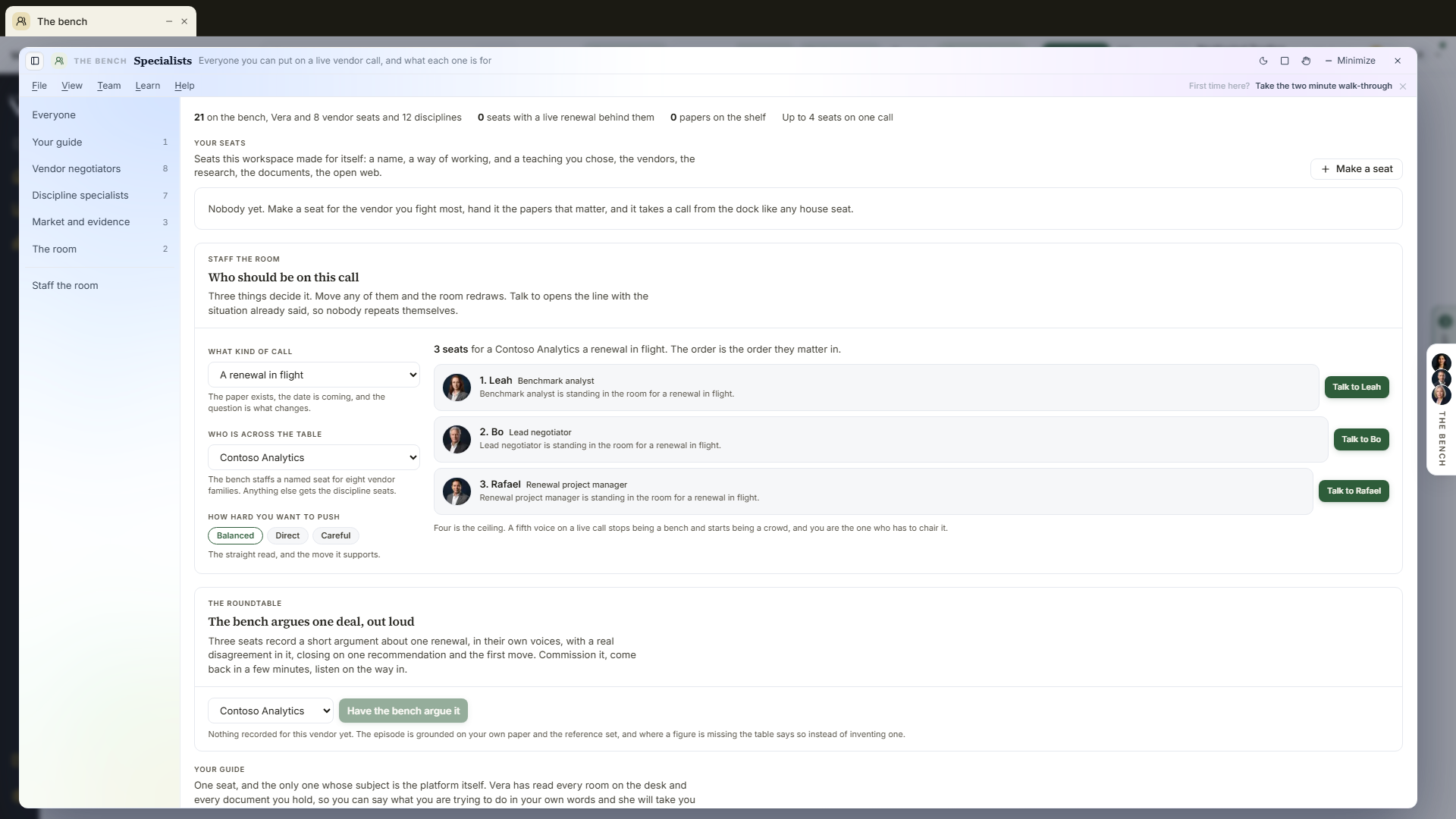
Where each seat sits on your own book (the vendor and the days to its notice) is a dot beside plain words, gold when the notice is close. The seat you have selected is marked with a dark edge and a quiet gray row; green on this screen is kept for the one filled action, Staff the call, and for a briefing pack that is ready.
On the screen
- The head — The specialists as the title, in the Studio design since 24 September 2026, and under it the call it is for, in one sentence: the nearest renewal on your own book, how many days it is from notice, what it is worth a year, and the four seats it staffs that call with, by face and by name. Under it, a quiet row of counts (how many seats, how many have a live renewal behind them, how many you made yourself, how many conversations this quarter, and the four-seat ceiling), then the runway from today to the notice date to the end of the term. With nothing on your record yet it says so and staffs by what kind of call it is instead.
- Your book, seated — since 26 September 2026, under the head on The specialists: every renewal on your book as wide as its value a year, brick when its notice falls inside 30 days and gold inside 90, with the portraits of the specialists Staff the call puts on it. One line says who leads where no vendor negotiator covers the vendor. Press a renewal to staff its call. Under it, Staff every call with notice inside is a lever: the calls in that window, what they are worth a year and the seat places they take, with a bar for each specialist showing the value of the calls they sit on. Press a specialist to see them on the right.
- The five sheets — The specialists, Staff the call, The roundtable, Your agents and On the call, as tabs, numbered 1 to 5 on the keyboard.
- The roundtable, in full — since 22 September 2026 the recording opens with what the senior chair closed on, which is the recommendation and the literal first move, read from the last turn rather than written separately. Under the turns: who sat and why, and what they argued from, which is your own agreement's value and notice date and nothing else. Where you hold no document on that vendor it says so and the table argues from the market side.
- On the call — the call before you dial it. Who Specialists staffs for your nearest renewal, what each of them starts on unprompted, what you have already said about that vendor (each call files its own memo with its date and length), and the setups you have pinned. One press opens the seat with the situation already said. A call that is running is not shown here: the line lives in the dock and the memo is filed when it ends, so there is no live state to read and none is invented.
- Staff the call — the three dials that decide who should be on your call: what kind of call it is (first negotiation, a renewal in flight, an audit, terms and redlines, an escalation, a rehearsal, or the internal approval), who is across the table, and how hard you have decided to push. The seats redraw as each one moves, and the same three answers always draw the same seats. Since 1 September 2026 the answer is not a reading list: every staffed seat carries a Talk to button that opens the line with the situation already said, so the recommendation and the conversation are one press apart.
- What next — at the foot of every sheet, the moves as cards with their icon.
- The index — down the left: the five groups (your guide, vendor negotiators, discipline specialists, market and evidence, and the room) with the count of seats on each and a mark where a group has a live renewal behind it, then your own book with the days to each notice, then what this workspace has talked about this quarter. Press a group to narrow the directory to it, Everyone to see them all, and an agreement to staff the room for that vendor.
- A seat row — since 22 September 2026 every seat is a full width row instead of sitting in a grid, so a group of three reads as three rows and never as two seats beside a gap. A row carries the portrait, the name and the seat, one line of what it is for, its specialties, where it sits today on your own book, and how many of its briefs are written. A seat with a live renewal behind it leads its group and names the vendor and the days to notice; a seat with nothing live says what it stands in, or the moment it is worth calling it for, so no row is blank. Press a row and the details on the right follow it; press again, or Enter, to open the record.
- The details on the right — the selected seat in full: its group, the vendor it argues, what of yours is behind it and what that is worth, how ready its pack is, the voice it speaks in, how it works, what it does without being asked, and the moves. The two marks that used to sit on each seat are moves here: Put them on a renewal, which asks which one and briefs the seat on that record, and Hand them the wheel, which gives it the screen you are on.
- A seat's profile — who they are, how they work, how they are in a room, the person underneath the job title, and roughly how they open once you make the introduction. Then what to bring them in for, what they do without being asked, and what they will not do.
- Twenty years on the vendor — the Microsoft, ServiceNow, Salesforce, Oracle, Workday and hyperscaler seats carry their vendor's negotiating practice: how that field is paid and when its pressure peaks, the licensing mechanics where the money hides, the plays they run in order, and the levers worth asking for. A seat whose vendor has no volume written says nothing rather than sounding experienced about it.
- Negotiation dossiers — the seat that argues a vendor with no volume of its own carries that vendor's dossier instead: how it sells and pays its field, its fiscal calendar and pressure windows, this year's push list, the contract vehicles, the discount mechanics beyond the curve, the renewal and audit traps, and the asks worth putting on the table, for 93 vendors. Every load bearing claim is graded, no dossier states a number, and the profile page lists the vendors each seat carries under Negotiation dossiers this seat carries.
- The craft — not what the seat knows, what it does: the moves it runs in the moment, and the school it works in. A negotiator anchors where it has information, answers a hard demand with a question rather than a counter, trades instead of conceding, and stops talking after a number. Contract counsel reads the definitions before the clauses. The benchmark analyst answers in the fixed order and never leads with a percentile.
- The standing library — five published works per seat with the reason each one is there, and where the craft above comes from. The seat reasons the way they teach and never quotes them on a call.
- The briefing pack — the research this seat actually reads, shelf by shelf, every document a link you can open, with a count of what is in the library beyond the ones listed. Below it, the rest of what the seat prepares from: your own document, the benchmark data, a live market lookup, and the specialists' briefs still being written, which say In preparation and what they will hold. A shelf the library does not carry for this seat yet is named rather than hidden.
- Voice — the specialists speak in two voices rather than twenty. The women share the voice Vera speaks in and the men share the second, so a seat is recognizable on a line where nobody can see a face.
- What next — the close at the foot of the directory and of every seat's record, so neither screen dead-ends. The directory offers the live call, the closest renewals, Staff the call, the library the specialists read from, and the negotiation plan. A seat's moves run with that person already chosen: a vendor negotiator links straight to your placement for that vendor in the Benchmark Library, and every seat except the vendor's chair offers a rehearsal against her before the real call.
How to use it
- Open Specialists. If your workspace tracks agreements, the seats with a live renewal behind them are already leading.
- In Staff the call, pick the kind of call, the vendor, and how hard you want to push. Read the seats it draws and the one line under each seat saying why it is there.
- Open a seat's profile and read How they work and In the room. That is the part that decides whether you want them on a live call.
- Check the briefing pack for what the seat actually holds today. Anything marked In preparation is on the specialist list roadmap and is not pretending otherwise.
- Press Bring them to a call. The seat is saved as a call setup for the whole workspace.
- Open the live call and pick that setup under Saved setups. Nobody joins anything until you start the call and send them in.
- On a meeting, send the seat in as you would send Vera. It introduces itself by name, answers on its own ground, and speaks in the seat's own voice. When the call ends, the debrief memo names who advised you.
Tips
- Four seats is the ceiling on one call. A fifth voice stops being a team and starts being a crowd, and you are the one chairing it.
- Setting the stance to push adds the vendor's chair to the call rather than making another seat louder. Rehearse against their playbook before you use the hard version on a real call.
- A seat is not a license to invent. Everything a vendor seat says about that vendor still comes from your documents, the tools, or the research library, and where it does not have something it says so and names what to ask for.
- The seat never loosens the rules of the call. It still speaks only when you release it, still looks up every figure before saying it out loud, and still does not know your walk-away. Where the seat and the call's rules disagree, the call wins.
- A call with no specialist behaves exactly as it always did.
Related: The live call · Major renewals · Research
The Deal File (preview)
The whole negotiation rendered as one case file, in the same voice as a Second Opinion: a dark stage, a white executive brief per page, and the Put it to work moves. Six pages, walked in order or jumped by tab, with the arrow keys paging when nothing else has focus. This preview runs on the anonymized sample renewal, so it opens straight into the worked Adobe file with nothing to upload; the Run your own contract in Second Opinion link beside it goes to Second Opinion, where your own contract is the one that gets read.
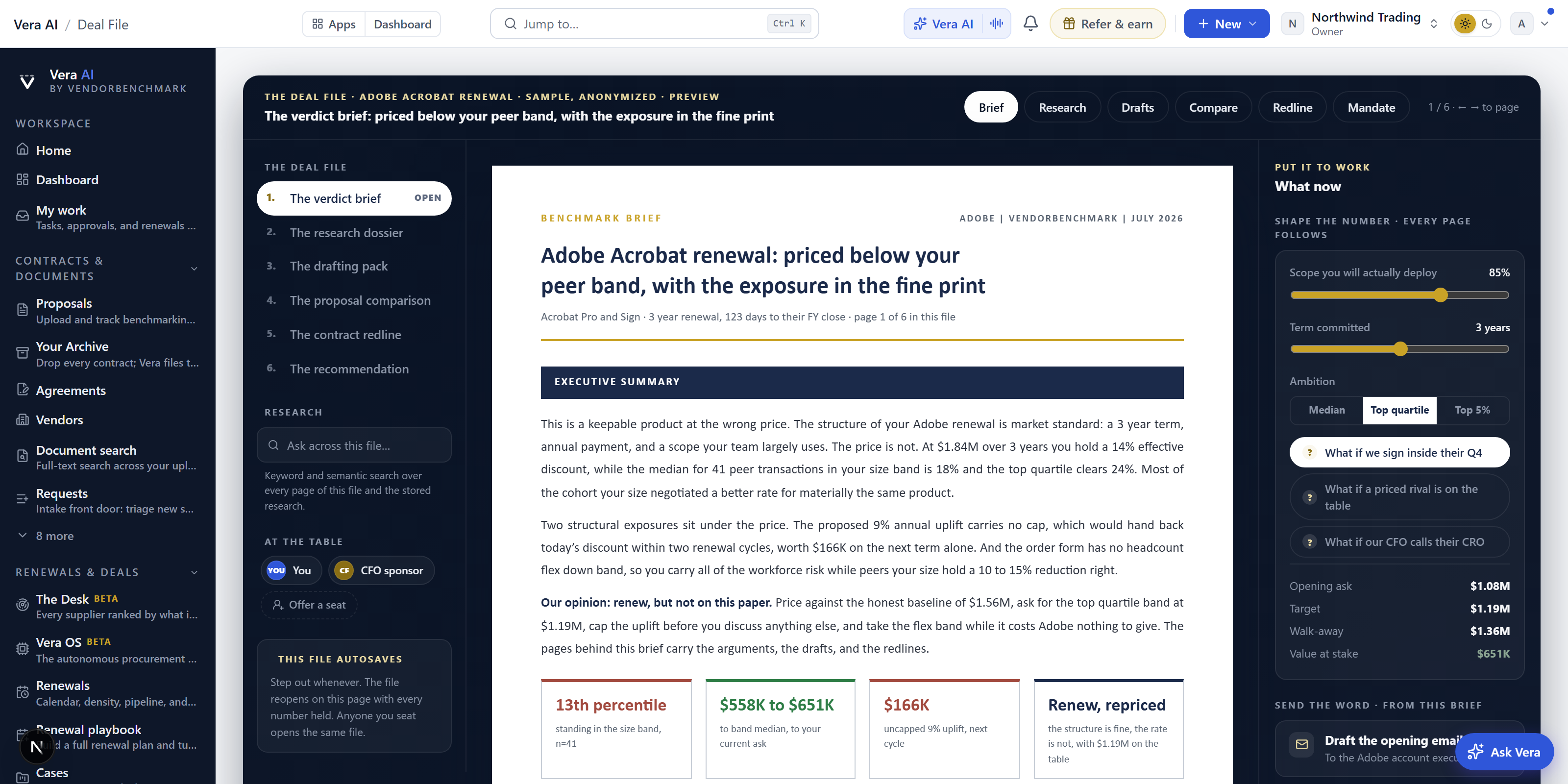
On the screen
- The masthead — in the house dress: the sample's own figures on one row (proposal, seats, term, the discount today, the peer midpoint and the uncapped uplift), with Run your own contract at the right.
- The file's contents (left) — the six pages numbered in reading order with open and read markers, search across the file, and the seats at the table. Offer a seat brings a teammate into the same file on the same page.
- The document (center) — one executive brief per page: the benchmark Brief, which opens on the discount you hold, the band comparable buyers land in, and where that ranks, the Research dossier where you tick your leverage directly in the table, the Drafts pack of five letters, the line by line Compare table with a strike button on every row, the Redline with adopt or hold on each clause, and the Mandate ready for sign-off.
- The what-if dials (right) — scope, term, and ambition dials plus three what-if switches. Every page reprices as you move it: the ask marker on the brief, the numbers in the letters, the mandate table.
- Put it to work (right, below the what-if dials) — page-specific moves: the five drafts, copy the one line verdict, send the markup to legal, route the mandate for sign-off.
- Under the file — Contracts that could become a file and Renewals that will need one: your latest contracts with their status and annual value, and the renewals coming up with the days out, the notice date and the annual value, in US dollars, then How a deal file is built in four short facts. Under them, Vendors on file lists your largest vendors by the annual value their contracts state: the contracts on file, each vendor's share of that stated spend and its next renewal date. Each row opens the vendor.
How to use it
- Open the file from the negotiation screen and read the brief; the gold marker is the ask the file argues for.
- Move the what-if dials until the target is one you would defend on a call, then tick your real leverage on page 2.
- Pick the opening email on page 3, copy it, and send it from your own inbox; nothing sends from the platform.
- Strike the indefensible lines on page 4, decide all six redlines on page 5, and route page 6 for sign-off.
The file autosaves in your browser: leave whenever, and it reopens on the same page with every number held.
Related: Major renewals · Second opinion · Vera AI - Ghost Writer
Vera AI - Ghost Writer
One inbox for every vendor conversation you are running, in the shape of the mail client the work actually happens in. A drafting box is right for one email and wrong for the eight weeks after it, where the negotiation is a thread: what they sent, what you sent, what you nearly sent, and what to send now.
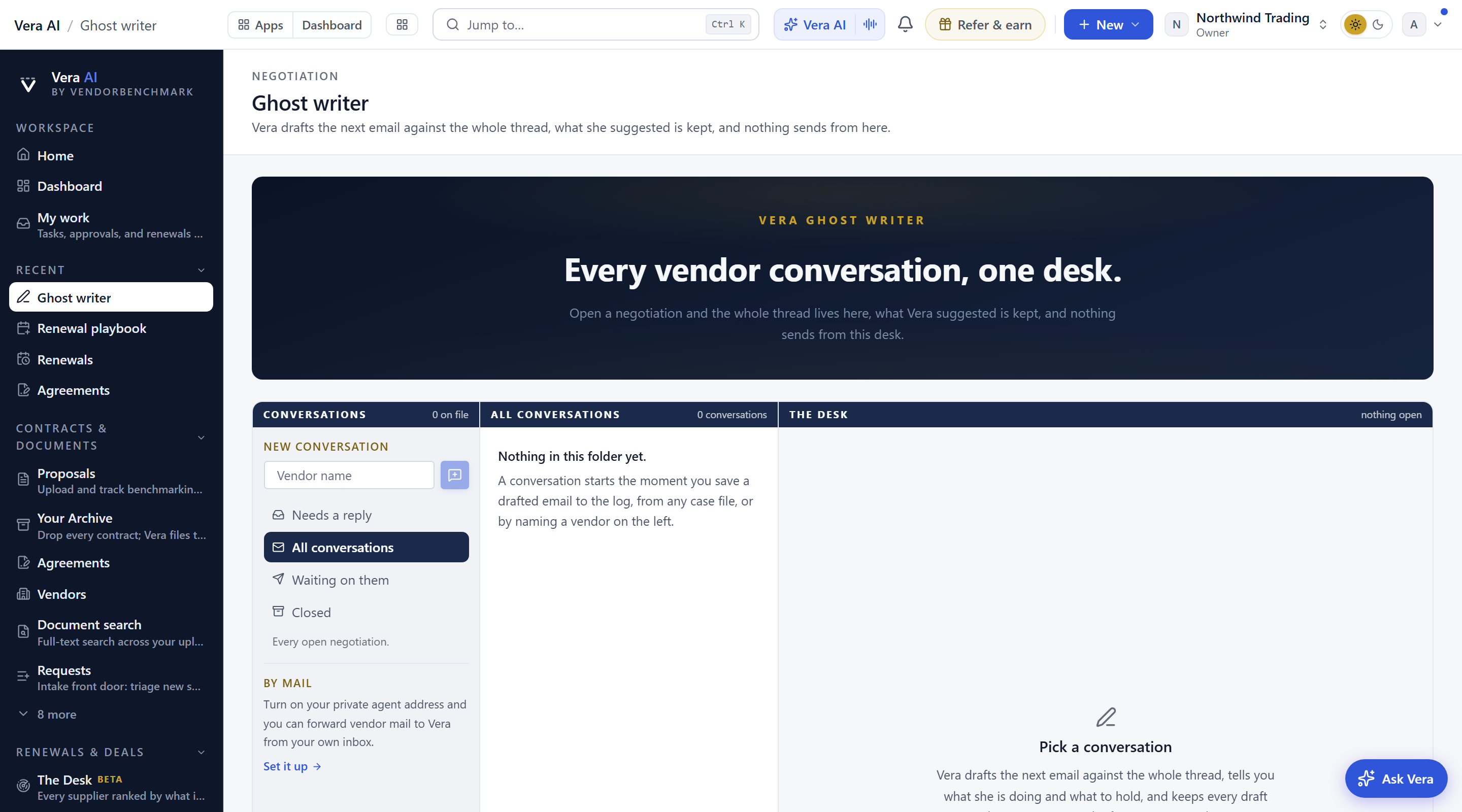
The window. Ghost Writer opens in its own window on the same frame the agents use, with three screens on the number keys: Conversations, The thread and By mail. The index on the left holds the folders, worked out from the record rather than stored, so they can never disagree with the thread: Your turn (they spoke last), All open, Their turn (you spoke last) and Closed, then The ball is with you, each vendor waiting on you with how many days. Type a vendor at the top right and press Open to start a new conversation. The head says how many vendors are waiting on you and how long the oldest has waited, with one row of figures under it.
Conversations. Every thread as a runway over the last sixty days, one row per vendor with each message a dot (filled from them, hollow from you), and under it the same threads as a ledger: whose turn, the last message, how long it has waited and how many messages it holds. Press a row to put it in the inspector on the right: whose turn, the last message, the wait, the momentum, Vera's read of their last move, and the moves (draft the reply, open where the conversation started, open the negotiations). Double click a row, or press Draft the reply, to open The thread: every message in order, yours and theirs, with Vera's read printed underneath each of their messages, the tactic named and the play she would run against it. With no conversation yet, the screen lays out the three ways a thread starts and the ledger it will fill, with what each column will carry.
The composer. Underneath the thread. Paste what they sent adds their message to the conversation and reads it, against everything already said rather than on its own, so a number they are quietly repeating or a concession they are walking back is visible. Then pick an angle and Vera drafts: Hold the position (concede nothing, make them move next), Ask, do not bid (spend questions instead of money), Bring the alternative forward, The budget ceiling, Offer two packages (two shapes you value equally, so their choice reveals their constraint), or Close it out (narrow to what is open and collect the end-game asks).
The tone, on its own row under the angles, is a separate decision: the angle is what the email argues, the tone is how it sounds. Direct is the standard register, plain and businesslike. Warm is collegial, for a relationship you intend to keep; the warmth is in the wrapping only, so it concedes nothing a cold email would have held. Formal is measured and written to be read by people who were not in the conversation, for an email that will be forwarded, escalated, or attached to the file. Firm is cool and short, for a thread that has stalled: what is not working, what you need, and what happens if it does not arrive. Pressing one rewrites the draft in that register with the position unchanged, and the tone rides every rewrite and saves with the draft. She works out where the negotiation stands from the record itself, probe, anchor, trade, or converge, and writes to that phase, and every draft is written against what is known about how that particular publisher negotiates and where its fiscal year sits. What this draft is doing appears above the email, for your eyes only: what it concedes, what it refuses, and the one thing to hold. Ask Vera for a rewrite takes plain English ("shorter and firmer", "hold the number", "ask for their final document") and rewrites what is on screen, so edits you made by hand survive.
Drafts are kept. Save the draft keeps it as edited, so leaving Ghost Writer does not lose it. Every draft Vera wrote lists the whole history for that conversation, each with the angle and tone it took, when it was written, and a sent mark on the one that actually went, and Put it back in the composer restores any of them, in the voice it was written in. I sent this records that you sent it from your own inbox: it joins the thread as an outbound message, and every later draft reads against it.
Nothing sends from here. The platform never mails a vendor from Ghost Writer. You copy the draft or open it in your own email app, and Ghost Writer records what left. If you would rather work the thread from your inbox entirely, Vera AI - Ghost Writer by email in the menu on the left sets up a private agent address you forward vendor mail to.
Related: Major renewals · The benchmark library · Workflow agents · Mail
Your own mailbox: every email the platform drafts for you, filed in one place. Where the Ghost Writer holds one vendor negotiation as a thread the deal team can see, Mail is personal. It carries everything, the benchmark you are forwarding to your CFO, the note going back to a vendor, the reply you asked Vera to read first, wherever in the platform it started.
Since 2 November 2026 Mail opens as a white desk built to sit beside Home: a white bar closed by the gold rule with the search (Ctrl K), Talk to Vera, light or dark, Minimize and Close; the folders on the left; the list; the letter; and, on a wide screen, the details column. The Outlook look of 25 October stays at /mail?outlook=1 and the earlier window at /mail?classic=1.
In plain words: the mail client where Vera drafts the email, and you watch her do it.
The left side. Home, then Draft with Vera (N), the first button: describe the email and Vera writes it. Its arrow also offers Write it yourself (W), Draft every reply with Vera and Analyze a response, which reads an email you paste in before replying to it. Then the folders: Inbox, Drafts, Sent, All mail and Trash; Vera's views, Needs reply, Drafted by Vera and Waiting on vendor; Vendors and Internal, split by who the reader is; and Renewal files, the renewals you track with how many threads each holds. Below 1,280 pixels wide the side folds to icons; on a phone it opens from the menu button.
The list. Emails are grouped into threads by subject and person, under Today, This week and Earlier. Each row carries the person, their company, how many emails the thread holds, a paperclip when there are files, the time, the subject, Vera's line (or the first words of the email, or nothing: the view button picks) and the state: Needs reply, Draft ready, Waiting, Replied, or Drafting while Vera writes. All and Files filter the list. In the Inbox and Needs reply, the counts of what needs a reply, the drafts ready and what is waiting sit over Draft N replies with Vera, which writes a reply to every email that needs one while each row shows its draft being written.
The letter. The subject and its tags (the renewal file, External or Internal, the state), then Vera summary: Vera reads the thread the first time it opens and sets out what was asked, the figures and the dates as labels and values, with a rank where the thread carries a price, and under them the replies worth sending, the first one recommended. Press a reply to have it written. The thread follows with earlier emails folded to one line (press one to open it) and its files, then the draft Vera left, if any, with Approve and send, Edit, Discard and Regenerate. At the foot, Draft reply with Vera is the primary, and the field beside it starts a reply you write yourself. On a wide screen the details column carries the renewal file, the people on the thread, its files and Ask Vera about it.
Watching Vera draft. The composer opens in the letter for a reply and over the desk for a new email. Vera works through four steps shown in its head, Read, Plan, Write and Check: the emails she reads light up one by one, the facts she uses lift out of them into the Facts row, the plan sketches the paragraphs, and the email is written word by word with every figure marked and numbered to the email it came from (point at a figure to see its source). Check then confirms the figures match their sources, an email to a vendor keeps your internal position out of it, the ask carries a date, and the length suits the reader. Drafts are written with the most reasoning the model allows, so a long thread takes a little longer.
Changing a draft. Tone (measured, direct, warm), Length (short, medium, long) and Figures rewrite the draft in place, the old words striking out as the new ones arrive. Regenerate lists Vera's recommendations for this draft, such as Shorter, Firmer or Lead with the ask, then Same settings, rewritten and a box for your own instruction. Every version is kept: the version chips switch between them and Show edits marks what changed. Type in the letter at any time; Ctrl Enter sends.
Attachments are real files. The paperclip takes anything from your computer up to 25 MB. Files are stored privately and open through a link that expires after a minute, so an attachment is something the reader can actually open rather than a name on a list.
Filing it into a renewal. File to renewal, in the letter's toolbar or the right click menu, puts the thread into a contract record, where the case and any negotiation on that renewal carry it as context. This is the one action that shares an email: your mailbox is otherwise yours alone, colleagues cannot read it, and a blind copy is never carried across when a thread is filed.
Sending it. Send sends the email from your workspace to the addresses on it, and the email flies to Sent; where sending is not switched on for your workspace, it stays a draft and Mail says so. The right click menu also has Copy email and Open in your mail app. Nothing goes to a vendor without you pressing Send.
Keys. N drafts with Vera, D drafts a reply, W writes one yourself, R replies, A replies to all, F forwards, J and K move through the list, Enter opens, / or Ctrl K searches, V talks to Vera, I shows the details column, Delete moves a thread to Trash and Esc steps back. Right click any email, or press Shift F10, for its actions.
The sample mailbox. /mail?sample=1 opens a sample mailbox of ten threads where nothing is sent: draft, regenerate and send to see the whole flow, and a reply arrives about ten seconds after you answer Dana Whitfield's email.
Related: Vera AI - Ghost Writer · Agreements · Renewals
Case Rooms
One case for each contract. Press Create on any contract on file and its case holds what the contract says, its benchmark, the timeline, a strategy for what you want, the talking points, the research and news on the vendor, and the people working it. Every app the case names opens on that contract in its own window. Nothing is copied: the plan, the targets and the dates are the same ones Contract Office shows for that contract.
Since 20 October 2026 a case is one renewal on one path, five stages from the deal to the signature, with your team beside it:
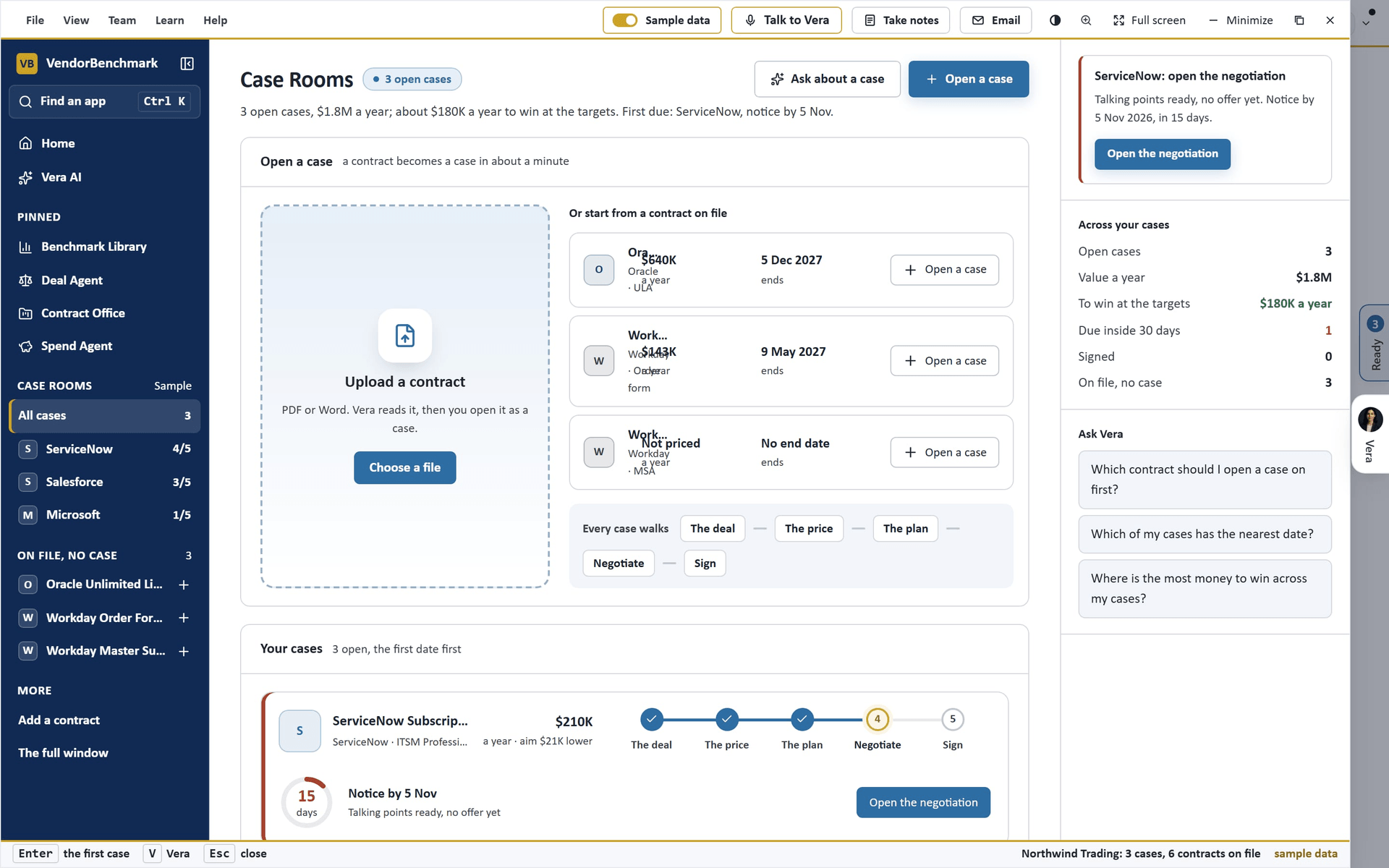
- Your cases — the first screen: each case as a journey card, the first date first, with the contract and what it costs a year, the five stages and where the case stands, a ring of the days to the date that commits you (the notice date, the date to decide by, or the end), and the next step as a button. Open a case sits above them: upload a contract (PDF or Word; once it is read it lists under the contracts on file) or press Open a case on a contract on file and watch the case build: the contract read, the dates found, the price checked, the plan written, the research gathered and your team invited. Dates that commit you puts every case on one runway with today, the notice dates and the ends of term.
- The journey — across the top of a case: The deal, The price, The plan, Negotiate and Sign, each with what it found. One stage is open at a time with one button, at the foot and in the head (also N). Press a stage to look at it: a stage after the current one is a look ahead, and a stage before it can be opened again. A stage is done when its steps on the case plan are done, so Contract Management shows the same progress.
- The deal — the terms read off the contract, each with its page (press it to open the contract there), and a Watch row: renews on its own, the cap on increases, no way out, the terms Vera was not sure of. Those are gold, with Confirm (it is confirmed on the contract for everyone) and Ask Legal (a question to your team).
- The price — what it costs, what comparable customers pay and where it ranks; the price line with today, the target and the range comparable customers pay where the contract is placed; and the target and the cap on increases to move, with the target a year, the saving a year and over the term, and where it would rank. A contract not placed yet has Benchmark it.
- The plan — your goal (four cards), the asks in order (move one up or down), and the timeline: your plan beside the notice date, the vendor's quarter and the end, with the plan's steps to tick.
- Negotiate — the talking points in a firm, collaborative or executive tone, each with what it rests on and a copy button; what they will say, a card that turns over to your answer; and the offers on the price line. Log the offer puts their number on the line, Send the counter writes your target to the case, and We have a deal records the price and moves the case to Sign. Each of these is a comment on the case's conversation, so everyone on the contract sees it.
- Sign — the final terms against where you started and the saving; then the steps to the signature: agreed, out for signature in E-sign, and Mark as signed.
- Your team — beside every case: the countdown, the people with Invite by email, the conversation (write to your team; ask a question and Vera answers from the case, with Ask Vera for more), the files on the contract, and the apps that open on it (Teams Room, Benchmark Library, Negotiation Agent, E-sign).
Press 1 to 5 for the stages, N for the stage's button, V for Vera, Esc for your cases. The full window at the foot of the menu (or /case-rooms?classic=1) opens the window described next, with Start, Every case and the eight sections.
On the screen (the classic window, at ?classic=1)
- The window — Case Rooms wears the frame every app shares.
- The contract, and its insights (since 13 October 2026). Open the contract, a term on the Terms section or the right press opens the contract as paper over the window, with What the read found beside the pages, each term a press to its page. A sample contract has no uploaded file behind it, so the platform's sample paper for its vendor stands in and the reader's gold tag says sample paper. AI advisory in the case's head (also A in the reader) reads the pages and lays out the verdict, four figures, the key terms, What is risky, What is good, Against your company template and What to do first, each row a press. The window arrives in motion since the same day: the head, the sections one after another, what the case holds, the talking points, the people, the dates and the paper settling. Reduced motion in your system leaves it still, as before. Along the title bar: the menus, Sample data, Share, light or dark, Minimize, Maximize and Close. In the column at the left: Home, Vera AI and your pinned apps, then Start and Every case, the eight sections of the case you have open, and your other cases with what each costs a year. Since 9 October 2026 nothing runs across the top: the eight sections of an open case are numbered rows in the left column (Overview, Contract, Benchmark, Timeline, Strategy, Talking points, Research, Room), the head names the screen with one line under it that says the estate or the contract once (the vendor, the money a year, when the term ends, the notice date), and the details column leads with what to do now: on Start and Every case the case with the nearest date and Open the timeline, or the first case to create; inside a case the notice to give if it is near (on a contract that does not renew on its own, the date to decide by), the benchmark if there is none, else the strategy to write.
- The head — outside a case: Case Rooms, how many cases you hold, and one row of figures (cases, what they cost a year, contracts on file with no case, the next date), with Create a case at the right. In a case: the contract's name, its rank or Not benchmarked, then the vendor, what it costs a year, when it ends and the notice date, with Goal, Collaboration room, More and the section's own action at the right.
- Start — say it, type it or pick one of eight tasks (renew a contract, check a price, read a contract, compare two contracts, prepare a negotiation, see what changed at a vendor, work it with your team, see what is due). Vera shows what she understood, the task, the contract and what opens, before anything opens, and asks once when she cannot tell which contract you mean.
- Reports and exports (since 2 October 2026), on the start screen under your cases: Your contracts in charts (value a year by vendor, the dates that commit you by quarter, and when the terms end), then Excel workbook (every row typed, so it sorts and sums), Word report (the same report as a document), Email the report (to up to ten addresses, your note first, the Word file attached) and, under them, Shall I draft the email?, which writes an email to the vendor, your CFO or a colleague that you send yourself. The files list every contract on file with whether it has a case.
- Every case — your cases as cards with the yearly cost, the gap to comparable customers and the next date, then the contracts on file with no case yet, each with Create a case.
- Overview — what the case holds, step by step; the three benchmark answers; the next step of the plan; the collaboration room; the eight apps open on this contract; the timeline; this month's news; and the first talking points.
- Contract — the terms read from the contract, each with the line and the page it came from. Compare lists the vendor's other documents and opens the comparison.
- Benchmark — what the deal costs, what comparable customers get and where it ranks, with the chart of reference deals, the lines read from the contract, the ranked list and what each point of discount is worth (the saving on the discount alone; the What if also counts the cap against the contract's uplift). A contract with no benchmark yet offers the Benchmark Agent and the Benchmark Library.
- Timeline — your plan beside the vendor's fiscal quarters, the dates that commit you, and the plan's steps to mark done.
- Strategy — pick what you want from the contract (a lower price, flexibility, less scope, or leaving). The range, the asks and what each adds, who holds what, the order to raise things in and what the vendor will say all follow the goal and your targets.
- Talking points — each point with what it rests on. Write them again changes the tone (firm, collaborative, executive); Copy takes one with you.
- Research and news — this month's market news on the vendor, the notes in the Research Library and the analyst films.
- Collaboration room — the conversation, the open actions, the files, signatures, the meeting notes from the contract's Teams Room, and who has access, with an invite by email.
- Details, on the right — on Start: how Vera decides, the dates that commit you and the contracts on file with no case yet, each with Create. On Every case: what a case holds and what is coming up. In a case: What if (move the price target, the cap on increases or the term and the case reprices at once), the dates ahead (yours, the plan's milestones and the vendor's quarter close), who is in the room, and Ask Vera about this case. I hides or shows the column.
How to use it
- Open Case Rooms from Home. On Start, type what you want and the vendor, or pick a task and then the contract.
- Or open Every case and press Create a case on a contract. Pick what you want from it and press Create the case.
- Read the Overview, then work through the sections in the tabs. Keys 1 to 8 move between them, I shows or hides the details, V talks to Vera and Esc puts the window down on the tab strip.
- Set your targets in What if. The strategy, the talking points and the plan follow them, and they save by themselves.
- Press an app card to open that app on this contract, or Collaboration room to work the case with your team.
Tips
- A contract that has not been read or benchmarked yet still gets a case. Each empty section says what is missing and offers the app that fills it.
- The strategy and the talking points on the case are built from the contract, the benchmark and the dates. For the written strategy, the full script and the rehearsal, open the Negotiation Agent from the case.
- The goal and the tone are remembered for each contract on this browser. The plan, the targets and the dates are shared with everyone on the contract.
Related: Contracts · Compare contracts · Renewals · Cases
Cases
Case Mode: every agent-run deal as one complete record, with the worklist sorted needs-you first and one rule throughout: a case holds at most one pending human decision at any moment.
In plain words: Vera runs the negotiation; you approve the goal and decide every offer.
When to reach for this
- The tail vendors nobody has time to negotiate: Automated mode runs them without a strategy review each.
- A deal that matters but not enough for your own calendar: Guided mode, with the strategy approved by you.
- Checking on a running case: the worklist is sorted so what needs you is at the top.
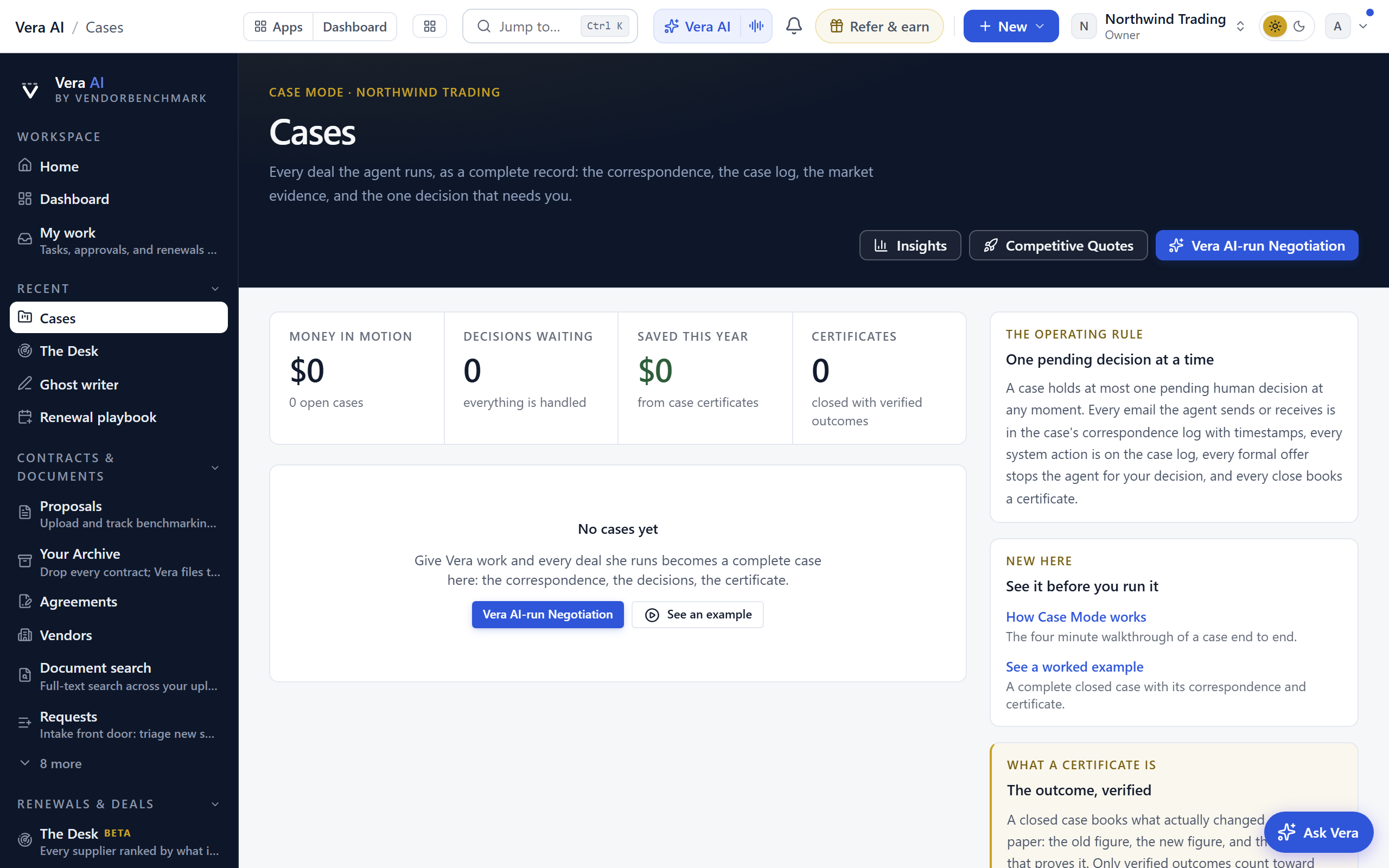
Your position sits in the house masthead: money in motion, decisions waiting on you, saved this year from the certificates closed this calendar year, certificates booked and open cases. The stages are the numbered steps above it, each with its count, and they filter the worklist. The operating rule and the Moves (the decision waiting, a quiet vendor to nudge, a new case, insights, the walkthrough and the worked example) sit in the inspector beside the worklist.
On the screen
- What if the open cases land: move the outcome off today's price and read what the open cases in US dollars save a year, case by case as bars and in total, on each case's own annual value. How a case runs closes the page with the four stages.
- The worklist: every case with its annual value, stage (Your decision, You have the wheel, Agent negotiating, Setup, Closed), who the case is waiting on and for how long ("Vendor · 3d", "You · 2h"), the predicted close date with its basis, and the next action. Filter by stage with the numbered steps above the masthead. When a vendor has been silent for 3 days or more, the row grows a Have Vera follow up button: one click and she sends a polite chase, you on CC. The worklist also states who owns each deal: a row where you took the wheel carries In negotiation, run by you, which opens its Major renewals thread.
- The case record: the house masthead names the case with Cases as its separator, with the annual value, mandate state, savings and term end in one row and Case report at the right. The four stages (Setup, Agent negotiating, Your decision, Closed; "You have the wheel" when you take over) are numbered steps across the top and say where the case stands; each opens the part of the file that stage is decided on once that part exists (Your decision while an offer waits on you, Closed once the certificate is issued). The inspector at the right carries the case ID, when it opened, the vendor contact and the agent's address, with its Moves. Then Your mandate, which answers "what exactly did I authorize?" with the opening ask, target, walk-away, and leverage, a plain-language "she may / she may never" split, how she signs, who rides CC, and the exact AI disclosure sentence the vendor reads. Below it the market evidence and the case file: every email and every system action merged into one chronology (filter to Emails or Case log), sent messages edged in blue and vendor replies edged in gold, each with its addressing, timestamp, complete body, and Vera's read.
- Decision required: when an offer stops the agent, the money leads: three figures showing what you pay now, what the vendor offers, and what you would save or pay more, plus the vendor's offer trend across rounds so you can see the floor forming. Then the one decision: accept and close, approve and send Vera's prepared counter, or reject it and tell her what to push for so she counters the vendor again. A negotiation runs as many rounds as it takes. Accepting can carry conditions: state them and Vera sends the vendor a written acceptance in principle, subject to contract, to your internal approval and to your conditions, before the case closes, so the terms live in the thread. The figure is in the contract's own currency, the term is named when it is on file, and nothing binds until the order form is signed. When an offer lands you also get an email that leads with the same numbers. Nothing goes to the vendor until you choose.
- Take the wheel: step in on any live case and the agent stands down entirely; work the thread yourself, then hand control back to Vera whenever you are done. Both moves are on the case log.
- The certificate: closing books a verified outcome certificate with the baseline, the accepted figure, the savings, any acceptance conditions, and the evidence counts, and it rolls into the Saved this year number. A closed case ends with next moves (start the next vendor, open the report, see the insights), never a dead end. It also shows in realized savings on the Overview lens of Spend Agent.
- This deal elsewhere: one line naming the other records this deal already lives on, so a single deal stops living in four places you have to remember. There are three possible surfaces, and it names only the ones that exist: Negotiation (you drive), Case (Vera drives), and Renewal record (the document). The record you are standing on is never listed against itself, and the same line rides the negotiation case file.
- Read and watch: at the foot of the case record in every stage, the films, analyst briefings, research papers and guides the library holds on the case's vendor. It loads when you scroll to it.
Vera AI-run Negotiation (/cases/new)
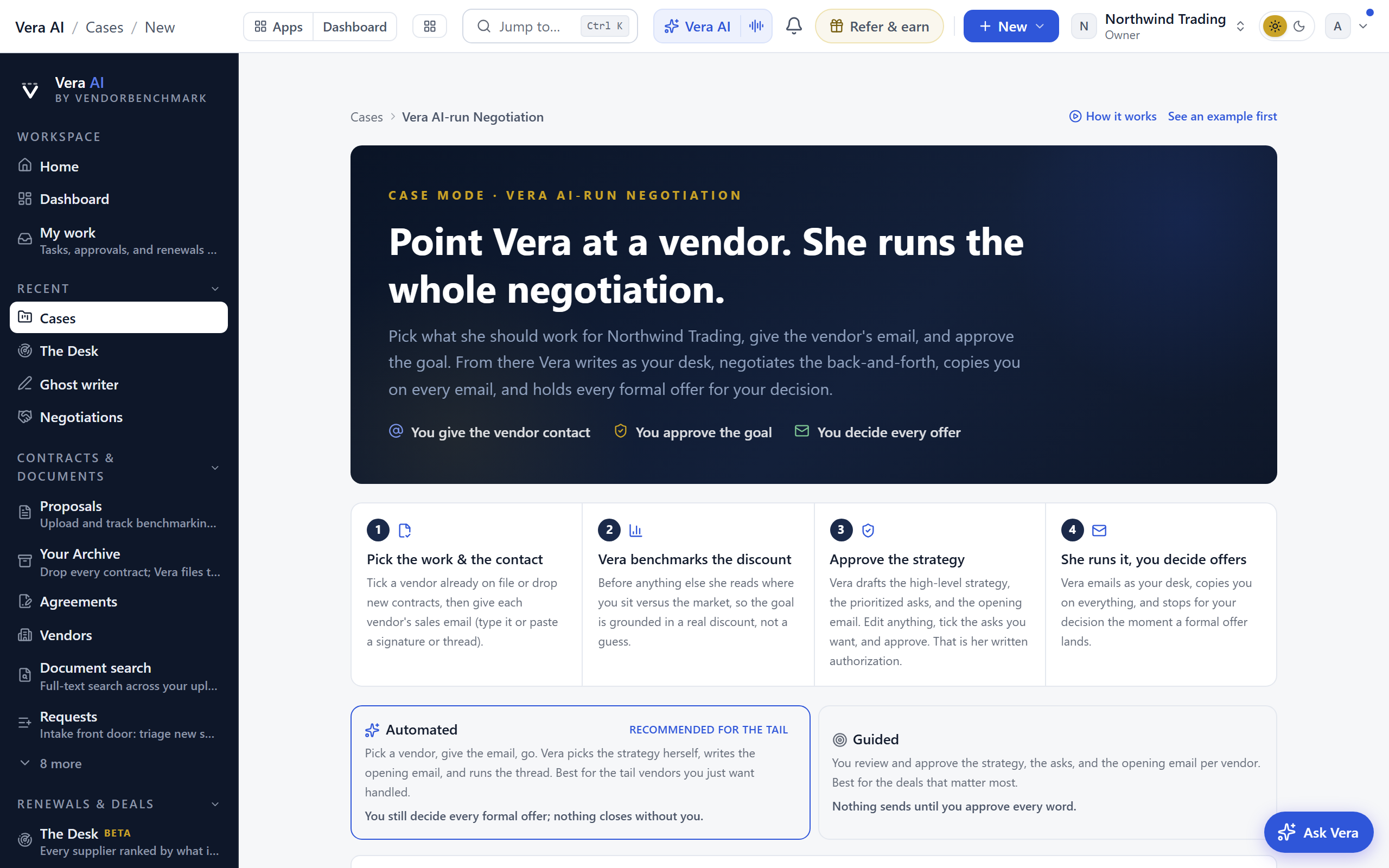
The one intake for Case Mode, with two modes at the top. Automated is the easy path for the tail (tier-3 and tier-4 vendors): pick the vendor, give the contact email, and launch, and Vera benchmarks the discount, writes the opening email, and runs the negotiation on her own with no strategy to review. Guided is for the deals that matter: you review and approve the strategy, the asks, and the opening email per vendor before anything sends. Both copy you on every email and stop for your decision on any formal offer.
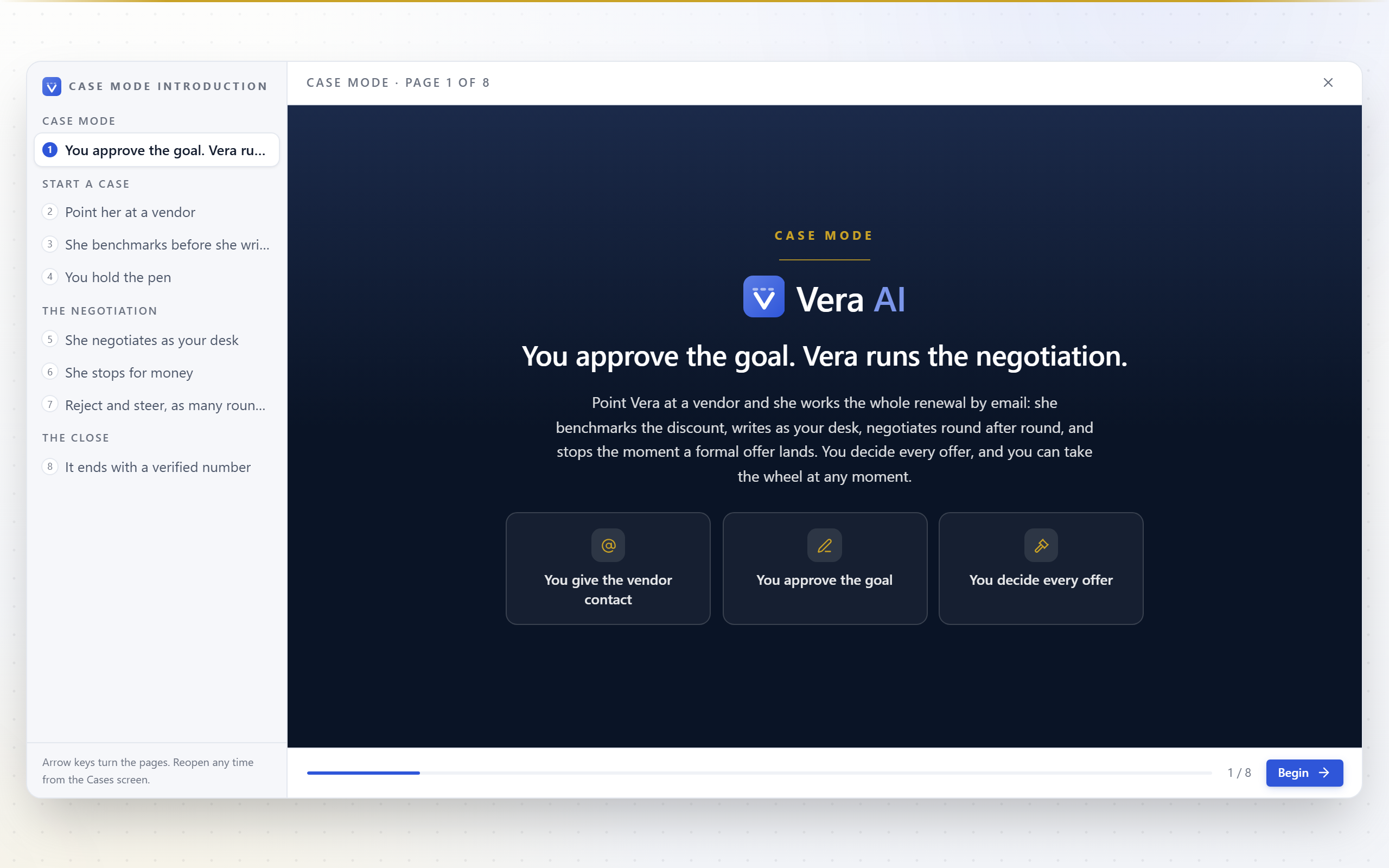
The first visit plays the Case Mode introduction (/cases/intro): an eight-scene, full-screen walkthrough of how a case runs, from intake to the certificate, with the control model spelled out (you approve the goal, she negotiates, you decide every offer). The product screenshots carry each page; click any of them (or the Enlarge control) to view it near full screen, and press Escape to return. Replay it any time from How Case Mode works in the Cases header. Finish with "Do not show this again" selected and it never interrupts again.
In either mode you select a vendor already on file (each row carries a colored vendor monogram so long lists scan fast), add one by hand, or drop new contracts (single files or whole folders; the drop zone accounts for every file: added, failed, or skipped for type), and supply the vendor's sales or renewals email by typing it or by pasting a signature or email thread. The paste box shows what it found ("Found dana@vendor.com · Dana Reyes") before you commit it. As each row lands, Vera reads the market for that vendor and states it in dollars: the published discount band, and what your target percent is worth per year against your current spend ("At your 10% target that is $32,000 a year off the table"), with a nudge when your target sits below what buyers typically get. A summary line under the guardrails totals the whole launch. The screen also shows the exact AI disclosure sentence the vendor will read, word for word, and warns you if a CC address sits on the vendor's own domain. Up to 10 cases launch at once; the counter is on the screen. Your mode, guardrails, sender name, and CC list are remembered for the next launch, and once your org has launched its first case the big explainer folds away into a one-line header.
The launch is live. After you press launch, each case plays its opening on screen: benchmarked, strategy set, first email in the vendor's inbox, then the actual email that went out, readable in full, with the sender name the vendor sees. The headline states the target on the table in dollars across everything you launched. Failed rows list their reason with a Fix these and relaunch shortcut. In Guided mode you then press Prepare the strategy with Vera: she benchmarks where you sit versus the market (the discount read), drafts a high-level negotiation strategy that uses real competitive tension (naming credible alternatives so the vendor has to stay price competitive), sets the opening ask, the internal target, and the walk-away, lists the prioritized asks as tick boxes (defaults are pre-selected; untick what you do not want), and writes the opening email. The plan also states how she will play the rounds: the concession plan (steps that shrink round over round so the vendor reads the floor), what she finds out from the vendor before conceding anything, and, when talks would fail, the credible alternative as a costed path (If talks fail). Review and edit any of it, including the email itself, then approve; the approved plan becomes the mandate every one of her emails is checked against. The owner's authorization launches every prepared selection at once. How the email works is spelled out on the screen: Vera sends through VendorBenchmark's secure relay so vendor replies route back to her, the vendor sees your sender name (not VendorBenchmark), and you are copied at your real inbox on every message.
How Vera negotiates. Before every strategy and every counter she reads the VendorBenchmark research for the moment at hand (the vendor's Negotiation Toolkit, the Negotiation Craft doctrine, Renewal Outlooks, audit defense manuals, exit runbooks), so a quarter-end squeeze or an audit-as-leverage play gets the researched counter. She computes the vendor's offer trend across rounds (shrinking moves mean the floor is near), recognizes the rep from your prior threads and the plays they favor, knows the vendor's fiscal year and quarter closes and deliberately slows her pace into them, and never gives without getting: every concession is paired with an ask, on the shrinking curve you approved. Before any email goes out unattended, a seller-side check reads the draft the way the vendor's account team would; anything exploitable is parked in your approval queue with the findings attached. And a negotiation that reaches ten vendor rounds without landing stops and asks you to converge or walk, with a prepared next move waiting.
Editing what Vera sends. You can edit any email before it goes out: the opening email in the prepare step, and every counter Vera drafts (open the case, use Edit on the prepared counter, then approve to send exactly what you see). The AI-agent disclosure is always kept on the opening email even if you remove it.
If the first email has not gone out. A case only reads as "Agent negotiating" once the opening email has actually been sent. If a case shows "Setup · not started" with the next action "First email not sent yet", open it and use Send the first email now; if delivery fails you will see exactly why.
Insights (/cases/insights)
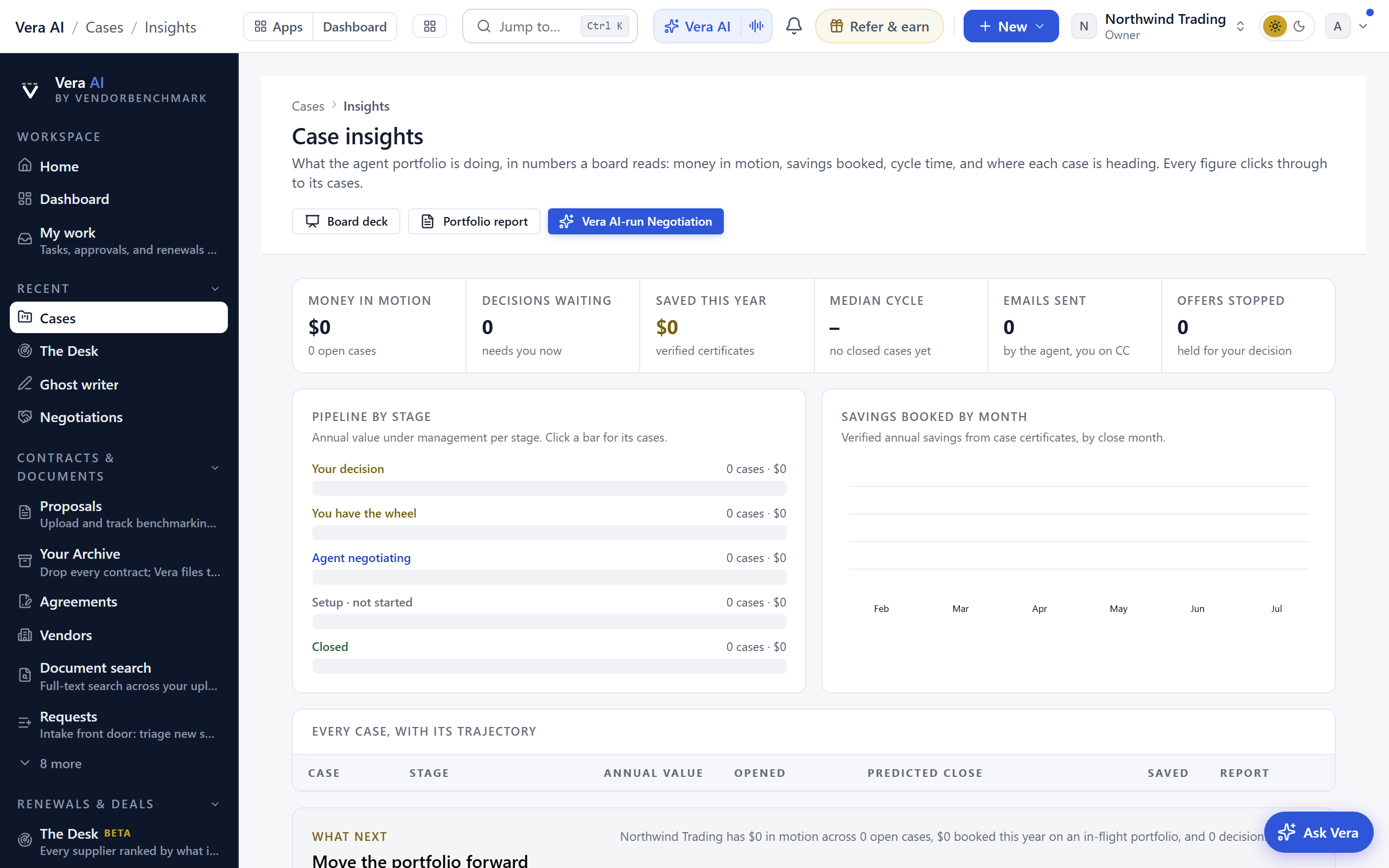
The Case insights page opens on the house masthead: money in motion, open cases, decisions waiting, saved this year and the median cycle in one row, with the board deck, the portfolio report and New case at the right. What the open cases could save lets you move the outcome off today's price and read what the open cases save a year. Below it: the agent's email activity in the inspector, with pipeline-by-stage and savings-by-month charts you can click into, and a table of every case with its predicted close date and basis. Board deck exports the whole portfolio as a three-slide PowerPoint in the executive-brief theme (the numbers, then every case), ready to upload into a board pack unedited; the portfolio report is one click away too.
Email that keeps you current. A weekly Your cases digest lands Monday morning when you have open cases: money in motion, decisions waiting, savings booked, and the worklist, decisions first. And the first time a vendor replies on a case you get a short note with the vendor's message, Vera's read, and her next step, so you never wonder whether the machine is working.
Reports
Every case has a report (/cases/[id]/report): the mandate, the full correspondence, Vera's reads, and the outcome, as an executive brief you can export and forward. The portfolio report (/cases/report) is everything Vera ran across every case in one brief. Under the report, Read and watch carries the films, briefings, papers and guides on the case's vendor; it stays out of the printed report.
How to use it
- Open Cases and work top down; the list already puts what needs you first.
- On a setup case, review the mandate table and approve it in place; that approval is the agent's written authorization.
- When a decision is waiting, read the correspondence log first, then send the counter or accept and close.
- To steer a live thread yourself, take the wheel on the case, work it, then hand it back to Vera.
- Use Full deal thread on any case to upload into the complete negotiation workspace with every tool.
Tips
- Cases are the same deals as Major renewals, read as records; anything you do in either place shows in both.
- The sender name and CC list you choose at launch apply to every email Vera sends on that case, not just the first.
Related: Major renewals · Competitive Quotes · Renewals
Competitive Quotes
Autonomous multi-vendor quote runs: hand Vera a set of vendors, the tier-4 tail is the sweet spot, and she runs every quote conversation herself, so the vendors effectively compete for your business in parallel.
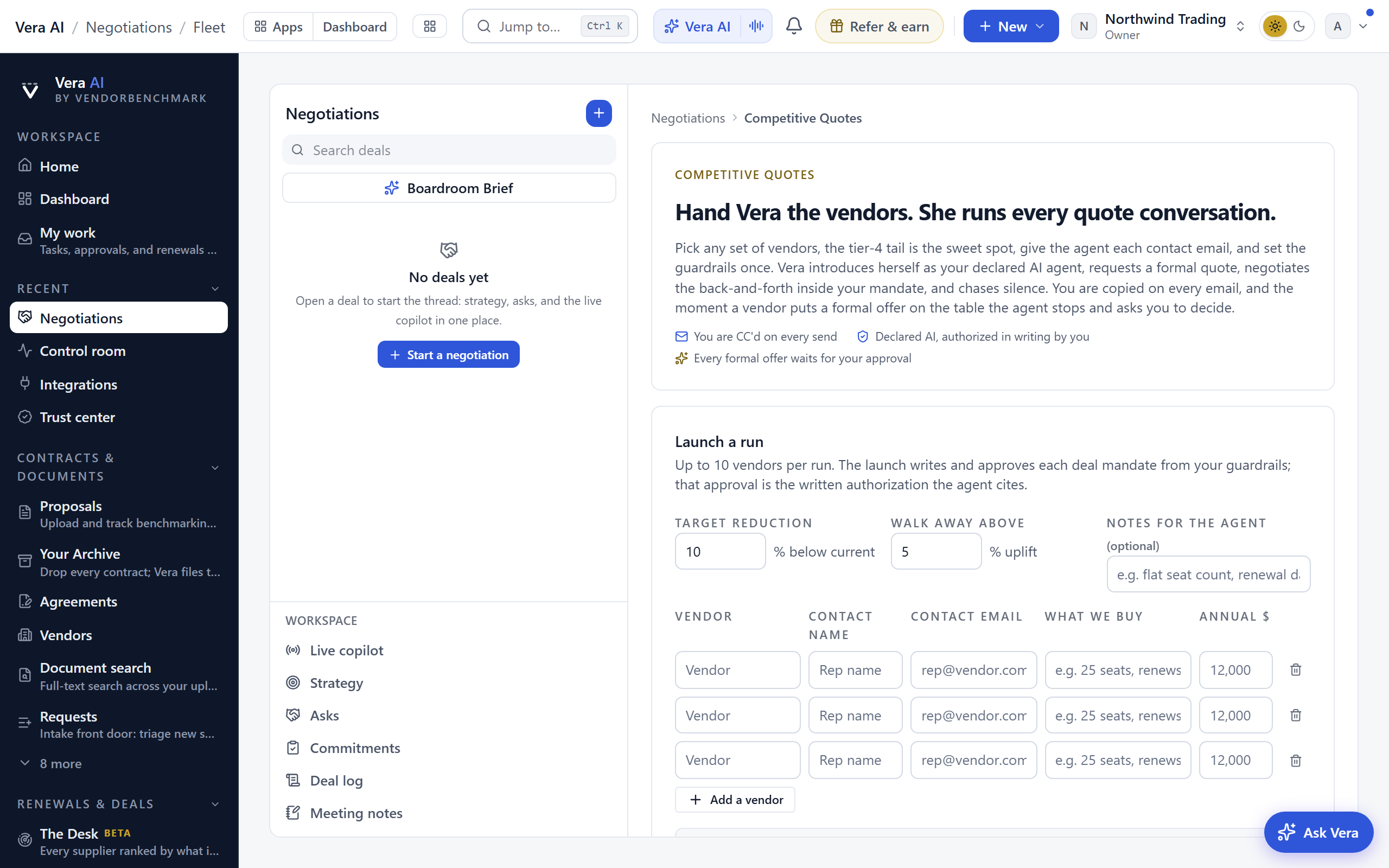
On the screen
- The head — since 27 September 2026 the page wears the house head of the contract utilities: Competitive quotes named in the masthead with the runs by state as its facts (runs, offers to decide, awaiting the vendor, negotiating, closed), and four Moves to a new deal, the live copilot, the asks and the hub. Each section below sits under a navy band.
- How a run works — the four terms every run keeps: Vera introduces herself, negotiates inside your mandate, copies you on every email, and stops at a formal offer.
- What if — move the target reduction and read the run in money on the annual figures typed into the vendor rows: what the target saves a year and over three years, and how far the walk away lets the price rise before the agent stops.
- The launcher — up to 10 vendor rows, each with the vendor, the rep's contact email, a one-line scope ("25 seats, renews October"), and the current annual spend if you know it. Guardrails are set once for the run: the target reduction, the walk-away ceiling, and optional notes for the agent.
- The authorization — the launch checkbox is the written mandate approval the agent cites to vendors. Owners only, and the approved mandate is recorded per vendor in the audit log.
- What Vera does — introduces herself to each rep as your declared AI agent, requests a formal written quote, negotiates the back-and-forth inside the mandate, and politely chases silence. You are copied on every email she sends.
- The offer gate — the moment a vendor puts a formal offer on the table, the agent stops, notifies you, and waits. No offer is ever accepted without your explicit approval on the deal thread. What next rides the moment: review the offer, escalate the run to a case, or ask Vera about the spread across the board.
- The board — every run with its state: quote requested, Vera negotiating, proposal awaiting your decision, paused, or closed, with sent and received counts; each row opens its thread.
How to use it
- Open Competitive Quotes from the negotiation screen and add your tail vendors with their rep emails.
- Set the target reduction and the walk-away ceiling, select the authorization, and launch.
- Watch the CC'd emails arrive, and act only when the board says a proposal needs your decision.
Tips
- Give each row a real scope line and the current spend; the agent's opening ask is built word for word from what you enter, never generated.
Related: Major renewals · Decisions
Buying blocs
Buyers with the same vendor and the same renewal window, negotiating on one term sheet. You stay anonymous until mutual opt-in.
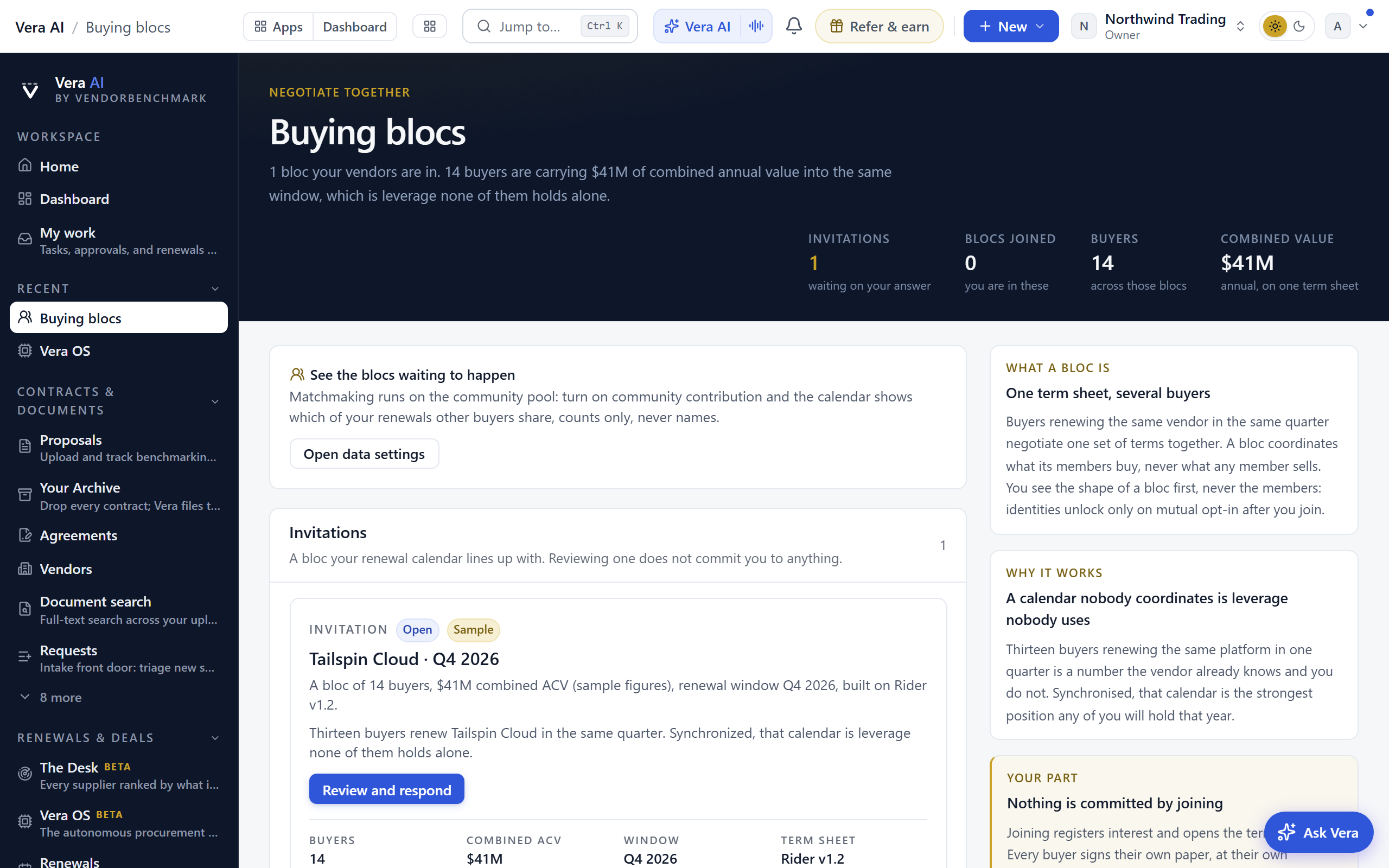
Since 26 September 2026 it opens in the same window the agents wear: your blocs down the left, invitations first, three screens across the top, the bloc in hand in an inspector on the right, and a status line at the foot. 1 to 3 change screen, I hides the inspector, and Escape puts the window down on the tab strip.
On the screen
- The head — one line on how many blocs include your vendors, how many buyers they hold and the combined annual value they carry into the same window, then a row of figures: invitations waiting on your answer, blocs joined, buyers, and combined value.
- Blocs — one row per bloc, invitations first: the vendor, its renewal window and status, where you stand (invited, interested or committed), buyers, combined value and the term sheet version. A sample bloc carries a Sample tag.
- Waiting to happen — where your renewal calendar lines up with other buyers of the same vendor, as counts, never names. Raise your hand asks for a bloc to form.
- How a bloc works — the four steps from invitation to your own signature.
- The inspector — the bloc in hand: its shape, why it formed, and either Review and respond for an invitation or Open the bloc for one you are in; Awaiting an answer counts the buyers invited who have not answered yet.
A bloc's room opens in the same window: the combined weight at display size in the head, then four screens. Window and members docks every member's renewal on the window and shows the members as anonymous tiles that resolve to names on mutual opt in; Term sheet is where each member takes a stance on each Rider clause; Concession feed is what vendors have given members this window; Messages is between the members, by alias. Leave the bloc, in the inspector, ends your access and withdraws your outcomes from the feed.
How to use it
- Answer your invitations first: select one and press Review and respond.
- In a bloc you have joined, set your stance on each clause under Term sheet.
- Read Waiting to happen and raise a hand where your renewal is shared.
Tips
- Blocs form around vendor families where several buyers renew in the same quarter, built on a shared Fair Renewal Rider term sheet.
Related: Fair Renewal Rider · Renewals
Contract terms
Sixteen terms read from every contract you hold, counted across your contracts and charted: auto renewal, notice to stop renewal, exit for convenience, price increase cap, price hold, liability cap, IP indemnity, vendor audit rights, true up, service credits, data protection, benchmarking or most favored pricing, assignment, payment terms, minimum commitment and governing law. Every value keeps the contract's own words and the page they are on.
In plain words: which of your contracts carry which terms, without opening each one.
When to reach for this
- Before a renewal season: which contracts renew on their own, and which need 60 or 90 days' notice to stop.
- When a vendor raises prices: which contracts cap increases, at what percent, and which have no cap at all.
- Before a policy review: how many contracts give you an exit for convenience, an IP indemnity or service credits.
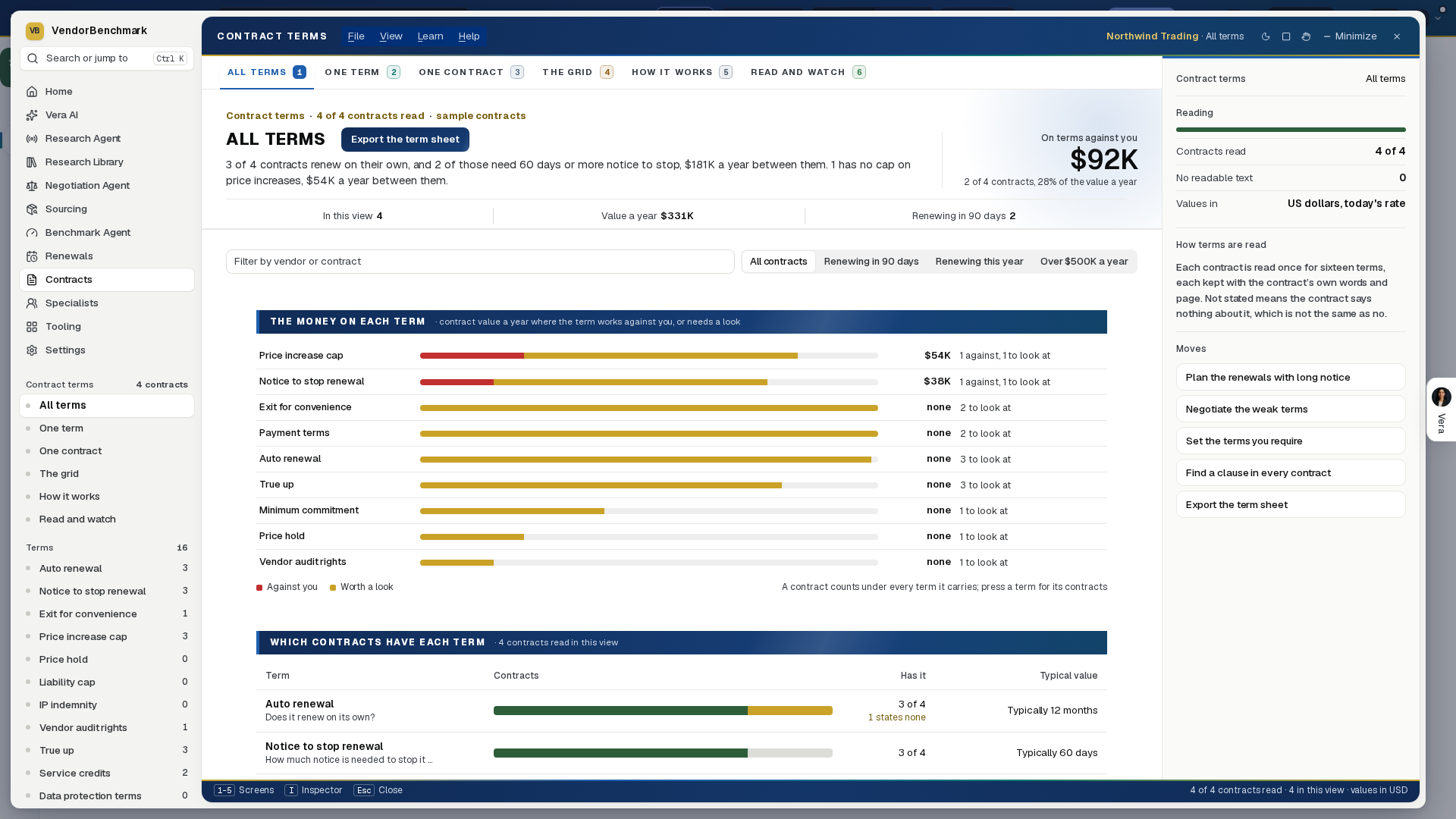
On the screen
- The head — one line on how many contracts renew on their own, how many of those need the notice you set on the lever or more to stop, and what they are worth a year in USD, then how many have no cap on price increases and what those are worth. Beneath it one quiet row of label and value pairs, spanning the head, gives the contracts in view, their value a year, and how many renew in the next 90 days; how many contracts are read, out of every contract you hold, sits in the line above the title, with how many have no readable text. When none of your contracts has readable text yet, the line says so and points to Document search rather than waiting on a read that cannot start. Export the term sheet downloads every term of every contract in view, with the quote and page, as a spreadsheet.
- On terms against you — since 26 September 2026 the one large figure beside the head on All terms: the contract value a year of every contract with at least one term working against you, each contract counted once, with how many contracts that is and its share of the value read.
- The money on each term — the first section of All terms: a row per term with its bar split into the contract value where it works against you (red) and where it needs a look (gold), the value against you, and how many contracts each. A contract counts under every term it carries. Press a term to open it.
- Which contracts have each term — one bar per term: green has it, gold states it does not, gray does not say, with how many of the contracts read have it and the typical value. Select a term to open it.
- Notice to stop renewal and Price increase cap — the contracts that renew on their own by days of notice, and each contract's cap from highest to none. Move a lever to flag the contracts past the line you set; the count and their value a year update below it.
- One term — every contract's value for the term, sorted, then a table of the contracts with the value, the contract's own sentence and the page. Values are marked in your favor, worth a look or against you.
- One contract — the contract's sixteen terms, each against what is typical across your other contracts, with the quote and page. Open the contract goes to its record.
- The grid — every term of every contract, green in your favor, gold worth a look, red against you, gray not stated. Select a cell to open the contract.
- Won before — screen 5, since 3 October 2026: the best position you hold on each term across your signed contracts, named by the contract it is in. One row per term: the term with how many of the contracts read hold it or better, the position (for example increases capped at 3% a year, net 60 payment terms, no automatic renewal), the vendor and the contract with its year and page, and the contract's own words. Quotes and proposals are left out, because a price offered is not a position won. The filter narrows it to one vendor's own word. Vera offers these first: when AI Managed or a case plans a negotiation, when a counter email is drafted on a thread, and when you ask Vera what you have won before. To a vendor, Vera names only that vendor's own earlier contract; another supplier's terms are cited as terms you hold with other suppliers, never by name, because contract terms are usually confidential.
- Read and watch — screen 7: the films, analyst briefings, research papers and guides the library holds on the vendor in hand, the one whose contract is open, with the vendors you contract with, the largest contract first, to pick from.
- What next — at the foot of every screen, the moves as cards with their icon: put the notice dates in Renewals, negotiate, set a policy, search the documents, export the term sheet.
- The inspector — how many contracts have been read, how many have no readable text, and the moves that act on what the terms say.
How to use it
- Open Contract terms and read the head line: it says how many contracts renew on their own and need long notice.
- Narrow the view with the filter or Renewing in 90 days, Renewing this year or Over $500K a year.
- Move the notice lever to the notice you can manage, and open the flagged contracts from the chart or the grid.
- Select any term to see it contract by contract, and any contract to see its whole term sheet.
- Export the term sheet when you need it in a spreadsheet.
- Before a negotiation, open Won before, type the vendor in the filter to see what they agreed before, then clear it to see the best you hold anywhere.
Tips
- Not stated is not the same as no: a contract that says nothing about a term is counted apart from one that states the opposite.
- New contracts are read within the hour of their text being stored; the inspector shows how many are read so far.
- A contract you cannot see, and its terms, never appear here.
Related: Contract policy · Renewals · Document Agent
Unit prices
Every priced line read from your contracts, in one window: what each product costs per unit a year in US dollars, the list and discount where the contract printed them, and the same product compared contract by contract. A rate, a list or a discount is kept only as the contract prints it, beside the contract's own words; a line with no rate is shown as not stated, and no list price is ever derived.
In plain words: what you pay for each product, and where you pay two different prices for the same thing.
When to reach for this
- Before a renewal: what each line on the contract costs per unit a year, and which discounts are thin.
- When the same product is bought on two orders: how far apart the rates are, and what paying the lower one is worth a year.
- Before a benchmark: which products state a rate at all, and which need a line level price schedule from the vendor.
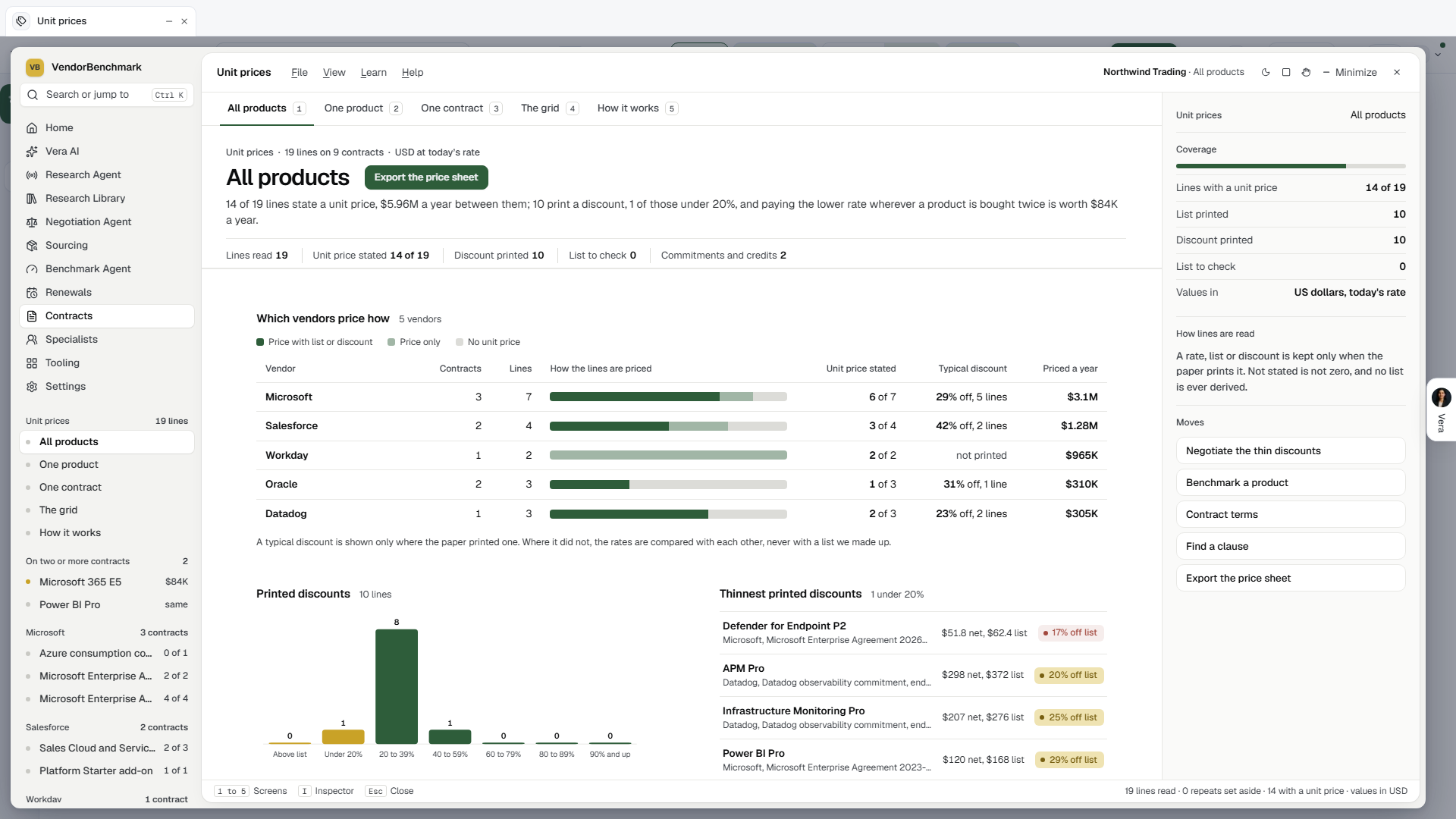
On the screen
- The head — one line on how many lines state a unit price and what they cost a year in USD, how many print a discount and how many of those sit under the line you set on the lever, and what paying the lower rate wherever a product is bought twice is worth a year. Beneath it one quiet row of label and value pairs. Export the price sheet downloads every line with its rate, the list where printed and the contract's words as a spreadsheet.
- Paying your own best rate is worth — since 26 September 2026 the one large figure beside the head on All products: what paying the lowest rate you already pay for a product, on every contract that buys it, is worth a year, with how many products are bought on more than one contract at different rates.
- Where the price gap sits — the first section of All products: each of those products as wide as its gap, press one to open it; beside it a lever for the share of the gap you close at renewal, with what that is worth a year and over a three year term (the setting stays put), and the largest gaps with the rate range on each. Every figure compares your own contracts with each other, never with a market list.
- Which vendors price how — one row per vendor, grouped by the publisher even where a partner issued the contract, with how its lines are priced, the typical printed discount and what its priced lines cost a year.
- Printed discounts — the printed discounts by band, with a lever to flag the ones under a line you set, and the thinnest five beside it.
- The same product on more than one contract — rate against rate, the gap in percent, and what paying the lowest rate everywhere is worth a year.
- One product — the product's rate on every contract that buys it, then each line with the contract's words.
- One contract — the contract as a price sheet, the lines worth a look grouped by reason first.
- The grid — each vendor's contracts against its priced products, toned by the discount the contract printed.
- Read and watch — screen 6: the films, analyst briefings, research papers and guides the library holds on the vendor in hand, the one whose contract or product is open, with every vendor on your price sheets to pick from.
- What next — at the foot of every screen, the moves as cards with their icon.
- The inspector — how many lines state a unit price, a list, a discount or a list to check, and the moves that act on the prices.
How to use it
- Open Unit prices and read the head line: it says how much states a unit price and what the gaps are worth.
- Move the discount lever to the line you would push back on, and open the flagged lines.
- Select a product bought on two contracts to see its rates side by side.
- Select a contract to read it as a price sheet, and filter to Worth a look.
- Export the price sheet when you need it in a spreadsheet.
Tips
- Not stated is not zero: the contract names the product but prints no rate, usually because it is priced as a bundle. Ask the vendor for the line level price schedule.
- A discount over 95% off is held as a list to check: the list is usually on a different measure, so it is left out of every discount figure.
- Commitments, credits and funds are counted but are never a unit price.
- A contract you cannot see, and its lines, never appear here.
Related: Contract terms · Benchmarks · Document Agent
License position
What you own across every vendor, read line by line from your contracts: each license with its quantity in its own metric, its price a year in USD where the contract states one, and when it ends. Credits, commitments, services, support, pay as you go rates, options not bought and references to other documents are set aside and counted, and a contract uploaded twice counts once.
In plain words: what you own, before a renewal or a true-down.
When to reach for this
- Before a renewal: which lines end in the next 12 months and what they cost a year.
- When consolidating: which products you buy on more than one contract, and whether each pays the same per unit.
- Before an audit or a true-down: what each contract grants, with its own words.
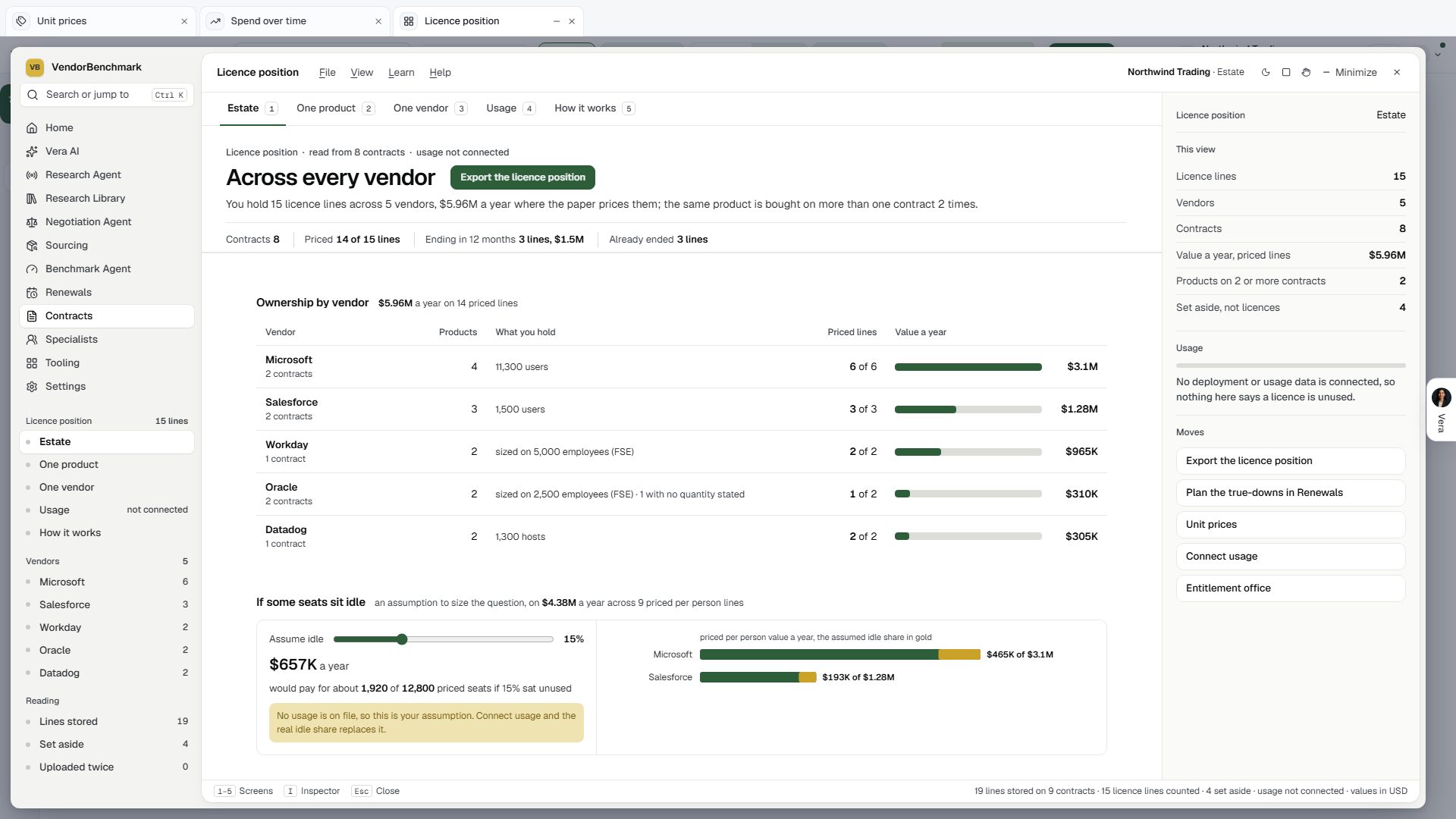
On the screen
- The head — one line on how many license lines you hold across how many vendors, what they cost a year where the contract prices them, and how many products are bought on more than one contract. Beneath it one quiet row gives the contracts, the priced lines, the lines ending in 12 months with their value, and the lines already ended. Export the license position downloads every counted line and every line set aside, each marked, as a spreadsheet.
- Licenses owned, a year — since 26 September 2026 the one large figure beside the head on Across every vendor: what the licenses cost a year where the contract prices them. Once usage is connected it becomes what sits idle at your own rates. The shelfware seats lever below never sets it, because that share is your assumption.
- Where the license money sits — the first section: each vendor as wide as its value a year, gold where a license ends within 12 months, the window to true down. Press a vendor to open it.
- Ownership by vendor — every publisher ranked by value a year, with products, what you hold in each metric, and priced lines. A product sized on employees says what it is sized on rather than a sum.
- If some seats are shelfware — move the lever to a shelfware share you want to test; the cost a year and the seats it would pay for update, charted by vendor. It is your assumption until usage is connected.
- Bought on more than one contract — each product on two or more contracts, with the quantity on each, the unit price range and the value a year. Check before assuming a duplicate.
- Ending in the next 12 months — the lines to true down, by contract, soonest first, then the terms already ended. Where a line has no service end, the contract end stands in, and the section says how many.
- One product — every contract buying it, with quantity, unit price, value, end, the contract's own words and page, and the unit price on each contract.
- One vendor — the publisher's contracts on a time line from today, and each product's quantity on each contract.
- Usage — deployed against owned for each product a usage source matches, idle priced at your own unit rates. With nothing connected, Connect usage opens Integrations.
- How it works — the lines read, the repeats removed, the contracts uploaded twice, what was set aside and why, and today's rates.
- Read and watch — screen 6: the films, analyst briefings, research papers and guides the library holds on the vendor in hand, the same one One vendor shows, with every publisher you license from to pick from.
- What next — at the foot of every screen, the moves as cards with their icon.
How to use it
- Open License position and read the head line.
- Open a vendor from Ownership by vendor to see its contracts on a time line.
- Open a product from Bought on more than one contract to compare what each contract pays.
- Plan the lines in Ending in the next 12 months in Renewals.
- Connect usage to replace the idle assumption with counts.
Tips
- Nothing is called idle until usage is connected; the lever is labeled as an assumption.
- A line with no price counts in quantity, not value.
- A contract you cannot see, and its lines, never appear here.
Related: Contract terms · Renewals
Contract policy
Your organization's contract policy: the terms you negotiate to, written down once. Each term carries your standard in plain words, the language a redline uses, the fallback you accept, the line you walk away at, whether it is a must have, and the kinds of document it is read on. The same terms drive three things: the Contract Agent's check on every document the moment its read lands, the language every redline pastes in, and the scan of every agreement on file for deviations (Policy deviations). There is one policy per workspace; the Contract Agent's must have sheet and the clause library are the same list now.
Read on says which kinds of document a term is checked on: order forms, addenda and contracts; master and full agreements; statements of work. The starter terms carry a default: the legal terms (liability, indemnity, data protection, SLA, audit, publicity, precedence) read on master and full agreements only, the commercial terms (pricing, uplift, renewal, termination at period end, payment, reassignment) on every kind. A document is read as the kind its title and the scan say it is, so an addendum is an order form even when its type field says Other. A term whose usual words are nowhere in a document is Silent without a read, and a quote is kept only when its words are in the text. A term someone set aside for one kind of document from the Contract Agent's My template tab is not read on that kind until it is brought back there.
Every workspace starts with the VendorBenchmark starter terms for the spend category it works in, so the policy has something to hold documents to from day one. Most are universal (a renewal uplift cap, a termination right, a liability cap, a data processing addendum, payment terms); the rest follow the category, drawn from the levers in the curve documents behind those suppliers' benchmarks. Edit them to match your own standard.
In plain words: what your organization signs, written down once, held against every document and every agreement.
When to reach for this
- Setting the standard once, so every review, redline and scan argues for your language instead of generic language.
- Before signature: check one agreement against the policy and see each deviation named, with the redline drafted.
- When the same clause fight keeps repeating: a recorded fallback and walk away line ends the relitigating.
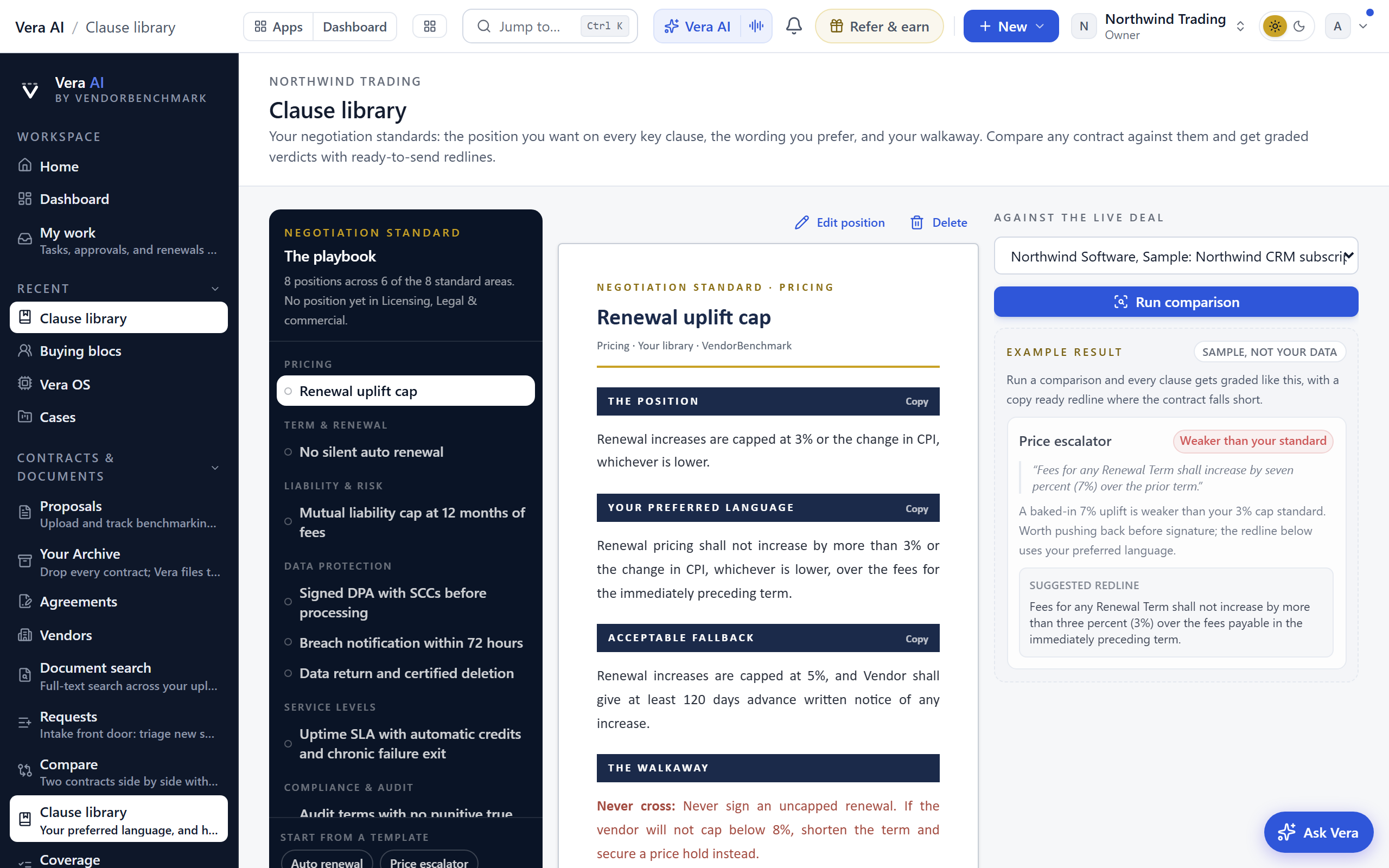
On the screen
Since 16 October 2026 the policy opens as the next generation of the window, on the frame every app shares: seven numbered screens, Policy, Deviations, Check, Draft from history, Renewals, Playbooks and Read and watch, the terms and what renews with a gap down the left, the term in hand in the details on the right, and the keys along the foot. 1 to 7 change screen, N adds a term, S presses the screen's dark button, D hides or shows the details, V talks to Vera and Escape puts the window down on the tab strip. The window you had before stays whole under File, Earlier window.
- The frame — the menus, Share and the window buttons in the title bar. One navy column on the left: Home, Vera AI and your pinned apps, then the seven screens as a numbered list, each with its figure and a dot when it needs you, Renews with a gap (the agreements renewing inside 180 days off the policy, soonest first) and the Categories, which filter Policy. The screens repeat as numbered chips under the head.
- The head — the screen's name with its state (how many must have shortfalls, or every must have met), the dark button that does the screen's one thing (Scan every agreement, Add every gap to the ask list) and Add term, then one sentence of figures: the terms, the must haves, the agreements read of those on file, the version in force and who edited it last, and the term most at stake with what the agreements off it are worth a year. Money is never added up across terms, because one agreement can fall short of several.
- Policy (1) — Vera noticed leads: the things worth a move today, each with the button that does it: a renewal inside 60 days off a must have (Add to the ask list), an agreement off half its terms (Check it), a standard almost nobody meets (Open the term), documents the scan could not see, or a scan not yet run. Beside it The estate against the policy: the share of readings that met the standard, the agreements read, the must have shortfalls, what renews with a gap, the nightly re check. Under them the terms, one row each: name and category, your standard, must have, a bar across the agreements (green met, gold partly, brick missing, slate unclear) with its counts, how many are off and what those are worth a year. Order by Most off, Most at stake or Name, switch to Must haves only, filter by category from the left, or find a term by name, category or standard.
- The lever — a term whose figure the agreement records carry has a slider in the details: the renewal uplift cap (the cap the record states) and the notice period (the period the Contract Agent read). Move it and every screen re reads the agreements whose record states the figure, the bars, the counts, the money, the heat grid and the head; the rest keep the verdict the scan gave them, and the lever says how many it could re read. Nothing is saved until you write the figure into the standard and press Save term; Put it back returns the lever.
- Deviations (2) — opens on four tiles, All documents, Order forms, Master agreements and Statements of work: for each, the share of readings that met your standard, a bar, and how many agreements were read, are off a term and have must haves off. Kind of document in the grid's head narrows the grid to one kind (its tile turns blue), and Export the report downloads the compliance report as Excel: a summary by kind, the heatmap in the verdicts' colours, and every reading with the words it rests on. Then every agreement against every term as a grid: the terms down the side, most often off first, the agreements across the top as their vendor tiles, most off first, and a cell per verdict in the verdict's colour; a pale cell is a term not read on that kind of document. Hover a cell for the words the verdict rests on; press it and they are in the details with Check and Add to the ask list. Under the grid, the terms ranked by how many agreements are off them, and The scan: the documents on file, those read, those the scan could not see, the nightly re check, and the scan's progress while it runs, with Stop. Documents the scan could not see are listed with the reason, to link to their governing agreement or scan anyway.
- Check (3) — pick an agreement and run the comparison: every clause graded against the policy, the language found quoted, and the redline drafted from your language, with the scorecard beneath. The panel beside it says what a check gives you.
- Draft from history (4) — pick up to three indexed contracts and the agent drafts terms from the language those contracts actually achieved. Nothing enters the policy on its own; you approve or dismiss each proposal, against a cap of 40 terms.
- Renewals (5) — The next 180 days as a lane with every renewing agreement on its month, ringed green, gold or brick by its gaps, today at the left and the 90 day line in the middle; the table, soonest first, with each agreement's renewal date, its value a year and its gaps as chips (a must have carries a mark; press a chip for the words); and The ask list. Add to the ask list on a row, or Add every gap to the ask list in the head, builds the asks the Deal Agent takes up, each term the agreement is off with your language as what you ask for; Copy as a note copies the list, Open the Deal Agent opens it. A gap on a renewal inside 90 days is a negotiation item, not a scan finding.
- Playbooks (6) — your named playbooks and the five starters from VendorBenchmark, as before: rule sets for a kind of document, run on one document in the Contract Reader or across every contract.
- Read and watch (7) — the films, analyst briefings, research papers and guides the library holds on the vendors most often off your policy, then the rest of your contracts' vendors.
- The details — open with what to do now: the term in hand with how many agreements are off it and what they are worth, See the N off it and Check one; then the term's facts, the lever where the records carry the figure, and the editor: title, category, must have, your standard, the language the redline uses, the fallback, the walk away, which kinds of document it is read on, Save term and Remove the term. With a cell pressed on Deviations, the details show the agreement, the verdict's words, your standard and the redline it would get; with an agreement pressed, its facts and every term it is off.
How to use it
- Read down the terms on Policy and edit the ones that are not your standard. Switch Must have on for the terms no document should go without.
- Say which kinds of document each term is read on, so a statement of work is not flagged for a term that only belongs on an order form.
- Press Scan every agreement, choose new and changed only or every agreement, read the cost and the time, and press Start scan.
- Press 2 for Deviations: hover a brick cell for the words, press it for the details, and Check the agreement when the redlines are needed.
- Press 5 for Renewals and add every gap inside 90 days to the ask list; open the Deal Agent with it.
- To try a standard before you set it, pick the renewal uplift cap and move the lever in the details; Save term writes it in, Put it back does not.
Related: Policy deviations · Coverage · Contract Agent
Policy deviations
Every agreement on file read against the contract policy, term by term. An order form is read together with the agreement it is governed by when the two are linked, and a document that is not an agreement is left out. The scan runs in the background: start it, close the window, and the results fill in as each agreement is read. Before it starts you see how many agreements it will read, what it will cost, how long it will take and what is left of the month's AI allowance. New and changed only reads agreements not yet read, agreements with text added since, and every agreement again for a term edited since; every agreement reads them all. With the Nightly re-check on, new and changed agreements are read each night on their own.
Since 3 October 2026 the link files itself: when an order form, statement of work or amendment is read and its words name the agreement it sits under ("governed by the Master Subscription Agreement dated 14 March 2019"), it is linked to that agreement if one with the same vendor is on file and fits the name. When none is on file, whoever filed the document gets a task, due in a week, asking for it by name and date, with the words it was read from. A mention that fits two agreements equally links nothing; you link it by hand.
You see only the agreements your own access opens, so a restricted contract never counts toward your figures.
One document at a time, beside its page: open it in the Contract Reader and press the Playbooks tab, where the contract policy is the first playbook in the list. It shows the same verdicts in three groups (off policy, to review, meets policy), checks the document on a press, and redlines a term with your policy's language. The same tab holds your named playbooks (an NDA playbook, an MSA playbook), which are run on one document at a time and are never swept across the estate.
In plain words: which of your agreements fall short of your standard, on which term, and what they are worth.
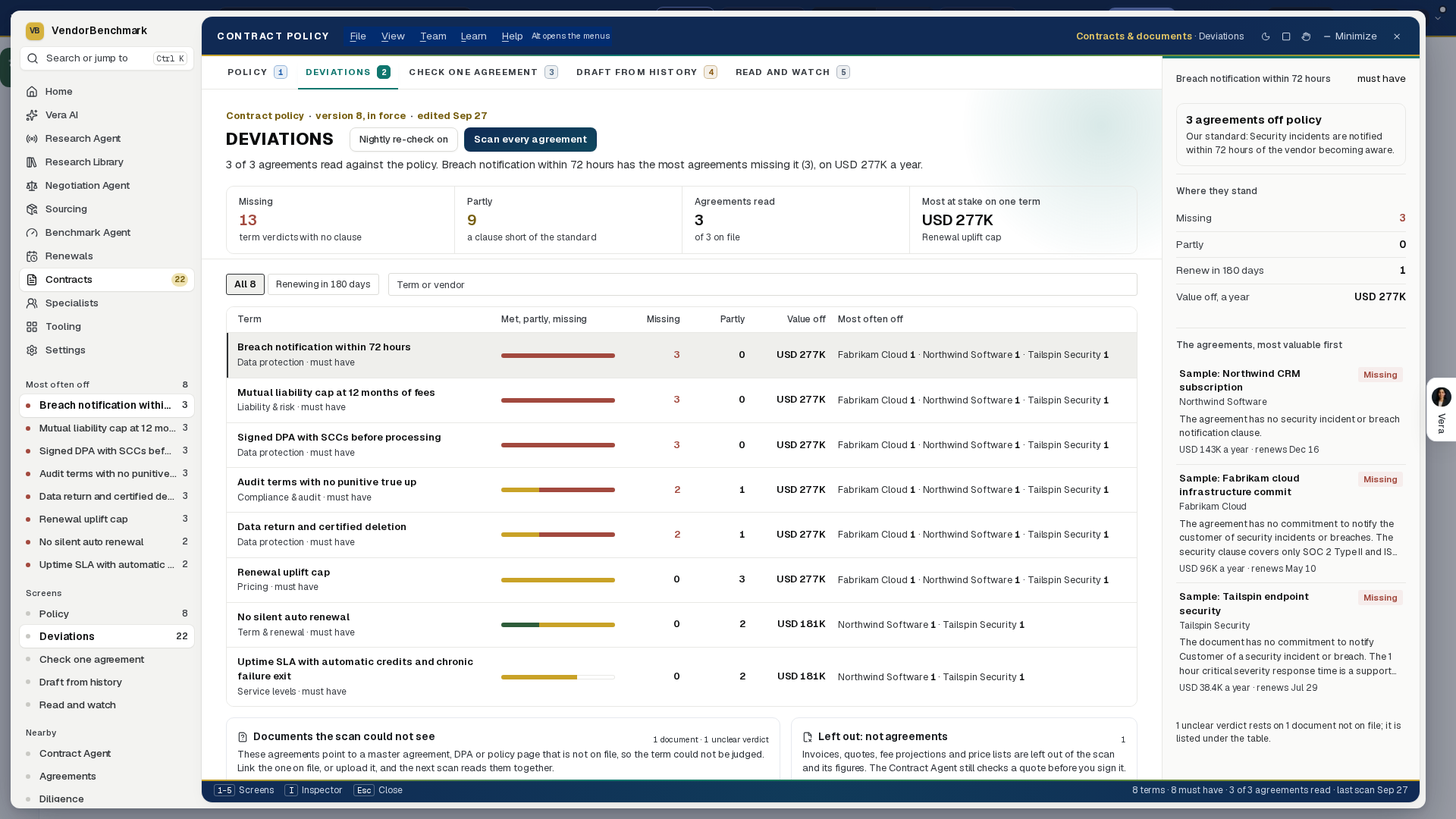
When to reach for this
- After you change the policy, to see which agreements now fall short of it.
- Before a renewal season: the agreements off a must have term that renew within 180 days are the ones to fix first.
- When legal or finance asks how many contracts carry a term, and which do not.
On the screen
Deviations is the second screen of the Contract policy window, so the policy and where the agreements stand against it are one press apart.
- The progress line — while a scan runs: how many agreements are read of how many, how many are queued, and about how long is left. Stop ends it; what it already read stays.
- The head — how many agreements on file have been read against the policy and which term has the most agreements missing it, with the missing and partly verdicts, the agreements read and the most at stake on one term in the row beneath. Nightly re-check at the head switches the nightly read on or off.
- The terms — ranked by how many agreements are missing each, then by how many fall short at all: the met, partly and missing bar, the count missing and partly, what the agreements off it are worth a year, and the vendors most often off it. Filter to must have terms, or to agreements renewing in 180 days.
- Documents the scan could not see — below the table: the master agreements, DPAs and policy pages your agreements point to that are not on file, each with how many agreements point to it and how many unclear verdicts it would settle. Choose the agreement already on file that it is and press Link, or Upload it; a linked order form is read together with its governing agreement in the next new and changed scan.
- Left out: not agreements — beside it: invoices, quotes, fee projections and price lists the scan read as not agreements, each with the reason. They are left out of the scan and its figures until their text changes; Scan it anyway reads one against the policy in the next scan.
- The agreements off a term — in the inspector, the selected term's agreements, most valuable first: the vendor and agreement, Missing or Partly, the words the verdict rests on (or what the agreement says instead), what it is worth a year and when it renews. Press one to open the contract.
How to use it
- Press Scan every agreement, read the estimate and start it.
- Select the must have term with the most agreements off it, and press Renewing in 180 days.
- Open each agreement and take the policy's language into its renewal.
Related: Contract policy · Coverage
Rights register
In plain words: both sides of every contract's obligations, harvested. The rights you hold, with their expiry windows watched, and the duties you owe, with their deadlines named.
Since 19 October 2026 it opens in the window every app shares: a navy column down the left with every vendor on the register, six numbered tabs across the top, the details column on the right, and the keys along the foot. 1 to 6 change tab, L opens the next exercise letter, H runs the harvest, I hides the details, Ctrl K finds a vendor, a right, a duty or a person, and Escape clears what is in hand, then puts the window down on the tab strip. The window you had before is under View, Earlier window.
Everyone benchmarks the price; this page harvests the whole obligation picture. A quote-anchored pass reads each contract and records both sides: the rights you hold (notice and termination windows, true downs, swap windows, price holds, SLA credits, benchmark clauses) with their exercise windows, and the duties you owe (payment deadlines, usage reporting, true-up notifications, minimum commitments, insurance proofs, audit readiness) with their stated dates. The weekly watchdog alerts you when a right is about to expire unused.
When to reach for this
- Before spending negotiating capital on something the document already grants: true-downs, swap windows, price holds.
- Planning an exit: transition assistance and data-return rights are leverage you own (the sunset recipe).
- When a right is about to expire unused: the watchdog's alert is this page working.
- Before a payment deadline, a usage report, or a true-up notification falls due: the register names the date and the clause.
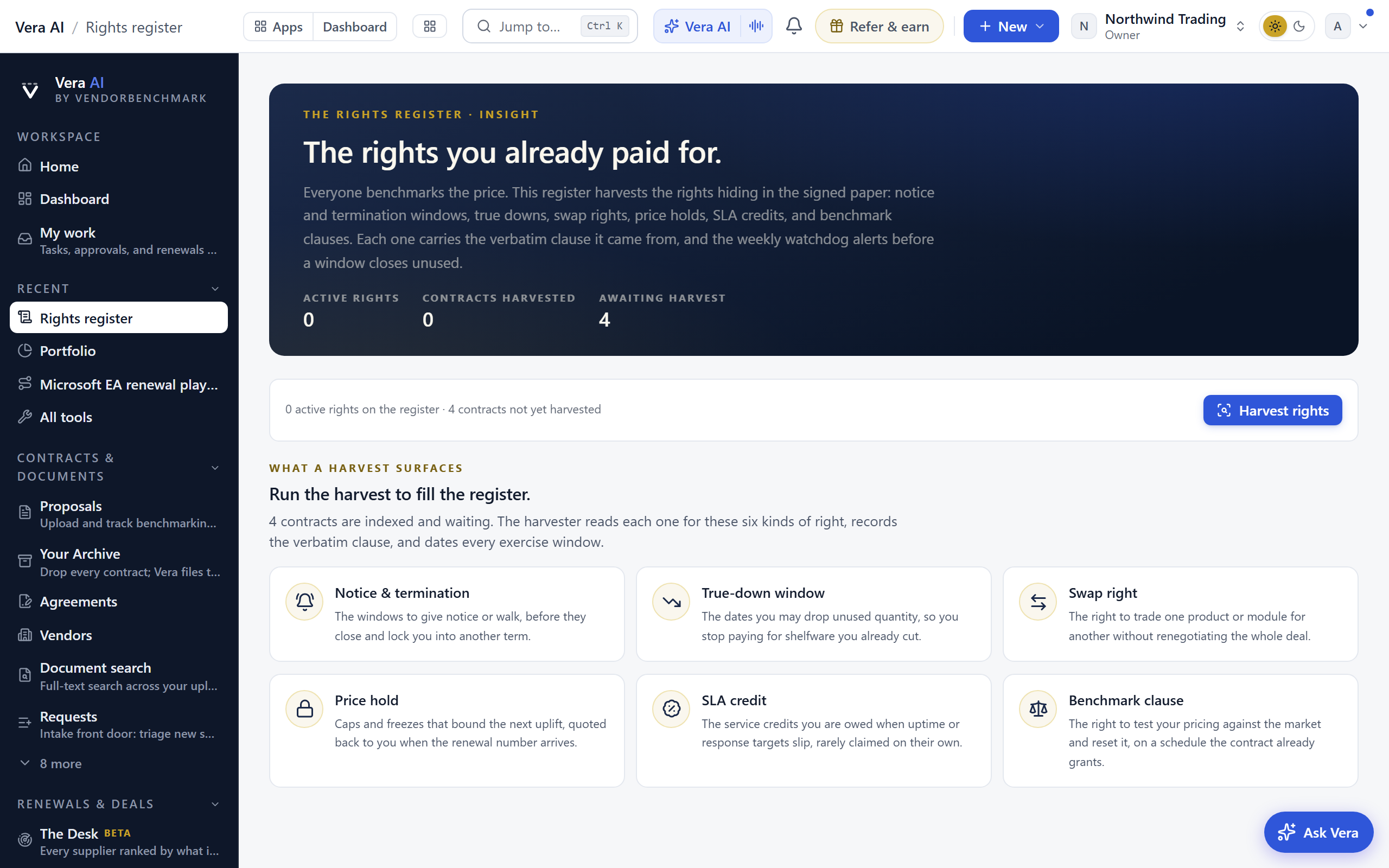
On the screen
- The side — every vendor on the register as a row with its mark, its next window and the worth of its rights, a red dot when a window closes inside 30 days, a gold dot inside 90. Press one to scope every tab to that vendor; Every vendor at the top clears it.
- The head — the mark and name, one state tag, one line of facts, one sentence on where the register stands (what closes inside 90 days, the first window, how many entries have no owner), and the actions: Email the register and Send the vendor letter for the next closing right (or Harvest while contracts wait).
- Runway — every dated right and duty over the next twelve months, today at the left: each window a bar on its vendor's lane (or by kind under View), a right filled (blue later in the year, gold inside 90 days, brick inside 30), a duty outlined in navy, the day it closes a mark that pulses when it is close, the stated worth at the bar's end. Overlapping windows stack on their own rows. Press a bar to put the entry in the details. Under it, Needs you (every window closing inside 30 days, every credit owed, the windows with no owner, the contracts waiting, one button each) and What acting on time keeps: move how many of the rights closing inside 90 days you exercise, soonest first, and read what you keep and what lapses, beside what already lapsed this year.
- Map — the estate drawn whole: your organization in the centre, every vendor a hub sized by the worth of its rights, every right a leaf sized by its worth and coloured by how soon it closes (brick 30 days, gold 90, blue later, green exercised, hollow lapsed), every duty a navy ring. The branches draw and the leaves land. Press a hub to light its branch and dim the rest, a leaf to open the entry with its clause, the centre to clear. The segment shows everything, live, closing in 90 days, rights or duties.
- The year — twelve months round a dial, today at the top, a lane per vendor, every window an arc from the day it opens to the day it closes, the 30 and 90 day marks, the entry in hand in the centre; beside it the year month by month with each month's windows and worth.
- Register — the harvest (how many contracts are harvested, waiting and unreadable, the confidence of the reads, and Harvest) and the working register as before: every right and duty with its owner and status, the clause each was read from, and the resolved entries.
- Letters and credits — the exercise letter for every right with a window open and the performance confirmation for every duty falling due, each quoting the clause; Open the letter opens it in your own mail with the text in it (nothing sends from the app). Under them the service credit ledger: received against owed as a bar, every incident with its credit and where the claim stands; Claim it marks a credit claimed, Mark received when it lands on the invoice, Log an incident records an outage against an SLA credit right.
- The wall — every right as a tile that ages as its window closes (a countdown arc), sealed green when exercised, ghosted when lapsed, and turns to show its clause; under it, what the harvest reads: six rights and six duties.
- The details — What to do now first (the window closing soonest, a credit owed, the windows with no owner, the harvest), then what else waits, who owns what, and Ask Vera. An entry in hand shows its vendor and kind, its grade and window, when it closes and opens, its stated worth, its owner and status, the move (send the letter, mark it exercised or met), the clause word for word with a link to the contract, and more moves: assign an owner, see it on the map or the year, start the negotiation, copy a link.
How to use it
- Upload contracts and let Document Agent read them, then press Harvest (or H); a run reads three contracts a round and loops until none is waiting. A contract it cannot read (no text, or the read failed) is set aside and counted, so the run never stops on it; the message at the end says how many.
- Work the runway from the brick bars down: open each, send its letter, mark it exercised when the vendor confirms.
- Give every window inside 90 days an owner (Needs you offers all of them in one press); a deadline without a name is how a commitment gets missed.
Related: Document Agent · Contract policy
Coverage
Since 25 September 2026 it opens in the same window the agents wear: the contracts worst first down the left, four screens across the top, the contract or protection in hand in an inspector on the right, and a status line at the foot. 1 to 4 change screen, I hides the inspector, and Escape puts the window down on the tab strip.
The window says when the board is stale: contracts added since the last sweep, or a must-have template edited since, show in the line above the screen's name. Nothing reruns without your press.
Your clause library's must-have template, swept across every contract: which agreements carry your required protections, and which do not.
In plain words: your non-negotiables, checked against every contract at once.
When to reach for this
- After setting the clause standard: the sweep is what turns positions into findings.
- Before a renewal: a red Missing cell on a renewing agreement is a negotiation item with a deadline.
- When leadership asks "are we protected?": the coverage report is the written answer.
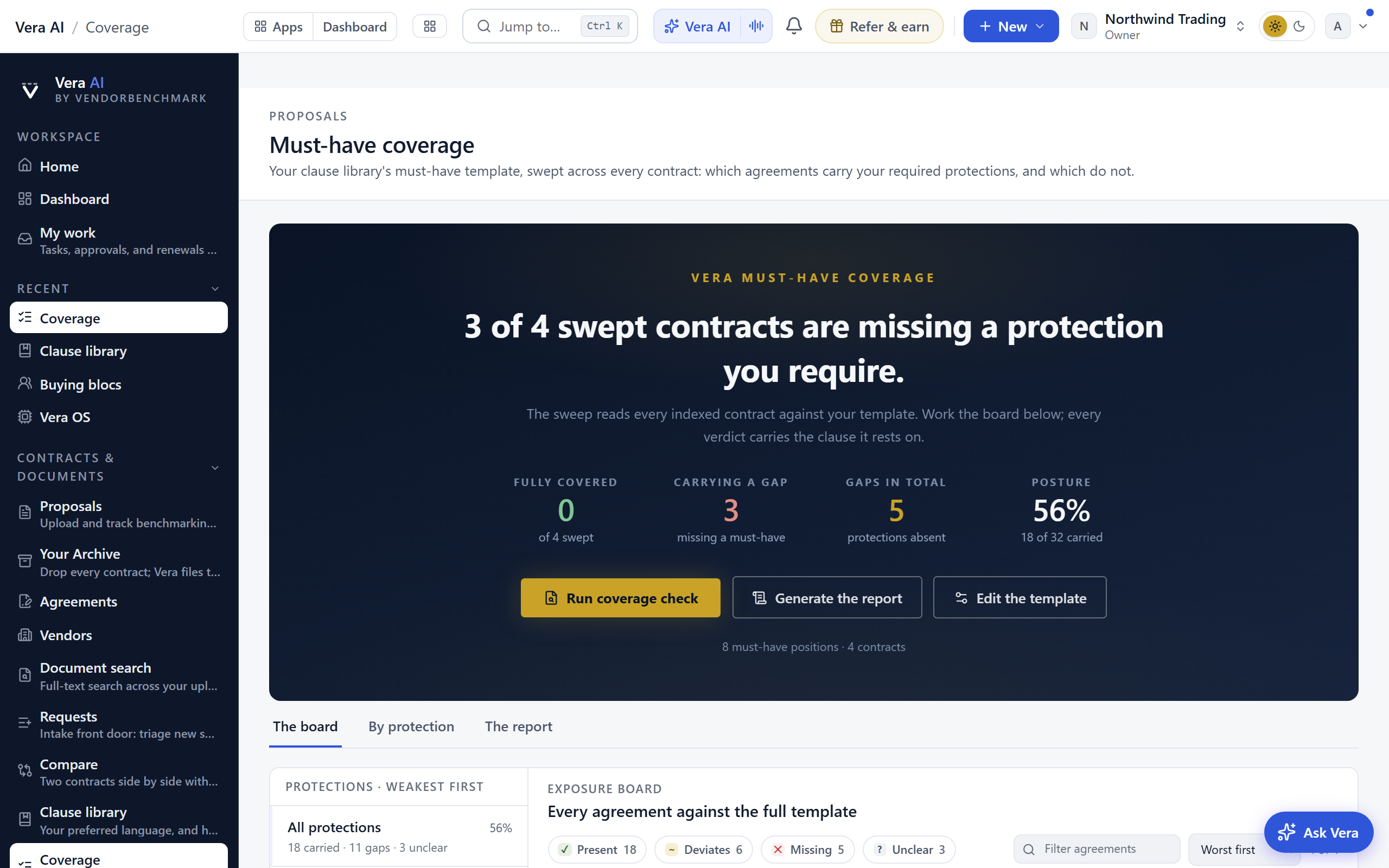
Before the first sweep, the board draws your contracts against every protection with each square still empty, the board a sweep will fill, and offers one action: Run the first sweep.
On the screen
- The head — one sentence on how many swept contracts are missing a protection you require and which vendor is missing the most, Write the report (or Regenerate the report) and Edit the template at the right with Run coverage check as the one filled button, and a row of figures: fully covered (and how many only deviate), carrying a gap, protections missing in total, and the share of verdicts present.
- The sweep theatre — Run coverage check raises a full screen stage where the sweep plays live: position lines tick in as the contracts are read, and the completion line types itself when the verdicts land. Esc or the corner button lowers it; the sweep keeps running and Watch the sweep brings it back.
- Coverage — every contract against every protection, worst first, each square a verdict (✓ present, ~ deviates, ✕ missing, ? unclear, blank not checked) with the missing count at the end of the row. Filter by verdict or search by vendor or contract. Press a square for that verdict, or a protection's name at the top of its column for the protection.
- By protection — every protection weakest first, with a bar across the contracts, the share that carries it, and how many miss it or deviate.
- Report — the written read of where your protections are strong and where they are missing, with the email draft beneath. If no report exists yet, this screen writes one.
- The inspector — for a contract: every must-have as a verdict square, the chosen one's finding and the clause quoted from the document, and moves to open the contract or a case on the vendor. For a protection: how many contracts carry it, miss it or deviate, what the template requires, and the contracts missing it.
- What next — when the sweep finds missing protections, it targets the worst exposed vendor: raise it at that renewal, open a case, draft the redlines against your contract policy, or read the report.
- Read and watch — its own screen: the films, analyst briefings, research papers and guides the library holds on the vendors missing or deviating from the most protections first.
How to use it
- Run the sweep and watch it play, or lower the live sweep and keep working. Only contracts with indexed text can be read; the scope line says how many are waiting.
- Read the sentence at the top first, then By protection: the top row is the protection your contracts are thinnest on.
- Work the Board from the top row, pressing each red square for the clause it rests on. Press the Missing filter to isolate the contracts with no responsive clause at all.
- Open the contract from any row to fix it, or generate the report for the narrative summary.
Tips
- The must-have template lives under Settings › Clause positions, so keep those positions current first; the Contract policy workspace is where you compare contracts against them and draft redlines.
Related: Contract policy
Fair Renewal Rider
The standard addendum buyers attach to every software renewal: an indexed uplift cap, benchmark repricing, audit conduct rules, no retroactive true-ups, co-termination, and change of control protection. Versioned, public, and free to send.
In plain words: the standard protections, as one attachment, so you never negotiate them clause by clause.
When to reach for this
- Every renewal, as a matter of habit: the rider rides along without spending negotiating capital.
- A contract with a structural gap: the sample Contoso quote carries no uplift cap, and the rider's indexed cap is the ready-made fix.
- Short on time: at two weeks out, one attachment carrying six protections beats six separate asks (the rescue play).
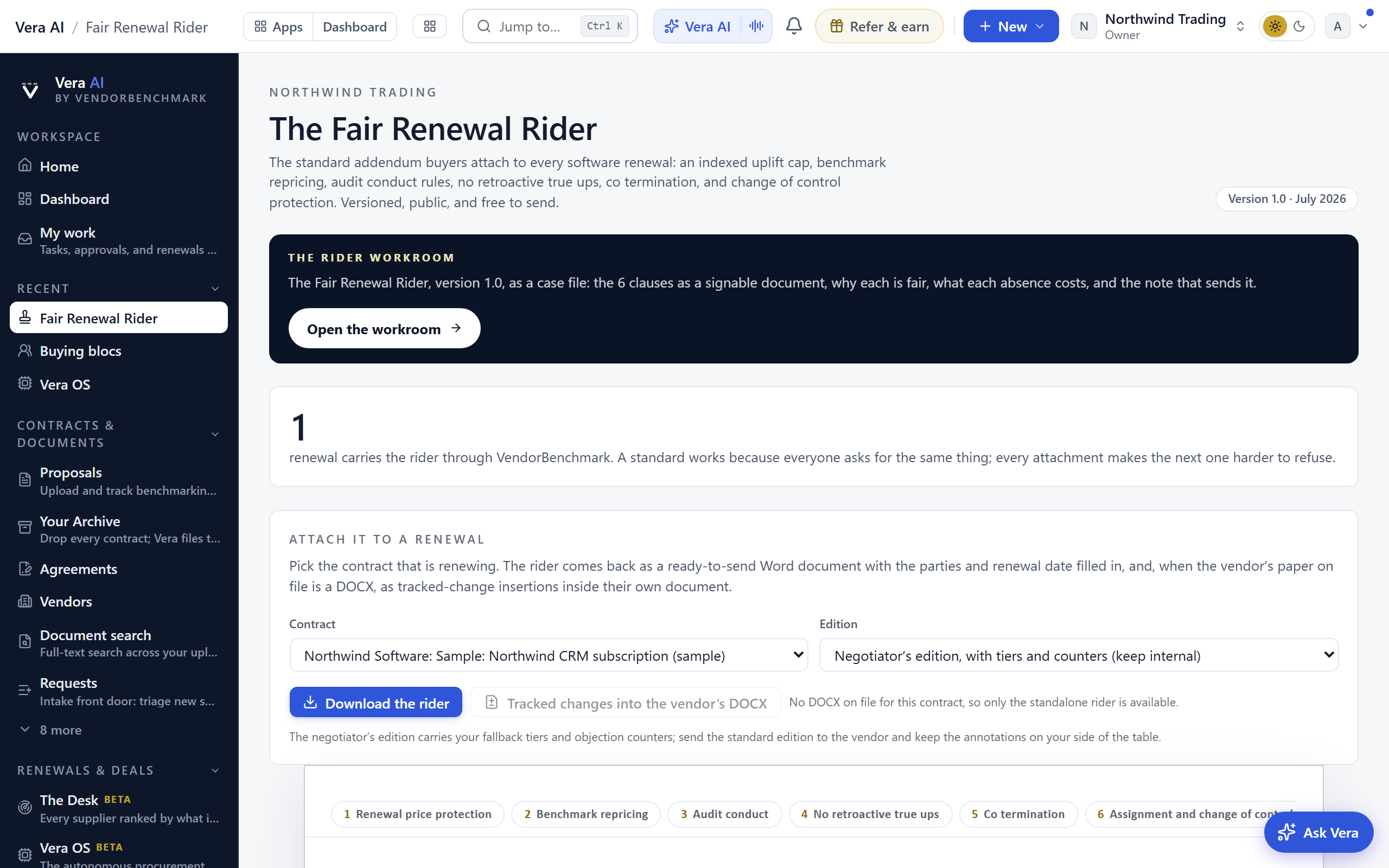
Since 25 September 2026 it opens in the same window the agents wear: the six clauses and your contracts renewing in the next 180 days down the left, four screens across the top, the clause in hand in an inspector on the right, and a status line at the foot. 1 to 4 change screen, I hides the inspector, and Escape puts the window down on the tab strip.
On the screen
- The head — the version and when it was published, one line on the six protections and how many real renewals carry the rider through VendorBenchmark, Read the rider and Attach to a renewal at the right, and a row of figures: clauses, renewals carrying it, yours renewing in 180 days, and your contracts on file as Word.
- Clauses — the six protections as rows with their three tiers: what you ask, what you can accept, and where you walk.
- Attach to a renewal — your contracts renewing in the next 180 days, then the generator: pick the contract and the edition and the rider comes back as a ready-to-send Word document with the parties and renewal date filled in, or, when the vendor's document on file is Word, as tracked insertions inside their own document. Open the workroom below it opens the rider as a six document workroom: the cover sheet, the operative language, the rationale brief, a risk register, the send sheet and a What now sheet.
- The rider — the document itself, every clause annotated with why it is fair, the fallback tiers and the vendor objection countered, with the email draft beneath.
- Versions — what changed in each version, and the note on review and legal advice.
- The inspector — the clause in hand: where you walk, what you will hear from the vendor and what to say back, why it is fair, and the opening of the language you send. Longer passages hold to three lines with Read all.
How to use it
- Read down Clauses and press each one for the objection you will hear and the counter.
- Open Attach to a renewal, pick the renewing contract and choose the edition.
- Download the Word document or the tracked-change redline and attach it to your renewal.
Related: Renewals · Buying blocs
Vault
Since 25 September 2026 it opens in the same window the agents wear: your projects down the left, five screens across the top, the project in hand in an inspector on the right, and a status line at the foot. 1 to 5 change screen, I hides the inspector, and Escape puts the window down on the tab strip.
A project is an access layer, not a second store: every document in one also sits in Contracts, and renewal terms stay on the agreement ledger. Each project is org-wide or limited to named people; documents in a restricted project stay hidden from everyone else.
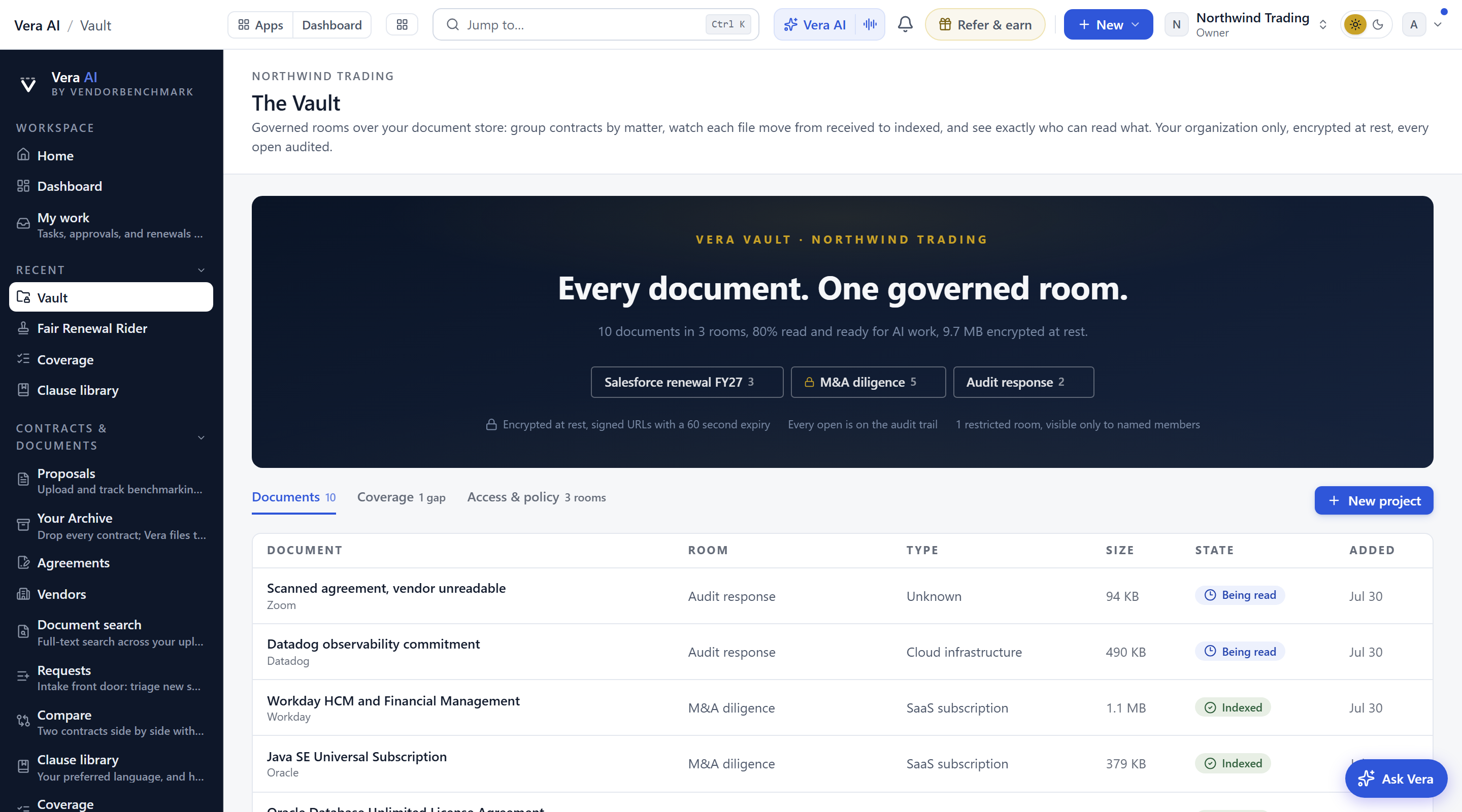
- The head — since 27 September 2026 the house masthead: the screen named with Vault beside it, the screen's own line (on Projects, your documents, projects and the share read and ready for AI work), the gold line naming the screen, one row of facts (projects and how many are restricted, documents, the share read, and the coverage gaps in red when there are any), and New project as the one filled button at the right over a rail of the five screens.
- Projects — one row per project: its name and description, who can read it, its documents, a bar of how many are read, its coverage gaps and when a document was last added. Press a row for the inspector; double press it to open the project.
- Documents — every document across every project, the newest first, with its project, type, size, state (Indexed or Being read) and the day it was added. Filter to one project or to what is still being read, or search by document or vendor.
- Coverage — every vendor by the kind of document on file: agreements, order forms, amendments, statements of work, other and untyped. A vendor holding supporting documents with no governing agreement is marked No agreement on file, usually the first document request in diligence.
- How the tables read — a status repeated down a table (who can read a project, Indexed or Being read, Covered or No agreement on file) is plain words beside a colored dot: gray for open to everyone or untyped, gold for restricted or worth a look, green for indexed or covered, blue for still being read, brick for no agreement on file.
- Access & policy — each project with its access, its people and its documents, then the handling policy in plain rows: intake checks, encryption, 60 second signed download links and the audit trail.
- Read and watch — the films, analyst briefings, research papers and guides the library holds on the vendors of the documents in your projects, the most documents first.
- The inspector — the project in hand: what it holds, how much is read, its gaps, who can read it by name, and moves to open it, run diligence on it or ask the same questions of every document.
- Before the first project — the four steps from opening a project to working across it, and what a project looks like, drawn from two examples.
A project's own page opens in the same window: the project's name in the head with its documents, the share read, its coverage gaps and who can read it, Upload documents at the right, and four screens. Drop files or whole folders anywhere on the window and each is validated by signature, malware scanned, deduplicated and indexed on its own.
- Documents — the project's documents with type, size, state and the day added; the document you pick shows in the inspector with Open the contract and Remove from this project (it stays in Your Archive).
- Add documents — upload files or folders, tick contracts already on file and add them, or scan a connected Box, Google Drive or SharePoint folder and import every PDF and DOCX in it.
- Coverage — each vendor by the kind of document on file. A vendor holding supporting documents with no governing agreement is marked No agreement on file; documents not yet named for a role sit in the Untyped column rather than being guessed at.
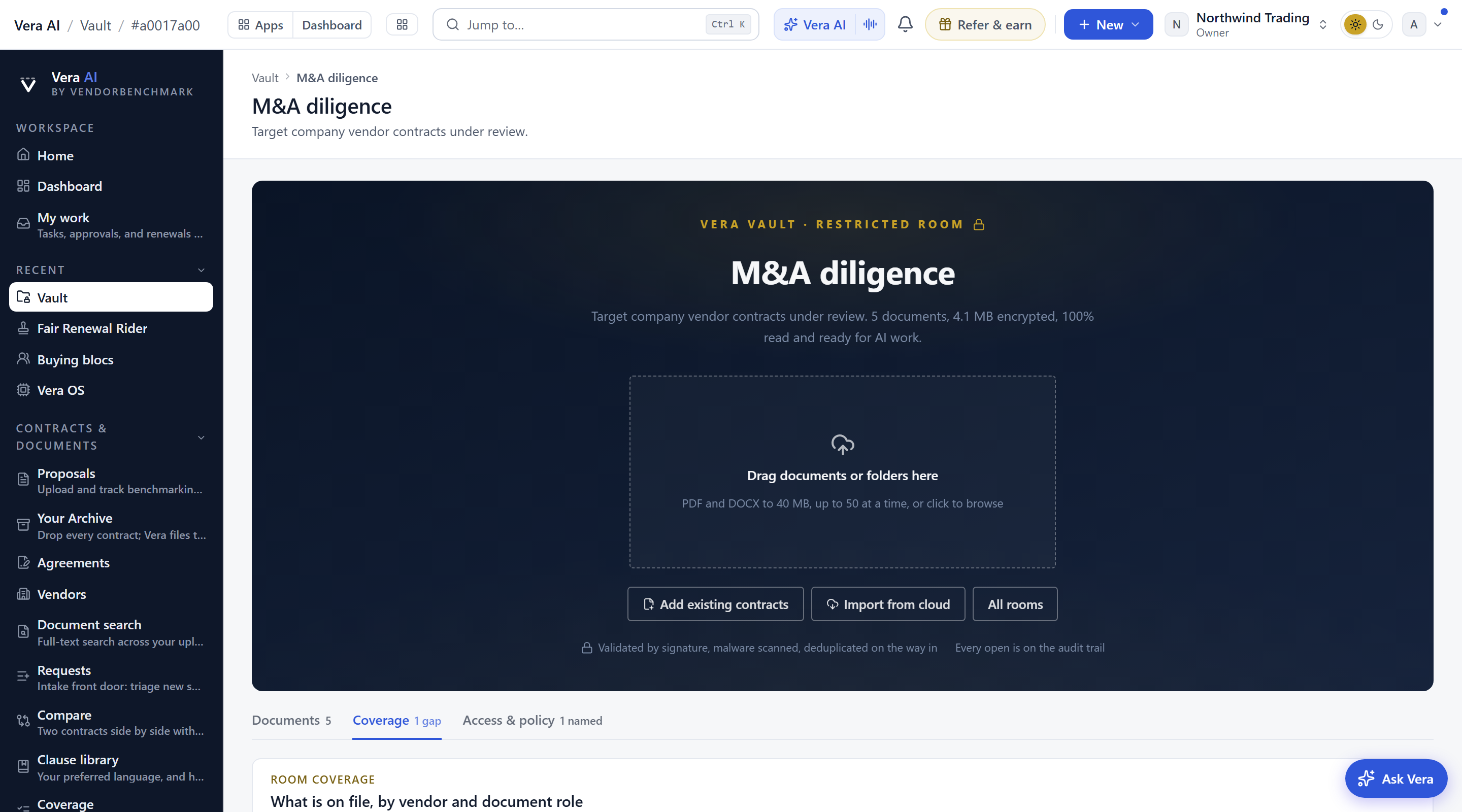
- Access & policy — who can see the project, straight from the database: on a restricted project, the creator and each named member with what their organization role lets them do; on an org-wide project, everyone by role. Under it, the handling policy in plain rows: intake checks, encryption, 60 second signed URL downloads, the audit trail, and the note that Redress analysts read projects to produce your benchmarks, on the same audit trail.
- What next — at the foot of every screen, running on this vault's own documents: the vendors holding supporting documents with no governing agreement, named; anything stored but not yet read; records with no file behind them; and the moves that put the estate to work.
How to use it
- Create a project and pick org-wide or restricted access.
- Select it under Projects and press Open the project, then upload documents on its page, in bulk if needed; each file moves from received to indexed on its own.
- Read Coverage and request whatever the gap flags say is missing.
- Run diligence across a project when you want the deal-grade review.
Related: Diligence
Diligence
Since 16 October 2026 it opens in the window every app shares: a navy column down the left with every scope you can review, six numbered tabs across the top, the details column on the right, and the keys along the foot. 1 to 6 change tab, R runs the review, I hides the details, Ctrl K finds a document, a scope, a clause area or a question, and Escape clears what is in hand, then puts the window down on the tab strip. The window you had before is under View, Earlier window.
End-to-end document review for a deal: every contract in scope is read through eight clause areas (change of control, assignment, termination rights, auto renewal and notice, exclusivity, liability and indemnity, data and privacy, pricing commitments), graded high, medium, low or clear, and quoted from the page, then written up as the brief.
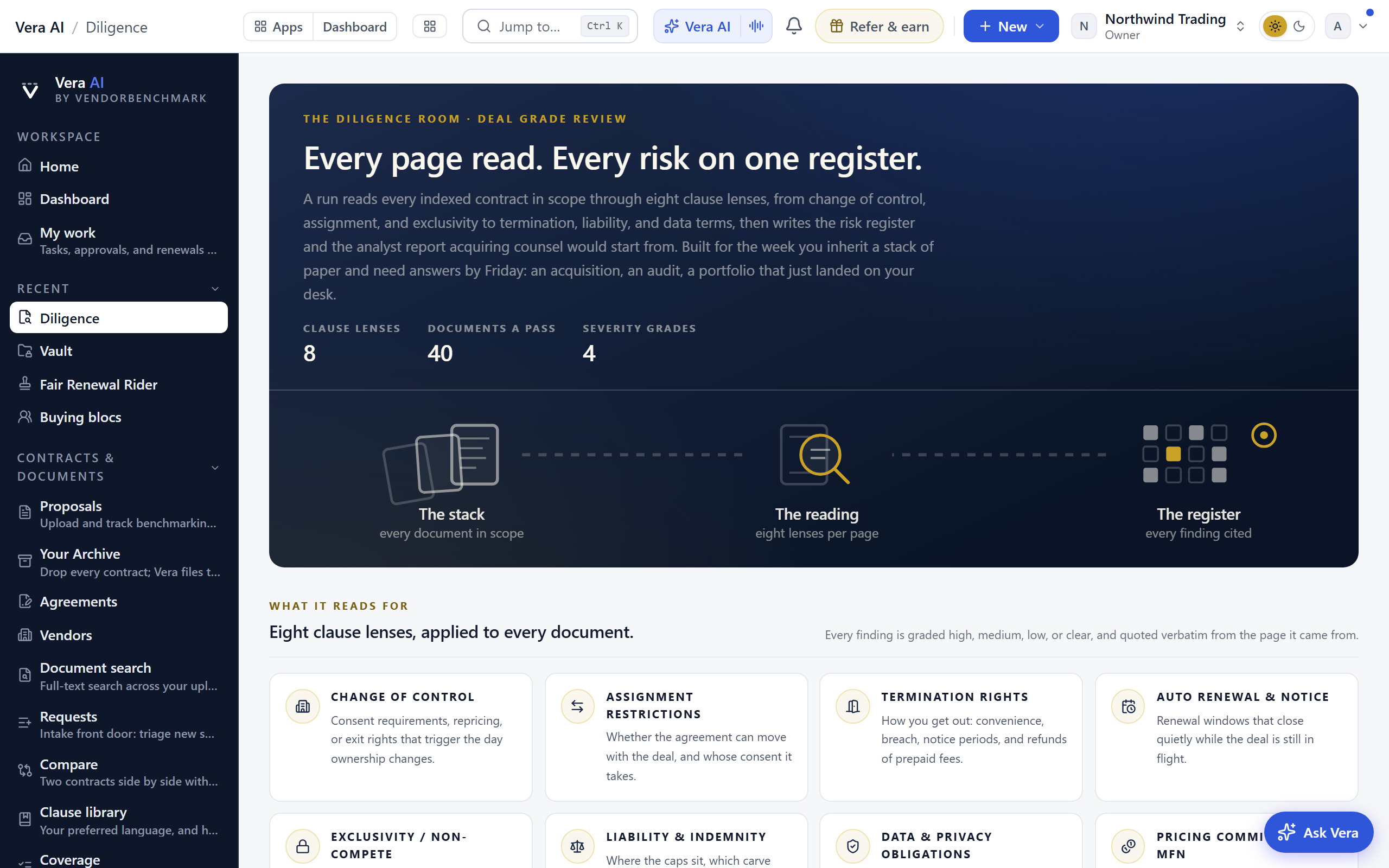
On the screen
- The side — the whole workspace and every Vault project as a scope, each with its mark, one line of state (not run yet, how many read high and how many questions are open, or nothing reads high) and a red dot when something reads high. Press one to open it; Review a scope opens the Vault to put a deal's documents in one project.
- The head — the scope's mark and name, one state tag, the scope line, one sentence on what the last run found (the findings, the clause areas the risk sits in, the questions to put to the counterparty), and the actions: Scope, Email the brief and Run the review (or Run it again).
- Map — the review drawn whole: the scope in the centre, the eight clause areas as pills around it with their count, every finding a leaf on its branch coloured by its grade (brick high, gold medium, blue low) and a hollow gold ring where a document is silent on an area that matters. The branches draw and the leaves land in order. Press a branch to light it and dim the rest, a leaf to open that finding in the details with the clause quoted, the centre to clear. The segment at the right shows all, high and medium, high only, or the silences. Under the map: Needs you, the things waiting on you with one button each, and The documents, worst first. Before the first run the map is a ghost with the Run card; while a run reads, the documents in scope tick through beside it.
- Register — the heat grid: one row a document, one column a clause area, every cell a grade (H, M, L, blank where clear, a dashed ? for a silence). A column head lights its branch on the map; a cell opens the finding. Highs per area run along the foot. The memo prints the whole register for the deal file.
- Findings — every clause that reads high, medium, low or silent, worst first, with what the paper says and the quote; filtered by grade and by clause area.
- Questions — the silences, each written as a plain question to the counterparty; the tick marks one answered and it leaves the draft. Beside them the draft itself, switchable between the counterparty's version (no internal risk language) and the deal team's (grades and reasons); Open in your mail app carries it into an email, Copy copies it. Under the list, what the review asks of every document in the eight areas.
- Report — the brief on the firm paper: the summary, the themes, the recommendations, the register and the bottom line, beside its coverage and the moves to send it on (email the brief, the memo, a case on the worst document, a link). The case workroom and the email draft sit under it, as before.
- Documents — the scope chooser (every document, each Vault project, a new project) and the documents in scope with their grade and the eight areas as dots; before a run, the workspace's contracts. Document Agent indexes more contracts so the next run can read them.
- The details — What to do now first (the worst document, the open questions, a rerun when documents were not indexed), then what else waits, the clause areas worst first as bars, and Ask Vera. A document in hand shows its vendor and file, its grade, the chosen area's finding with the clause quoted, its eight areas as rows, and the moves: open the contract, ask the counterparty, open a case.
How to use it
- Scope the documents into a vault project first, or review every document.
- Press Run the review (or R). A run reads up to 40 documents and takes a few minutes; the map fills in when it is done.
- Work the map from the brick leaves down, then Questions to send the counterparty the silences in one email, then Report to send the brief on.
Related: Vault
Requests
One place where new spend requests come in, and since August 2026 it is a screen inside the Sourcing app rather than a page of its own: /requests and every old link land in the window on the intake screen. Every request is read against what you already own, stamped with a verdict, and routed into sourcing, renewals, or approvals without leaving Sourcing.
In plain words: everyone asks here, Vera checks what you already own, and nothing gets bought twice.
When to reach for this
- Standing up the intake habit: one way in, one triage, no side-channel purchases.
- A request arrived: the verdict (net-new, renewal, duplicate, over threshold) decides the route .
- Someone is about to buy what the estate already owns: the leak board is this screen paying for itself.
In the room
- Raise a request — the form at the top of the screen: what is being asked for, the vendor if known, the rough annual cost, and why. If your org shaped the intake form, its extra questions appear here too, required ones enforced. Vera triages it against the estate on arrival.
- The requester's receipts — filing a request sends the requester a receipt with a personal status link (no sign in needed), and a second email when the request is routed or reviewed. "Where is my request" stops being a conversation.
- The leak board — what was requested against what the estate already owns, priced, in the triage's own words. Since 3 October 2026 the triage also reads the licenses you already hold from the vendor, where a connector keeps them (Settings › Integrations): a request for a product you hold with shelfware seats is marked a duplicate, and the reason says how many seats are shelfware and can be reassigned before anything is bought. Requests also arrive from Slack and Teams since 3 October 2026: a message that starts with request is filed in the sender's name and triaged at once (see Chat clients in the integrations chapter).
- Verdicts and routing — each request carries its verdict and one press takes the recommended route: open a sourcing project, send it to the Renewals app, or send it to approval. Triage it again re-reads a request after the facts change. A request past the triage SLA shows how long it has waited, in red, and the nightly watch tells the org's owners.
- The mail-in address — owners switch it on under Settings › Integrations and teammates email requests straight in, already stamped.
- Shape the intake form — owners add up to 12 questions of their own (free text or yes and no, optional or required); the answers travel into the triage and onto the request record.
How to use it
- Raise a request for the new spend, or let it arrive by mail.
- Read the verdict and the leak board.
- Take the recommended route, in place.
Related: Sourcing
Supplier registry
Your organization's own supplier registration. You invite a supplier, they answer your questionnaire through a personal link with no account to create, and you approve or reject what comes back. Each organization runs its own registry: no other organization sees your suppliers, and nobody outside your organization approves them.
When to reach for this
- A new company should be vetted before anyone asks it to quote, bid or send an invoice.
- A supplier you already buy from was never formally registered and approved.
Since 26 September 2026 it opens in the same window the agents wear: the registrations waiting for your review and the invitations still out down the left, four screens across the top (Registrations, Invite a supplier, Find suppliers with Vera, Questions), the selected supplier in an inspector on the right, and a status line at the foot. 1 to 4 change screen, I hides the inspector, and Escape puts the window down on the tab strip. Each screen wears its own color, carried by the tabs, the head, the section bands and the cards; decisions such as approving a supplier or sending an invitation are marked with a short burst of color, and all motion stops when your system asks for reduced motion.
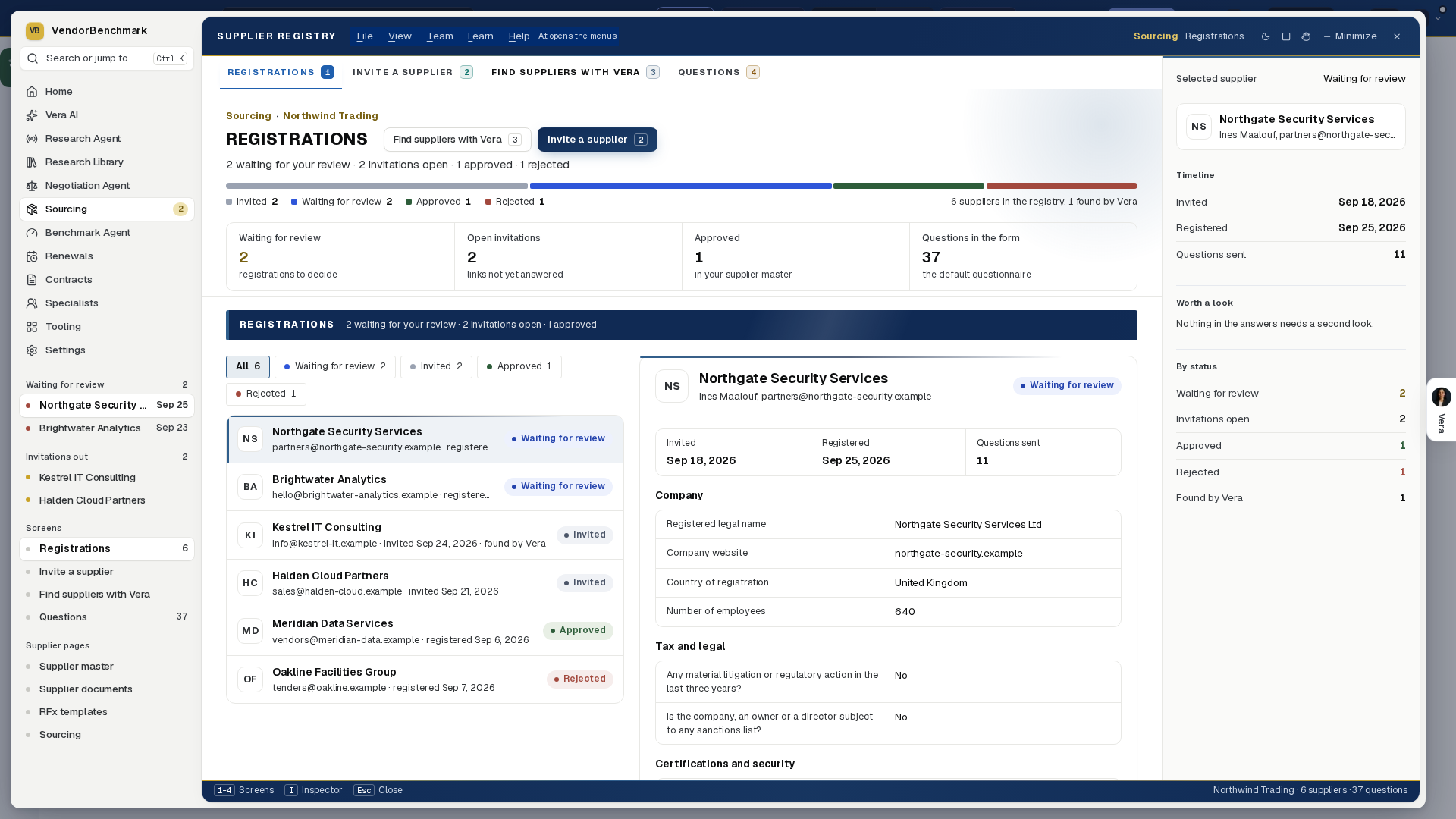
On the screen
- The head — the screen's name and one line on how many registrations wait for your review, how many invitations are still open and how many suppliers are approved, with Find suppliers with Vera and Invite a supplier at its right. Under it, one bar draws the registry by status (gray invited, blue waiting for review, green approved, red rejected) with the counts beside it, and the figures run underneath as one quiet row.
- The index — down the left, every registration waiting for review and every invitation still out, one press from its review; then the four screens; then Supplier master, Supplier documents, RFx templates and Sourcing.
- The inspector — the selected supplier: its contact, its timeline (invited, registered, decided), and anything in its answers that needs a second look; under it, the whole registry by status.
- Registrations — every invitation, waiting reviews first, with a filter by status. Press one to read it beside the list: its dates, and once answered, every answer by section with anything that needs a person's eye raised first (a sanctions listing, litigation, a security incident, a conflict of interest, no ISO 27001 or SOC 2, no data processing agreement).
- Approve or reject — on a registration waiting for review. Rejecting needs a reason, which goes in the supplier's letter; approving can carry a note. Untick Email the supplier the decision to record it without writing to them.
- Resend or withdraw — on an invitation nobody has answered. A resend makes a fresh link valid for 30 days and stops the old one working; withdrawing closes the form.
- Invite a supplier — the company, its website, a contact and an email, and a line from you printed in the invitation. The link is shown once after sending, to copy if the email did not arrive.
- Questions — the questionnaire, grouped by section. It starts from a default modeled on an enterprise supplier registration: the company, tax and legal, contacts, payment terms, certifications and security, insurance, diversity and ESG, and the declarations. Reword a question, make it required or optional, switch it off, move it, or add your own. An invitation already sent keeps the form it went out with. Back to the defaults restores the standard set.
- Find suppliers with Vera — describe what you need, with a category and region if they matter. Vera searches the web and recommends four to ten suppliers: what each supplies, why it fits, what to check, its size and region, and where it already stands in your registry. It keeps only an inquiry address the supplier publishes on its own website (sales@ or info@, never a named person, never a guessed address) and drafts the line of each invitation. Change the address or the line, then press Invite to register for each supplier. Nothing is sent before that press, and your last search stays on the screen.
- Read and watch — under every tab, the films, analyst briefings, research papers and guides the library holds on your registry's suppliers: the one whose registration is open first, then the approved, waiting and invited ones. On Find suppliers with Vera it covers the suppliers Vera just recommended, in her order, so you can read up on each before inviting.
How to use it
- Open Questions once and shape the form your organization needs.
- Invite a supplier. They receive the invitation from your organization's name, with a link to the form.
- When they send it, the person who invited them gets an email, and the registration waits at the top of Registrations.
- Read the answers, then Approve or Reject. The supplier's entry in your supplier master is marked approved or rejected, and they receive the letter.
Good to know
- The form never asks for bank account details. Your finance team collects remittance details after approval, through its own channel, and the invitation says so, so a request for bank details by email stands out.
- The link is personal to one supplier and stores only a scrambled fingerprint of itself, so a copy of the registry cannot be turned back into a working link.
- Every invitation, resend, withdrawal and decision is recorded in your organization's audit log.
Related: Sourcing
Supplier master
Every supplier your organization knows, one record each across every purchase. A supplier lands here when it is added by hand, invited to register, or put on a sourcing project, and the same company on five purchases is one record.
Since 26 September 2026 it opens in the same window the agents wear: the suppliers that need attention and the master by standing down the left, two screens across the top (Suppliers, Add a supplier), the selected supplier in an inspector on the right, and a status line at the foot. 1 and 2 change screen, I hides the inspector, and Escape puts the window down on the tab strip. Each screen wears its own color, carried by the tabs, the head, the section bands and the cards; decisions such as approving a supplier or sending an invitation are marked with a short burst of color, and all motion stops when your system asks for reduced motion.
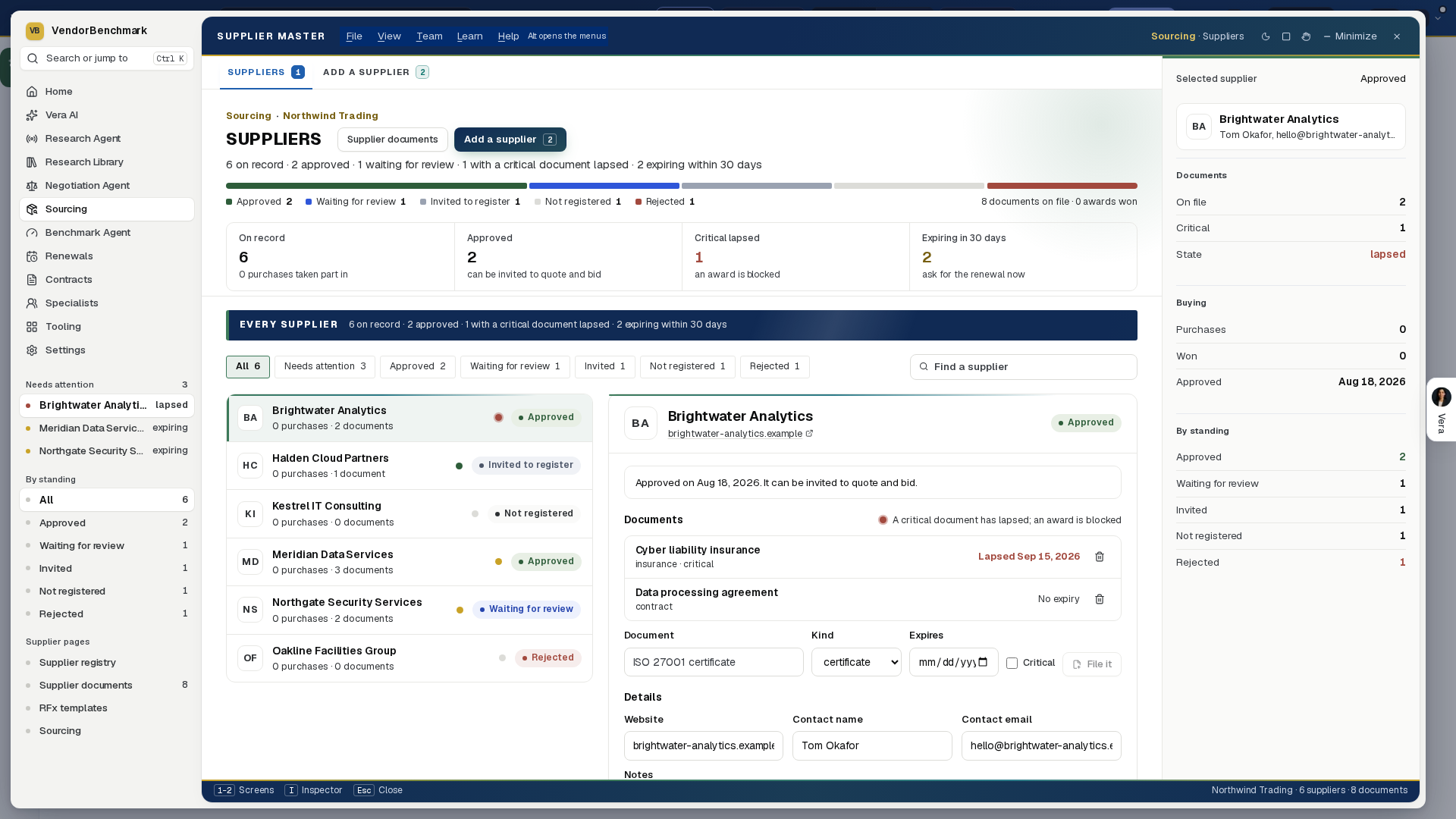
On the screen
- The head — the screen's name and one line on how many suppliers are on record, how many are approved or waiting for review, and how many have a critical document lapsed or one expiring within 30 days, with Supplier documents and Add a supplier at its right. Under it, one bar draws the master by standing (green approved, blue waiting for review, gray invited, light gray not registered, red rejected), and the figures run underneath as one quiet row.
- The index — down the left, every supplier that needs attention (a critical document lapsed, one expiring, or a registration waiting), one press from its record; then the master by standing, each a filter; then the other supplier pages.
- The inspector — the selected supplier's contact, its documents (how many, how many critical, and whether they are in date) and its buying (purchases, awards won, qualification); under it, the whole master by standing.
- The list — every supplier with its purchases, how many it won and its documents, filtered by standing (Approved, Waiting for review, Invited, Not registered, Rejected) or by Needs attention, and searchable by name, website or email. The dot beside each name is its documents: red when a critical one has lapsed, gold when one expires within 30 days, green when all are in date.
- The record — the supplier's registration standing with Invite to register (when it is not registered, or was rejected) or Open the registration; its website, contact and notes; its documents with their expiry dates and File it to add one (tick Critical for a document an award depends on); its qualification check; and every purchase it was on, with the ones it won, each opening the project.
- Read and watch — under the record, the films, analyst briefings, research papers and guides the library holds on this supplier.
Good to know
- A lapsed critical document blocks an award to that supplier in Sourcing until a current one is filed.
- Documents filed here and documents filed from a project are the same records: file a certificate once and every purchase sees it.
Related: Supplier registry · RFI, RFQ and RFP templates
Supplier documents
Every certificate, insurance and report on every supplier, in one list sorted by expiry, for a renewal sweep. These are the same records the Supplier master and each sourcing project file, so a certificate is filed once and seen everywhere.
Since 26 September 2026 it opens in the same window the agents wear: what has lapsed and what lapses in the next 30 days down the left, two screens across the top (By expiry, By supplier), what lapses next in an inspector on the right, and a status line at the foot. 1 and 2 change screen, I hides the inspector, and Escape puts the window down on the tab strip. Each screen wears its own color, carried by the tabs, the head, the section bands and the cards; decisions such as approving a supplier or sending an invitation are marked with a short burst of color, and all motion stops when your system asks for reduced motion.
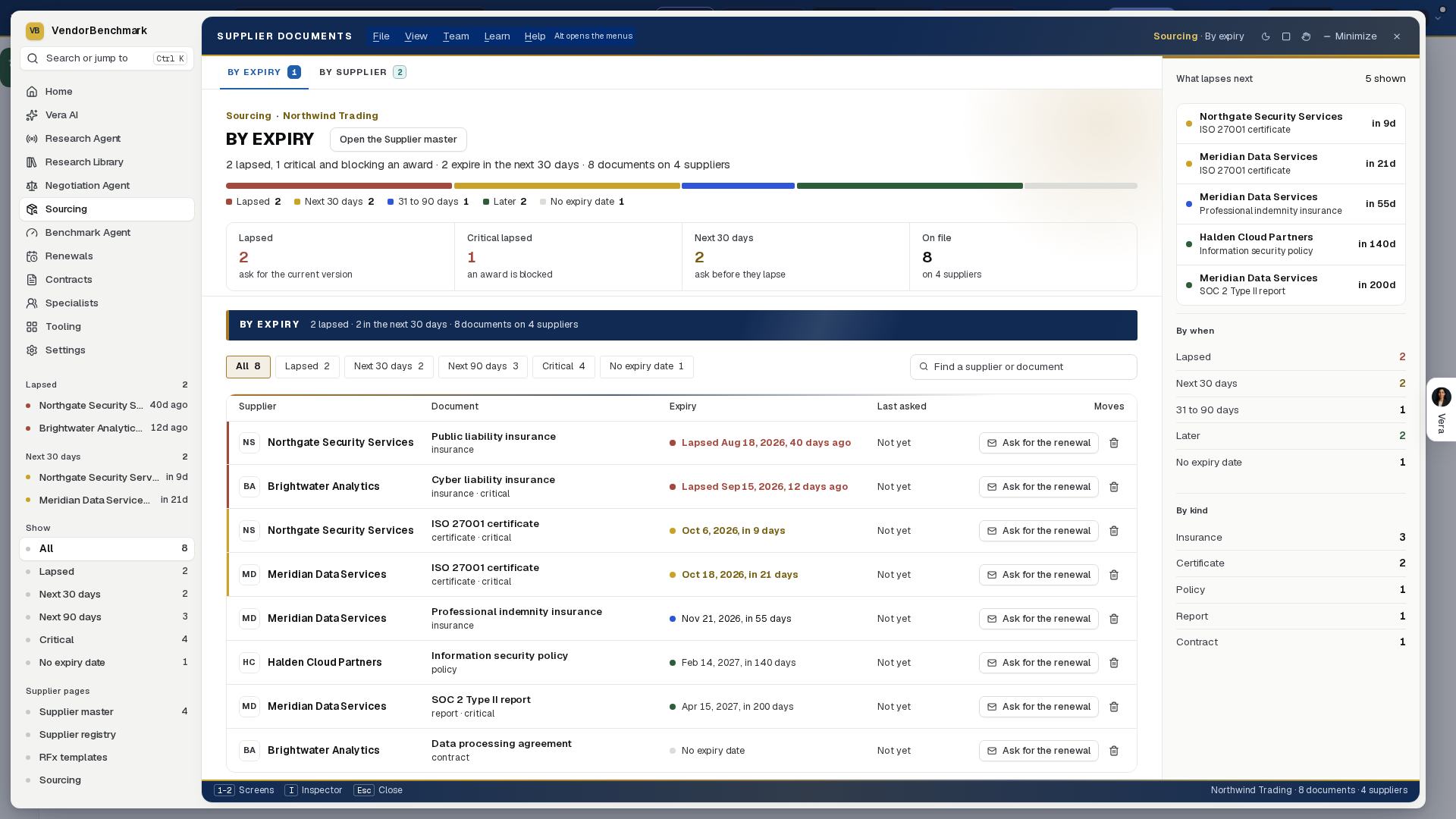
On the screen
- The head — the screen's name and one line on how many documents have lapsed, how many of those are critical and block an award, and how many expire in the next 30 days, across how many suppliers, with Open the Supplier master at its right. Under it, one bar draws every document by when it expires (red lapsed, gold the next 30 days, blue 31 to 90 days, green later, gray no expiry date), and the figures run underneath as one quiet row.
- By expiry — the supplier (opening its record), the document with its kind and whether it is critical, when it expires (lapsed in red, the next 30 days in gold) and when a renewal was last asked for. Filter by Lapsed, Next 30 days, Next 90 days, Critical or No expiry date, or search.
- By supplier — the same documents grouped by supplier, the supplier with the most urgent document first, each with its contact email and the same moves.
- Ask for the renewal — emails the supplier's contact from your organization, asking for the current version as a PDF with its new expiry date. It needs a contact email on the supplier's record, and the request shows in Last asked.
- The inspector — the next five documents to lapse with how many days are left, the register by when and by kind, and how many suppliers cannot be asked yet because their record has no contact email.
- Read and watch — at the foot, the films, analyst briefings, research papers and guides the library holds on the suppliers whose documents need attention, the most urgent first.
Good to know
- A lapsed critical document blocks an award to that supplier until a current one is filed on its record.
- File the renewed version on the supplier's record in the Supplier master, then remove the old one here.
Related: Supplier master · Supplier registry
RFI, RFQ and RFP templates
Eleven ready templates for the three kinds of sourcing event. An RFI (request for information) finds out who can do it, asks for no prices, and ends in a shortlist. An RFQ (request for quotation) prices a scope you already know. An RFP (request for proposal) asks suppliers to propose the solution and the price together.
Since 26 September 2026 it opens in the same window the agents wear: every template down the left grouped RFI, RFQ and RFP, three screens across the top (The template, The letters, Start a project), the template's timeline and the library in an inspector on the right, and a status line at the foot. 1 to 3 change screen, I hides the inspector, and Escape puts the window down on the tab strip. Each screen wears its own color, carried by the tabs, the head, the section bands and the cards; decisions such as approving a supplier or sending an invitation are marked with a short burst of color, and all motion stops when your system asks for reduced motion.
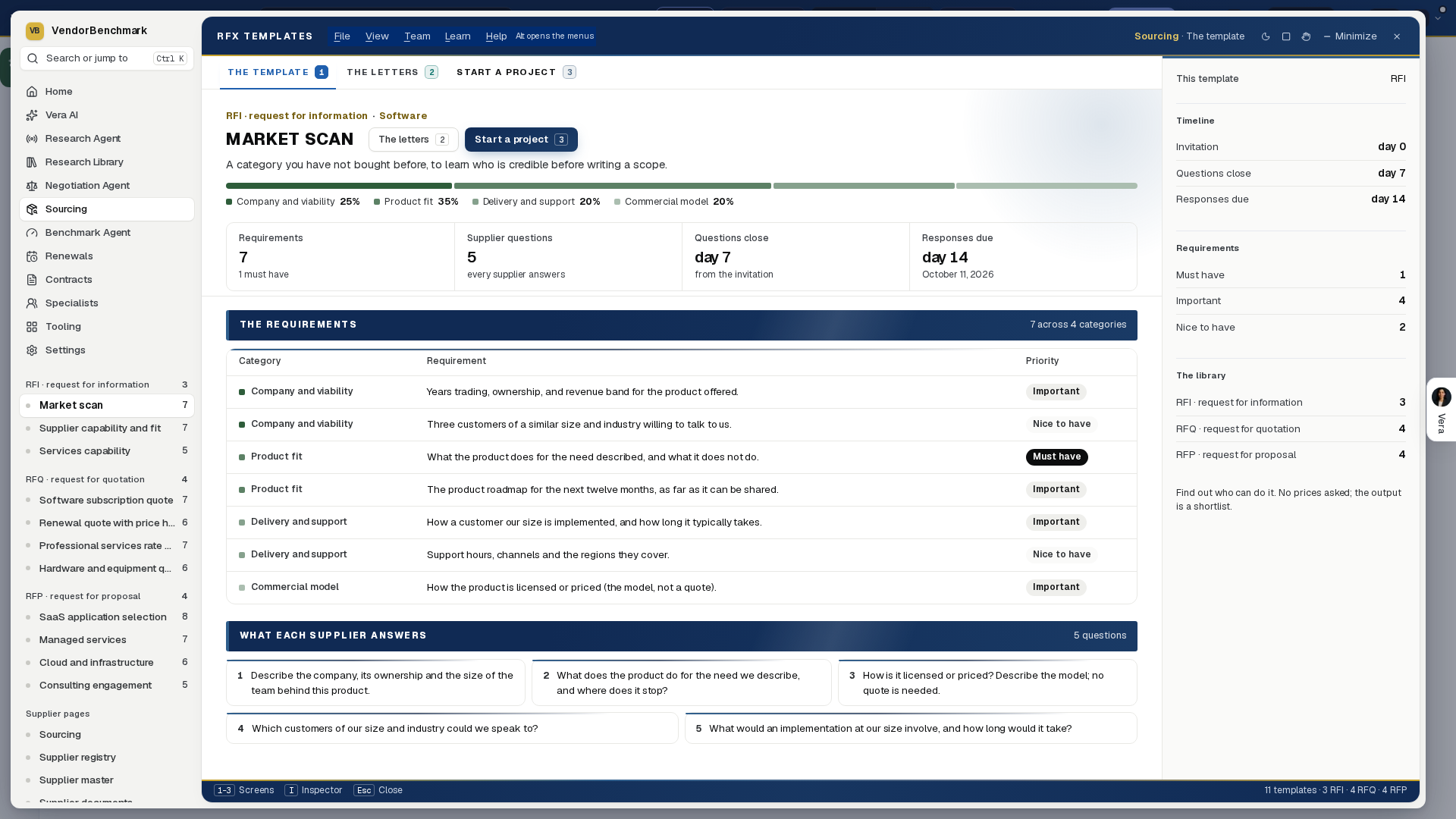
On the screen
- The index — three RFIs (market scan, supplier capability and fit, services capability), four RFQs (software subscription, renewal with a price hold, professional services rate card, hardware and equipment) and four RFPs (SaaS application, managed services, cloud and infrastructure, consulting engagement), each with its requirement count; press one to open it.
- The head — the kind and category, the template's name and when to reach for it, The letters and Start a project at its right, then how responses are weighted as one bar with each category's share, and the requirements, supplier questions, and the days questions close and responses are due as one quiet row.
- The template — the requirements as a table with their category and priority (Must have in solid ink), and What each supplier answers as numbered cards.
- The inspector — the timeline from invitation to responses due, the requirements by priority, and how many templates the library holds of each kind.
- The letters, ready to send — six for each kind of event: invitation, reminder before the deadline, clarification to every bidder, shortlisted, not selected, and award. Each previews with your organization, your name, the deadline and the project title filled in, and Copy takes subject and body together. Anything not yet known stays as a visible placeholder rather than going out blank.
- Start a project — a title and an optional budget a year open a Sourcing project with the template's brief and weighted requirements, ready for suppliers.
- Read and watch — at the foot of the page, the films, analyst briefings, research papers and guides the library holds on your own vendors, the largest agreement first.
Good to know
- Rounds in the Sourcing app now include RFQ, beside RFI, RFP and best and final, so an RFQ runs as its own round with its own deadline.
- A template saved from one of your finished projects still starts the next similar project the same way.
Related: Supplier registry · Sourcing
Sourcing
A purchase runs in five steps, in plain words: Need, Suppliers, Bids, Compare, Award. Each step has one thing to do, shown first under Next in the details column. Purchases is the home screen, and Requests from the business are routed by the purchasing policy before they become purchases. The sourcing desk that came before keeps every screen it had at /sourcing?classic=1 (View › Earlier Sourcing), and every older link that names one of its pages still opens it.
On the screen
- The window — on the same frame as every agent: the title bar with the menus (File has New purchase, the comparison as Excel, the decision memo as Word, Templates), Sample data, Share, light or dark, Minimize, Maximize and Close. The left column lists Purchases and Requests, then the open purchase's five steps with a figure each (the requirements, how many suppliers were asked, the bids in, the leader, Done), then Related.
- Purchases — the box at the top takes what you need to buy in your own words; Start opens the purchase, Vera drafts the weighted requirements and the invitation pack and suggests suppliers, which takes up to a minute. The chips start one from a common category. Your purchases lists every purchase with a five segment track, the next action and the dates; a row opens the purchase at its current step. Beneath, the requests waiting and the five steps.
- Requests — every request with its suggested route under the purchasing policy: Run a purchase (new spend at or above the award approval threshold), Renew with the Deal Agent (a renewal of software you already run) or Buy direct, check the price (under the threshold). The button routes it; Decline in the details column dismisses it. Then the policy and the requests routed lately.
- 1 Need — the brief, today's supplier and price, the budget; What comparable buyers get for the category once the first bid is priced; Requirements grouped by category with each category's weight. Press a priority to change it (Must have, Important, Nice to have), remove a requirement or add one, then Save requirements. Draft again with Vera redrafts them from the brief.
- 2 Suppliers — the shortlist with Vera's fit, why and watch out for each, and the address the invitation goes to (an address Vera proposed is marked to confirm). Tick who to ask, choose when bids are due (14, 21 or 28 days) and press Invite: each supplier gets its own invitation with the requirements, the order form, a private reply address and the portal link. Find more with Vera and Add a supplier widen the list.
- 3 Bids — the countdown to the deadline, then one track per supplier (Invited, Opened, Asked, Bid in or Declined) with the bid file and its annual price. Add a bid reads a PDF or Word bid you received another way; Score with Vera scores any bid not yet scored. Questions from suppliers shows each question; write the answer or ask Vera to draft it, and Send to all sends it to every bidder without naming who asked.
- 4 Compare — The answer for the leader: what it costs, what comparable buyers get, and where it ranks (Poor, Below market, At market, Good or Top of the market), with the gap to the midpoint in money. Ranking blends quality and price by the weights above it; move a weight and the ranking follows. A bid that misses a must have stays in the table and can never win. Then each bid's discount off list on the market range, and the scores by category. A row opens the bid as Vera read it.
- 5 Award — The decision (the winner, why, what to watch, the runner up; switch between the bids that meet every must have), Ask before you sign (the move to the market midpoint and the bid's own open points; untick an ask to leave it out), the saving over three years against the renewal, and Before signing: the approval when the annual price is at or above the threshold, the award, and Tell every bidder. Letters holds the award and regret letters; Decision memo (Word) downloads the case for the decision.
- Options — on every step, the head's Options opens what an advanced buyer reaches for, off the simple path: your own RFP document, sign off by Security and Legal, templates, the security questionnaire, certificates and insurance, sealed bids, a price sheet, a second round, the blind evaluator panel, demos, a split award, recording the saving and sharing as slides.
How to use it
- On Purchases, type what you need to buy and press Start, or pick a category chip.
- On Need, check the requirements: change a priority, remove or add one, then Save requirements.
- On Suppliers, tick who to ask, confirm each address, choose when bids are due and press Invite.
- On Bids, answer the questions as they come; every answer goes to all bidders.
- On Compare, read the answer for the leader and move the weights to see what would change the ranking.
- On Award, keep the asks you want, request the approval if it is needed, press Award, then Tell every bidder.
Tips
- The three year cost is the annual price times three plus any one time charge the bid states; it is the planning term, not a commitment.
- A bid priced in another currency is read in USD at the day's rate.
- Requests under the threshold do not need a purchase: check the quote against the market in the Benchmark Library and buy.
- The sample shows three purchases at three steps; changes to the sample stay in the window.
Related: Deal Agent · Benchmark Library
The sourcing desk, at /sourcing?classic=1
Sourcing opens as the Sourcing app: one window with sixteen screens over the whole pipeline, reading the same rows as the older page for each stage. Since 22 September 2026 it wears the same window the Renewal, Negotiation, Benchmark and Research agents wear, down to the head of every screen, and it speaks plainly: the screens are named the way a buyer would name them, the tree on the left is the purchase as eight numbered steps, a line under the tabs always says which step you are standing on and what comes next, and every move listed on the right carries one line saying what pressing it does. Since 24 September 2026 every screen opens on a compact head on the white surface rather than a dark banner: the screen's name, one plain line with the figures that matter, the screen's buttons at the right of that row, and the figures under it as one quiet line of label and value pairs. Number keys 1 to 6 reach the six sheets across the top, one search crosses projects, suppliers, bids and requests, and Escape puts the window down on the tab strip. Nothing about the work changed: the same fifteen screens, the same engines, the same figures. The pages beneath the app wear the same glass: the project record and the deal pricing each draw their own window with the app's own tree down the left, carrying the same screen names and the same step numbers, every entry opening that project's screen, so no sourcing surface is a plain web page. Sourcing also keeps the record: every action lands on the project timeline, letters send from the emails screen and are logged, and the award rides the approvals trail.
In plain words: the buying pipeline, from the question to the award, one screen per step.
On the agent frame, and Your purchases (since 4 October 2026). Sourcing wears the frame every app wears. The title bar carries the menus (File, View, Team, Learn, Help), the Sample data switch, Share, Minimize, Maximize and Close (light or dark and Full screen are in View), and nothing else, so the window controls always sit inside the window. The left column starts with the VendorBenchmark mark, Find an app (Ctrl K), Home, Vera AI and your pinned apps, then Your purchases (each with its initials, its name, the step it is on and when bids close, a brick dot when bids close inside a week, and Start a purchase under the list) and Also here (The team, Read and watch, What the words mean). Since 9 October 2026 the six sections are numbered rows in the left column (This purchase on an open purchase, with a tick once passed and the count that means something beside each; A purchase, step by step on the dashboard), on keys 1 to 6, and nothing runs across the top; the head says the purchase once in one line under its name (the budget, the offers in, when bids close) and the details column leads with what to do now: the next step and the first check still open, or on the dashboard the purchase whose bids close inside a week. The head names the screen: Your purchases on the Dashboard, with one line saying how many purchases need a person this week and when the next responses are due; on a purchase's screens its name, the step it is on, and the budget, the offers in and when bids close. Present, Share the show, Watch and the one dark button sit at the right of the head. A screen with sister screens shows them as chips over the page, beside Search Sourcing (press /). The details column on the right holds Where it stands, Key dates, the What if on the Dashboard, Next (the new requests, Benchmark the offers, the deal pricing) and Ask Vera.
The Dashboard opens on three answers said once: Needs a person this week (how many, and what each needs), In motion (the open budget a year, how many carry a budget, and where the window holds both, what the leading offer saves against what you pay today), and Act on first in gold, the purchase the pipeline puts first; press it to open that purchase. One row closes the panel: signed savings, cycle time, asked and answered across every purchase, awards, and New requests with its count. Under it the purchase to act on draws its eight steps as a path (Done, Now, then the steps to come), the gold Waiting on you first line with its budget and what it needs now, Open the purchase, and beside it Still waiting for: the offers in against the companies asked, when responses are due, the budget and what you pay today. Where one of those is missing the panel reads Not set yet and names the press that sets it. Then Every purchase: the register grouped This week, On track and Done, with a Leading offer column (the open purchase's leading offer and what it saves against today, an award's signed price, or how many offers are in when the purchase has not been opened to rank them). The runway, the six cards, the panels, Reports and exports and What next (Start a purchase, Read the new requests, Benchmark a price first) follow.
Six sections (since 30 September 2026). The left side of Sourcing is now six rows and nothing else: Dashboard, Intake, Compare results, Benchmark, Choose a winner and Messaging, the same six as the tabs across the top and on keys 1 to 6. The section you are in lists its own screens beneath it: Intake holds What you need, Find who can do it and Ask them to bid; Compare results holds Read what came in and What each offer says; Benchmark holds Our plan; Choose a winner holds Work the document and Tell everyone and sign. The team, Read and watch and What the words mean sit under Team and help. The app menu above it is shorter too: Home, Vera, your pinned apps and Sourcing, then All apps as one row that opens the six shelves when you press it.
The layout (since 30 September 2026). Sourcing reads like the Teams Room. The left panel lists your purchases as rooms: each has its initials, its name and one line saying which step it is on and when bids close, and a red dot marks one whose bids close within a week. Press a purchase to open it. + Start a purchase and the team, Read and watch, What the words mean, Home and All apps sit beneath the list. The open purchase has its own head: its initials, the step it is on, its name, and a small strip with the budget, the offers in against the companies asked, and when bids close. The buttons sit at the right, with the next section as the dark button. Under the head, the six sections are the tabs, each with its count. A section with more than one screen shows them as chips, for example Compare results, Read what came in and What each offer says. The panel on the right, Where it stands, ticks off Intake, Compare results, Benchmark, Choose a winner and Messaging as each is done (press one to open it), then shows the key dates.
Messaging (rebuilt 30 September 2026). The letters are listed on the left in two groups, Ready to send and Held until the decision, and the letter you pick is the editor itself: type the address in To, change the Subject and the Letter, then press Send. Copy puts the subject and letter on the clipboard, and Reset to the draft returns an edited letter to the words composed from the purchase. Your edits are kept in this browser for each purchase, so moving to another letter or closing the window loses nothing. The award and decline letters unlock once the decision is recorded (Record the decision opens it), and everything sent is listed under Sent.
The house colors (since 27 September 2026). With a purchase open on one of the eight steps, the screen opens under the house masthead: the purchase in capitals against your organization, its category and step, the gold meta line, and one row of facts (the budget a year, what you pay today, offers in against suppliers asked, when bids close, in brick inside a week, and the leading offer). At the right, one figure: the leading offer against what you pay today, a year, green when it saves and brick when it costs more (against the budget when you pay nothing today), beside Next and a short colored rail of the eight steps. Each step wears its own color. Three instruments come with it:
- The score race on Compare them: one bar per offer, each in the color it keeps, its length the weighted score; move a weight under What matters most and the bars glide into their new order. The leader is marked; an offer that misses a must have sits grayed at the foot, because no weighting brings it back.
- Reports and exports (since 2 October 2026), under Every purchase: The purchases in charts (budget a year by purchase, responses due by quarter, and where the purchases are), then Excel workbook (every row typed, so it sorts and sums), Word report (the same report as a document), Email the report (to up to ten addresses, your note first, the Word file attached) and, under them, Shall I draft the email?, which writes an email to the vendor, your CFO or a colleague that you send yourself.
- Every offer on the peer range on Check the price: one percent off list scale with the range comparable buyers get shaded and its midpoint marked, each offer that states its discount dropped onto it, the leader ringed. An offer whose document prints no list is named under the scale, not placed.
- The award stamp on Tell everyone and sign: once a purchase is awarded, the award lands as a stamp with the supplier's name.
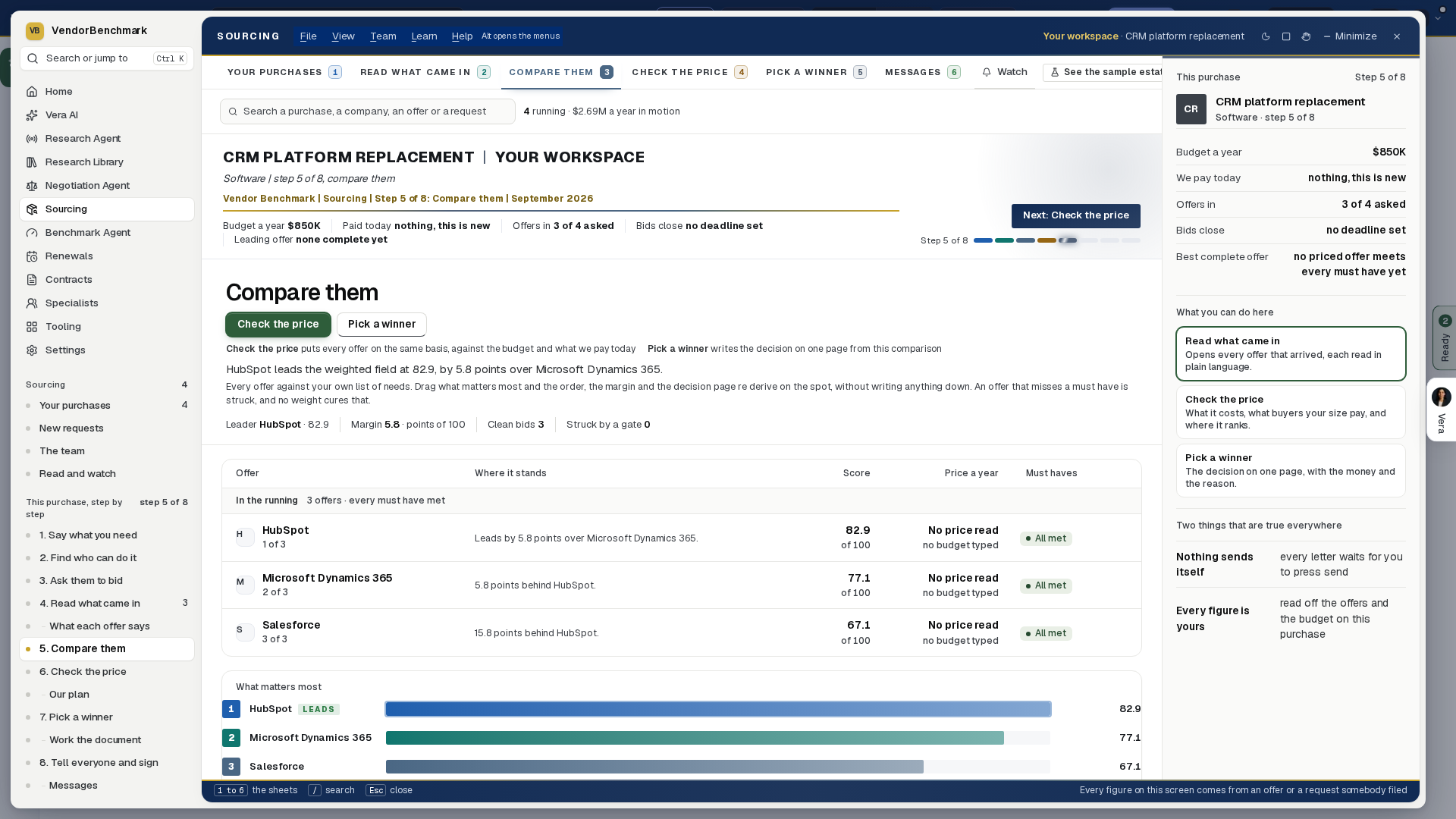
- The boardroom — since 28 September 2026, with a purchase open, Present in the head (or
b) plays it as a slideshow: the budget and the leading offer, the score race with any offer that misses a must have at the foot, each offer's discount against the range buyers this size get, what each offer costs a year, the response deadline with a live countdown, and the bottom line. Share the show opens a dialog: who can watch it (your workspace, named people who sign in with that address, or anyone with the link), how long the link works (a day, seven, thirty or ninety days), and the links already made, each with how often it was opened and an End it press. The link opens straight into the slideshow, view only, frozen as it stood when you made it, and every open lands on your audit log.
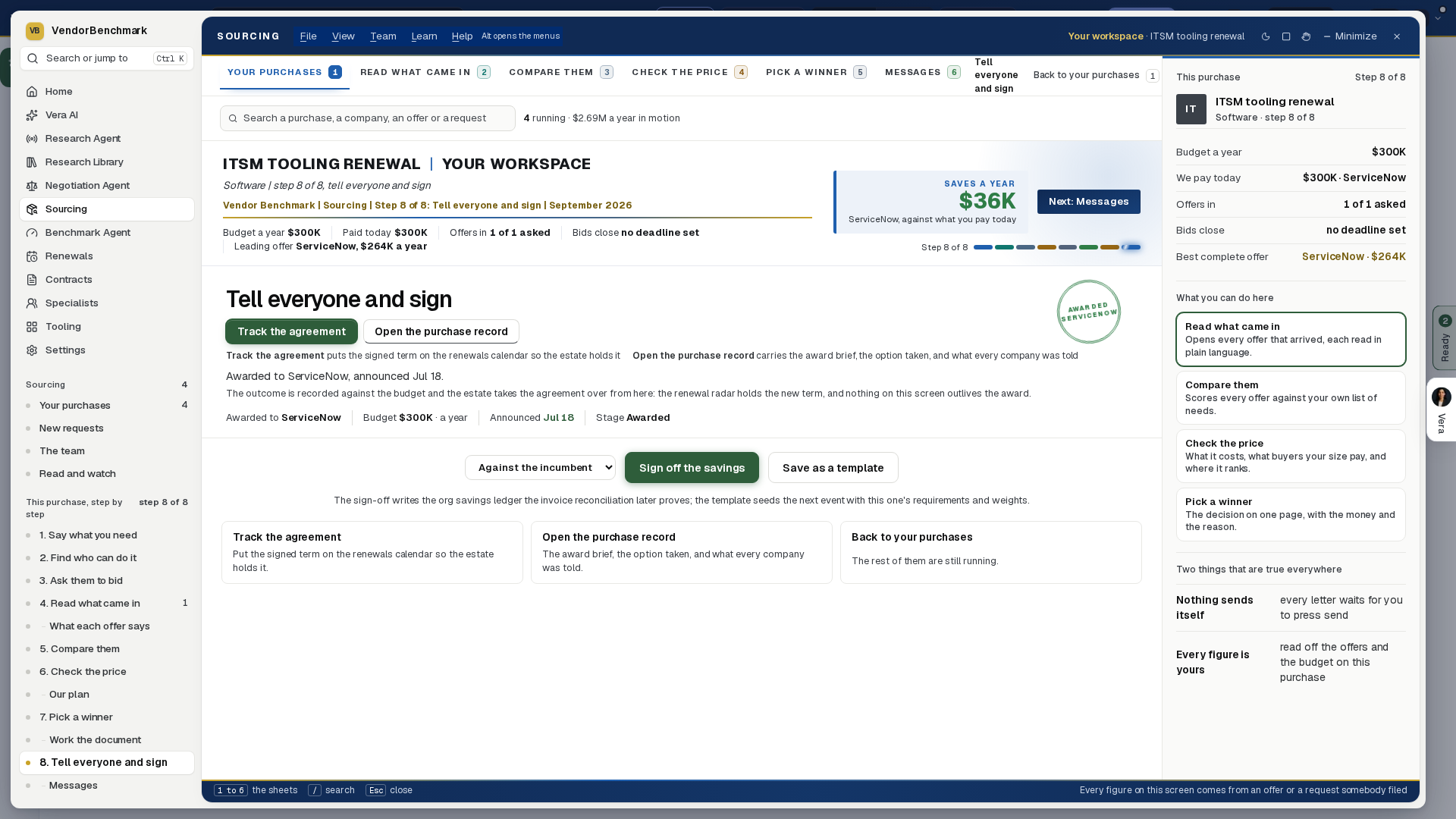
What the trade calls it, and what Sourcing calls it. The words changed on 22 September 2026; nothing else did, and the old addresses still land on the same screens.
| What the trade calls it | What we call it |
|---|---|
| Sourcing event, RFP | A purchase |
| Requirements matrix | Say what you need |
| Mandatory requirement | A must have |
| Research, the supplier field | Find who can do it |
| Suppliers and invites | Ask them to bid |
| Proposals, bids | Read what came in |
| Proposal analysis | What each offer says |
| Weighted scoring model | Compare results |
| Pricing analysis | Benchmark |
| Negotiation strategy | Our plan |
| Evaluation, the memo | Choose a winner |
| Negotiations | Work the document |
| Award, notice of intent | Tell everyone and sign |
| Emails and stakeholders | Messaging |
| Intake, demand triage | Intake |
The same table is in Sourcing itself, under Help › What the words mean in the tree, so nobody has to remember where it was written down.
When to reach for this
- A net-new purchase big enough to deserve a process (intake to award, the bake-off).
- Mid-process, when "what do I do next?" has a computed answer: every screen closes with its real next moves.
- The evaluation endgame: the matrix, the pricing walk, and the target lever are what you walk into the decision with.
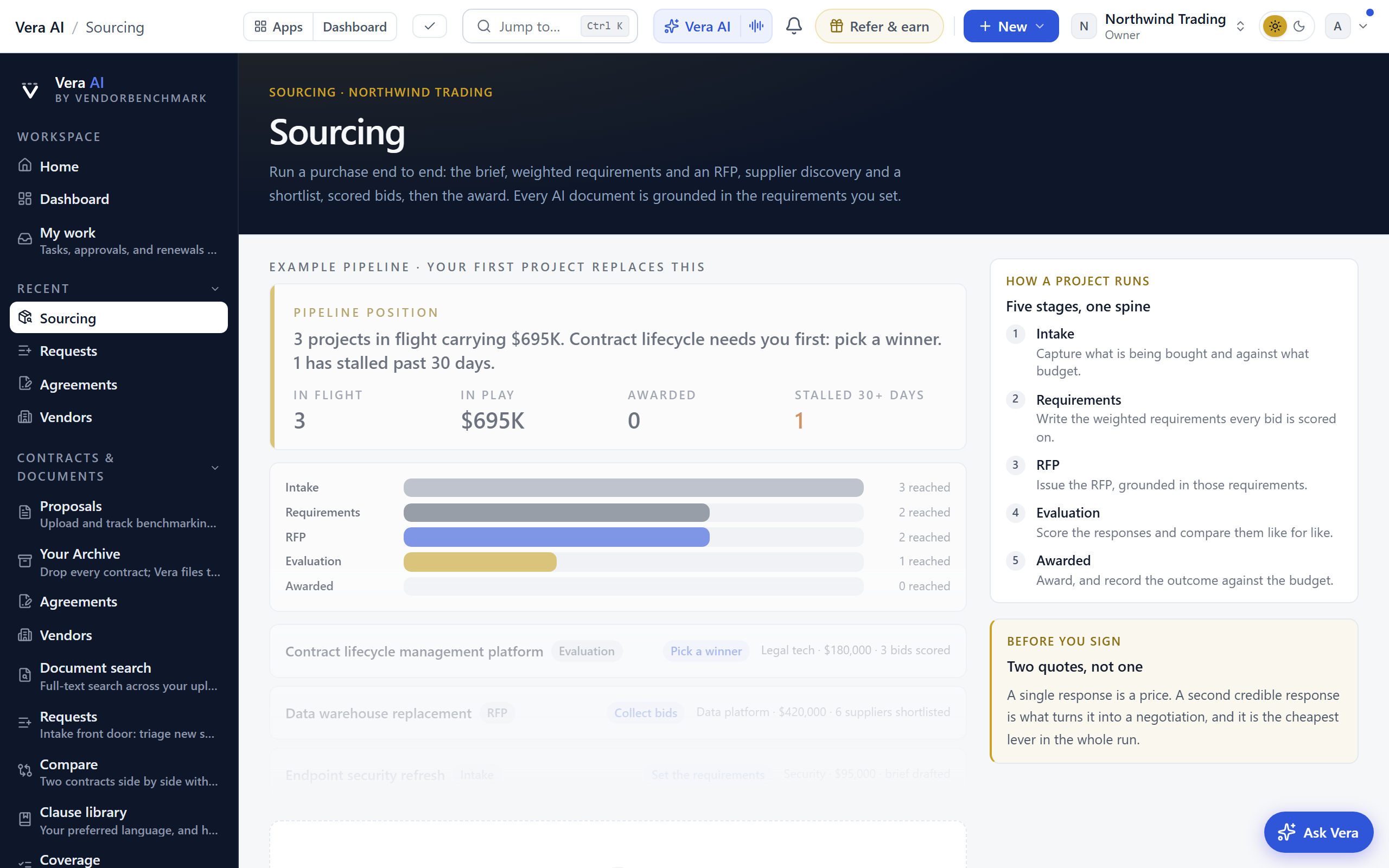
What you choose reads in ink and a quiet gray, never the accent green: the room tab you are on, the award scenario and the option card you pick, the note filter, the mail draft you have open, a weight you have changed from the request's own, and a switch you turn on. Green is kept for the one filled action and for links.
The screens
- The head on every Sourcing screen — since 25 September 2026 the screen's buttons sit right after its name, not at the far edge, with the sentence that states where the purchase stands across the full width under them.
- Start a purchase — on Your purchases, above the register, whenever you can edit: Write the full brief (what is being bought, for whom, the budget, its owner and the cost center) or Start from a template on the left, or type what you are buying and its budget on the right and press Start, which opens the new purchase at step 1, Say what you need. It used to appear only while nothing was being bought.
- Under the register — since 25 September 2026, six cards in whole rows (two across, three on a wide window). Where the purchases stand counts the purchases on each of the eight steps with the budget on each. When responses are due splits the open purchases into inside 14 days, 15 to 60 days, later and not dated, with the money in each. Needs a decision lists the open purchases a person first, then the nearest deadline, each with what it needs. The offers in shows how many of the suppliers asked have answered on each purchase. New requests lists the requests waiting to be read with their amount and who asked. By category splits the open budget by category. The purchase that needs you first is argued once, at the top of the Dashboard (see above), so the Move first case under the cards went on 4 October 2026. Every row opens its purchase.
- What if every open purchase closed under budget — in the right-hand column on Your purchases: move the slider to a share under budget and it shows what the open purchases keep a year, and over a three year term, from their own budgets in US dollars.
- Your purchases (the floor) — the screen's own head states what is being bought and when the next response is due, then every dated purchase draws on one runway (from the day it opened to its response deadline, today as the gold line, with the budget riding each bar), then the register: one row per purchase carrying the step it is on out of eight, what it needs next, what it costs a year against what you pay today, and the date responses are due, grouped so what needs a person this week sits at the top. Budgets and totals read in US dollars, converted from each purchase's own currency, and a search that matches nothing says so rather than showing every purchase. Since 4 October 2026 the three answers and the purchase to act on lead the screen (see above); Waiting on you first, the budget of the purchase that needs a person first with its name and what it needs, sits in the gold line of the purchase to act on. The shared notes wall keeps the screen's memory underneath.
- New requests (intake) — one place where new spend requests come in, inside Sourcing. The head says how much requested spend is waiting and how much of it looks like something you already pay for, with the two presses under it: raise a request, which opens a short form, and switch on the mail-in address, which lets the team mail them straight in. Looks like something you already own names each likely duplicate and prices it, and every request below carries what the read says about it and the one press that sends it where it should go, whether that is Renewals, a new purchase, an approval or an existing contract (see Requests). Every waiting request wears its clock: 24 hours to be read unless your org sets otherwise, a request past that shows how long it has waited, in red, and is counted as waited too long in the head, and a request above your spend approval line says so on its meta line. Org owners can shape the request form in place: up to 12 extra questions (free text or yes and no, optional or required) that appear on every raised request and travel into the read.
- Say what you need (requirements), step 1 — the head says how many things matter, how many are must haves and who leads as they stand, over the categories with the must haves marked, and the sliders as a what if: drag one and the scoring screen re ranks live, without changing the signed set. The screen also carries the sign-offs (named, dated records on the requirements and the RFP, and where the org's policy requires one, invitations refuse to send until it exists) and Upload a ready-made one: bring your own RFP, RFI or RFQ as a PDF or DOCX and the portal serves your document verbatim to every bidder, with your standing protections still appended; drafting with Vera stays one press away, and either can replace the other at any time.
- Find who can do it, Ask them to bid, Read what came in (research, suppliers, proposals), steps 2 to 4 — the companies that can do the job, counted in the head with how many of them have put a price in writing, a map placing every priced company by fit against what it commits to a year, and one row per company under it with the reason it is on the list, where it stands, its fit out of 100 and its price so far, grouped so the shortlist leads and the companies that said no close it; Ask them to bid says how many companies you asked, how many have answered and how many have not, with the reply date and the days left beside it, and one row per company under it grouped so the ones still to answer lead and carry the press that chases them; and every offer that arrived as one register: who sent it, what its own read says, where it stands, what it costs a year and the day it was filed, grouped so the offers nobody has read yet lead and the companies still to answer close it. A supplier whose entry in the risk register is elevated or worse is marked elevated risk or high risk on the long list. Beneath the long list sits the supplier register: the org level record behind each name (the same vendor across five events is one entry), showing how many events you have run with them, their qualification standing (send the baseline questionnaire from the row; they answer it once in the portal and it stands for a year across events; you approve or reject the answers), their document shelf (file certificates, insurance and tax forms with expiry dates; a lapsed critical document blocks award until renewed), their prior performance (score each quarter on delivery, quality, commercial conduct and relationship, and the average reads on every future event's register), their classifications (diversity and sustainability tags that roll up into the floor's reporting), and demos and bake-offs: schedule a session per supplier, capture what the evaluators saw, and fold it into the panel's scores as evidence. The proposals screen carries rounds and the window (open an RFI, RFP or best and final as a first class round with its own deadline, every bidder told at the same moment, bids stamped by round; seal the window and bid contents stay withheld from every reading surface until the deadline, when they unseal simultaneously and the deferred scoring runs, with a late bid on a sealed event refused outright), the structured price sheet (define the lines once and every bidder prices the same sheet in the portal, so the totals land side by side), self-declared positions (each bidder's comply, partial or no against every published requirement, with a declared no on a must-have flagged before anyone reads a page), and addenda: issue an RFP change as a numbered addendum, every live bidder is emailed the same words at the same moment, and each acknowledgment lands on the record so the trail shows everyone priced the same request.
- What each offer says, Compare them, Check the price (analysis, scoring, pricing), steps 4 to 6 — one offer at a time, read in full: the head says what that offer commits you to a year and whether as written it meets every must have or misses some, with what it says, its strengths, its risks and what to ask before scoring set out under it, the standings with the gap to the leader stated in points and the weighted matrix under them with gate misses struck at every weight, and the price walk from each document's stated list to its committed annual against the budget and the incumbent. The scoring screen also carries the evaluator panel: named teammates join after declaring any conflict of interest, score each bid blind per category (nobody sees another's individual numbers), and the consensus table shows the panel average, the spread, and the AI's read beside them as one voice among several. The pricing screen reads round over round (what each supplier moved between rounds, in money) and carries what if you settled here: the same target lever as the negotiation screen, on the same setting, so moving it prices the close, the asks and the award scenarios together. It draws only where the document states a list and the price check carries a peer band, because a discount is a percentage off something; where the document prints no list the screen says so and names what to ask for in writing instead of inventing a baseline.
- Our plan, Messages (strategy, emails), steps 6 and 8 — the plan derived from the field, stated as three moves with a lead phrase each (ask the leader for their last and best price, keep the runner up priced as the alternative, keep the company you use today in until signature) over one read per company, and the letters the purchase needs drafted from the record, the head counting how many are ready, how many wait for the decision and how many have gone. The letters really send now: edit every word, press Send this letter, and it goes out on the platform's own mail service and lands in the Sent from this screen log beside the drafts, on the record for good. The award and decline letters stay held until the decision is taken.
- Pick a winner, Work the document, Tell everyone and sign (evaluation, negotiation, award), steps 7 and 8 — the decision on one page, led by who is recommended, at what score, for what a year and how that sits against what you pay today, over a memo that rewrites itself as you move the levers, the finalist's asks with language you can paste into the document, the target lever pricing the close beside them, and the two presses that follow at the head of the screen, then the award options priced side by side with how the saving was reached, each carrying the move that follows it. The decision itself is an arm and confirm press in the room, and it is gated three ways: an award at or above your org's approval threshold (100,000 dollars a year unless your org sets otherwise) asks for a spend approval on the approvals trail first, raised there with Request award approval, and only an approved request naming that supplier enables the confirm; a supplier whose critical document has lapsed on the register cannot be awarded until it is renewed; and where the policy requires it, the award memo takes a named sign-off first. An adopted split scenario records as a real split award: both members on the record with their shares, one agreement opened per member, the document gate checked for each. The recorded award then opens the agreement in the estate so the renewals calendar holds the new term from day one, and it seeds the entitlement register from the awarded price sheet lines (marked needs review, so a person confirms before anything alerts). Once awarded, the Tell everyone and sign screen carries an Open the agreement button and closes the books: sign off the savings against a typed baseline (the incumbent's annual or the approved budget) and the record lands on the org savings ledger the invoice reconciliation later proves, and save as a template keeps the requirement set and weights for the next event in the category. Once decided, each losing bidder's decline letter becomes a debrief drafted from their own scores only: their strongest category, their gap, and their own gate misses in their own quotes, never another bidder's data.
- The team — the purchase's own collaboration surface. The head says what last happened on the purchase and when, with the two presses under it: Email a teammate the brief, which opens your own mail client with a brief drafted from the purchase's real figures, and Who owns what, which opens the team page. Under it sit the timeline (every action a person, an engine, or a supplier in the portal took, newest first, Sourcing and the portal merged), the comment thread where naming someone notifies them, the shared notes, and roles on this purchase: name teammates as owner, evaluator or viewer, and editing narrows to its owners and evaluators (org owners always pass, so a wrong assignment can never lock the org out; a viewer reads without touching). Until 22 September 2026 this screen was called The room, and briefly The screen.
- Read and watch — under Sourcing in the list on the left, after The team: the films, analyst briefings, research papers and guides the library holds on a supplier of the purchase in hand. The purchase's suppliers and bidders sit under the head as choices, so you can read up on each company before the offers come in; the first episode of the supplier's series leads with its poster, then a table per kind with search and a filter. Press a row to open it in the window.
The floor also rolls up signed savings (the kept money across signed awards, on typed baselines, from the org ledger), counts who we asked and who answered (invitations sent, answered, awards recorded, participation per supplier, and the classification rollup for diversity and sustainability reporting), and, for owners, carries the sourcing policy in full (the approval thresholds and triage SLA, the minimum invitations per event, whether the RFP and the award memo require sign-offs, the spend line above which projects open sealed, and the standing protections that travel on every RFP a bidder reads) plus webhooks: register an https endpoint with a signing secret and the typed project events (opened, staged, invited, bids, rounds, unsealing, awards, agreements) POST there as JSON, HMAC signed, the seam the PO handoff and ERP supplier sync build on. The policy is enforced at every gate, not remembered.
How the figures add up. Since 26 September 2026 every figure in Sourcing agrees with every other one:
- Every amount is in US dollars. Budgets, what you pay today, each offer and each request are converted from their own currency before anything is added or compared, so In motion is every open purchase's budget and matches the register's group lines, the cards under it and the what if. The challenge read against the company you use today and the award scenarios, single and split, are in US dollars too. Every purchase counts, however many you run, and a budget of zero is left out of the what if. A purchase's own page names the same leading offer as the desk: an offer that misses a must have or states no price never leads, and when it scores higher the page says so. A purchase is stalled after 30 calendar days on its own page exactly as on the floor, and Award X instead never offers a bid that missed a must have. Every room on the desk names the same leading offer, a purchase counts its responses by supplier rather than by round, a bid with only a net price is priced wherever it appears, dates print on their own day wherever you read them, and suppliers see totals in the purchase's own currency. Line prices are checked against the price book in US dollars.
- One best offer. The best complete offer is the one that meets every must have and carries a price, ranked on the purchase's own weights (never the weights you are testing on the sliders), then the lower price, then the earlier arrival. The panel on the right, Check the price, the target slider and the deal pricing all name the same offer.
- Offers in counts each supplier once, however many rounds it answered, so it never reads more answers than companies asked.
- Responses due next names only a deadline still ahead; a date already gone is counted with the ones past the deadline, and days read as today, tomorrow or in 4 days.
- Signed adds the price each award was signed at where that is on record, else the budget, and says which. Signed savings counts only the awards that kept money; an award that came in above its baseline is stated on its own line as costing more.
- On Tell everyone and sign, the option to keep the company you use today is priced only from its own renewal offer; without one it says it is not priced rather than borrowing the budget.
- The what if says how many of the running purchases carry a budget, and at 0% says nothing is kept.
The proposals screen's round controls can also run a price-improvement window on a best and final: switch it on and every bidder's portal shows the anonymous leading sheet total, a re-file must be lower than their own standing total, and a filing inside the last 15 minutes extends the window 15 minutes so nobody wins by the clock. A sealed window and a price-improvement window are opposite promises (one withholds every figure until the deadline, the other publishes the leading total live), so the screen offers one at a time and refuses the combination.
The command bar carries Watch beside the search: watch a project and every timeline entry reaches your notifications (the person who opens a project watches it from the start; press again to stop). While you watch, the button reads in ink on a quiet gray. It also carries Sample: one press shows the whole app fully worked on sample data, from any screen, and one press brings your own work back. An empty pipeline offers the same button from the floor, so Sourcing reads the same on day one as it does mid deal. The floor also reads cycle time: average days from opening a purchase to signing it, the slowest step and its dwell, derived from the project timeline's own stage moves. Once a project has finished, Start from a template on the floor opens the next event with the saved requirement set, weights and brief already in place.
In the background, a nightly watch minds the estate: it refreshes the supplier risk register for every org with an open project and flags a worsening rating on the affected project's timeline; notifies org owners when an intake request waits past the triage SLA or a supplier document lapses or comes inside 30 days of expiry; flags a dated milestone that slipped and a project with nothing on its timeline for a fortnight; and when a scored bid carries open clarifications, it puts one line on the timeline pointing at the drafted best and final ask in the emails screen. Every nudge fires once; nothing sends itself to a supplier.
The deal pricing
One live deal at a time, with every move still open to you priced from the quotes you already hold.
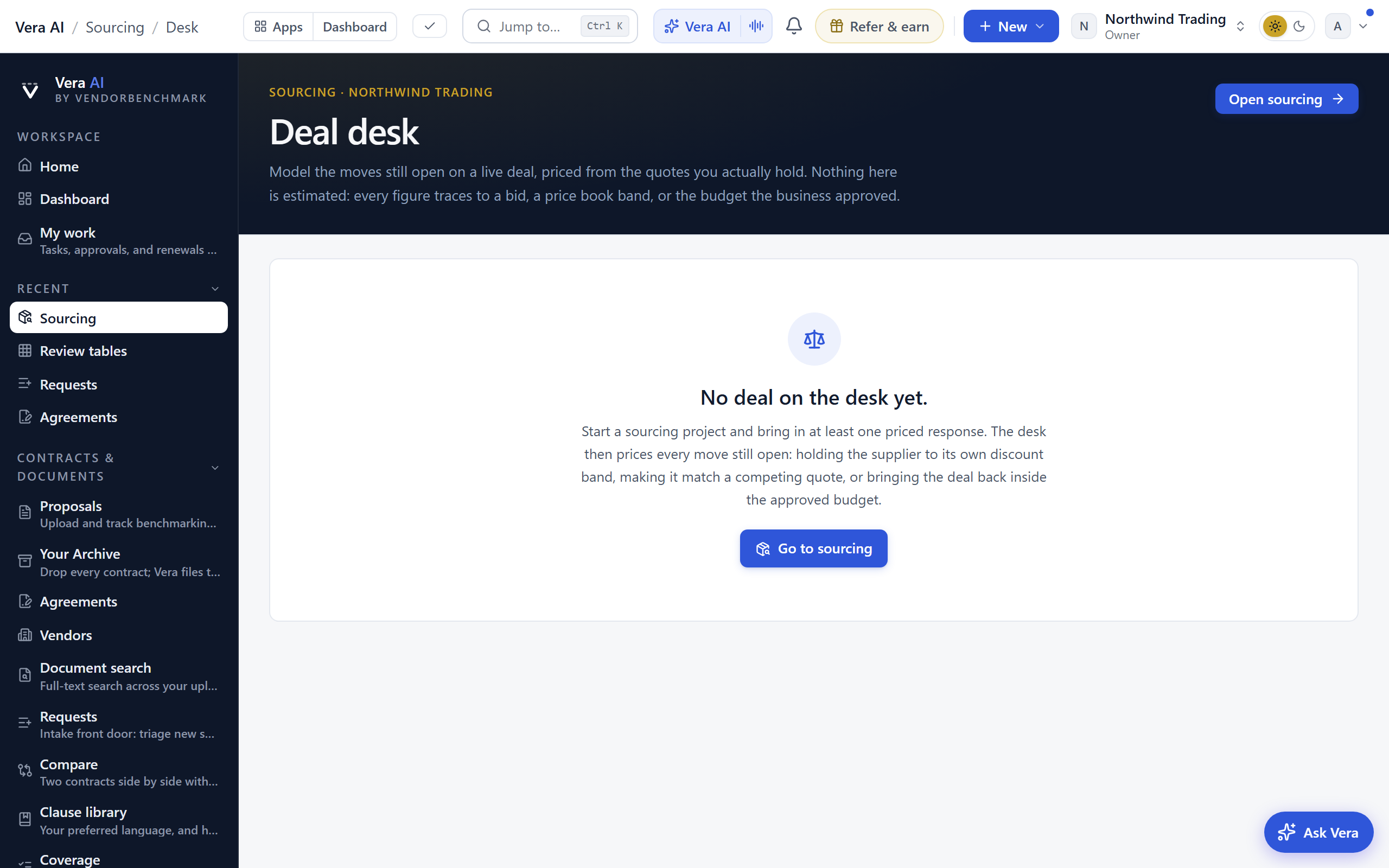
- The masthead — Deal pricing in the house dress, framed in a hairline: the title with Sourcing beside it, the project's name and what the screen prices, the gold line, and one row of facts (the stage, the budget, what is on the table and from which supplier, the headroom, the best move open and the difference against budget). All purchases and Open the purchase sit at the right, and under it the other deals you can switch to.
- What if — the moves, cheapest first, each with the annual cost, the difference against the quote on the table, the difference against the approved budget, and one line on what it takes: award as quoted, hold the supplier to the top of its own discount band, make it match a competing quote, switch to the cheaper response, or bring the deal back inside the approved budget. The move you are currently on track for is marked.
- Where each number comes from — every move carries its basis, and nothing is estimated. A quoted figure is the supplier's own annual total. A price book band figure is its list price less the discount buyers of your size actually land. A competing quote is another response in the same project. A move that cannot be traced to one of those is not shown at all.
- Headroom — the gap between the quote on the table and the best move still open, stated in money and as a share of the quote. It is the number to walk into the call with.
- The ask, drafted — each priced move drafts a vendor safe ask ready to copy: the target figure and its stated basis only, never your budget, your scores, or another bidder's name.
- The responses — what each supplier quoted, scored against your own weighted requirements, with list price, the discount that implies, and the expected band beside it, every figure in US dollars. The leading response is highlighted, picked by the same rule the Sourcing app uses: it meets every must have and carries a price, then the best score on the purchase's own weights, then the lower price.
- Next steps — the run in order, with everything already true of the deal marked done: the brief, the weighted requirements, the RFP, the shortlist, the bids, the scoring, and the award. A shortlist only counts as done from two suppliers, because one quote is a price and two is a negotiation.
- Before your first project — with no sourcing project yet, the screen shows How a deal is priced in four steps and Your contracts: your latest contracts with their status and annual value, and the renewals coming up with the days out, the notice date and the annual value, in US dollars. A renewal you would rather compete is the natural first project. Under them, Vendors on file lists your largest vendors by the annual value their contracts state: the contracts on file, each vendor's share of that stated spend and its next renewal date. Each row opens the vendor.
- What next — the screen's close, under the checklist. The moves themselves rather than the run order: open the project with its supplier, bid and requirement counts, go back to the sourcing pipeline, open the leading supplier's vendor screen, start a negotiation against them, or ask Vera what to press them on before you award.
- Read and watch — under What next, the films, analyst briefings, research papers and guides the library holds on the purchase's companies: the incumbent first, then the bidders, then the long list. It loads when you scroll to it.
Deals sit on a switcher across the top of the screen, so you can move between them without going back to the list.
The project's What Next moves
Every project record opens with its What Next moves under the stage path: the computed next move as the headline, then the premade moves of the moment, so no step starts from a blank page. The stage path marks the stages already behind the project in the done green and the one it is in now in blue, and the What Next moves sit on a plain white card. At its foot, Read and watch carries the films, analyst briefings, research papers and guides the library holds on the purchase's companies: the incumbent first, then the bidders, then the long list by fit.
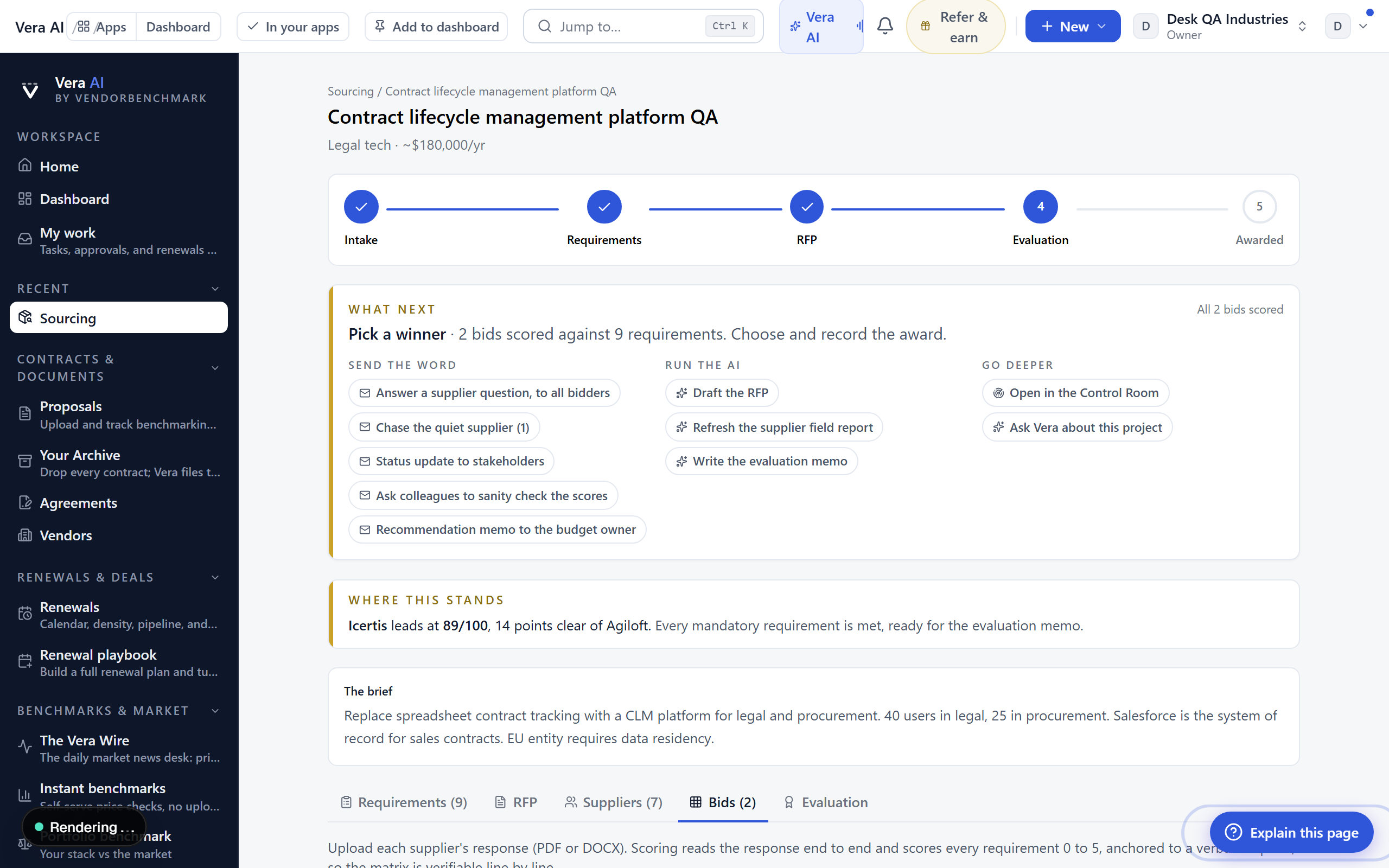
- Send the word — Vera drafts the email each stage actually needs, from the project's live numbers: the stakeholder kickoff, the requirements review request, the supplier invitation, the Q&A broadcast (one answer, every bidder, so the process stays defensible), the chase for quiet suppliers with their names already in it, the status update, the score sanity check, the recommendation memo to the budget owner, and after award the winner note, the decline notes, the legal handover, and the CFO outcome note. Drafts are yours to edit and copy; nothing sends itself.
- Run the AI — draft or refresh the RFP, find the best suppliers in the field, score every waiting bid against the weighted requirements in one click (each score carries a quote from the bid document that justifies it), and write the evaluation memo. A line beside the What next heading shows what has already run, for example "All 3 bids scored".
- Go deeper — the deal pricing for this project, Ask Vera, the RFP and evaluation as Word, and the contract decoder once a winner is picked.
- The supplier field report — discovery now also renders on the Suppliers tab as a forwardable executive brief: the landscape summary, market context, fit bars across the field, and one honest section per candidate with strengths, gaps, price posture, and why the score, with the Send it on drafter beneath it.
- Open the workroom — once a project has a bid, a green button on a white band under the status path opens it as a workroom: the requirements sheet, each bid's stored figures as lettered exhibits, then once two responses are scored a verdict brief that reads the whole field in one document (the standing, the cross bid price check against bands and the price book, and a what to do first list that prices the band and list rate asks where the stored figures can), the weighted scoring atlas as one toned table, an award brief with a verify before award list, and a What now sheet. What now, in the inspector, drafts the best and final ask to each finalist (priced from the stored figures where the record can price it, in position language that never names the band or another bidder), the award notification, the courteous note to the other bidders (it carries no scores), and the stakeholder update, all from the stored record, then copies the project one liner or the bid table as text and scores the responses on the record. Ask Vera answers from this project's own requirements, bids, and scores.
Send invitations, and bids that file themselves
The RFP tab carries the send flow, so the document you drafted actually travels. Pick the shortlisted suppliers, confirm each contact email, set the response deadline, preview the email, and send. You stay in charge of every send; nothing mails itself.
- Each invitation renders in the document standard with your organization named as sender, summarizes the RFP, states the deadline, and carries its own private reply address.
- The supplier's portal page carries the RFP, the yes or no on bidding, the Q&A, the message line, the response upload, and, when the project has a structured price sheet, Price the sheet: the buyer's own lines with one unit price box per line and a live total. A filed sheet lands in the Sourcing app's proposals screen beside the others, a resubmission before the deadline replaces the earlier one, and the filing is written to the project timeline. The portal also carries Declare against the requirements (comply, partial or no per published requirement, with a one line note on any gap), any addenda with an acknowledge button per bidder, and the buyer's qualification questionnaire when one was sent, answered once and standing for a year across that buyer's events. Publishing a Q&A answer emails every live bidder the same words at the same moment, each on their own portal link.
- When the supplier replies with the proposal attached (PDF or DOCX, 8 MB per attachment), the response files straight onto the project: the file is signature checked, its text extracted, and it is auto scored against your weighted requirements exactly as a manual upload would be. A scanned attachment files too: it is transcribed in the background under the same daily transcription budget the archive scan uses, and scored once the text is out. The invite flips to Responded, the notes wall gets the update, and the project owner is notified. A reply with no bid file, or an attachment that cannot be read even by transcription, is flagged on the wall for a human look instead.
- The RFQ watchdog (an agent in the Agent Center) minds the window daily: each quiet bidder gets exactly one reminder, three days before the deadline, and never without a deadline on record. When every invite has answered, or the window closes, it notes the tally on the project wall and nudges you toward evaluation.
- The supplier list on the tab shows each invite's state: Sent, Reminded, Responded, with dates.
Award scenarios
The Evaluation tab ends the guesswork about weights and split awards with scenarios worked in pure math over your stored scores and extracted line items. No AI call is spent on any of it.
- What-if weights — drag a category's slider and the scored matrix re-ranks live, with each supplier's movement against the RFP ranking marked. One click resets to the RFP weights; the weights on record never change from here.
- Where the winner flips — one line per category stating the exact weight at which rank 1 changes hands, for example "Northline overtakes Meridian if Integration weight rises above 28 percent". No line means the ranking is weight robust.
- Single award vs split — where bids carry priced line items, the math prices every single award against the best two way split by line item group: each contested group goes to the cheaper bidder, groups only one bidder priced stay with it, and every scenario shows total cost, the delta against the best single award, the combined weighted score (each requirement served by the stronger member), and mandatory coverage. The math states its own limits: up to 15 line items per bid, the first 8 bids, and no modeling of bundle discounts a vendor might withdraw on a partial award.
- Adopt a scenario — saves the chosen scenario on the project and posts the one line summary to the notes wall. For a single award scenario the regular Award button sits right beside it; the award itself stays a deliberate, separate step.
How to use it
- Walk in and read the marquee; it names the project that needs you first. Click that project.
- Make the move the focus console states, or run the engine it offers.
- Press N to leave what you learned on the wall, and U to log what you did.
- Before you step away, open the Shift log and compose the End of shift handoff for your team.
- Start a new project from the backstage toolbar, or turn a purchase request into one.
Related: Requests
The sourcing spine
Folded into the Sourcing app in August 2026: every stage that used to be its own page, Requirements through Award, is a screen in the Sourcing window now, and the old addresses (/sourcing/requirements, /sourcing/scoring, and the rest) land in the window on the right screen with the active project carried along. The screens carry the stages' engines in place: draft the RFP, run the research, add a vendor, upload a proposal, read and score the bids, write the memo, and take the award decision with a confirm press. The project record keeps the deep edits, the documents, and the exports.
The Negotiation Workflow
One deal from the order form to the one page you take to the table: five acts, each named as the question you are actually asking. Since 7 October 2026 the workflow is the five acts of the new design in one window, the same frame as every other app, and the acts change inside it, so walking the deal never redraws the window. Everything an act shows is computed from the same deal in your browser, so a figure on the brief can never disagree with the act it came from.
In plain words: upload the order form or press Use the sample deal, read the three answers, switch the clauses you want fixed onto the asks, pick a play, copy the emails, and take the brief to the table.
The window.
- The title bar. White, across the top, closed by a gold rule: the menus (File, View, Help and the rest), then Share, the light and dark switch, Minimize, Maximize and Close. File carries New review, Save as a scenario and Copy for your CFO; View carries the five acts, Details and Present.
- The left menu. The VendorBenchmark mark, Find an app (Ctrl K), Home, Vera AI and your pinned apps, then This deal: the five acts, each with what it has produced (the rank, the findings, the target, the drafts, the scenarios) and a dot once it has, brick when a clause is a risk. Recent reviews lists the last five reviews set aside; press one to make it the working deal again. Related opens the Benchmark Library, the Ghost writer, the Renewal Library and your negotiations.
- The steps. The five acts across the top, numbered and joined by a line, the act you are on in navy over the gold rule and a finished act soft. Keys 1 to 5 and the left and right arrows walk them.
- The head. The act's name in sentence case with the deal's rank as its one tag, then one row of figures: the vendor, what you are offered, the range peers at your size are offered with its midpoint (Peers), and the gap to the midpoint in points and in money over the term. New review and the act's one dark button (Continue to the next act, or Open the negotiation on the brief) sit at the right.
- The details. On the right (I hides it): what the act is for, The money (net a year, the list a year your net and discount imply, what one point of discount is worth a year, the term priced, the target or the price held, what the order form costs and what the play is worth), the next moves (the next act, Talk it through with Vera, Save as a scenario, Present, Copy for your CFO) and three questions for Vera about the act.
- The status bar. The keys on the left (1 to 5, V, S, P, I, N, Esc); the placement in one line on the right, and Saved in this browser once a deal is in progress.
- Present (P). Eight slides on the same parts the acts draw: the three answers, what the order form costs, the clause that costs the most on the order form, the plan, the calendar, the emails, the scenarios compared and the asks. The arrow keys walk them; Exit is the red button.
Any link that points outside the five acts opens in its own window over the act you are on, and closing that window leaves you mid act. Once the deal has a vendor, every act carries Read and watch, the films, analyst briefings, research papers and guides the library holds on that vendor, under the act's own content.
The deal (workflow step 1)
Act 1 answers what you are being offered. It opens with The order form beside Recent reviews:
- Upload the order form. Drop a PDF or DOCX anywhere on the lane or press Browse. The read starts the moment the file lands, the pressure test shows it reading live, and when it is done the deal lands on its range and the clauses land on the pressure test. The contract saves to your workspace, private to your organization.
- Use the sample deal. Places Perplexity Enterprise Pro at 31 percent off a $4.2M a year net, with a sample order form, so every act can be seen working before you upload your own.
- Type the figures instead. Scrolls to the figures panel.
- Recent reviews. Every deal pricing screen this workspace has run and every review set aside on this browser, newest first, in one table: the deal with its customer and product line, the figures, where it stands and when. Open renders a saved screen under the act; Resume restores a set aside review whole.
The three answers follow, in the benchmark's order: what you are offered as a percentage off list, what comparable buyers get as a range with its midpoint, and where it ranks in one of five words (Poor, Below market, At market, Good, Top of the market) with the gap to the midpoint in points. Each answer carries one sentence, and a price that is already top of the market is said to be fine.
Under them, two panels side by side:
- The figures. The vendor, the deal size and the discount place the deal on the curve library's own range, deterministic on your figures (the same inputs always place the same); the discount curve draws every size band. The term (1 to 5 years), the payment (annual in arrears, annual up front, the whole term up front), the growth committed and a reference and case study are the levers; the money over the term follows them.
- The order form's terms. Ten clauses as controls: the renewal uplift and its cap, auto renewal and its notice, the right to reduce, added units, termination for convenience, the liability cap, the service levels and credits, audit rights, the list price on the order form, and the data at exit. Each carries its verdict word; change one and the pressure test, the money and the brief move. A clause nobody has read says Not placed until the read or you set it.
Once the deal is placed, Signing month shows the twelve months ahead on the vendor's own fiscal year, each worth its points, with the quarter ends and the year end marked; press one to sign in it. What the vendor knows about your alternatives is a ladder from nothing to a funded plan to switch, with the alternative named beneath and how hard it is to leave.
A deal pricing screen this workspace built earlier (opened from Recent reviews, or the working deal's own newest) renders under the act as The deal pricing screen.
Starting over never loses work. New review (key N) sets the review aside under Recent reviews first; coming back to the workflow with a deal in progress simply continues it, no question asked.
Pressure test (workflow step 2)
Act 2 answers what is wrong with this order form. The verdict strip at the top gives the verdict in one word (Signable, Signable with the fixes, Negotiate, Do not sign as drafted, or Not read yet), what the order form costs over the term with the money exposed if a window is missed stated separately, and what the asks on recover.
- The findings. Twelve clauses placed against the market position for the vendor and the deal size, the risks first: what the order form says, what the market gives, the verdict word and what it costs over the term (or "structural" where the clause carries no money). The tick puts a clause on the asks; pressing the row lights its clause up on the order form. Every fix on and None switch them all.
- The order form. Generated from the deal and the terms as read or set, beside the findings: each clause the pressure test finds is a mark on the sheet, shaded gold to watch and brick for a risk, lit when its finding is pressed. Press a mark to find its row.
- The redline. Under them once a finding is pressed: what the order form says, what the market gives, the language to ask for, and why, with Copy the language and Add it to the asks.
- What the order form costs. One bar a clause, over the term, the exposure in gold beside the certain costs in navy; a clause not on the asks is gray.
- The paths, priced. Sign as drafted, fix the order form, or press the price too: what the deal costs over the term under each, what you give, what it needs and how long. Plan this path sets the play and opens the plan.
- The read. The Second Opinion run in place: the drop and the saved runs, the read playing on a white stage in colour (the page being read, the first pass's lines landing on the board, the four facts filling as they are found, the clock against what a read usually takes), and the verdict brief with Vera's arguments, drafts and priced paths once it lands. A read that finds no prices comes back Not placed yet with the verdict Hold, get priced. A finished read seeds the clauses above once and writes its verdict to the deal.
The plan (workflow step 3)
Act 3 answers what you trade. The strip at the top states the supported target (or Hold when the price is already top of the market), what the play is worth over the term with the order form's fixes included, and the play with where it lands and how many weeks. Under it, Where it ranks lays the five words across the deal's own range with your offer pinned; move the lever and the rank, the gap and what the move saves follow.
- The plays. Hold the price, press to the market, or build the alternative: each with where it lands (low to high, the likely figure marked), what it is worth over the term and the weeks it takes. Press one and the emails, the calendar and the brief follow it.
- The levers. The signing month, what the vendor knows, the alternative, the term, the payment, the growth committed, a reference, and a way back to change the discount and the size, on one panel. Move one and everything on the act follows.
- The calendar. From today to the signature on the vendor's own year: the opening, their reply, the call, the counter, the signature and the renewal, with the vendor's quarter or year end as a band. Sign in the best month moves everything with it.
- What to trade. What to give first, what it is worth to them in points and money, and what to ask for it; beside it Who has to approve it, the vendor's own ladder from the rep to the deal desk with where your target sits.
- The asks, ranked. Every clause on the asks by what it is worth, with the language to paste and Copy.
- Know the seller. The vendor's fiscal year, its grade as a counterparty with the uplift corridor, and its latest market news, where the platform knows them.
- The assumptions. Every lever's points on its own and after the others, and how a clause is priced.
- Scenarios. Four slots: press an empty one to save the deal with its levers (or press S on any act), a full one to load it, and Compare to see them on the brief.
- Ask Vera for a brief. Any of Vera's reads on the deal's own paper; a finished brief renders here, saved to your reports.
The emails (workflow step 4)
Act 4 answers what you say. The sequence puts four emails on the calendar: the opening on the day it goes, the counter after their reply, the close before their quarter end, and the internal note for the CFO. Press one and its draft types itself in: to, when and the subject, then the body written from the figures on screen, the asks listed, the comparable range named and the comparables not. Under it the figures it carries stand as chips that open the act they came from, then Copy, Open in your mail app, Take it to the Ghost writer and the tone, Measured or Direct.
Beside the draft, What they will say back gives the three replies a vendor gives (we are already at our best price, the uplift is standard, we need the signature by the close), each with its counter; press one and the counter email is drafted to it. Before you send is five checks. Words that work is four arguments with the lead phrase first; the drafts lean on them. When the pressure test's read wrote drafts for this deal, From the verdict brief lists them with Copy. Nothing sends itself.
The brief (workflow step 5)
Act 5 answers what you take to the table.
- Scenarios compared. The saved scenarios and the deal as it stands, as bars and as a table: the play, the signing month, the offer, where it lands, the asks, the order form's cost and what each is worth over the term. Load makes a scenario the deal again; Save files the deal as it stands.
- The brief. One page in the firm document: the kicker, the title, the gold meta line, six numbered sections on the gold bar (the position, the order form with its clauses as a table, the plan, the calendar as a table, the emails on their dates, the bottom line), and the firm's foot. Save as PDF prints it alone.
- Send it on. Open the negotiation starts a running negotiation with the vendor attached; Give the deal to Vera to run hands it to her with the mandate, and she asks before every send; Ask a human benchmark sends it to an analyst; Save as PDF; Present (P).
- The emails on the calendar, each opening act 4 on that draft, and For your CFO, the note in plain text with one press to copy.
Negotiation Agent
In plain words: upload the document or type the vendor on sheet 1, press R to write the strategy, press 3 and 4 and R again for the talking points and the options report, then rehearse the call on sheet 5.
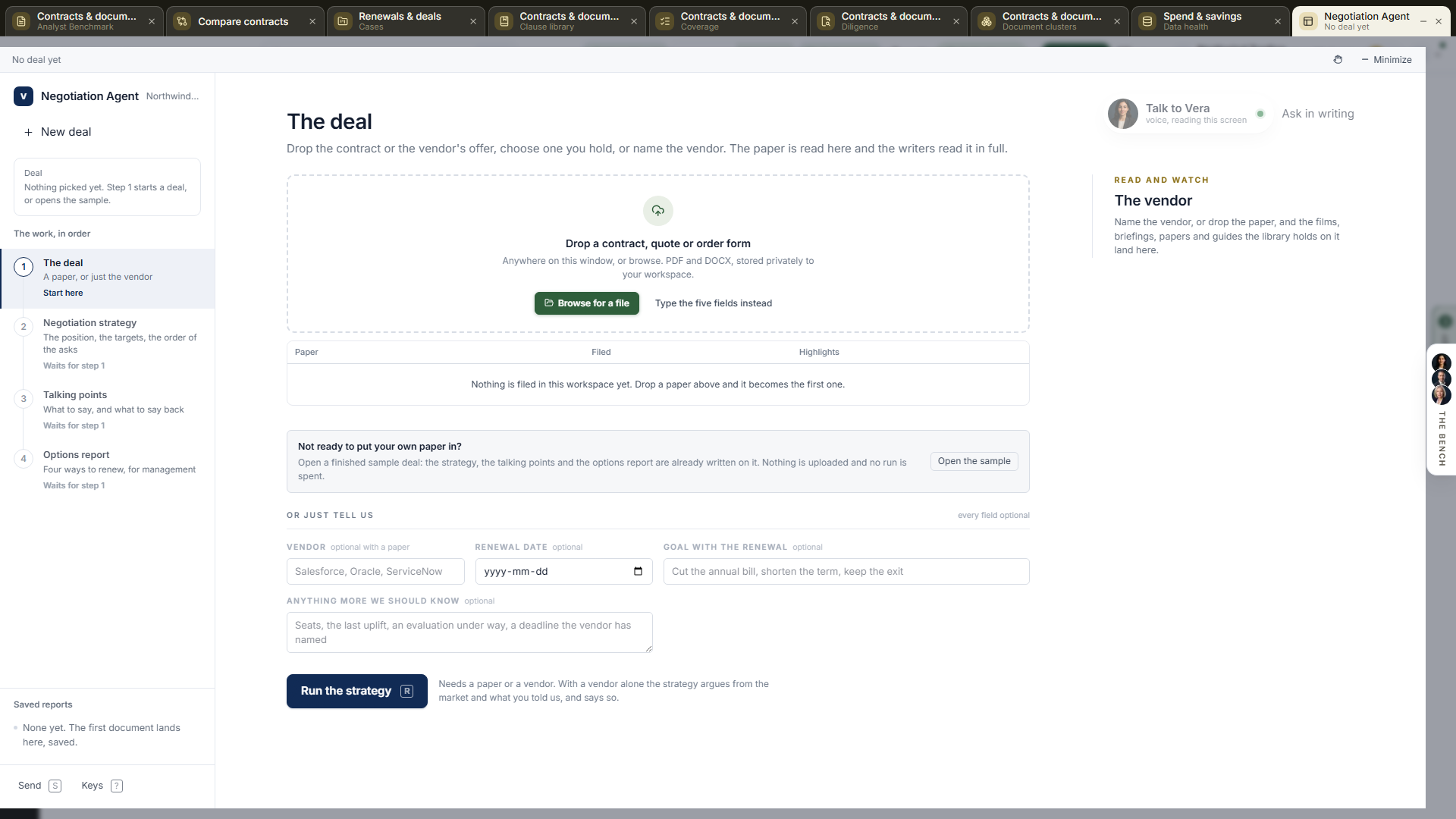
What it is. One deal worked in one window, on seven sheets numbered 1 to 7 across the top.
- The sheets. The deal, the three documents (Negotiation strategy, Talking points, Options report), Rehearse, Read and watch and How it works.
- Opening it. At
/deal-studio, from a send in another app (the vendor or the contract comes with it), or from a copied link. A link that names a contract, one of sheets 1 to 4, or the sample opens straight on it. - Where it opens. The first time, on How it works. After that, on the deal or the document sheet you last had open, with the deal as you left it.
The window.
- The title bar. White, across the top, closed by a gold rule: the six menus (File, The deal, View, Team, Learn, Help), then Present and Share the show once the deal names a vendor, then the light and dark switch, Zoom, Full screen, Minimize, Maximize and Close. It carries no app name and no record line. Hold Alt to see each menu's letter; every item prints its key. Minimize keeps the agent as a tab with everything in it kept.
- The app menu. Down the left, the same in every app since 3 October 2026: the VendorBenchmark mark, Find an app (Ctrl K), Home and Vera AI, and your Pinned apps, then this app's own sections. Recent and the six shelves stay on Home, All apps and Settings. The Negotiation Agent is the current row, and a 1 appears beside it when the notice date is inside thirty days.
The index. Under the app menu, the deal's own list:
- The deal: the document (reading, or read), The four options and The calendar with its count of moves.
- The documents: the three, each with its state: ready, running, stopped, or its reading time once written.
- Read and watch: what the library holds on the vendor, counted by kind.
- Saved negotiations and Recent deals, described below.
The tabs. The seven sheets, each with its number; keys 1 to 7 open them. Until there is a deal, only The deal and How it works open.
The masthead. With a deal on screen, at the top of every sheet:
- The vendor and product with your organization at the table, the rank as a tag (Sample on the sample deal), and Read from the file name, or Typed figures, no document on file.
- One row of facts: off list, the peer range, the midpoint, the supported ask, net a year, the term and the notice date. The percentages appear only where the document prints the list; otherwise the row reads List: not on the document.
- At the right, On the table over the term: the money between renewing as offered and the settle point (or to the peer midpoint), and, on every sheet but the deal, the sheet's one primary button.
The inspector. On the right; I hides it.
- On the deal: the facts as rows (document, list a year, net a year, off list, term, peers, rank, notice, your goal), What moving it is worth as one figure with a bar (a year at the floor, saved against the offer), then Moves.
- On a written document: its words, reading time, the day it was written, that it is saved as Word and PDF, whether it was written before the deal changed, then Moves and The other documents.
- On Read and watch: the selected piece with its type, length, date and chapters.
- At the foot, Ask: the specialist's seat (the vendor's own negotiator where the bench has one, otherwise Vera) to talk to out loud, the box to ask in writing, and four questions to press: Where is the most money?, Is the price fair?, What do I push on first? and When should we sign? The answer lands under the question.
The status bar. The keys that work now on the left; on the right the document, whether it prints a list, and how many of the three documents are written.
How it moves. A sheet slides in from the side you travel toward, and a line under the tabs shows how far down the sheet you are.
Saved negotiations and recent deals. Both sit in the index.
- Save this negotiation (or Ctrl S) keeps the deal, its fields and its what if settings under the vendor and file name. The row reads Saved until something changes and Save the changes after. Up to 30 are kept.
- Press a saved one to open it. New negotiation starts again: a saved one stays saved, an unsaved deal is archived first. Remove this one from saved drops it; its documents stay on the contract.
- Recent deals lists the deal on screen and the last five. Opening one archives the deal on screen first. The same five sit under File, Continue where you were.
The boardroom (since 28 September 2026). Present on the title bar, or B, plays the deal as a slideshow.
- The slides. The deal and where it stands, where comparable buyers land, the rank, your leverage, the four options priced, the money on the table, the talking points once they are written, the notice clock and the bottom line.
- Share the show. A dialog with who can watch it (My workspace, Named people, Anyone with the link), how long the link works (from a day to 90 days), and the links already made, each with how often it was opened and End it. Press Make the link and it is on your clipboard.
- The link is view only, and every open lands on your audit log.
Sheet 1 · The deal.
Before a deal. The sheet takes the document three ways:
- Upload a contract, quote or order form: drop it anywhere on the window, or Browse for a file. PDF or Word, stored privately to your workspace and read the moment it lands.
- Documents in this workspace: press one you already hold.
- Or just tell us: Vendor, Renewal date, Goal with the renewal and Anything more we should know, every field optional. With a vendor alone the strategy argues from the market and says so.
- Open the sample deal opens a worked deal, the Workday HCM renewal, with all three documents written. Nothing is uploaded and no run is spent.
- Reports and exports (since 2 October 2026), on the deal step under the fields, on the negotiation on screen and every one you saved: The negotiations in charts (value a year by vendor, next dates by quarter, and where the deals rank), then Excel workbook (every row typed, so it sorts and sums), Word report (the same report as a document), Email the report (to up to ten addresses, your note first, the Word file attached) and, under them, Shall I draft the email?, which writes an email to the vendor, your CFO or a colleague that you send yourself. The sample deal is left out.
The three answers. What this deal costs (net a year and over the term, with the percent off list only where the document prints the list price), what comparable customers get (the peer range for the same line at the same size, with its midpoint), and where it ranks, in one of five words with the gap in points and in money over the term. A ladder climbs to the rank. A document that prints no list price is priced but not ranked, and the list price is named as the thing to ask for in writing.
Rate by rate. The discount the document states on what peers pay: the peer range, the midpoint, the document's marker, the settle point as a dashed ring, the rank and the gap a year to the midpoint. Drawn only where the document prints the list.
What the contract says. With a stored document:
- On the left, the document itself, page true, with Open in the reader for search, marks and the decode.
- On the right, the terms the read took off it as cards: commitment, term, renewal, notice, price increases, termination, liability, payment and governing law, each marked Risk, Watch or Holds. A card appears only for a term the read found.
- Press a card and the line that proves it lights on the page; press a lit passage and its card answers.
- A typed deal, with no document on file, shows the upload here instead.
Add to what the document says. The same four fields, to correct or add to the read.
What next. Run the strategy (key R), then the declared moves in up to three groups: This deal, The pack once a document is written, and Beyond the Negotiation Agent (benchmark the document, add it to the renewal calendar, open the contract office, the research library).
Writing a document (sheets 2, 3 and 4). Each of the three sheets holds one document, and the three run side by side.
- Ready to write. The sheet's button (Run the strategy, Write the talking points, Write the options report, or R) starts it. A line under it takes a note to add to the brief first; Enter runs it.
While it is written. The run stage takes the sheet:
- The five phases as stations: Prepare, Read, Write, Read back, Save.
- A page that fills with the writer's own section headings, the words written, the clock, and every progress line the job reports. The document composes itself underneath.
- Usually five to twelve minutes. Close the window and it keeps writing. Stop ends it, and what was written so far is not kept.
Once written. The document sits under the sheet's instruments:
- A band with its words and reading time and Write it again with a note.
- A bar with Word, Open as PDF and Send.
- The document in the advisory note format: the title, the figures, Key takeaways, the argument with its charts, the platform's own tables, and what the writer read.
- Contents beside it: the document's own headings to jump to, how much you have read and the minutes left, then the next document, or Send the pack on the last one.
If the deal changes. Change a field or move a what if slider and a written document is marked as written before the deal changed. Write it again to bring it up to date.
If a run stops. The sheet says what happened and offers Run it again. Nothing was written and nothing was kept.
Sheet 2 · Negotiation strategy.
- Where you stand. Your leverage as a gauge whose needle swings to the score out of 100 (every deal starts at 40); What you hold and what the vendor holds, each factor with its points and a bar; and Your walk away: renew as offered, the money that leaves on the table, and the last day to decide.
- The levers, mapped. Each lever a numbered bubble, up by what it is worth a year and across by the evidence behind it in leverage points, beside the same levers under Ranked by money with the total a year in play.
- The calendar. The deal's moves on one line from today, each with its date and the days to it, the next one named. A document with no notice period and no term end runs the moves on a rhythm from today and says so.
- The strategy. The document itself.
What the strategy is written from. Three things, since 1 October 2026.
- Your document, read whole, with every other file on the contract's record.
- The research library's notes on the vendor, read in full rather than by title. The notes about the product on your document come first, then the vendor's toolkit, guide, dossier, renewal outlook and terms benchmark; the rest of the shelf stays searchable while the strategy is written. A vendor with twenty notes has all twenty within reach.
- The web, searched before the writing starts: the vendor's current published pricing and any increase or repackaging in the last twelve months, its fiscal calendar and latest results, and news that changes the leverage. Up to eight searches on the strategy.
While it runs the stage reads Reading the research library and Researching the vendor on the web. What the writer read, at the foot of the document, counts the notes and the searches.
- The talking points and the options report read the same notes, ordered for their own job: the call scripts first for the talking points, the exit and cost notes first for the options.
- They search the web again only for a fact the strategy does not carry.
- The document argues the point: it never names a research note, and a fact from the web is stated with its date. Your own figures still come only from your document.
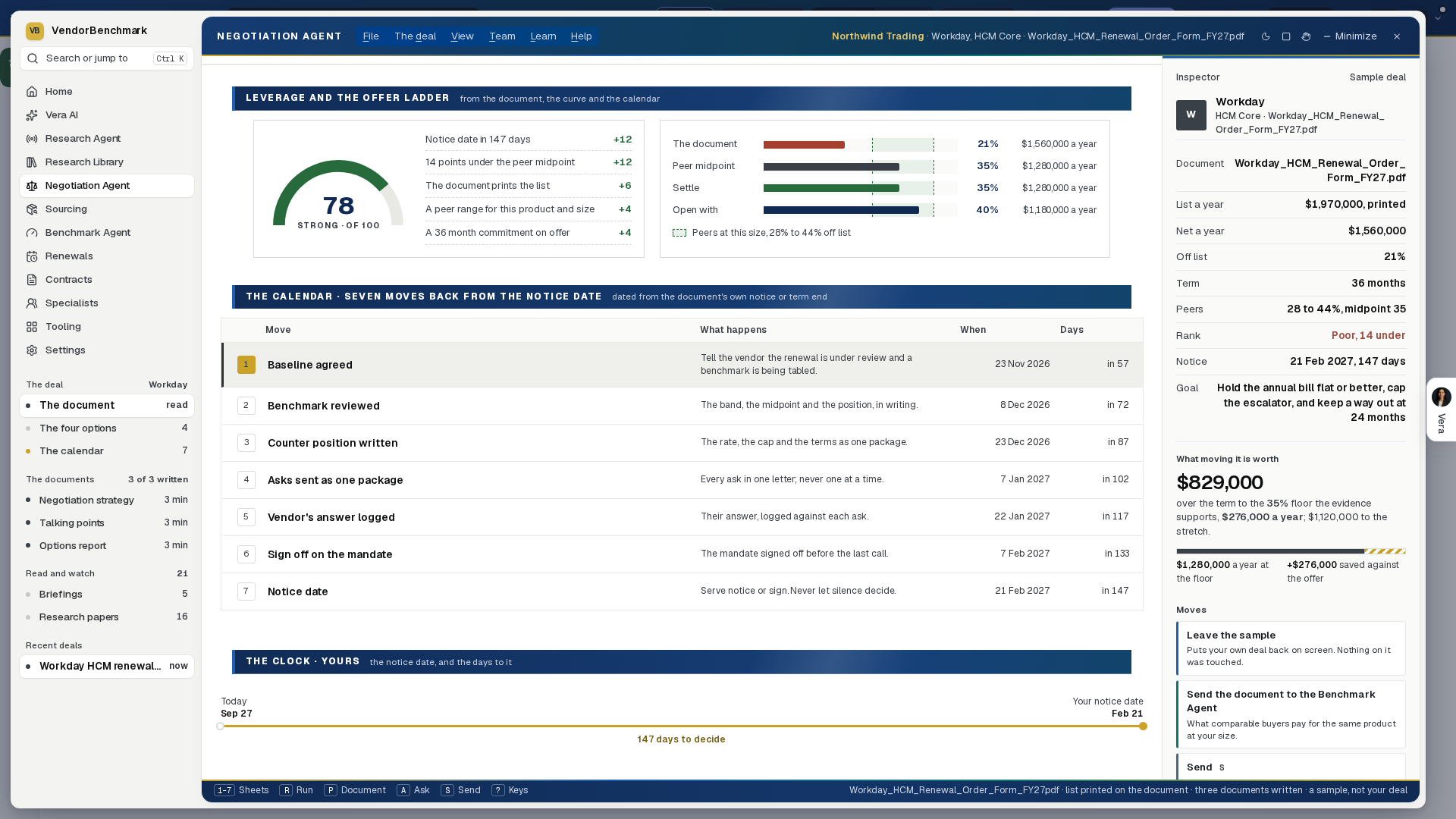
Sheet 3 · Talking points. Once the talking points are written, three instruments sit above the document.
- Drill the push back. The document's push back lines as numbered cards. The front carries what the vendor will say and, where the deal prices it, what the answer protects; press it to turn it over to what to say back. Show every answer turns them all. Once every card is turned, Rehearse the call appears. The cards are read out of the written document, so they never say anything it does not.
- Open the call. The opening from the talking points with Read aloud, which lights each word in turn, and beside it what the vendor will say, in order, each line with the card that answers it.
- Give and get. What you can ask for (the floor, the supported ask, the price held flat) and what you can give (one more year on the term, an early signature, a reference). Press them and the scale tilts. A give with no price says not priced, and the scale weighs only what is priced.
- The talking points. The document, with Copy every sentence at its foot.
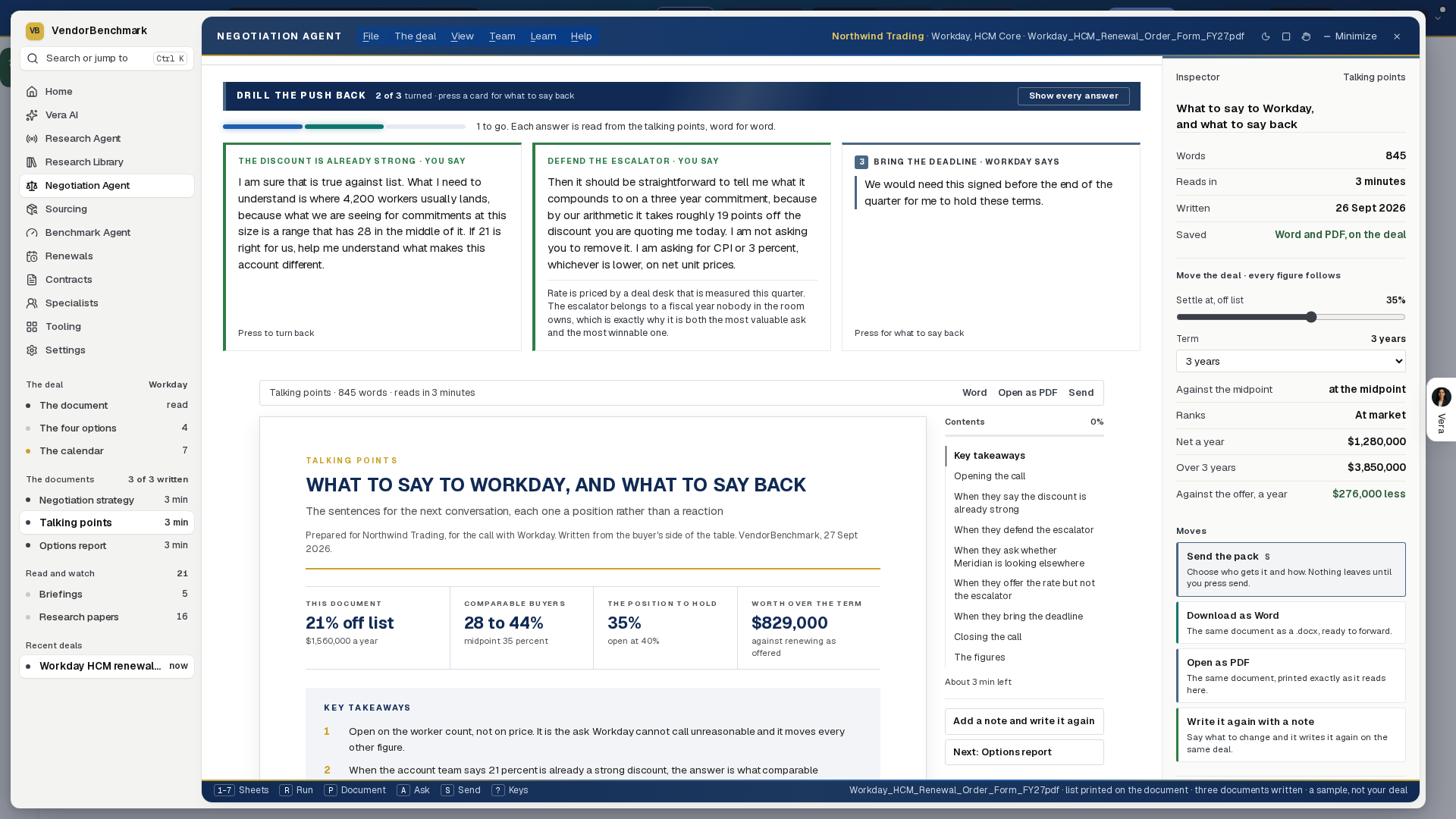
Sheet 4 · Options report.
- Four ways through. The four options as cards, A to D: renew as offered, renegotiate against the curve (Recommended), push to the supported ask, and let it renew as it stands. Each carries the money a year, the total over its term and how much less or more that is a year than the offer, with bars setting every total against the offer.
- What if. Three sliders: Settle at, off list, Term (one to five years) and Uplift if it renews as it stands. Move one and every figure on the sheet follows, on the deal's own figures, so the same inputs always draw the same result. The columns set each option year by year. Back to the curve puts the settle point and the term back. On the sample deal the uplift is fixed.
- If the assumptions are wrong. The sensitivity as a table: if, then, do.
- The options report. The document.
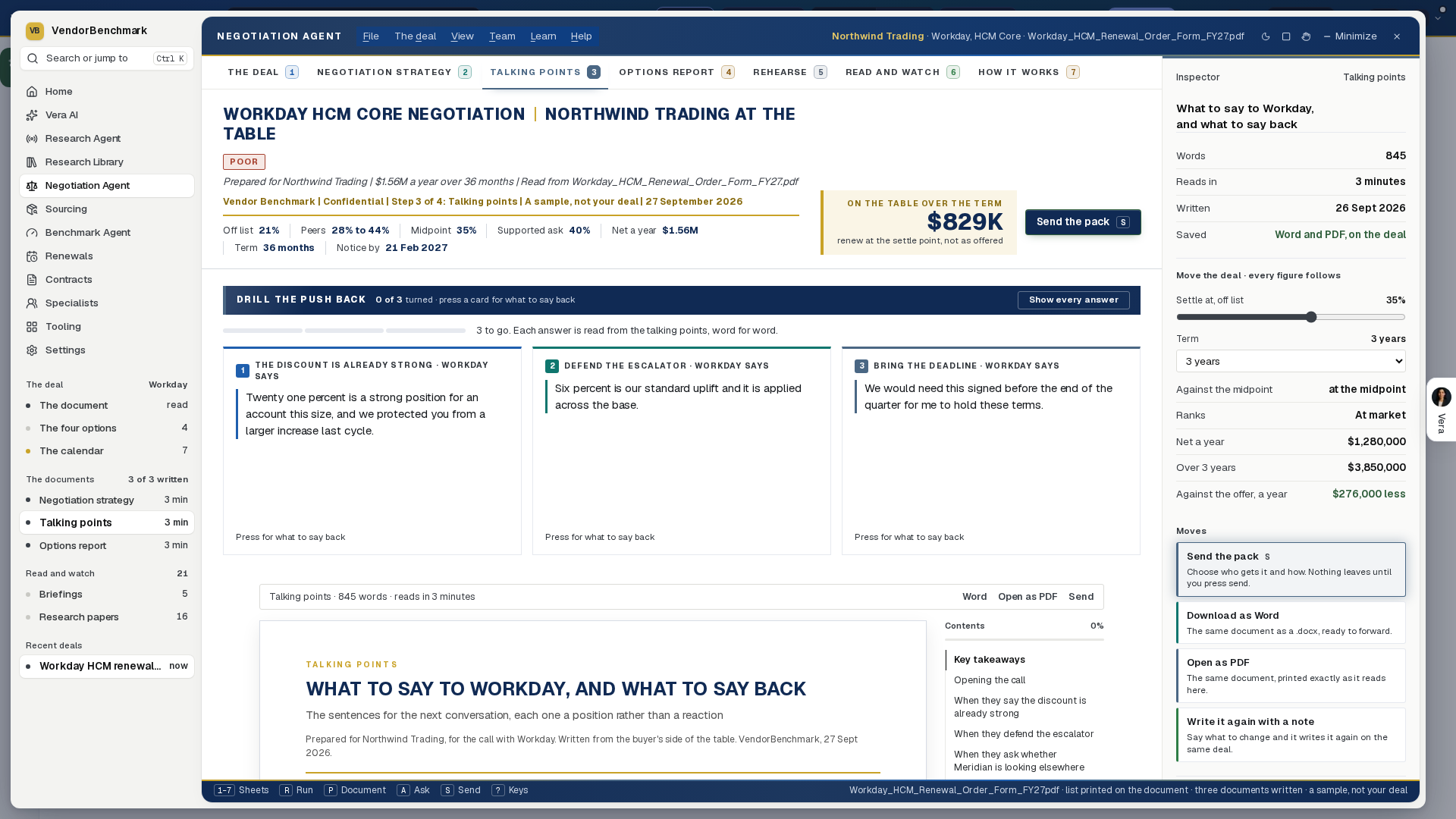
Follow ups. Under each written document (the strategy, the talking points, the options report): what a buyer usually does next with it, any question of your own, and the email that follows as a draft you type on and then change side by side with Vera, version by version. Not on the sample deal. See Follow ups.
Sheet 5 · Rehearse. The call played before it happens, in four rounds on this deal's own figures.
- The call. On the left: the vendor's account executive with a waveform while they speak and the call's clock, their line, three replies (press one, or keys 1 to 3) and a coach line after each.
- How the call is going. On the right: a tile per round that turns green where the reply held and brick where it gave ground, Leverage kept, Discount on the table and Replies that held, the gap to the peer midpoint, the supported ask and the rounds listed.
- The close. Three rings and the money the rehearsal closed on over the term, with Run it again and Back to the options. Start again restarts it at any point.
- It is practice, not a forecast. Where the document prints no list price, or no peer range exists, or the deal already sits within reach of the supported ask, the sheet says so and plays no rehearsal.
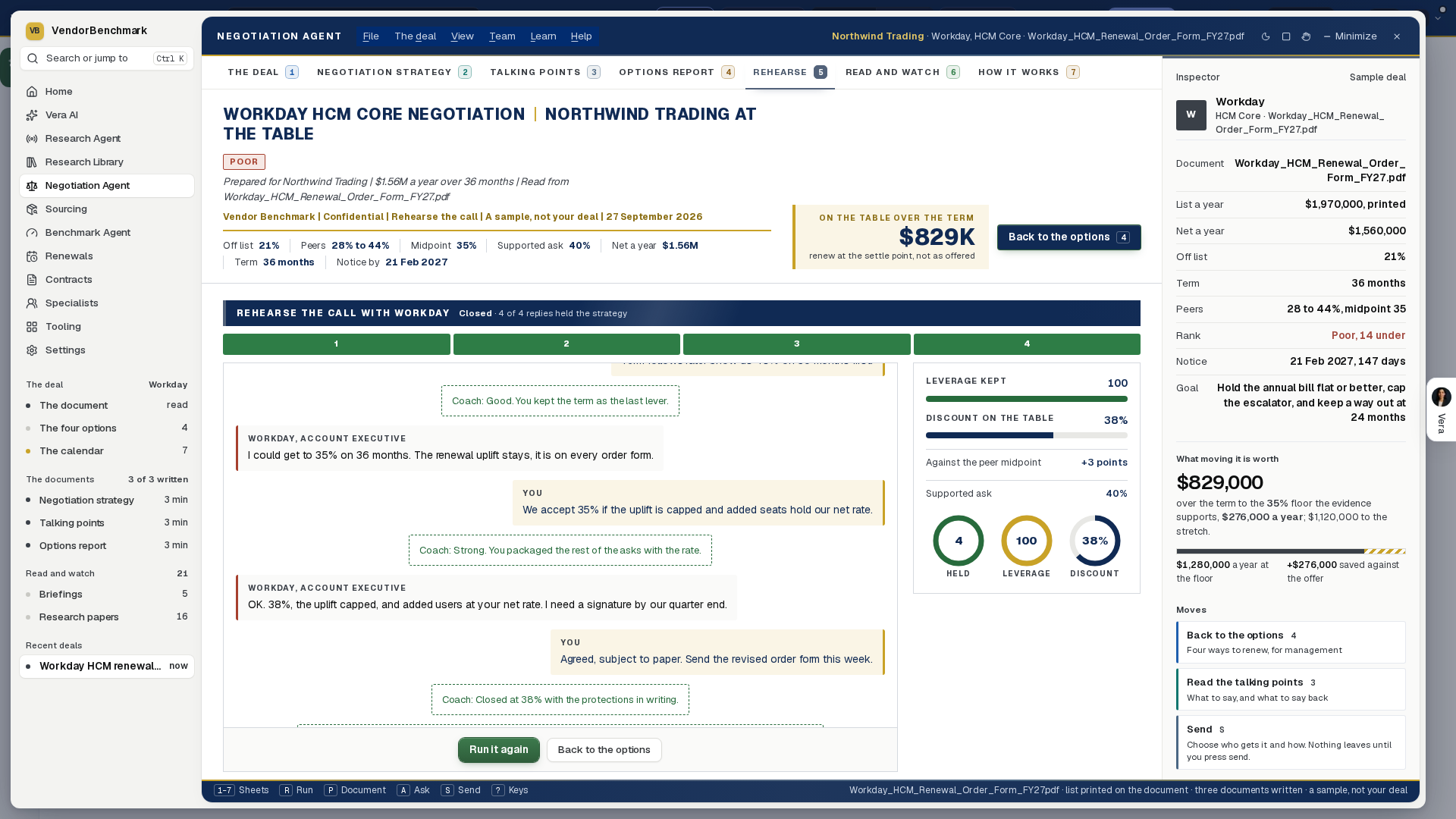
Sheet 6 · Read and watch.
- The shelf. What the library holds on the vendor as cards with their posters and covers, filtered by All, Films, Briefings, Research notes and Guides with a count each, and Search the shelf. Press a card and it plays or reads here, in the window.
- Before the call, in this order. Up to five of those pieces in the order to take them (the guide, a briefing, up to two films, then a research note) with the total time.
- The inspector shows the selected piece with its chapters.
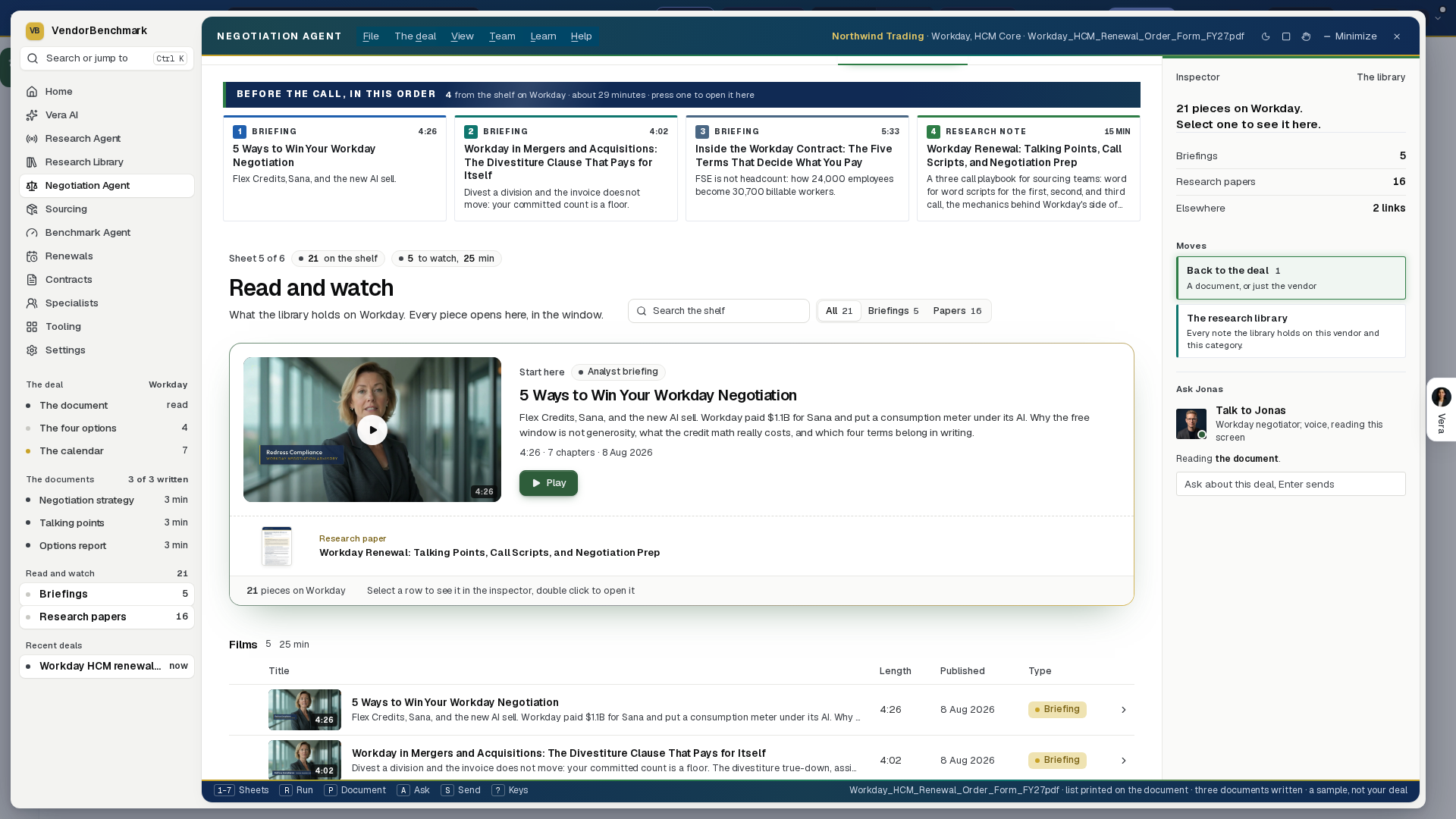
Sheet 7 · How it works. The one sheet that opens before there is a deal.
- Three steps, then the seven sheets as one pipeline (press a sheet to open it) and a card per sheet.
- Where the numbers come from: the facts read off this document, the rates placed on what peers pay, and the three dials on the options report.
- Questions buyers ask, Keyboard keys, what you get back, and Open the deal.
The menus.
- File: New deal (N), Change the document, Open the sample deal (or Leave the sample), Continue where you were, Close the window.
- The deal: The document and the terms (1), Run the strategy (R), Read the document (P), Send the document to the Benchmark Agent.
- View: the sheets 1 to 6, Hide the inspector or Show the inspector (I), Maximize the window, Dark mode.
- Team: Send, or Send the pack once a document is written (S), Copy a link to this deal, Request sign off on the mandate.
- Learn: Read and watch (6), The research library, The manual, Negotiation Agent.
- Help: Keyboard shortcuts (?), How it works (7), About the Negotiation Agent.
Send (key S). A menu named for what it sends, with five ways out:
- Download as Word: the document on screen as a .docx.
- Open as PDF: the printed copy, over the window.
- Forward from your mailbox: your mail client opens with the document.
- Share a link to this report: a link to the deal on this sheet, for anyone in your workspace. A typed deal has no record to share, so the link opens the agent itself.
- Request sign off on the mandate, on a deal with a stored document.
Every document is saved twice the moment it lands: a Word file on the document's files, and a PDF printed once and kept beside it. Nothing is sent for you.
What the documents will not fill in. A figure the document does not carry is named as not stated, never supplied, and a list price is never worked backwards so that a discount percentage can be printed. Where your document states no list, the documents benchmark the rates it does state against what comparable customers of your size pay, say plainly that the comparison is rate against rate, and name what to ask the vendor to confirm in writing.
Good to know.
- The sample deal is a view. It starts no run and spends no allowance, your own deal sits untouched behind it, and Leave the sample puts it back.
- Where a partner issued the document, the deal follows the publisher whose product is on it, and the partner is named as the partner.
- New deal archives the deal on screen with its documents before it clears, so starting over is never an accident.
How to use it.
- On The deal, upload the document, press one under Documents in this workspace, or type the vendor and a renewal date. Not ready to? File, Open the sample deal opens a worked deal with all three documents written.
- Read The three answers and What the contract says; press a term to light its line on the page.
- Press R to run the strategy. Press 3 and 4, and R on each, meanwhile; the three run side by side and land saved as Word and PDF.
- Read the strategy under the leverage, the levers and the calendar. On Options report, move the settle point, the term and the uplift and every figure follows.
- On Talking points, turn the push back cards and copy the sentences you will use. Press 5 and rehearse the call; press 6 for what to read before it.
- Press S to download, forward or share a link, and Present to walk management through the deal. Ask in writing under the specialist's seat in the inspector, or press the seat to take it out loud. Press Ctrl S to save the negotiation.
Keys. 1 to 7 the sheets, R run, P the document, S send, B the slideshow, T talk to the specialist, A ask in writing, I the inspector, Ctrl S save, N a new deal (the current one is archived first), 1 to 3 a reply in the rehearsal, Esc back from Rehearse or Read and watch, ? this list.
Related: Renewals · Contracts · Vendor Radar
Was this page helpful?
Thank you. Your note goes straight to the team that writes this manual.