09 · Record & detail pages
Lists get you to a record; the record page is where the work happens. Analyst Benchmark, vendors, agreements, and reports all open into a detail page built from the same parts, so once you know the pattern you can read any of them. This chapter covers that shared anatomy and then the three detail pages you open most.
The record page pattern
In plain words: learn one page shape and you have learned them all.
Every detail page in the platform is laid out the same way, top to bottom:
- Breadcrumb — where you are, and one click back to the list. Beside it sit two live controls: quiet avatar pips showing who else is viewing the record right now, and a Watch button. Watching subscribes you to the record: comments, vendor messages, sign-off activity, and Vera's work land on your notification market news; commenting or acting on the deal subscribes you automatically.
- One banner at most — when the record has something to tell you (a report correction notice, a just-submitted note, a suggested lineage link to related document), only the most urgent one shows above the header, never a stack.
- Highlights header — a vendor logo, the record title and status, and a row of the key facts (the numbers you would read out on a call). Actions for the record sit here on the right.
- Tabs — the main content, as underline tabs (the active one carries a blue border). The same tab pattern is used everywhere, never boxed or segmented.
- Related records — below the tabs: one hop to everything connected, the vendor, the matching renewal, the delivered report, the contract this one renews, plus any connected workspaces.
- On the right — supporting tools and context beside the tabs: renewal tracking, The full review of this agreement (below), AI insights, and comments, with the less frequent tools in a More for this record fold.
- Research for this vendor — where the library covers the vendor, the record carries pointers to it, led by Read before the meeting: the negotiation prep brief, three pages on what the account team is compensated to sell you, the facts about your own estate to hold before they quote, the talking points to use, and what they will say with the counter to each. Beside it sit the Negotiator's Guide (the ten step guide the benchmark sheet renders, on the vendor page since 5 September 2026, opened as the document itself), the call scripts (the three calls that decide the renewal, word for word, with the counters to what the account team will say; on the vendor page since September 2026), the renewal outlook (what the next twelve months will cost and what to lock in now) and the vendor assessment (where the vendor is taking pricing and packaging). Nothing appears for a vendor the library does not cover yet, so what you see is either right or absent. These pointers show on the contract, negotiation and renewal records, the renewal playbook, and the vendor page.
- Timeline — one chronological stream of everything that happened on the record: comments, vendor messages, sign-off requests and decisions, and Vera's work, each entry with who did it and when, refreshing live while teammates act. Under it, Discussed in lists every chat message and Board post that referenced the record, with the snippet; each row opens the message or post.
Because the pattern is fixed, the tab names change but the way you move around does not. Negotiation negotiations open with the same highlights header (target, latest quote round, concession balance, open commitments, last activity), so a live deal reads like every other record.
The workroom
Most records carry a green button on a white band that opens the record as a workroom: one screen, the same on every screen that has it, so once you have worked in one you can work in all of them. Since 23 September 2026 it opens in the window the Renewal, Negotiation, Benchmark and Research agents wear, in place of the dark stage it wore before.
- The title bar. The tool's name, then three menus: File (Print this document, Close the case), Documents (every document and screen of the case) and View (Hide the inspector or Show the inspector, Previous document, Next document). At the right sit the open document and its place, for example Executive brief · 1 of 6, then the theme and close buttons. The dark icon rail on the far left lights the section the case belongs to: Tooling, Negotiations, Benchmarks, Renewals, Contracts or Research.
- The case file — the record's documents as numbered executive brief documents, one per screen, paged with the arrow keys or the previous and next buttons at the foot of each, with Esc to close. A reader bar over each document gives its number, its title and what it is.
- The head. The case title with the workroom's one main action at its right, its lead move (for example Draft the commitment ask), the case's one line under it, then the open document's key figures as label and value pairs across the width.
- On the left — the tree: the case file's documents by group, each with a read marker, and how many you have read at the top (for example 2 of 6 read). The open document's sections are listed under it; press one to jump to that section. Below the documents sit two shelves: a keyword and semantic search over your own uploaded documents, and your shelf of recent and starred workrooms, so what you read last is one click away. The note about the case closes the tree.
- What now — the panel the inspector on the right opens on, beside whichever document is open, holding the record's moves: the drafts Vera composes from this record's own figures, the copies, the exports, and the handoffs into other screens. The same moves are also the last document in the file, so you can read them in the flow of the document, and they appear in the command palette. Every move is real. Nothing in the inspector is a button that does nothing. Every move is also sayable: on a call, or typed to Vera, name the move and the seat presses it for you, shown in the conversation as a Pressed line once it lands; a move that sends or signs stays your press.
- Ask Vera — the conversation with Vera, in the same inspector, grounded on this record alone rather than on the platform in general, with one button per document that opens it. Questions asked here land in the same saved conversation every time you reopen the record.
- The inspector. A row of buttons at its top switches between its panels (What now, Ask Vera, and any others the workroom has), the open panel sits under them, and any quick actions (copy, share) follow. Press I, or Hide the inspector on the View menu, to hide or show it.
- Drafts open in a dialog for you to copy or edit, and a draft never sends itself. The two exceptions send only on your explicit press over a full preview: the renewal record's Book the vendor meeting (the invite goes out from your own mailbox) and the invoice screen's Send the claim. A vendor-facing draft also asks whether it is the start of a negotiation; saying yes files it as the opening move of a tracked thread (see Major renewals).
- Driven by a specialist — a record remembers the moves a specialist drove on it. The agreement file's Activity tab, the contract's Timeline and the renewal's activity list carry a row for every driven move with its outcome, in one sentence: Yuki, for Fredrik, set the term to 36 months, verified; or, when the screen did not confirm it, tried to open the Runway tab, not verified, halted. The same rows owners read under Settings, Activity, shown where you look.
- The screen saves itself. Opening a screen records it, and the document you are reading, so Back to your work on your dashboard takes you back to exactly where you left off, on any machine. Only you can see your own trail. Keep this screen in my queue, at the foot of What now, turns it off and clears what was already saved.
- The sibling screens — tabs across the top of the page, each with its number: Case file first, then the tools this record can hand off to. They swap what the record shows without closing it. The tree, the inspector with What now and Ask Vera, your shelf and every figure stay exactly where they are. Each tool's screen says what that tool does, lists the runs you already have on it with the vendor you are working on first, so you can reopen one instead of starting cold, and carries one control that hands this work over. That last control does leave the record, because those tools read a document and run for a few minutes as their own job, but it is a press you choose after seeing what you are choosing. The way back is the Case file tab, any document in the tree, the button at the foot of the screen, or Esc. The same moves in What now open these screens too, so reaching for another screen never costs you this one.
- The status bar. Along the foot: the keys (← → page, 1 to 9 documents, I inspector, Esc close) and a line on where the figures come from.
- On a narrow window. Under 1024 pixels wide the tree and the inspector fold away, and the documents and the inspector's panel buttons ride a strip at the top of the page.
- Esc unwinds one layer at a time — the open screen first, then the record itself.
Screens have addresses: ?open=case on the record's own route, so a workroom can be bookmarked and forwarded, and the browser Back button closes it.
The screens that open a workroom: the vendor record, the renewal record, a delivered benchmark report, an invoice review, a sourcing project, a diligence review, the board record, the org estate, the Fair Renewal Rider, a Terms watch price change, the Vendor Radar, and every optimizer and decoder in Chapter 03.
The contract file
Every contract you upload has one file. Whichever app you press the contract in, the same file opens, and it holds everything that has been done about that contract.
Since 9 October 2026 the screens and a file's pages are numbered rows in the left column, the head says the contract in one line, and the details column opens with what to do now: decide the renewal, assign an owner, clear late actions or run a benchmark. The last entry and the decision are listed under This file.
Since 27 October 2026 the file is the contract's case file: a capture bar at the top of every page saves a comment, an action, a note or a decision; actions carry a status and can be edited; comments can be resolved and pinned; the file forwards, emails, exports and searches; and what came since your last visit carries a dot.
In plain words: one place for one contract. Every benchmark, comment, action and document about it, with who made it and in which app.
On the screen
- Files is the first screen: every contract with its file number, its cost, its next date, its status, what its file holds and its last entry. The comment count covers every comment from every app, including marks made in the reader. By app lists the files each app has written to, counted over the whole record. Activity lists what was saved to any file, newest first.
- A file has seven pages, numbered rows in the left column: Summary, Benchmarks, Comments, Actions, Vera, Documents and History.
- The capture bar sits at the top of every page of a file. Comment goes on the thread for everyone on the file; type @ and pick a colleague to name them, and they are told. Action takes a date and who it is with (the date is prefilled two weeks before the notice date when there is one); it goes on their list and they are told. Note is kept on this file for you only. Decision opens the decide sheet, where a line of reason goes on the thread with the decision. Enter saves.
- Summary opens with the pinned comment, when there is one, and the next five dates in a strip with a countdown: the notice date, the end date and the actions due, red inside two weeks. Then the contract's life from start to end, the apps that wrote to the file with a count each, the latest benchmark, open actions you can tick done right there, the latest comments, Related files (the agreement it is signed under, the orders beside it, the amendments under it, and the vendor's other files, each a press) and the last six entries. An entry that came since your last visit carries a red dot, on every page.
- Benchmarks lists every benchmark made of the contract. Each is kept; none replaces the one before. Press one for its three answers and what changed since the one before.
- Comments is one thread for every app. Each comment says where it was written: a page of the document, a report, or the thread. Filter to Open, Resolved, Mine or Names me, and read newest or oldest first. Press a comment for its buttons: Resolve or Reopen, Pin to the top (one pinned comment leads the Summary and the thread), Copy a link (it opens the file on that comment and lights it), and Remove for a comment you wrote. Replies take @ names too.
- Actions lists what is open and what is done, with who it is with, when it is due and its status: Open, In progress or Done. Add one with a date and a line of details, or press a common action (Decide the renewal, Ask for a cap, Send the notice, Raise the price, Benchmark it, Legal review, Check the invoice), prefilled with the contract's own dates. Filter to Open, Mine, Late, In progress, Done or All. The colleague it is with, or the person who made it, can Edit it (its words, its details, who it is with, its date) and move its status; the person who made it can remove it. The link button copies a link to that one action.
- Vera holds what is kept for you alone: what Vera kept from a conversation, and your private notes. Beside it is what Vera did on the contract, which everyone on the file sees.
- Documents shows the contract's family and every document in the file. Press a document to look at it without leaving the file: the contract's own pages open as they were signed, and a benchmark opens as a short note of its three answers. History says who did what, when and in which app, including each time the document was opened.
- Talk it through closes every screen: Vera, the vendor's own negotiator where there is one, the benchmark analyst, contract counsel and the renewal manager. Press one to talk. A specialist reads the file before answering.
- Share in the head: Forward to a colleague (F) puts an action on their list with the file's link and your note, and tells them; Email the file opens a draft with the three answers, the open actions, the latest comments and the link, nothing sent by itself; Share with someone invites by email; Copy a link to this page, Copy as text and Export as Excel (one sheet a page, with an About sheet; what is kept for you alone stays out).
- Search (S) looks through the comments, actions, notes, documents, benchmarks and history at once, grouped by page; Enter opens the first match on its page.
- History groups the entries by day with a count, and can show People or Vera alone.
- The details column opens with what to do now (or how many entries came since your last visit), then carries the file's number, your last visit, the owner, Watch (you are told when a comment, an action or a benchmark lands on the file), the search, link and copy tools, the next steps (forward, email, export, benchmark, the document), four questions for Vera and the people on the file. Recent in the left column lists the files you opened last; Left and Right walk the files in the register's order.
How to use it
- Press a contract anywhere: in search, on a renewal, on a vendor page, in Contract Office. Its file opens.
- Press Benchmarks to see every benchmark made of it, or Run a benchmark to add one. It is saved to the file by itself.
- Write a comment in the bar at the top of any page. Type @ and a name to bring a colleague in; they are told. Everyone on the file sees it.
- Add an action in the bar, or on Actions with details and a common action; set a date and who it is with. It goes on their list at Tasks too. Tick it done on the Summary.
- Press Share, then Forward to a colleague with a note, or Email the file. Press S to search the file.
- Tell Vera something about the contract, here or in any conversation with the contract on screen. She keeps it under Vera, for you only. Press Share with the file to post it on the thread, or Forget to remove it.
Good to know
- A link to a delivered benchmark report still opens the report. The earlier contract page is on the file's View menu.
- What a colleague told Vera stays in their view of the file, not yours.
- Files are numbered in the order you filed them: CF-0001 is your first contract. A number never changes and is never used twice, even after a contract is deleted.
- A document dropped on the Benchmark Library or the Benchmark Agent is filed as a contract too, so it has a file, and the report made from it is in that file. If your organization keeps no tool documents (Settings, Data and AI, Data controls), nothing is filed.
- The Contract Reader, What you own and the Deal Agent each have an Open the file button.
Related: The proposal record · The benchmark report
The proposal record
Everything about one uploaded proposal, from the moment you submit it to the delivered report.
In plain words: one proposal's whole life on one page: status, files, and eventually the report.
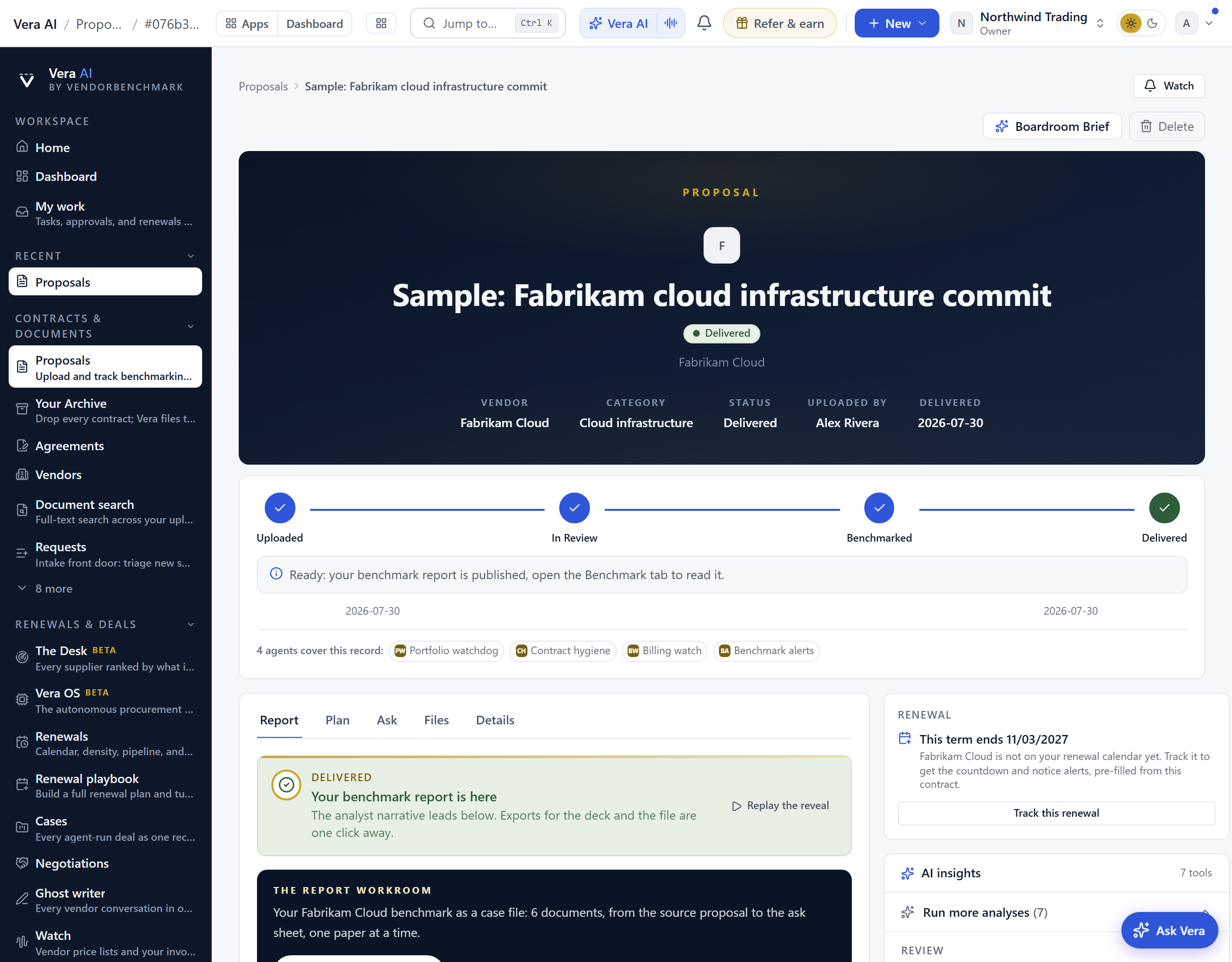
A worked example. The sample Northwind CRM proposal's record shows the pattern at its best: the status path across the top, the files beneath, and once delivered, the Report tab carrying the finding ($28,650 a year in reach) with its case file one press away. While the proposal is anywhere before Delivered, the page refreshes itself within half a minute of a status change; delivery announces itself with a toast.
On the screen
- Status path — the four-step path Uploaded, In review, Benchmarked, Delivered, with the date each step was reached and, while it is with our team, who is working on it and how long it has been in the current step. While a requested benchmark is in flight, Analyst benchmark in progress sits above the path: the delivery date we committed to at display size, the days remaining, when you asked, and one sentence on what is happening right now; if a report runs past the estimate, it says so plainly.
- Highlights — vendor, category, status, who uploaded it, and the delivered date. If the AI redline found the quote below the vendor's usual discount band, "below band" appears here with the gap in points.
- Deal brief — the one-glance read of the deal, directly below the header.
- Document brief — the analyst's reading of the document itself, written the moment you upload: what the document is (the parties, the vehicle, the term), its commercial shape in the document's own currency, and two to four things to check before signature, with the customer entity of record and the document's own printed title under the headline. When the platform recognizes the publisher, the answers to that publisher's own questions (an EA's enrollment number and true-up terms, a capacity order's credit rollover) sit beneath the prose; hover an answer to see the verbatim passage it was read from.
- First read — every real upload gets the instant AI read: it appears on the record page about two minutes after the document lands, so you have a number long before the analyst report. Included reads never spend your plan's decode allowance.
- Workspaces — below the tabs, with the related records: the deeper analyses that already have a result, the redline review, the SOW rate review, the walk-away alternative, and the negotiation brief. On the brief, the call prep pack now fronts itself with a cover: the asks counted, the pushbacks answered, a contents list that jumps to each section, and your first three moves lifted from the call plan; a freshly generated pack lands with a short delivery reveal. Editing the brief is truly co-edited: teammates in the editor at the same time share one live draft, a banner names who is editing with you, and each field shows who is typing in it, so nobody overwrites anyone. Saving still appends a new version.
- SOW rate review — for services documents, the review extracts every rate line and benchmarks each day rate against the market band for the role. When you have a saved MSA rate card for the vendor (see Rate Card Benchmark), a Your MSA column appears beside the market band: each line billed above your contracted rate is flagged as a contract-compliance gap, with the per-day delta and the overage across the stated volume computed in code. The market band is context; the MSA rate is the ceiling you hold. A Save as rate card button on the rate table records the extracted lines as your contracted rates in one click, and any blended or offshore-blended line carries a Deconstruct this rate breakdown showing the plausible senior/standard/junior mixes at that price and the margin range each read implies.
The tabs — always in the same order, Report, Plan, Ask, Files, Details, at every stage; only the tab that opens first changes.
- Report — once delivered, this opens first, and a small line points here from any other tab: the white-document narrative, the negotiation playbook, and the metrics table with percentile bars (see The benchmark report below). Before delivery it shows the benchmark request with the estimated delivery date. A published report's actions row can also mint a read only verdict link: one page carrying your discount, the peer range, the rank, and the executive summary, nothing else, expiring after 14 days by default, with view counts and one click revoke, made for forwarding to an executive.
- Plan — the step-by-step engagement plan for this vendor, with AI guidance on each activity.
- Ask — ask questions about this specific document and get answers grounded in its text.
- Files — the PDF or DOCX files you uploaded, opened with a short-lived signed link.
- Details — the extracted fields (seats, annual value, uplift cap, term dates, source language), your notes, and what you asked us. You can re-extract or export a redline from here.
On the right — three things, then a fold
- Track renewal — when the record has a renewal to track, the tracking comes first.
- The full review of this agreement — the long form review the agent writes over every file on the record, with a web search of the vendor's current published terms where a term depends on them: what the document does with a table of every commercial mechanism and its assessment, the drafting defects to resolve first, the seven to ten commercial terms to change with the section and the precise ask, the ten clauses to look at, what is genuinely negotiable, what you will have to trade for and what the vendor will not move on, how to run the negotiation, and the sources consulted. Press Write the full review and a bar says how long (about four minutes); then Read the review opens it over the page in the house document, with Save as PDF, Word and Copy, and Write it again rewrites it after the document or the record changes.
- AI insights — the AI analyses, grouped as Review (proposal review, SOW review, second opinion, renewal vs current), Model (what-if scenarios, entitlements, credible alternative), and Compliance (audit defense, audit workbench, security & DPA check). Rows with a stored result open first; the rest sit behind one entry. In the what-if modeler you can save a scenario by name, reload it any time, compare two side by side with the levers and the difference between them, and pin the chosen case to the negotiation plan.
- Comments — a thread on the record, and you can comment on a specific metric or clause.
- More for this record — a fold below those three, holding the vendor's playbook (the research library's material on this vendor by topic: timing, how they sell, leverage, tactics, counters, asks and terms, each section naming its note), the negotiation toolkit, the renewal outlook, and access management (whether the proposal is visible to the whole organization or restricted to named people, managed by the owner, the uploader, or an admin).
- Read and watch — at the foot of the record, after the related records and workspaces: the films, analyst briefings, research papers and guides the library holds on this proposal's vendor. It loads when you scroll to it.
See also: Contract Office · Delivered reports · Contract Agent
The vendor record
Your whole relationship with one vendor on a single page.
On the screen
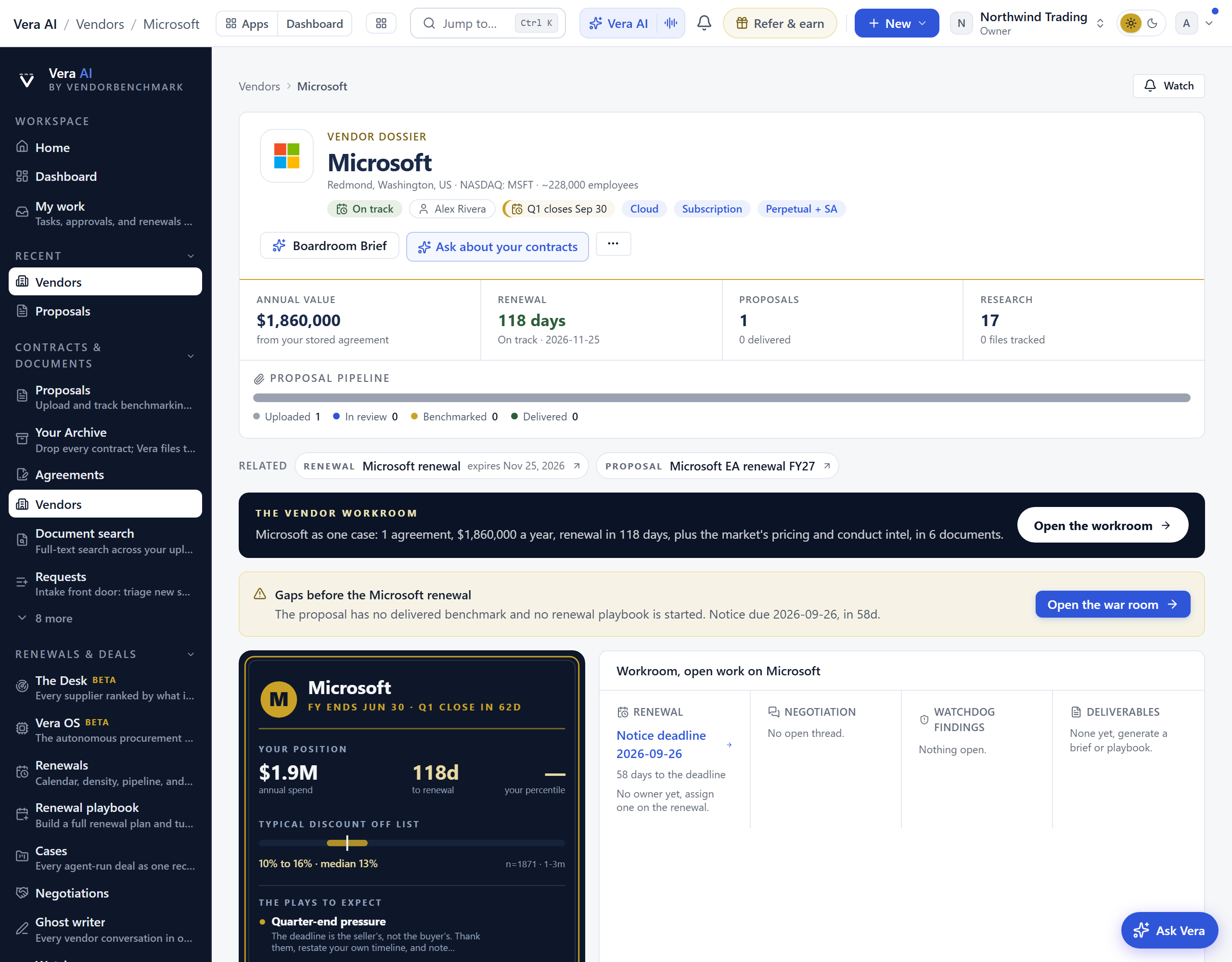
- The head — since 25 September 2026 the vendor's name comes with its actions right after it, then one sentence that states the stake: what the vendor costs a year, when it renews, when notice is due and in how many days, and whether a delivered benchmark stands behind the price (with the band comparable buyers land when none does). Under it the company line and the working chips, then one quiet row of facts: annual value, notice due, renews, proposals and where you rank. Every money figure on the page is in US dollars; when the agreement was signed in another currency, the annual value says so once ("signed in EUR"). With several agreements on one vendor, the page leads with the one that renews next. An agreement whose term has run out and does not renew itself reads as ended, never as a missed notice; one that renews itself says it ran past its renewal date. Where you rank is your saved benchmark for this exact product, never a namesake's: a vendor name that matches two products claims no rank. The record prints the vendor by the publisher's own name wherever it shows it (Basware, never the basware someone typed); a name the platform does not know, typed all in lower case, is capitalised. In the clock panel an empty value says what it means: Not stated for an annual value the agreement does not carry, No date for a renewal with no date, and No owner set when nobody owns the vendor.
- Before the renewal — when the notice date is inside 120 days and has not passed yet: the steps before it, each marked done or carrying its own link: upload or benchmark the proposal, start the renewal playbook, and name the renewal owner.
- Add to this vendor — upload a document for this vendor (the upload opens with the vendor filled in), or write down what you heard on a call and press Add, which puts it in the Log dated today. A note you have started comes back if you leave the page and return.
- What if the renewal lands under today's price — under the vendor card: move the slider to a share under what you pay today and it shows the new annual price, what that keeps a year and over a three year term. When the peer range is known it is named once underneath, with a line saying it is measured from list price, a different starting point from the slider.
- The vendor card — a small card you can save as a picture and forward to whoever negotiates next: the vendor's fiscal year end and next quarter close, your annual spend, days to renewal (or the renewal date, once it has passed) and where your deal ranks in a word, what comparable buyers get off list as a range with its midpoint, and the three plays to expect. A figure the record does not have says so in words (Not stated, No date, Not ranked). PNG under it saves it.
- Company tab — the vendor intelligence leads the record: who the vendor is, a Financials section with the latest reported revenue, margins, and segment mix (refreshed each time the vendor reports earnings) closed by a Buyer's angle read on what those numbers mean at your table, the commercial model (revenue mix, contract vehicles, true up mechanics, and an audit posture rating), the product families we track with a one click benchmark on each, and the vendor's latest signals from Market news.
- Negotiation — when a renewal crosses into its notice window, the record leads with a live countdown, this week's playbook step, the negotiation brief, and the owner and approvers pinned. The same deal also jumps to the top of My work, so a live renewal never runs off screen.
- Take it to market — the renewal record's challenge control opens a competitive sourcing event with the incumbent's current annual price as the baseline. Alternative vendors bid against it, every priced response reads as a delta against the incumbent, and the best credible bid becomes the leverage line the renewal negotiation cites.
- Open the workroom — a green button on a white band under the related records opens the vendor as a workroom. Up to six documents build from what this vendor's record holds: your agreements ledger, the pricing band at your deal size, the vendor's terms and conduct intel, a negotiation angles brief fitted to your footprint, and a What now sheet. What now, in the inspector, carries the moves that run on this vendor's live records: open the renewal record, open the latest proposal, read the delivered benchmark report, start tracking the agreement, open Vera Deal-Room, and copy the vendor one pager. Ask Vera answers from this vendor's own records, so a question about pricing is measured against what you actually pay rather than against the market in general.
- Proposal pipeline — this vendor's proposals across the status path.
- The vendor brief (Analysis tab) — the long form brief the agent writes across every agreement you hold with this vendor, with a web search of their current price list, uplift, cloud and audit policies: what you buy, how their document treats you and where the documents disagree with each other, the terms to change across the book, the ten clauses that decide the relationship, what is genuinely negotiable with this vendor, and how to run them against their own calendar, with the sources consulted at the foot. Press Write the vendor brief and a bar says how long (about five minutes); then read it over the page, save it as PDF, take it as Word or copy the text.
- Vendor profile — your position stated as a rank against comparable deals (poor, below market, at market, good, or top of the market), the typical discount off list once a benchmark exists, and the plays to expect from this vendor (quarter-end pressure, high anchor, bundling misdirection, and more).
- Open work — one row each for the renewal (a passed notice date says so, with its date; an agreement that ended says so and is not flagged), the negotiation, the watchdog findings and the deliverables on this vendor, each stating where it stands and the next move, including when nothing is open yet. The counts are of everything open or on file, not of the few rows shown. A negotiation in Open work opens its thread. The co-terming card adds only figures it can state in US dollars, the renewal countdown on an agreement that does not renew itself counts to the end of the term, and a renewal due today reads today. What next closes the page: benchmark the proposal, open the renewal, or go back to every vendor.
- QBR pack — the quarterly business review pack for this vendor opens with a delta cover built from your published benchmarks: the three moves that matter, your position change, savings realized, and the percentile trajectory since last quarter, on one page. It reads calmly in a vendor's first quarter, before there is a history to compare. A freshly generated pack lands with a short delivery reveal before the document opens, and it downloads as a PDF in the executive brief theme alongside the Word export.
- Deeper tabs — the tabs are the whole map: position and risk reads live under Analysis, intelligence briefs under Research, the film library under Watch, and the activity log under Log. The relationship analysis under Analysis opens as an executive brief: a vitals row computed from your own records (spend on file, estate size, days to expiry, notice deadline, with anything not captured flagged), the full estate table, an annual value chart when more than one item carries a value, and the analyst narrative in short sections.
- Playbook tab — what the research library says about this vendor, set on the page instead of left in the files. The head says how many points it drew from how many notes. A strip of key figures leads (the discount range, the fiscal year end, the uplift), then a row of topics, each with its count: Know first, Cost drivers, Timing, How they sell, Benchmarks, Leverage, Tactics, Counters, Steps, Asks and concessions, Terms to fix, Alternatives and Risks. Press a topic and its sections appear as the notes wrote them, as lists and tables, each naming the note and edition it came from with Read the note beside it; Show full text opens a section's longer points. A topic with more sections than the page shows says how many remain in the notes. The tab appears when the library holds a note on the vendor. Every plan reads it in full, the trial included.
- Watch tab — on every vendor record, it opens on Read and watch: the films, analyst briefings, research papers and guides the library holds on this vendor, in the same layout as the agents, playing on the record. Under it sit what only this tab carries: the series runs watched in order, the recorded sessions where a deal is worked live, and the podcast episodes that name the vendor.
- Everywhere else this vendor lives — the Related links under the masthead are the record's map of the rest of the platform: the renewal and its date, the delivered benchmark report, the proposals on file, the self-serve benchmark tool for this publisher, the peer scorecard and its grade, the research papers, the films, and the open negotiations. Each link lands filtered to this vendor rather than on a full list, and a link only appears when there is something behind it. The links run both ways: filter the Analyst Briefings window or the research library to a vendor you buy from, or open its scorecard, and each offers the hop back to this record.
- Present the intel briefing — the market intel briefing's reading dialog carries a Present button for the fifteen minutes before a vendor meeting: it walks the scanned developments one at a time with the negotiation angle on each, and closes on your stance, with your annual spend, benchmark position, and the market risk read pinned to the top of presentation mode.
How to use it
- Read the highlights and the vendor profile to see whether this vendor looks above or below market and what plays to expect.
- Check Intelligence before a renewal for the latest pricing and licensing moves.
- Use the related records to jump to the vendor's renewal, proposals, delivered reports, benchmark tool, scorecard, documents, and films, or open the negotiation straight from the renewal alert.
- Open Playbook before you plan a renewal: read Timing and How they sell first, then Tactics and Terms to fix, and open the note behind any section you want in full.
- Open Watch in the ten minutes before a vendor call and play the newest briefing on that publisher.
See also: Vendors · Vendor scorecards · Terms watch
The renewal record
The renewal record is no longer a page of its own. Since 5 September 2026 it is the File screen of the Renewals app: pick an agreement and press 2, or Enter, and it opens in full inside the application. Every old link to a renewal record lands there with that agreement open.
In plain words: the record moved into the Renewals app, so nothing about a renewal needs a second page.
What the File screen holds is documented with the Renewals app: the stage as a control, the terms with the hand that edits each, the position math, the document, the proposals and the benchmark, the playbook, the checklist, Engage the vendor (Have Vera run it opens the case intake as a sheet), the autopilot, the run, last time and the activity.
Related: Renewals · The vendor record · The benchmark report
The benchmark report
The deliverable itself: a senior-analyst read of your deal against the market, not a bare table of numbers.
In plain words: the report argues a finding; the metrics beneath it are the evidence, never the report.
When to reach for this
- Reading a delivered report properly: finding first, evidence second, levers third (the handoff recipe turns it into the conversation).
- Explaining to a stakeholder why the deliverable is prose with a table, not a table alone.
On the screen
- The reveal — the very first time you open a delivered report, a short full screen reveal announces it: your market standing stamps in, the savings available counts up, and a band draws where you sit between market low and high before the reveal gives way to the report. One click skips it, it respects your reduced-motion setting, and it never appears in print or PDF output. It plays once per report; replay it any time from the "Replay the reveal" control on the Delivered banner. Shared report links get the same first-open moment, once per link.
- The headline — the top of the report answers three questions in one screen: the negotiable value found across your benchmarked terms (or "At or better than market" when there is nothing to chase), the signature position bar for your single biggest lever showing where that term sits in the cohort and the dollars on the table, and a report-level confidence rating stating how solid the data is (the deals referenced, the freshest data date, and the sources).
- The narrative — the white-document report leads: an executive summary, your market position, section-by-section analysis, prioritized recommendations, and a bottom line. Every figure is grounded in stored data, with its sources listed at the foot of the document.
- Verification — an AI-generated report opens with one verification story for the whole report: the grounding state ("Figures verified against your data", or a review notice when a figure needs one), the source count, the generation date, and feedback thumbs.
- Section links — a long report keeps a sticky row of section links across the top of the document on every screen size, shared links included: the link for the section you are reading stays highlighted, and tapping one jumps straight to that section. On wide screens with free margin, a slim list beside the document names the sections instead and tracks where you are as you read.
- Your standing, metric by metric — inside the "Where you stand versus the market" section of the AI narrative report, a bar chart with one bar per metric: the bar's length is the share of comparable deals your terms beat, and your value is printed at the bar.
- Note from our team — on a delivered report, the analyst note renders as a signed note on a cream panel with a gold rule, "The analyst team" byline, and the delivery date.
- Negotiation levers — your top opportunities ranked by annual dollar value, at most three so it reads as an agenda: each lever states the finding in one sentence, the money, the move, and the recommended ask. Every figure repeats on the metric rows below.
- Negotiation playbook — the metrics turned into specific asks you can take into the room.
- Metrics table — each metric with your value, the market low, median, and high, a percentile, and notes. The signature percentile bar shows where each one sits: the cohort's middle half shaded, the median marked, your deal flagged, and the dollar gap to median on the bar. You can pick the peer cohort the comparison uses. When the narrative leads the report, this section sits below it under the title "Appendix · Metric detail".
- Overall score — one number summarizing how the deal stacks up.
- Delta and trend — how the report changed against earlier snapshots, when there is a history.
- Section notes — pin a comment thread to any section of the report, reply, and resolve it before you forward. Notes stay internal to your team and never appear on a shared link, a PDF, a Word file, or the slides.
- Open the workroom — the button on the Report tab opens the delivered benchmark as a six document workroom: the cover, the source proposal record, the analyst brief, a metrics atlas with the market ranges and the verdict table, an ask sheet priced from the stored figures, and a What now sheet. What now, in the inspector, drafts the CFO brief and the vendor safe meeting request from the report's own findings, copies a chat ready summary or the one line verdict, downloads the PDF, and carries the report into the negotiation dossier, a second opinion, or an analyst booking. Ask Vera is grounded on this report, so a question about where a figure came from is answered from the report's own evidence.
- Downloads and sharing — export the report as PDF, Word, a PowerPoint deck, or an Excel workbook, hand it to a teammate, or create a share link. The PDF and the deck open with the same headline and position bar as the top of the report on screen, so the forwarded document matches what you read.
- Present — the Present control above the report runs it as a full screen show for a live meeting: the headline and market position first, then the evidence, then the play. Arrow keys move between screens, G shows every screen, N shows a one line presenter note, and the print control produces a leave-behind of exactly the screens you walked. The show reopens where you left off on this report.
- Reading — once you share a report link, these figures show how it is being read: total opens, unique readers, the sections read most, and time spent on the recommendations. It carries no IP or personal data and honors Do Not Track.
- What happened? — thirty days after your report is delivered, the Report tab asks one question: did you win a reduction, did the vendor hold, or are you still negotiating? You answer once per contract. A won reduction with an annual figure opens a reconcilable savings record against your invoices automatically, and your answer sharpens the benchmark over time.
How to use it
- Read the narrative first; it interprets the numbers rather than restating them.
- Upload to the metrics table to see the exact gaps, and switch the cohort if a tighter peer set applies to you.
- Take the negotiation playbook and the recommendations into your negotiation, and export or share the report with your budget owner.
- Pin notes to the sections your team needs to weigh in on, resolve them, then forward the clean report.
- When the prompt appears a month on, tell us what happened; a won reduction flows straight into realized savings on the Savings statement.
See also: Delivered reports · Benchmark a proposal end to end
Next: Chapter 10 · Plans, allowances & limits
Was this page helpful?
Thank you. Your note goes straight to the team that writes this manual.