Smart import is the file route in Vera AI, the platform from VendorBenchmark, that loads a spend or seat usage export from any ERP, finance or IT system as a CSV, with the AI mapping your columns and a preview shown before anything is written. It is for procurement and finance teams whose system has no built connection, or whose export does not match the standard column names.
This post explains what Smart import accepts, the steps, exactly what the AI sees, and what the import cannot do. It sits with the other connections at Integrations, and the spend it loads is read by the Spend Agent.
PART ONE
What Smart import takes in, and where it goes
Vera AI has built connections for Coupa, SAP Ariba, SAP S/4HANA, Oracle Fusion and NetSuite, and standard CSV importers for the common spend exports. Smart import is for everything else: a general ledger dump, a card or expense export, an app assignment report from a tool nobody has connected.
- Spend. Invoice, purchase order, ledger or payment lines. The file needs a vendor column and an amount column. Date, currency, invoice reference, ledger account, memo and an id are used when present.
- Seat usage. Per app counts. The file needs an app column and an active users column. Licensed seats, vendor and period are used when present.
- The owner of a card line. A card or expense export can carry the cardholder's or requester's email. When that vendor has no contract on file, the request to upload one goes to that person.
Spend lines are read by the Spend Agent and the SaaS Manager, among others. Usage is read by the SaaS Manager and by the shelfware view on renewals. A register of contracts is a different job with its own mapping step, in the Enterprise Uploader.
PART TWO
The time it saves
The slow part of a file import is never the upload. It is reshaping somebody else's columns into the ones the template wants. The comparison below is illustrative. The time depends on how many columns the export has, how clean the amounts and dates are, and how many files you load a year.
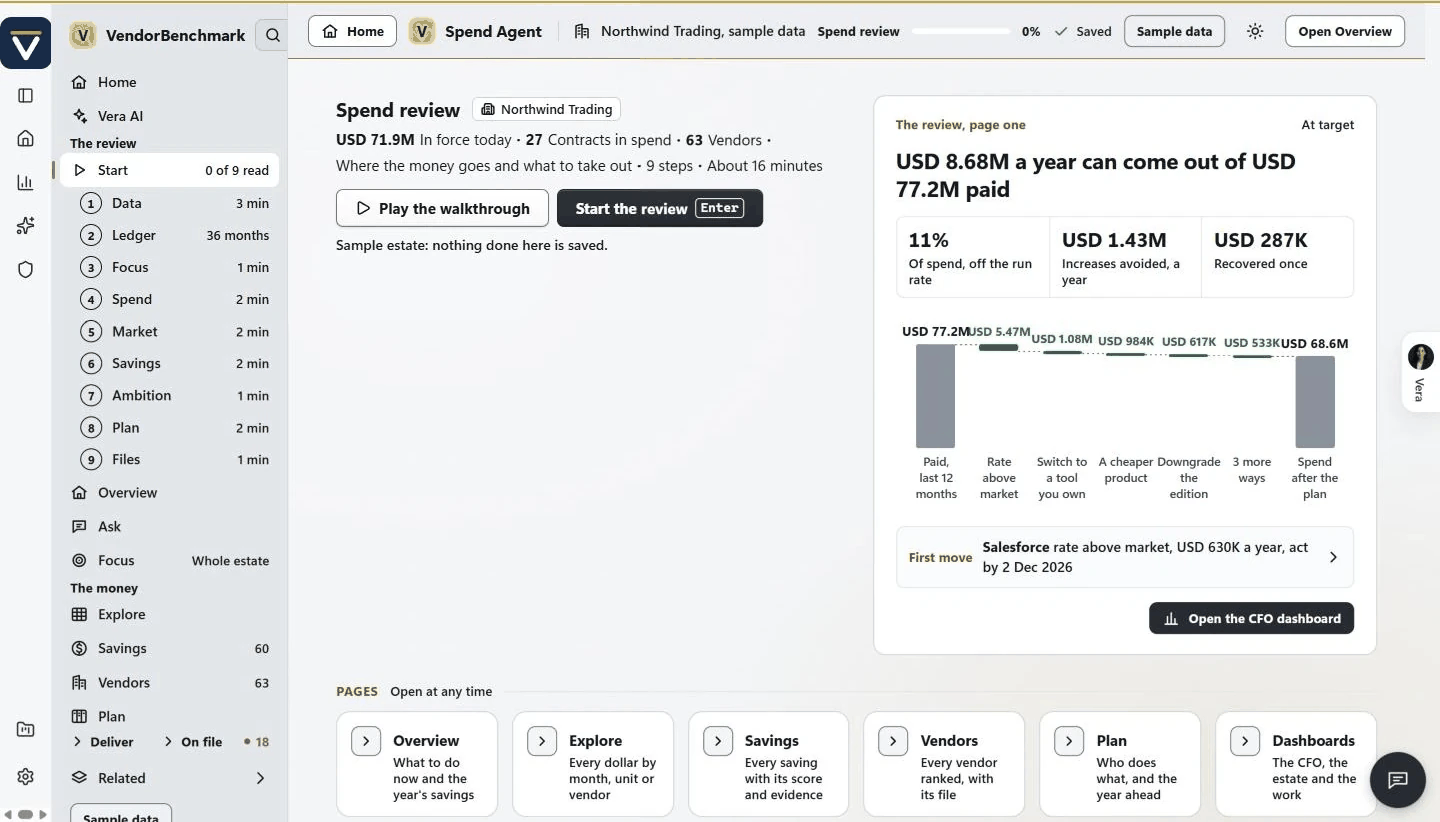
The Spend Agent start screen on sample data: spend in force across vendors and a chart of what can come out of it each year. Imported spend lines are one of the things it reads.
THE SAME JOB, TWICE
TODAY, BY HAND
- Run the spend export in the ERP and open it in a spreadsheet
- Rename and reorder the columns to match an import template
- Clean currency symbols and mixed date formats by hand
- Upload, read the errors, fix the rows that failed and upload again
Roughly 2 hours per export, and about 8 hours a year for a quarterly load
WITH VERA
- Drop the CSV on Smart import and say in a few words what it is
- Press Analyze and read the proposed column mapping
- Check the preview of converted rows and the count that will be skipped
- Press Import
About 10 minutes per export
What changes: roughly 2 hours of reshaping per export becomes about 10 minutes of checking. For example, 4 loads a year is about 8 hours by hand against about 40 minutes, and the original file is never edited.
PART THREE
How to use Smart import, step by step
- Export a CSV. Any export with a header row. The file can be up to 8 MB.
- Open Smart import. It is on Settings, Connections, Integrations, with the spend and usage connections. Only an organization owner can import.
- Choose the file and say what it is. The description is optional and helps the mapping: a line such as a vendor spend dump for the year, in up to 300 characters.
- Press Analyze. The card shows whether it read the file as spend or as seat usage, one sentence on what the file appears to be, and each field with the column it was matched to.
- Review the preview. A table shows the first rows as they would be loaded, after conversion. The button states how many rows will be imported, and a line beside it says how many will be skipped for missing or unreadable values.
- Press Import. The rows load, and the import is recorded with its row count among the workspace's recent syncs and in the audit log.
If the mapping looks wrong, discard the analysis, describe the file more precisely and analyze again. Loading the same export twice is safe: spend rows are deduplicated, and usage keeps one snapshot per app and month.
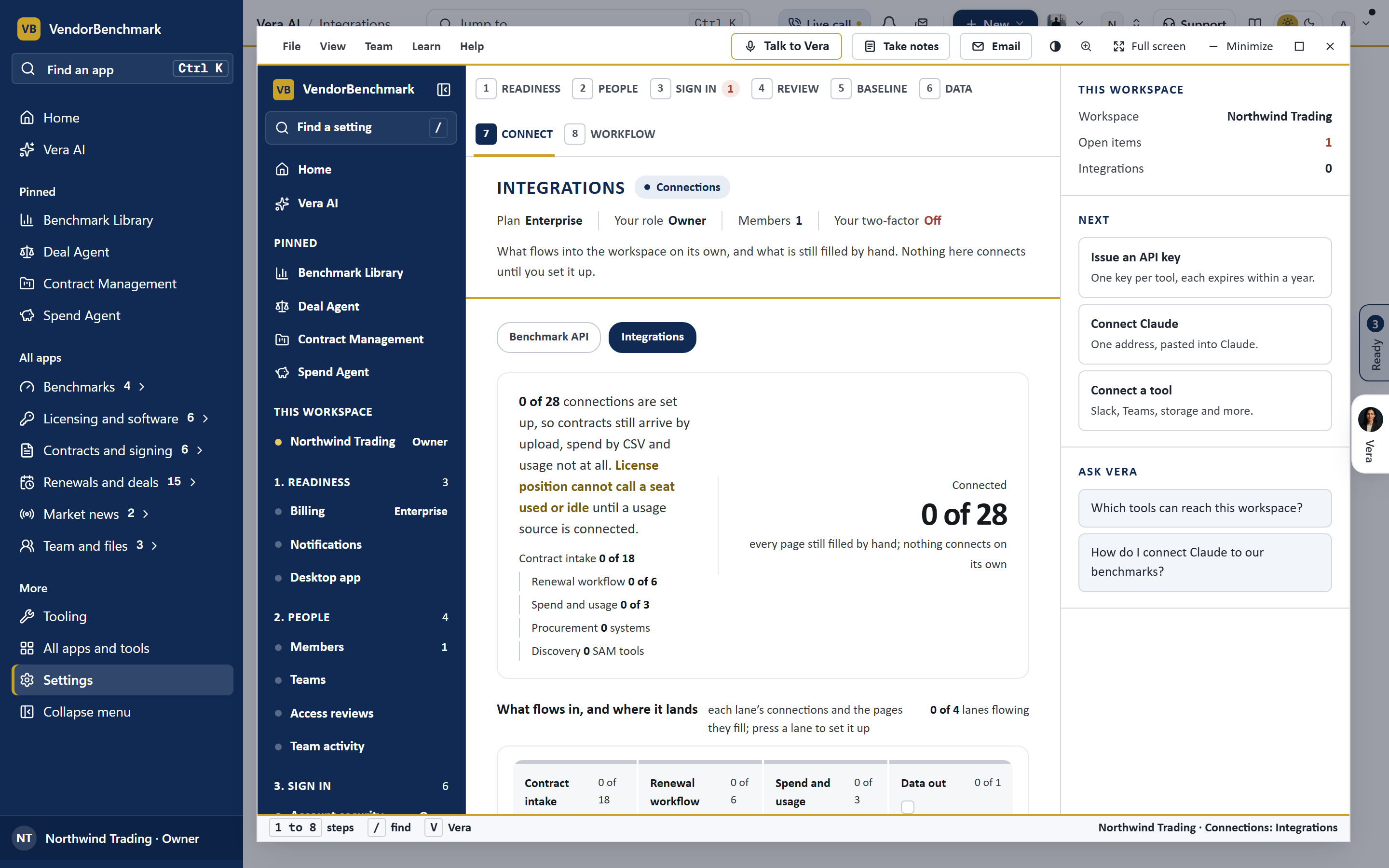
Settings, Integrations on the sample company, before anything is connected: spend still arrives by CSV. Smart import is one of the spend and usage routes on this page.
PART FOUR
What the AI does, and what it never touches
The AI does one narrow job: it names columns. It is given the header row and a handful of sample rows, and it answers which of your headers holds the vendor, the amount, the date and so on, plus one sentence on what the file seems to be.
Before the sample rows are sent, your organization's names are masked out of them and out of your description. Only the column names are needed whole. If that masking cannot be done, nothing is sent and the card says so.
Everything after that is fixed code, not AI. A column the AI names that is not really in your file is dropped. Amounts and dates are converted by the same rules every time, and the load itself is ordinary software. So the AI can propose a wrong mapping, which you would see in the preview, but it cannot invent a figure.
The AI names the columns. It never converts a number and never loads a row.
The decision stays with you at the preview. Nothing is loaded until an owner presses Import. If the AI mapping is unavailable or the workspace has reached its daily cap of 100 mappings, the standard CSV importers still work without it.
PART FIVE
What it will not do
- It is not a live connection. Smart import is for one off loads. It does not schedule itself or return to your ERP for new rows. A built connection does that.
- It reads CSV only. Save a workbook as CSV first.
- It does not guess missing basics. A spend file with no vendor or no amount column is refused with a message, and so is a usage file with no app or active users column.
- It fills two gaps with defaults. A spend row with no readable date takes the day of the import, and a file with no currency column is read as US dollars. Check both in the preview.
- It does not read contracts. Terms, renewal dates and prices on paper come from the documents themselves, not from a spend export.
If your system is one with a built connection, use it instead: how to integrate Vera AI with Coupa and how to integrate Vera AI with SAP Ariba cover two of them, and Ariba also accepts a CSV export where the API is not approved. The overall map is in integrations: meeting your stack where it already is.
PART SIX
Common questions
- Which ERP systems does Smart import work with? Any system that can export a CSV with a header row. Smart import maps whatever columns the export has, so it does not depend on the system's name.
- Does the AI see all my spend data? No. It is given the column headers and a few sample rows with your organization's names masked. The full file is converted and loaded by fixed code.
- Can I check the result before it loads? Yes. Smart import shows the proposed mapping and a preview of converted rows, and nothing is written until an owner presses Import.
- What if I import the same file twice? Spend rows are deduplicated, so a repeated export does not double your spend. Usage keeps one snapshot per app and month.
- How large can the file be? Up to 8 MB for a Smart import CSV.
- Who can run an import? An organization owner. Members can see what is connected but cannot import data.
The short version: export what your system gives you, let the AI read the headers, and judge the preview yourself. It is the quickest honest way to get a first year of spend into the workspace.