The read log, and choosing what Vera captures
Your estate ledger gains a Read log that traces every captured figure back to the passage it came from, and capture is now yours to configure.
Every procurement team runs on numbers pulled out of contracts. The uplift cap, the notice window, the seat count, the fee ramp. The problem is not usually finding those numbers once. It is trusting them later, when the renewal quote lands and someone asks where the 7 percent cap came from and whether it was 7 percent on list or 7 percent on your negotiated price. Today we shipped two changes that answer that question in one click. The estate ledger gains a Read log, and the capture itself is now yours to configure. You can open it now at the read log.
The problem: figures without provenance
When a figure sits in a spreadsheet, it has been severed from its source. The cell says 7 percent. It does not say which clause, which document, or which of three amendments changed it. So the buyer does the archaeology by hand. They open the master, then the first amendment, then the order form, reading each for the term until they find the one that governs. If they get it wrong, the vendor gets the benefit. We wrote about this failure mode in decoding any contract in a minute, and it is the same failure that makes a missed notice window so expensive. The read log exists so that no captured figure ever loses its paper trail again.
What a row tells you, and where it lands
Each row in the read log states four things. When Vera read the document. What she captured from it, meaning the value, the term, and the renewal terms. Whether the document text is in the search index, so you know if it is queryable. And where in the agreement the read left off, so you can see coverage rather than assume it. Newest read first, because the last thing read is usually the thing that changed.
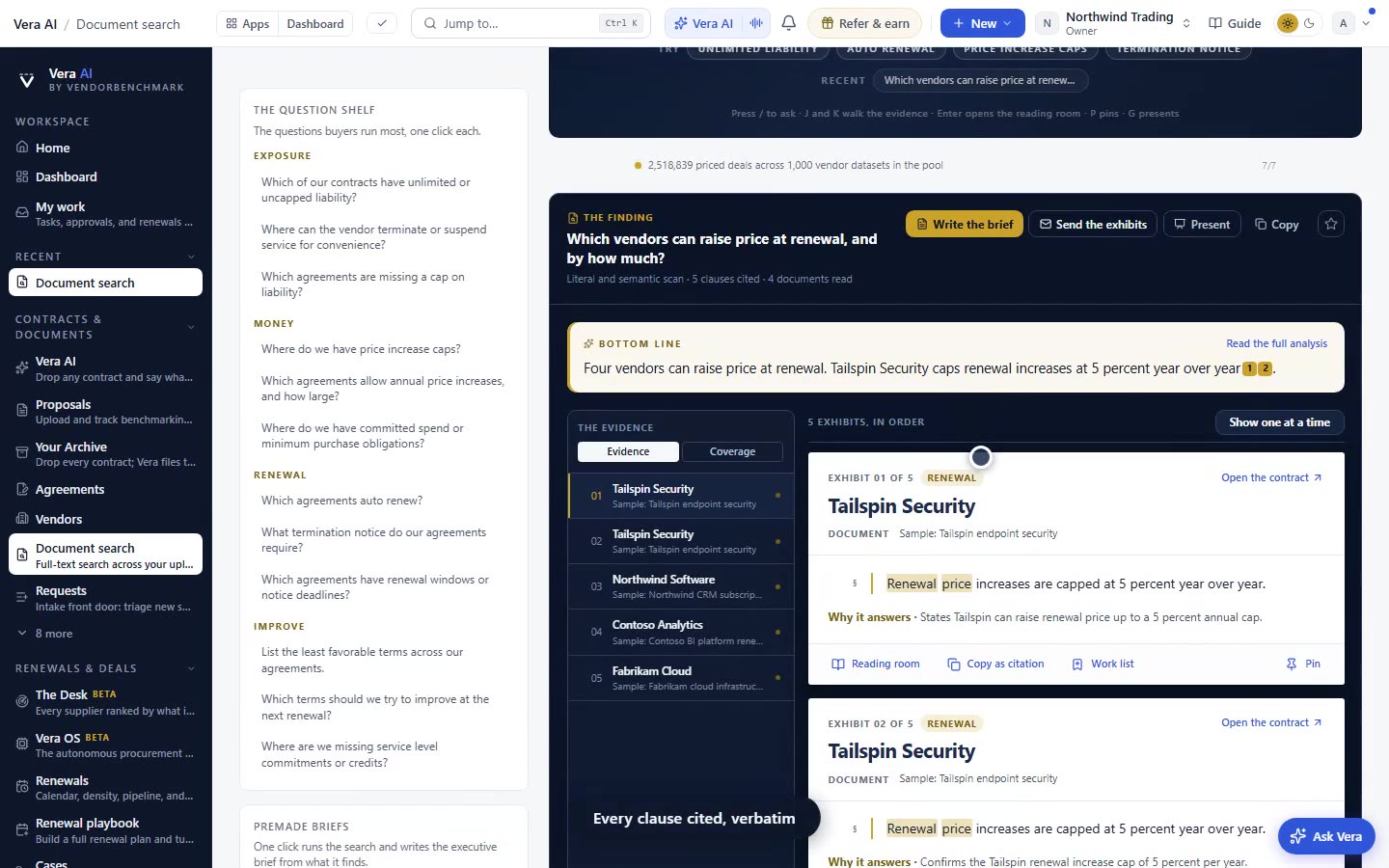
Opening a row lands you on the Document Desk with the figures placed beside the verbatim passages they were read from. This is the part that matters. You are not looking at Vera's summary of the clause. You are looking at the clause, with the extracted number pinned next to it. That is the difference between an AI answer you have to trust and an AI answer you can audit, a distinction we made in why AI reports beat AI answers.
Choosing what Vera captures
Capture is now yours to configure. Under Settings, Data controls, an owner can switch the optional capture families on or off. Those families are seats, the uplift cap, the notice window, auto renewal, and the fee ramp. If your estate is dominated by consumption contracts and seat counts are noise, turn them off. If auto renewal is your recurring exposure, and it is for most buyers as we argued in the auto-renewal trap, keep it on and make sure the notice window travels with it.
Beyond the families, you can add up to 5 questions of your own. Vera answers each one from every document she reads, quotes the passage the answer came from, and files both the answer and the quote into the read log and the Document Desk. So if your organisation cares about, for example, data residency, or a specific liability cap, or whether the contract carries a most-favoured-customer clause, you ask it once in Settings and it is answered across the estate. This is the same review-across-all-contracts pattern buyers already use, now folded into the capture itself.
How it fits the workflow
The read log is not a new place to work. It is the ledger that feeds the places you already work. A figure captured with its provenance flows into a Fair Renewal Rider without you re-reading the source. It arms a negotiation where you can show the vendor the clause and the number in the same view. It supports an audit defense, where being able to trace every claimed figure to a verbatim passage is the whole game. And when the vendor's quote arrives with a term that differs from your record, the read log tells you at a glance whether the difference is real or whether they quietly changed it, which is the comparison job in what the vendor quietly changed.
Honest limits
Be clear about what this does not do. The read log reflects what Vera has read, not everything you own. If a document was never uploaded, it is not in the ledger, and the log will not tell you it is missing. Coverage is only as complete as your estate ingestion.
The five capture families are fixed families. You can toggle them, but you cannot invent a sixth family. The custom questions cover that gap, but they cap at 5, so choose them for the terms that matter most across the whole estate rather than one-off curiosities. A question answered from a document is still an extraction from text, which means an ambiguous or badly drafted clause can produce an ambiguous answer. That is precisely why every answer quotes its passage. The quote is the check. Read it before you rely on the figure, especially where money or notice deadlines turn on it.
Finally, capture is not judgement. The read log tells you the uplift cap is 7 percent and shows you the clause. It does not tell you whether 7 percent is fair for your category. That is what the benchmarks are for, and it is where you should take the number next once you trust it.
Want to be updated when major licensing and pricing changes land? One analyst brief a week: the price rises, metric changes and audit campaigns that move software costs. Work email only.
Morten brings two decades of enterprise and software procurement, with stints across Oracle, IBM, SAP, and Salesforce shaping how he reads a deal. He has led sourcing through hundreds of renewals, from mid market order forms to nine figure global agreements, and learned that the buyers who win are the ones who walk in knowing the market. He built VendorBenchmark to make that pattern recognition repeatable.