Bringing an Oracle LMS collection into Vera AI, the platform from VendorBenchmark, means one of two things: importing an Oracle LMS or ULA worksheet as a file, which adds Oracle to your license positions, or uploading the raw output of the Oracle Collection Tool to Oracle Instant ELP, which builds a license position from it. Both are for license managers and procurement leads who want the Oracle estate counted on their own terms.
Neither route connects to an Oracle system. Both take files you already hold. The worksheet import is listed with every other connector on the integrations page, and Oracle Instant ELP is one of the tools in Tooling. This post explains which one to use, the steps for each, what the AI does and where each one stops.
PART ONE
Two routes, and which one you need
- The worksheet import. The integrations catalog calls it Oracle LMS collection, and marks it as a file import. It takes an Oracle LMS or ULA worksheet as a CSV with program, metric, quantity and usage. Use it when you already hold a summary and want Oracle to sit beside every other vendor in your license positions.
- Oracle Instant ELP. A tool that reads the output of the Oracle Collection Tool itself, as the archives the tool produced. The product manual describes those as the scripts Oracle License Management Services asks customers to run in a license review. Use it when you hold raw output and need the position worked out, with a file and a line behind each verdict.
- An analyst, if you prefer. Same Day ELP is the third option. AI drafts the position, an analyst reviews every line and a second analyst checks it, within 24 hours of a complete submission.
The manual names three moments for Oracle Instant ELP: when Oracle has asked for script output, before a renewal, and before a ULA certification.
PART TWO
The time it saves
Raw collection output is many files in nested archives, and most of the manual effort is unpacking and tabulating them. Here is that job both ways. The figures are illustrative.
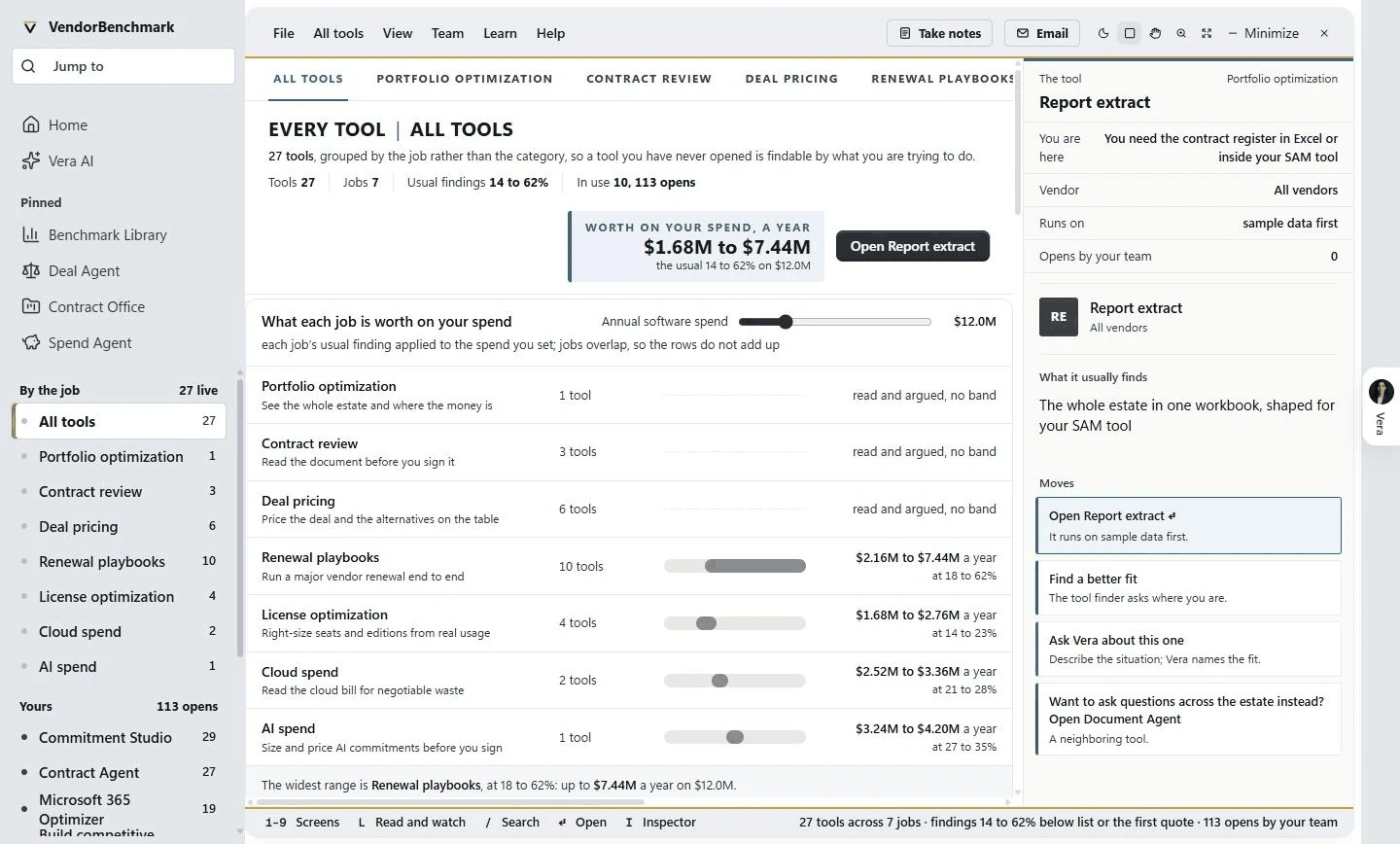
The All tools gallery on sample data: the tools grouped by job, each with what it is usually worth. Oracle Instant ELP is opened from Tooling.
THE SAME JOB, TWICE
TODAY, BY HAND
- Unpack each archive of script output and find the files that matter
- Tabulate databases, options and hosts in a spreadsheet by hand
- Set the counts against the ordering documents, line by line
- Write up the position and list what is still missing
Roughly 2 weeks of a license specialist's time for an estate of about 30 database servers
WITH VERA
- Create an engagement in Oracle Instant ELP with the measurement date and the products in scope
- Upload every archive the collection produced and press Run analysis
- Read Verification, then work the findings marked Needs review
- Import the ordering documents and read the position with its evidence
About 30 minutes to create the engagement and upload, a run that takes minutes, then your review of the findings
What changes: roughly 2 weeks of unpacking and tabulating becomes about 30 minutes of setup and a run measured in minutes. For example, on 30 servers the files are parsed once by the engine, and a person's time goes to the findings that need a judgment instead of to 30 sets of raw output.
What the time depends on: how many servers were collected, how complete each collection is, and how many findings come back needing review. A failed check or a coverage gap means a script is run again by the people who own the servers.
PART THREE
How to import the worksheet, step by step
- Save the worksheet as a CSV. One row for each program. The import looks for a program or product column, a metric, a quantity and a usage count. An edition or option column is read where there is one. No vendor column is needed: the vendor is set to Oracle.
- Import it as an org owner. Open Settings, Integrations and find the Oracle LMS and ULA position card among the asset managers. Import the file there. Only an owner can do this.
- Read what the import says. Rows with no program name are skipped and counted. A file with no program or product column is refused, with the headers it looked for.
- Open the report. The import replaces earlier rows for the same products and files a license report in License tools. From there the apps that read license positions, such as the Entitlement Agent and the Spend Agent, have the Oracle rows too.
This route stores what the worksheet states. It does not check the counts, and it has no schedule. The position is as current as the last file you imported.
PART FOUR
How to use Oracle Instant ELP on the raw output
- Create the engagement. Give it a name, the date the estate was measured and the product lines in scope. The Collection request screen then lists what to collect and where.
- Upload and run. Drop every archive the Collection Tool produced, then press Run analysis. Files go straight to private storage, and each one is checked by its signature, not its name.
- Read Verification first. A failed check or a coverage gap lowers confidence in everything after it. One button drafts an email listing each one, which you send from your own mail to the people who run the collections.
- Set the hosts and work the findings. Set each host's environment, then work the findings marked Needs review. Override a verdict only with a reason that holds.
- Add entitlements and read the position. Drop the ordering documents or a license workbook, accept the lines that are right, and read the position: what is required, what is entitled, and the difference.
- Take the report. It comes as Excel, PowerPoint, Word and PDF.
The position is shown in two views: the quantity Oracle would claim on its own reading of its policies, and the quantity the evidence and your contract support. Where they differ, the finding carries the argument.
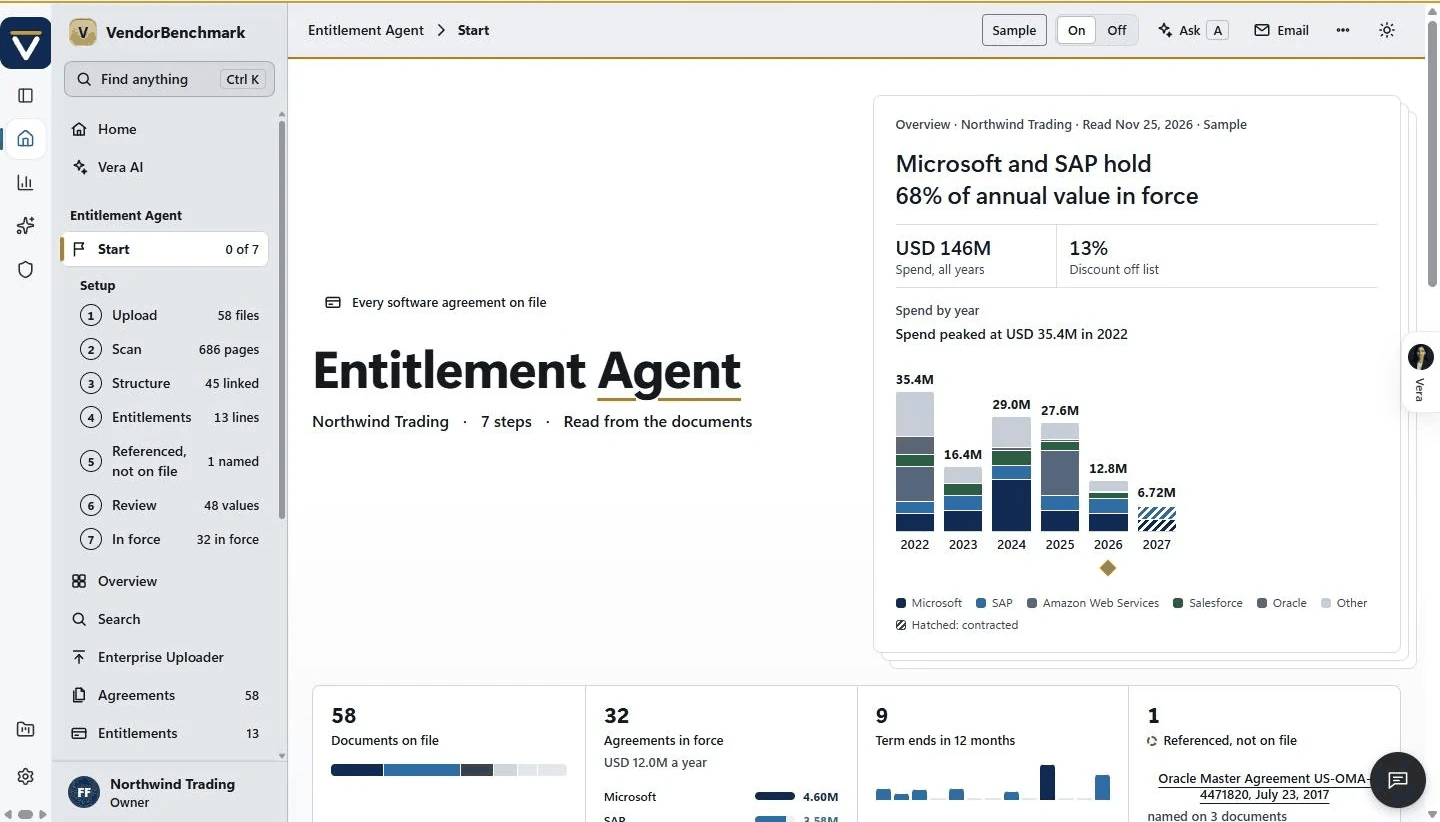
The Entitlement Agent start screen on sample data: annual value in force by publisher, spend by year and counts of documents and agreements. It holds the entitled side, read from your contracts.
PART FIVE
What the AI does, and what the engine does without it
The analysis run in Oracle Instant ELP is not AI. It applies rule packs to the files, and the screen states that no model ran, so the same files and the same rule packs give the same result. The AI sits beside that result.
- It explains a finding. Ask Vera about a record and its evidence lines go with the question as numbered sources. A cited source opens the Collection Tool file at that line.
- It reads ordering documents a second time. When entitlements are imported, Vera gives each document a second read. A line whose quote is not in the document is dropped. Nothing is saved until you accept the lines.
- It drafts the emails. The collection request and the open items can be written by Vera as a note to the database team or the license owner. You send it from your own mail client.
- It masks names first. The names of the organization, the engagement, people and the collection account are masked before anything goes to the AI. Host and database names stay, since every citation opens them.
On the worksheet route the AI's part is in License tools, where Vera writes a brief from the report's rows. On both routes the judgment stays with a person: accepting an entitlement line, overriding a verdict and deciding what goes to the vendor. Nothing is sent to Oracle from the app.
The engine counts. The AI explains and drafts. A person decides what to concede and what to defend.
PART SIX
Where it stops
- Files only. There is no API connection to Oracle for license data and no scheduled read. You bring the worksheet or the archives.
- Upload limits. Oracle Instant ELP takes an archive of up to 1 GB, a loose file of up to 200 MB and 2,000 uploads for each engagement. Past the limit the run stops and says why.
- Incomplete evidence is marked, not guessed. Needs review is a verdict of its own. An open item names what is missing, and a figure marked with a plus is a floor, because lines that cannot be counted yet are left out.
- No invented prices. Exposure at list appears where a list price is on file. The engine never supplies a price it cannot show.
PART SEVEN
Common questions
- What is the Oracle LMS collection connector in Vera AI? A file import. It takes an Oracle LMS or ULA worksheet as a CSV with program, metric, quantity and usage, and stores the rows as license positions.
- Can Vera AI read raw Oracle Collection Tool output? Yes, in Oracle Instant ELP. You upload the archives the tool produced, and an analysis run that takes minutes builds a license position with the evidence behind every verdict.
- Does AI decide the verdicts? No. The analysis engine applies rule packs and no model runs, so the same files give the same result. Vera explains findings and drafts emails beside it.
- Who can do it? An org owner imports the worksheet in Settings, Integrations. Oracle Instant ELP is open to every member. Until it is switched on for a workspace it runs on sample data, which shows every step.
- Where is the raw output kept? In private storage, readable only by members of your workspace and only through the engagement. Excerpts shown as evidence are short and never carry credentials.
For the commercial side of the same estate, see Oracle ULA exit: certify without the panic. If a letter has already arrived, read decode the notice, the do-not list, and the countdown and a 30-day defense plan. For a connection that does run on a schedule, see how to integrate Vera AI with SAP Ariba.