The worry with an AI agent on your screen is rarely that it will be wrong. It is not knowing, in the moment, whether the next change is yours or its own. An agent you supervise has to answer one question at all times: who is driving?
Vera AI by VendorBenchmark answers it with a control, never a guess. Since 1 September 2026 every window carries a small wheel in its caption: a hand when the screen is yours, the specialist's portrait when it is theirs. Here are the three positions, how the wheel moves, and what an agent will not touch.
Three positions, chosen per window
- You drive. The workspace as it is, with the specialist beside you. It sees what you see and coaches from it.
- The agent drives, you steer. Say take the wheel, or press the control, and the specialist drives that screen while you steer by voice. Every move lands as a line in the conversation, and the newest carries Put it back.
- It points, you press. Say you point, I press, or show me how. The specialist explains one step at a time, the control it names wears a ring, and nothing advances until you press Done, next. It can never perform a guided step for you.
The position belongs to the window, not the session. With two windows open, you drive the benchmark library turns exactly that window's wheel. The first time you hand a kind of screen over, your yes is remembered there. Under Settings, Vera and you, choose Ask each time, Drive when asked or Never, and Forget a remembered screen so the next handover asks again.
Any touch hands the wheel back
Touch anything on a driven screen, a click, a key, a lever, and the wheel is yours again before anything asks a server. The specialist acknowledges in half a sentence and is told the move was your hand, so it works from where you put things instead of narrating its own moves.
Press Escape twice, anywhere, and agent drive stops immediately, with no server in the path, and the stop is recorded. Say carry on afterwards and the specialist takes the wheel back at the step where it stopped. A trip halted by a step the screen did not confirm still needs a revised route, and the specialist says so.
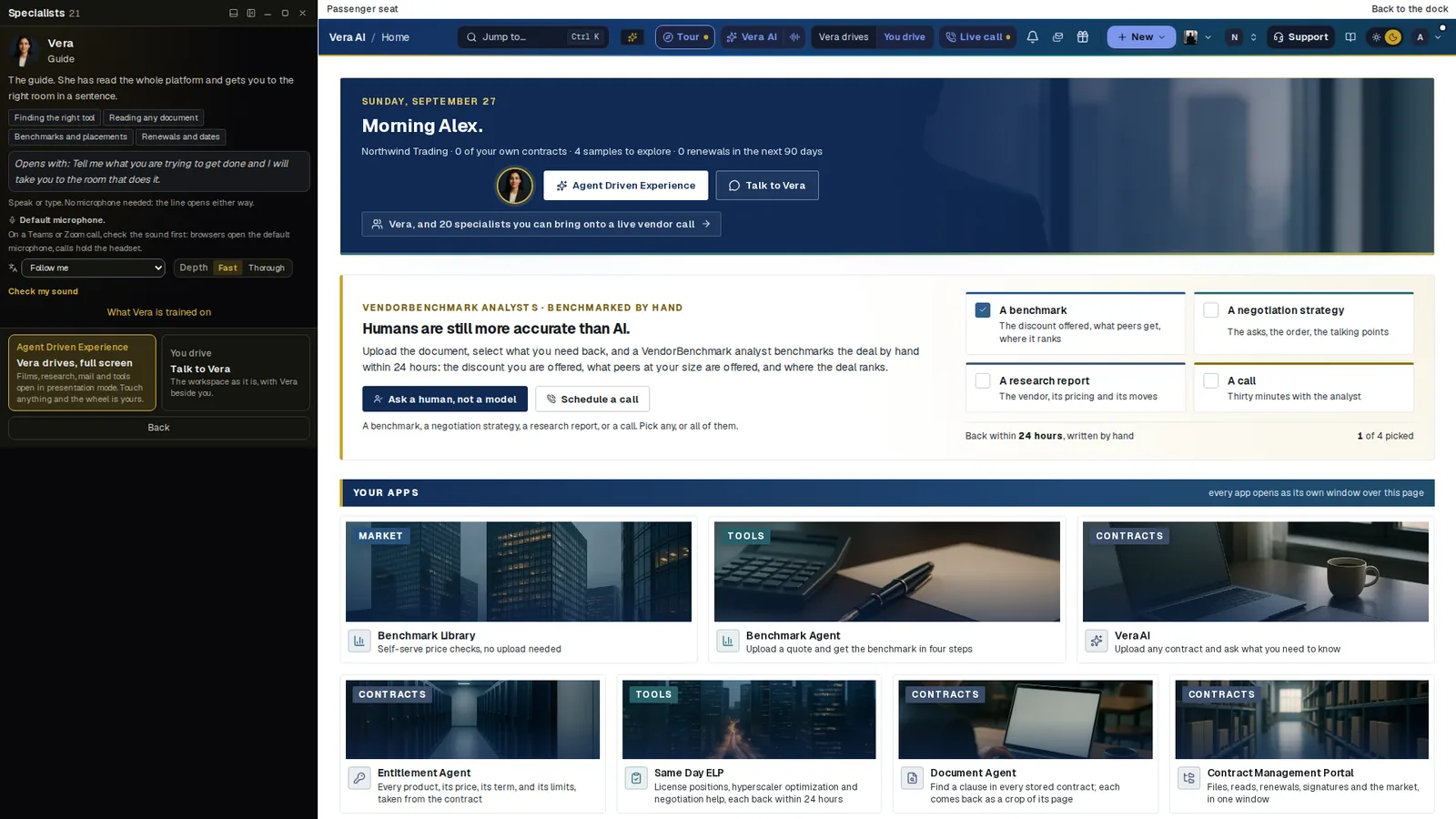
The passenger seat. The conversation runs down the left and the page sits to its right. Agent Driven Experience hands Vera the wheel, and touching anything gives it back; You drive keeps the workspace as it is, with Vera beside you. The top bar carries the same choice as one switch.
In the passenger seat, a thin line above the page names who has the wheel and reminds you that Escape twice takes it back. From the keyboard, Ctrl+Shift+Space flips the wheel, and in the Agent Driven Experience, Exit ends the session and brings the workspace back in one press.
A drive is a trip you can steer
For anything longer than a couple of moves, the specialist proposes the trip in one sentence. Say go and the plan becomes an object in the call window, Step 2 of 4, with the pace beside it.
- Pace. Hold on pauses it with the wheel idle, keep going resumes, slower slows the beats, and skip to the end runs the rest.
- Changes of mind. Actually, make it fifteen revises the route in place without starting over.
- Misses. Before the specialist says done, the platform reads the change back off the screen. A step the screen does not confirm halts the trip where it stands, says what failed and offers you the wheel.
- Rewind. The drive trail draws one dot per move. Press an earlier one and the screen is put back as far as the undo honestly reaches, with what could not come back said plainly.
A trip never narrates past a miss. When the screen disagrees, the wheel comes back to you.
What the agent will not touch
The specialist drives thirteen screens today, on levers each page provably reads: the benchmark library and its vendor tools, the contracts list, the agreements ledger, the vendors list, approvals, tasks, Market news, renewals, research, vendor intel, the vendor calendar, the rights register and the organization estate. A screen it cannot drive yet says so in the control rather than hiding.
Billing, members, data deletion and the signing screen are never driven, on principle. A move that sends, signs or runs one of a page's own actions stays yours: the specialist says that press is yours and offers it instead.
All of it runs under the owner's ceiling, which decides whether a specialist may move or stage anything at all. More than 12 landed moves inside a minute pauses a trip, and staged changes cap at 20 per call session.
Where it sits
The wheel is the control each person holds in our guide to governed autonomy.
- The autonomy ladder is the ceiling an owner sets above every wheel.
- The audit trail records every handover, halt and rewind.
- Vera AI is where the conversation, the specialists and the wheel come together.
What to do first
- Set your standing answer. Settings, Vera and you, Who drives your screens. Start with Ask each time.
- Hand over one screen. Open the Benchmark Library, say take the wheel and ask for a benchmark of one renewal.
- Take it back. Move a lever yourself mid trip and watch the wheel come back to you.
- Try guided. Say show me how, and press through the steps yourself.
Questions buyers ask
How do I take control back from the agent?
Touch anything on the screen, a click, a key or a lever, and the wheel is yours before anything asks a server. Escape twice stops agent drive, with no server in the path.
Which screens can the agent drive?
Thirteen today, including the benchmark library, the contracts list, the agreements ledger and renewals. Billing, members, data deletion and the signing screen are never driven.
What happens if a move does not land?
The platform reads every change back off the screen before the specialist says done. A step the screen does not confirm halts the trip and offers you the wheel.
Can the agent press a guided step for me?
No. In guided mode the specialist explains each step and the control wears a ring, but nothing advances until you press, and it can never perform a guided step for you.
Does handing over one window hand over all of them?
No. The wheel belongs to each window, so you name the one the specialist drives and keep the rest.