05 · Team, AI & assistant
This chapter covers the shared-work queues where your team hands work back and forth (tasks, approvals, and team coverage), Vera the AI analyst grounded in your own portfolio and documents, the automations and deliverables built on top of her, and the ways your team talks to each other and to our analysts. Everything here is about getting work assigned, answered, and moving.
Team & AI
Every app in this chapter, as its own window. It opens over whatever you were doing, the way the Benchmark Library and the instrument wall do, and Close returns you to Home.
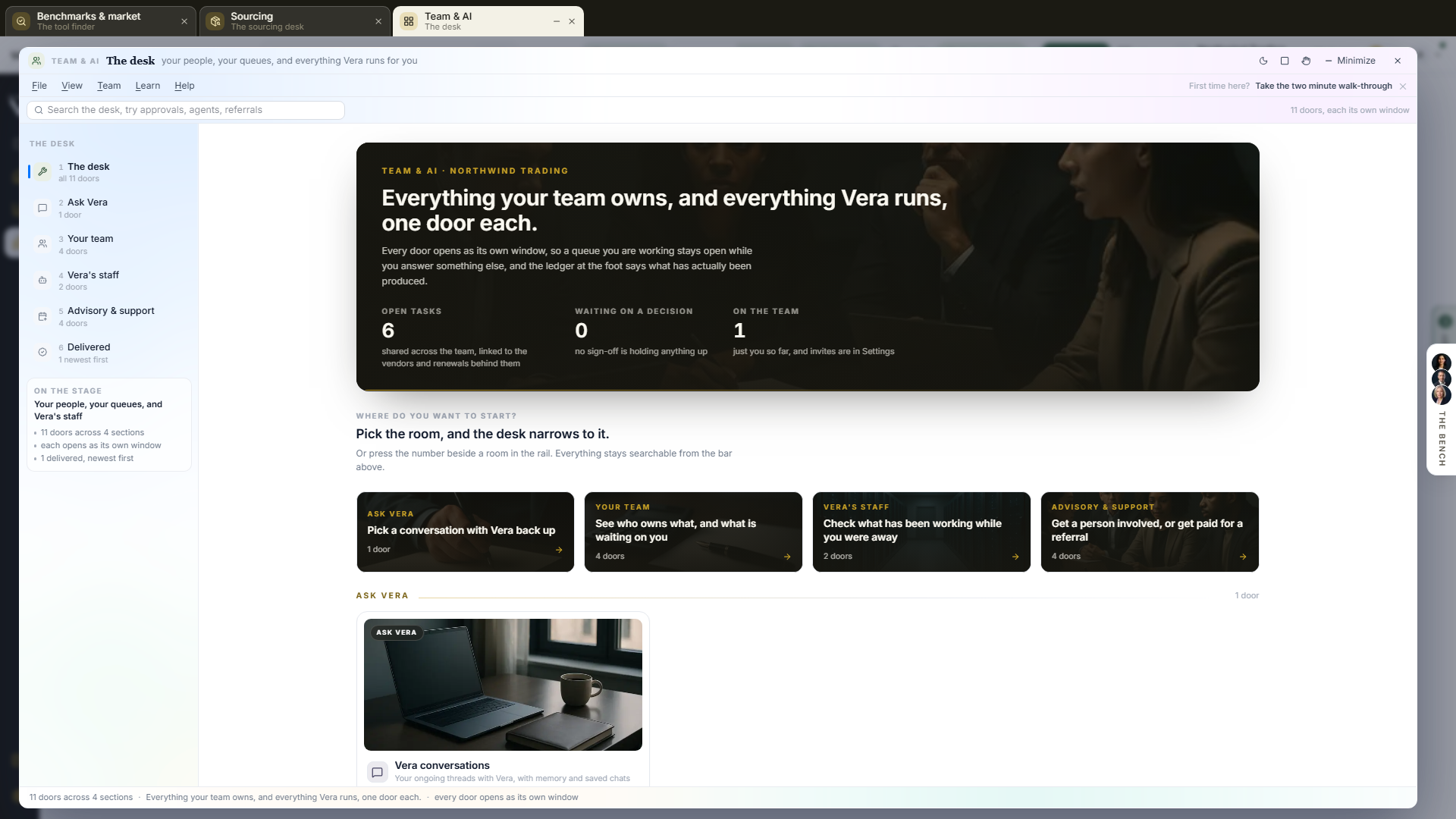
On the screen
- The title bar: the window name, the light or dark switch, and the window controls. Escape closes, the square maximizes, and the minus parks the window on the taskbar to pick up later.
- The command bar: one search box across every screen, over each app's name, its description and what it is for. Typing referral finds Referrals wherever it lives.
- The screen list: Everything, then one screen per section (Ask Vera, Your team, AI agents, Advisory & support), then Delivered. The number beside a screen is its keyboard shortcut, so 1 returns to Everything and 6 opens Delivered.
- The head: what is actually waiting on you rather than a row of counts. Open tasks that are not finished, sign-offs sitting in the approvals queue, and how many people hold a seat in this workspace. Where you have live negotiations and negotiations, the headline says how many are in motion.
- Where do you want to start?: four buttons, one per section, each carrying its own count. Clicking one opens that screen.
- The apps: one per destination, each with a photograph of the work it does, its name, and the sentence saying what it is for. Every app opens as its own window.
- Delivered: every report you and Vera have produced, newest first, with who asked for it and when. Your own work is marked so you can find yourself in the column without reading it.
- What next: the three pages Team & AI usually leads to when you know what is waiting.
How to use it
- Read the head first: it says what is waiting on you before you open anything.
- Pick the room for the job, from the screen list or from the four buttons.
- Search from the command bar when you know the name of the app you want.
- Open Delivered to see what Vera produced while you were away.
Teams Room
A private workspace for one piece of work. Only the people in the room see inside it: belonging to the same organization gives no access, and members can come from any organization, Vendor Benchmark included. While someone is a member of an active room, the platform works for them as it does on the Enterprise plan: every tool, research downloads and the full AI allowance. That ends when they leave, are removed, or the room is archived. It opens features only; each person still sees only their own organization's records.
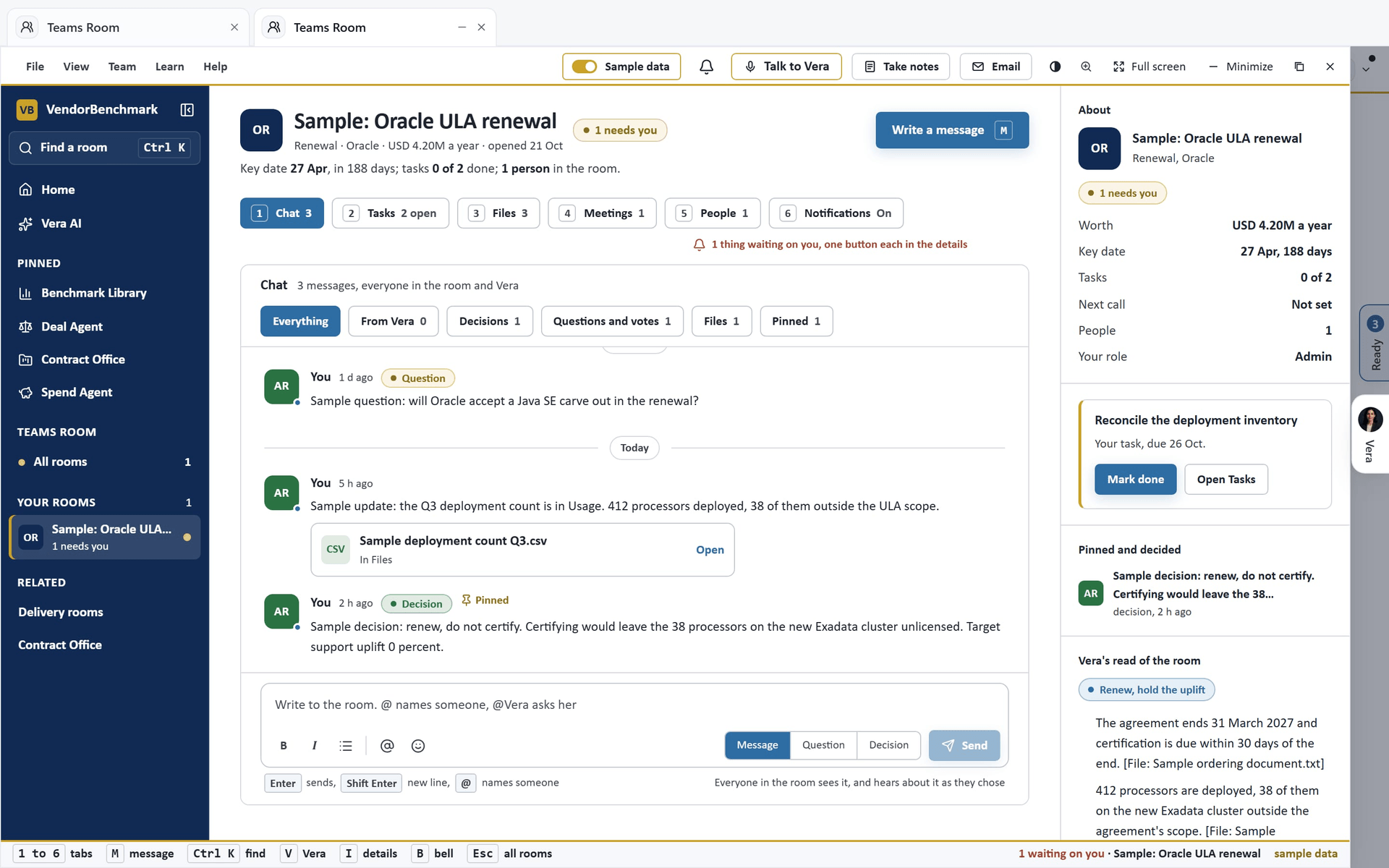
The fresh cut (since 16 October 2026). Teams Room opens in the window every app shares, in the style of the delivery rooms: the navy title bar with the room's menus (File, View, Help), a bell that counts your room notifications, Sample data, Share and the window controls; one navy left column with All rooms at its top and every room you are in beneath it; a compact head with the room's mark, its name, one state tag, one line of facts and one lede; the six tabs as numbered chips; the details column that leads with What to do now; and the keys along the status bar. A room opens on its chat, like Teams. The window you had before is under View › Earlier window and works on the same records.
On the screen
- The title bar: File, View and Help, the bell (B) with a badge for what you have not read and the recent notifications from your rooms, Sample data, Share, light or dark, Zoom, Full screen, Minimize, Maximize and close.
- The left column: Find a room (Ctrl K), Home, Vera AI and your pinned apps, then All rooms with the count of what needs you, then Your rooms: every room as a row with its mark, its name and one line of state (what needs you, how many messages are new, or the last message), a red dot when something waits on you and a gold one when something is for you. Open a room (N) sits under them for Enterprise workspaces; every other workspace sees Try the sample room. Related opens the delivery rooms and the Contract Office.
- All rooms: where Teams Room opens with no room chosen. Needs you lists what waits on you in every room, the most urgent first: late tasks, messages that name you, open questions, votes you have not cast, tasks due this week and files you have not opened, each with one button (Mark done, Reply, Answer, Vote, Open) and the room named; the calls of the week fill the rest. Your tasks lists your open tasks across every room; select the box to mark one done. Rooms is one table of every room: the latest message and who wrote it, the people, the tasks as a bar, the key date, the worth and the status; press a row to open it, right click for more (its tasks, its files, its meetings, Quiet this room, copy a link); archived rooms sit at the foot. This week shows the calls, key dates and your tasks of the next seven days. The details column says what to do now, the calls coming up and Ask Vera.
- A room opens on six tabs, keys 1 to 6. The head carries the room's mark and name, its state (On track, 3 need you, Call in progress, Archived), its kind, vendor, worth and when it opened, then one lede: the key date, the tasks done and late, the next call, the people and what is new. Add people, Add a file, Start a call and Write a message (M) are its actions. Esc goes back to All rooms.
- Chat (1): the room card at the top (who is in, the figures, three starters for Vera), the pinned messages, day separators and a line marking what is new since you were last here. A message from the same person within a few minutes sits under the previous one; replies fold under a message with the faces of who replied; reactions, files as cards, a vote with bars that fill, @Vera answering in the thread, who is writing and who has seen the last message. The composer at the foot: bold, italic, a list, @ to name someone, a file, emoji, a vote, and Message, Question or Decision; Enter sends, Shift Enter starts a new line. When a message names a colleague and a day, a line above the box offers to make it a task for them. Under each message on hover: agree, done, reply, make it a task, more. A right click adds Mark as a decision, Mark as a question, Mark it answered, Pin, Draft an email from it, Copy the text, Copy a link to it and Delete. The chips above show Everything, From Vera, Decisions, Questions and votes, Files or Pinned.
- Tasks (2): the room's tasks grouped late, this week and later, then done, each with its owner, due date, where it came from (a call, the plan, who asked) and its status; select the box to mark one done, type in the row at the foot and press Enter to add one. A right click gives it to someone, sets it due tomorrow or in a week, asks about it in the chat or deletes it. Who has what counts each person's open tasks; press a person to see only theirs. The plan: write the goal in one line and Vera lays out the steps to the key date, each with an owner and a date; once written, the steps are listed with their dates. Who is waiting on whom lists every open ask from the person who asked to the one who owes it. Requests sits under them with its next step.
- Files (3): drop a file on the slim band at the top, or anywhere on the room's page, or press Choose a file; every file is a row with what Vera read in it, who added it and when, who has opened it, Open and, for an admin, delete. Press a file and it opens as the document itself beside Vera's read and three questions to ask it. What Vera read lists one line a file, and Who can open what says the rule. A right click adds Ask Vera to read it, Share it in the chat, Benchmark it, Decode it, Draft an email about it, Copy a link and Delete. Tools at the foot hands a file to the Benchmark Agent or the Contract Decoder.
- Meetings (4): The weekly call shows the next one, who is in it and what to cover from the open tasks, with Start a call now (an admin), Join the call, Email the invitation and Change the call. Minutes lists every call with what was decided, who was there and how many actions; Read opens the summary, the decisions and the tasks. Notes from a call Vera was not on takes a name and the pasted notes, and Vera writes the summary, the decisions and the tasks with owners and dates. While Vera is on a call of the room a red band says so, with Open the call.
- People (5): everyone in the room with their organization, their role, their open tasks and when they were last here (Here now while they are in the window), Message on each. Add people (admins) takes email addresses and a role, and shows what the invite says; someone with no account gets one by email and sees this room only. A right click on a person changes their role, shows their tasks or removes them; every room keeps at least one admin. Who can do what explains the roles.
- Notifications (6): the state of your notifications for this room at the top with the switch for Quiet this room; Tell me about holds your settings for mentions, being added to a room and requests, in the app and by email where a kind allows it (the same settings as under Settings › Notifications); This room says whether Vendor Benchmark hears about it; Recent lists the notifications this room sent you, each opening where it points, with Mark all read.
- The details column (I shows or hides it): About with the room's facts, What to do now (the most urgent thing with its button, then what else waits), Pinned and decided, Vera's read of the room (Read the room writes it again), Here now and Ask Vera, who answers from the files, notes and messages in the room and says so when the answer is not there.
- The key bar: at the foot, the keys for where you are, how many things wait on you, and whether the room is live or sample data.
A vote
Press the vote button under the message box, or File › Ask the room to vote. Write the question and two to six choices, then Ask the room. The vote sits in the chat under its question.
- Everyone who can write in the room has one vote. Press a choice to vote, press it again to take the vote back, press another to change it.
- The bars fill as votes come in, with the faces of the people who chose each.
- The person who asked, or a room admin, presses Close the vote and record it. The winning choice is posted to the chat as a decision. A level vote closes with no decision and says so.
- A vote you have not cast shows under Needs you and What to do now with a Vote button.
A call in progress
A room admin presses Start a call (in the head, on Meetings or under File), pastes the link of a Teams, Zoom, Google Meet or Webex meeting, and presses Have Vera join. She joins as a named participant and takes the minutes; she speaks only if someone asks her to. The weekly call starts the same way by itself.
- While she is on the call the room says Call in progress. Open the call shows the people in the room, What is being said as it is said, and Vera's minutes so far: what was decided and who was asked for what, brought up to date about once a minute.
- Only the people in the room see this, whichever organization they are in.
- Ask Vera to leave and write the minutes (an admin, or the person who started the call) ends her part at once. Otherwise she leaves when the call ends.
- When the call is over the minutes are on Meetings, what was decided is posted in the chat, and each action is a task with its owner and date.
- The call runs on the live call allowance of the room's organization.
The earlier windows
The window Teams Room had before this cut is under View › Earlier window (?easy=1), and the first window before that at ?classic=1. Both work on the same records. A link written for an earlier window's tab opens the tab that carries it now.
The weekly call
A room admin can have Vera join the team's recurring call and write the minutes. On a room's Meetings tab, press Set the weekly call, paste the Teams, Zoom, Google Meet or Webex link, and pick the day, the time and the length. The time is read in your own time zone, which the dialog names.
- Vera joins a minute before the start, listens and takes notes, and leaves when the call ends. She speaks only if someone asks her to.
- When the call is over, her minutes appear on Meetings marked Minutes by Vera, and what was decided is posted in the chat: the summary, the decisions and the actions with owners and due dates, plus the transcript. The actions can be edited like any other.
- Each call runs on the live call allowance of the admin who set it up. If the allowance is spent, she does not join and the call is skipped.
- Change the call edits it, and switching the weekly call off in the same sheet pauses it. A change takes effect from the next call.
How to use it
- Press Open a room (N), pick what it is for (a renewal, a negotiation, a sourcing round, an audit or anything else), name the vendor, the worth and the date that matters, and press Open the room. You are its first admin. With a goal in one line the room opens with a plan.
- On People, press Add people, paste the email addresses and pick a role. Anyone without a VendorBenchmark account gets one by email and sees only the rooms they are in. Addresses at software vendors cannot join a room.
- Drag the contract, the order form and the usage files onto the room. Open one and Vera reads it.
- Write in Chat. Name a colleague with @ and say by when, then press the line that offers to make it a task. Ask @Vera anything about the room.
- On Meetings, set the weekly call so Vera writes the minutes, or paste the notes of a call she was not on.
- When the team has to choose, ask for a vote in Chat and close it into a decision.
- Start each visit on All rooms for what needs you in every room, or open a room: What to do now in the details says where to start.
Tips
- A sample room is how anyone tries the app, a workspace not on Enterprise included. Sample data in the title bar (or Try the sample room) opens your own, seen by you alone and filled with a sample Oracle renewal: files, posts, a meeting's notes with actions, a request, a plan and Vera's read. The reader and Ask Vera work in it; nothing done in it is saved, so a post, a note, a request, a plan or a file change says it is sample data, and a sample room gives nobody Enterprise access. Each person gets one; switching Sample data off takes you back to your own rooms.
- Admins edit the name, kind, vendor, worth, key date and whether Vendor Benchmark is notified under File › Settings of this room. Archive the room there makes the room read only and ends the members' Enterprise access.
- Being added to a room sends the person an email with a link to the room, plus a notice in the app for anyone who already has an account. A request or a mention notifies the person in the app. Each can be switched off on the room's Notifications tab or under Settings › Notifications.
- Quiet this room (the switch on Notifications, a right click on a room, or File in a room) stops the notifications from that room for you alone until you switch it back. Nobody else can see that you did.
- A room refreshes itself every few seconds when something changes, so a new post or file reaches everyone without reloading, and the faces in the room show who is in it now.
- Keys work anywhere outside a text box: N to open a room and Esc to close; inside a room, 1 to 6 for the tabs, M to write a message, I for the details column, B for the bell and Esc to go back to All rooms. Ctrl K finds a room, a person, a file or a task, and V talks to Vera.
- An address written for an earlier screen still opens: a link to a room's conversation, files, notes, plan or members opens the matching tab.
- Vera answers only from what is in the room. If the answer is not there, she says so and names what would answer it.
File Share
A place to keep files and hand them to people safely. Everything you upload is private to you until you share it: belonging to the same organization gives no access on its own, and your organization's owners can open everything. Share with a colleague, an outside lawyer or an auditor by email, or make a link that opens with no sign in, with or without a password. Every open, download, upload and share is written to the audit log with the IP address and the device.
Since 16 October 2026 File Share is one window in the Delivery Room's design: the ten sheets are chips under one head, a drop anywhere on the window plays each file as it lands, and a file opens in a reader inside the window. The window you had before stays one press away at /files?classic=1.
On the screen
- The lobby (since 20 October 2026): where the window opens. Here now lists who is in one of your rooms at this moment; press a person to write to them in that room. Then one card per room: its phase on a four part bar (done, now, coming), the milestones done or the starter plan, the renewal and the days to it, the next call, the next milestone with its owner, what waits on you with its button (Answer, Reply, Open Plan), who is in the room with a green dot on whoever is here, and Chat and Go in. A red top edge marks a room where something waits on you. The chips across the head filter the cards: All rooms, Waiting on you, Someone here now. Under the cards: Open a room with three starting points (Renewal, Negotiation, A plain team room), Waiting on you (everything that needs you in every room, the most urgent first), Today across the rooms (the latest message of each room; press one to go to it) and This week (every room's calls, milestones and next steps, Monday to Friday, today outlined). The head says how many rooms, how many things wait on you, who is here, the next call and what is new, with Join for the next call and Open a room. In the details column: what to do first, Your next steps from every room with a box to select when one is done, Calls ahead with Join, and Ask Vera about every room at once.
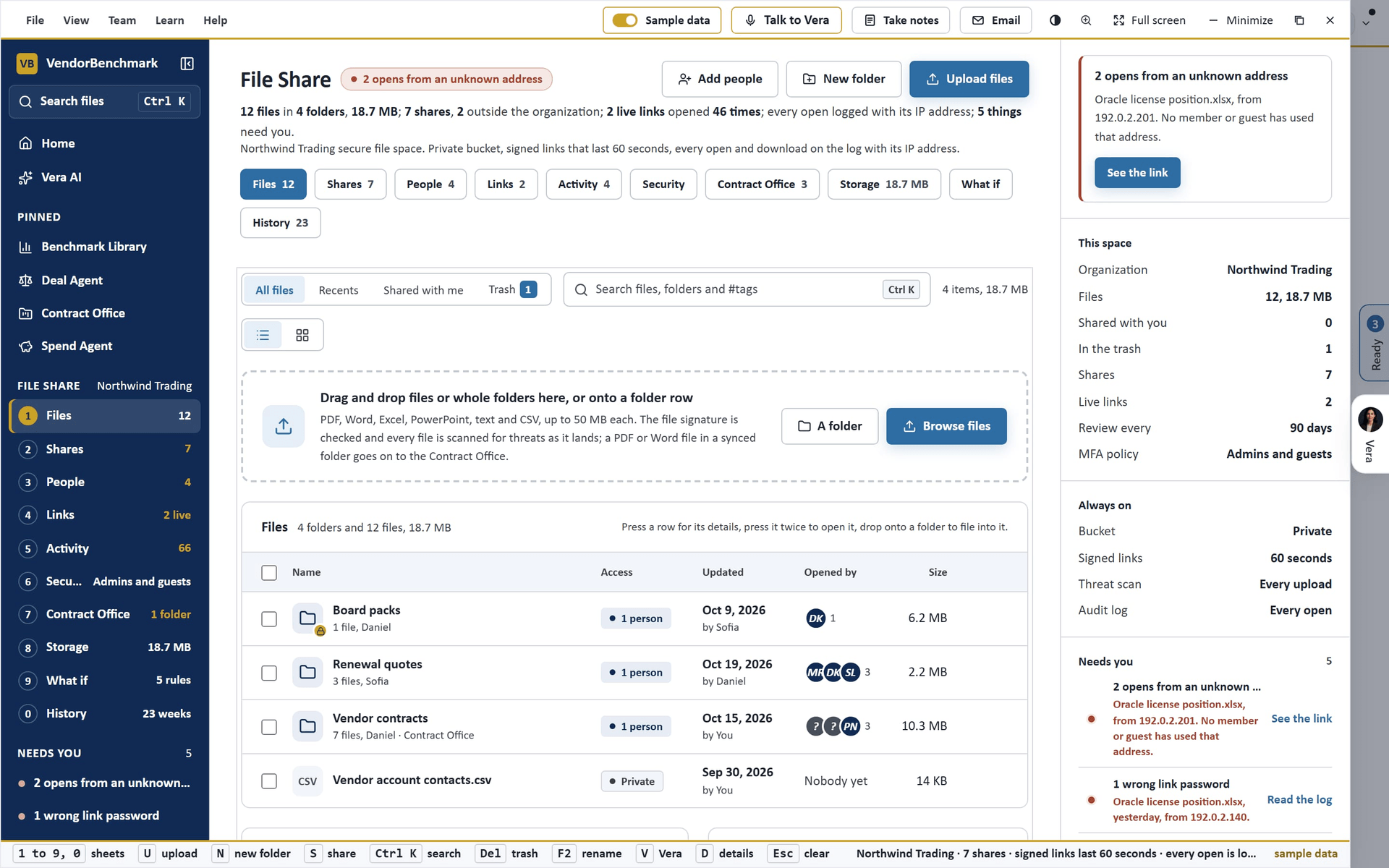
- The window: the frame every app shares: the File, View, Team, Learn and Help menus, the Sample data switch, Share, minimize, maximize and close in the title bar (light or dark and full screen are in View). The left column: Search files (Ctrl K), Home, Vera AI and your pinned apps, then the ten sheets as numbered rows with one figure each (files, shares, people, live links, log rows, the MFA policy, synced folders, what is stored, the rules, the weeks), for owners Needs you (an open from an unknown address, a wrong link password, access or a link ending within 14 days, a person without MFA, shares due for review; press one to land where it is dealt with), your top level folders with their counts and New folder, you with your MFA state, the other Messages and calendar screens, and Related. Press 1 to 9 and 0 for the sheets, U to upload, N for a new folder, S to share the selection, Del to trash it, F2 to rename, V to talk to Vera, D to hide or show the details, and Esc to clear. Owners open every sheet; members open Files, Links and Contract Office. Behind the MFA check every sheet waits until you verify.
- The head: File Share with its state (an open from an unknown address, things that need you, or All quiet), three actions with one primary (Add people, New folder, Upload files; each sheet has its own three), and one sentence that runs the space's facts: files, folders, size, shares and how many reach outside, live links and their opens, what needs you. Inside a folder the head is the folder's, with a way back.
- The ten sheets as chips: Files, Shares, People, Links, Activity, Security, Contract Office, Storage, What if and History, each with its figure; a red figure marks a warning or something waiting.
- The details column: on the right, opening with what matters now (an upload running, the selected file or folder with Open, Share and Copy the link, or the first thing that needs you), then for a selected item its facts, Require MFA to open, Contract Office sync or Send, who can open it and its activity; otherwise This space and what is always on (the private bucket, signed links that last 60 seconds, the threat scan, the audit log); then Needs you and questions to put to Vera.
- Files: All files, Recents, Shared with me and Trash in one switch, search across names and tags, list or grid. A slim drop at the top, and the whole window takes a drop: a veil names the folder the files land in, and the tray at the bottom right plays each file: uploading, the file signature and threat check, saved to the private bucket, and when the folder is synced, waits for the Contract Office. Every row: the kind's tile, the name with its MFA and Contract Office marks, the location, the version and tags, who can open it (Private, the number of people, Organization link, or Link, no sign in), when it changed and by whom, who opened it, the size, and on hover Share, Copy a link, Download and More. Press a row for its details, press it twice to open it. Right click any row for the full menu. Tick several rows to move them or move them to trash together. Under the table at the root: what went to the Contract Office from here, and a grid of who can open which folder (press a cell to change it). An empty folder shows what a folder like it usually holds.
- The reader: a file opens inside the window. A PDF is drawn in place through a signed link that lasts 60 seconds; other kinds open in their own tab or download. Beside the pages: who opened it with the time and the address, who can open it, and its details. Share, Copy the link, Download and Send to the Contract Office sit in its head. Every open is on the log.
- Share: invite people by email with a role (Co-owner, Editor, Viewer uploader, Viewer, Previewer or Uploader), an end date, MFA and a message. Anyone without an account gets one by email and sees only this item. On the right, turn the Shared link on and choose Anyone with the link (no password, no sign in), People in your organization or Invited people only; allow or stop downloads, set a password and an end date.
- Shares (owners): three glances (Outside the organization, When access ends, Due for review; press one to light its row) and the register: every grant and every live link as one row with the item, who it reaches, the access, until when, download or preview only, opens, last opened and last reviewed, with Revoke. Search it, filter it (Outside, Ending in 30 days, No end date, Download allowed, Due for review) and Export the register as CSV.
- People (owners): members and guests with MFA, last seen, last address, what each can open as chips (press one to go there) and when it ends; Give a folder and their activity; then the grid of who can open which folder.
- Links: a card per live link (what it opens, who can use it, opens, downloads, addresses and unknown ones, a bar for how much of its life is left, the password and download state, last opened, Copy, Change and Revoke) with a warning band on a link opened from an address no member or guest has used; then every link as a table, how a link opens, and the rules today.
- Activity (owners): Needs a look (an open from an unknown address, a wrong link password, a person stopped by MFA), the last 24 hours as an hour chart (people and link opens), then every event grouped by day with the time, the person or Link visitor, the action, the item, the IP address and the device; filter by action or person, search, 25 rows a page, Export CSV.
- Security (owners): the MFA policy as four cards, with who that policy would stop drawn under it person by person; whether links may open without sign in, whether they need a password, how long new links last, whether guests can download and the watermark; what is always on. Save changes lights when something moved.
- Contract Office: every folder with its PDF and Word files, what was sent and what waits, a sync switch and Send now; what happens; what was sent. Send what is waiting in the head sends every queued file.
- Storage (owners): what takes the space as a map of the top folders (press one to open it), by file type, what is shared outside the owner, and the trash with Restore and Delete for good.
- What if (owners): move one of five rules and see what it would change before anything is saved: four figures (shares that change, people stopped at sign in, opens the last 30 days would have refused, links that still open with no sign in), the notes, and every share with its effect. Apply these rules saves them as the Security settings; Back to today's rules resets them.
- History (owners): every week since the first row of the log as a chart (by people, link opens, a warning dot) and a table; press a week for its rows and the team's changes that week. Export CSV saves the weeks.
How to use it
- Open File Share from Home. Press New folder (or N) and name it; switch sync on if it will hold signed contracts.
- Drag and drop your files anywhere on the window, or press Upload files (or U). Watch each one land in the tray.
- Press a row and press Share (or S): type the email addresses, pick a role and an end date and press Share. Or turn the Shared link on and press Copy.
- Press a file twice to read it in the reader; Send to the Contract Office sits in its head.
- To keep outsiders to a second sign in step, an owner opens What if (9), picks Admins and guests or Everyone to see who it would stop, then Apply these rules.
- To review who can open what, open Shares (2), filter to Outside or Due for review, and press Revoke on anything that should stop.
Tips
- Trash keeps items 30 days with their links revoked; an owner can restore them before that.
- An end date is set when you share. To change one, remove the share and share again with the new date.
- Revoking stops a share at once; a copy someone already downloaded stays with them.
- Turning off Allow links that open without signing in ends every such link in your organization at once.
- Loosening a security rule asks you to have verified with MFA in this session first.
- Addresses at software vendors cannot be given access, as for every invite on the platform.
- The window you had before is at
/files?classic=1.
Your project
Since 15 October 2026 anyone with an organization can open a room of their own: press Open a room (the key N, or File, Open a room) in the window, on Delivery rooms on Home, or on the screen that says you are in no room. Name it, give it a vendor and the dates, add people who are already in your organization, and it opens with a starter plan ready; you run it (people, the statement of work, the plan). When the VendorBenchmark team runs a project with your organization, for example a proposal benchmark and the negotiation that follows, the people on it get Your project at the top of the left menu. Every proposal carries a 12 month Enterprise workspace, so while the project is open everyone allocated to it works on the Enterprise plan across the platform: every app, every benchmark and Vera. See Project access.
On the screen
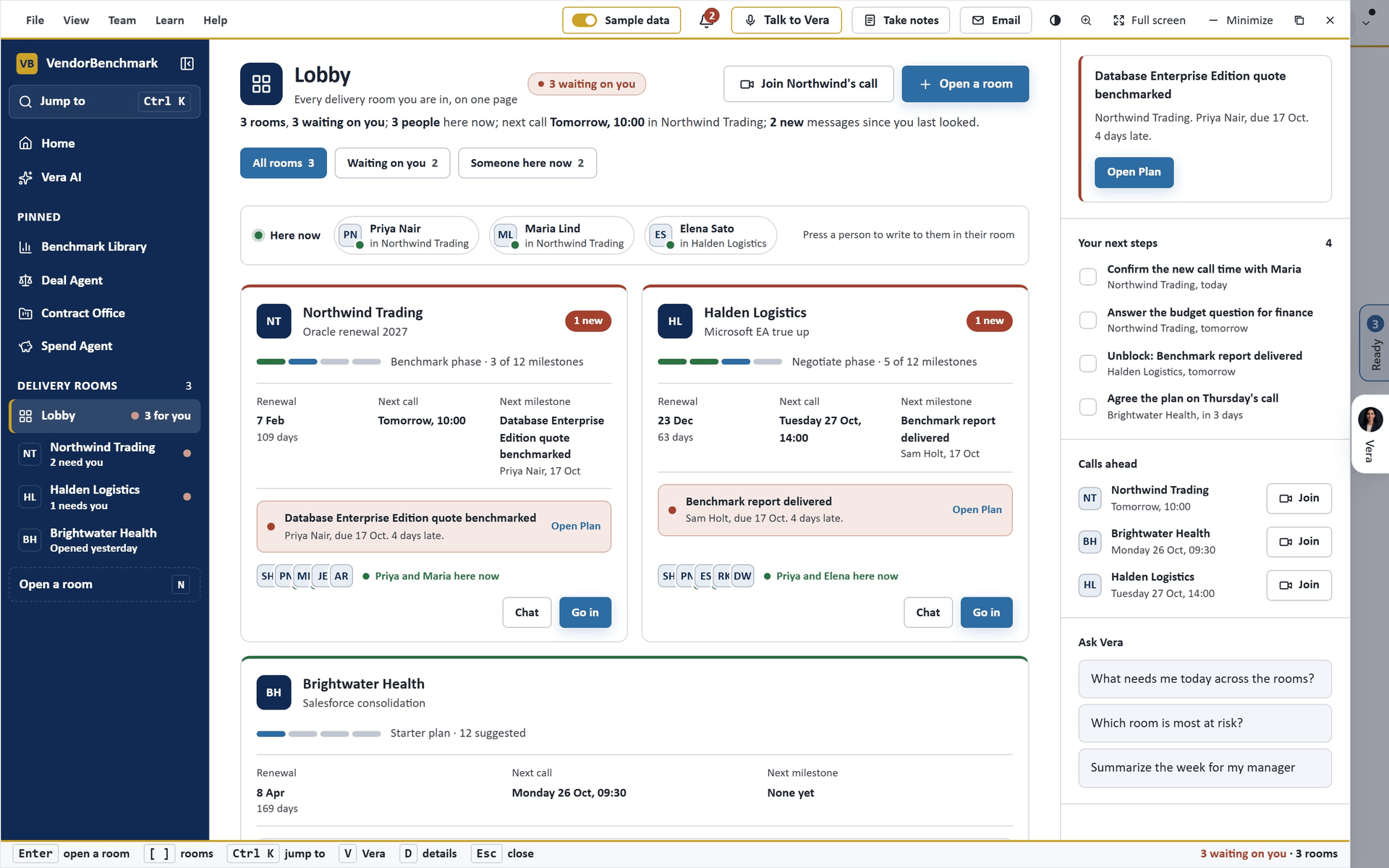
- The lobby (since 20 October 2026): where the window opens. Here now lists who is in one of your rooms at this moment; press a person to write to them in that room. Then one card per room: its phase on a four part bar (done, now, coming), the milestones done or the starter plan, the renewal and the days to it, the next call, the next milestone with its owner, what waits on you with its button (Answer, Reply, Open Plan), who is in the room with a green dot on whoever is here, and Chat and Go in. A red top edge marks a room where something waits on you. The chips across the head filter the cards: All rooms, Waiting on you, Someone here now. Under the cards: Open a room with three starting points (Renewal, Negotiation, A plain team room), Waiting on you (everything that needs you in every room, the most urgent first), Today across the rooms (the latest message of each room; press one to go to it) and This week (every room's calls, milestones and next steps, Monday to Friday, today outlined). The head says how many rooms, how many things wait on you, who is here, the next call and what is new, with Join for the next call and Open a room. In the details column: what to do first, Your next steps from every room with a box to select when one is done, Calls ahead with Join, and Ask Vera about every room at once.
- The window: since 15 October 2026 the room wears the frame the newer apps wear and opens filling the screen: the client at the top with the project line under it and one line of facts, the six tabs numbered, Jump to (Ctrl K) at the top of the left menu, and the one action in blue. Across the top: the menus, the bell (what arrived in this room, with a count; press it or B for the recent ones, each opening its tab; Quiet this room at its foot), Share, light or dark, minimize, maximize and close. While the room is open, a new message, file, milestone or set of minutes pops up in the corner with a button to its tab, unless the room is quiet. On the left: Home, Vera AI and your pinned apps, then Delivery rooms: Lobby with what waits on you across the rooms, then every room as a channel with one line of state (what needs you, the new messages, who is here, or the phase) and a red dot when something waits on you; the room you are in shows its six tabs under it, numbered, with a figure each. Open a room (N) sits at the foot. On the right, the details column; at the foot, the keys: L the lobby, [ and ] the previous or the next room, 1 to 6 the tabs, D the details.
- The head: Lobby above it takes you back to every room. The client with the room's state (the phase it is in, 1 milestone late, Opened today or Open, 12 days in while it has no milestones, or Closed), the project and the vendor under it, then one line: the renewal or target end and the days to it, the milestones done or the starter plan waiting, the next call, the people in the room, the new messages and the day the Enterprise workspace runs to. A room never waits for a statement of work. On the right: who is here now, Start a call (the room's call link, or the Live call room when it has none), Add people (whoever runs the room) and Write a message.
- Plan: the milestones on one timeline. A room needs no statement of work: while it has no milestones of its own it shows a starter plan, the twelve milestones a renewal usually carries (the contract collected, the usage export, the quote benchmarked, the position sent, legal review, signed) dated across the room's own span, drawn as hollow dashed dots and listed as Suggested. Press Use this plan to take them all, or the plus on a row to take one; change any of them afterwards by writing. The Timeline draws the four phases (Discovery, Benchmark, Negotiate, Close) as bands from the start to the end, each with its milestones as dots and Today marked: a green dot is done, gold is due this week, red is late, hollow is coming; press a dot to jump to its row. While Vera reads a statement of work the tab shows her progress and the figures as she finds them. Milestones lists them with the owner, the date and the state; select the box when one is done, or press Add a milestone. From the statement of work shows the fee, the term, the 12 month Enterprise workspace, the weekly call, the vendor and the renewal. Change the plan by writing takes a sentence and makes the change, with Undo on the toast: "Push the benchmark report by a week", "Move the position to 12 Nov", "Add a milestone: board summary on 29 Oct", "Make Priya own the legal review", "Mark the position done", "Move the weekly call to Tuesday 09:00"; a sentence about the scope ("Put migration planning in scope") goes to Vera, who moves the field. Before the statement of work is in, our team sees the upload and you see that the plan is coming.
- Chat: built like a Teams chat. The room card at the top says who is in, the figures and three questions to start, and lists the pinned messages; the days are pills; a run of messages from one person reads as one block (the time of each shows on hover); hover a message for the quick reactions, Reply, Pin and Delete; replies sit in a thread under their message, folded with the reply count; the composer at the foot carries Bold, Italic, a list, a link, @, a file, emoji, the kind and Send, and the list scrolls inside the tab. Everyone in the room and Vera, by day, the newest at the foot. A message can be a Message, a Question or a Decision; reply under one, pin it for the room, or delete your own. Write @Vera and she answers under your message, where everyone sees it. A file added to the room lands in the chat as a card (press it to open the file) with Vera's line that she has read it, and the minutes of a call arrive as a line from her. A red New since you were last here line marks what arrived since you last read the chat. Hover a message and press React to put one of five marks on it (agree, done, thanks, looking at it, celebrate); the marks sit under the message with a count, yours filled, and the names on hover. Filter by From Vera, Questions, Files or Pinned.
- Files: add a file at the top (PDF, Word, Excel, PowerPoint or text, up to 60 MB) and it is in the room; everyone in the room can open it and Vera has read it the moment it lands. Each row says who added it, when, and who may open it; press a row to read it (PDF opens in the reader), the lock to choose who may open it or make it read only, the arrow to download, the bin to remove it; a removal waits eight seconds with Undo on the toast before it happens. Who opened it lists every open and download. While the room holds fewer than five of the usual files, What a room like this usually holds lists them (the statement of work, the signed agreement, the vendor's quote, twelve months of usage, the benchmark report) with Add on each row.
- People: who is in the room, with Invited, not yet registered until a person signs in. Our team sees Add people: write one or several email addresses and press Send the invite; the person gets an email with sign in details and lands in this room. A software vendor's address is refused; taking someone off the room waits eight seconds with Undo. How access works says the rules. Our team also opens a new room from inside any room (N, or File, Open a room) in three steps: the client's account (an existing one or a new name) and the project with its dates and weekly call, the statement of work (uploaded now, or later on Plan), the people; Open the room creates it, sends the invites, and has Vera read the statement of work. View, As the client sees it shows our team the room as a client sees it.
- Next steps (since 20 October 2026): who does what next, with a date, shared by the room. Write what, choose who (Me or anyone in the room, invited people too) and by when, and press Add; a step given to someone else names them in the chat. Each row says where it came from (the minutes of a call, or who added it), the owner and the date, late in red. Remind posts a reminder in the chat; select the box when a step is done and Vera tells the room; the bin removes one with Undo. Who has what counts the open steps by person. From the room asks Vera to list the steps from the last call.
- Settings: the agents and your notifications on one page.
- Agents (under Settings): the AI agents on this room. Vera answers in the chat and keeps Where the room stands in the details column (press Write where we stand for a fresh read). Minutes agent joins the weekly call and writes the minutes into the room; set the recurring Teams, Zoom, Google Meet or Webex link under Set the weekly call and switch it on or off. File reader reads every file into Vera. Plan reader (our team) reads the statement of work into milestones again. Under them, what the agents did, and questions to put to Vera in the chat.
- Notifications (under Settings): one switch for the room, then four kinds, each on or off in the app and by email: new messages, files, the plan, call minutes. Quiet this room stops the pop ups and the emails from this one room until you switch it back; the bell still counts. Quiet hours and the weekly digest are set once under Settings, Notifications. Recent lists what this room sent you; a new one is marked.
- The details column: the client and the project, the state, the renewal and the days left, the milestones, the next call, the people and the workspace term; Needs you with one line per thing (a late milestone, an open question, the new messages since you were last here), each opening its tab, and Use the starter plan when the room has no milestones yet; Where the room stands, Vera's read; who is in the room; and Ask Vera.
- Two-factor sign in: our team can set a room to require it. The room then opens only after the 6 digit code from an authenticator app.
- Sample data: the switch at the top of the window, as in every app, shows three rooms in the lobby: Northwind Trading six weeks into an Oracle renewal (twelve milestones with three done and one late, five files, six people, the chat with Vera and the agents, a question waiting, five next steps), Halden Logistics with its benchmark report late and Microsoft's renewal nine weeks out, and Brightwater Health opened yesterday on a starter plan. It is drawn for you alone and nothing in it is saved; on the screen that says you are in no room yet, Look at the sample opens it, and switching it off brings that screen back.
How to use it
- Press Your project at the top of the left menu, or Delivery rooms on Home. The lobby opens: press a room's card or its row on the left to go in; it opens on Chat. Press a tab across the top, or the keys 1 to 6, to move between the six. L comes back to the lobby; [ and ] move to the previous or the next room.
- To tell everyone something, open Chat, write it and press Enter (Shift Enter starts a new line). Choose Question or Decision first when it is one. To answer, press Reply on the message.
- To ask Vera, write @Vera in a message, or press a question under Ask Vera in the details column.
- To add a file, open Files and add it, or press Add a file in the head. To read one, press its row. To choose who opens it, press the lock. To remove one you added, press the bin.
- To start the plan on a new room, open Plan and press Use this plan (or the plus on one suggested row); a statement of work is optional and goes in the card under From the room. To mark a milestone done, open Plan and select its box. To add one, press Add a milestone, give it a name, an owner and a date. To move one, add one, give one an owner, mark one done or move the weekly call, write it under Change the plan by writing and press Apply; Undo on the toast puts it back.
- To add people (our team, or you in a room you opened), open People, write the email addresses and press Send the invite (in your own room, Add to the room: the people must already be in your organization). A person our team invites shows as Invited until they sign in.
- To open a room of your own, press N or Open a room on the left, name it, give it the vendor and the dates, skip or add the statement of work, add people, and press Open the room. It opens on the chat with a starter plan under Plan.
- To give someone a next step, open Next steps, write what, choose who and by when, and press Add. To finish one, select its box. To see everything you owe across the rooms, look at Your next steps in the lobby.
- To have Vera join the weekly call, open Settings, press Set the weekly call, paste the recurring link, choose the day and the time and press Book Vera every week. The minutes land in the room after each call.
- To choose what you hear about, open Settings and switch each kind on or off in the app and by email. The switch at the top turns the whole room on or off; Quiet this room silences this room alone. The bell at the top of the window (B) lists what arrived.
- The earlier nine screen room (the wall, meetings, next steps, the Gantt, the timeline, the shared page, scope, requests) is under View, Earlier window.
Tips
- Vera answers only from what is in the project, and names where each fact comes from: a file, a message, a set of minutes, a milestone.
- A message, a file, a milestone or the minutes of a call reach everyone else in the room on the bell at the top and, when that kind is on, by email. Switch a kind off in the room or under Settings, Notifications; quiet hours hold the emails until the morning.
- The client, the project's name, the lead, the vendor, the start, the fee basis and the signature date are changed by our team; the product, the renewal date and the lists can be changed by anyone in the room.
- Every file is checked when it is uploaded (its real type, its size and a security scan) and is opened through a link that lasts about a minute, so a copied link stops working.
- Invited by email to a room: sign in with the details in the email, set your name, your own password and the terms, and you land in the room itself. Someone who already has an account finds the room as the first row of the left menu the next time they sign in.
- When our team closes the project, the room stays readable with its plan, chat, files and people, and nothing in it can be changed. Vera stops joining its calls and answering in it, and the Enterprise access that came with the project ends.
Tasks
Since August 2026 it opens in its own window with its own menu: the page list inside names the rest of Team & AI, so you move between them without going back out, and the entry you are standing on is marked. Escape puts the window down on the tab strip.
Shared to-dos for your team as one runway with four views: follow-ups on renewals, negotiation actions, and anything else worth not forgetting.
In plain words: the team's shared to-do list, attached to the work it belongs to.
When to reach for this
- Splitting a renewal's actions across people, with owners and dates.
- Handing work over cleanly: reassign the open items when someone leaves or a portfolio changes hands.
- Your own queue lives on My work; this page is the team-wide queue.
On the screen
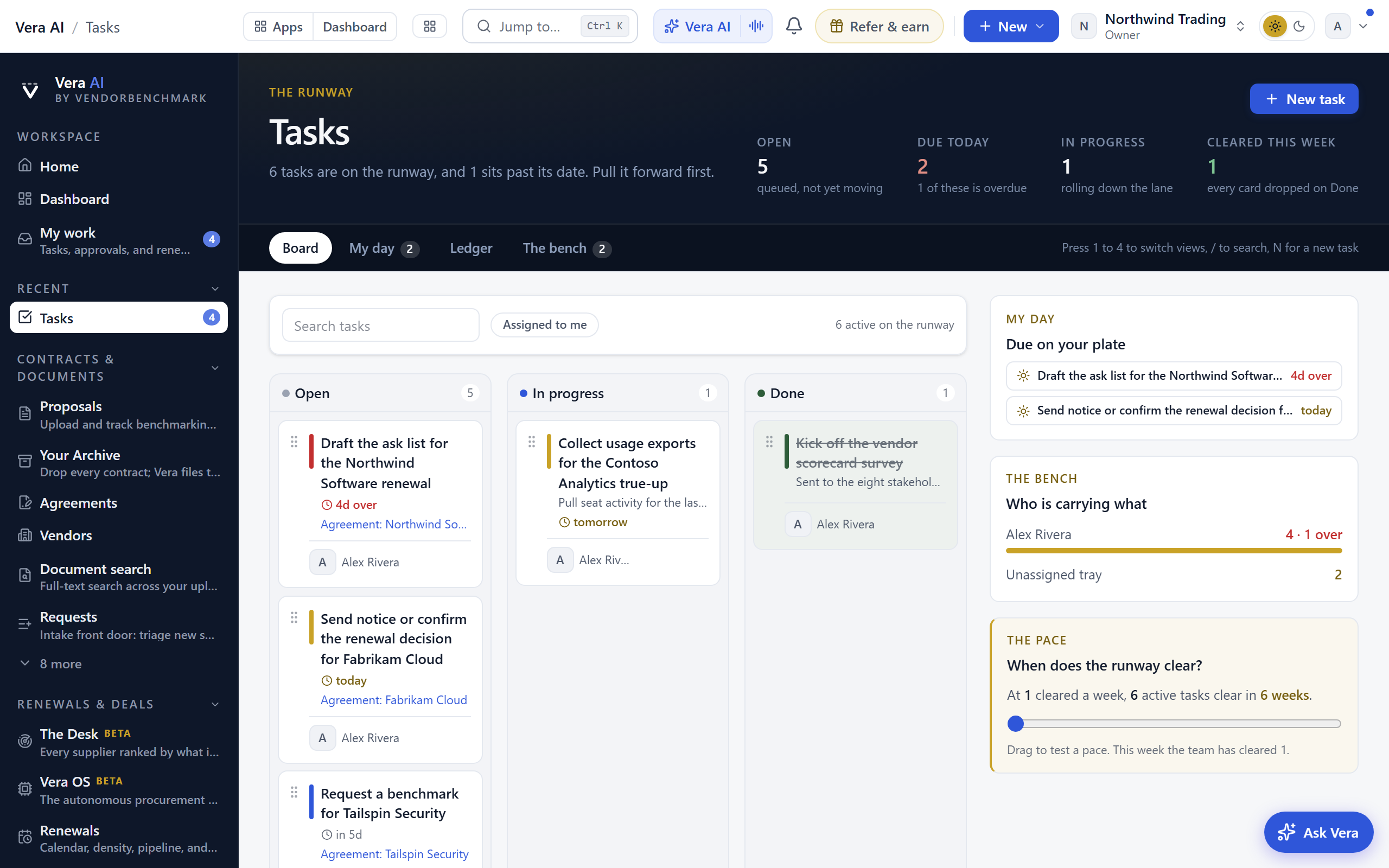
- The seven screens — Tasks, Approvals, Team, Agents, AI agents, Workflows and Support are one app: the tabs across the top open each screen, and since 30 September 2026 one compact row under them names the screen in navy on a gold bar, gives its main figures in one quiet line, and carries Simple or Advanced, Summary and the screen's own buttons at the right.
- Summary and Simple — press Summary (or I) to open a thin strip under the row with the screen's sentence, every figure with the line under it, and the date line; press it again to fold it. Simple (or V) keeps what you act on and hides the rest: the Moves, the what ifs, the side panels, the watch shelf and, on Support, the settled tickets. Advanced is the default and shows everything; your choice is saved to your account and follows you to every device.
- Moves — the row under the head in Advanced: the next steps for this screen, the first on a gold bar. Each one opens the record, the view or the screen it names.
- The runway head — states where the work stands: open, due today with the overdue count called out, in progress, and cleared this week. These four move as you work, so the figures are always the board you are looking at. The New task action lives here too. Its Moves are New task, Hand the most overdue to Vera (when anything is past its date), Open My work and Balance the team.
- Four views, one board — the view strip under the head switches views, and a band over the list names the view with its active, past date and due today counts: Board (the drag and drop lanes), My day (every active task in landing order, grouped past their date, due today, tomorrow, this week, further out, and no date), Ledger (the whole runway as a dense table, with a toggle to include Done), and The team (who is carrying what, with a load bar per teammate and their next due task). Press 1 to 4 to switch, / to search, N for a new task.
- An empty runway — with no tasks yet, the board shows how work moves along it in four steps: put it on the runway, work the board, land it by date, and hand it to Vera. The view hint and the active count sit right after the tabs and the filters rather than at the far edge.
- The task file — click any task in any view to open its file on the right, where the status, due date, owner, and notes all edit in place. The file is in the page address, so a forwarded link opens straight on that task.
- The pick up tray — the team view leads with tasks that have no owner. Take it assigns one to you with a click; unowned work is how a date gets missed.
- One click complete and defer — in My day, the circle at the left of a row marks it done, and the Today and +1w moves push its date without opening anything.
- The pace instrument — at the side, it answers when the runway clears: move the Tasks cleared a week slider to test a weekly clearing pace against the active count. It starts at this week's real pace.
- Delegate to Vera — every open task carries a sparkle control (on the board, the row, and inside the file). Delegating hands the task to Vera, the AI teammate: she reads the task and its linked record, writes the finished work product into the task notes, moves it to Done, and notifies you. Requires an AI plan.
- What next — the runway ends with What next, built from the board's own numbers, including handing the most overdue task to Vera.
- Read and watch — in Advanced, under the runway: the films, analyst briefings, research papers and guides the library holds on your vendors, laid out as in the agents, the vendors your open tasks point at first. A row opens its piece, and it loads when you scroll to it.
How to use it
- Create a task with N or the New task button, assign it to the teammate who owns it, link it to the vendor or renewal it belongs to, and set a due date.
- Run the week from My day: work the list top to bottom, complete with the circle, and push dates with the defer moves when the plan changes.
- Once a week, open The team: empty the pick up tray and balance the load bars before anything slips.
- To see just the items assigned to you rather than the whole team, use the Assigned to me filter or open My work.
Decisions
Approvals is the Decisions screen of the AI agents window since 6 October 2026: the third of its four tabs, beside the floor, the roster and the plan, so the sign offs your agents hand you sit in the same window as the agents. Old links to /approvals open here, carrying the tab and the highlighted request across. The screen's rows and tabs are the ones Approvals had.
Sign-offs your team routes through the platform, for example a negotiation mandate waiting for a budget owner. The gate is a five tab board: the queue leads, the setup sits behind its own tabs.
In plain words: the sign-offs waiting on people, and the chain they run through.
When to reach for this
- You are an approver: the queue is where deals wait on you.
- A deal needs its documented sign-off before signature; the chain itself is configured by owners under Deal approvals.
On the screen
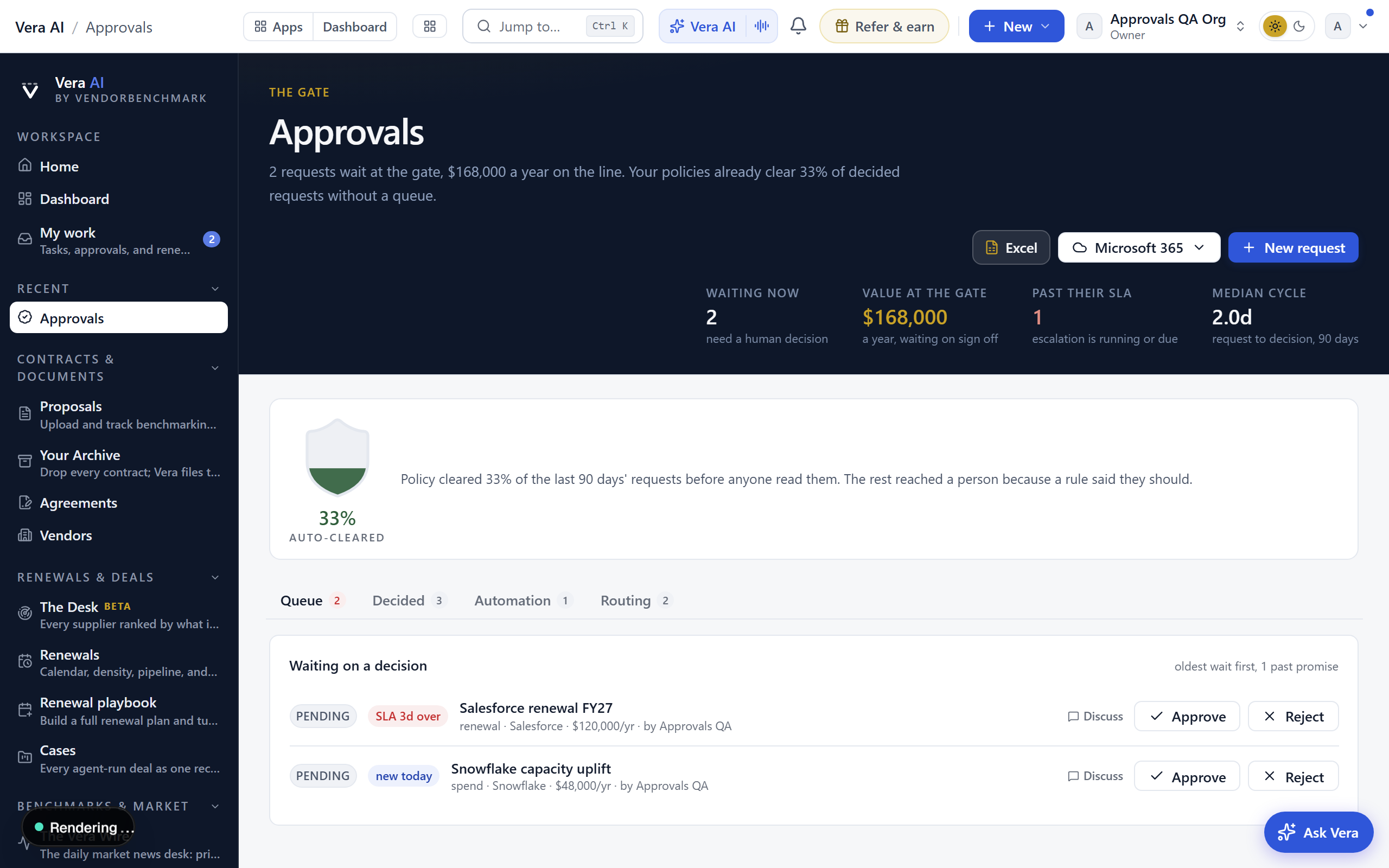
- The head — what waits and what it is worth: Waiting now, the Value at the gate a year, how many are Past their SLA, the Median cycle from request to decision over the last 90 days, and the share the policies Cleared in those 90 days. Excel, the Office menu and New request sit at the right.
- The sidebar — the gate (waiting on you, decided, staged by Vera) and the rules (automation, routing, the policy what if), each with its count. A row opens its tab on the board.
- The gate — the panel that holds the board, with the waiting and past SLA counts in its header.
- Queue — every request waiting on a human, oldest wait first. Each row shows how long it has waited or the days left on its SLA, who it is routed to, and the AI risk summary; approvers decide right on the row. Each pending request also carries a Vera's read line: the ask, the vendor's delivered benchmark position, and the routing rule that queued it. The tab count turns red when a request is past its SLA. With nothing waiting, the Queue says the gate is clear with New request beside it, shows the four steps a request takes (raise it, it routes itself, or clears on policy, decide with the read) and, once decisions exist, the approval cycle time; an empty Decided tab shows the same four steps.
- Decided — the decision ledger: cycle time analytics (median days from request to decision, decisions per month), plus a search box and an outcome filter (approved, rejected, auto approved, human decided).
- Automation — your auto approve policies and the rule proposals learned from your own decision record. Every auto approval lists the guards it passed.
- A deal sign off — a deal's sign off opens on its own page under the Approvals head with the request as its title: status, seats approved, the opening quote, where the price stands, the annual movement and the concessions each side gave in one row, Decide at the right. The brief reads as a document beside the decision panel.
- Vera's review — on a deal sign-off request, Vera reviews the snapshot before the chain votes: the latest quote against the mandate target, the concession balance, and the price movement. Her Flagged or Clear verdict, the checks behind it, and a short analyst note render beside the chain's votes. She advises the chain and never casts a vote.
- Routing — the authority matrix (which type and amount band routes to whom, with optional second steps and SLAs) beside the approval threshold.
- Staged by Vera — the fifth tab: every change a specialist staged for you and you have not yet decided, in one sitting, worst first: the agreement's annual value, then the nearest notice deadline. Each carries the staged change in plain words, a decision's reasoning, the vendor, the value a year, the notice date, when it was staged, Open the agreement, and Keep or Discard, the same press the conversation offers. Say show me what you staged to a specialist and the page opens on this tab. These are yours alone: a colleague's staged changes live in their own queue.
- New request — the button on the head row opens a side sheet to raise a renewal or spend item for sign off.
- The record behind the ask — every row links the thing being approved, named for what it is: open the contract, the negotiation, the case, the renewal, the sourcing project. It is there on pending rows, so you can read the record before you decide rather than after, and it is offered again the moment you approve or reject.
- Policy what if — under the board: the bars are the last 90 days' decided requests by annual value, those under the line in navy. Move Auto clear up to and read what the queue would do: how many of those waiting would clear by policy and their value, how many still go to a person, and the share of the last 90 days' decisions the same line would have cleared. A request with no value always reaches a person. It saves nothing; the policy itself is set on the Automation tab.
- The details column — the gate in figures, the next moves (the oldest request first, then automation and routing) and Ask Vera.
- What next — the page ends with What next, built from the queue's own numbers.
How to use it
- Open the Queue tab, open the record behind anything you are not sure about, then approve or reject each item. A rejection asks for a reason; it becomes the audit trail.
- To raise something for sign off, use New request on the head row; routing rules pick the decider.
- Track past sign offs and your approval cycle time on the Decided tab.
- After a long session with a specialist, or the overnight drive, open Staged by Vera and keep or discard the staged changes in one sitting rather than hunting through the conversation.
Related: Deal approvals setup · My work
Team
Since August 2026 it opens in its own window with its own menu: the page list inside names the rest of Team & AI, so you move between them without going back out, and the entry you are standing on is marked. Escape puts the window down on the tab strip.
Who owns what across your organization, and more importantly what nobody owns: renewals without an owner, open tasks, and assigned findings.
In plain words: the ownership map, with the unowned things surfaced first.
When to reach for this
- The weekly "is anything falling between people?" check: an unowned renewal inside its window is the finding that matters.
- Rebalancing load when someone is drowning or departing.
On the screen
- The seven screens — Tasks, Approvals, Team, Agents, AI agents, Workflows and Support are one app: the tabs across the top open each screen, and since 30 September 2026 one compact row under them names the screen in navy on a gold bar, gives its main figures in one quiet line, and carries Simple or Advanced, Summary and the screen's own buttons at the right.
- Summary and Simple — press Summary (or I) to open a thin strip under the row with the screen's sentence, every figure with the line under it, and the date line; press it again to fold it. Simple (or V) keeps what you act on and hides the rest: the Moves, the what ifs, the side panels, the watch shelf and, on Support, the settled tickets. Advanced is the default and shows everything; your choice is saved to your account and follows you to every device.
- Moves — the row under the head in Advanced: the next steps for this screen, the first on a gold bar. Each one opens the record, the view or the screen it names.
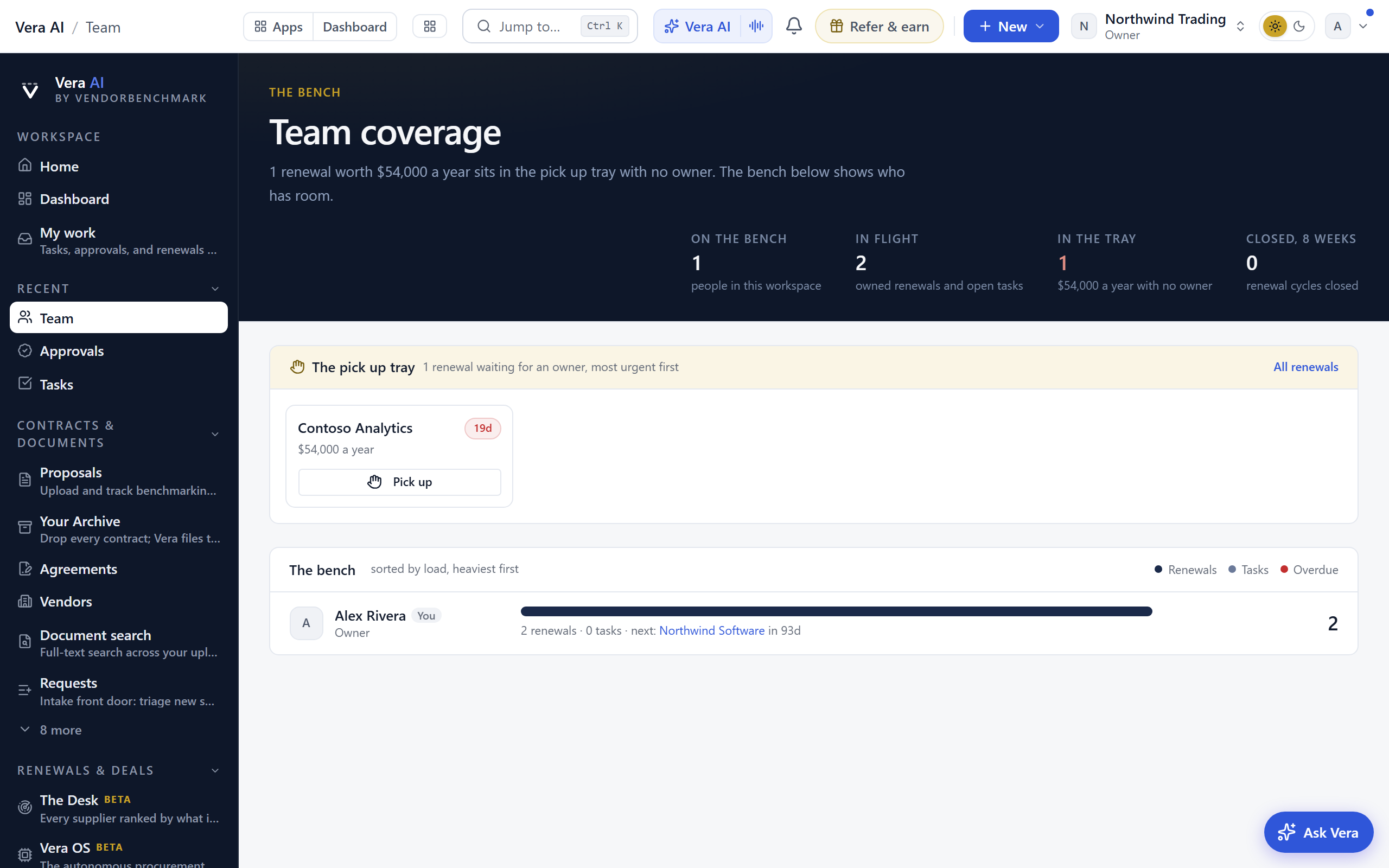
- The team — the head states the coverage verdict: people in the workspace, owned renewals and open tasks in flight, what sits in the pick up tray with no owner and what that is worth a year, and the renewal cycles closed in the last eight weeks. Its Moves pick up the most urgent unowned renewal, open the tasks, open Renewals and invite a colleague.
- Team pulse — renewal cycles closed per week over the last eight weeks, once anything has closed.
- Coverage — under its own band with the heavy line: each teammate with the renewals, tasks, and findings on their plate, heaviest first.
- What if the tray is handed out — in Advanced, while anything sits in the tray: move the Renewals handed out slider and each unowned renewal goes to whoever carries least, in the same order every time, drawn per person against the heavy line, with the heaviest plate after. It moves nothing; Pick up in the tray is the real assignment.
- Unowned renewals — under The pick up tray band: agreements with no renewal owner, most urgent first, as cards that wrap across the width, each with its notice deadline, its value a year and Pick up. It shows the twelve most urgent and links to Renewals for the rest. Assign these before a notice window gets missed.
- Read and watch — in Advanced, under the member rows, before What next: the films, analyst briefings, research papers and guides the library holds on the team's vendors, laid out as in the agents, the agreements nobody owns first by value. A row opens its piece, and it loads when you scroll to it.
- What next — the page ends with What next, built from the team's own numbers, the unowned work leading.
How to use it
- Scan the unowned renewals first and assign an owner to each one.
- Use the member rows to balance who is carrying what.
Tips
- Owners can invite a teammate from here when there is more work than people to cover it.
Board
Since August 2026 it opens in its own window with its own menu: the page list inside names the rest of Team & AI, so you move between them without going back out, and the entry you are standing on is marked. Escape puts the window down on the tab strip.
The team's durable forum beside the chat stream: decisions, vendor intel, questions, and wins, shelved so they can be found again months later.
On the screen
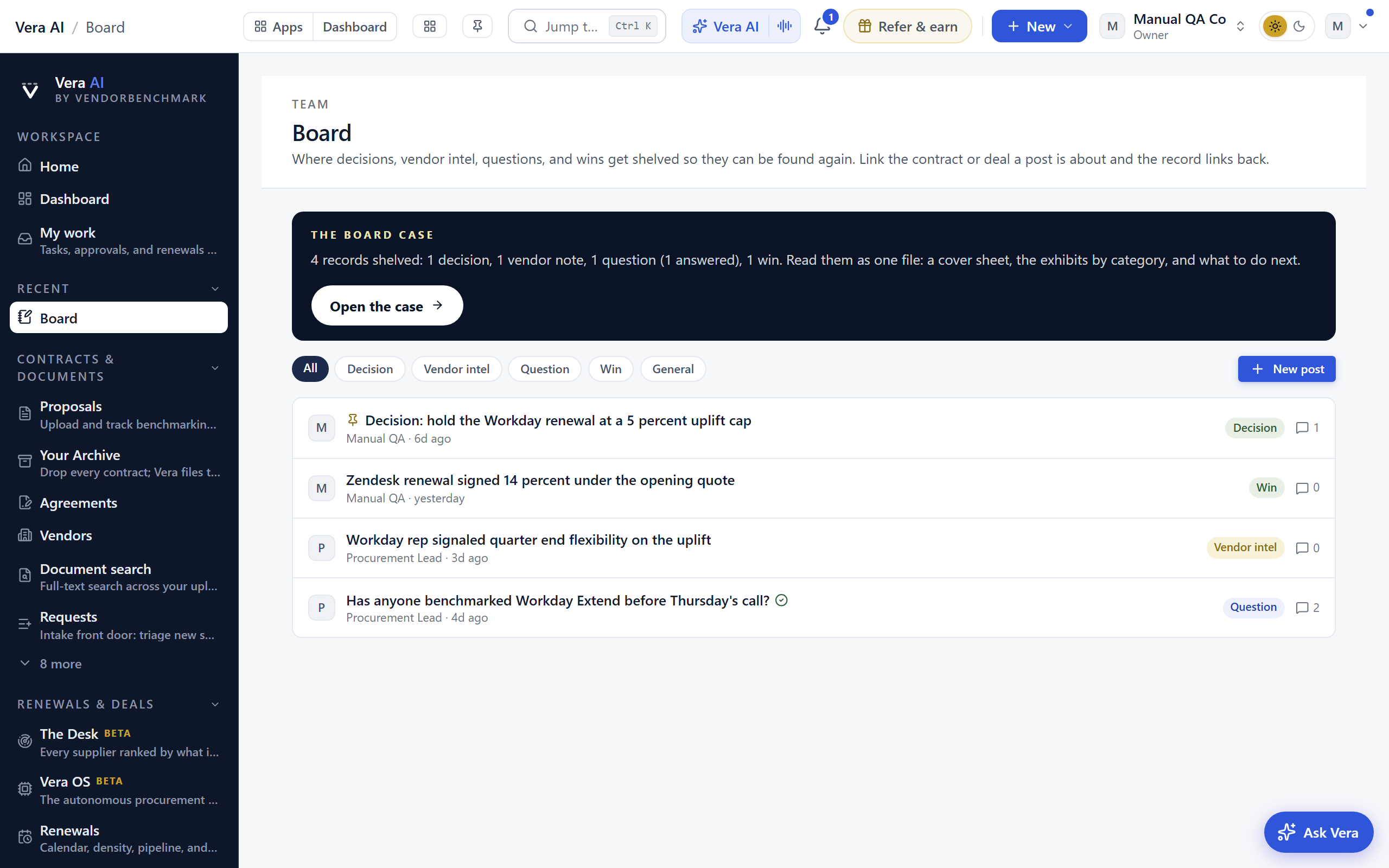
- The head — since 27 September 2026 the house masthead: Board with Team as its subtitle, one line with how many posts sit on the board (or in the category you filtered to, of the whole board), the gold meta line, and one row of facts read off every post: posts, decisions, open questions (a question stays open until an answer is accepted), wins, pinned posts and posts in the last 30 days.
- The steps — All, Decision, Vendor intel, Question, Win, and General as numbered steps above the masthead, each with how many posts it holds; a step filters the board to that category, with pinned posts leading every list. Question is marked at work while one waits for an answer. Under the masthead a navy band names the list with its count and carries New post.
- Activity — at the foot, posts a week over the last eight weeks as bars.
- The post table — one row per post: the title with the opening words of the write-up under it, the category, who posted it and when, the reply count, and when it was last updated. A pin marks a pinned post and a check marks an answered question.
- By category — under the table on the All tab: each category with what it holds, its newest post and how many posts it has. Press a row to filter to that category.
- Start a post — beside it: one template per category with the sections each one asks for. Press one to open the composer already filled in.
- Posts — open one for the title, the write-up, and threaded replies. The post uses the full window: the thread on the left, and beside it About this post (category, who posted it and when, replies, last activity, the accepted answer on a question, and whether it is pinned) and More in its category, the other posts on the same shelf. Record links in a post render as the record itself, grounded, the same way chat shows them, and @mentions notify the teammate.
- Link a record — the composer's control for inserting a proposal, renewal, deal, or vendor reference; the record's page lists the post under Discussed in.
- Templates — Start a post, and the composer's Start from buttons, prefill the shapes teams shelve: a Decision memo, a Vendor review, a Question, a General note, and a Renewal retro.
- Accepted answers — on a question, the author (or an owner) marks the reply that settled it; the list shows a check so nobody re-litigates.
- Pins — owners pin the posts the whole team should keep seeing.
- Open the workroom — on the All tab, once a post exists, a green button on a white band opens the board as a workroom. It carries a cover sheet with live counts, an exhibit per category, the question docket, and a What now sheet. What now, in the inspector, drafts the board digest for circulation, emails it to your team, copies the digest or the one line summary, proves the wins as savings, opens the estate the records govern, shelves the next record, and opens the newest one. Ask Vera answers from the records themselves rather than from a summary of them. It reads live from your newest posts; nothing is generated or stored, and nothing sends from a workroom.
How to use it
- When a decision lands (walking away from an uplift, standardizing on a vendor), write it up as a Decision post and link the deal it came from.
- Ask the team with a Question post; accept the reply that answers it.
- File what a rep told you as Vendor intel so the next negotiator starts warmer.
Tips
- Chat is for the conversation; the Board is for what should outlive it. When a thread reaches a conclusion, shelve the conclusion here.
Related: Chat · Tasks · Record pages
AI agents
Since 22 October 2026 the window opens on Today and has six places, numbered down the sidebar and on keys 1 to 6: Today (what needs you, what the agents did, the money they caught, the shift board), Your team (the agents you hired as cards, one button each), Hire (the 17 jobs grouped by the question you have), The floor, Decisions and The plan. It wears the frame every app shares: the title bar with the menus (the Team menu lists the rest of Team & AI, View has the places and Earlier window), Share, light or dark, Minimize, Maximize and Close; the sidebar with Find, Home, the places and your agents; the head over the gold rule; the details column on the right; and the keys along the status bar. Close returns you to Home. The earlier window (the roster and its four tabs) is at /ai-agents?classic=1 and under View, Earlier window.
Each agent holds a single job, wears the name you gave it, and keeps a conversation with you that never ends: come back next week and it is exactly where you left it. Seventeen jobs to hire from, covering the arc of a negotiation, a standing watch on your vendors, and the moves that hold the line when a vendor pushes. One word says how far an agent may go, the leash: Watch, Draft or Act.
In plain words: staff you hire, name, and talk to, and one list of what they need from you.
The six places
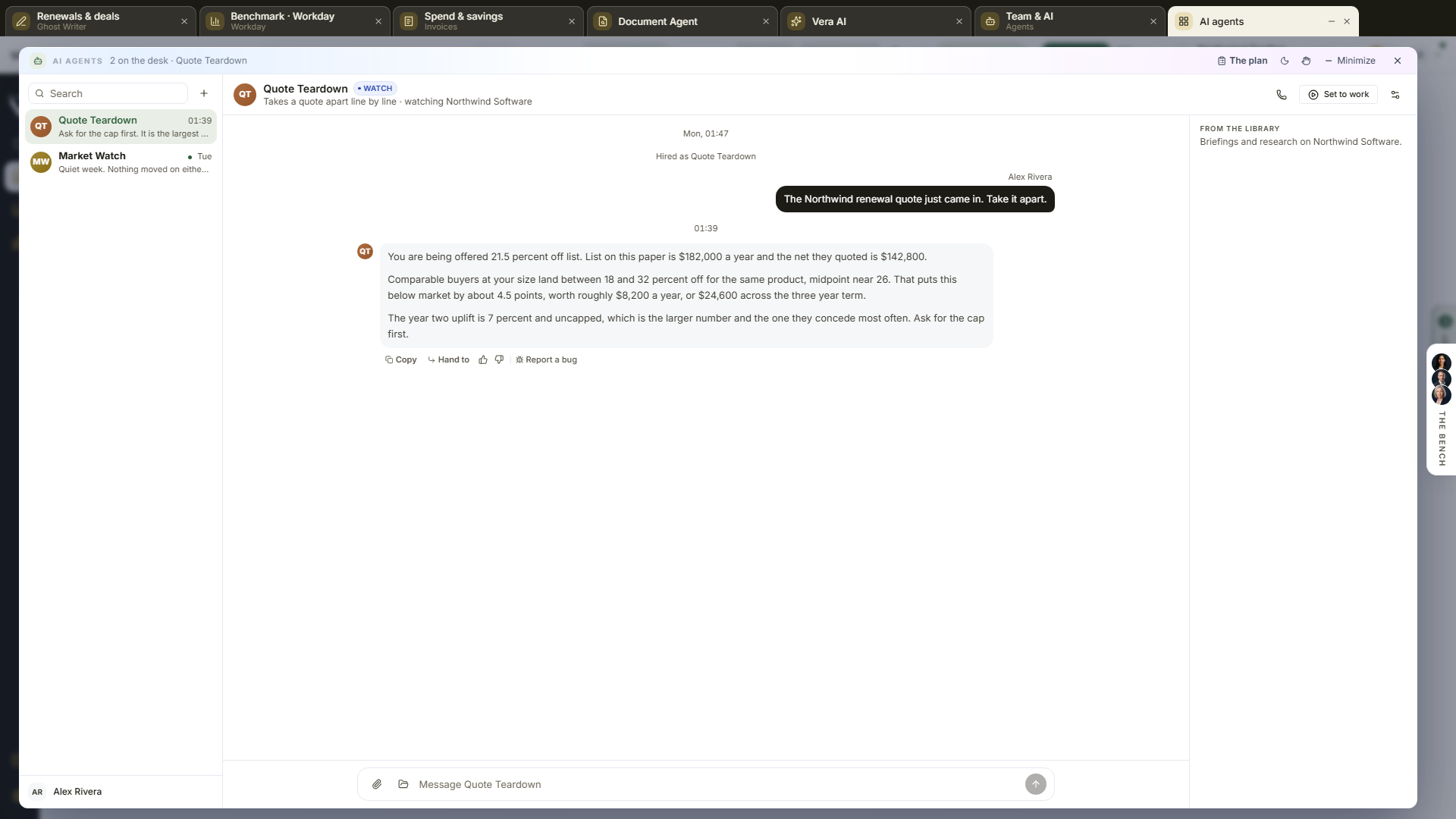
- Today (1) — opens first. Getting started walks a new team through four steps (hire, point it at your vendors, set one to work, decide what it asks) and can be hidden. Needs you lists everything an agent may not do alone, the most urgent first: a decision at the gate with its value and how long it has waited on a countdown ring, a question the plan asked you, a hire the plan proposes, an agent with news; each row has one button (Approve, Decline, Answer, Hire, Read it), and the first is the primary. What the agents did is the newest runs and lines. Money caught is the verified outcomes ledger. The shift board is thirty days, one row an agent: a blue cell ran, gold waited on you, brick stopped; today is outlined. The details column says what to do now, the team's figures, the next moves and three questions for Vera.
- Your team (2) — every agent as a card: its face, name and job in a sentence, its state (On duty, Has news for you, Working now), its leash, what it watches, runs in 30 days, the last thing it said, and one button: Watch it work while a run is live, Read it when it has news, else Set to work. Setup opens the agent's settings. Stood down agents sit under the cards with Read it and Rehire.
- Hire (3) — the 17 jobs under three questions: I have a negotiation coming, Watch things for me, The vendor is pushing; chips and a search box narrow them. Every card says what the job Reads, Does and Lands, one thing to say to it, its leash at most and the steps a run takes; On your team marks a job you already hired. Pressing a card opens the hire in three steps: What it does (the chain and three things to say to it on day one), Point it (a name, the vendors ticked from your own contracts, what you want out of it) and How far it may go (the leash, never past the job's ceiling), then Hire. The new agent opens on its conversation.
- The floor (4), Decisions (5) and The plan (6) are the same rooms as before, described below and in The floor.
- An agent's page — the conversation, with two tabs under the head: Conversation and Work (every run as the same cards the conversation shows, what a run does and what it lands), and Setup, which opens the sheet.
On the screen
- The places — the six numbered rows at the top of the sidebar, keys 1 to 6; Talk to Vera (V) asks Vera about the place you are in, H opens Hire.
- The head — on Today: the tag (how many things need you, or All clear), one line with the agents on duty, the runs and the gate, and Hire an agent beside the first thing to do. On Your team and Hire: the count and the one action. With a conversation open the head is the agent's: its name, how far it may go, its job and the vendors in its care, and Live call, Setup and Set to work at the right.
- The roster — Your agents in the sidebar: every agent you hired, most recently active first, each with its face in its own color and its name. new marks an agent that spoke or worked since you last looked, until you open it, and holding the pointer on a row shows the last thing it said to you or did on its own record, never a line from a colleague's conversation. The Agents menu in the title bar lists the roster too.
- Find an agent — at the top of the sidebar, or Ctrl K. It filters by name, job, vendor and the last thing said immediately, and from three letters on it also searches what was said in your own conversations and on the agents' records, so typing the uplift cap finds the agent you discussed it with, marked said.
- Stood down — the sidebar group under the roster holds every agent you have stood down, read only. Open one and its whole conversation is still there; Rehire puts it back on the roster and its chain back to work, inside the same 24 agent ceiling as hiring.
- Related — at the foot of the sidebar: Runs (every task an agent ran, on the runs console) and Specialists. The sign offs are the Decisions tab.
- Hire an agent — the last row of Your agents, the head's button, or the Agents menu. It opens the catalog of seventeen jobs, grouped by what the agent is for: working a deal, standing watch, holding the line. Pick one and its dossier opens beside it, saying what it reads, what it does, where its work lands, and how far it is allowed to go.
- The conversation — one thread per agent, and since 1 October 2026 it is yours: what you asked and what it answered you is read by you alone, and the agent never carries it into a colleague's conversation. Nothing is cleared when you close the tab. Your own messages carry your name, and answers carry the same citations as the main Vera conversation, with copy and feedback under each.
- Yours and the workspace's — two things sit in the same thread:
- Yours alone: your questions, its answers to you, the work you handed to it, and what it remembers of your conversation.
- Shared with your workspace: the agent itself (its name, job, leash, vendors and standing brief), every time one of those changed, every run it did, whatever set the run off, the documents a run wrote, and the plan's turns. The weekly reads and upload triggered runs land here too, not only the ones you started.
- The folder — beside the paperclip, for a contract you already hold. Search Contract Management Portal by vendor or title, press the one you mean, and the real document goes onto this conversation and rides with every question after it. Only records carrying a PDF or Word file are listed, because a record you cannot attach is a dead entry in a list, and what you can see is what your own permissions already allow you to open.
- The paperclip — attach a PDF or DOCX to the conversation, or upload one straight on the composer. It rides with every question in that thread, so turn nine can still ask about clause 9, and each question shows which documents it carried. Four documents at a time, the same limit as the main conversation. A document uploaded anywhere on the page while an agent is open lands in that agent's conversation as well, so the document stays with the thread you are working in.
- What the agent itself remembers — its own finished runs, what each one wrote and whether it finished, so asking it about its work gets you the work rather than a fresh start. It will not claim a finding from a run that stopped early. When your conversation grows past what it can hold at once, the earlier part is folded into a running summary overnight, so a thread you have kept going for months still knows what was decided in week one. The summary is of your conversation only, and what Vera knows about you rides into it as it does into any conversation with her.
- Hand to — under any answer or finished run, pass that piece of work to another agent on your roster. It arrives in your own conversation with that agent as a starting point to build on rather than as a question to answer, and both of your threads record it, so neither has a hole. Agents never message each other on their own: a person presses the button, or the plan you approved names the hand-off (see The plan), which is what keeps two agents from answering each other unattended.
- The plan — the fourth tab: the team's plan, where the roster works one mandate together. Turns from the plan land in an agent's conversation: the instruction it was briefed with, a report that reached it, a colleague on the specialist list it consulted.
- The vendors in its care — the watch list, set when you hire the agent and changed under the gear. It decides two things: which documents the agent picks up, and which vendors its work is about. An agent watching Microsoft stays out of the way when a Salesforce contract is uploaded and leaves it to the agents that do watch Salesforce, and it reads through the legal name on the document, so watching Microsoft catches Microsoft Ireland Operations Limited. Leave the list empty and the agent takes every upload, which is usually what you want from your first one.
- Set to work — tells the agent to do its job now, and first asks one optional question: anything specific this time? What you type steers that run only; the standing setup is untouched. Since 2 October 2026 the note is yours alone: it is kept as a line in your own conversation with the agent, and it is not on the run your colleagues see. The documents the run writes are still shared with your workspace, so a note that steers a run shapes what they read. The run is the same workflow run you see in Workflow agents and in the runs tray. The run appears in the thread and updates live, counting the steps, then lists every document it wrote with a link to the real thing.
- The phone button — takes this agent into the live call. Its job, the vendors in its care, your goal and its standing brief arrive as the call persona, written out on the sheet for you to read and edit before you dial.
- From the library — the details column on the right holds the briefings to watch and the research to read for the vendors in the agent's care, or for the vendors the conversation itself names when it has none. Films open in place; documents open in the research reader. Under them, always, This agent says when it was hired and when it last spoke, and Ask Vera puts a question about it or its vendor to Vera.
- The gear — open to everyone on the workspace since 2 October 2026. With edit access it is the settings where you change the agent: its name, its job, how far it may go, the vendors in its care, what you want out of it, and its standing brief. Without edit access the same sheet opens read only: how the agent is set up, with nothing on it that changes the agent. Either way it shows This month, counted: answers it gave you, runs finished and documents written, counted from the record and never estimated. And What it remembers of your conversation: once your conversation outgrows what the agent holds at once, the earlier part is folded into a running summary only you can read here, and Clear when you want it to start fresh, which any member can press for their own conversation. The transcript itself always keeps everything.
- Before you hire — with no agent hired yet, the catalog is followed by How an agent works in four steps and What an agent would work on: your latest contracts with their status and annual value, and the renewals coming up with the days out, the notice date and the annual value, in US dollars. Under them, Vendors on file lists your largest vendors by the annual value their contracts state: the contracts on file, each vendor's share of that stated spend and its next renewal date. Each row opens the vendor.
How to use it
- Press Hire an agent and pick the job you need. Start with Market Watch if you want something running quietly, or First Call if you have a contract in front of you.
- Give it a name. The job's own name is filled in, so pressing Hire without changing anything is fine.
- Type a message the way you would to a colleague. It answers from your own agreements, spend and the market evidence.
- When you want work rather than an answer, press Set to work (on the card, in the head, or W) and watch the run on Work.
- When one agent's work is the next agent's starting point, press Hand to under it and pick who takes it.
- Come back whenever. The thread is where you left it, and the roster tells you which agent spoke last.
How far an agent may go
- Watch — it reads and it tells you. Nothing is written on your behalf. Every agent starts here.
- Draft — it writes the documents and the vendor-facing letters its job produces, and leaves them with you. You send them, or you do not.
- Act — it takes the in-platform moves its job allows, such as opening tasks and recording dates and obligations, each of them logged and reversible. Anything that leaves the platform still waits for a person.
Each job states its own ceiling, and the dial cannot be pushed past it: a job that only reads will not offer Act however you set it.
The standing brief
Under the gear, Standing brief is what you want from this agent in your own words: what to lead with, what to always include, how long to be. It steers how the agent writes. It cannot loosen the platform's grounding or confidentiality rules, and it is checked before it is saved.
Tips
- Changing an agent's job keeps the thread. An agent that watched the market in March and prepared the renewal in June is one agent with a history, not two.
- Stand down takes an agent off the roster and stops it running on its own. Everything it wrote and every run it finished stays exactly where it is.
- One job per agent works better than one agent doing everything. Two threads you can tell apart beat one you have to search.
- Name the vendors an agent watches when you want a quiet roster. Three agents each watching one vendor give you three clean threads; three agents watching nothing all wake up on the same upload.
- Handing work over beats copying it. The receiving agent is told which agent sent it and takes the finding as given, so it does its own part instead of repeating the analysis you already paid for.
Related: The plan · Workflow agents · Vera AI · The floor
The plan
The agent team, since September 2026. Your chief of staff holds the quarter's mandate, drafts the plan from your estate, briefs the agents on your roster, and they work it together: in parallel, reporting back, handing their findings to the next step, with every line on a ledger you can read. The plan is the fourth tab of the same window as the floor, the roster and Decisions: the sidebar lists the plan's workstreams with how many of their steps are done (press one to go to its column on the board), then your agents and Related.
In plain words: tell your chief of staff what the quarter is for, approve the plan once, and the team does the work while the presses that matter stay with you.
On the screen
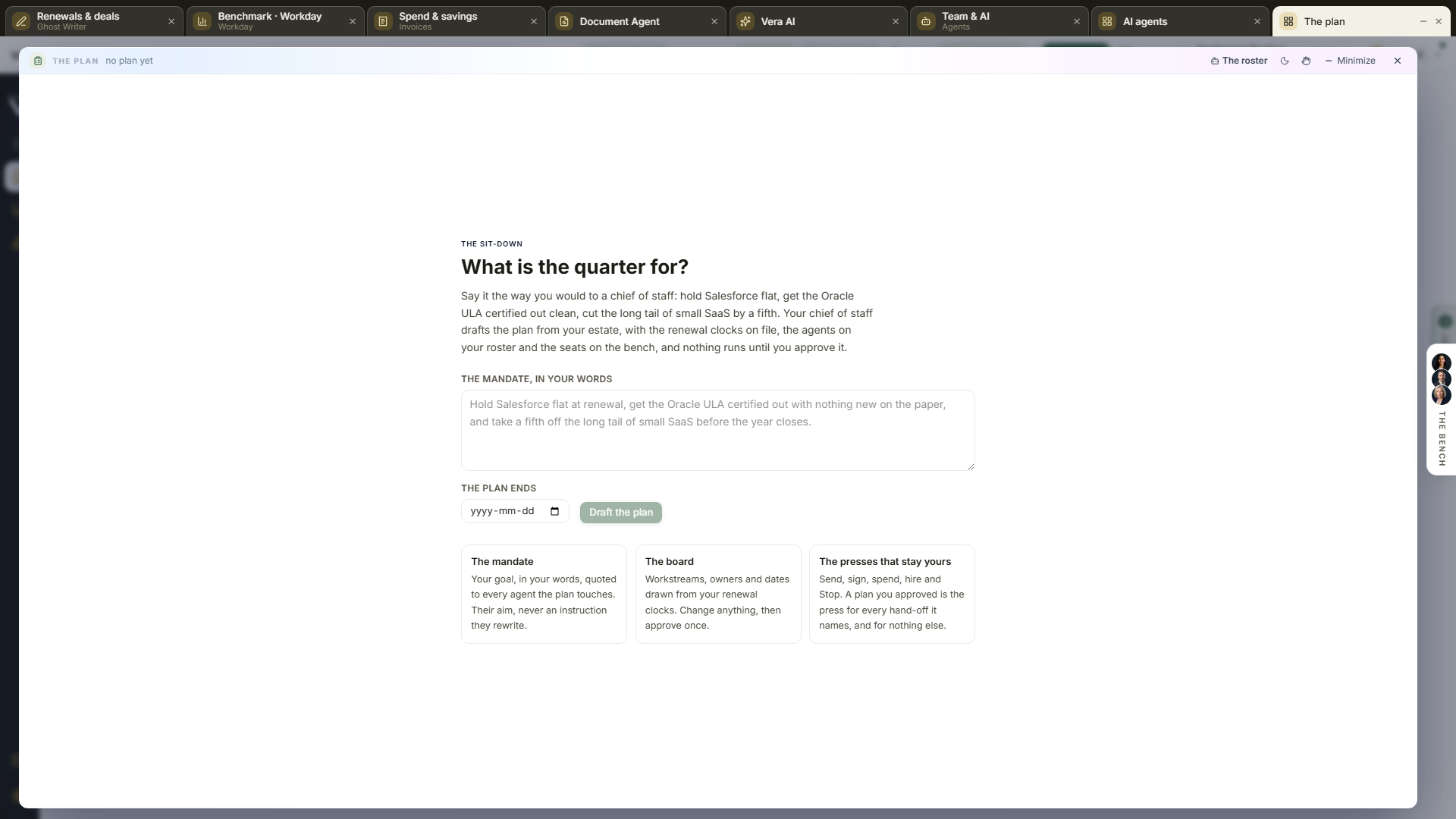
- The sit-down — with no plan yet, the window asks one question: what is the quarter for? Say it the way you would to a chief of staff, with a vendor or a number in it, give it an end date if you have one, and press Draft the plan. The draft is drawn from what is on file: the agents on your roster and what they watch, the seats on the specialist list, and the renewal clocks on your agreements. Nothing runs until you approve it.
- The mandate — your words, at the top of the board. Every agent the plan touches is told it as your aim, never as an instruction it may rewrite.
- The figures — the head over the gold rule: The plan, its state as a tag (Running, Stopped, a draft not yet approved, or Closed), then steps done, steps working, what waits for you (gates, questions, hires) and what is blocked or past its date in one row, with the plan's title and version under it. On the board below sits the spend meter: runs, model turns and calls against the plan's ceiling. Raise the ceiling changes it; at the ceiling nothing more starts.
- The board — one column per workstream, with its steps down it. Each step carries its owner (an agent's face, or a seat on the specialist list), its date, its leash (watch, draft or act) and its state. Gold is waiting for you, blue is working, green is done, brick is blocked or halted, and Late, in red, marks a step past its date. Press a step to open it: the why, the report that came back with its figures and their sources, what colleagues found before it, and the change controls.
- The presses that stay yours — a step that would send, sign or spend stops on a gate: the step shows what it would do and Approve and Decline. A step whose owner asked back shows the question and a box to answer it in a sentence. A hire the plan proposes shows the role, the reason, and Hire; the plan proposes, you press.
- Change — under an open step: the step, its date, its owner (your agents, or the specialists), its leash and its gate. Strike takes a step off the plan. Teach hands documents from the research library and documents from your portal with the order, so the owner argues from what you chose.
- Add a step at the foot of a column, or New workstream at the end of the board.
- Approve the plan — once, on a draft. From then on the team works the plan as written, and every change you make later is re-briefed to whoever it touches as a change. Stop halts everything where it stands; Resume carries on. Run a pass now moves the team without waiting for the ten minute tick. Close the plan ends it; the ledger stays.
- The ledger — the details column on the right, newest first: the mandate, the draft, the approval, every instruction sent, every acknowledgement or question back, every report, every reconciliation the chief of staff made between two readings, every gate raised and decided, every stop and resume, every halt. Under it, What the team verified: the figures the reports carried, each with its source and who found it, shared by every agent on the plan so nothing is searched twice.
How the team works, once approved
- The chief of staff briefs each owner in its own conversation with a typed instruction: the workstream, the step, the why, the leash, the date, and what colleagues found before it. The owner acknowledges, or asks back one question; the chief of staff answers what the plan can and brings the rest to you.
- Owners with a chain run it, the same workflow run you see on the roster; owners without one answer the step from your records and the research in one grounded turn. A step may consult a seat on the specialist list by name, or file a research request under the plan.
- Every report goes on the ledger and into the plan's memory; the steps that waited on it are briefed with it as their starting point. That is the chain, and it runs only along the edges the approved plan wrote.
- Where two colleagues reached different readings, a reconcile step lets the chief of staff say which it took, why, and what would change its mind. Both readings stay on the record.
- The morning open on Home, the What needs you rows in presentation mode, The team in presentation mode, the Monday brief and the Vera bot in Slack and Teams all read the same board. In chat, "team" says where the plan stands, "stop" and "resume" do what they say, and "approve the letter" decides the waiting gate the words name.
What the plan can never do
- Raise an agent's leash. An instruction to act to an agent on watch runs as watch, and the ledger says so.
- Send, sign, spend or hire. Each stops for your press, whatever the plan says.
- Run a chain longer than six hand-offs without a person, ask a question twice, or spend past its ceiling. Each is a halt on the board, not a habit.
- Turn one agent's words into another's orders. Every instruction is a typed record the platform composes; a colleague's report is data on the ledger.
Tips
- A mandate with a vendor or a number in it drafts best: hold Salesforce flat, take a fifth off the long tail.
- Read the dates before approving. A step that hangs on a renewal follows the renewal when your estate moves, and is never dated after the notice deadline.
- The audit log's The team filter (Settings › Security › Audit log) shows every act the plan drove, with the version you approved, the step and the leash it ran under.
Related: AI agents · Decisions · Vera AI
Vera AI
Since 20 October 2026 Vera AI opens as the window that shows what Vera reads, how each answer was built, and the apps where Vera acts. The window before it, with briefs and its tabs, is one press away: View, Earlier Vera, or /vera?classic=1.
Since 25 October 2026 the window opens on the question box at once: you can type and ask straight away, and the connections map, your conversations, the sources, the watch list and the activity fill in a moment later, as your workspace's figures are read.
In plain words: ask Vera anything about a vendor, a deal, a contract or a renewal, and each answer shows the sources it read and what it found in each one.
When to reach for this
- You want an answer about a quote, a vendor or the market without uploading anything.
- You have uploaded contracts and want the next renewal, the contracts above the market, or the estate in a few lines.
- You want to see what Vera knows about your workspace, what it watches for you, and what it did this week.
On the screen
The left column. Search chats (Ctrl K), Home, Vera AI and your pinned apps. Under them, the six screens with their counts (Vera does shows how many jobs are on), then Chats: New chat (N) and every chat you have had with Vera, grouped Pinned, Today, Yesterday, Previous 7 days and Older. Point at a chat for its ⋯: Rename, Pin or Unpin, and Delete (press Delete for good to confirm). Related (the Benchmark Library, the Research Library and the earlier Vera window) sits at the foot. On a phone the six screens show as tabs above the work.
Since 29 October 2026 Ask is a chat, the way Claude and ChatGPT work: one box to ask in, your question and Vera's answer in words with the sources named under it, and as many chats as you like, each private to you.
Overview. Connections draws what Vera reads on the left, Vera in the middle and the apps where Vera acts on the right:
- Reads. Benchmark library, Research library, Web and price catalogs, Your benchmarks, Your contracts, Document text, Conversations and activity, Connected systems. Each shows what it holds in your workspace. A source you have not filled yet is dashed.
- Acts in. Benchmark Library, Deal Agent, Renewals, Contract Office, Report Studio, Vera on calls, AI Managed and Vendor Radar.
- Point at a question and the map lights the sources it reads and the apps it acts in. Press a source or an app for its detail in the details column. Enlarge in the panel head opens the map at the width of the window.
- Since 30 October 2026 any source, app, count or date explains itself when you point at it, with its figure.
- Since 28 October 2026 the map is a schematic: each link leaves its card, turns once into one line beside Vera and enters the ring at one port per side. A line's weight says how many apps read the source; a source's count sits in a pill at the card's right; a source you have not filled carries an Upload or Connect chip.
The box to ask in comes first, under the head (since 30 October 2026). Under the map: the questions in two groups (Market and benchmarks, no upload needed, and Your contracts, which need contracts on file), and Vera in your apps, a row for each app with what Vera reads there and what it does.
Ask. The chat. Your question sits on the right; Vera's answer comes under it, written a whole sentence at a time while she works (Reading the source she is on, then Writing). Each answer has:
- The verdict first. The first sentence is set in bold, then the points.
- Sources. One line naming every source the answer read. Press a source to see what Vera read there and what she found, with Open to go to it. An answer from Vera's own market knowledge says so.
- Copy, Read aloud (Vera reads the answer in her own voice; press again to stop), Answer again and More: Brief as PDF (also
Pand File), Draft an email, Add a watch and Open in the app the answer points to. - Follow ups under the newest answer: questions that come from it, one press to ask.
The box. At the foot of the window. Attach a quote, an order form or a contract (PDF, Word, Excel, CSV, text or an image, up to 8 MB each) and Vera reads it with your question. Dictate (the microphone) speaks your question into the box to read before you ask. The main button is Talk to Vera while the box is empty, Ask once there is a question, and Stop while Vera answers. Enter asks; Shift and Enter starts a new line. A question asked from another screen starts a new chat.
Talk to Vera (the box's main button, File, Talk to Vera or T). A spoken conversation in the chat: Vera listens (blue), you see your words as she hears them, she reads the sources, answers in the chat and says the answer in her voice (gold), then listens again. Try saying offers the follow ups of the last answer. Press her picture or Space to interrupt her, M to turn the microphone off or on, Type instead or End (Esc) to go back to the box. Everything said stays in the chat, and a question you asked out loud carries a small microphone. Your browser asks once for the microphone; Chrome, Edge and Safari can listen. In a browser that cannot, Talk to Vera opens Vera's live line instead.
A new chat. The box, four questions to start from (from your contracts once you have uploaded them, from the market until then), and Recent chats: your last six with the last question in each. All chats opens Search chats.
Search chats (Ctrl K). Finds a chat by its name and last question as you type, and by what was said in it a moment later; then the questions, apps and screens of the window. Enter on nothing asks Vera your words in a new chat.
The head on Ask. The chat's name and Private to you; ⋯ to Rename (in place), Pin, write the last answer as a Brief as PDF, or Delete chat; and New chat.
Sources. Every source Vera reads: what it holds in your workspace, what it gives Vera, whether it is connected, and Open (or Upload for your contracts). Read by shows which apps read each source, the same weight as its line on the map.
Watching. Since 28 October 2026 the screen is four panels down the width. Alerts: your newest notifications as cards, each opening where it points. The year ahead: every date Vera watches over the next nine months, one date a row (since 30 October 2026): the vendor and what is due on the left, the months across the top, the date and the days left beside its dot and a bar from today; a date that needs you in brick, a change in gold. The nearest eight show, the rest are counted, and every one is in Rules. Rules: the notice dates in the next twelve months from your renewals and the vendors you follow for price and licensing changes, with what Vera does for each, whether she asks you first, who she tells, the source and the switch. Press a rule and its editor opens in the details column (see Vera does). How Vera acts on these sums up your settings, with Customize Vera to change them. Add a watch follows another vendor.
Vera does (key 6). What Vera does for your organization without being asked, and how.
- Standing jobs. One row per job with its switch, when it runs, what Vera does, whether she does it and tells you or asks you first, and who she tells. Eight to start (benchmark every new quote, prepare every renewal, read every contract on upload, watch list prices, brief you before every vendor call, chase open promises, count licenses before a true up, write the renewal digest); Add a job offers five more (the board report, vendor emails, big quotes to a human analyst, the alternatives' list prices, booking the renewal call). Press a job, or Change, and the editor opens in the details column: when, what Vera does (as chips), before she acts, who she tells, the people she also tells, the switch, Remove, Done. Changes save as you make them. The renewal digest, the price watch and the board report are the same switches as under Settings, Notifications, and only an owner flips them.
- Before she acts. For eight actions (draft an email or a notice, send an email, book a meeting, file a contract, add or change a watch, share with your team, send a request to a human analyst, set a counter offer), one of Does it and tells you, Asks you first, Never.
- How she answers. Length (short, standard, full), figures first, the currency, money rounded to three figures or exact, the language, and Reads like, an example that follows the settings. Every answer in the workspace follows them; sources are always named.
- Who she tells. In app always; the email digest and its cadence; Teams through a connected Teams; Also tells, the people Vera copies and when (for example the CFO above $1M a year), with Add; your own alerts and quiet hours under Settings, Notifications.
- Remembers. What Vera keeps about your organization, from your calls, briefs and what you told her, to forget with one press or add to with Add something Vera should remember.
- The head says how many jobs are on, how many actions ask first, who Vera tells and who else she copies; Back to the defaults resets the screen. The details column lists what Vera will do this week from the jobs that are on.
Activity. By app charts what Vera did in each app, done in navy and waiting on you in gold; press an app's row to filter the log. What Vera did is the log: the last 14 days, grouped by day, with the app for each entry, and App in its header to show one app's work.
The details column. Next for you (the nearest notice date, or a quote to benchmark), Knows (what each source holds), Remembers (how Vera answers, the first of what she keeps about you, and what she sends; Change opens Vera does), and Ask Vera. In a chat it holds This chat (the questions, how many of the eight sources Vera read, when you last asked and who can read it: only you), Sources in this chat (each with how many answers drew on it), Next moves (the PDF brief, an email, a watch, or talk it through with Vera) and Remembers. On Watching with a rule pressed, or on Vera does with a job pressed, the column holds that rule's or job's editor.
Sample data. The switch in the title bar shows a sample workspace of 48 contracts from 31 vendors, with eight sample chats and worked answers to the eight questions.
Step by step
- Open Vera AI and point at a question under the map to see what it reads.
- Press Ask in the left column, then a question, or type your own in the box and press Ask (
Enter). - Read the answer as it is written, and press a source under it to see what Vera found there.
- Press More for the PDF brief or an email, or a follow up to keep going in the same chat.
- Press Talk to Vera (or
T) to ask out loud and hear the answer in her voice. - Find any chat again with Search chats (
Ctrl K), and pin the ones you keep coming back to.
Keys: / ask, 1 to 6 screens, N new chat, T talk to Vera, P write the answer as a PDF brief, Ctrl K search chats, ? how Vera works, Esc close. While Vera talks: Space interrupts her, M turns the microphone off or on, Esc ends.
Briefs and the earlier window
The earlier Vera window, at /vera?classic=1, keeps the briefs and its tabs. Every link to a brief, a run or a document opens it.
Upload the document, say what you want, and Vera writes the brief. Upload a contract, quote, renewal or statement of work, or choose one already on file, pick the kind of brief or say what you want to know in your own words, and press Write the brief. You do not need to know which tool does what: you say the outcome, and Vera matches it to one of the eleven kinds of brief.
How a brief is written:
- Read. Vera reads the document as a specialist in that vendor, with the document itself in front of her: pages as well as text, a search over its wording, and the calculators beside the web. Two specialists read it before she writes, one for the clauses and one for the money.
- Written. She writes the answer as prose at the length it needs, and only then sets it into sections, tables and charts. As she writes she has the platform's tools at hand: the benchmark library for the vendor, the vendors' price catalogs, the market briefing, your deal history and a sandbox for the sums.
- In context. The platform's own reading of the deal goes in as context, and where the document says otherwise the brief says so.
- Read back. A second pass that is not the writer reads the finished brief against the document. It is revised once when the read finds something, and the revision stands only if it reads cleaner and is no shorter.
- Checked. Four checks then read the brief and record what they find without changing it: a repeated instruction from the vendor's own document, your walk away figure, an unsupported figure, and money argued outside USD.
Vera AI opens in its own window, with nothing loading behind it, on Ask Vera (since 4 October 2026). The X at the top right closes it and returns you to Home, and Minimize parks it on the taskbar so you can come back. Eight numbered tabs run across the top, each with the count of what it shows: Ask Vera, Contract map, Renewals, Benchmarks, Meetings, Promises, Briefs and You and Vera. Press a tab, or press its number on the keyboard (1 to 8). Ask Vera carries three more screens as chips under its head: Drafts, Review tables and Workflows. The chat tabs are described under Vera conversations and the three screens under Drafts, Review tables and Workflows below; Briefs is where a brief is written, and the rest of this section is about it. Briefs opens on one page: the documents on file as a table, the kinds of brief as chips, and Write the brief; View, Briefs switches it to Advanced, which sets up the same brief with every option on one screen.
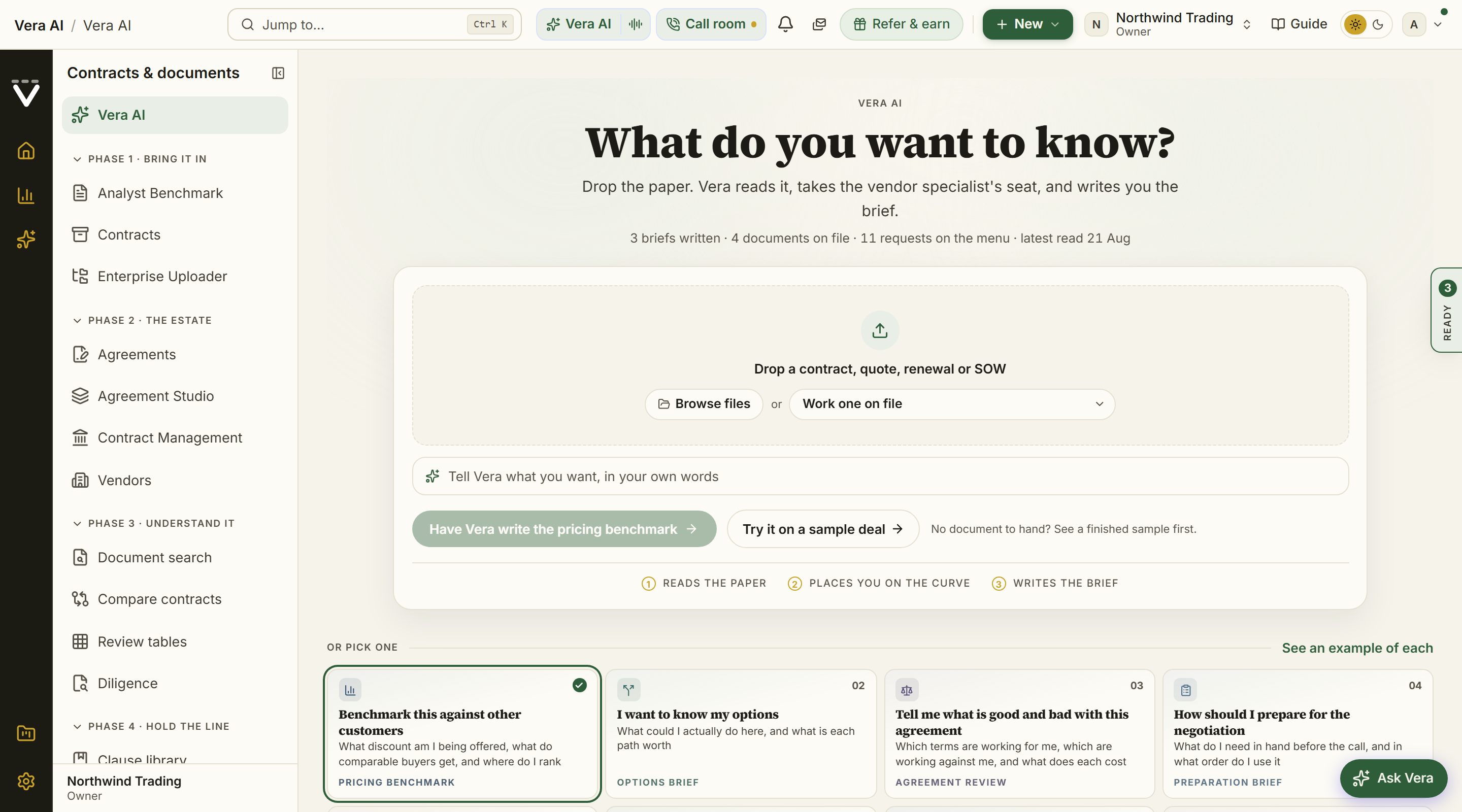
On the screen
- The window. The same frame as every app. The title bar carries three menus (File, View and Help; writing a brief and what you do with your team are under File, the views of the briefs under View, Team and Learn at the foot of Help), the Sample data switch, Share, and the window controls: light or dark, zoom, Full screen, Minimize, maximize and close. One navy column on the left: the VendorBenchmark mark, Find an app, Home, then Vera's own lists. Since 9 October 2026 the eight tabs are numbered rows in the left column and nothing sits across the top of the page; the head of the tab you are on names it in sentence case, with one line under it saying what the place does and, under that, what needs you first and the facts as chips. The status line at the foot shows the keys (Enter sends, 1 to 8 open a tab, double click a row for its details, right click a row for its moves, Ctrl Shift O starts a conversation, Ctrl Enter writes a brief) and how many documents are on file and briefs are written.
Vera's lists. In the left column, under the apps:
- Vera AI: the eight tabs as numbered rows (the keys 1 to 8 read off them), each with its count, the count in red on Renewals when a term ends inside 120 days and on Briefs when one waits for you, and under Briefs the brief being written (naming its kind and vendor), then All briefs, Waiting for you, Yours and Read and watch.
- Conversations: New conversation, Your portfolio (the main one) and the newest twelve.
- Drafts, Review tables and Workflows: the first row opens the screen (New draft, New review table or New workflow while there are none), then the newest three of each; a red dot on a table still reading or a workflow waiting for your approval.
- With a human analyst: what is with an analyst, with the day each report is promised by; press one to open With an analyst.
- Renewing soonest: the four nearest terms with the days left, a red dot inside 120 days; press one to open Renewals.
Simple and Advanced. Under View, Briefs. Your choice is kept with your profile. Only the Briefs tab differs between the two: All briefs, With an analyst and Read and watch are the same in both.
Briefs: the head. Briefs with Private to you, then Upload a document and Write the brief, and one row of facts: Written, Documents on file, Renewals with no brief, the document In hand once one is, and Waiting for you when a brief is.
Briefs: the page. The chat about the briefs stands at the right; on the left:
- New brief: the documents on file as a table (the document, the vendor, when the term ends with the days left, the value a year), a mark on the one in hand and a note on the last brief written on it or that it renews soon with none. Press a row to put that document in hand, or Upload a document (a PDF dragged anywhere onto the window uploads the moment it lands). Under the table, every kind of brief as a chip, the one that suits the document marked suggested; then Write the <kind> on the document in hand. It is filed with a Word and a PDF copy.
- With a human analyst: what is with an analyst, the vendor, the day each report is promised by and where it is, with the reviews left this period in the panel's head. Press a row for With an analyst.
- Briefs written: the eight newest briefs (the brief, the vendor, who had it written, when). Press one to open it, or All briefs for the full list.
While it runs. The three stages Document, What you need and Your brief take the page over while the brief is written, drawn from Vera's own progress. See While it runs below.
Advanced: the seven steps. Numbered across the top: Ask, Read the document, Market, Draft, File, Brief and Briefs. Ask is where you set the brief up. While a brief is written the screen follows the run from step to step, each ticked only when Vera's own progress passes it, so a slow stage looks slow. Press any step to look at it; a step the run has not reached says what arrives there, with Back to the question and See an example.
Advanced: the head. New brief and the kind of brief chosen, one line on what Vera does, then one row of figures:
- Renews first, no brief: the days left on the first renewal with nothing written on it. Press it to put that document in the field with a renewal plan chosen.
- Documents on file, Renew within 30 days, no brief, Waiting for you and Briefs written.
- Specialists: the portraits of who writes for your vendors.
- Status, which reads Ready to write once a document is in the field.
- Upload a PDF and Examples at the right.
Advanced: Your question. The field holds the document, what you want to know, and Write the brief.
- Drag a PDF anywhere onto the window, or press Add a document to upload one (up to 200 MB) or choose one on file. The upload starts the moment the file lands, so pressing Write never waits on it.
- Type the question in plain words. Ctrl and Enter writes the brief.
- While the field is empty it types example questions; press Tab to take the one showing.
- Press Write the brief with no document and the field says so and opens Add a document.
Advanced: the line under the field. Labeled controls: Writer (the vendor's specialist, or Vera when the vendor has none of its own), Brief (the kind of brief) and the four settings, Audience, Length, Written as and Approach. Brief lists all eleven kinds with the question each answers. The check marks the one chosen; kinds that fit the document in the field are marked suggested, and once you have asked for a few, the ones you use most are marked often.
Advanced: what the field understood. Label and value pairs under the field: Matched to (the kind your words became, marked as a best guess when it is one), Closer match with Use it when your words read like another kind, Document (where a carried over document came from), Renews and Also sent to.
Advanced: Vera's plan. Beside the field: Read (the document), Writer, Market (the buyers she compares it with), Write (the kind of brief and the parts it comes back with), For (the settings) and Ready, a bar and one line saying whether the brief can be written and what is missing if not. It changes as you type or choose. A document is the one thing a brief needs; the question sharpens it.
Advanced: the renewal line. Under the question once you have documents, headed Needs a brief or Renews next: the documents renewing in the next 240 days on one line from today. A dot is red when the document renews within 30 days with no brief on its vendor, and green when a brief is written. Press a dot to put that document in the field, or Write a renewal plan to do the same with a renewal plan chosen.
Advanced: under the question.
- On a first visit: Kinds of brief (every kind by the question it answers), Contents (summary first, checked against the document, filed under Reports) and Example, the chosen kind shown small with Try it on a sample deal.
- Once you have documents or briefs: Waiting for you, Recent briefs, Documents and Specialists (who writes for which vendor).
- Documents lists renewal soonest first, the larger renewals first within that. A document renewing within 30 days with no brief on its vendor is marked, and a short bar under each date counts down to it, red inside 30 days and gold inside 90. Press a document to put it in the field.
Advanced: Reports and exports (since 2 October 2026), above What next, once you have contracts on file: Your contracts in charts (value a year by vendor, terms ending by quarter, and when the terms end), then Excel workbook (every row typed, so it sorts and sums), Word report (the same report as a document), Email the report (to up to ten addresses, your note first, the Word file attached) and, under them, Shall I draft the email?, which writes an email to the vendor, your CFO or a colleague that you send yourself, on the contracts Vera reads from.
Advanced: What next. Across the foot: Take a brief further (Benchmark the deal, Negotiate it, Redline the contract) and Keep the estate in view (Renewals, Research Agent, Market news), each opening that window.
Ask Vera. The first tab, where the window opens (since 4 October 2026; from 2 October it was the Chat row of the page list). It is the typed conversation with Vera, described under Vera conversations: ask about any contract you uploaded, your whole estate, an action, a benchmark or the research.
- The head carries Private to you, then Join a call, Draft an email, Boardroom deck and New conversation, and one row of facts: what the next answer reads, what is on file, the estate a year, the next term to end and how many conversations are kept.
- The conversation sits in a panel headed Ask Vera, Everything Vera knows, with Conversations (every conversation with search, rename, pin and delete, and what Vera remembers) and Clear in its strip and the privacy line under it. The greeting and five count shelves (Your contracts, Renewals, Benchmarks, Meetings, Briefs) that open their tabs stand over the conversation; before the first question, the questions you asked recently follow them, each one press away. The line you type on rests as one line with Send, and nothing takes the focus when the window opens; its tools (sources, depth, style, the adviser, Improve, the call) come up the moment you press into it. The Ask Vera box in the right column of the other tabs works the same way, and its tools keep to one row as icons.
- The right column opens with What Vera knows: contracts read, links between them, terms ending ahead, benchmarks you ran, benchmarks you looked up and meetings on file, each with a bar; then Since you were last here, Where you stand and What Vera is missing.
- Every other tab's chat opens with three first questions to press.
- Going to Briefs or All briefs and back keeps the conversation where it was, an answer still on its way included.
- File, New conversation starts one from the menu, and View, Go to lists the eight tabs with their numbers.
Drafts, Review tables and Workflows (since 4 October 2026). Three screens of Ask Vera, opened from the chips under its head or from their groups in the left column. Each lists its records on the left, with the way to make a new one in the ringed box at the top of the right column and what it keeps under it. These three screens carry no chat of their own: a question asked from a row opens Ask Vera and asks it there.
- Drafts. The emails Vera has written for you on this browser: the kind, the subject, the document it is about, when the term ends, how many sources and versions it has, and the last change. Press one and it opens at the head of the screen, beside the chat, as the email itself to type on, with a numbered source on every figure; every change by Vera or by hand is kept as a version, and Show changes compares any two word by word. Change it asks Vera for one change in a press: Shorter, Firmer, Add a deadline, Add the uplift cap, Add the peer range, Add an ask or Take out an ask; each lands as a new version. All drafts closes it. New draft picks a document on file and what to write (Price ask to the vendor, Memo to Finance, Notice not to renew, Question to the vendor); Write it writes it from the document and the records on file. What a draft keeps and Changes Vera makes on request say what you can ask for. With Sample data on, Drafts lists the sample's six drafts on its four documents; press one to read it with its numbered sources. Nothing is written or saved.
- Review tables. Every review table on file: its documents, columns, cells read, when it was made, and whether it is ready or still reading. Press one to open it. Start from a question takes one question for every document; Generate columns turns it into typed columns (date, yes or no, number, percent, money, choice, quote, text) you can change or take out, and Create the table sets it up over every document on file and opens it. Start from a set of questions does the same from a curated set: Termination and renewal, Commercial terms, Money calendar, Liability and legal.
- Workflows. Every workflow on file: what starts it, its steps, its golden documents, how many records it matches now, and its last run, with the runs waiting for your approval marked. Press one to open it in Workflows; right click it to ask Vera what it does. Describe a new one takes the process in your words; Build the steps shows the trigger and each step with the words it came from. On an Analysis step, Set a golden document takes one of your kept drafts or a document you paste, and says what the step takes from it (its length, headings, numbered asks, whether it requires or asks, whether it closes with a date to reply by, its figures); the memo it writes follows that shape. Save the workflow keeps it. Golden documents on file lists the documents a step drafts in the shape of, Steps Vera can run says what a step can be, and Matched now lists the renewals a renewal workflow would run on today.
The open briefs. A brief you open, from Recent briefs, Briefs or a link someone sent, opens as a tab beside New brief instead of leaving the window, and so does an example; each has its close. The address follows the tab, so a reload or a shared link lands on it, and the old link to a brief (/ask/brief/…) opens it here. In Simple the tab strip shows while a brief or an example is open.
The menus. On the title bar, with Alt and the underlined letter as the shortcut.
- File: New conversation, Conversations and memory…, Clear this conversation, Draft an email…, New draft…, New review table…, New workflow… (each opens its screen with the cursor in its new box), Boardroom deck…, Upload minutes or a transcript… and Join a call…; under Write a brief, every kind of brief and See an example of each; then New brief, Upload a document…, Try it on a sample deal, Continue where you were with the last five set ups you left, and Start a new one; under With your team, hand the newest brief to a teammate, ask for a sign off on it, send the next brief to a teammate when it lands, see who is reading the briefs now and send the deal to an analyst; then open in a new tab, copy a link, print and close.
- View: Go to with the eight tabs and their numbers, Light or dark; under Briefs, All briefs, Waiting for you, Yours, With an analyst, Read and watch and Simple or Advanced; Brief version; maximize and Dark mode.
- Help: How Vera works, What Vera reads, Walk me through this screen, This screen in the user manual and About Vera AI; then Team (copy a link for a teammate, draft the email about this window, ask the specialists, hand Vera the wheel, team activity, invite a teammate) and Learn (the published negotiator's guides for your vendors, opened in place, then research, the manual and films).
Nothing you set up is lost. The question, the document in hand, the kind of brief, any kinds added to it, a second document on file and who the brief also goes to are kept when you reload, close the window or come back tomorrow. File, Continue where you were brings back one of the last five; Start a new one clears the field and keeps the old one there.
How to use it
- On Document, press Upload a file, drag the PDF onto the window, or press a row under the documents on file. Press Next.
- On What you need, press one of the four cards or a chip under Other briefs. Add a question under Anything specific if you have one.
- Press Write the brief.
- Watch Your brief fill, or keep working: the brief opens by itself as a tab when it is filed, and a notice with Open the brief arrives if you have left.
- On the finished brief, use the details on the right: download the PDF or Word, copy a link, or write the next brief on the same document.
- For the settings, several briefs in one press or a second document to compare, switch to Advanced.
While it runs. Nothing on the screen is a sample: every part shows its working state until Vera reports.
- In Simple, step 3 shows four stages across the top (Reading, Market, Writing, Filing) with the time elapsed, and three columns that fill from her own progress: The document with the facts she read off it, Against the market with the headline figures as the draft sets them, and The brief with its sections and wording as she writes.
- In Advanced, the run stage heads the page: five stations (Read, Facts, Market, Write, File), the facts lifted off the document, the brief's headline figures and each section as it is written, with the words written counting beside it. Under it the seven steps follow the run: Read the document shows the facts and the five stages passed, Market the headline figures, Draft the page as it is written with its contents, and File what is filed with it.
- The details at the right, in Advanced: the percentage and the stage in words, Progress, the facts From the document, the Settings, the Working notes behind Show notes, and Switch to the quick read when a full brief is on a second run.
- When it is filed the brief opens as a tab with a short burst of color. A set of several briefs is written one after another, the progress says which one it is on, and the finished briefs land together in All briefs.
Talk it through. In Advanced, the portraits under Specialists in the head are the specialists for your vendors and Vera, the general adviser. Press one to talk to them out loud; they can see this screen: the document in the field, the facts read off it, the kind of brief and how it would be written. In either view, Team, Ask the specialists about this screen opens the same seat on this window, and Help, Walk me through this screen has Vera walk you through it.
What comes back is shaped to the request, in one consistent design: the negotiation briefing template the research library's notes wear.
- The opening. A gold kicker line naming the firm, the read, the vendor and the month, then the title, the byline, and a note signed by Vendor Benchmark with the month.
- The headline figures. Gold bullets in a cream panel under the heading "Four things to know first".
- The body. Every section numbered and headed in navy over a gold rule; tables with a pale header row and hairline rows; the firm's details closing the document over a gold rule.
- The files. Download PDF gives exactly that document, and the Word download is built in the same design.
Two versions of the brief. Every brief can be read in either of two designs, and you choose which one opens. Version 3 is the briefing described above and what everyone sees until they choose. Version 4 is the benchmark report design:
- The masthead is a navy band: the title in white, the byline as a gold line under it, and the draft note as a gold tag.
- Two panels follow: where the deal sits, tinted by its rank (red when it is behind the market, gold when it is ahead), and the verdict.
- The headline figures run in one row across the page.
- The body has sections numbered on a gold bar, tables with a navy header row, and charts with each value printed at its mark.
Switch with Brief: Version 3 | Version 4 at the top of any brief, or View, Brief version in Vera's menus; the choice is kept with your profile, on every device. The content is the same in both, so every brief ever written opens in either. In version 4, Download PDF prints the version 4 page you are looking at; the Word download stays in the version 3 design. A brief written before briefs were set in sections opens in version 3 and says so.
The eleven kinds of brief. Each returns a purpose built document. The screen names them by kind; the request each answers is given in brackets.
- Pricing benchmark (Benchmark this against other customers): the headline figures, the executive summary, the deal snapshot, the sensitivity if the baseline is wrong, the market evidence, the levers in the order to play them, the talking points, and the verdict. Peer figures are drawn from the reference set rather than written by the AI, so with no comparable cohort for your vendor the brief says so plainly and names what to ask the vendor for.
- Agreement review (Tell me what is good and bad with this agreement): every clause priced as an asset working for you or a liability working against you, on one diverging ledger netted into a single position. A right you never used is recorded at nil, and anything that cannot be priced yet is listed as unpriceable with the reason.
- Preparation brief (How should I prepare for the negotiation): the proposal decomposed into a rate per unit per month for every line, each way the deal can be restructured priced, the information to demand in writing, the opening, target and walk away for each item, and the order to run the conversation.
- Renewal plan (Make me a renewal plan): a dated runway worked backward from the renewal date: the clauses to secure before you sign, the two windows where you can act on your own, the renewal cost under each scenario, and the gate at every milestone, with the notice date marked as the one deadline that cannot be recovered.
- Negotiation strategy (Create me a negotiation strategy): your leverage read honestly, your objectives ranked from must win to sacrificial, every ask on a trade matrix by what it costs the vendor against what it is worth to you, then the currency to trade, the rounds, the plays, the closing sequence and a response to every predictable vendor move.
- Terms and pricing review (Review the contract terms and pricing): every line reconciled to its actual unit rate, with prices negotiated round rather than derived flagged; the volume schedule; and each protection with the condition that removes its value at renewal, with a break even curve wherever a conditional renewal cap has to be weighed against flexibility.
- Options brief (I want to know my options): every real path open on the deal, from a like for like renewal to a remix of the licensing to a combined program, each priced against the same baseline, ranked by worth against the weeks and the risk it carries, and plotted on a value against effort chart.
- Talking points (Create talking points for my negotiation): a script written to be spoken: the position said the same way by everyone on your side, the questions in order and what each answer settles, the asks with the exact words, the objections with an answer to each, the phrases that lose money and what to say instead, and a pocket card to carry in.
- Benchmark, tactics and arguments (Benchmark this and arm me for the negotiation): a three part pack. Part one places your deal against the vendor's own discount curve where one exists, or an illustrative peer trend otherwise, with your as proposed, target and stretch positions. Part two is ten tactics specific to that vendor. Part three is the arguments that move it, ranked by what they cost it to grant, closing with the one to lead with.
- Terms review (Review the terms clause by clause, pricing aside): every clause graded against a fixed five value key (Protects, One sided, Ambiguous, Weak or Absent) with the drafting change to seek beside it, pricing deliberately left out. It closes with the terms the order form does not address and the three fixes to make first, in dependency order.
- Final call plan (Plan my final negotiation call): a two page plan for the last session. Every item sits in one of five statuses (Must win, In the document, Open, At risk, Refused on the document), each read off the document rather than off a session that never happened. Then the session minute by minute, a concession ladder that releases each rung only against a stated precondition, the counterparty's best closing moves with the answer to each, and win, loss and walk defined before the call. It states the session length it assumes (ninety minutes unless your notes say otherwise) and names the vendor's quarter close only when its fiscal calendar is known.
Every figure and date is computed from your document rather than written by the AI, and every brief argues in US dollars, converted from the contract's own currency at today's live exchange rate.
The finished brief. It opens as a tab in either view.
- The head: the kind and the vendor, the date and the settings it was written under, Brief: Version 3 | Version 4 and Download PDF. Where the figure check ran, its result sits above the page.
- The page: the brief in the reader, with its contents, pages, zoom and find, once its PDF is printed; the brief itself on screen until then.
- The details at the right: the brief's own verdict, its Key figures, Write the next brief on this document, then Share and what next.
- Forward and share: Copy link to this brief (anyone in your workspace can open it), Download PDF (the document exactly as shown), Download Word (the same document as an editable file) and Email it to a colleague, which takes you to the follow ups under the brief.
- What next: the one or two reads that follow naturally from this one, so a benchmark points you to a preparation brief and a strategy points you to talking points; Ask Vera something else; and Send this brief into the negotiation, which opens a new negotiation with the vendor filled in.
Follow ups. Under every finished brief: what a buyer usually does next with it, a box for any question, and the email that follows, written as a draft you type on and then change side by side with Vera. The first rows come from the brief itself: the email to the vendor, the note to your CFO, the one thing to act on first, and what would change the verdict. Nothing is sent by the platform. See Follow ups.
Right click any part of the brief. In the Simple view, right click a part of an open brief (or press Shift F10 on it) and the menu names that part, or the whole brief:
- Case file: one of your case files, or a new case file for the vendor.
- Elsewhere: Note on the contract, a private note on the document in hand when it is one on file, and Negotiation notes for the vendor.
- Copy text copies the part as a document: paste it into Word, Outlook or Excel and a table arrives as a table, a heading as a heading and a list as a list, in the firm's document dress; anything that only takes text gets the plain text. A drawn chart is not copied, so take Download Word when you need the charts.
Each save lands only when that home says it has; a notice says so, or says it did not save.
The next read runs on the same document. A What next read, Write the next brief on this document or Ask Vera something else takes you back to New brief holding the document you have just been reading.
- Nothing asks for an upload: the document is named as carried over from the brief you were reading, the kind you picked is already chosen, and Write the brief runs it on that same document.
- To work a different document, choose or upload another on Document, or in Advanced press the × beside it in the field.
- A document you uploaded is held for a day while you work on it; after that Vera asks for the file again and tells you so rather than failing silently. A document already on file is held for as long as it is in your workspace.
Briefs on this document. In the details of a finished brief, and under that heading in Advanced when a document is carried over: the other briefs written on the same deal, newest first, up to six, each with its document type and the date it landed. One press opens any of them. The list groups by the document the briefs were written from, and by the vendor for briefs written before Vera recorded that. It is not shown when there is nothing else on the deal.
Briefs. All briefs is every brief the workspace has had written, the last fifty, whoever ran them; Waiting for you and Yours open the same list already filtered.
- The head: Written, Waiting for you and Handed on, not opened.
- The lens, one row: a find field for vendor, title, kind of brief or who ran it, Everyone or Mine, a vendor, and an order (Newest first, Renewal soonest or Open threads first).
- The list, grouped: Needs you (handed to you, or a sign off you were asked for), Waiting on a teammate (what you handed on or asked a sign off for) and Written. Each row gives the kind and the vendor, who ran it and when with the settings it was written under, where it stands, and the vendor's days to renewal, marked inside 30.
- The details, beside the list when you press a row: who had it written and how, then Open it, Hand it over, Ask for a sign off and Talk.
- Hand it over: a teammate, a due day and a line. They get a review task in their queue, a notification and the brief by email. The hand off shows sent, opened or replied; the sender can Nudge once a day and the recipient can Mark replied.
- Ask for a sign off: the workspace owner gets the verdict as a task, and the brief holds at that version until they Sign it or Send it back with a line.
- Talk: the thread stays with the brief, and Ask Vera answers from the brief's own figures, the answer kept for whoever opens it next.
- Under the list: Activity (who ran what, who handed what to whom, what was signed) and Request a brief: the person, the kind of brief, optionally a document on file, and a line. Put it on their list sends it, and their link opens Vera with everything already set up.
- Team, Who is reading the briefs now shows who is on Vera right now and what each is reading.
The settings. In Advanced, four controls under the field set the brief before you press Write. They are saved for next time and printed over the finished brief, so a quick read for the CFO is never mistaken for the full brief on the same document.
- Audience: you, your CFO, or the negotiating team.
- Length: the full brief, or a one page quick read with the three answers and the first move.
- Written as: the vendor's specialist, any vendor you type, or a general adviser.
- Approach: balanced, firm, or keep the relationship.
Several briefs in one press. In Advanced, open Brief and press the small plus beside any other kind to add it to the one you have chosen; the Write button then counts them. They are written one after another on the same document and land together in All briefs, marked as written together. Clear at the foot of the menu drops the added kinds.
A second document. In Advanced, once one document is in the field, Add a document becomes Compare with another: upload a second PDF or choose one on file. With two in the field, Compare the two documents appears at the foot of the kinds of brief; it files both and opens Compare contracts with the two side by side, judged line by line on one baseline.
Also send to. In Advanced, Team, Send the next brief to a teammate when it lands adds Also send to under the field. Pick a teammate and the brief goes to them the moment it is written, whether or not Vera is still open: a review task in their queue, a notification, and the brief by email.
With an analyst. This place puts the deal in front of a VendorBenchmark analyst.
- The head: Turnaround, Allowance (what your plan has left this period) and Delivered, under Reports.
- Send to an analyst shows the document in hand. A document already on file goes in one press, Send to our analysts. A document you just uploaded is filed into your workspace and queued in the same press, with the vendor named once (File it and send to the analysts); the filed proposal is linked, so its own page is one press away if your allowance is used.
- With the analysts lists every proposal already with them, its status and the date its report is promised by.
Read and watch. What the library holds on a vendor: the films, the analyst briefings, the research papers and the guides. It opens on the vendor of the document in hand, with the vendors of your documents on file as choices under the head, Start here on the piece to open first, and a table per kind. A film, a paper or the vendor's negotiator's guide opens in the window.
Examples. Examples in the Advanced head and Briefs, See an example of each open the examples page at /vera/examples: one worked example for each of the eleven kinds, on an illustrative deal, rendered as the real document. Try it on a sample deal opens the example of the kind you have chosen as a tab, tagged Example, with Write this on your own document in its details. Nothing is uploaded and nothing runs.
Related: Vera conversations · Vera's seat and stance
Vera conversations
In plain words: one chat inside the Vera AI window, and as many conversations as you need. Ask about any contract you uploaded, your whole estate, an action, a benchmark or the research. Every conversation keeps its own memory, and every one is private to you.
When to reach for this
- A running conversation you want to continue, with everything Vera already knows about your estate still in context.
- One keystroke from anywhere: Ctrl/⌘ J opens Vera over whatever you are looking at.
- Asking well is a skill worth two minutes: the recipe covers it.
A worked example. Ask "am I overpaying for our CRM?" on the sample portfolio and the answer is grounded: the Northwind agreement's $142,800 a year and its delivered benchmark ($571 a seat against a $504 median) are cited inline, and the answer states the $28,650 in reach rather than gesturing at "potential savings". That is the standard to hold her to: numbers with sources, or a plain statement that the data is not on file.
The chat is a page of the Vera AI window (since 2 October 2026; it used to open in a window of its own): Chat is the first row of the window's page list, your conversations are rows under it, the conversation fills the page with its own scrollbar, and the composer is docked at the foot. Nothing outside the conversation scrolls. Arriving lands on the newest exchange with the composer ready. Sending a question rides it to the top of the view and the answer unfolds below it at your pace; the view never drags itself to the bottom while text streams, and whenever newer lines are out of sight a Jump to latest button waits at the foot of the transcript. Every way into it opens the window itself, whether you come from Home, from a link inside an answer, or by typing the address; on Home the first character you type into the ask bar is itself a way in, carrying your unfinished sentence, your attached documents, and your source choices into the composer here. To upload a document for a written brief, use Vera AI at the top of this group; specialist agents live on the floor of AI agents.
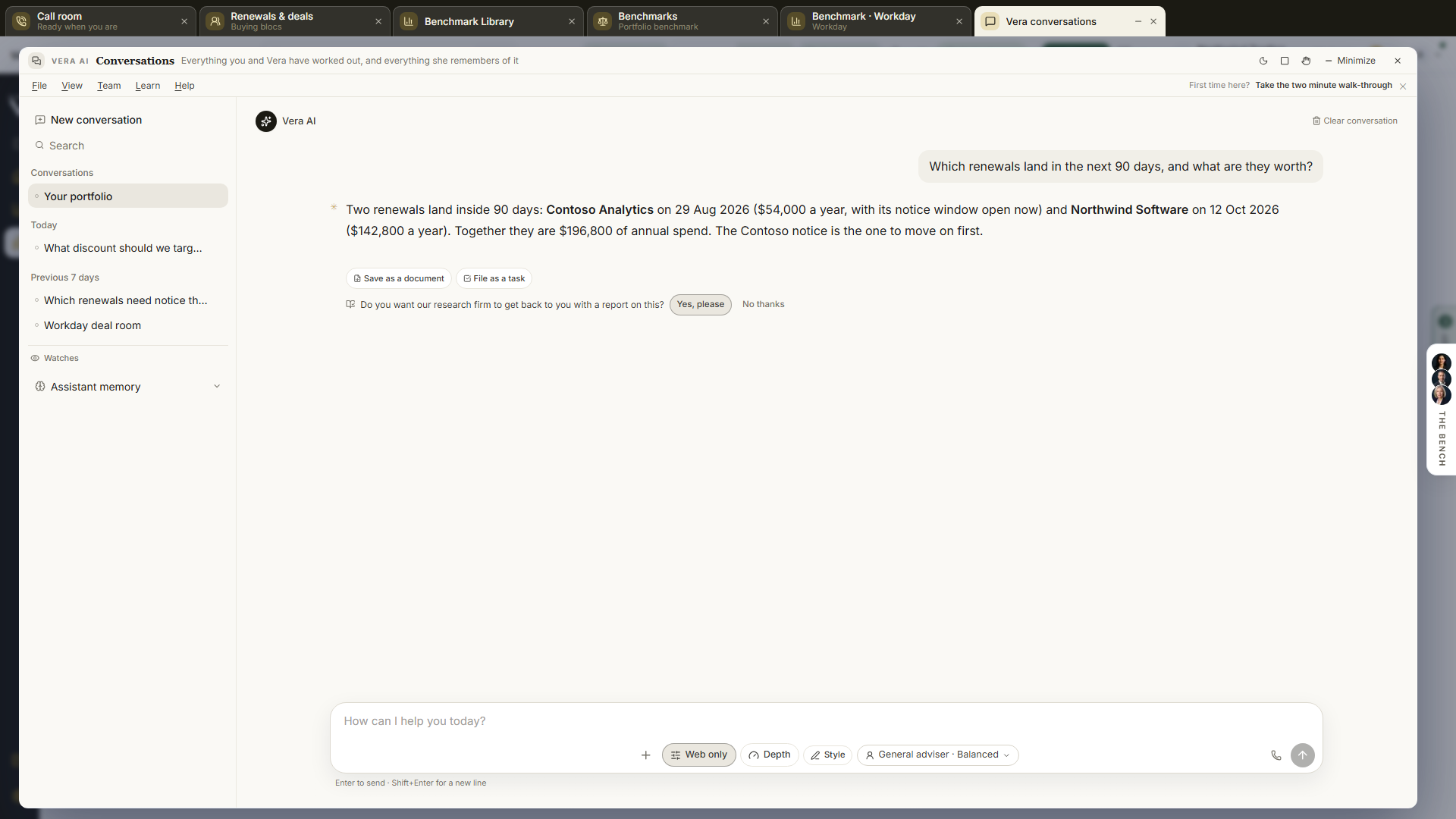
On the screen
- The look (since 5 October 2026): every tab is drawn as its prototype. The title, its tags and the buttons stand on one row, a gold rule under them, then one row of figures. The work sits in white panels on a blue gray ground, and the chat about the tab has its own column on the right: a strip that names what it is about, the conversation, one line to type in with Send, and the line that says it is private.
- The head: the tab's name, a Private to you tag and, where something is pressing, a second tag (how many renewals are inside 120 days, how many promises are overdue), with the tab's buttons at the right. On Ask Vera these are Join a call, Draft an email, Boardroom deck and New conversation. Under the gold rule, one row of figures: on Ask Vera, Reads (the sources the next answer will read), On file, A year and Next end.
- The tabs, numbered 1 to 8 across the top (the numbers are also their keys): Ask Vera, Contract map, Renewals, Benchmarks, Meetings, Promises, Briefs and You and Vera. Ask Vera is the chat about everything. Each other tab shows one kind of record on the left and has its own chat with Vera on the right, which knows what the tab shows; New conversation on its strip empties that tab's chat. Drafts, Review tables and Workflows are screens of Ask Vera: open them from Also in Ask Vera at the foot of the left column, from File, or with Draft an email.
- Press a row and Vera is asked about that row. Press it twice and its details open at the pointer, with its first moves. Right click a row for the other moves: open it, negotiate it, look it up in the Benchmark Library, write a brief, start a case file, a slide on the vendor (a one slide PowerPoint: contracts on file, the cost a year, days to the next end, the money in reach and the rank), draft an email, or send it to a human analyst.
- Renewals: every term ending ahead, on a runway (blue until the notice date, gold after it) and in a table with the end date, the days left, the notice date, the value a year, where the negotiation stands, and Open, which opens it in Renewals. The head carries Prepare the nearest renewal and What is due, and counts the terms ending ahead, those inside 120 days, the notice dates that have passed, those in negotiation and what is at stake a year.
- Benchmarks: every benchmark you ran, drawn against what comparable buyers are offered (the band is what peers are offered, the dot is yours), then the table with your discount, the peer range, the rank and the gap over the term. Under it, the last five lines you looked up in the Benchmark Library on this browser, each with Ask Vera. The head carries Where is the biggest gap.
- Promises: what you promised and what Vera promised, open ones first with the soonest due at the top. Each row shows the promise with the day it was made, Who owes it, Due and the status: Open, a red N days late once the due day has passed, Kept or Dismissed. Vera records the due date when the conversation or call states one ("by Friday", "before the 2 November notice date") and never guesses one; a promise with no date shows None stated and how many days it has stood open. The head counts Open, Overdue, You promised, Vera promised and Kept, with a red tag when any are overdue. Kept, Chase (Vera drafts the email that asks for it, naming the due date) and Dismiss sit on every open row. Vera marks a promise kept when a later conversation shows it done. With Sample data on, the tab lists seven sample promises, two of them late, and changes nothing.
- You and Vera, in three parts. Instructions and goals: your goals first, each with a bar and a line where Vera can measure it from your estate (renewals with a benchmark, notice dates still ahead, deals at or ahead of the market), then the instructions she follows in every answer, email and brief in this workspace, one line each, added and removed here. Under them, How long she answers (Short, Standard or Detailed, the same setting as Depth on the ask line) and What she reads (one switch a source). What Vera knows: everything she holds about you, with where she learned it. Tell me when: the questions she watches on a schedule, and the alerts for notice dates, vendor price moves and market movement, each switched on or off for the app and for email.
- Beside the Ask Vera chat: What Vera knows (six counts, each a press to its tab), Since you were last here (what is due, what moved in the last week, what is overdue or still open, what Vera did), Your goals with their measures and Change them (before you have written any it is Where you stand, with Set your goals), and What Vera is missing, which names the first three gaps with one press to close each.
- Contract map: your whole estate as a map you drag and zoom. Your organization stands at the left. Each vendor is a rounded node with its number of contracts, the biggest yearly cost first; press one to open or close its branch. Inside a branch each document is a node with what kind it is (Master, Order, Amendment, Renewal, Quote and so on) and the year its term starts. Three kinds of line join them: solid for governed by, dashed gold for amends, dotted for renews. A document whose term ends inside 120 days wears a red dot. The chips over the map show one vendor alone, Open every branch opens them all, the wheel and the three buttons at the lower right zoom, and Fit the map in the head brings it back into view. Press a document to open it in the reader; press it twice to select it, which lights its chain and shows a card with its vendor, type, dates and value, Open the contract, Ask Vera and its renewal; right click for every move.
- Everything about one vendor opens over the page from the right click of a vendor or of any of its documents: what is dated ahead and what has happened so far (terms starting and ending, notice dates, benchmarks, meetings, promises due), each a row you can press. At the right are its figures, a box to ask Vera about that vendor, and its moves: prepare the renewal, draft an email, boardroom deck, start a case file, its branch on the map, send to a human analyst. Close or Escape returns to the map.
- Prepare the renewal, one press, on the Renewals head (for the nearest term), on a vendor's page and on any right click, does the job in one press. Vera is asked for the plan in the chat beside the page and the contract is saved to the vendor's case file. A sheet over the page then lists the six parts: Vera's plan, the benchmark, the renewal plan, the email to the vendor (written from the renewal, the benchmark and your last meeting), a slide for the board and the case file, each with its state and one button. Its right column has the dates and Tell me when it moves.
- Meetings, in five parts. Join a call: paste a Teams, Zoom, Google Meet or Webex link and press Join; she joins as a named participant, takes the notes and files the transcript here when the call ends. Upload minutes or a transcript: Choose a file (text, Markdown or a .vtt transcript) or Paste the text, then File the minutes. Coming up: the next two days of your connected Microsoft or Google calendar, each meeting with its vendor, the platform and how many people, Where it stands (the days to the end of its term and its benchmark rank), Prepare me (Vera writes the one page in the chat) and Have Vera join; with no calendar connected it offers Connect Outlook and Connect Google Calendar, both in Settings. Meetings on file: every meeting, newest first or By vendor, with its kind, its date, its length and who can read it; press a row to select it. What Vera took from it: the selected meeting's minutes under their own headings, with Ask Vera about it. The head carries Upload minutes and Join a call.
- Minutes of a vendor meeting are shared with your workspace, like every meeting on file. Your conversations with Vera stay private to you. The Meetings tab says which is which on every row.
- Boardroom deck, on the Ask Vera head and under File, downloads the estate as a PowerPoint: what it costs, the largest vendors, what is due, where the deals stand against the market, and what to do next. Every figure on it is one the tabs show.
- Send to a human analyst asks once before it sends and says what it uses. A contract on file goes to a VendorBenchmark analyst and uses one of your plan's analyst reviews; the confirm shows how many are left and the day the report is promised. Anything else goes to our research firm as a question, which uses no review, and a person writes back by email within 7 days.
- Before the first question: the window opens on a new conversation (since 5 October 2026). The greeting, then five count cards across the page (your contracts, renewals inside 120 days, benchmarks, meetings, briefs), each a press to its tab, then the questions you asked recently as rows to press. The greeting and the cards leave the moment you ask, and the conversation takes the panel. Your earlier conversations are the rows under Conversations on the left.
- The window — the Vera AI window: its menus and the light or dark, maximize, full screen, minimize and close controls are on the title bar. Minimize puts the window in a tab along the top of the screen with everything you had typed still in it. The line at the foot gives the keys and says the conversation is private to you.
- The conversation list — in two places. The window's left column names Your portfolio (the main conversation) and your newest five under Conversations; press a row to open it. Conversations and memory… under File opens a panel at the right with all of them and the tools to manage them:
- Searching conversations: a search box in the panel filters your conversations as you type and, a moment later, searches the full text of every exchange, showing the matching conversations with a snippet of the match; Escape clears it.
- How the list is grouped: every conversation is grouped by when things happened: Pinned, Today, Yesterday, Previous 7 days, Older, with the main conversation always at the top. Conversations that began on a negotiation or a report are here too.
- Managing a conversation: point at a row and its ⋯ menu manages it: Rename edits the name inline, Pin holds it above the list, and Delete removes it after a confirming second press.
- A conversation is yours alone. Share with workspace is no longer offered (since 2 October 2026), and a conversation shared before then is private again: nobody else in your organization can read it.
- New conversation — starts a fresh thread with its own memory of what was said in it, opening on the greeting with your standing under it (your book, your next renewal); Ctrl/⌘ Shift O does the same from the keyboard. After the first exchange the conversation names itself, three to six words on the subject the way you would label a folder, and a name you set yourself is never overwritten.
- The conversation — the transcript keeps its own scrollbar, so the window never scrolls under you: the newest turn is in view when you arrive, your question rides to the top of the view when you send, and the answer unfolds below it without the view ever chasing the stream; Jump to latest waits at the foot whenever newer lines are out of sight. The reading is set at the app's own text size at a width that grows with the window, so a wide screen is used rather than left empty at the sides, and a narrow one still reads like a page rather than a wall. The working lives behind one small control at the answer's right corner, in every state and closed every time: while Vera is still working the corner's dot breathes, and pressing it shows what she is doing, how long it has taken, the lookups as they land and her own train of thought; leave it alone and the answer simply arrives with nothing narrating itself in the space the answer is about to fill. Once the answer settles the same corner holds what she checked, how long each lookup took, the thinking behind it, and the figure by figure verification, exactly as it looked while it streamed, today or on any later visit. A green dot on the corner means the figures verified against your data; a gold dot means review them before relying on the answer. Point at any answer and it shows the feedback thumbs, Copy, and a quiet ⋯ holding Ask again with its rephrasings, Regenerate, Watch this and Speak, on every answer in the transcript, not only the newest: a rating or a repair three turns back works exactly as it does on the latest. The closers, save as a document, file as a task, open the case, sit under the newest substantive answer only. When Vera opens a conversation herself after time away, her greeting appears as a quiet note from Vera rather than a full answer. Site addresses in an answer render as named links you can press, and a long conversation opens on its newest turns, with Show the earlier conversation at the top when there is more.
- The composer — one line at the foot of the conversation with Send beside it (since 5 October 2026). Press into the line and its tools come up under it: the + button (attach a document, up to four and up to 200 MB each, or open your documents and connected apps), then Sources, Depth, Style, the deal, the conversation's persona and Improve. Vera is the tab at the right edge of the page and Ctrl J. Documents you attach are listed by name above the line. Enter sends, Shift+Enter makes a new line. While an answer streams, Send becomes Stop, and Escape does the same from the keyboard: the answer halts where it is, keeping what already arrived. A paste longer than a sentence or two becomes a named text attachment on the conversation instead of an oversized question, so a contract extract travels as the document it is. While a document is still attaching, the send waits: the question stays in the box until the document lands, so an ask never goes up without the document you just handed over. What you have typed but not sent is kept per conversation, through reloads and thread switches.
- Improve (since 2 October 2026): on the composer's foot in the Ask Vera tab. Type a question the way you would say it and press Improve before you send. A panel opens above the composer with your question as it would be asked and every addition marked: the agreement it is about with its value and end date, what to compare it with, the three answers a benchmark gives (what the deal costs, what comparable buyers are offered, where it ranks), and the next step with its notice date. Each addition has its own button with a cross; press one to take it out, and again to put it back. Ask a question as written, by Ask mine as written or by pressing Enter, and the answer closes with what Improve would have added and Ask it improved. Then choose Ask the improved question, Edit it (the wording goes into the box) or Ask mine as written. The additions come only from your own records: where a record is not on file, that addition is left out, never guessed. Nothing is asked until you press.
- Uploading a document on the conversation — the window is the target, all of it: drag a contract onto the transcript, onto the composer, onto the conversation list, anywhere inside the window, and the conversation catches it. Upload it on the conversation appears while the file is over the window, the document uploads when you let go, and it lands on the composer by name. No chooser opens and no tool starts, because you are already in front of the box where you say what you want. An uploaded folder works too, and a file the conversation cannot read is refused by name rather than opened. On a screen with no conversation on it, an upload still opens the chooser described in the Vera handbook.
- What you can attach — the + button, a paste, or an upload takes a PDF or Word contract, an Excel workbook, a CSV, plain text or Markdown, and images (PNG or JPEG), up to four at a time. A PDF or Word file can be up to 200 MB; everything else is capped at 8 MB. A spreadsheet is read cell by cell rather than summarized, every sheet of it, with a formula shown as the number it works out to, and Vera says plainly when part of a workbook was too large to read. An image is read directly, so a photographed rate card or a screenshot of a quote can be quoted from as printed instead of retyped, and its name on the composer shows a thumbnail of the picture it holds. Clicking any file name opens the real file in a new tab, so what is on the conversation is never a mystery. Documents stay attached for the rest of the conversation, and they last: the first question that carries a document files a lasting copy with the conversation, so a reload, tomorrow morning, or another device all bring the attachments back. Uploading a spreadsheet, an image or a text file on a screen with no conversation open now lands it straight on the conversation too, instead of being refused as not a contract.
- A long agreement is searched, not skimmed — a document under 8 MB is put in front of Vera whole. A larger one cannot be: there is a hard ceiling on how much can travel in a single question. Instead she indexes it once, searches it for the clause your question is about, and reads the pages that matter, which is a better read of a three hundred page master agreement than the whole file would have been. The document's name on the composer is marked searched when this is happening. Ask in contract language ("termination for convenience", "uplift cap") and she will find it; if a term genuinely is not in the document she says so rather than answering around it.
- Where an answer came from — when an answer draws on a document you attached, Read from your documents appears under it. Open it for the exact passages the answer was built on, each with its page, so you can check a quoted figure against your own copy. The passages are recorded as the answer is written rather than reconstructed afterwards, and they stay on the answer in your history.
- Sources — on the composer's foot, the control that says where Vera may look before she answers this conversation's questions. Seven places, each on or off: Your contracts (the standing summary of your agreements that Vera carries into every answer, plus exact rows for spend, savings, saved scenarios and workspace activity), Document text (clause search across every contract you have uploaded, and the reports you have generated), Market benchmarks (peer discount ranges and where a deal ranks), The web (live search over public pricing and market pages, the mirrored vendor price catalogs, and any link you paste), Research library (the published toolkits, white papers and market notes), Past conversations, and Connected systems (what your integrations have synced: license usage positions from your identity and SAM systems, so "how many seats are actually active" is answerable, and procurement spend actuals, so "what did we actually pay" is too; where nothing is connected she says so instead of guessing). In the chat the control starts with every source on (since 2 October 2026), so a question about any contract you uploaded is answered from it; on the ask bar on Home it starts on the web and your past conversations. A choice you make yourself is kept on both. It always says where it stands: the trigger names a one press choice when one is on (Web only, Your contracts), reads 3 of 7 sources when you have made a set of your own, and reads Sources when everything is on. Switching one off withholds it rather than filtering it afterwards, so Vera cannot quietly answer from a place you excluded, and when a question genuinely needed one of them she says which one in a single line rather than letting the answer read as though that place came back empty. Four one press choices sit above the seven sources. Web only searches the live web and nothing of yours. The other three each add to the previous: Your contracts (your own contracts and what you and Vera have said about it), Contracts and research (that plus the market benchmarks and the research library), and Contracts, research and the web. Your own conversations stay on in those three, because they are your words rather than an outside lookup; Web only leaves them off, keeping its promise that nothing of yours is read. Everything and Nothing set all seven at once; with nothing selected nothing is looked up and no summary of your contracts is loaded either, so Vera answers from market expertise alone and opens by saying so. The choice is remembered per workspace. Documents you attach to the conversation are never affected: handing Vera a document is a direct instruction to read it, and no source setting overrules that.
- Depth — beside Sources, how deeply Vera thinks on this conversation's questions: Brief answers in one short paragraph, Standard is exactly what every answer was before the control existed, and Deep reasons longest, for the decisions that deserve it. Deep also lifts the working limits: up to ten rounds of lookups instead of six and more than twice the clock, so a genuine research question, comparing several vendors' current pricing and building the table, fits in one answer. Deep now lengthens the answer as well as the thinking, roughly twice what the question would ordinarily draw, spent on the reasoning behind each finding, what a counterparty will say, and where the argument is weakest. The choice is remembered per workspace, and it shapes the answer without ever relaxing the grounding or the verification rules.
- Style — beside Depth, how the answers read. Write styles of your own, Board voice, Two lines max, and pick one for this conversation; the same picker holds your standing note, how Vera answers, always, which rides every answer in this workspace whether or not a style is picked, for example who you are and what to assume. Both are your words, applied to the shape and voice of the answers and never allowed to loosen the grounding or citation rules. The picked style is remembered per workspace, and no style at all is exactly the answers you had before the control existed.
- Deal — when this conversation belongs to a deal, the Deal button beside Style names it and its menu opens the deal, leaves the scope, or joins a different one. While a deal is set the button reads in ink on a quiet gray. The scope is kept on the conversation itself: reopen it from the conversation list tomorrow and it still answers inside the same deal, which used to silently lapse with the link that first carried it.
- Files Vera builds for you — ask for a file by format and you get the file itself: a Word document, an Excel workbook, a PowerPoint deck, or a PDF, built in a sandboxed workspace with the same document machinery Claude uses on claude.ai and delivered as a download on the answer, usually before the closing lines finish streaming. Say "make me an Excel workbook comparing our three cloud renewals" or "turn this into a PDF" and the download lands under the answer with the file's name and size; one press downloads it. Ask for a document, a strategy, a brief, a playbook, and the Word file arrives with it automatically: the document opens beside the conversation, where you revise it, and the download under the answer carries the file you keep and forward, no second ask needed. Files are kept with the conversation, so the download is still there tomorrow and on any device, and deleting the conversation removes its files too. Everything is written to the firm's document standard and dress.
- Putting things on your screen — type open the benchmark library, play the AWS film or set the term to 36 months and it happens: Vera names the thing in words, the platform looks it up, opens it or moves the lever, and reads the change back off the window before the thread shows it as one line naming what was done; a move that did not land says so on that line rather than as success, and a screen your workspace keeps read only for agents is refused with the policy named. Inside a workroom, run the second opinion or draft the meeting request presses that workroom's own What now move, shown as that same line once the window confirms it; a move that sends stays your press. What you say aloud to a specialist on a call, and what they say back, lands in this same conversation marked with the seat's name, so a conversation begun on a call reads on here and the next typed question carries it.
- Documents Vera opens beside the conversation — ask for something you will keep, forward or edit and it opens as a document rather than arriving as a long reply: in a wide window to the right of the conversation, with its own scroll, a drag handle on its left edge to set the width (the chat remembers your choice), and a pin to keep it in view while newer documents arrive, a quiet line offering the newest when it is ready; in a narrower window, and on a phone, under the exchange exactly as before. A brief for the board, talking points, a note to the vendor. Its header names what it is and which version you are on, and the text fills as Vera writes it, so a long brief reads as work happening rather than a silent wait. Copy takes the whole document to your clipboard once it is finished, as a document rather than as marked up text: pasted into Word or Outlook its headings, lists and tables arrive formatted, and pasted into Excel a table lands as cells; Versions in its header lists every draft it has carried, opens any of them read only, and can make an earlier one current again, saved as a new version so the history keeps the detour; Share beside it opens the document to your workspace, read only, and one more press takes it private again; Download saves the current version as a real Word document in the house dress, and it is a document Word treats as one: the masthead carries your workspace's name over the document type, the sections appear in Word's navigation pane and can build a table of contents, lists are real Word lists, money columns right align and item numbers center, classification words like REQUIRED and RISK carry their verdict colors, and the file's own properties name it so it never sits in your downloads as a blank; a PDF button beside it for the A4 file in the executive brief dress that renders identically wherever you send it, and a CSV button when the document carries tables, one section per table; Close puts it away and leaves it stored. Ask for a change and Vera revises that same document instead of writing a second one, so the paragraphs you did not mention stay exactly as they were and the version number moves to 2. The reply beside a document stays short on purpose: it says what was written and what she would change next, because the document itself is on your screen. Everything else stays in the conversation, a long answer included: the test is whether you will come back to it, not how many words it took.
- The shape of an answer follows the question — Vera reads what kind of question you asked and answers in the matching shape, rather than writing every reply to one template. A how it works question ("how do I exit a ULA", "what does a true up clause do") is taught: the mechanism, what decides the outcome, the sequence in the order it happens, and the traps, in headed sections at the length the subject needs. A question about your own position keeps the tight shape it always had, a two or three line read followed by the findings ranked by the money you can actually move, each with the ask it implies. A question with a real choice between options comes back as a comparison table with a verdict column. A quick follow up about something already established gets one or two sentences. Small talk gets a plain conversational reply with no analysis furniture. On a general question your own agreements appear at the close if they bear on it, never as the frame: asking how something works gets you the answer to that, not a report on your contract.
- What Vera knows about the publisher — name a vendor in a question and Vera brings her standing read of how that publisher negotiates: when real movement usually appears by quote round, where the flexibility actually hides when list price holds, the plays they reach for first, their fiscal calendar, the escalation that moves a deal and what typically stalls one. Twelve publishers are covered today, Oracle through its own deeper doctrine and Microsoft, SAP, Salesforce, ServiceNow, Workday, IBM, Adobe, Cisco, Google and Atlassian through the behavior library. It is curated advisory guidance rather than measured data, it says the month it was last reviewed, and where a fiscal date or a program name decides something Vera checks it rather than repeating it. For the vendors beyond those twelve, the same knowledge lives in the research library and she reaches for it there.
- What you have already decided — when a conversation settles something, that position is kept and carried into later conversations with the date it was settled, so Vera builds on it rather than putting the same choice back in front of you. If she thinks a settled position should change she says so and says what changed. Facts she remembers about you carry the date they were last confirmed, and anything she remembers that disagrees with your workspace data loses to the workspace: she states the current figure and tells you her note was out of date. Settled positions travel with the Past conversations source, so switching that off stands them down with everything else from earlier conversations.
- When a question needed a source you had switched off — with Your contracts or Document text off, a question about your own agreements, your spend, a renewal date or what a contract says has nothing of yours to read. The answer says which source was off, and under it sits one press that turns that source on and asks the same question again. It appears only when the question genuinely needed it: asking how a licensing model works, or how a vendor behaves, never nudges you, because those are answered from the market.
- What the sources switch covers — turning a source off withholds it everywhere, not only from the lookups. With Your contracts off, the standing summary of your agreements, the lookups, your unfinished work and Vera's own notes on your deals all stand down. With Past conversations off, earlier conversations and anything promised in them stand down too. What stays either way is what you have told Vera about yourself, how you like answers written, and your organization's stated posture, none of which is contract data.
- When Vera needs one more fact — a question that genuinely turns on something you have not said (your region, your seat count, your renewal date) is still answered first, on the most reasonable assumption and saying which assumption was made, with the one question that would sharpen it at the very end. You never get the question on its own, and never before the answer.
- A report from our research firm — under every answer Vera asks one question: Do you want our research firm to get back to you with a report on this? Press Yes, please and your question, together with the answer she gave, goes to our research firm; a person researches it and gets back to you with a written report by email. Saying yes in the conversation instead files the same request, and Vera confirms it has gone. No thanks clears the offer for that answer only, and a greeting or a question about the product itself never carries it. The confirmation names the day you will hear back, seven calendar days from the yes. On a live line the specialist makes the same offer once, when you ask for a person or when a pricing question goes deeper than the sheet, and a spoken yes files the request from the call with the same promised day.
- The brief as a real document — a finished brief is printed to a PDF and kept, and the page opens that file rather than a picture of it: turn the pages, jump by the contents list down the side, search the words, zoom, or press Open reader to read it full screen. Download PDF hands you that same file, so the copy you forward is the copy you read and the copy your colleague opens. A brief written before this, or one whose file is still being set, reads on the page exactly as it always did.
- Word and the negotiation, from a brief — every Vera brief downloads as an editable Word document in the firm's theme beside the PDF, and Send this brief into the negotiation opens a new negotiation on the vendor with the brief linked to it; the brief's figures do not prefill the form yet, so carry them from the brief.
- Asking the same question a different way — the ⋯ menu on the newest answer carries Shorter, Go deeper, Different angle and Plain English beside Ask again. Each re-asks your question with one instruction attached, so an answer that was the wrong shape costs a press rather than a turn of arguing with it. What was asked stays visible in the thread, so a colleague scrolling back can see why two answers to the same question differ.
- Editing a question, and the versions of one — point at any question you asked and a pencil appears beside it. Change the wording and press Ask this instead: the conversation forks at that turn. Everything before it comes with you, the new wording is answered in its own version, and the question you first asked keeps the answer it earned rather than being buried under a correction. A small 1 of 2 control under the question moves between the versions, and each version appears in the conversation list under the conversation's own name so you can find it later. Regenerate, in an answer's ⋯ menu, takes a second run at the very same wording: a parallel version of the conversation answers it fresh, the same arrows move between the takes, and nothing is overwritten. Editing does not delete anything, which matters more often than it sounds: the first phrasing is frequently the better one and you only find out after reading both.
- Continuing an answer that was cut off — a long answer can reach the length limit and stop mid sentence. It says so, and offers Continue it beside Ask again. Continuing picks the answer up at exactly the character it stopped on and writes the rest onto the end of it, so you keep your place in what you had already read; the two halves are saved as one answer, not two. Ask again is still there for the times the answer was going wrong anyway, but it spends the whole question again and comes back with different prose.
- Tables you can rank, blocks you can copy — press any column heading in an answer's table to rank by it. Money, percentages, dates and counts are read as figures rather than as text, so $1,240,000 sorts above $412,000 and a renewal in March sorts before one in November; a second press reverses it and a third puts Vera's own order back. Fenced blocks carry a Copy control for the clause or the draft you are about to paste somewhere else, and it copies exactly what is in the block. Copy under an answer takes the whole answer with its formatting: paste it into Word or Outlook and the table is a table with its head row, the headings are headings and the lists are lists; paste it into Excel and the table lands as rows and columns. A chart in the answer is copied as the table of its figures, a clause comparison as the two wordings side by side, and the source tags are left out. If the browser blocks the clipboard, a message says so and the text stays selectable. The Ask panel that opens over any page carries the same Copy under each answer, beside the thumbs.
- Your clause against the market standard — when an answer compares your wording with the wording comparable deals carry, it is drawn rather than described: your version and the market version side by side, the words you would give up struck through, the words you would gain marked, and one line on what the difference costs. Where Vera does not have your exact text she says what a market standard clause looks like in prose instead of inventing a quotation.
- Open its page — in the header of a conversation that belongs to an artifact (a negotiation, a report): one press back to the page it lives beside.
- A link to a shared conversation — conversations are no longer shared with the workspace, so a link a teammate sent before 2 October 2026 says the conversation is not shared instead of opening it. To pass an answer on, use Forward in the Ask Vera panel, Copy under the answer, or Save as a document.
- Clear — in the head, once the conversation holds anything: deletes the conversation you are in and nothing else, and asks you to press it twice so a stray click never costs a transcript. A conversation other than the main one is removed outright and the chat returns to the main one.
- Assistant memory — in the Conversations panel, under the list: the facts Vera holds about you, each with a forget button, and the audit log of everything learned or forgotten. Her memory of earlier conversations reaches back as far as your conversations do: every thread on file is distilled into memory, oldest included, so "what did we work out about this vendor months ago" finds the conversation rather than the last few days of them.
- Chat — answers cite whether a figure comes from your contracts or from market experience. Your conversation is saved and private to you: nobody else in your organization can read it, and what Vera learns in it is never used in a colleague's answer. The assistant keeps a long-term memory of durable facts about you (reviewable and deletable under Assistant memory).
- Market questions without your figures — ask which vendors the platform covers and Vera reads the benchmark library itself: the total, the shape by category, and whether a specific vendor is in it. Ask what a good discount is on a vendor and she answers from that vendor's reference set: the typical (median) discount off list and what top-quartile buyers get, or for per-unit vendors the typical and best-quartile net fee. Once your own figures are on file she runs the exact standing on them instead.
- Current price questions — ask what something costs today and Vera answers from the price lists themselves. The platform holds a daily refreshed mirror of the cloud vendors' own catalogs (every Oracle Cloud part number on the Universal Credits price list, AWS on demand rates for the nine major services, and the Azure retail meter catalog), so a part number, an instance type, or a unit rate comes back immediately with its as of date; the trail shows Read the vendor's price catalog. For everything the vendors do not publish (a firewall with a three year support bundle, a landed price through an OEM partner) she checks the live web: the vendor's own price card first, then authorized resellers, and the answer leads with the printed figure, its unit, and the page it was read from as a link, then adds the discount comparable buyers achieve off that figure. The trail shows Checked current pricing on the web for those, and a looked up figure is kept for the day so the same question returns the same baseline to everyone on your team.
- A link you paste — give Vera the address of a vendor pricing page, a licensing change notice, an end of support announcement, or an analyst note, and she opens that page and reports what it says rather than searching for it again and answering from whatever came back. Figures are quoted with their unit and the date printed on the page, and a page that needs a login or has gone is reported as exactly that instead of described from memory. The trail shows Read the page you linked. It belongs to the web source, so it goes quiet when you switch the web off.
- How the answer gets built — Vera looks things up while she writes, not before. Each lookup appears in the working trail the moment she asks for it, with a spinner, and settles to a tick when it answers; anything that took more than a second and a half shows how long it took. She reads the question, reaches for whatever would genuinely sharpen the answer (your own figures, the text of a contract, the market standing, a price list, a page you linked), reads what came back, and reaches again if the first result changed what she needed to know. Open the corner at the answer's right edge and the trail shows each lookup as it happens, with the first line of what it returned; the answer begins as soon as she has something worth saying rather than waiting for every lookup to finish. Where a result comes back empty she says so rather than writing as though the thing does not exist, and where the clock runs short she writes from what she has and names what she could not check. A question about how something works or how a vendor behaves goes to the research library first, and to the web when the library does not hold it. Settled mechanics she knows cold are answered directly, because a lookup there buys you nothing, but anything that can have moved since she learned it is checked before she states it: a current price or list rate, an edition or program name, a support, licensing or audit policy, a certification procedure. A figure she remembers from an earlier conversation is re-derived from your live data before she repeats it, or dated if it cannot be, and before she contradicts something you were told before she checks that conversation and says what changed.
- The arithmetic — when an answer states a discount off list, a total over a term, what an uplift compounds to, or what closing a gap to a target is worth, Vera runs it through the same calculator the reports use rather than working it out as she writes. The trail shows Worked the numbers. An uplift is compounded rather than multiplied, so a three year term at 5 percent a year comes back as the real total with the walk printed year by year, and money is rounded the way a buyer says it aloud. Nothing is invented to fill a gap: a deal with no list price on file simply comes back without a discount line.
- Grounded figures — when an answer states a figure taken from your portfolio or from a live data query, that figure is grounded in your stored data. The prose itself stays clean of source tags; the provenance line under the answer records where the numbers came from, the same way generated reports list their sources below the document.
- Verification line — an answer that states figures is checked after it finishes streaming, by the same groundedness check that guards reports. A line under the answer says what was checked, for example 9 figures: 5 straight from your data, 1 straight from your document, 2 worked out from it, 1 market context, and opens into a row per figure. A figure quoted from a document you attached is verified against the exact passage Vera read and its row says From your document, because a document in your hand is not your stored data and the line never claims it is. Each row names the figure, where it came from, and the reference of the source it belongs to: a figure read straight out of a lookup shows the line it was read from, and a figure Vera worked out shows the arithmetic that produced it, for example your rate minus the cohort median. A figure the check could not place is marked and the answer says so rather than hiding it. No line means the answer had no figures to check.
- Staged changes — when you ask Vera to change something (for example move a renewal stage), she stages it with Confirm and Reject buttons. Nothing runs until you confirm. The same staged changes appear in the Ctrl/⌘ J dialog, and deciding in either place applies everywhere.
- What the answer leaves as — an answer worth keeping ends with the moves that keep it. Save as a document writes the question and the answer into your Deliverables as a formatted draft you can share, email, or print, carrying a note that its figures reflect the stored data at the moment it was written, so whoever you forward it to knows to re-ask before acting on a number that may have moved. File as a task opens a task titled Follow up, with the full answer in the notes and the conversation linked, unassigned so nobody is emailed. Open the case appears only when the answer names a vendor whose renewal falls inside 365 days, and it states the days remaining before it opens the case. The row shows on answers that state figures, or that run long; a one-line answer gets none of it.
- "Can I help you?": every Vera surface opens with the same question and the same six intents, phrased the way you would say them: I have a renewal coming up, I want to check if a price is fair, I need to review a contract, I want to cut our software spend, I am preparing for a vendor negotiation, show me what this platform can do. Answer in your own words, in a sentence or a paragraph, and Vera names the one tool that does it, links straight to it, and says what it will do and what it needs from you. If what you want could go two ways she asks the one question that decides it, then recommends. She routes from the platform's own registry of every screen, so the link always opens a real page, and if you are already on the right screen she tells you which control to press instead of sending you in a circle.
- Vera on every page: Ctrl/⌘ / on any screen opens her with the same question, and the written guide for that screen sits underneath. Ctrl/⌘ J opens the same conversation as a dialog from anywhere.
- Ask Vera about this: every screen that produces something to read (a negotiation, a generated report, a tool result, a benchmark) carries an Ask Vera box beside it. Vera reads the artifact itself, not just the page name: the figures it states, the section it argues, the asks it lists, and, on a negotiation, which planned moves are still unticked. That is what makes "What should I do next?" answerable with your next actual move rather than general advice. The same reading reaches Ctrl/⌘ J, the screen guide, and the voice assistant while you stand on that page, so wherever you ask, Vera is looking at the same screen you are.
- A conversation per thing: each artifact keeps its own saved conversation. Ask four questions about your Salesforce negotiation, come back next week, open the negotiation, and Vera picks up exactly where you left off, with the negotiation's current numbers in hand. The Ctrl/⌘ J header says which conversation you are in and carries a one click switch back to your main portfolio chat. Everything Vera has learned about you spans all of them; only the transcripts are separate.
- The Ask Vera panel (Ctrl/⌘ J): a navy bar names it Ask Vera, says Private to you, and carries Open full chat and close. The conversation is under it, then the line you type on with Send at the foot. Open full chat opens Chat in the Vera AI window beside the page you are on, on the same conversation.
- The panel's toolbar: on a wide screen the Ctrl/⌘ J panel carries a slim toolbar on its outer right edge with two options. Forward drafts an email from the conversation you are reading (pick the reader, edit it, copy it into your own mail) and copies a link to the page you are on. What next lists good moves from the conversation: the full chat, the analyst walkthrough, the Vera Deal-Room, and the tool finder. Each option opens docked to the right of the popup, outside the conversation, so nothing covers what Vera wrote. Escape closes the open option first, then the popup.
- Pick back up: the conversation list holds every conversation you have had with Vera, newest first, with what you last asked. A conversation that began on a report or a negotiation opens in place, and Open its page in its header takes you back to the report it belongs to.
- Vera as a teammate — beyond answering questions, Vera holds a named seat on the team. You can delegate a task to her from Tasks and she does the work; she automatically reviews every deal sign-off request before the chain votes (see Decisions); on a negotiation she preps the team before a vendor call with a pre-call brief; and Competitive Quotes lets her negotiate with up to ten vendors at once. Everything she does is grounded in your stored deal data and appears on the record's timeline under her own name.
Links to the old command screen. The command screen that opened at /ask is retired. Where its parts are now:
- A link to
/askopens Vera AI. A link that carries a question (/ask?q=…) opens Vera conversations and asks it at once. - Read a document is Vera AI: upload the document, say what you want to know, and press Write the brief.
- Vendor playbook is a request here: ask for a negotiation playbook for a vendor and it opens as a document beside the conversation, with the Word file under the answer. The guided renewal engagements for the major vendors are in Vendor playbooks.
- Specialist agents are on the floor of AI agents.
- Reports Vera has written are under Briefs, All briefs in Vera AI. Answers kept with Save as a document are in Deliverables.
- Pick back up is the conversation list: the rows under Conversations in the window's page list, and the Conversations panel.
How to use it
- Open Vera AI and press Chat, or press Ctrl/⌘ J on any screen and then Open full chat. Ask about any contract, vendor, price, or clause in plain language.
- To have Vera read a contract, drag it anywhere onto the window or press + on the composer. The answers after it are read off the document.
- To have a document written instead of an answer, open Vera AI: upload the document, say what you want, and press Write the brief. Specialist agents are on the floor of AI agents.
- To narrow an answer to one place, press Sources on the composer's foot and switch off what you do not want read. Leaving only The web on and pasting a vendor's pricing link is the fastest way to ask what a published price means for your renewal.
- Keep asking. A follow up keeps the answer you are reading, and the suggestions above the composer are read from the thread you are in.
- Asked it badly? Point at the question, press the pencil, and reword it. The conversation forks, so you can read both answers and keep the better one.
- Briefs Vera writes are filed under Briefs, All briefs in Vera AI. An answer you keep with Save as a document lands in Deliverables.
- Open Vera anywhere in the app with Ctrl/⌘ J, so you never have to leave the page you are on. On an ordinary page it is the same conversation as this one; standing on a report or a negotiation it opens that artifact's own conversation instead, grounded in what is on screen, with the same verification and staged changes to confirm. On a wide screen the panel carries its toolbar on the outer edge: Forward and What next, each opening beside the conversation.
- On any report, use the Ask Vera box under it and start with What should I do next?; the answer names the specific move, ask, or clause from that document.
- Prefer talking? Spoken answers name their sources in words: "your contract shows" for figures read from your documents, "from market data" for market figures.
Tips
- Vera answers from your organization's own contracts, our market data, the mirrored vendor price catalogs, and, for current price questions the catalogs do not carry, the live web, and every figure is tagged with its source so you can tell a stored number from a market estimate or a published price.
- Ctrl/⌘ / opens the same Vera as a screen guide on any page: her question with the screen's written guide underneath, and a question asked there continues here and in Ctrl/⌘ J, grounded in the screen you were on when you asked. The screen guide also opens from a screen introduction's Show me around. There is no standing button for it any more; the corner stays clear for your work, and your specialist sits at the bottom left.
- Vera's long-term memory is fully reviewable and deletable under Settings › Assistant memory.
- Watch this in an answer's ⋯ menu keeps the question as a standing watch that is asked again on a schedule. Watches at the foot of the conversation list opens Watched answers.
Related: Negotiation memory · Deliverables · Workflow agents · Vera's seat and stance · Watched answers
A shared conversation
Sharing a conversation with the workspace ended on 2 October 2026: a conversation with Vera is its owner's alone, and a link shared before then now says the conversation is not shared. The page still lists your own recent conversations, your contracts and your renewals, as described below.
Until 2 October 2026 this page showed a conversation a teammate shared, read only: every question, answer and citation as they had it. Nothing you do here speaks in the conversation or teaches Vera anything.
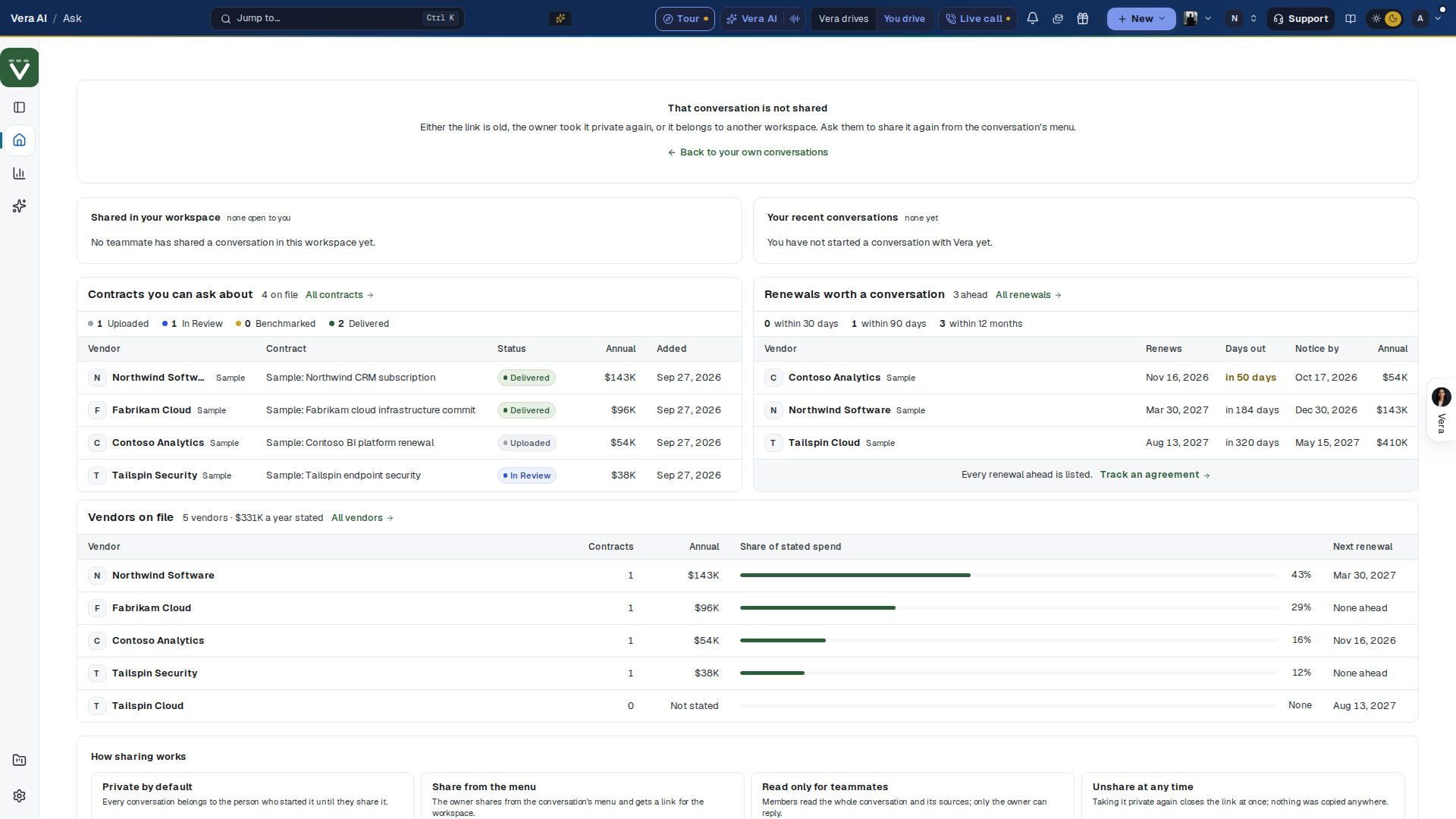
On the screen
- The head — who shared it, read only, the conversation's title, and Your conversations to go back to your own.
- The conversation — every question and answer in order, with the answer's sources marked as in the chat.
- The masthead — when the link does not open a conversation, the page opens on the house masthead, Shared conversations with Vera AI after the rule, and one row of facts: conversations shared by teammates, your recent conversations, contracts you can ask about and renewals ahead. Your conversations is the button at the right.
- That conversation is not shared — shown when the link is old, the owner took it private again, or it belongs to another workspace, with Back to your own conversations under it.
- Shared in your workspace and Your recent conversations — under that notice: the latest conversations teammates have shared, and your own, each with its message count and when it was last active.
- Contracts you can ask about and Renewals worth a conversation — your latest contracts with their status and annual value, and the renewals coming up with the days out, the notice date and the annual value, in US dollars, then How sharing works in four short facts. Under them, Vendors on file lists your largest vendors by the annual value their contracts state: the contracts on file, each vendor's share of that stated spend and its next renewal date. Each row opens the vendor.
How to use it
- Open the link a teammate sent you.
- Read the conversation and its sources; to take it further, ask Vera in a conversation of your own.
- If it says it is not shared, the owner has taken it private. Ask them for the answer itself: Forward in the Ask Vera panel drafts it as an email.
Related: Vera conversations
Vera's seat and stance
In plain words: two dials that set who Vera is on this conversation and how hard she pushes. They change how she argues, never what she found.
When to reach for this
- You are working one vendor and want the answer argued the way that vendor sells rather than in general terms.
- The reading is right but the delivery is wrong: you want the firm version to take into a negotiation, or the collaborative version for a relationship you are protecting.
The control sits on its own line directly above the writing box, under the tools bar, so the setting is in front of you while you type rather than filed away in settings. It states your current choice at all times: General adviser · Balanced until you change anything, Oracle specialist · Direct once you have. It carries the accent color whenever a vendor seat is on, so a setting you have forgotten about is visible without opening the menu. Press it and the menu opens upward in three parts, taking as much height as the window has room for above the control and scrolling inside itself when that is less than the whole list.
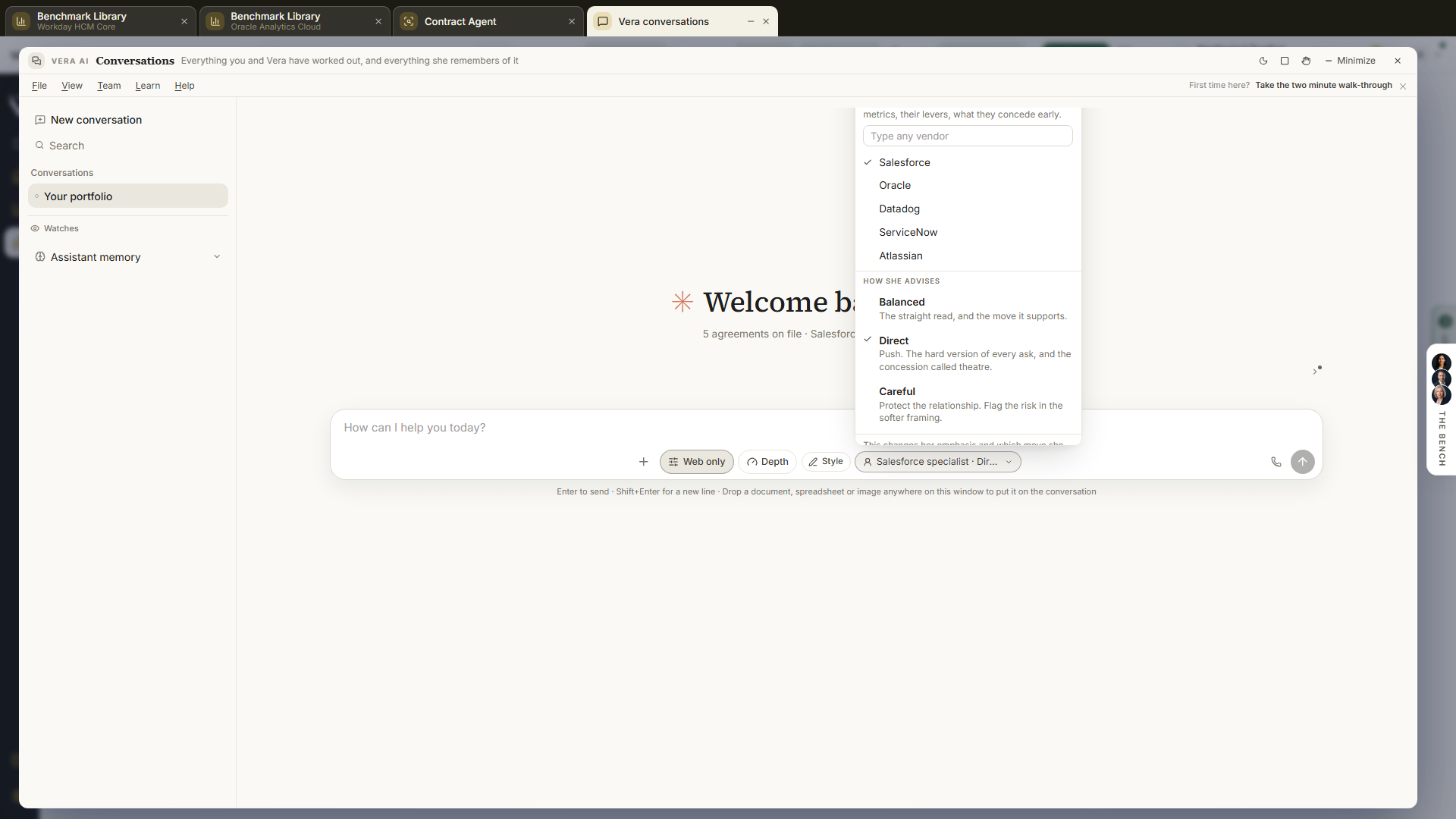
On the screen
- Her seat — General adviser is the default: she answers across your whole book, whoever the vendor is.
- Vendor specialist — the second seat, and the one worth setting before a renewal. She argues the way that vendor sells: their license metrics and editions, the levers that actually move on their document, the concessions they give early and the ones they hold, and where their fiscal calendar puts pressure. She uses their own terms of art where those are the clearest words for a thing.
- The vendor list — your own book first, up to eight names: the vendor on the document currently open, then the vendors whose agreements expire inside the next year, because the one you want is almost always one you already hold contracts with. Sample agreements are left out, so an organization running on the sample portfolio shows the empty list and asks you to type a name. Type any vendor covers everyone else: a name up to 60 characters, and that name is the only free text the control accepts.
- How she advises — three stances. Balanced is the default: the straight read and the one move it supports. Direct volunteers the harder read, names a concession as theatre when it is one, and puts every ask in its firm version. Careful prefers the collaborative framing and raises risk quietly and early rather than sharply and late.
- What it never changes — the line at the foot of the menu is the limit, and it is exact. The dials move emphasis, framing, and which move she leads with. They never move a figure, a verdict, or whether she says she does not know. Direct never overstates what the evidence supports in order to sound bolder, and Careful never softens a figure or buries a real risk in order to sound agreeable.
- Back to the default — at the foot of the menu: returns both dials to General adviser and Balanced in one press.
How to use it
- Open Vera conversations and press the control above the writing box. It reads General adviser · Balanced until you change it.
- To put her in a vendor's seat, pick a vendor from your own book or type the name and press it. The menu closes and the control names the seat.
- To set the stance, open the control again and pick Balanced, Direct, or Careful. The menu stays open, so you can read all three descriptions before you decide.
- Ask your question. The choice applies from the next question you send and stays set for every question after it, across conversations, until you change it.
- Press Back to the default when you have finished with that vendor, so the next conversation is not argued from a seat you have forgotten you set.
Tips
- A vendor seat is not a license to invent. Everything she says about that vendor still comes from your own documents, the tools, or the research library, and where she does not have it she says so and names what to ask the vendor for. Ask a vendor-seat question about something else and she answers it plainly rather than bending it back to that vendor.
- The choice is saved to your profile rather than to the browser, so it follows you to another machine and survives a reload. It is yours alone and never changes what a colleague sees.
- The dials steer Vera conversations. Vera on the other surfaces (Ctrl/⌘ J, the Ctrl/⌘ / screen guide, Vera AI) answers in the house voice whatever is set here.
- Two settings are two different questions to Vera, so the same question asked as General adviser and as a vendor specialist is answered twice rather than served the first answer again.
Related: Vera conversations · Vera AI
Watched answers
In plain words: questions you asked once and want asked again. Each one is run again on its schedule against your current data, and you are notified when the answer changes.
When to reach for this
- A question whose answer moves with your data: which renewals need notice this quarter, what is still open on a vendor, what a vendor now charges.
- You watched a question from an answer and want to change how often it is checked, pause it, or remove it.
- A notification says a watched answer changed and you want to read what moved.
A watch is added in Vera conversations: open the ⋯ menu on an answer and choose Watch this. This screen lists every question you watch, newest first, and is where you change the schedule, pause or remove one. The schedule a watch runs on (daily or weekly) is filled in ink. Watches are private to you; a teammate never sees yours.
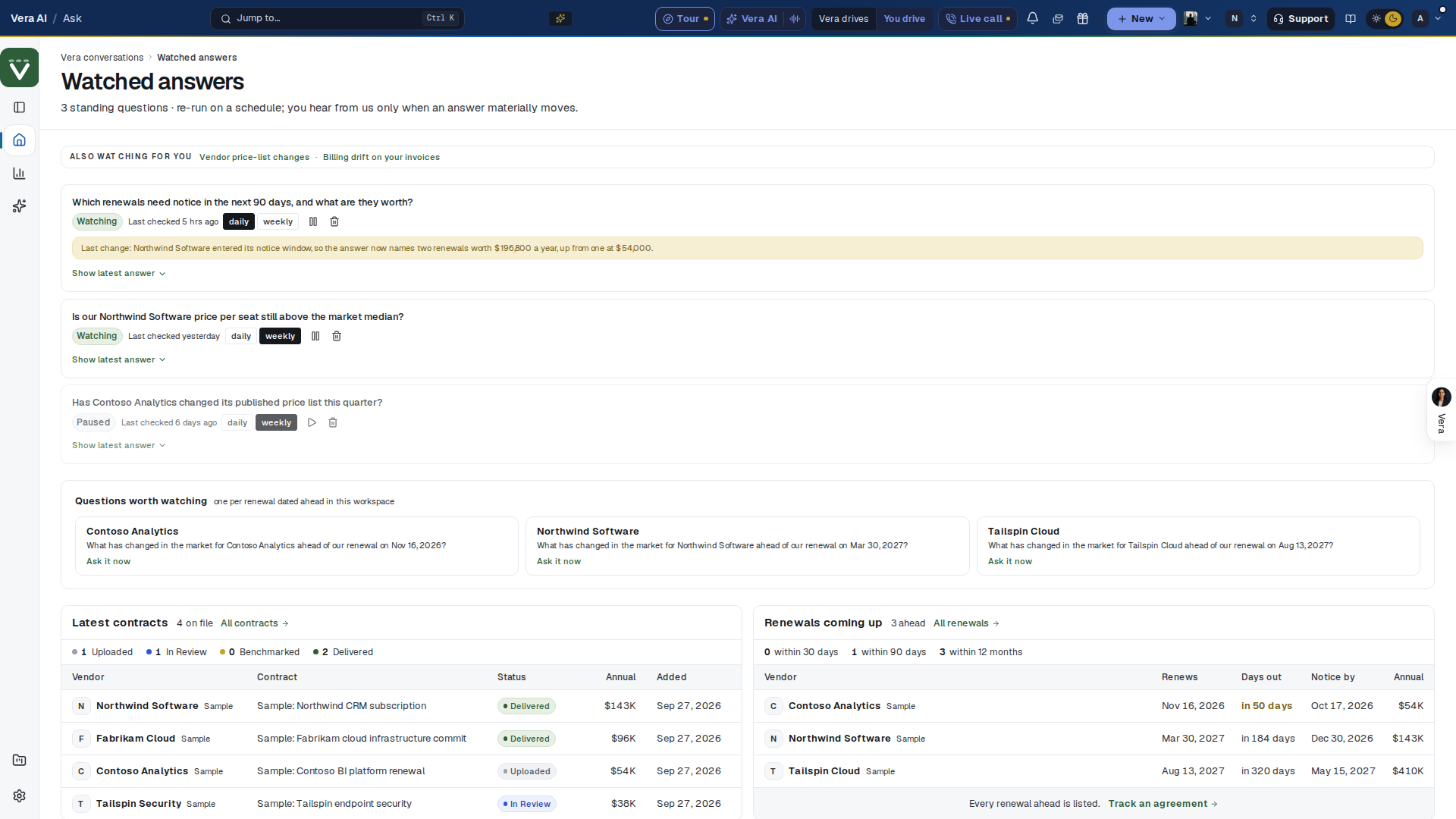
On the screen
- Messages and calendar: this is the last screen of Messages and calendar. The masthead counts the questions you watch against the limit of 20, the paused ones, the ones whose answer moved, the daily ones and the runs a month at these cadences (about 30 for a daily watch, 4 for a weekly one). The inspector on the right repeats the figures and carries Moves: ask a question to watch, the two other watches, and the chat.
- The head — the breadcrumb (Vera conversations, then Watched answers) and a line counting the questions you watch.
- Also watching for you — links to the two other watches: Vendor price-list changes opens Watch and Billing drift on your invoices opens Billing watch.
- A watch — one row per question: the question as you asked it, a Watching or Paused tag, and Last checked with its age. Until its first check the line reads First check runs tonight. A paused watch is dimmed.
- Daily and Weekly — how often the question is asked again; the filled button is the current schedule. A new watch starts on Weekly.
- Pause and Remove — the two icons at the right of the row. Pause stops the checks and keeps the question and its last answer; the same icon then resumes it. Remove deletes the watch at once, with no confirmation.
- Last change — shown when the most recent check found a change: what moved, with the old and new values where the answers state them.
- Show latest answer — opens the most recent answer in full under the watch; Hide latest answer closes it.
- Latest contracts and Renewals coming up — under the watches: your latest contracts with their status and annual value, and the renewals coming up with the days out, the notice date and the annual value, in US dollars, then How a watch works in four short facts. Under them, Vendors on file lists your largest vendors by the annual value their contracts state: the contracts on file, each vendor's share of that stated spend and its next renewal date. Each row opens the vendor.
- Nothing watched yet — with no watches, the screen says how to add one and offers Open Vera conversations.
How to use it
- In Vera conversations, ask the question you want kept current. Point at the answer, open the ⋯ menu and choose Watch this. The item then reads Watching.
- Press Watches at the foot of the conversation list. The new watch is at the top, on Weekly.
- Press Daily if the answer moves faster than once a week.
- The first check stores the answer as the baseline and sends nothing. From the second check on, a change in substance sends an in-app notification, Watched answer changed, with what moved and a link back to this screen.
- Read Last change, then Show latest answer for the full answer. Take any follow up question back to Vera conversations.
- Pause a watch you do not need for a while, and remove one you no longer need.
Tips
- A change is a different figure, date, count, vendor, stage or recommendation. A change in wording, order or formatting is not counted, so a notification means the substance moved.
- Checks run once a day at 06:30 UTC. A daily watch is checked on every run, a weekly watch once a week. A check that fails is tried again on the next run.
- Each check answers the question the way Vera does in the conversation, with the same lookups, against your data on the day it runs.
- You can watch up to 20 questions. Watching a question you already watch keeps the one watch, and resumes it if it was paused.
- The notification is in-app only. Switch it on or off with the Watched answers row under Alert preferences in Notifications.
Related: Vera conversations · Notifications · Billing watch
Workflow agents
Since 22 October 2026 Workflows is its own window on the frame every app shares, with five places numbered down the sidebar and on keys 1 to 5: Today, Start, Your workflows, Runs and Connections. The four view window it replaced (The staff, Runs, Builder, Wiring) is at /workflows?classic=1 and under View, Earlier window; the builder's per step settings still live there, one link away from a workflow's Chain tab.
A workflow is a job you describe once and never do again: an AI analysis chained into an email or a task, running every Monday, on every upload, when an email reaches your agent address, or when a renewal enters its notice window. Every new workflow rehearses first: a run on sample data with every send going only to you.
In plain words: the routine you keep doing by hand, chained once and run on a schedule.
The five places
- Today (1) — opens first. Getting started walks a new desk through four steps and can be hidden. Needs you lists every run that stopped for a person (a sign off to give, a reply to record, a failed run to retry, a paused workflow to resume), one button each. Next up says when each workflow fires next. The pace draws runs a week over eight weeks, with a lever that says what a steadier pace gives back at 20 minutes a run. This week is the runs of the last seven days; a row opens its case file.
- Start (2) — three tabs. Describe it: write what should happen without you and the chain builds as you type (the moment it starts read off your words, the steps popping in, the closest role named), then Rehearse it or Turn it on. Pick a role: the 43 roles grouped by the moment they start (when a contract is uploaded, every Monday, when an email reaches your agent address, when a renewal enters its notice window, when you press Run, when a purchase request comes in, when a file reaches the approval gate), the popular ones first, chips by category and a search box; a press opens the hire wizard on that role. Run an agent on a vendor: the vendor agents, when they are on for your workspace.
- Your workflows (3) — each as a card: when it starts, its chain as nodes in three colours (Think, Decide, Deliver), last run, next, runs in 30 days, the time given back, its email address when it has one, and Pause, Rehearse and Run now (or Decide the waiting run). Press a card for the workflow's page: Chain (the steps edited in place: rename, move, remove, add from a palette by family; Rehearse the change), Runs and Settings (name, when it starts, its address, the vendors in its care, who gets the email, remove).
- Runs (4) — every run with chips (waiting on you, done, failed, rehearsals, this week); a row opens the run page with its case file.
- Connections (5) — your agent address, Outlook, SharePoint, DocuSign, Teams, Slack and the Deal Agent, each with what it does for a workflow, and the ghost writer in five steps.
When to reach for this
- Anything you caught yourself doing weekly: the "Do this every week" control on record pages builds the entry for you.
- Routing platform output to where the team lives: an analysis into an email, a Slack post, a task.
- Supervising what you built: runs, failures, and pauses show in the Control screen and the floor of AI agents.
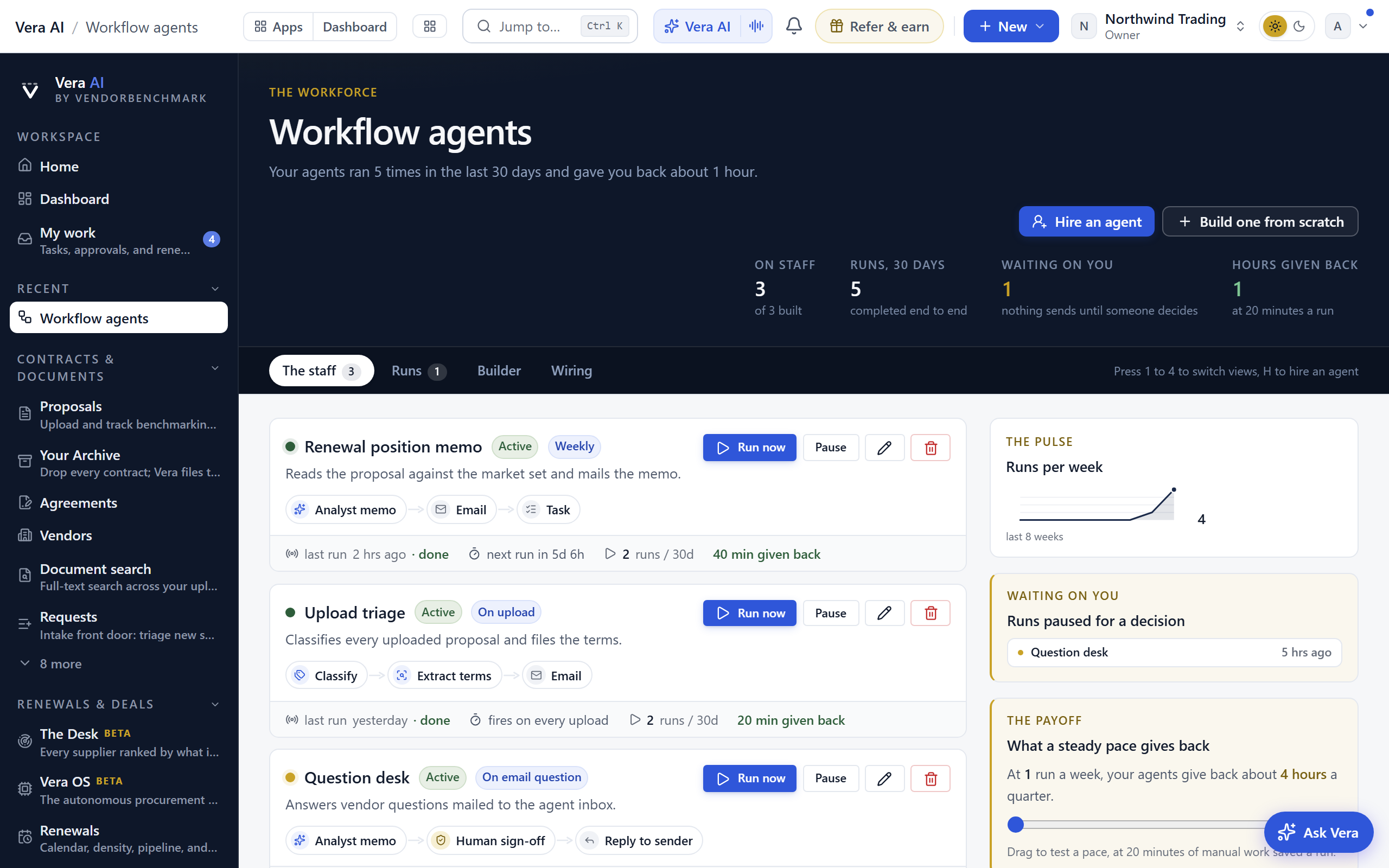
On the screen
- The seven screens — Tasks, Approvals, Team, Agents, AI agents, Workflows and Support are one app: the tabs across the top open each screen, and since 30 September 2026 one compact row under them names the screen in navy on a gold bar, gives its main figures in one quiet line, and carries Simple or Advanced, Summary and the screen's own buttons at the right.
- Summary and Simple — press Summary (or I) to open a thin strip under the row with the screen's sentence, every figure with the line under it, and the date line; press it again to fold it. Simple (or V) keeps what you act on and hides the rest: the Moves, the what ifs, the side panels, the watch shelf and, on Support, the settled tickets. Advanced is the default and shows everything; your choice is saved to your account and follows you to every device.
- Moves — the row under the head in Advanced: the next steps for this screen, the first on a gold bar. Each one opens the record, the view or the screen it names.
- The head — how many agents are on staff of the number you have built, runs in the last 30 days, how many runs are paused waiting on someone, and last of all Estimated hours back, labeled as the estimate it is: 20 minutes of manual work a completed run, not a measured figure. Where real money is linked to the work, that money takes its place. The Hire an agent and Build one from scratch actions live here.
- The roster is the first screen — with nothing on staff yet, the page opens straight onto the role gallery: the sixteen negotiation roles first, shown large (each stating what it watches, what it writes, and how many documents a run produces), the rest of the catalog beneath. A search box and a "Everything they can do…" dropdown filter the roles by capability (research a vendor, read a contract like an expert, defend an audit, watch the market weekly, and so on). Picking a role opens the hire wizard already pointed at that role.
- Four views, one screen — the view strip under the head switches views, and the Moves open the waiting runs, the hire, The staff and Wiring: The staff (every agent with its live heartbeat, its step chain drawn as named steps joined by arrows, and its Run now, Pause, edit, and delete controls), Runs (the console, with a count on the tab the moment a run pauses for a decision), Builder (the workflow editor: pick a trigger, then stack steps in order; details from whatever set the run off, the vendor, the agreement, the deadline, fill in by themselves), and Wiring (the agent inbox, the ghost writer, and a plain reference of every trigger). Press 1 to 4 to switch, H to hire an agent; that hint sits right after the tabs.
- The negotiation roles — the sixteen prebuilt roles cover the whole arc of a deal. The whole first-call file leads them: upload one contract and it writes the six documents a buyer actually asks for, the benchmark (your discount, what comparable buyers land, where this ranks), what to renegotiate with every term priced and the ask written out, the strategy with its concession ladder, the competitive scenario with the switching bill and three priced scenarios, the research brief on how this vendor negotiates and which analyst films to watch first, and the talking points for the call. Then: prepare a negotiation from a vendor name or from your uploaded contract, a call script aimed at a goal you state in your own words, the full deal check (the benchmark verdict on how good the deal is, the contract decoded clause by clause, then an independent second opinion that reads both, ending on whether to take it into the Vera Deal-Room), the market monitor, the renewal negotiation, a quote teardown, a pre-signature red flag scan, audit defense, price increase pushback, the walk-away builder, rightsizing before renewal, the board and CFO approval pack, the first-call rehearsal, and the deal close handoff. Each role writes several full documents per run, every one its own model call, and a chain that ends in an email mails the whole pack.
- Beside every view — the runs-per-week pulse over the last eight weeks, any run paused for a sign off as a row you press to open it, and the payoff instrument: drag a runs-per-week pace and it states the hours given back a quarter, at 20 minutes of manual work saved a run.
- Editing an agent — the pencil on any agent on staff opens its draft on the Builder view; saving returns you to the staff.
- Runs — every run keeps a per-step record; open one to read the documents it produced. When the run was about a vendor the film library covers, the analyst films on that vendor sit under the documents and play in place, so the three the research brief told you to watch are already there.
- The run as a live screen — launching an agent opens the full-screen view immediately, and while the run is live its center is the run stage: the agent's own steps as stations (a page for a step that writes, a dot for one that acts), each finished step flying to its tile, each document flying onto the pack the moment it is filed and rising by its title, and every progress note the agent writes collected in the activity. Every document in the list on the left moves from queued to writing to filed, readable the moment it lands. Back to the app sits top left, your other recent runs and a Hire another agent button sit under that list, and Put it to work, on the right, carries the real next moves: email me the pack, rerun with today's data, a chat-ready summary, three suggested next hires, and the schedule. The agent is always saved automatically; Put it on a schedule? asks when it should run by itself (weekly, on every upload, on renewal windows, or only on demand), and the choice stays yours. Arrow keys page the filed documents, Esc closes. Behind the full-screen view, the run page keeps the briefing-case cover, the document miniatures with Word exports, and the step by step run log.
- Turning the emails off — every email an agent sends closes with a link to Settings › Notifications, so turning them down or off is always one press away.
- Read and watch — in Advanced, at the foot of the page: the films, analyst briefings, research papers and guides the library holds on the vendors an agent can run on, laid out as in the agents, the soonest notice deadline first. A row opens its piece, and it loads when you scroll to it.
Hire an agent, the wizard
Four steps, and every one arrives already answered so you are correcting rather than composing.
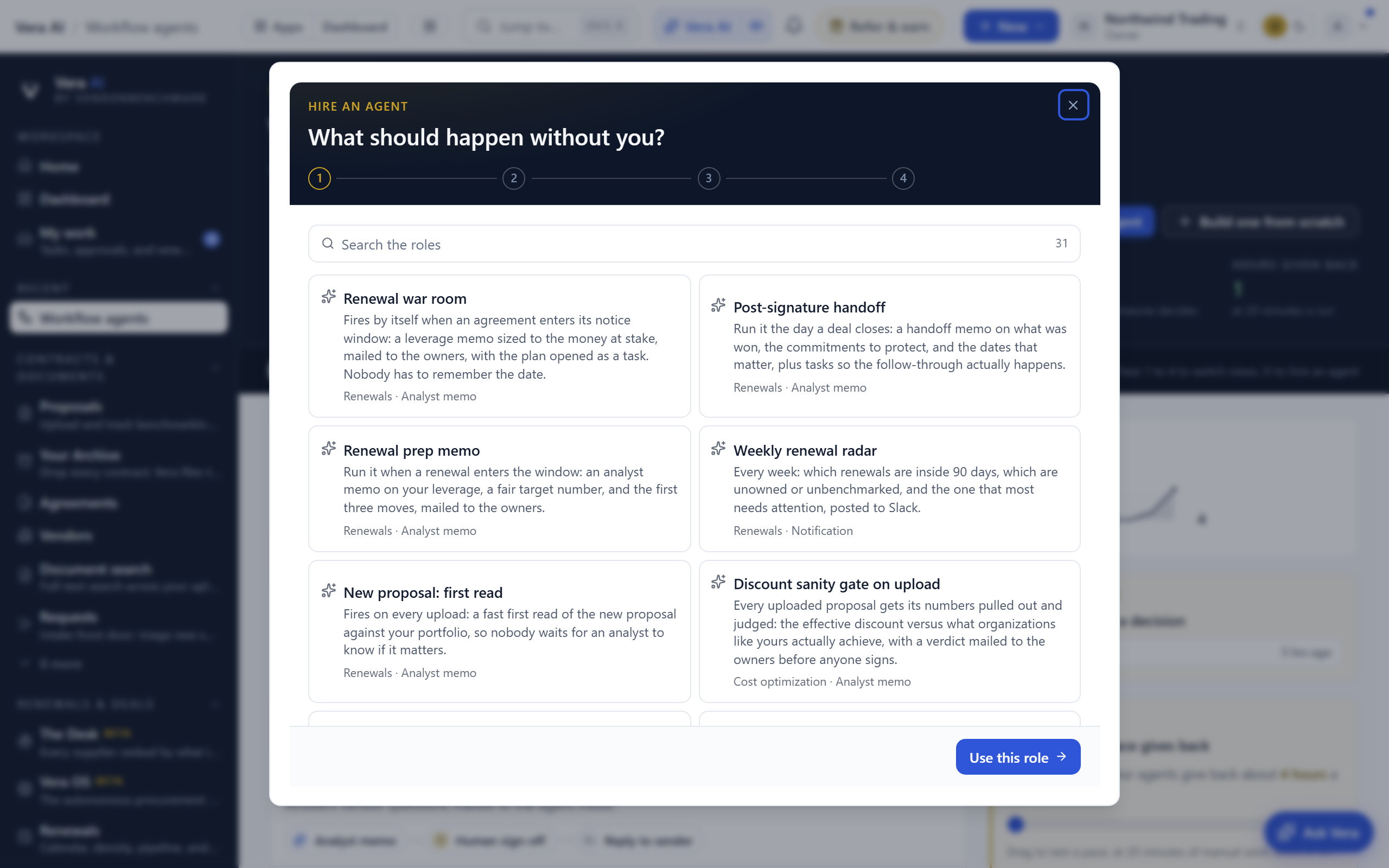
- What should happen without you? Above the roles, a box takes the process in your own words (since 3 October 2026): write what should happen the way you would explain it to a colleague, for example when a term ends within 120 days, benchmark the price, check the notice date and the uplift cap, and draft the price ask to the vendor for my approval, and press Build the steps. The chain appears before anything is picked: the trigger it read (a renewal window, a new quote, an upload, every week, a question by email, or run it yourself when none is named) and each step from the same library the roles use, with the words it came from under it. A sentence that writes something to send gets a Wait for approval step on its own, and a sentence that names no step still gets an analysis step carrying your words. Use these steps carries you on to step 2; Change the words lets you rewrite. Under the box, the full role gallery: the negotiation roles first, then every other role, with search and the capability dropdown. If you hold a renewal inside its notice window the renewal roles rise, and the wizard says why.
- Point it at your vendors. Pick one of your own vendors and the role fills in around it; the line under the picker rewrites itself with your real numbers as you choose. Vendor lists show each company once, legal entities like Oracle America or SFDC Ireland are folded into one vendor with the yearly spend summed. The market monitor asks differently: tick up to 30 vendors to watch, from your own records and from the market's major publishers, and its weekly brief reports dated vendor news in plain English, with no advice attached. Roles that work toward an outcome (the contract prep and the call script) also ask what you want to achieve, in your own words, because an agent that knows the goal writes a sharper document.
- Here is the chain we built — the trigger, then every step in order with the document it writes. Nothing here has to be right the first time; the builder can change all of it later.
- Watch it run — the rehearsal. It runs the whole chain on your own records, and every email goes only to you, nothing is created for anyone else, and nobody else is notified. You read what it wrote before the agent is ever live.
How to use it
- Press Hire an agent (or pick a role on the landing roster), pick the vendor or select the watch list, state the goal where the role asks, and run the rehearsal.
- Read what came back. If it is right, the agent is already saved and you turn it on; if it is not, open it in the builder and change the step that was wrong.
- Set a workflow to fire on every proposal upload when you want it to run itself; the market monitor mails its brief weekly on its own.
Related: Vera AI · Analyst Benchmark & upload
Workflows console
The Workflows console builds the eleven pre made workflows: a renewal from upload to e signature, a negotiation inside the mandate, the human benchmark, Same Day delivery, document search, the savings plan, spend reports, Same Day ELP, Software Discovery, DocuSign and Coupa. It runs on the Northwind Trading sample for now, so you can set up, edit, pause and publish freely: nothing is saved to your workspace, the session is kept in your browser, and File › Reset sample starts again.
In plain words: the renewal and negotiation workflows drawn as flows you can set up page by page and change step by step.
The seven screens (keys 1 to 7)
- Overview: the eight figures, Runs in flight (a track for each workflow with every run at the step it is on, in its state's colour: running, waiting, past due or stuck, paused), what waits on people, and recent runs. Press a run to open it, or a workflow's name to open its flow.
- Library: the templates by area; Use template starts the setup wizard on one.
- Builder: the flow as lanes of step cards with its connectors and decision branches. Press a card to edit it on the right: who does it, when, its limits, its channel and its escalation. Add, move, duplicate or remove steps; the tabs keep the triggers, the versions and the audit of the workflow. On an active workflow, dots under each step hold its runs in flight, and runs travel the connectors from step to step. Point at a step to trace its connectors in and out.
- Runs: every run with its current step and due date. A stuck run says what failed and how long ago, and offers the moves that get it going: Retry, Re-send, another channel or another person.
- People: the roster for each contract (business owner, budget owner, approvers in order, signer), proposed by Vera, with the gaps listed and Confirm selected for the rest.
- Settings: the authority matrix, autonomy for each vendor tier, and the channels.
- Audit: every action a person, an AI agent or the workflow engine took, newest first, each entry chained to the one before by its hash. Verify chain checks them all.
The setup wizard
New workflow opens seven pages, listed on the side: Template, Scope, People, Steps, Decisions and limits, Notifications and Review and publish. Every page has Back, Save draft and Next at its foot, and the flow is drawn on the right as you go. On Steps, Next walks the flow one step at a time and the map of the flow above the form jumps to any step. Review and publish runs the checks (every step has an owner, every branch reaches an end, the signer is within authority, the AI never signs) and a test run on one contract before Publish workflow. A published workflow opens again from the Builder as Edit workflow, on the same pages.
Describe the workflow
On the Template page, write what the workflow should do, for example every Microsoft and Salesforce renewal: benchmark first, the CFO and legal approve anything above $1M, and press Draft with Vera. The draft draws as a flowchart that builds step by step, then a marker walks its main path. Each card quotes the words it came from; a dashed card is a step Vera added, with the reason when you press it. Approve saves it to the Library and uses it, Edit steps opens it on the Steps page, and Reject keeps your words to change and draft again.
Pausing
A run, a workflow, a vendor or every workflow can be paused with a reason. While a pause stands, nothing is sent and no step starts, and a bar across the top says what is paused, with Resume.
Motion
Screens arrive in order and their figures count up. A flow draws itself step by step, and opening a run walks the steps it has done to the one it waits on, which rings. Verify chain sweeps the trail and ticks every hash. To see everything at rest, choose View › Motion off, or turn on reduced motion in the system.
How to use it
- Open Workflow agents and choose View › Workflows console.
- Press New workflow, choose a template or describe one, and press Next through the pages.
- On Review and publish, fix what the checks list, run the test, then press Publish workflow.
- Open Runs, press a stuck run and choose Retry or Re-send.
Related: Workflow agents · The floor of AI agents
Vendor agents & Agent projects
One agent, one vendor, one project. Pick a vendor and an agent role, press Run the agent, and the agent writes its documents one at a time, every figure drawn from your stored records or labeled as our analysts' market read, and files all of them into a single Agent project you keep, reread, and rerun whenever your records change.
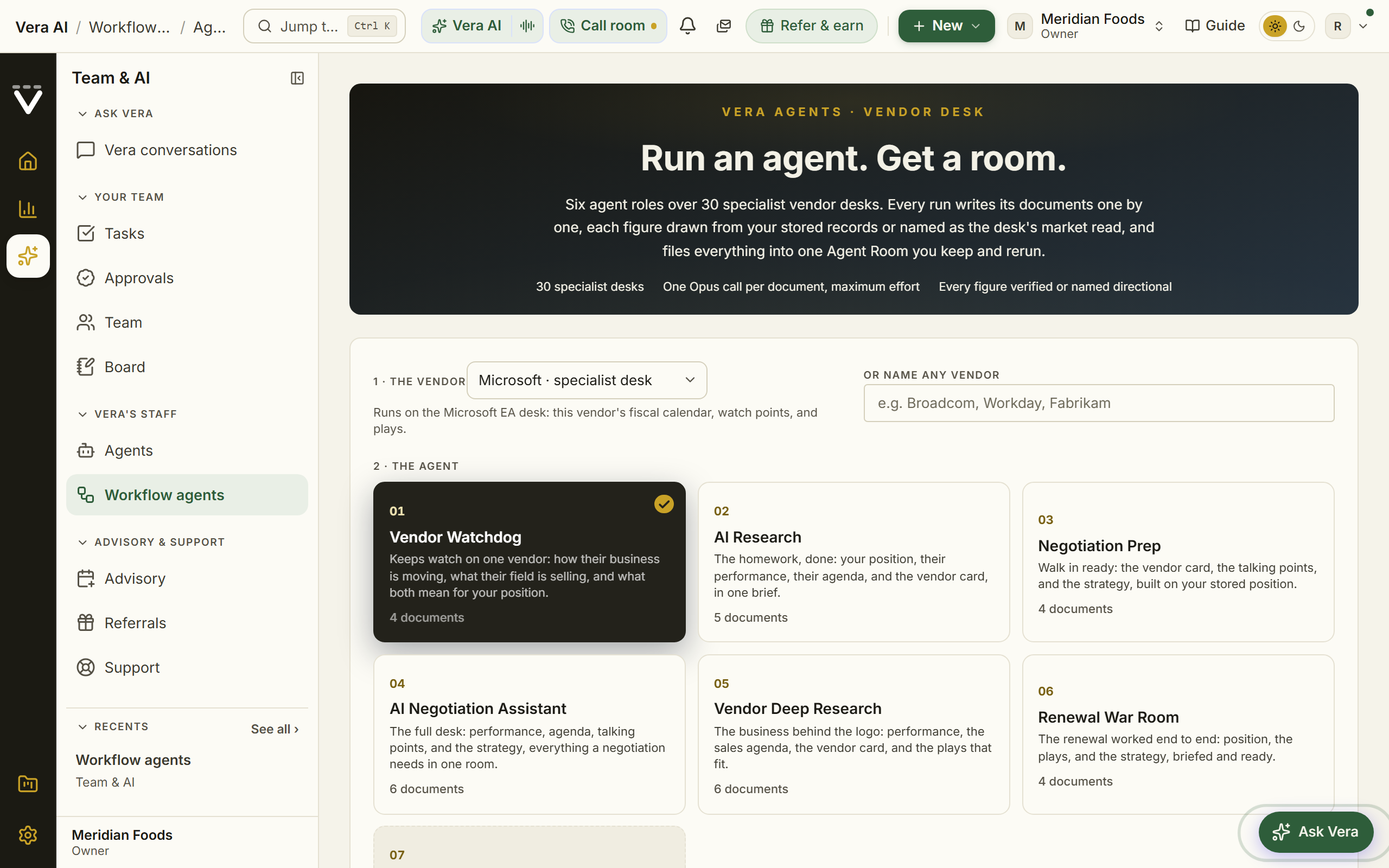
On the screen
- The head — the Team and AI steps with Workflows lit and Vendor agents as the title: your vendors, the vendor files, the agent roles, your projects and how many are running in one row, with Moves to your latest projects.
- The vendor — two groups in one list. Your vendors comes from your stored agreements, largest first, with sample document excluded, and marks the vendors our analysts keep a file on. Vendor files lists all 30 of those files, every one pickable even before you hold an agreement with that vendor; a file holds the vendor's fiscal calendar, contract watch points, sales motion, and negotiation plays. Any other vendor can be typed in by name; the agent then runs on your stored records alone, and the page says so plainly before anything starts.
- The agent — six roles plus Build your own, each stating how many documents it writes; the selected one takes an ink edge on gray with an ink check. Vendor Watchdog reads how the vendor's business is moving and what their field is selling. AI Research is the homework in one brief. Negotiation Prep writes the vendor card, the talking points, and the strategy. AI Negotiation Assistant is the full set in six documents. Vendor Deep Research is the business behind the logo, including the plays that fit. Renewal Negotiation works the renewal end to end.
- Build your own — the seventh choice. Start from a situation (prepare for a vendor call, keep watch, work a renewal, do the homework, check before signing, brief the leadership, or the full set) and the document chain pre-fills; then tick exactly the documents you want. The position page always comes first, built from your stored records with no AI writing.
- What is this negotiation, and what do you want? — one box, your own words, required: "renewal due in March; the quote landed with an 8% uplift; we want the cap at 3% and a shorter term." Every document in the run is written toward what you wrote, in the voice of a specialist who has worked this vendor's agreements for 25 years, and the position page opens with your assignment quoted back. Anything the stored data cannot answer gets named as missing, never invented.
- The run — pressing Run the agent takes the whole screen immediately: a full-viewport opening stage where the position page writes itself while the project is prepared. The reader then opens on the position, your stored data on page one, the moment it is written; you read while the rest of the case file writes in the background. Pending documents sit in the document list with their live states (writing, queued), a quiet progress meter shows what the agent is doing with an honest count that never claims a page before it lands, and each document becomes readable the moment it files. A document takes a few minutes; leaving the page pauses the run where it stands, and reopening the project resumes it from the last filed page. Nothing is lost to a closed laptop.
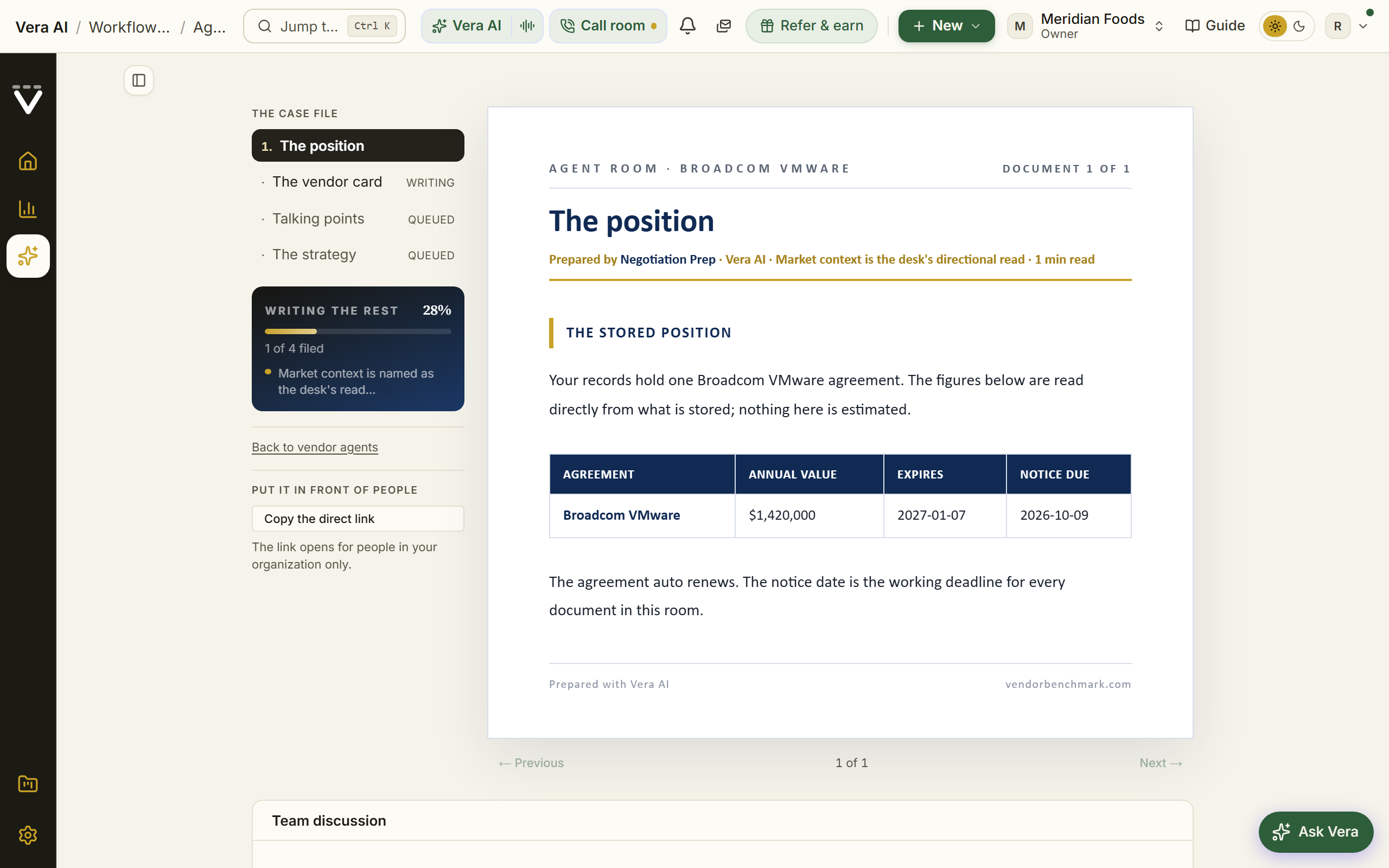
- The finished run — reads as a case file: the documents in a numbered list, one page at a time on the report document, with previous and next at the foot. The first page is always your position, built only from your stored agreements.
- The byline on every page — each document says where it stands: figures checked against your stored data, or exactly how many figures could not be verified and should be read as directional. Market context from the vendor file is always named as our analysts' read, never presented as your data.
- Rerun with today's data — starts a fresh project for the same vendor and role against your current records. The old project stays on your list, so runs become a record of how your position moved.
- Put it in front of people — the share options under the document list. Copy the direct link copies the project's address; it opens for people in your organization only. Send to this teammate picks a colleague and puts a review task in their queue with a note in their inbox, so the project lands as work rather than a link. And on a complete project, Email me the case file (PDF) sends the whole project to your own inbox as one document: a cover page, then every document in reading order, each page carrying its own provenance line.
- Team discussion — a thread under the reader, the same discussion the rest of the platform uses. Type @ and a name to notify a teammate; replies, resolving, and edits work exactly as they do on a renewal or an approval.
- Your agent projects — every project you have run, newest first, with its status. A project that hit an error keeps the documents it finished and offers to resume.
How to use it
- Open Workflow agents and press Run a vendor agent, or go to
/workflows/agentsdirectly. - Pick the vendor. If our analysts keep a file on it the page says so; if not, the run still works from your stored records.
- Pick the role that matches the job in front of you, or Build your own and select the documents. Then say what the negotiation is and what you want; the run does not start without it.
- Press Run the agent. Each document counts toward your AI allowance, and the page says so before you start.
- Watch the page as the project fills, or come back later; the run resumes when you reopen it.
- When your records change, open the project and press Rerun with today's data.
Good to know
- The position page is deterministic: it is assembled from your stored agreements without any AI writing, so it is always exact.
- A vendor our analysts keep no file on still gets a project, built from your records alone, and every page says that is what it is.
- Agent projects belong to your organization. A link to one only opens for people in your org.
Related: Workflow agents · Vera AI · The floor
Deliverables
Every delivered benchmark, AI brief, tool run, and draft in one place, laid out as an inbox: folders on the left, the list in the middle, the document on the right. Reading one never leaves the page.
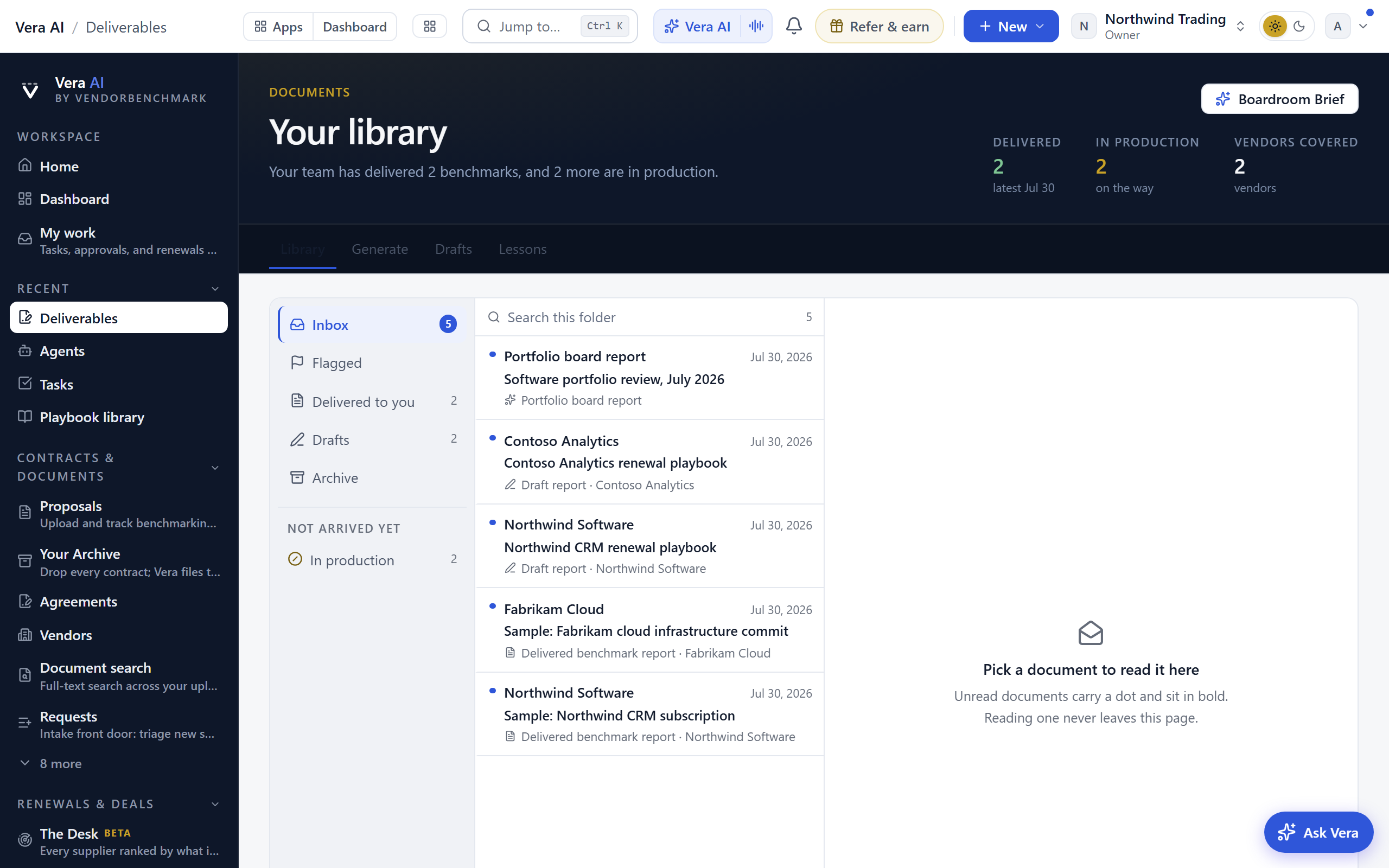
Your position sits in the masthead: reports delivered with the latest date, how many are in production, and how many vendors they cover, beside the Library, Generate, Drafts and Lessons tabs.
On the screen
- Folders — Inbox holds everything that is not archived and carries the unread count. Flagged holds the ones you marked to come back to. Delivered to you is the analyst team's work, Drafts your unfinished ones, and Archive everything you have filed away. In production underneath is not a folder but a count of the benchmarks still being written; they arrive in the inbox when they are published.
- Showing — above the folders, the lens on the whole library: Whole org lists every member's documents and is what the page opens on, Only mine narrows it to the ones you asked for. It is a filter and never a permission, so choosing Only mine hides nothing from your colleagues. Your choice is remembered and carries to the Home activity ledger and the Reports shelf, and the folder counts follow it, so Inbox 4 under Only mine means four of yours.
- The list — newest first, one row per document: the vendor or counterparty, the document title, and a line saying what kind of document it is. The end of that line names who the document belongs to: You in accent blue for your own, a colleague by name for theirs, Vera for anything the platform produced on its own. Under Mine the names come off, since every row would read the same. An unread document carries a blue dot and sits in bold; once you open it the row goes quiet. Search this folder filters what you are looking at.
- The document — the document's type, title, vendor, and the day it landed, then Read it to open the full document, Word to download it where the type supports one, and Open the record to go to the contract or deal it belongs to.
- Triage — Flag marks a document to come back to, Unread puts the dot back so it stays on your list, and Archive takes it out of the inbox without deleting anything. Archived documents stay readable in the Archive folder and can be restored.
- Reads across the whole library — under the inbox, the AI narratives that read across every document rather than one: the board report and your three weakest metrics.
- Read and watch — under those reads: the films, analyst briefings, research papers and guides the library holds on the vendors your documents are about, laid out as in the agents. It opens on the vendor with the most documents, the others sit under the head as choices, and a row opens its piece. It loads when you scroll to it.
- Commission a deliverable — the full catalog of document types, folded away once your library has something in it and open by default when it does not.
How to use it
- Work the bold rows first. Those are the documents nobody on your side has opened.
- Select one to read it beside the list, then press Read it for the full document.
- Flag what you need to come back to, and archive the rest so the inbox stays the things that still need you.
- Create a new one from Vera AI, or open Commission a deliverable at the foot of the page.
Tips
- Read, flagged, and archived state is held in your own browser, so your unread count is yours and not your colleagues'. Clearing site data resets it, and nothing is ever deleted by archiving.
- A delivered analyst benchmark is signed with the person who sent the document in, not with our analyst who wrote it: the useful question on that row is whose upload it answers.
Related: Vera AI · Deliverable exports, sharing & history
Deliverable exports, sharing & history
Every AI deliverable carries the same three companions wherever it renders: a download that matches the on-screen document, a public share link guarded by a confidentiality scan, and a version history you can diff and revert. As of August 2026 the flagship reports (benchmark narratives, the portfolio board report, the all-vendors benchmark, Reporting studio runs, and the scenario and comparison memos) assemble these through one shared toolbar, so exports, share, present, print, the Send it on drafter, and history sit in the same place on every report.
In plain words: every document can leave the building safely: exported, shared, and versioned.
When to reach for this
- Forwarding a brief outside the workspace: the share link's confidentiality scan is the safety net.
- "What changed since last month's edition?": the version history diffs it.
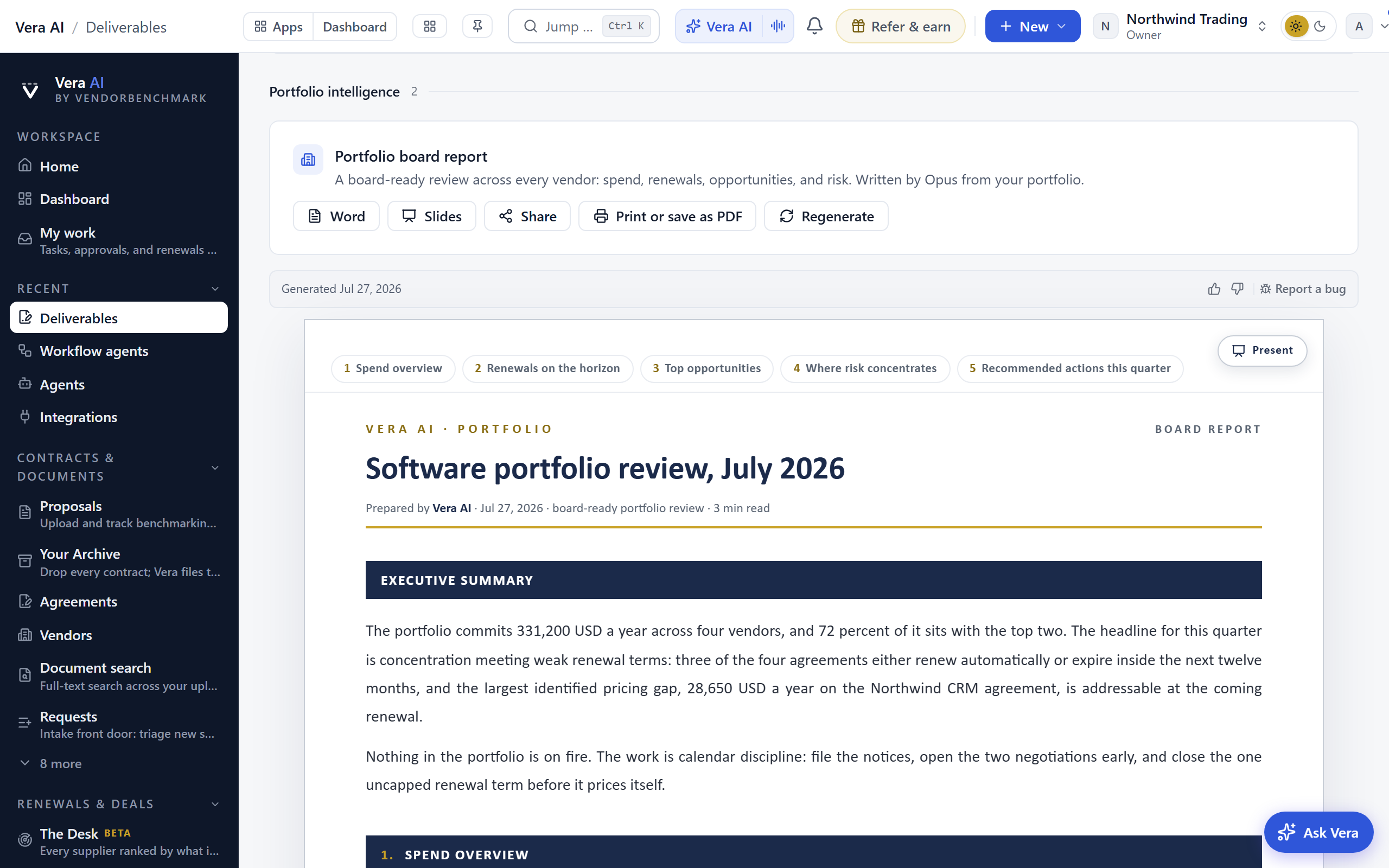
On the screen
- Download — exports the deliverable as Word (and, for the flagship reports, PowerPoint), rendered in the same executive-brief theme as the on-screen document. Most document types support it; the Formats column in Delivered reports › All documents shows which.
- Share — mints a public link and copies it to your clipboard, so a colleague without an account can read the document. Before the link exists, the deliverable is scanned for content your organization would not want external: named employees, walk-away numbers, internal targets, and internal notes.
- Check before you share — when the scan flags something, the findings render with quoted excerpts and no link is minted. Sharing anyway is an explicit, audited choice; overriding a walk-away number or internal target takes a typed confirmation, not one click.
- History — every regeneration is kept as a version. Open the history to see a word-level diff between any version and the current one, and revert to an earlier version when a regeneration went the wrong way.
How to use it
- Download the Word export when the document leaves the platform; it matches the on-screen brief exactly.
- Press Share to send a read-only link instead of an attachment. If the confidentiality check raises findings, read the excerpts before deciding.
- Regenerated a report and prefer the old one? Open History, compare the diff, and revert.
Tips
- A share link shows the document as it stands; revoking and reissuing is the way to cut off an old copy.
Related: Deliverables · Delivered reports
The commission row
In plain words: one-click orders for the brief this page is begging for, labeled with its own numbers.
When to reach for this
- The page's verdict deserves to become a document someone else reads: the button is the shortest path.
- You are not sure what to commission: the buttons are already scoped to the page's own situation.
Two to four gold sparkle buttons under a page's verdict, each a one-click order for an executive brief about the page you are on. The buttons are labeled with the page's own numbers ("Renewal brief: Salesforce, 41 days out"), never generic, and the row always ends with a blue suggested question that opens Vera pre-filled with a question scoped to the page.
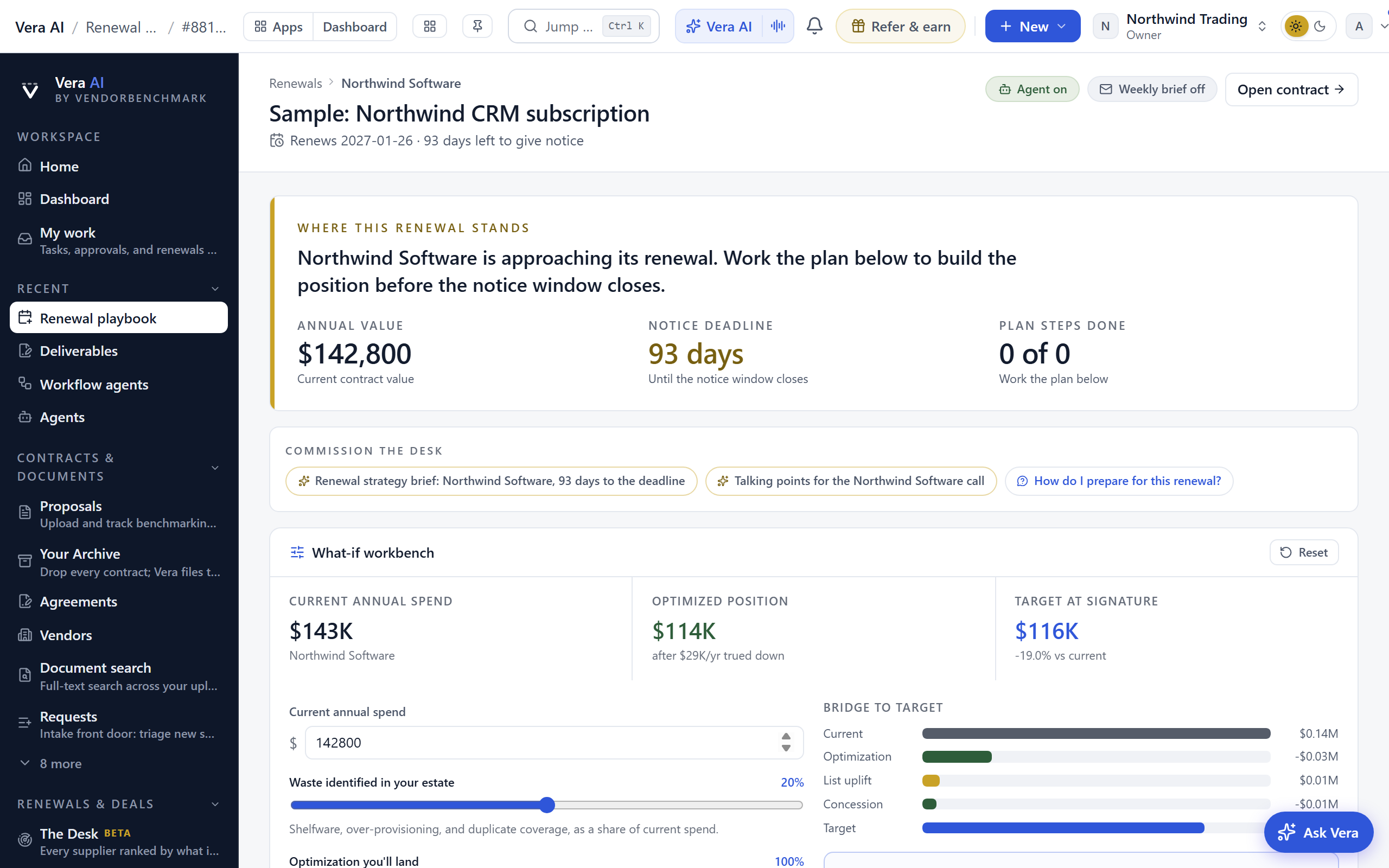
On the screen
- Gold buttons — each one commissions a specific document: press it and the brief generates in a reading dialog with stage-by-stage narration.
- The finished brief — an executive summary, numbered sections, a bottom line, and a sources list; every figure is grounded in your stored data, traced in the sources list at the foot of the brief.
- The suggested question — closes the row: it opens Vera with a page-scoped question already typed, for when you want an answer rather than a document.
How to use it
- Press the button whose label matches what you need; the document writes itself in the dialog.
- Read it there, or find it again later on the Deliverables shelf, where it lands automatically.
- Want a conversation instead of a brief? Press the blue suggested question and ask Vera.
Related: Deliverables · Vera AI
Advisory
Since August 2026 it opens in its own window with its own menu: the page list inside names the rest of Team & AI, so you move between them without going back out, and the entry you are standing on is marked. Escape puts the window down on the tab strip.
Book time with a buyer-side analyst: a human expert who has negotiated with your vendor before, for the moments a report is not enough.
In plain words: a human who has sat across from your vendor, bookable.
When to reach for this
- The stakes outgrow self-serve: a large audit, a hostile renewal, a deal above your comfort line.
- Before signing something unusual: an hour of expert read on an odd structure is cheap.
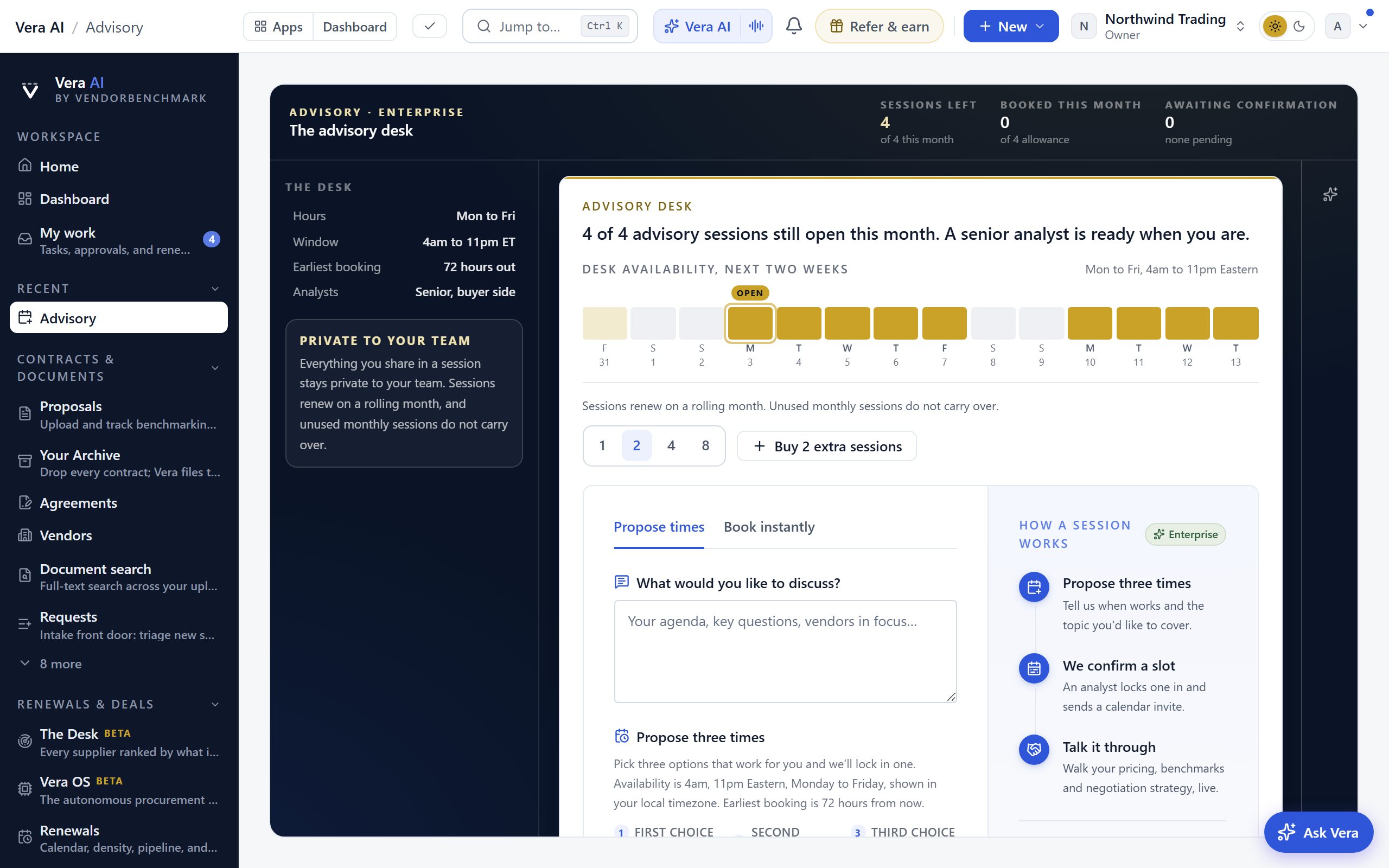
Advisory is an application frame: the house head across the top, the analyst hours and your bookings on the left, the work on white papers in the middle, and a dock on the right edge.
On the screen
- The head — step 7 of the Media and knowledge app (see Learn and follow): Advisory | Media and knowledge, how many sessions are still open as the status line, the gold line, and one row of figures: sessions left (monthly plus purchased), booked this month against your allowance, and bookings awaiting confirmation. Every figure is your stored usage. Moves under it book a session, open the strategy agenda written from your nearest renewal, jump to your bookings, and open the analyst films on that vendor.
- The hours and bookings — the analyst hours, your bookings as one-line jumps, and the privacy note. Our analysts work Monday to Friday, 4am to 11pm Eastern, shown in your local timezone, and the earliest booking is 72 hours out.
- The booking document — the headline states how many sessions are still open, then our analysts' availability for the next two weeks, the buy-extra buttons for when the month runs short, and the form: your agenda, then either three proposed times or, where instant booking is enabled, a direct calendar slot. The right side of the document explains the three steps of a session.
- Sessions against renewals — the what if under the booking document: move Months ahead and read which renewals on file have their notice date inside the window, and how many of them the sessions in that window cover (what is open this month, the monthly allowance for each month after, and purchased sessions still open), soonest notice first. Each renewal reads Session, No session or Outside. Where advisory runs to the scope in your agreement, every renewal in the window reads Session. It books nothing; the form above is the request.
- Your bookings — the heading carries how many requests await confirmation right beside it; every request as a ticket on its own document: confirmed sessions carry the date stub and an Add to calendar button, pending ones list your proposed times, and each can be canceled.
- Start from a topic — in the dock, behind the sparkle icon: four briefs. The first two are composed from your own two nearest notice-window renewals and name the vendor, the renewal date, and the annual value, so the agenda arrives written about a real deal; on an empty workspace they fall back to the standard renewal strategy and pricing benchmark briefs. The last two (vendor consolidation, contract terms) are always the standard ones. One press opens the booking with the agenda pre-filled and leaves you one field from a request.
- Present a session — every booking carries a Present button that runs the meeting full screen during the call: the ticket of record, your brief in your own words, the agenda point by point with a covered counter, then agreed actions you capture live. The printed leave-behind carries exactly the screens you walked.
How to use it
- Write your agenda, or open the dock's Start from a topic list for a pre-filled brief.
- Propose three times that work for you; we confirm one and send a calendar invite. Where instant booking is on, pick a slot directly instead.
- Track the request in Your bookings; add a confirmed session to your calendar from its ticket.
- If it can wait, message the team instead and they will pick it up in Chat.
Related: Chat · Your engagements
Services
What you can buy beside the platform: implementation packages for each deployment method, configuration and integration work, three support tiers, training and professional services. Each entry says what it covers and how long it typically takes. No price appears on the page; every service is scoped and priced in your order form.
It opens in its own window, in the frame every app shares: the menus, Share and the window controls along the top, and Home at the top of the left column.
On the screen
- The left column: Home, Vera AI and your pinned apps, then the six kinds of service with how many entries each holds, then Deployment, Support tickets and Advisory under Related.
- The six sections: Implementation, Configuration, Support, Training, Professional services and On the platform, numbered 1 to 6 along the top. The window is one page, read top to bottom; press a section, or its number on the keyboard, to jump to it, and the section you are reading is the one marked.
- The head: Services, with one row of facts (prices are in your order form, the scope comes back in writing before work starts, and you buy through Chat or your account team), Open a support ticket, and Ask about a service to raise it with our team in Chat.
- Implementation: one fixed scope package for each deployment method and size, from Essentials onboarding on the shared cloud to a customized environment in an air gapped network, with its typical time.
- Configuration: connectors, file import mapping, single sign on and SCIM, the configuration workshop, business unit workspaces, migration from a contract repository, analyst verified extraction, custom report templates, and for a customized environment your own workflows, layout and rules, health checks, upgrade help and recovery drills.
- Support: Standard (in every plan), Premium and Premium Plus side by side: coverage, response times for P1 to P3, channels, the named contact, reviews, upgrade help and health checks, with what each severity means and the managed operations option.
- Training: the free Vera Academy and the instructor led packages (Quick Start, Administrator Course, Team Enablement Day, Negotiator Workshop, IT Operations Course, Train the Trainer, Executive Briefing, a custom Academy course, the Enablement Subscription), with the Launch and Adoption bundles.
- Professional services: the roles you can book by the day and the prepaid blocks of hours.
- On the platform: Advisory, Ask a human, Managed renewals, License position in 24 hours, Specialists, Support, the Academy and Deployment, each with an Open button.
- How to buy a service: the three steps at the foot of the page (ask, the scope in writing, the order form), with Ask about a service.
- The details column: on the right, a count or two for the section in view, the next moves, and three questions to put to Vera about it. Press I to hide or show it; a narrow window leaves it out.
How to use it
- Press the kind of service you need, or its number, to jump to it, and read the package or tier that fits; the deployment method you run on decides which implementation package applies.
- Press Ask about a service and say what you need; our team answers in Chat.
- The scope and the price come back in your order form before any work starts.
- Press V to talk a service through with Vera, who has the screen you are on. Esc puts the window down on the tab strip.
Related: Advisory · Deployment · Deployment methods
Your engagements
Every advisory engagement we are running for your organization: where it stands, what happens next, and what we need from you. When your organization commissions consulting work (a Microsoft EA renewal run, a Salesforce SELA review, an audit defense), the engagement lives here as a workspace you share with our team.
On the screen
- Engagements — one per engagement: its status (Setup, Active, On hold, Closing, or Closed), the phases completed out of the total with a progress bar, and the next milestone by name.
- Phase plan — every phase of your open engagements in plan order, with its status (Done, In progress, Not started), the date it started and the date it completed. Each row opens its engagement.
- Waiting on you — beside the plan, the open data requests, meetings, milestones and deliverables the team has scheduled with you, soonest due first. When nothing is open it says so.
- The engagement workspace — open an engagement for the full workspace, organized in tabs: Overview (the phase plan and its activities), Timeline, Team (who is on the engagement, both sides), Discussion (a comment thread on the engagement record), Documents, and Deliverables (published work products). EA and SELA renewal engagements open on a dedicated analysis workspace tab.
- The invitation — if you have a seat on the engagement team but have not joined yet, an invitation at the top asks you to confirm your name and role.
- Data requests — activities our team marks as data requests appear in the plan; providing the data checks them off and keeps the phases moving.
- Where an engagement would start — under How an engagement runs (four numbered steps): your latest contracts with their status and annual value, and the renewals coming up with how many fall within 30 days, 90 days and 12 months, then the days out, the notice date and the annual value, in US dollars. Each row opens its record. Under them, Vendors on file lists your largest vendors by the annual value their contracts state: the contracts on file, each vendor's share of that stated spend and its next renewal date. Each row opens the vendor.
How to use it
- Open the engagement and read the progress bar and next milestone; that is the one-line status.
- Answer anything waiting on you: join the team from the invitation, provide open data requests, and reply in Discussion.
- Read published deliverables in the Deliverables tab as the team ships them.
- Anything urgent between milestones goes through Chat; the thread and the workspace reach the same team.
Tips
- Internal working activities on our side are not shown to you; the plan you see is the client-facing plan, and every view you take of the record is written to the audit trail like any other document access.
Related: Advisory · Chat · Managed renewals
Partner portal
Since August 2026 it opens in its own window with its own menu: the page list inside names the rest of Team & AI, so you move between them without going back out, and the entry you are standing on is marked. Escape puts the window down on the tab strip.
Your client book. Every client organization linked to your firm on one table: their contract dates, their next renewal with its notice deadline, and how engaged the account is. Visibility is deliberately narrow, dates and activity only; each client's files, prices, benchmark results, and spend stay inside their own workspace.
The portal wears the house dress: its pages are numbered steps across the top (Client book, Prospect proposals, Marketing, Partner guide), each opens on the house masthead with your firm, your tier and one row of facts, and an inspector on the right carries your firm's figures, the portal's Moves (invite a client, build a proposal, import your list, send a note, review managed renewal requests, the partner guide), the sections on the screen you are on, and The boundary (the trust rule, on every screen).
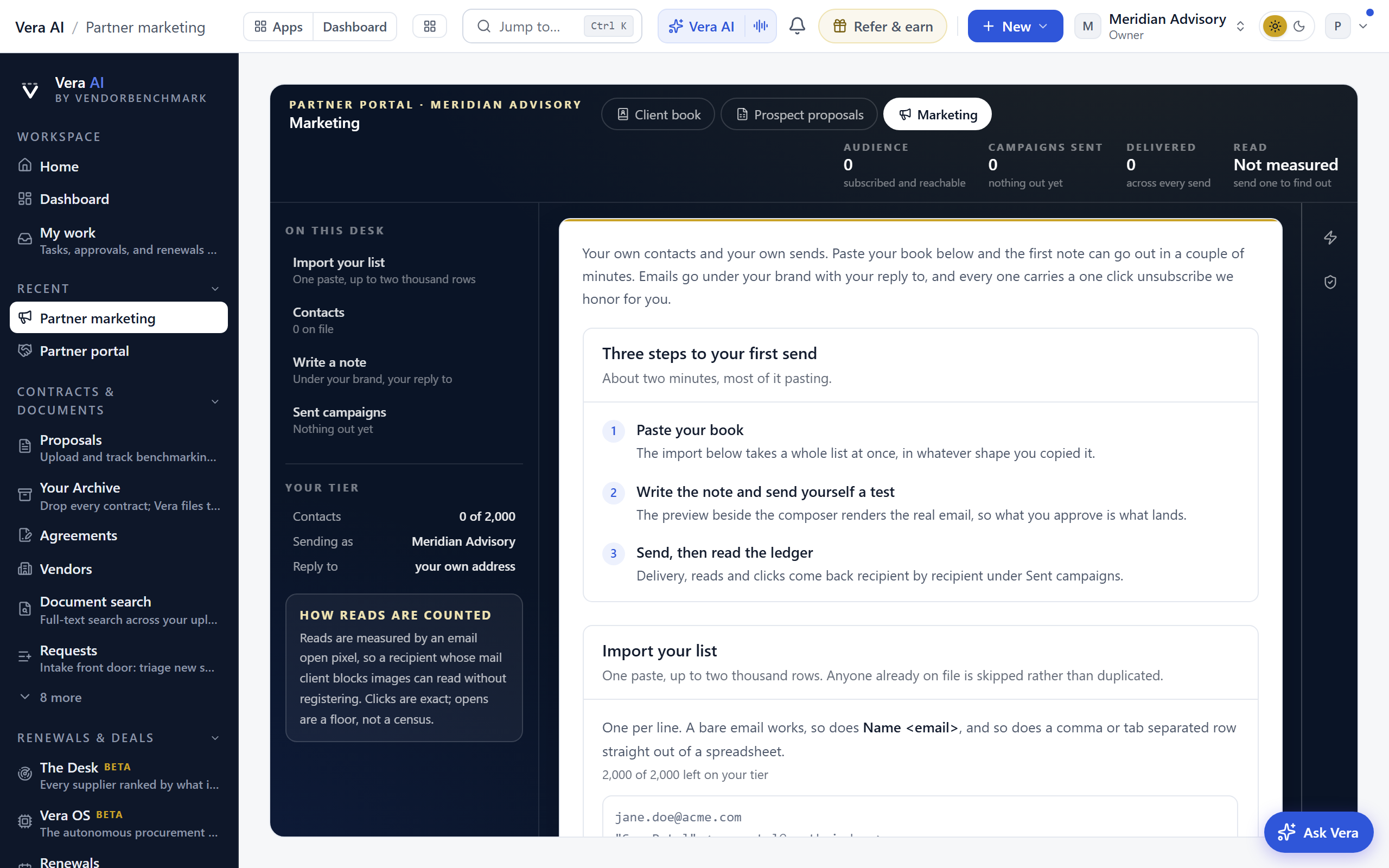
A client's page, and the quarterly business review it composes once that client has turned on outcome sharing:
The public directory buyers browse, and the branded landing page an invited client sees:
On the screen
- The head — clients, active this week, renewals inside 90 days across the whole book, items needing attention today, and invitations accepted out of invitations sent. Invite a client is the filled button, Build a proposal beside it.
- The inspector — your tier and invitation funnel as figures, the Moves, On this screen (every section of the book one press away: Your work today, Clients, Managed renewal requests, the horizon, Grow your book, White label, Program, Meetings), and the boundary.
- Your work today — a ranked attention queue: service requests, notice deadlines that passed or land inside 30 days, clients with no activity in 30 days, workspaces that never signed in, meeting proposals a week without an answer, and invitations about to expire. Each row links to the client or invitation it is about. When nothing qualifies, the queue says so.
- Draft it with Vera — a button on every queue item except the expiring invitation. It writes the note from that item's own client, vendor, and dates: under 120 words, in your voice, addressed to a name you fill in, and never naming VendorBenchmark or Vera. Edit the subject and the body in place, press Redraft for another take, then Copy email. There is deliberately no send path. You send it from your own mail client, under your own name, so the client relationship stays yours and the platform never appears in it.
- Client book — one row per linked client: adoption stage, the account owner inside your firm, contracts, next renewal (vendor and date), renewals inside 90 days, active members this week, and last activity. The adoption stage reads Active, Getting started, Quiet, Dormant, or Never signed in, derived from real sign-in activity. Rows with a renewal inside 90 days are tinted. Assign the account owner from each client's page; the morning digest names them on items about their accounts.
- Outcomes on client pages — when a client's owner turns on outcome sharing (their switch lives on their Your advisory partner page, off by default and revocable), that client's page shows the results of the work: realized savings with their invoice-verified share, delivered benchmark verdict scores, and closed renewal outcomes. Files, prices, and the analyst narrative are never included, and every look you take is audit logged. With sharing on, Build the quarterly business review composes a client-ready executive brief under your brand, savings, verdicts, renewals closed and coming, adoption, and prioritized recommendations, ready to print to PDF.
- Managed renewal requests — when a client presses Get it managed on one of their renewals, the request lands here and at the top of Your work today: client, vendor, renewal date, and their note, with Mark contacted and Close. The platform only tracks the state; scope, terms, and fees are agreed between your firms directly.
- Renewal horizon — the next twelve months of tracked renewals across your whole book, counted month by month.
- Grow your book — a what if: move the share of your open invitations that accept, starting at the rate you have actually converted at, and the new clients and the size of the book move with it. Beside it the invitation funnel (sent, awaiting reply, accepted, active now), then the invite form: client company, contact, email, and an optional personal note. The email and its landing page go out under your firm's brand. Open invitations show their expiry date with resend and revoke; accepted ones link to the client workspace they became and show how alive it is. Prospect proposals (
/partner/proposals), the second step (pictured below): enter a prospect's vendor, unit count, spend, and term, and the calibrated market engine builds a one-page savings estimate under your brand, verdict, percentile, cohort range, and gap to median, shareable by an expiring link you can withdraw at any time. Your tier caps proposals per 30 days; Your allowance lets you move the proposals you build a week and shows whether the allowance holds to month end or runs out first, beside your proposals so far by verdict. - White label — your brand on the client experience: display name, brand color, and tagline, with a live preview. The logo comes from Settings › Branding. Only workspace owners can edit it. On the white-label tier (a Premier benefit, granted by VendorBenchmark), the section adds Your own sending domain: register a domain you control, publish the DNS records shown, press Check verification, and from then on invitations and campaigns send from advisor@your domain under your name alone, and your logo and name take over the brand mark at the top of the menu in the client workspaces you serve.
- Partner guide — the fourth step, and a link on the Program band, open
/partner/guide, a document rather than a screen, so the inspector steps aside for the paper: the whole offering in one printable executive brief, from the tier ladder and the agreement to outcome sharing, white label, and the data boundary. Read it once, or hand it to a new hire on their first day. - Program — where the partnership itself lives. Program tier shows your rung (Registered, Select, or Premier), the caps it carries, and what the next rung enables. Partner agreement carries the rate on record: offers from the VendorBenchmark team appear here with their terms, your workspace owner accepts in product, and the accepted version and rate stay visible from then on. Partner directory drafts your public listing (one paragraph, focus areas, regions); firms on Select and above can switch the listing live in the public directory at
/partners, where buyers request introductions that land straight in your contacts. The morning digest switch is here too: weekday mornings, firm owners get the attention queue by email, and an empty queue sends nothing. - Your clients' home screen — curate what client workspaces open on: pick the apps that lead and add a one line headline under your brand, with a live preview of what clients see. The platform standard stays the default until you choose otherwise, the full catalog always stays one press away, and each client's own edits win. Owner only.
- Messages — every client page carries a direct message thread between your firm and that client. The client reads and replies on their Your advisory partner page, their owners get notified, and the thread is private to your two firms; partners cannot message anyone who is not their client. The client's side of that page also carries their outcome sharing switch, so what you can see is always their call.
- The boundary — in the inspector under the Moves on every partner screen: what you see (dates, renewal stages, org level activity, meetings) and what always stays the client's (files, prices, benchmark results, member identities). Show it to a hesitant client; it is the same list we show them.
- Meetings — every meeting between your firm and your clients, with its status.
- Before your firm is a partner — the screen opens on the house masthead, Partner portal with Partner after the rule, saying what the portal is for and that your workspace is not enrolled, with partner access, your contracts on file and renewals ahead as its facts, and Back to the dashboard and Your advisory partner at the right. Under it the screen says Who the partner portal is for in four short facts and shows your latest contracts with their status and annual value, and the renewals coming up with the days out, the notice date and the annual value, in US dollars. Under them, Vendors on file lists your largest vendors by the annual value their contracts state: the contracts on file, each vendor's share of that stated spend and its next renewal date. Each row opens the vendor.
How to use it
- Start with Your work today; it is the call list, ranked. A passed notice deadline outranks everything else.
- Open a client row for the full picture: the client named on the masthead with Client book as the separator and its adoption, contracts, renewals, members and last activity as facts; the outcomes when shared; the 30 day activity chart beside a what if (move the lead time before a notice deadline and see how many of the client's deadlines already fall inside it); renewal dates, contract term dates, messages and meetings.
- Watch the Adoption column: a Quiet or Dormant client two months before a renewal is the account to call first, and a Never signed in workspace needs a walkthrough, not a renewal pitch.
- Invite a new client from Grow your book. When they accept, their workspace opens on a free trial, already linked to your book, and it carries a "served by" mark for your firm. Invitations are single use, live 30 days, and can be revoked or re-sent with a fresh link; the funnel shows what each one became.
- Set your brand once under White label; every invitation and every client workspace mark uses it from then on.
- Propose a meeting from the client page: up to three times and an agenda. The client's workspace owners get a notification, confirm one time or decline, and both sides see the answer.
- Need the full record for an engagement? Ask the client to invite you into their workspace as a member; the portal never opens their files.
Clients join your book two ways: your own invitations, or a link made by the VendorBenchmark team after a client agrees in the engagement paperwork. If a client is missing, contact your partner manager.
Related: Partner marketing · Notifications · Members
Partner marketing
Your firm's own marketing screen: a contact list you build yourself, newsletter sends that go out under your white-label brand, and a read log showing who opened what. Nothing here comes from client workspaces; every contact was added by your own team.
On the screen
- The head — the third step of the portal: your audience (subscribed and reachable), campaigns sent, emails delivered, and the share read. Write a note is the filled button, Import your list beside it.
- Reach — a what if: move the notes you send a month and see the deliveries, and the reads at your list's measured read rate; until a send is measured, reads say Not measured rather than guessing. Beside it, your list and its sends as bars: subscribed, unsubscribed, opened and clicked.
- Your first send — while your list is empty, three panels state the whole path: paste your book, write the note and test it, send and read the ledger. It disappears once you have contacts.
- Import your list — one paste, up to two thousand rows. A bare email works, so does the
Name <email>form every mail client copies, and so does a comma or tab separated row straight out of a spreadsheet. Anyone already on file is skipped rather than duplicated, so pasting the same list twice adds only the new names. - Contacts — add one at a time by email, name, company, and role. Unsubscribe or remove any contact; unsubscribed contacts never receive a send.
- Write a note — subject and body (blank lines start new paragraphs), a live preview of the branded email, a test send to your own inbox, and the real send to every subscribed contact. Emails go from our verified address under your brand's name, with your email as the reply-to.
- Sent campaigns — each send with delivered, opened, and clicked counts; expand one for the recipient-by-recipient log: clicked (and how many times), read (and when), delivered but unread, or not delivered.
- The inspector — what your tier allows (contacts against the cap, sending name, reply to, sends a day and recipients a send), the Moves, jumps to each section of the screen, and how reads are counted. The boundary the portal runs on stands under them: these contacts are yours, nothing is harvested from a client workspace, and no client's prices, documents, or benchmark narrative can be pulled into a marketing email.
How to use it
- Set your brand once under White label on the Partner portal; every send uses it.
- Paste your whole contact list into Import your list, or add people one at a time below it. The list is yours alone; clients' member lists are never visible to you.
- Write the send, or start from one of the three templates (a renewal season note, a quarterly market note, an introduction) and replace the bracketed slots. Press Send me a test, check your inbox, then send for real. The caps rise with your program tier, from 5 campaigns per day and 500 recipients per send on Registered up to 20 and 5,000 on Premier.
- Watch the read log. Opens are measured by an email pixel, so a recipient whose mail client blocks images can read without registering; treat opens as a floor. Links in the body are click tracked per recipient, and a click also counts the open, so the log distinguishes read from acted even when the pixel is blocked.
- Every email carries one-click unsubscribe. We honor it automatically and mark the contact unsubscribed for you.
Related: Partner portal · Notifications
Your advisory partner
The client side of a partnership: the direct line to the firm that serves your workspace, and the meetings they propose. Only your two firms can read any of it. It opens in the Partner portal window on the house masthead, Your advisory partner with the firm's name after the rule (Partnership until a firm serves your workspace), and one row of facts: the partner, proposals waiting on you, confirmed meetings, messages and whether outcomes are shared. The inspector carries the same figures and the Moves: answer the proposals, message the firm, review what they can see, and open your contracts or renewals.
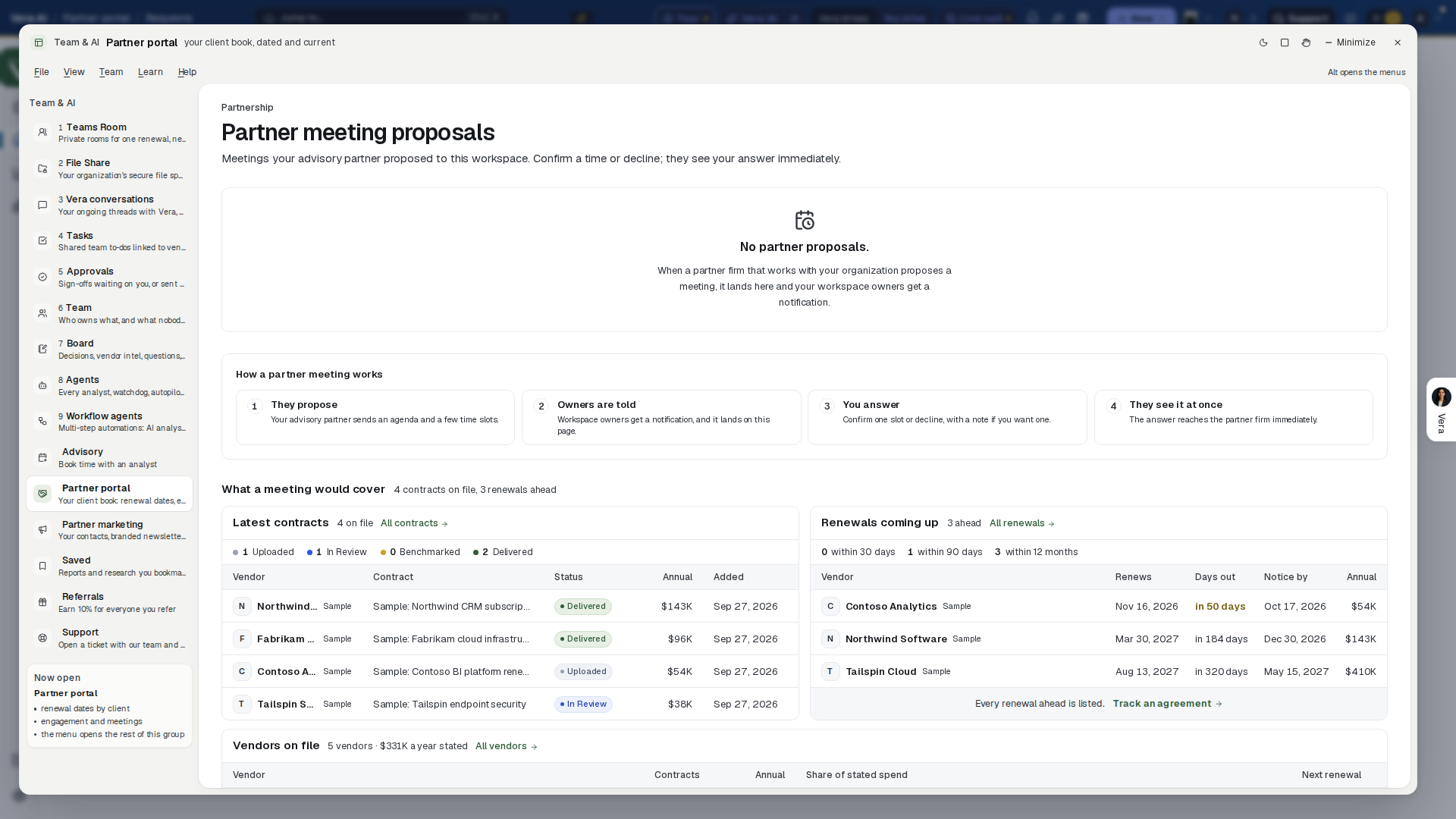
On the screen
- What they can see — the outcome sharing switch. On, the firm sees realized savings, delivered benchmark verdict scores and renewal outcomes; contract files, prices and the analyst narrative are never seen, on or off; every look is audit logged.
- Messages — the thread between your firm and theirs.
- Meeting proposals — each open proposal with the firm's agenda and Proposed times: confirm one, or decline, with an optional note back. Answered proposals follow with their status and date.
- No partner proposals — without a partner, the page says where proposals will land, then How a partner meeting works in four numbered steps.
- What a meeting would cover — your latest contracts with their status and annual value, and the renewals coming up with the days out, the notice date and the annual value, in US dollars. Under them, Vendors on file lists your largest vendors by the annual value their contracts state: the contracts on file, each vendor's share of that stated spend and its next renewal date. Each row opens the vendor.
How to use it
- Open the notification, or this page, when a proposal arrives.
- Pick a time and press Confirm this time, or decline with a note.
- Owners: decide under What they can see whether the firm sees your outcomes.
Related: Partner portal
Saved
A comparison spine is marked stale, with a Compare again link in place of its saved date when either compared document has picked up a newer version.
Reports and research you bookmarked with the bookmark icon, plus every side-by-side comparison you ran, kept on shelves so you can find them again.
In plain words: everything you bookmarked, in one place.
When to reach for this
- Rebuilding context on a deal: the documents and reports you starred while working it.
- The bookmark is everywhere (cards, readers, report headers); this page is where they all land, and your home screen's Saved & shared list shows the newest.
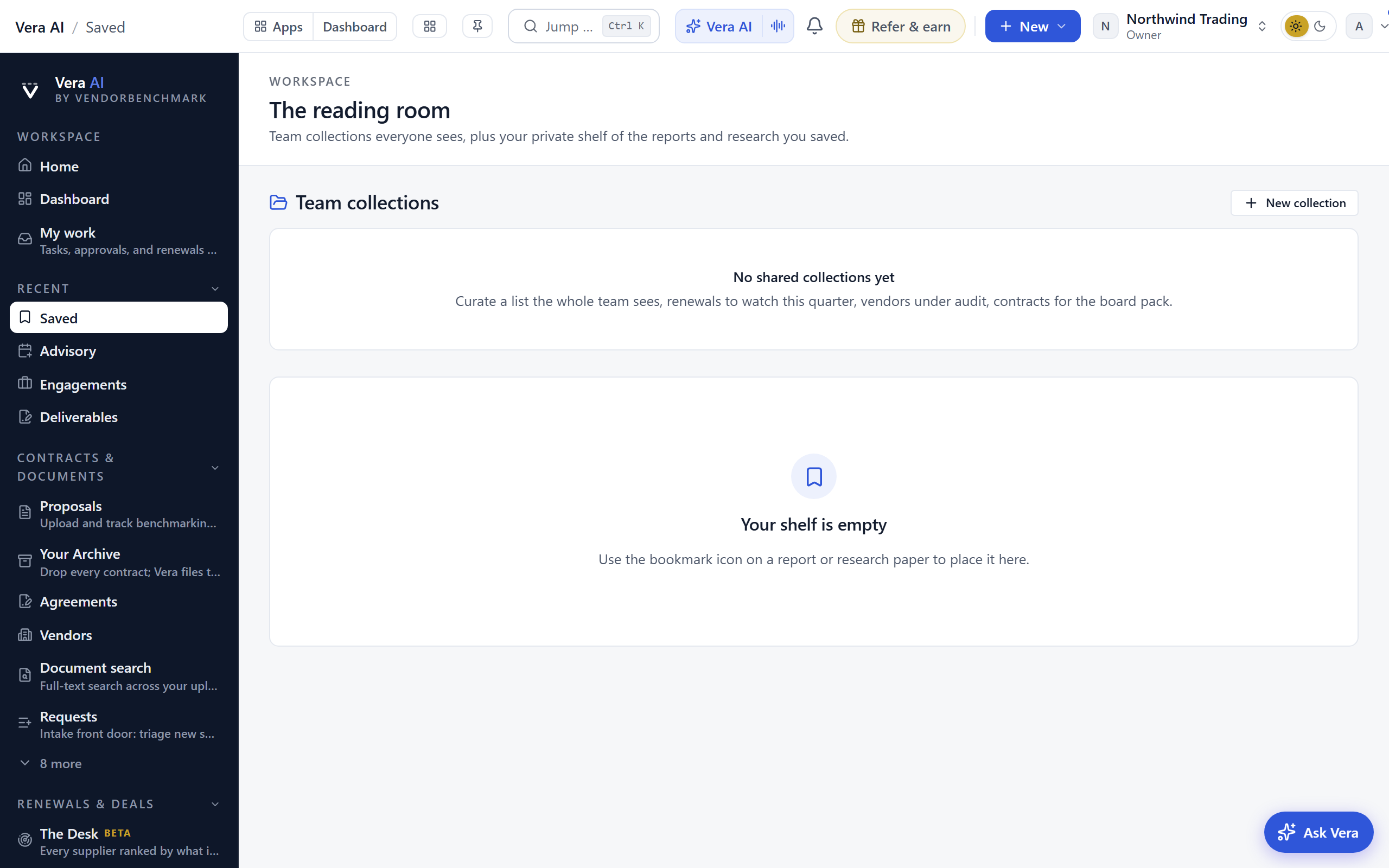
On the screen
- Saved items — everything you bookmarked, newest first.
- Comparisons — every side-by-side scan you ran on Compare contracts, saved to this shelf automatically, plus any a teammate added you to (marked Shared with you). A spine reopens the pair in Compare contracts.
How to use it
- Open a saved report or document straight from the list.
- Add to the list by clicking the bookmark icon on any report or research paper.
- Reopen a comparison from its spine. The X on a spine clears it from your shelf only; the analysis itself stays on both contract records.
Related: Delivered reports · Research · Compare contracts
Saved analyses
Negotiation playbooks and analyses the AI has written for you, kept in one list as the Drafts tab of Deliverables. An answer you keep with Save as a document in Vera conversations lands here, and so does a tool's AI report, so you can revisit it, print it, or share a link with colleagues.
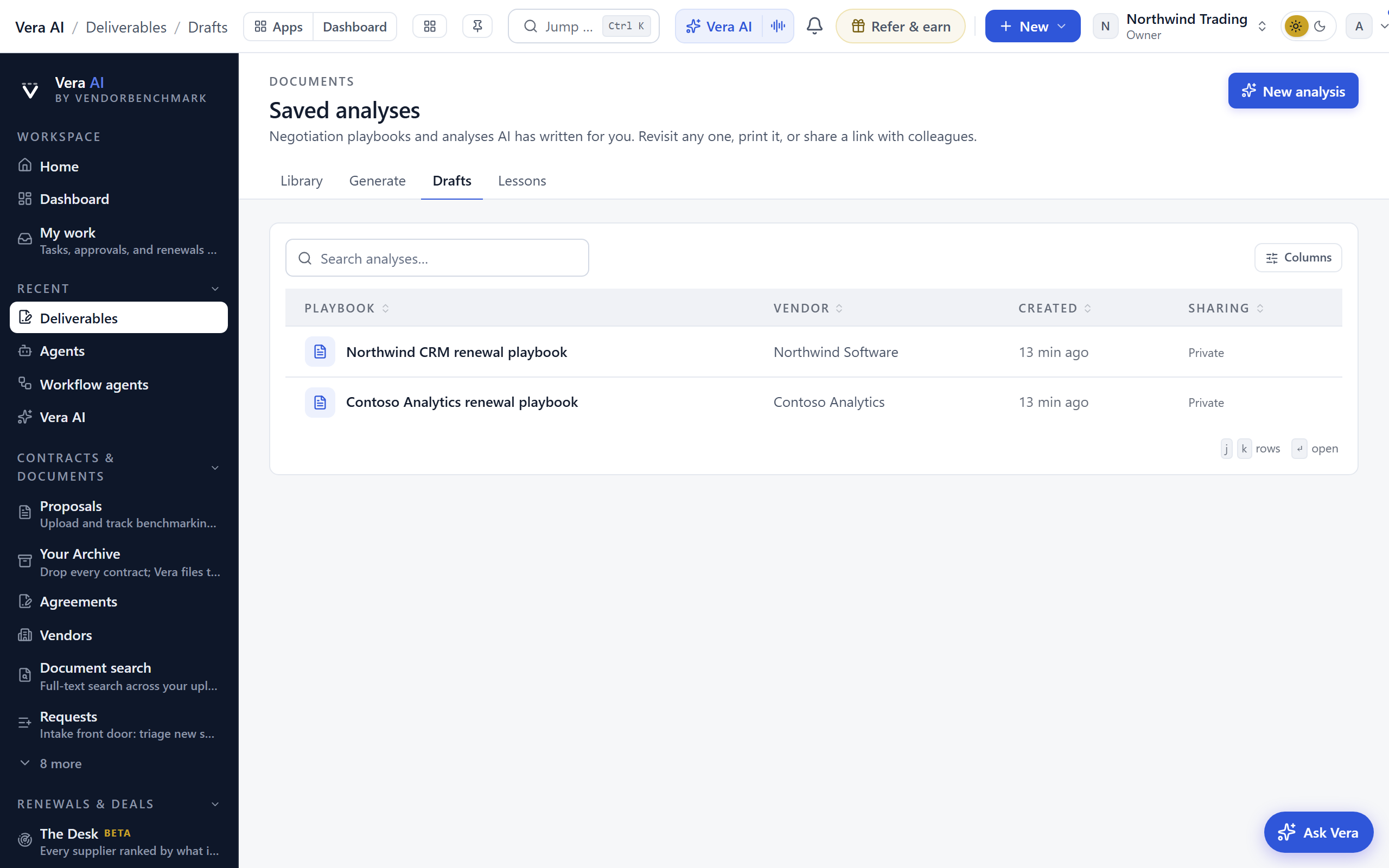
On the screen
- Open Vera conversations — at the top right, and on the empty list: opens Vera conversations, where Save as a document under an answer adds one here.
- The list — every analysis with its playbook title, vendor, and creation date; search and sort across all of them.
- Sharing column — Link active means a share link exists for that draft (with its expiry date); Private means only your organization can see it.
- The draft page — opens the full playbook with a toolbar: Share link mints a public read-only URL and copies it, New link replaces it (the previously sent URL stops working), Email drafts a message carrying the link, Revoke kills the link, Print produces a clean document copy, and Delete removes the draft for good.
How to use it
- Add one from Vera conversations: press Save as a document under an answer. A tool's AI report is saved here on its own.
- Open a draft to reread it before a call, or press Print for the meeting copy.
- Share it by minting a link; revoke the link when the conversation is over. A minted link expires on its own, and New link invalidates whatever you sent before.
Tips
- Your saved analyses also appear in the All documents library on Delivered reports, so there is never a second place to hunt.
Related: Vera conversations · Deliverables
Referrals
Since 6 October 2026 it opens in one window with Market news, Help and What's new, on the frame every app shares (the title bar with the menus, Share and the window controls; the sidebar with Find an app, Home, Vera AI, the four pages under Workspace and Settings and the user manual under Related; the keys along the status bar). The four pages run along the top as numbered tabs (1 to 4), and Close returns you to Home.
Your personal referral code. When a company you refer becomes a paying customer, you earn ten percent of their spend for their first twelve months. We email you when a referral signs up and again when they subscribe. The head carries your four figures as its one row of facts: earned to date, accruing, waiting on signups, and what one referral is worth, with How it works and Get your ticket at the right. Your code prints on the ticket beneath it, and the earnings meter draws earned money in green and accruing money in blue. Opening the page from Home or the top bar keeps you in the Home group; it also stays listed under Team & AI.
On the screen
- Your code and link — on the ticket, a white card with the terms on the stub beside it; share these, and signups through them are credited to you automatically.
- How it works — the four steps up front: share, they sign up, they subscribe, you get paid, with the email you receive at each step.
- Referral status — who signed up, who is now paying, and what you have earned.
- Payout terms — payouts clear thirty days after we receive the customer's payment, and we contact you for your payout details once a referral starts earning.
How to use it
- Copy your referral link and share it with a company that would benefit.
- Watch the referral status list to see who signed up and what you have earned.
- Watch your inbox: when you first get your code we email you a short "how it works" explainer, then we email you again the moment a referral signs up and when they become a paying subscriber, with what the referral is worth and how the payout works.
Related: Refer & earn
Refer & earn (the invite dialog)
The fast way to act on your referral code: a dialog that emails up to five colleagues at other companies a personal invitation, each carrying your code so anyone who joins from it is tracked as your referral automatically. It opens as a large dialog, the offer and your code on the green half, the invites on the white half. This is deliberately not the team invite: no access to your workspace is granted, and your friends land on the public request-access page.
On the screen
- Your referral code — on the green half with Copy invite link and Copy code buttons, and the terms in one line: when a company you invited becomes a customer, you earn 10% of what they spend for their first 12 months.
- Friends' emails — up to five addresses per send.
- Personal message — the note carried in the invitation email, up to 1,000 characters. It opens pre-filled with a ready-made note, and the dropdown beside the label offers five alternatives: quick and casual, before your next renewal, how it works, check a quote, and short and direct. Whatever you pick stays fully editable, and you can clear it to write your own.
How to use it
- Press the green Refer & earn button in the top bar.
- Enter up to five email addresses. Keep the pre-filled note, pick one of the five templates from the dropdown, or write your own.
- Press Send invites. Track who signs up and what you have earned on Referrals.
Tips
- Inviting a teammate into your own workspace is a different action: that is Members, owner only, and it grants access. This dialog never does.
Chat
Your team's real-time chat: channels for the whole organization, a private support line to our analyst team, and the AI assistant on call in any channel. Chat lives inside the inbox bell: unread messages count into the number on the bell, and the pinned Team chat row at the top of the inbox opens this screen.
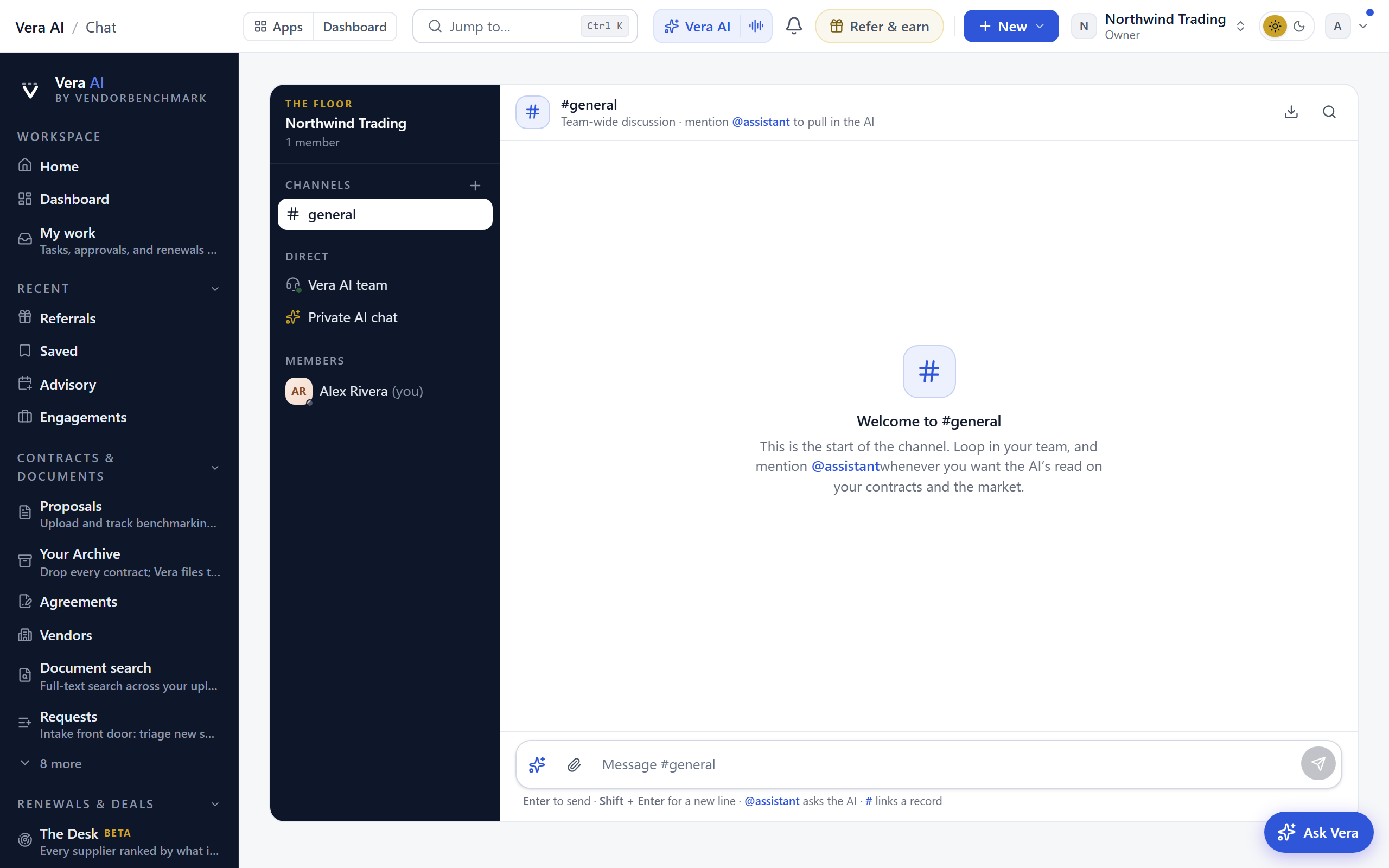
On the screen
- Messages and calendar: the chat is screen 1 of Messages and calendar. The numbered steps above it open Mail, the live call, File Share, Search, Vera and the watched answers. The masthead counts what is unread, the channels waiting, the deal channels, your direct messages, the support line's state and who is online, and moves as messages arrive. Search messages is its one action.
- Channels — team-wide conversations; #general is always there, and anyone can add more.
- Vera AI team — the private support thread; only you and our team see it.
- @assistant — mention the assistant in any channel to get an AI answer grounded in your portfolio, visible to the whole team.
- # links a record — type # in a channel and pick a proposal, renewal, deal, or vendor; the reference renders as the record itself with its live status, the record's timeline notes where it was discussed, and its watchers hear about it. DMs stay out of this; they are private.
- Deal channels — a channel opened from a negotiation's Deal channel button is bound to that record: the header links back to it, and the deal's activity streams in as quiet centered lines between the conversation.
- Escalations — hover any channel message for two carries: File as a task puts it on the Tasks runway deep-linked back to the message, and Promote to a Board decision shelves it on the Board, quoted with its author and a source link.
- Details — on a wide screen, a column to the right of the conversation: the number of messages and people, when the channel opened and when it last had a message; who has posted and how often, with a dot for who is online; the records the conversation links; the files dropped in it; and, in a channel, the Board's newest posts with a link to open the Board. The conversation figures read what you have loaded.
- Shortcuts — under Members in the channel list: what @assistant, #, File as a task, Promote to the Board and Shift + Enter do.
- A new channel — before its first message, the conversation shows three steps: loop in your team, ask @assistant, and link a record with #.
- Transcript export — owners see a download control in the channel header that exports the full channel as a plain-text transcript for retention or legal review. Every export is recorded in the audit log.
How to use it
- Message your team in a channel, or start a new one for a specific deal.
- Ask the AI with @assistant when you want an answer the whole channel can see.
- Message the Vera AI team thread to reach our analysts directly.
Related: Vera AI · Advisory · Support
Support chat
A chat with a person on the VendorBenchmark team, from whatever screen you are on. It opens as a panel at the bottom right and stays with you as you move between screens, so a conversation never has to start again. Every message is saved to your organization's support history.
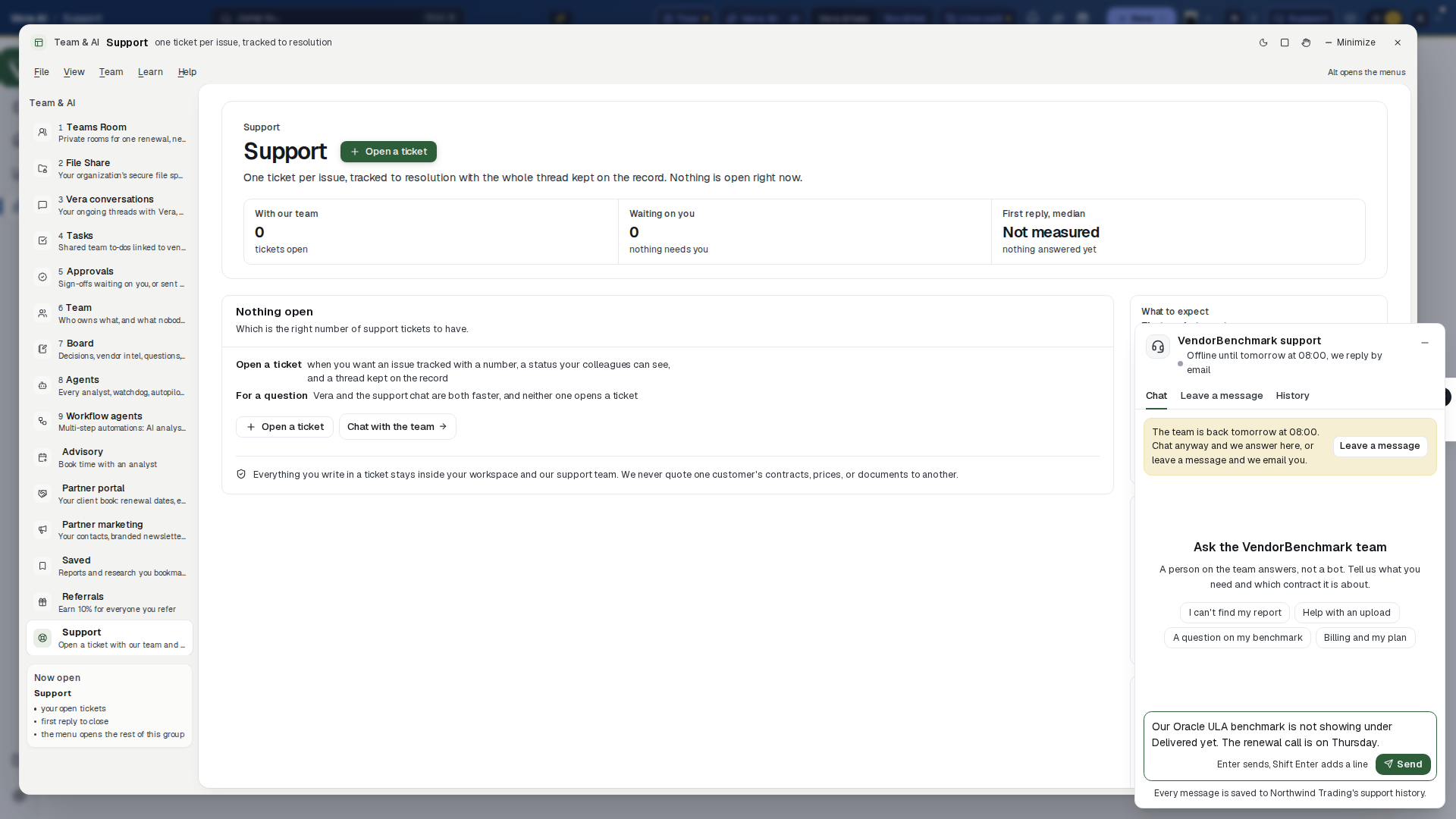
On the screen
- Team online or offline — under the title. In team hours it says how soon a person usually replies; out of hours it says when the team is back and that the reply comes by email. The hours are the ones our team keeps, normally Monday to Friday, 08:00 to 18:00 Stockholm time, and the panel always shows the current ones.
- Chat — your conversation. Your lines sit on the right, the team's on the left with the name of the person who wrote them. Replies arrive live; you do not need to refresh.
- Attach — under the message box (since 2 November 2026): add up to five files to a message, PDF, Word, Excel, PNG or JPG, up to 10 MB each. You can also paste a screenshot straight into the box or drop a file on it. Each file shows as a chip while it uploads; press its cross to take it off before you send. Files on a sent message show under it, and a press opens one.
- Leave a message — ask to be contacted instead of chatting: your name, work email, a topic, your message, and whether we should Email me or Call me (with a phone number and the best time). Sending gives you a reference such as REQ-1042.
- History — your earlier chats with their status (With our team, Waiting on you, Resolved) and every message you have left, with its reference. Start a new conversation opens a fresh chat.
- The count on Support — the number of team replies that arrived while the panel was closed.
How to use it
- Press Support in the top bar, write your question, and press Send (Enter sends, Shift Enter adds a line). The team sees which screen you started from, so say which contract or report you mean. To show the team what you see, paste a screenshot into the box or press Attach.
- Keep working. A reply arrives in the panel, raises the count on Support while the panel is closed, and also reaches you as a notification and an email.
- Out of hours, or when a call would be quicker, open Leave a message, choose how we should reach you, and send. Keep the reference.
- Write in a resolved conversation to reopen it, or press Start a new conversation under History for a new question.
Tips
- A chat is a support ticket underneath: it appears in the Support list with its number, so a colleague can see it and it can be followed to resolution like any ticket.
- Every message you send, every ticket you open or reply to and every message you leave reaches our team by email as well as in the support console, so it is seen even when nobody is watching the console.
- For a question about the platform or your own figures, Vera answers straight away; the chat reaches a person.
Related: Support · Notifications
Support
Since August 2026 it opens in its own window with its own menu: the page list inside names the rest of Team & AI, so you move between them without going back out, and the entry you are standing on is marked. Escape puts the window down on the tab strip.
Support tickets: one tracked case per issue, with a number, a status, and the full thread kept on the record. Chat stays the fast lane for quick questions; a ticket is for anything you want followed to resolution, and everyone in your organization sees the same list.
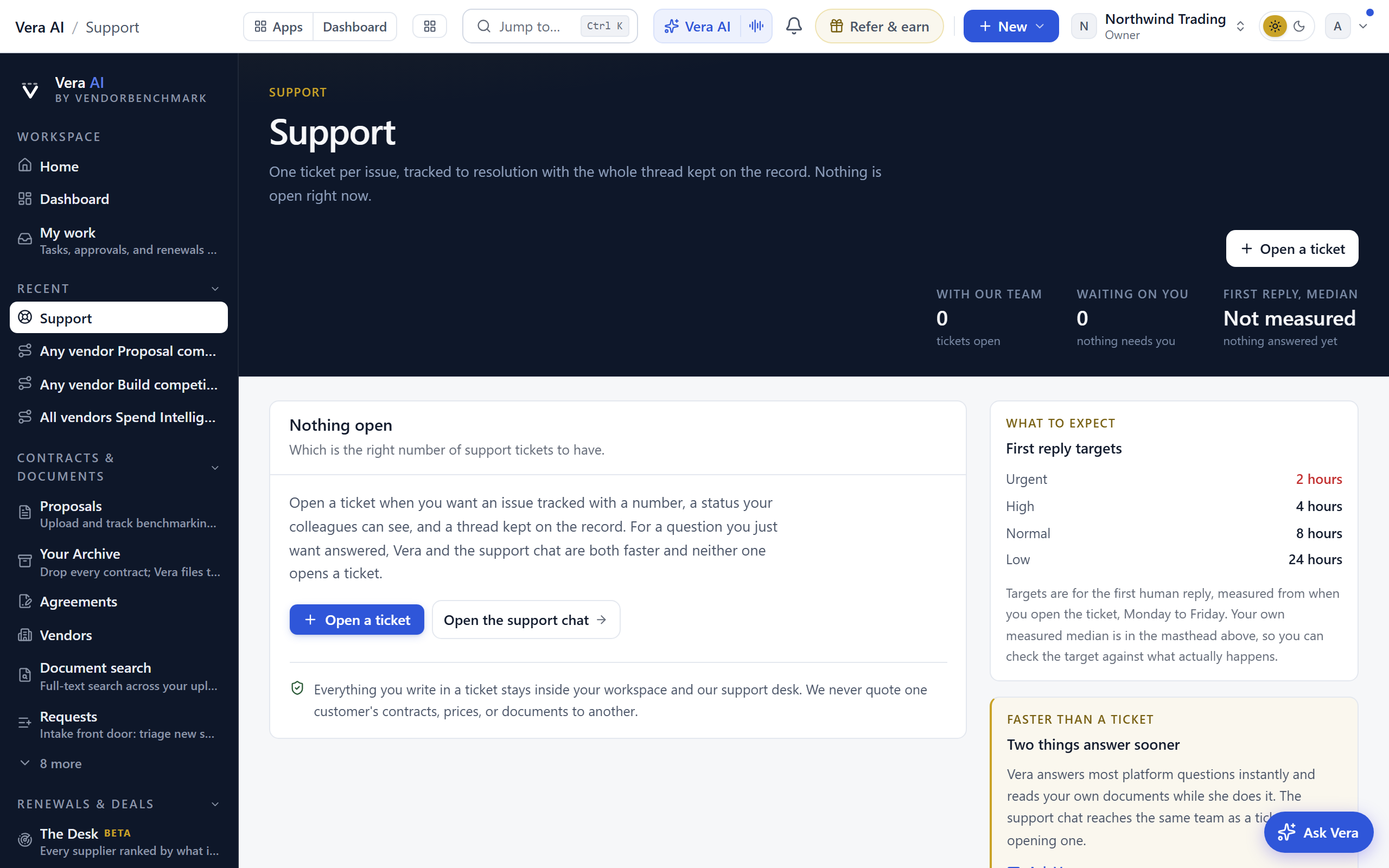
On the screen
- The seven screens — Tasks, Approvals, Team, Agents, AI agents, Workflows and Support are one app: the tabs across the top open each screen, and since 30 September 2026 one compact row under them names the screen in navy on a gold bar, gives its main figures in one quiet line, and carries Simple or Advanced, Summary and the screen's own buttons at the right.
- Summary and Simple — press Summary (or I) to open a thin strip under the row with the screen's sentence, every figure with the line under it, and the date line; press it again to fold it. Simple (or V) keeps what you act on and hides the rest: the Moves, the what ifs, the side panels, the watch shelf and, on Support, the settled tickets. Advanced is the default and shows everything; your choice is saved to your account and follows you to every device.
- Moves — the row under the head in Advanced: the next steps for this screen, the first on a gold bar. Each one opens the record, the view or the screen it names.
- Next reply target — at the top of the right column while a ticket waits for a first reply: the countdown to the soonest target, with the ticket it belongs to.
- Vitals — how many tickets are with our team, how many are waiting on a reply from your side, and your workspace's own median time to a first reply, measured from the tickets we have actually answered rather than promised.
- Open a ticket — the head row's action, opening as a dialog: subject, category, priority, and what happened, with Attach for up to five files or a pasted screenshot (since 2 November 2026); one issue per ticket. Picking a priority states the first reply target that comes with it, so the commitment is visible before you send.
- First reply targets — stated on the right in full in Advanced: two hours for urgent, four for high, eight for normal, twenty four for low, measured from when you open the ticket, Monday to Friday. Your measured median sits under Summary in the head row so you can check the target against what actually happens.
- Open — under its own band with the in flight and past target counts: every ticket still in flight, most urgent first, each carrying its own clock. A ticket nobody has replied to yet shows how long it has been waiting against its target, and one that has run past that target is marked with a red edge and red text. An answered ticket shows how long the first reply took, against the same target.
- Status — Open is with our team, Waiting on you means we replied and need something from you, Resolved means we believe it is fixed and asks you to confirm, Closed is done.
- Settled — closed tickets stay readable with the thread and the resolution intact.
- Ticket thread — the full conversation on one page, under the same house head as the Support screen with the ticket's subject as its title: status, priority, when it was opened, the first reply and the message count in one row, Reply at the right, and Moves to reply, all tickets and the help center. Our replies carry a blue edge, and replying always hands the ticket back to our team. A reply can carry files too: press Attach or paste a screenshot, and the files on any message open with a press.
- Faster than a ticket — on the right, it names the two things that answer sooner: Vera, who answers most platform questions immediately and reads your own documents while she does it, and Chat with the team, which opens the support chat with a person on our team. A chat is kept as a ticket too, marked Chat in the list.
How to use it
- Press Open a ticket on the head row, give it a one-line subject, pick a category and priority, and describe what happened. The dialog states the first reply target for the priority you chose.
- Watch for the reply: it lands as a notification (and an email doorbell), and the ticket flips to Waiting on you when we need something from you.
- When the ticket turns Resolved, confirm with Confirm resolved & close, or reply to reopen it if the issue is not gone.
- A closed ticket can always be reopened; the thread continues where it left off.
Related: Support chat · Chat · Notifications
Notifications
Two surfaces share the bell. The bell opens the triage inbox for everything that happened while you were away: notifications (delivered reports, notice windows opening, replies, and mentions), watchtower changes, and money-critical signals, filtered to what needs you. The full page at /notifications is Market news: the complete record of every alert, printed as one timeline. Money items are flagged calmly on both, never alarmist.
The bell's inbox
- The number on the bell — counts your unread signals plus unread team chat.
- Team chat row — pinned at the top of the inbox, with your unread chat count; it opens Chat.
- Needs decision filter — narrows the inbox to the items actually waiting on a decision, so signals you only need to be aware of upload away.
- Per-signal mute — mute any signal kind you do not want to keep hearing about, without turning off its whole category. A mute silences that kind on the bell, push, and email together; muted kinds still print on the full market news, and you can unmute from the inbox's Muted list or under Settings › Notifications.
- Mark all read — settles the inbox, and a link at its foot opens the full market news.
Market news (/notifications)
- The window — since 6 October 2026 Market news opens in one window with Help, What's new and Referrals, on the frame every app shares (the title bar with the menus, Share and the window controls; the sidebar with Find an app, Home, Vera AI, the four pages under Workspace and Settings and the user manual under Related; the keys along the status bar). The four pages run along the top as numbered tabs (1 to 4).
- The head — one row of facts: unread, needing attention, this week, and everything on the thread.
- The ticker — across the top, your unread count, one verdict sentence on the week, a 14 day pulse of arrivals per day, and Mark all read.
- The timeline — every alert grouped by day on one threaded timeline, each entry carrying the color of its subject (renewals, savings, AI or workflow) and its kind. Urgent unread items carry a gold left edge and a Needs attention mark.
- Reading — opening an entry marks it read and takes you to the record it is about; read entries settle to a single archived line, so the page stays a record without shouting.
- When the news is quiet — with fewer than ten entries, the timeline is followed by your latest contracts with their status and annual value, and the renewals coming up with the days out, the notice date and the annual value, in US dollars, then What prints here in four short facts. Under them, Vendors on file lists your largest vendors by the annual value their contracts state: the contracts on file, each vendor's share of that stated spend and its next renewal date. Each row opens the vendor.
How to use it
- Triage from the bell: scan the unread items, switch to Needs decision to see only what is waiting on you, and mute the kinds you have handled.
- Open the full market news when you want the complete history, day by day.
- Click through any item to the record behind it to act on it.
Next: Chapter 06 · Settings & account
Was this page helpful?
Thank you. Your note goes straight to the team that writes this manual.