Microsoft 365 is bought per user, and people change faster than licenses do. They leave, stop using the features their tier was bought for, sit on a heavier license than their work needs, and keep the seat.
Microsoft 365 Optimizer is the part of Vera AI by VendorBenchmark that reads a tenant and finds those seats. It works from the tenant's own records: who is assigned what, whether sign in is blocked, when each person last signed in, and the day each person last used Exchange, OneDrive, SharePoint and Teams. Here is how it reads, the seven rules it runs, and what comes back to you.
Two ways in, both read only
Connect Microsoft 365 reads the tenant through the workspace's connection, read only, through Microsoft Graph. A workspace owner sets the connection up once in Settings, Integrations; until then the step says so.
Or upload the admin center exports: Active users, which is required, the 90 day usage report, which is recommended, and the Licenses export, which is optional. Each file sorts itself into its slot by its columns, so the order does not matter. The files are read in your browser, and the user list is kept on your workspace.
The usage report matters more than it looks. Rules that rest on feature use need it; without it they count nobody, and the finding says so rather than guessing.
The seven rules
The rules run on every user. Each finding comes back with its users, the savings a year, the evidence, a confidence and the action, and the findings are ranked by savings.
- E5 features not used. No E5 only feature used in 90 days: move the person to E3.
- No activity. No sign in and no app use: reclaim the license.
- Frontline staff on E3. Frontline staff on a full E3 license: move them to F3.
- Disabled accounts. Licenses still assigned to accounts that can no longer sign in: remove them.
- E7 without Copilot. E7 carries E5, Copilot, the Entra Suite and Agent 365 in one price; this rule reads the E7 seats against Copilot use.
- Copilot not used. Copilot seats held by people who do not use them: reassign them.
- Duplicate licenses. A second base license on the same person: remove it.
Each saving lands on the agreement date that allows it. A reclaimed base license goes to a new starter at once and comes off the count at the renewal; add ons and Copilot come off at the anniversary. Right click any figure, chart mark or row for The data behind it: how it is worked out, the rule, the breakdowns and every row, saved as CSV.
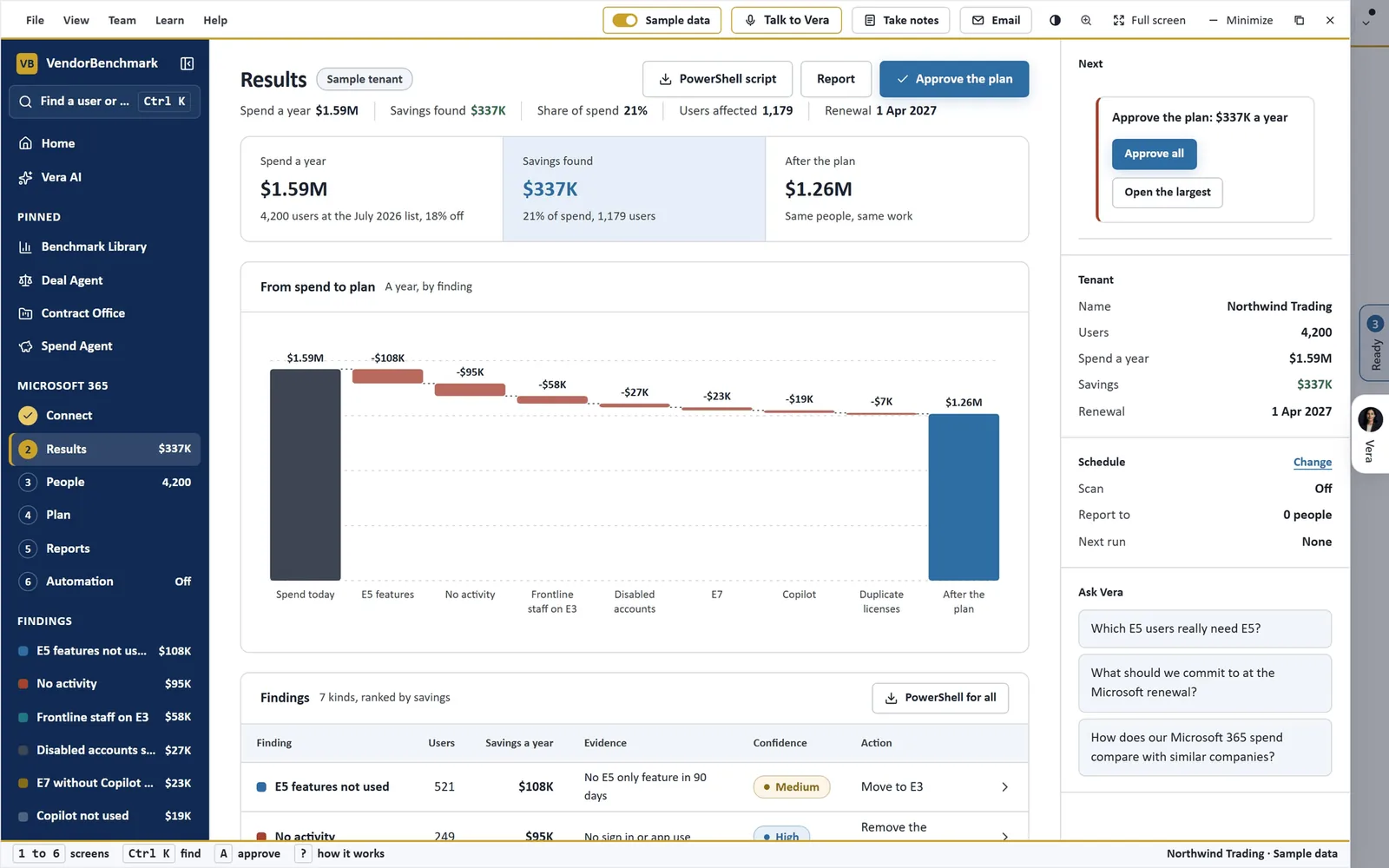
From spend to plan. Results on a sample tenant of 4,200 users: what it pays a year, the savings walked finding by finding from today's spend to the plan, and the findings with users, savings, evidence, confidence and the action for each.
What comes back, and who presses
Results is the dashboard: what you pay, what is shelfware and what the plan saves, with Approve on each move. A move opens its record beside the page, with who is in it, what it saves and the steps.
Plan holds the levers: the inactivity days, the price list and the discount; E3, E5 or E7 capability by capability; Copilot, who is ready and which seats are shelfware; and scenarios side by side. What to buy sets four ways to buy next to each other and marks the lowest. Renewal shows your discount, the range comparable agreements get and where yours ranks, with the notice date, the best month and a drafted email to Microsoft, measured or direct.
Reports turns the same figures into a report for the CFO, the CIO, IT or Procurement, with Word, PDF and Excel downloads. Schedule emails it every week or month to the recipients you name, Send now emails your figures and never a sample's, and an API carries your workspace keys and webhooks. That is the weekly scan by email: the report arrives on schedule, and nobody has to remember to run it.
The agent finds the seats. Your admin runs the change.
A lighter path that stays in your browser
For one usage export and a quick answer, the M365 optimization tool runs entirely in your browser: the parsing, the inactivity analysis and the playbook all happen on the page, and nothing is stored on our servers. It finds inactive accounts, right sizes E7 through E1 and Copilot, and returns the savings plan with a per user reassignment list.
Drag the inactivity threshold anywhere from 14 to 180 days and every figure recomputes in place. Freeze two scenarios to compare them, send the optimized seat counts into the Microsoft EA renewal playbook, or share a 30 day read only readout that carries aggregates only, never user names.
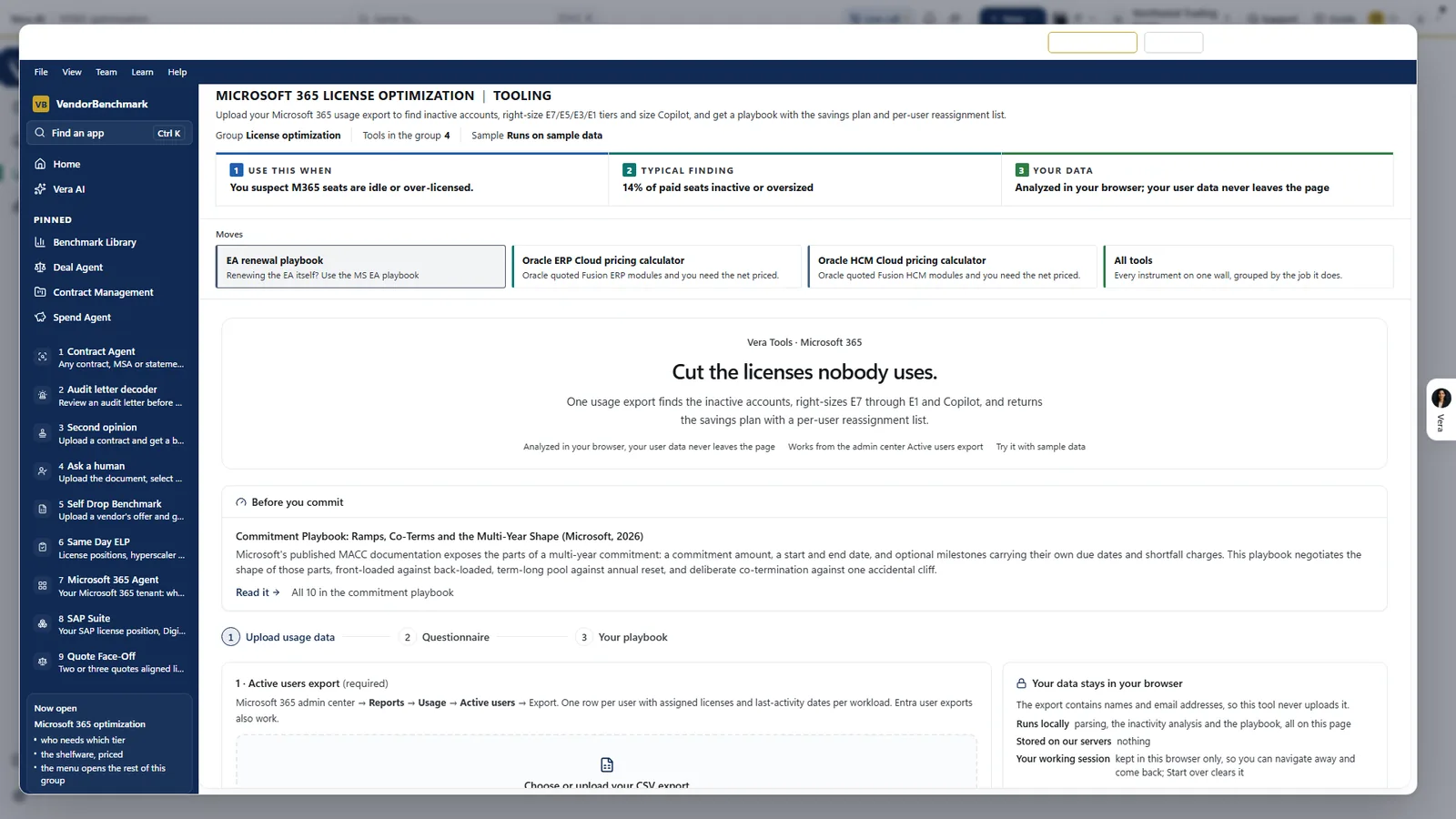
Analyzed in your browser. The M365 optimization tool works from the admin center Active users export and keeps it on the page: the parsing, the inactivity analysis and the playbook run locally, and nothing is stored on our servers.
Where it sits in agentless discovery
Microsoft 365 Optimizer covers the seats no scanner can see. In the agentless discovery guide it sits beside three others.
- Salesforce Optimizer takes the same read only approach to the Salesforce org, with seven rules of its own.
- Software Discovery reads what is installed on every machine, with two read only scanners.
- The weekly position sends a report per publisher with nobody running it.
The Microsoft 365 Optimizer page has the app. We wrote earlier about pricing the Copilot add on at renewal with usage evidence. For a Microsoft position checked by two analysts, with a bill of materials and the suite decision by group of users, Same Day ELP is the other path.
What to do first
- Open a sample tenant. Turn Sample data on and read Results before anything is connected.
- Connect or upload. Ask an owner to connect Microsoft 365 in Settings, Integrations, or add the Active users export and the 90 day usage report and press Run the analysis.
- Open the biggest finding. Read who is in it and the evidence, then Approve the moves you accept.
- Schedule the report. On Reports, pick the audience, set the email weekly or monthly and add the recipients.
Questions buyers ask
Does Microsoft 365 Optimizer change our tenant?
No. Nothing is written to the tenant. The PowerShell script is a list of license changes for your admin to read and run.
What does it need to read?
Either the workspace's read only Microsoft 365 connection through Microsoft Graph, or the admin center exports: Active users is required, the 90 day usage report is recommended and the Licenses export is optional.
What are the seven rules?
E5 features not used, no activity, frontline staff on E3, disabled accounts, E7 without Copilot, Copilot not used and duplicate licenses. Each finding carries its users, savings a year, evidence, confidence and action.
Can it run every week without anyone?
Yes. On Reports, Schedule emails the report every week or month to the recipients you name, built from your figures and never a sample's.
Where does the user list go?
Exports are read in your browser and the user list is kept on your workspace. In the lighter M365 optimization tool, nothing is stored on our servers at all.